Lavasoft Web Companion is a Windows app sold as browser protection, and yes, most people should remove it because Microsoft Defender classifies it as a potentially unwanted application (PUA).
This guide explains what Web Companion does, why security vendors flag it, how to uninstall it, and how to undo the browser changes it leaves behind.
How to disable Lavasoft's Web Companion
Disabling Web Companion in its own settings leaves the program on your PC. Uninstalling it is the complete fix, and it takes about a minute in Windows 11 or Windows 10.
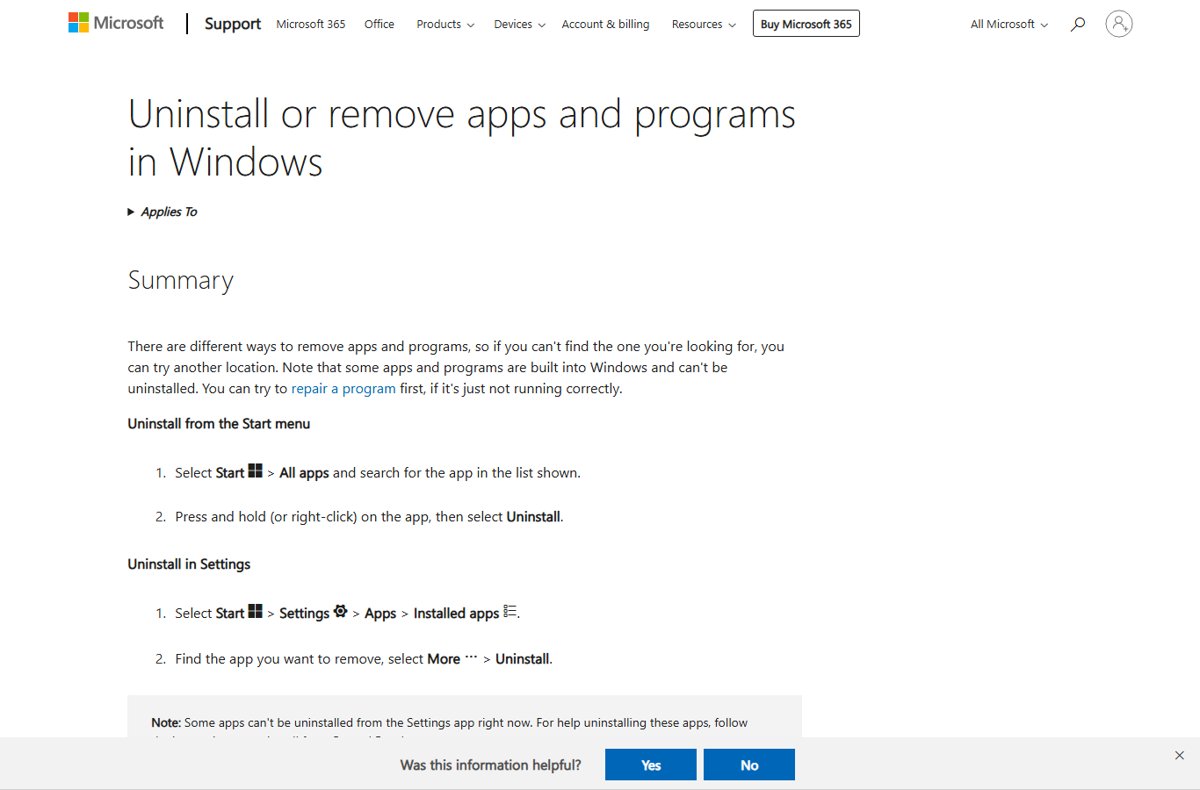
- Select Start > Settings > Apps > Installed apps. On Windows 10, select Apps > Apps & features.
- Type
Web Companionin the search box above the app list. - Select More (the three dots) next to Web Companion, then select Uninstall.
- Confirm with Uninstall and follow the uninstaller to the end.
- Restart the PC.
- Run a full Microsoft Defender scan to catch any leftover files, as shown further down.
If Web Companion arrived bundled with other free software you did not want, remove that program from the same list at the same time.
What is Lavasoft Web Companion?
Lavasoft, the company behind the Ad-Aware antivirus line, launched Web Companion in 2014 as a replacement for its Ad-Aware Security Toolbar. It runs as a standalone Windows program rather than a browser extension.
| Question | Answer |
|---|---|
| Who created it | Lavasoft, maker of Ad-Aware; it is also searched for as Adaware Web Companion |
| When it first appeared | Lavasoft released it as a beta in 2014; Microsoft added a second Defender detection for it in August 2023 |
| What it targets | Windows PCs, and the homepage and default search settings of the browsers installed on them |
| What it claims to do | Warn you before you open malicious websites and block dangerous URLs |
| What else it does | Manages your browser's homepage and default search provider |
| Where it runs | As a background program with an icon in the system tray, next to the clock |
| Distribution method | Bundled inside the installer of another free program |
| How Microsoft classifies it | Potentially unwanted application: PUA:Win32/WebCompanion and PUA:MSIL/WebCompanion |
Modern browsers and Microsoft Defender SmartScreen already block malicious sites, so its one claimed benefit is duplicated on any up-to-date PC.
Controversies surrounding Lavasoft Web Companion
The main complaint is not that Web Companion steals data. It is the way it installs and the browser settings it changes, which is why two major security vendors flag it.
| Concern | What the security vendors say |
|---|---|
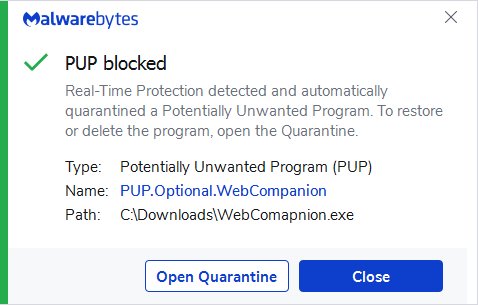
| Suspicious installation pattern | Malwarebytes says users usually install it bundled with other software, often without realising it |
| Search engine changes | Malwarebytes detects it as PUP.Optional.WebCompanion because its installer changes the default search engine |
| Security marketing | Malwarebytes notes it is advertised as anti-malware protection while it changes browser settings |
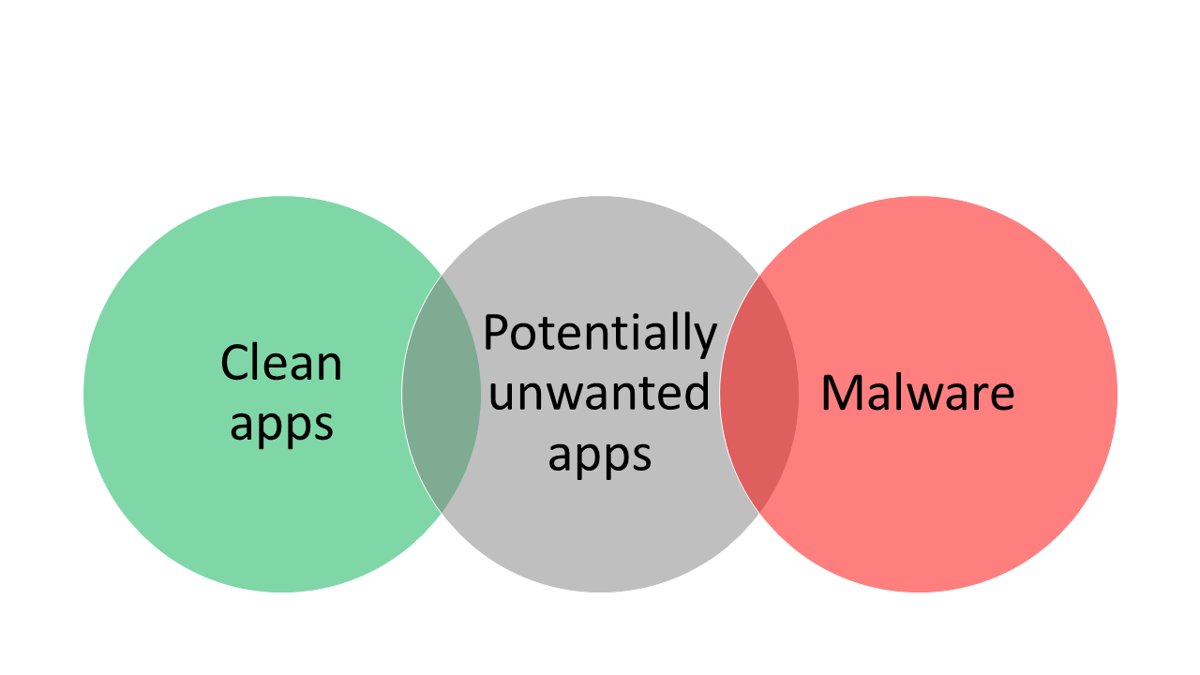
| PUA classification | Microsoft Defender Antivirus detects and removes PUA:Win32/WebCompanion and PUA:MSIL/WebCompanion |
| Reported effects | Microsoft lists slow performance, added or modified files, changed desktop settings, freezing and reduced storage for these detections |
Microsoft's PUA categories include bundling software, advertising software and software with a poor industry reputation among security vendors. A PUA is not malware in Microsoft's terms, but it does things most users would not choose.
For a technical analysis of each detection, Microsoft's malware encyclopedia entries for PUA:Win32/WebCompanion and PUA:MSIL/WebCompanion list the behaviour above and the removal actions Defender takes.
Should Web Companion be removed or kept?
| Your situation | What to do | Why |
|---|---|---|
| You never chose to install it | Uninstall it | It arrived bundled and is flagged as a PUA |
| Your search engine or homepage changed on its own | Uninstall it, then reset your browser settings | Uninstalling does not always put old browser settings back |
| Microsoft Defender shows a PUA:Win32/WebCompanion alert | Choose Remove and select Start actions | The app is only blocked, not removed, until you act |
| You installed it on purpose for URL blocking | Keep Microsoft Defender and SmartScreen on instead | Edge and Windows Security already block malicious sites and PUA downloads |
Uninstall Web Companion from Control Panel
Use Control Panel if Web Companion does not appear in Settings, or if the Settings uninstall does nothing.
- Type
Control Panelin search on the taskbar and select it from the results. - Select Programs > Programs and Features.
- Right-click Web Companion and select Uninstall or Uninstall/Change.
- Follow the directions on the screen until the uninstaller finishes.
- Restart the PC.
The same steps remove other bundled extras; the cleanup is the same as when you uninstall AVG Web TuneUp or similar browser helpers.
Remove Web Companion with a Microsoft Defender full scan
A Microsoft Defender full scan finds Web Companion files the uninstaller left behind. Update the definitions first so the scan uses the latest detections.
- Open Windows Security and select Virus & threat protection.
- Select Protection updates > Check for updates and wait for the update to finish.
- Go back and select Scan options.
- Select Full scan, then Scan now.
- When the scan reports a PUA, select it, choose Remove and select Start actions.
- If it keeps coming back, select Microsoft Defender Antivirus (offline scan) in Scan options; the PC restarts and scans before Windows loads.
Until you choose an action, a detected PUA is only blocked, not removed, and later scans keep reporting it. Save your work before an offline scan because it restarts the PC.
Identify the PUP by the detection name your antivirus shows: Microsoft Defender reports PUA:Win32/WebCompanion or PUA:MSIL/WebCompanion, and Malwarebytes reports PUP.Optional.WebCompanion. Don't make the problem worse by installing a third-party cleaner to remove it, because Windows Security already detects and removes it.
Best antivirus for removing Adaware Web Companion
Windows already includes the scanners that remove Web Companion. This quick summary shows which one to use and when.
| Scanner | What it is | Use it when |
|---|---|---|
| Microsoft Defender Antivirus | Built into Windows 11 and Windows 10; detects and removes PUA:Win32/WebCompanion and PUA:MSIL/WebCompanion | First choice: run a Full scan after uninstalling the app |
| Microsoft Defender Antivirus (offline scan) | The same engine, run from a restart before Windows loads | Files come back or cannot be removed while Windows is running |
| Microsoft Safety Scanner | A free, portable Microsoft scan tool that only scans when you start it and expires 10 days after download | You want a second opinion from Microsoft; download a fresh copy before each scan |
| Malwarebytes | Third-party security app that detects the installer as PUP.Optional.WebCompanion | It is already installed on the PC; there is no need to add it just for Web Companion |
Safety Scanner does not replace real-time protection, so keep Microsoft Defender Antivirus on. Delete the Safety Scanner file (msert.exe by default) when you finish; its detailed log is saved at %SYSTEMROOT%\debug\msert.log.
Reset browser settings after removing Web Companion
Web Companion manages the homepage and search provider, so check each browser after the uninstall. A reset keeps your favourites, history and saved passwords.
- In Microsoft Edge, type
edge://settings/resetin the address bar and select Restore settings to their default values and confirm. - Expect Edge to restore the startup page, new tab page, search engine and pinned tabs, disable extensions and clear cookies.
- In Google Chrome, select More > Settings > Reset settings > Restore settings to their original defaults > Reset settings.
- Expect Chrome to reset the default search engine, homepage, new tab page, pinned tabs, content settings, cookies and extensions.
- Turn back on any extension you trust and set your preferred search engine again.
Block Web Companion and other potentially unwanted apps
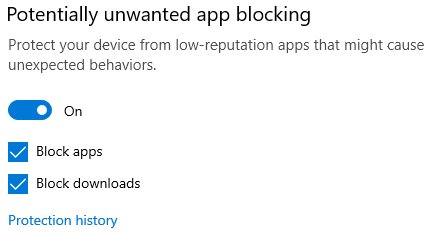
Potentially unwanted app blocking is off by default in Windows Security. Turning it on stops bundled programs like Web Companion from installing again and keeps your device from getting re-infected through another free program's installer. It is the main prevention strategy, alongside downloading software only from the vendor's site or Microsoft Store.
- Open Windows Security and select App & browser control.
- Select Reputation-based protection settings.
- Turn on Potentially unwanted app blocking.
- Tick both Block apps and Block downloads.
- In Microsoft Edge, go to Settings > Privacy, search, and services and, under Security, turn on Block potentially unwanted apps.
Block apps catches PUA you already downloaded with any browser. Block downloads checks files while they download, but only in Microsoft Edge.
Check Web Companion is completely removed
- Open Settings > Apps > Installed apps, search for
Web Companionand confirm nothing is listed. - Look in the system tray next to the clock and confirm the Web Companion icon is gone after a restart.
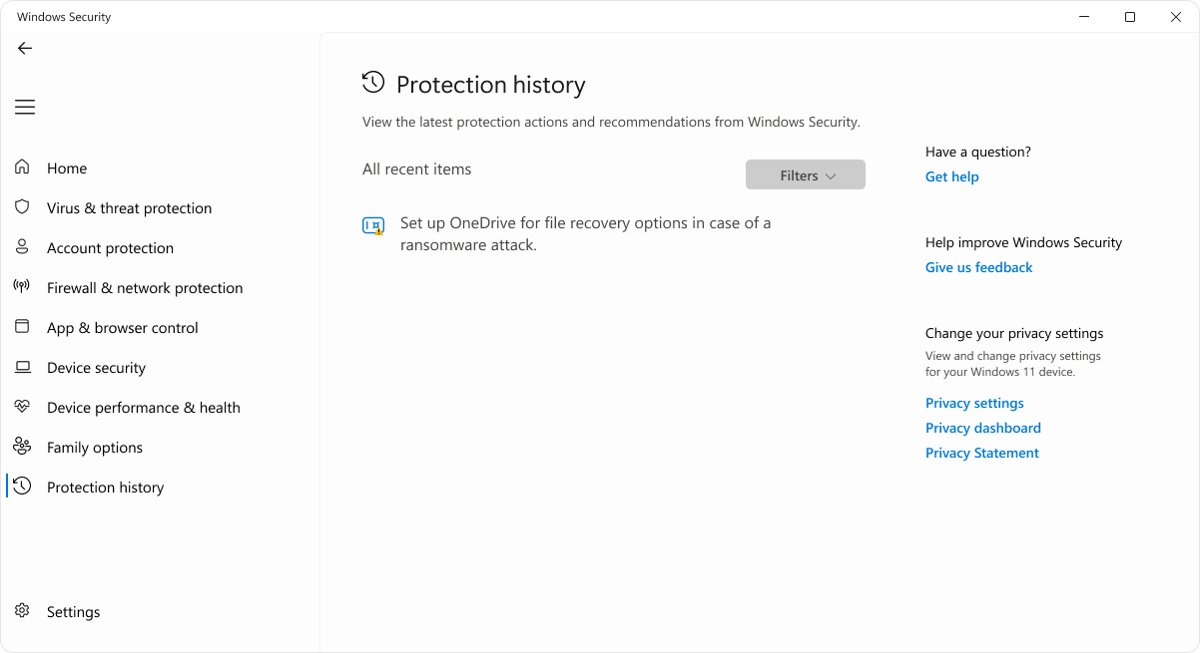
- Open Windows Security > Protection history and confirm the WebCompanion detection shows as removed.
- Open a new tab in each browser and run a search to confirm your chosen search engine handles it.
Protection history keeps events for two weeks, and you need admin rights to see the details of each item.
Web Companion removal problems and fixes
Web Companion is not in the Installed apps list
Some programs only show in Control Panel, or only leftover files remain.
- Check Control Panel > Programs > Programs and Features for Web Companion.
- If it is not there either, run a Microsoft Defender full scan to find leftover files.
- Check the system tray; if the icon is still there, restart and look again.
Web Companion will not uninstall or shows an error
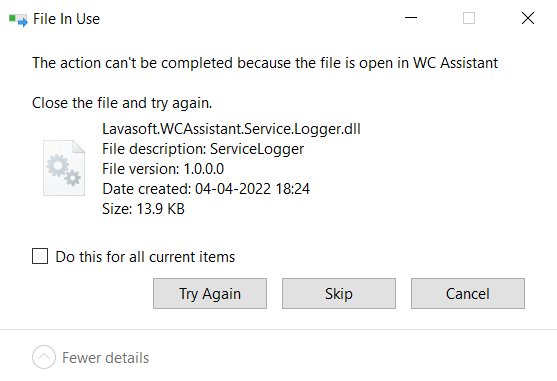
A damaged installer entry or a running process can block the uninstall.
- Restart the PC and try the uninstall again before opening other apps.
- Run Microsoft's Program Install and Uninstall troubleshooter if the error repeats.
- Run a Microsoft Defender full scan, then a Microsoft Defender Antivirus (offline scan) if files remain.
Web Companion keeps coming back
Another bundled program reinstalls it, or you install it again from the same source.
- Uninstall any free program that was installed on the same day as Web Companion.
- Turn on Potentially unwanted app blocking with both Block apps and Block downloads.
- Download software only from the vendor's site or Microsoft Store and read each installer screen before selecting Next.
The search engine is still changed after uninstalling
The uninstaller does not always restore the browser's search and homepage settings.
- Reset Edge at
edge://settings/resetand Chrome from Settings > Reset settings. - Set your preferred search engine again in each browser.
- Remove any extension you do not recognise before turning the others back on.
Lavasoft Web Companion FAQ
What is Web Companion on my computer?
Web Companion is a Lavasoft program, from the Ad-Aware antivirus line, that claims to block malicious websites and manages your browser's homepage and search provider. It usually arrives bundled with another free program, which is why many people find it without remembering installing it.
What does Web Companion do?
It runs in the background, shows a system tray icon, warns about websites it considers dangerous, and can change the default search engine and homepage in your browsers. Malwarebytes flags it specifically because its installer changes the default search engine.
Is Web Companion a virus or malware?
No. It is not classed as a virus. Microsoft Defender classifies it as a potentially unwanted application, PUA:Win32/WebCompanion and PUA:MSIL/WebCompanion, and Malwarebytes calls it a potentially unwanted program. Both detect and remove it.
Is Web Companion safe or legit?
It is a real product from a real company, but Microsoft and Malwarebytes both flag it as unwanted because of bundled installs and search changes. Microsoft Defender and SmartScreen already provide the website protection it advertises, so it adds risk without adding protection.
How do I remove or delete Web Companion?
Go to Settings > Apps > Installed apps, search for Web Companion, select More > Uninstall, and restart. Then run a Microsoft Defender full scan and reset your browser settings to undo any search or homepage changes.
Why can't I uninstall Web Companion?
A running Web Companion process or a damaged uninstall entry can block removal. Restart the PC and uninstall it before opening other apps, try Control Panel > Programs and Features, and run a Microsoft Defender full or offline scan if files remain.
How do I know if Web Companion is on my PC?
Look for Web Companion in Settings > Apps > Installed apps and for its icon in the system tray. A search engine or homepage that changed on its own, or a PUA:Win32/WebCompanion alert in Windows Security, are the other signs.
Is Lavasoft Web Companion still active?
Copies still turn up on PCs, and Microsoft Defender still detects and removes it; Microsoft added the PUA:MSIL/WebCompanion detection in August 2023. Keep potentially unwanted app blocking on so a bundled installer cannot add it again.
Where is Web Companion?
Web Companion appears in Settings > Apps > Installed apps and in Control Panel > Programs and Features, and it shows an icon in the system tray next to the clock while it runs. Remove it from either app list.
How do I close Web Companion?
Closing its system tray icon only stops the program for the current session. To stop it for good, uninstall it from Settings > Apps > Installed apps.
How do I delete the Web Companion installer?
Delete the installer file from the folder you saved it to, usually Downloads, then empty the Recycle Bin. If Microsoft Defender flags the installer, choose Remove in Protection history so it is deleted from the PC.
Bottom line: should you remove Lavasoft Web Companion?
Remove Web Companion, run a Microsoft Defender full scan, and reset your browser settings. Microsoft and Malwarebytes both classify it as unwanted software, it usually arrives bundled, and the website protection it offers is already built into Windows Security and Microsoft Edge.