iCloud Private Relay usually switches itself off because Limit IP Address Tracking was turned off for the Wi-Fi or cellular network you are on, a setting that syncs to every device on your Apple Account, so turning it back on for that network stops it happening.
This guide covers every documented reason Private Relay turns off, how to turn it back on for each network and device, how to turn it off properly, and fixes for the unavailable and can't connect messages.
Why does Private Relay keep turning off?
Private Relay is controlled in two places: the main switch in iCloud settings and a per-network Limit IP Address Tracking switch. If either is off for the network you join, Private Relay stops for that connection.
- Open Settings, tap your name, tap iCloud, then tap Private Relay and make sure Private Relay is on.
- Go back to Settings and tap Wi-Fi.
- Tap the More Info button next to the network you are connected to.
- Turn on Limit IP Address Tracking.
- Open Settings > Cellular, select your line under SIMs (or tap Cellular Data Options on iOS 18 or earlier) and turn on Limit IP Address Tracking.
- Repeat the Wi-Fi step for each network you use regularly, such as home, work and a car hotspot.
Turning Limit IP Address Tracking off for a Wi-Fi network on one iPhone turns Private Relay off for that network on all devices signed in to the same Apple Account. That is why it can seem to switch off on its own.

Reasons iCloud Private Relay turns itself off
| Cause | What happens | Fix |
|---|---|---|
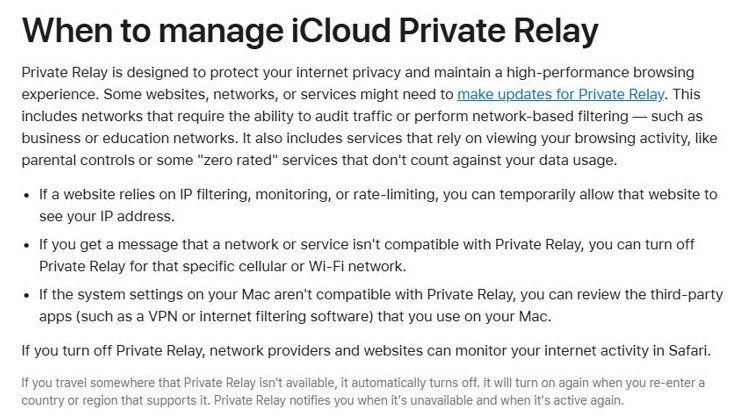
| Limit IP Address Tracking off for a network | Private Relay stops on that Wi-Fi or cellular network, on all your devices | Turn Limit IP Address Tracking back on for that network |
| A network says it is not compatible | You are prompted to turn Private Relay off for that network, common on business and school Wi-Fi | Accept it for that network only, or ask the network admin |
| Turn Off Until Tomorrow was used | Private Relay is paused and comes back on within 24 hours | Turn it back on manually if you want it sooner |
| Travel to a country or region without Private Relay | It turns off automatically and notifies you | It turns on again when you return to a supported region |
| Each device has its own main switch | Private Relay is on one device but off on another | Turn it on separately on each device |
| Mac VPN or filtering software | "Some of your system settings prevent Private Relay from working" | Turn off or uninstall the third-party app |
| No active iCloud+ subscription | The Private Relay option is missing or unavailable | Private Relay is part of iCloud+, so the subscription must be active |
Turn on iCloud Private Relay on iPhone
Private Relay has to be turned on separately on every iPhone, iPad and Mac where you want it.
- Open Settings and tap your name at the top.
- Tap iCloud.
- Tap Private Relay.
- Tap Private Relay to turn it on.

Turn Private Relay back on for a Wi-Fi network
Use this when Private Relay works on cellular but stops whenever you join a particular Wi-Fi network.
- Open Settings and tap Wi-Fi.
- Tap the More Info button next to the Wi-Fi network.
- Scroll down to Limit IP Address Tracking.
- Turn on Limit IP Address Tracking.
- Open Safari and load a page to confirm browsing still works on that network.
In earlier versions of iOS, iPadOS and macOS, this per-network switch was called iCloud Private Relay instead of Limit IP Address Tracking.
Turn on Limit IP Address Tracking for cellular data
The cellular setting belongs to each physical SIM or eSIM, so a Dual SIM iPhone needs it set on both lines.
- Open Settings and tap Cellular.
- Under SIMs, select your line. On iOS 18 or earlier with one line, tap Cellular Data Options.
- Turn on Limit IP Address Tracking.
- Go back and repeat for your second line if you have one.
Private Relay on Mac: system settings prevent Private Relay from working
On a Mac, a VPN or internet filtering app can install extensions or packet filter rules that stop Private Relay. macOS shows an alert in System Settings when this happens.
- Choose Apple menu > System Settings.
- Click Network in the sidebar and click the network service you use, such as Wi-Fi.
- Click Details next to the network you are connected to.
- Turn on Limit IP address tracking.
- If the alert about system settings remains, turn off or uninstall the VPN or filtering app.
If you cannot turn the third-party app off, you might not be able to use Private Relay on that Mac.
How to turn off Private Relay
Pick the narrowest option that solves your problem, so the rest of your browsing stays protected.
- For one website in Safari on iPhone, tap the Page Menu button and tap Show IP Address.
- For one network, open its Wi-Fi or Cellular settings and turn off Limit IP Address Tracking.
- For a short break, open Settings > your name > iCloud > Private Relay, tap Private Relay and choose Turn Off Until Tomorrow.
- To turn it off completely on that device, choose Turn Off Private Relay instead.
Turn Off Until Tomorrow is not permanent: Private Relay turns back on by itself within 24 hours.
Change the Private Relay IP address location
If you turned Private Relay off because sites showed the wrong region, change the location setting instead.
- Open Settings, tap your name, then tap iCloud.
- Tap Private Relay, then tap IP Address Location.
- Choose Maintain General Location to see local content in Safari.
- Choose Use Country and Time Zone to make your location less precise.
Should Private Relay be on or off?
Keep Private Relay on, and turn it off only for the specific website or network that does not work with it. With Private Relay off, network providers and websites can monitor your activity in Safari. Per-site and per-network exceptions fix compatibility problems without removing that protection everywhere.
Private Relay not working or unavailable: fixes
Private Relay keeps turning off on one Wi-Fi network
Limit IP Address Tracking is off for that network, possibly changed on another of your devices.
- Open Settings > Wi-Fi and tap More Info next to the network.
- Turn on Limit IP Address Tracking.
- If the network shows a compatibility message again, it filters or audits traffic, so leave Private Relay off for that network.
Private Relay is temporarily unavailable
You are in a country or region where Private Relay is not offered, or the current network does not support it.
- Wait until you return to a supported country or region; Private Relay notifies you when it is active again.
- Switch to a different Wi-Fi network or to cellular data to test the network.
- Check that Limit IP Address Tracking is on for the network you are using.
Can't connect to Private Relay
The network blocks Private Relay, or a VPN or filtering app on a Mac conflicts with it.
- Join another network and load a page in Safari.
- On a Mac, turn off the VPN or filtering software and check System Settings > Network again.
- Update the device to the latest iOS, iPadOS or macOS.
A website will not load with Private Relay on
The site relies on IP filtering, monitoring or rate-limiting.
- In Safari on iPhone or iPad, tap the Page Menu button, then tap Show IP Address.
- On a Mac, choose View > Reload and Show IP Address in Safari.
- Update to the latest software if the option is missing.
Private Relay is on but speed tests look slow
Private Relay uses a single secure connection, while speed tests open several at once.
- Compare normal browsing speed rather than the speed test figure.
- Run the speed test with Private Relay paused if you need a raw throughput number, then turn it back on.
iCloud Private Relay turning off FAQ
Why does Private Relay keep turning off?
Private Relay stops when Limit IP Address Tracking is off for the Wi-Fi or cellular network you are on. That per-network setting syncs across all devices on your Apple Account. It also pauses after Turn Off Until Tomorrow and in regions where it is not offered.
How do I disable Private Relay?
Open Settings, tap your name, tap iCloud, then Private Relay. Tap Private Relay and choose Turn Off Until Tomorrow for a pause, or Turn Off Private Relay to switch it off on that device.
How do I turn off Private Relay for one Wi-Fi network?
Open Settings, tap Wi-Fi, tap the More Info button next to the network and turn off Limit IP Address Tracking. The change applies to that network on all your devices that use Private Relay.
Should Private Relay be on or off?
On, for most people. Without it, network providers and websites can monitor your Safari activity. Turn it off only for a website or network that does not work with it, using Show IP Address or Limit IP Address Tracking.
Why is Private Relay unavailable?
Private Relay is not available in every country or region, and it turns off automatically when you travel to one of them. It also needs an active iCloud+ subscription. Some business and school networks are not compatible with it.
Does Private Relay work outside Safari?
Private Relay is designed to protect your browsing in Safari. It hides your IP address from websites and encrypts DNS so your network provider cannot see which sites you visit there.
Does Private Relay slow down the internet?
Apple says browsing stays fast, but speed tests may show lower numbers because Private Relay uses one secure connection while speed tests open several simultaneous connections.
Does Turn Off Until Tomorrow turn Private Relay back on by itself?
Yes. Within 24 hours of choosing Turn Off Until Tomorrow, Private Relay turns back on automatically. You can turn it back on sooner from Settings, your name, iCloud, Private Relay.
Is Private Relay the same as a VPN?
No. Private Relay sends Safari traffic through two separate relays, one run by Apple and one by a third-party content provider, so no single party sees both who you are and which sites you visit. On a Mac, some VPN apps conflict with it.