Office Professional Plus 2019 installs only through the Office Deployment Tool, driven by a configuration.xml file that names the product ProPlus2019Volume and the channel PerpetualVL2019.
This guide covers the online install straight from the Office CDN, the offline install from a saved copy, silent deployment, activation, verification and the errors that stop setup.
The fastest way to install Office Professional Plus 2019
The Office Deployment Tool (ODT) replaced the Windows Installer route used up to Office 2016. Volume licensed Office 2019 uses Click-to-Run.
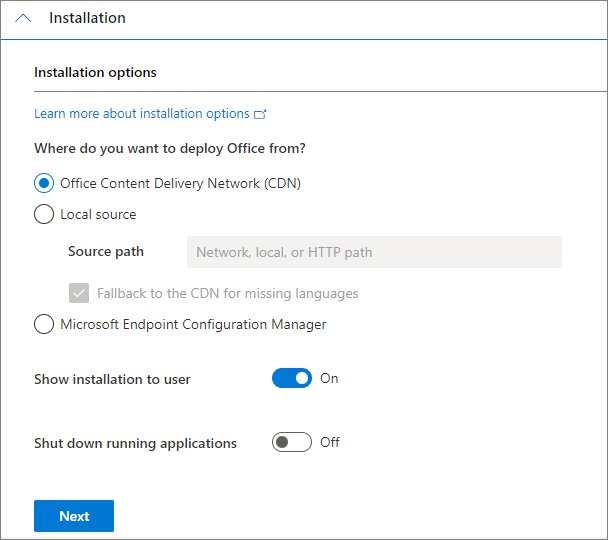
Leave SourcePath out of the file and setup streams the payload from the Office Content Delivery Network, which needs the least administrative effort.
- Download the Office Deployment Tool from the Microsoft Download Center and run the self-extracting .exe to unpack setup.exe and a sample configuration.xml.
- Open configuration.xml in Notepad and set the
<Add>element toOfficeClientEdition="64"andChannel="PerpetualVL2019". - Set the product line to
<Product ID="ProPlus2019Volume">with<Language ID="en-us" />inside it. - Save the file next to setup.exe, with no
SourcePathattribute. - Press Start, type
cmd, right-click Command Prompt and select Run as administrator. - Type
cdfollowed by the folder holding setup.exe and press Enter. - Run
setup /configure configuration.xmland wait for the command prompt to return.
Office 2019 installs to the system drive, normally C:, and that location cannot be changed.
What Office Professional Plus 2019 Includes
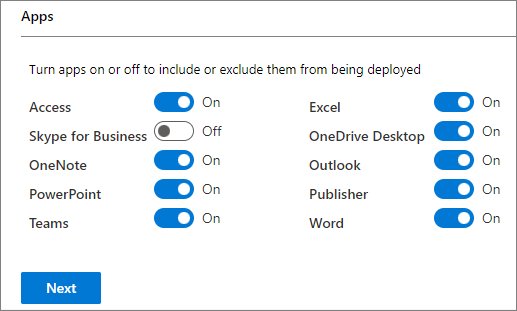
Every app in the suite installs by default. Each one can be dropped with an <ExcludeApp> line in configuration.xml.
| App | In the suite | Notes |
|---|---|---|
| Word, Excel, PowerPoint, Outlook | Yes | Exclude any of them with <ExcludeApp ID="Publisher" /> style lines |
| Access | Yes | Windows only; Access is not available for macOS |
| Publisher | Yes | Windows only; Publisher is no longer supported after October 2026 |
| OneNote | Yes | There is no separate 2019 release, but a version of OneNote installs with Office 2019 |
| Skype for Business | Yes | Skype for Business Online itself was retired on July 31, 2021 |
| OneDrive | Yes | Installs alongside the suite; <ExcludeApp ID="OneDrive" /> removes it |
| Project and Visio | No | Licensed and installed separately as ProjectPro2019Volume or VisioPro2019Volume |
| SharePoint Designer, InfoPath | No | The last release of both products is 2013 |
Important 2026 Support and Compatibility Notes
Two dates decide whether a new Office 2019 deployment is sensible. Check them before building the configuration file.
| Item | Status | What it means |
|---|---|---|
| End of support | October 14, 2025 | Microsoft issues no further security patches, bug fixes or technical support |
| Microsoft 365 service connectivity | Ended October 10, 2023 | Connecting Outlook or Word 2019 to Exchange Online, SharePoint Online or OneDrive is unsupported |
| Supported client Windows | Windows 11 and Windows 10 | The system requirements page also lists Windows Server 2025, 2022 and 2019 |
| Windows 10 in S mode | Not supported | Volume licensed Office 2019 cannot be deployed there |
| Windows Defender Application Control | Not supported | Office 2019 volume builds are not supported with WDAC enforced |
| Update channel | PerpetualVL2019 | The only supported channel for Office Professional Plus 2019 and Office Standard 2019 |
| New features | None | Office 2019 received quality and security updates only, never new features |
| TLS | TLS 1.2 or later | TLS 1.0 and 1.1 stopped working against Microsoft 365 services on October 15, 2020 |
Before You Start: Requirements and Preparation
Pick the architecture before writing configuration.xml, because every Office product on one PC must share it.
Remove older Office suites first. The ODT can do it during the install with a single element.
| Requirement | Minimum | Notes |
|---|---|---|
| Processor | 1.6 GHz or faster, 2-core | 2 GHz or greater for Skype for Business |
| Memory | 4 GB RAM, or 2 GB for 32-bit | 64-bit is recommended on any PC with 4 GB or more |
| Disk space | 4 GB available | Must be on the system drive; the install path cannot be changed |
| Display | 1280 x 768 | Graphics acceleration needs DirectX 9 or later |
| .NET Framework | Version 3.5 | Some features also need 4.0, 4.5 or 4.6 |
| Rights | Local administrator | setup /configure has to run from an elevated command prompt |
| 32-bit or 64-bit | One architecture per PC | 32-bit and 64-bit Office cannot coexist, and the two builds download separately |
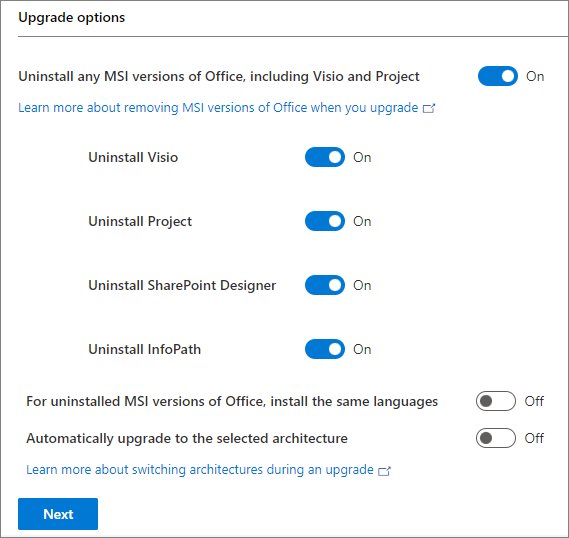
| Conflicting Office versions | Uninstall first | Add <RemoveMSI /> to configuration.xml to strip MSI-based Office, Visio or Project 2010, 2013 and 2016 |
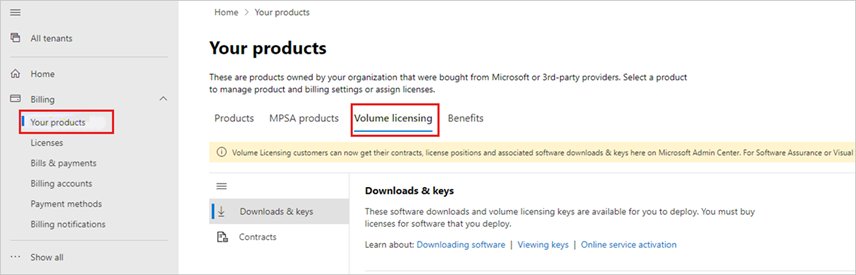
| Licence and key | Volume licence agreement | Collect the MAK or KMS key from Billing > Your products > Volume licensing > Download and keys |
| ODT version | Latest build | Older ODT builds fail on newer payloads; download it again rather than reusing an old copy |
Online, offline or network share: which route fits
| Your situation | Use this | Why |
|---|---|---|
| One PC with a good internet connection | ODT with no SourcePath | Setup streams from the Office CDN and there is nothing to stage |
| Target PC has no internet access | setup /download elsewhere, then setup /configure offline |
Once the files exist locally, no internet is needed to install, activate or use Office 2019 |
| Several PCs on one LAN | SourcePath pointing at a shared folder | One download serves every machine and saves bandwidth |
| No user interaction wanted | <Display Level="None" AcceptEULA="TRUE" /> |
Setup runs with no window and no licence prompt |
| Managed fleet | Microsoft Configuration Manager | The Office 365 Client Installation wizard writes the configuration.xml for you |
| Users work in several languages | <Product ID="ProofingTools"> |
Proofing tools packages are smaller than full language packs |
Method 1: Online Installation Through a Microsoft or Organization Portal
There is no full ISO for Office 2019 in the Microsoft 365 admin center. The portal supplies the keys and the Office Deployment Tool, and setup fetches the payload from the Office CDN.
- Sign in to the Microsoft 365 admin center and open Billing > Your products.
- Select the Volume licensing tab, then View downloads and keys. The VL Administrator or Product keys reader role is required.
- Copy the MAK or KMS key listed for Office Professional Plus 2019.
- Open the Office Customization Tool at config.office.com and select Create under Create a new configuration.
- Under Products and releases, set Architecture to 64-bit and select Office Professional Plus 2019. Leave the update channel as shown.
- Under Licensing and activation, choose Multiple Activation Key (MAK) or KMS Client Key, enter the key, and switch Autoactivate to On.
- Select Export, accept the licence terms, name the file configuration.xml, and move it next to setup.exe.
- Open an elevated command prompt in that folder and run
setup /configure configuration.xml.
With Autoactivate on, activation happens during setup. If it does not, open Word and select File > Account > Change Product Key, enter the key, then select Activate Office.
Method 2: Offline Installation Using the Office Deployment Tool
Two runs of setup.exe are involved. The first pulls the files down, the second installs them.
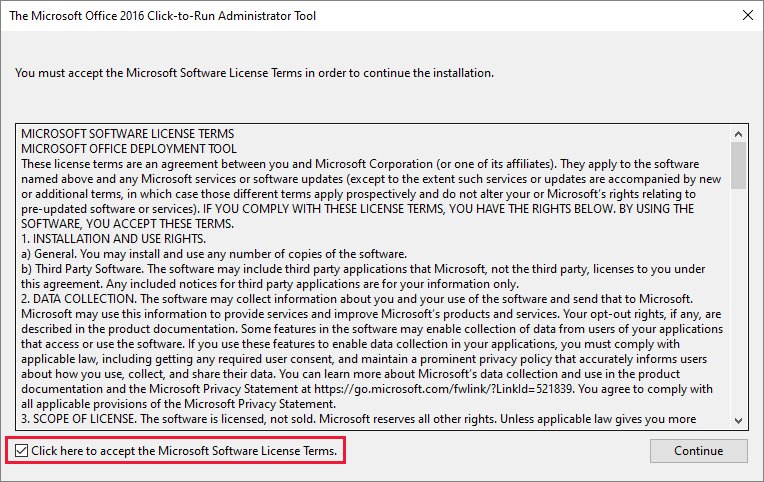
- Download the Office Deployment Tool, run the .exe, tick the licence terms box, select Continue, and extract the files into a new folder.
- Create configuration.xml in that folder with
SourcePathset to the folder or share that will hold the payload, plusOfficeClientEdition="64"andChannel="PerpetualVL2019". - Add
<Product ID="ProPlus2019Volume" PIDKEY="#####-#####-#####-#####-#####">with your MAK, and a<Language ID="en-us" />line inside it. - Add
<ExcludeApp ID="Publisher" />inside the<Product>element for each app to leave out. - Add extra
<Language ID="de-de" />lines for more interface languages, or a second<Product ID="ProofingTools">block for proofing tools only. - Open an elevated command prompt in that folder and run
setup /download configuration.xml. Nothing appears on screen until it finishes. - Check the SourcePath for an Office folder holding a Data subfolder and a version-numbered folder such as 16.0.10336.20044.
- Copy setup.exe, configuration.xml and the Office folder to the offline PC, then run
setup /configure configuration.xmlfrom an elevated command prompt there.
Silent and Automated Installation
Silence comes from the XML, not from a command-line switch. Two attributes on the <Display> element do the whole job.
setup /configure configuration.xmlRuns the install unattended when configuration.xml contains <Display Level="None" AcceptEULA="TRUE" />. Level None suppresses the setup interface, and AcceptEULA TRUE accepts the licence terms so no prompt appears. The account running it needs local administrator rights.
You should see: No setup window appears and the command prompt returns the line "Products configured successfully."
Microsoft Configuration Manager builds the same file for you: in the console open Software Library > Overview > Office 365 Client Management and run the Office 365 Client Installation wizard, which lists Office Professional Plus 2019 alongside Project and Visio.
Activation Options for Office Professional Plus 2019
Volume licensed Office 2019 activates the same way Office 2016 did, even though the installer changed.
| Method | How the key reaches the client | Best for |
|---|---|---|
| MAK activation | The PIDKEY attribute on the <Product> element in configuration.xml |
PCs with direct internet access; each activation counts against the key's allowance |
| MAK proxy activation | Volume Activation Management Tool (VAMT) 3.1 or later | Networks where clients cannot reach Microsoft activation services directly |
| KMS activation | The Generic Volume License Key NMMKJ-6RK4F-KMJVX-8D9MJ-6MWKP, installed by default | Domains with a KMS host on at least Windows Server 2012 or Windows 8.1 volume editions |
| Active Directory-Based Activation | The same KMS key, stored as an activation object in AD DS | Domain-joined PCs with no dedicated KMS host; each activation lasts up to 180 days |
| Manual activation | File > Account > Change Product Key | A single PC where automatic activation did not take |
A KMS host needs the Volume Activation Services role, the Office 2019 Volume License Pack, and port 1688 open through Windows Defender Firewall.
Active Directory-Based Activation uses the same keys but needs Domain Administrator and Enterprise Administrator credentials to set up the activation object.
How to Verify the Installation
Two checks matter: the right edition landed, and it is licensed rather than in a grace period.
- Open Word and select File > Account.
- Confirm Product Information names Microsoft Office Professional Plus 2019 and the line beneath it reads Product Activated.
- Press Start, type
cmd, right-click Command Prompt and select Run as administrator. - Run
cd "C:\Program Files\Microsoft Office\root\Office16", or the Program Files (x86) equivalent for 32-bit Office on 64-bit Windows. - Run
cscript ospp.vbs /dstatusand read the LICENSE STATUS line; —LICENSED— confirms activation. - Back in Word, select File > Account > Update Options > Update Now to prove the update path resolves.
A KMS-activated client that reports a grace period usually means the host has not yet reached its count. Run cscript ospp.vbs /dhistorykms to see whether a host answered at all.
Common Installation Problems and Fixes
“We found a problem” or setup closes immediately
Setup is not elevated, or another install, update or uninstall was already running.
- Look in the notification area for an Office install icon and let that job finish.
- Restart the PC before trying again.
- Press Start, type
cmd, right-click Command Prompt, select Run as administrator, and launch setup from that window. - Open the %temp% folder and read the newest Office setup log to see which step failed.
Office starts downloading during an offline install
SourcePath is missing or unreadable, so the ODT falls back to the Office CDN.
- Check that
SourcePathnames the folder that contains the Office folder, not the Office folder itself. - Confirm the account running setup can read that path.
- When running from a share, pass the full network path for both setup.exe and the .xml file on the command line.
- Re-run
setup /download configuration.xmlif the Data subfolder is missing or incomplete.
Error Code 30015, 30125, or 0-2031
A previous install, update or uninstall is still holding the installer, or files from the failed attempt are damaged.
- Check the notification area for an Office icon and wait for that task to end.
- Restart the PC before anything else; the repair below will not stick otherwise.
- Right-click Start and open Installed apps on Windows 11, or Apps and Features on Windows 10.
- Select the Office entry, choose Modify, then Online Repair > Repair.
- Run
setup /configure configuration.xmlagain from an elevated command prompt.
“This Product Cannot Be Installed on the Selected Update Channel”
Update channel is a computer-wide setting, and PerpetualVL2019 is the only channel Office Professional Plus 2019 supports.
- Open configuration.xml and set
Channel="PerpetualVL2019"on the<Add>element. - Confirm the Product ID reads ProPlus2019Volume rather than a retail or subscription ID.
- Give any Project 2019 or Visio 2019 entry in the same file that same channel.
- Remove Office products already on the PC that sit on a different channel, then run setup again.
Activation Fails
The client cannot reach a KMS host, or the wrong key type was installed.
- From the Office16 folder in an elevated command prompt, run
cscript ospp.vbs /dstatusall. - Run
cscript ospp.vbs /dhistorykmsto see whether any KMS host answered. - Name the host with
cscript ospp.vbs /sethst:kms.contoso.com, then trigger activation withcscript ospp.vbs /act. - Translate a reported code with
cscript ospp.vbs /ddescr:0xC004F042. - To switch to MAK, run
cscript ospp.vbs /inpkey:xxxxx-xxxxx-xxxxx-xxxxx-xxxxxfollowed bycscript ospp.vbs /act. - On the KMS host, run
cscript slmgr.vbs /dlv 70512334-47B4-44DB-A233-BE5EA33B914Cand check that Current count has reached 5.
Installing from a Network Share
One staged copy serves the whole site and removes repeat downloads from the Office CDN.
- Create a share such as \\server\share and give the installing accounts read access.
- Set
SourcePath="\\server\share"on the<Add>element in configuration.xml. - Run
setup /download configuration.xmlonce, from a machine that can reach the Office CDN. - Copy setup.exe and configuration.xml into the same share, beside the Office folder.
- On each client, open an elevated command prompt and run
\\server\share\setup.exe /configure \\server\share\configuration.xmlusing the full path for both files. - Add
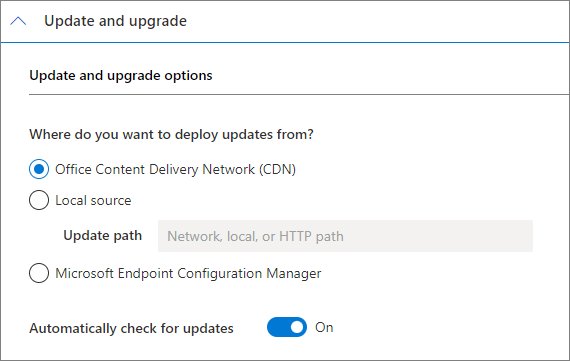
<Updates Enabled="TRUE" UpdatePath="\\server\updates" />to the file if clients should take their monthly updates from the network too.
Keeping clients on a network update path means staging every new build by hand. Updating straight from the Office CDN is the lower-maintenance option where bandwidth allows.
Keeping the Installation Source for Repairs
A saved source turns a rebuild into a two-minute job and removes any need to hunt for media later.
- Keep the Office folder that
setup /downloadcreated instead of deleting it after deployment. - Write down the version-numbered folder name, for example 16.0.10336.20044, so a specific build can be reinstalled.
- Re-run
setup /download configuration.xmlinto the same share after each monthly build; a download to a network location always fetches a full copy of the new version. - Set
VersionalongsideDownloadPathwhen pulling from a second local source, because DownloadPath requires an explicit version. - Point clients at that share with
UpdatePathso repairs, updates and rebuilds all read one copy.
Repairing Office Professional Plus 2019
Repair works on the whole suite, not on a single app. Quick Repair runs offline; Online Repair reinstalls.
- Close every Office app, including Outlook and Teams add-in hosts.
- Right-click Start and select Installed apps on Windows 11, or Apps and Features on Windows 10.
- Find Microsoft Office Professional Plus 2019, open its menu and select Modify.
- Select Quick Repair, then Repair, to replace damaged files without downloading anything.
- If the fault survives that, repeat and select Online Repair > Repair, which reinstalls the suite.
- Restart the PC and open Word to confirm the repair held.
Re-running setup /configure configuration.xml against the saved SourcePath reinstalls Office 2019 from the local copy, which is useful where Online Repair cannot reach the internet.
Security Advice for Using Office 2019 in 2026
Treat any Office Professional Plus 2019 install running in 2026 as a short-term bridge and plan the move to Microsoft 365 Apps or Office LTSC 2024. Office 2019 stopped receiving security patches, bug fixes and technical support on October 14, 2025, and support for connecting it to Microsoft 365 services such as Exchange Online and SharePoint Online ended two years earlier, on October 10, 2023.
Until that move happens, keep the suite on the newest PerpetualVL2019 build and manage macro behaviour through the Office administrative template files rather than per-user settings.
Take installation files only from the Office CDN through the Office Deployment Tool, or from the volume licensing pages of the Microsoft 365 admin center.
Frequently Asked Questions
Can Office Professional Plus 2019 be installed without an internet connection?
Yes. Run setup /download configuration.xml on a connected PC, copy the resulting Office folder to the target machine, then run setup /configure configuration.xml there. Once the files are downloaded, internet access is not needed to install, activate or use Office 2019.
Where is the Office 2019 ISO in the volume licensing catalogue?
There is none. The Microsoft 365 admin center carries no full ISO download for Office 2019, 2021 or 2024, and only Office Online Server ships as an ISO. The Office Deployment Tool pulls the payload from the Office CDN instead.
What is the Product ID for Office Professional Plus 2019?
ProPlus2019Volume is the Product ID to put in configuration.xml. Office Standard 2019 uses Standard2019Volume, Project uses ProjectPro2019Volume or ProjectStd2019Volume, and Visio uses VisioPro2019Volume or VisioStd2019Volume. Retail and subscription IDs will not install against the PerpetualVL2019 channel.
Which update channel does Office 2019 use?
PerpetualVL2019 is the only supported update channel for Office Professional Plus 2019 and Office Standard 2019. It is also the default for volume licensed Project 2019 and Visio 2019, although those two can run on other channels.
Is Office 2019 still supported?
No. Office 2019 reached end of support on October 14, 2025. Microsoft no longer supplies security patches, bug fixes or technical support for it, which is why a migration plan matters more than a fresh deployment.
Can Office 2019 sit on the same PC as Microsoft 365 Apps?
Not on mismatched channels. The update channel is a computer-wide setting, so a volume licensed Project 2019 or Visio 2019 installed beside Microsoft 365 Apps must use the same channel as Microsoft 365 Apps.
How do you install Office 2019 without Publisher?
Add <ExcludeApp ID="Publisher" /> inside the <Product> element of configuration.xml. Running setup in configure mode with that same element also removes Publisher from an installation that already has it.
Can the Office 2019 install location be changed?
No. Office 2019 always installs to the system drive, normally C:, and the path cannot be redirected to another drive or folder.
Does Office 2019 install on Windows 10 in S mode?
No. Volume licensed versions of Office 2019 are not supported on Windows 10 in S mode, and they are not supported with Windows Defender Application Control enforced either.
How many clients does KMS need before Office activates?
The current count on the KMS host must reach 5 before Office clients activate. The maximum current count is 10, which is double the threshold. Event ID 12290 in the KMS log records each client request.