When WhatsApp shows a red badge but nothing in Notification Centre on your iPhone, open Settings > Notifications > WhatsApp and select Notification Center under Alerts, because that one option controls whether WhatsApp alerts are kept there.
This guide covers that setting, WhatsApp's own notification switches, Scheduled Summary, Focus, muted chats and background refresh, plus fixes grouped by what you see.
How to show WhatsApp notifications in Notification Center on iPhone
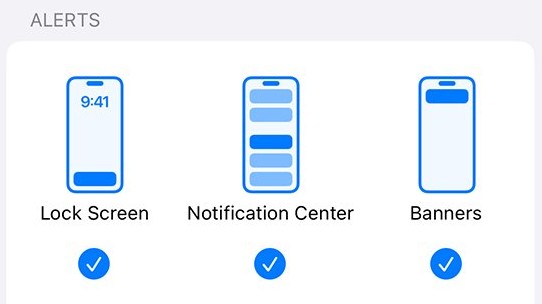
iOS lets each app send alerts to three places: the Lock Screen, Notification Center and banners. A badge on the app icon is a separate switch, so WhatsApp can show a red count while its alerts never reach Notification Center.
- Open the Settings app on your iPhone.
- Tap Notifications, then tap WhatsApp below Notification Style.
- Turn on Allow Notifications if it is off.
- Under Alerts, select Notification Center. Select Lock Screen and Banners too if you want alerts there.
- If you see Notification Delivery, choose Immediate Delivery.
- Leave Badges on if you want the red count on the WhatsApp icon.
- Ask someone to send you a WhatsApp message while WhatsApp is in the background, then swipe down from the top-left corner to check Notification Center.
Why WhatsApp shows a badge but no notification on iPhone
| What you see | Likely cause | Fix |
|---|---|---|
| Red badge, nothing in Notification Center | Notification Center is not selected under Alerts for WhatsApp | Select it in Settings > Notifications > WhatsApp |
| Alerts arrive in a batch at set times | WhatsApp is in Scheduled Summary | Remove WhatsApp from the summary or choose Immediate Delivery |
| No alerts during work or sleep hours | A Focus such as Do Not Disturb is silencing WhatsApp | Add WhatsApp to the Focus allowed apps |
| Unread count in one chat, but no alert | That chat or group is muted in WhatsApp | Tap Muted > Unmute on the chat |
| Nothing until you open WhatsApp | Push notifications are not reaching the phone | Turn on Background App Refresh and stop force-closing WhatsApp |
| No alerts after a settings change | WhatsApp's own Show notifications is off | Turn it on in WhatsApp Settings > Notifications |
WhatsApp notification settings on iPhone
WhatsApp has its own switches for message and group alerts. iPhone settings override them, so they only work once Allow Notifications is on in iOS Settings.
- Open WhatsApp and tap Settings or your profile picture.
- Tap Notifications.
- Turn on Show notifications under Message notifications.
- Turn on Show notifications under Group notifications.
- Tap Sound under each one and pick a tone other than None, then tap Save.
- Turn on Show preview if you want the message text in the alert.
In-app notifications only control alerts while you are using WhatsApp. They do not change what appears in Notification Center when the app is closed.
Reset WhatsApp notification settings on iPhone
A reset puts every WhatsApp notification option back to its default, which clears a stray setting you cannot find.
- Open WhatsApp and tap Settings.
- Tap Notifications.
- Scroll down and tap Reset notification settings.
- Tap Reset to confirm.
- Recheck Settings > Notifications > WhatsApp on the iPhone, because the reset does not change iOS settings.
Stop WhatsApp notifications being delayed on iPhone
WhatsApp says notifications can be delayed when the app is part of a notification summary. Summary items arrive at the times you set, not when the message lands.
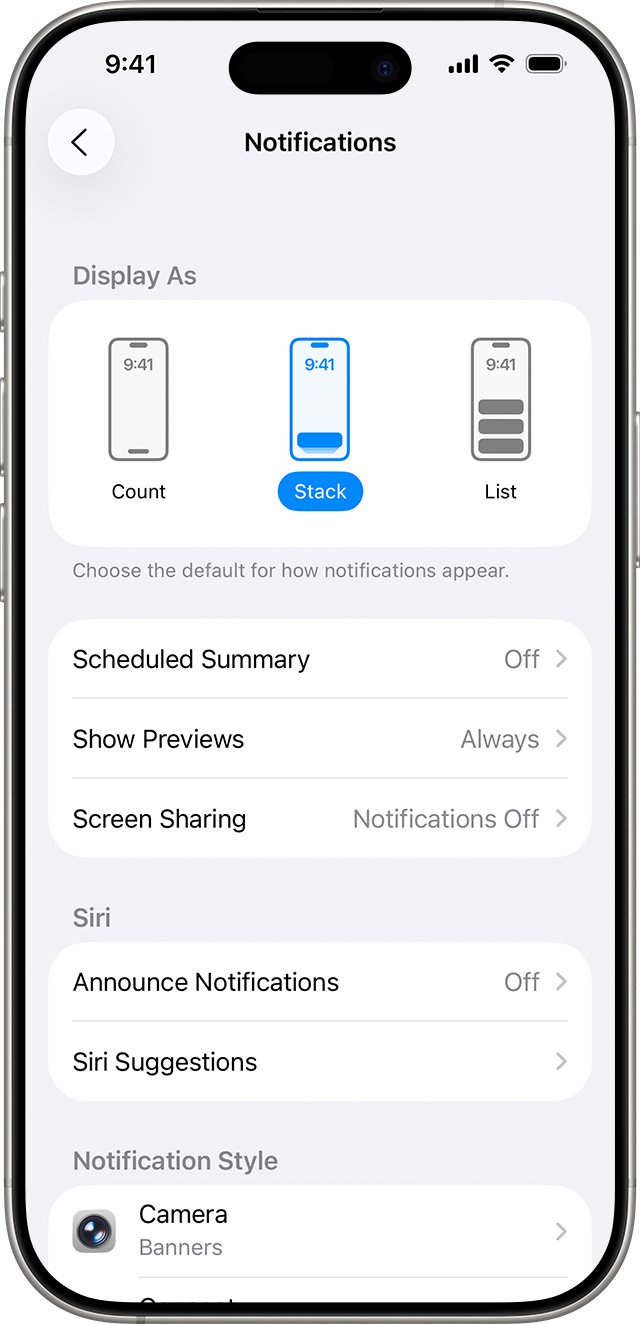
- Open Settings and tap Notifications.
- Tap Scheduled Summary.
- Tap A to Z to list the apps in the summary.
- Turn off WhatsApp.
- Go back to Notifications > WhatsApp and confirm Notification Delivery is set to Immediate Delivery.
Allow WhatsApp notifications in Focus on iPhone
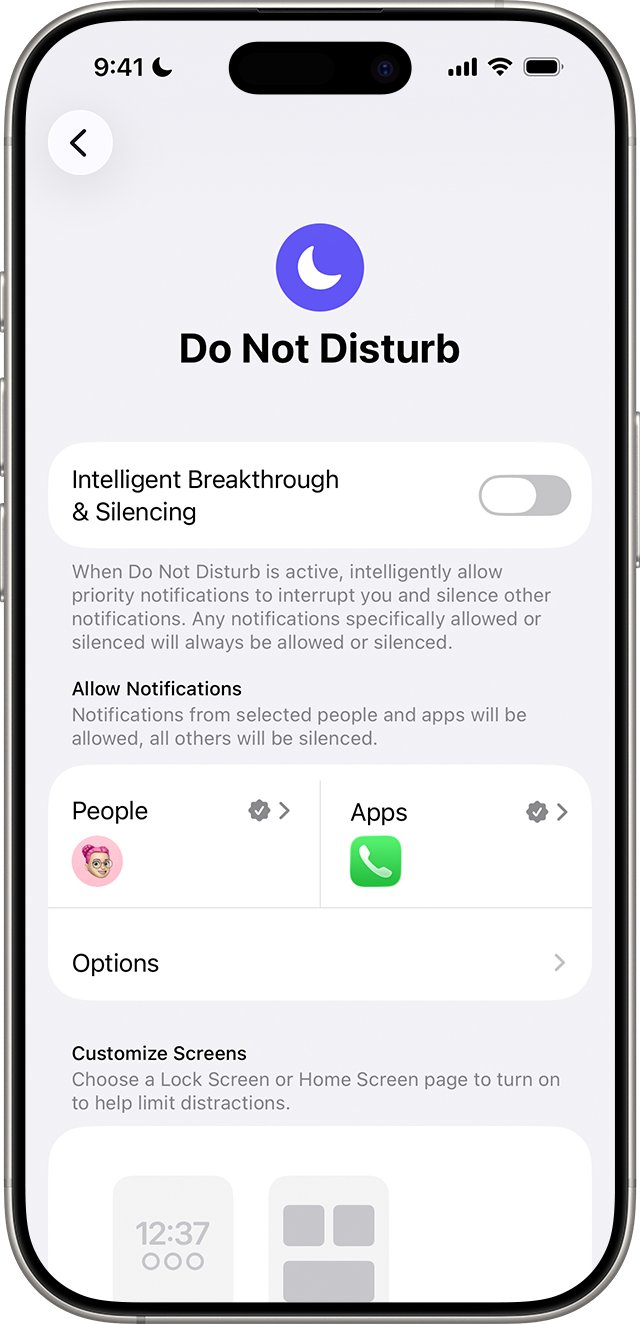
Focus modes, including Do Not Disturb and Sleep, delay or silence notifications from apps that are not on their allowed list.
- Open Settings and tap Focus.
- Tap Do Not Disturb, or the Focus you use.
- Tap Apps, then make sure Allow Notifications From is selected.
- Tap Add.
- Select WhatsApp and confirm.
- Repeat for any other Focus that turns on by schedule, such as Sleep.
If you also want to silence other notifications on iPhone, a Focus with WhatsApp allowed keeps only the alerts you want.
How to unmute a WhatsApp chat on iPhone
A muted chat still shows its unread count, but your iPhone does not alert you about new messages. That matches a red badge with no alert.
- Open WhatsApp and find the chat that shows an unread count but sent no alert.
- Open a muted individual chat and tap the contact's name.
- Tap Muted, then tap Unmute.
- For a group, open the group, tap its name, then tap Notifications.
- Turn off the mute under Messages, and set Notify for to All if you want every message.
- For a list, tap Settings or your profile picture, tap Lists, choose the list and remove its mute.
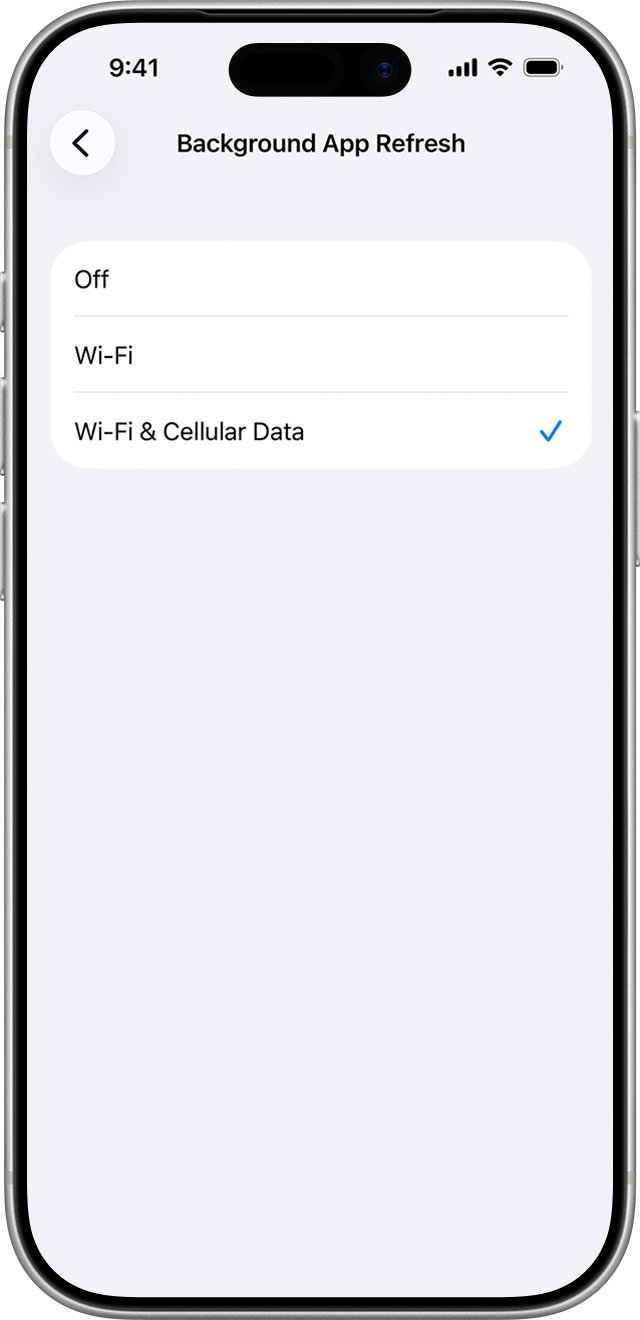
Turn on Background App Refresh for WhatsApp
WhatsApp lists restricted background data as a cause of missing notifications on iPhone. Swiping WhatsApp closed from the app switcher can also stop alerts until you open it again.
- Open Settings and tap General.
- Tap Background App Refresh.
- Make sure Background App Refresh is not turned off at the top.
- Turn on the switch next to WhatsApp.
- Open WhatsApp once, then leave it in the background instead of swiping it away.
How to open Notification Center on iPhone
Use a real message to test the fix, because older alerts you already cleared do not come back.
- Press the side button to lock the iPhone, or switch to another app so WhatsApp is in the background.
- Ask a contact to send you a WhatsApp message.
- On the Home Screen or in any app, swipe down from the top-left corner to open Notification Center.
- On the Lock Screen, swipe up from the middle of the screen instead.
- Scroll up to see older notifications, and tap a WhatsApp stack to expand it.
If the alert shows as a banner but is gone from Notification Center, check that you did not swipe it left and tap Clear.
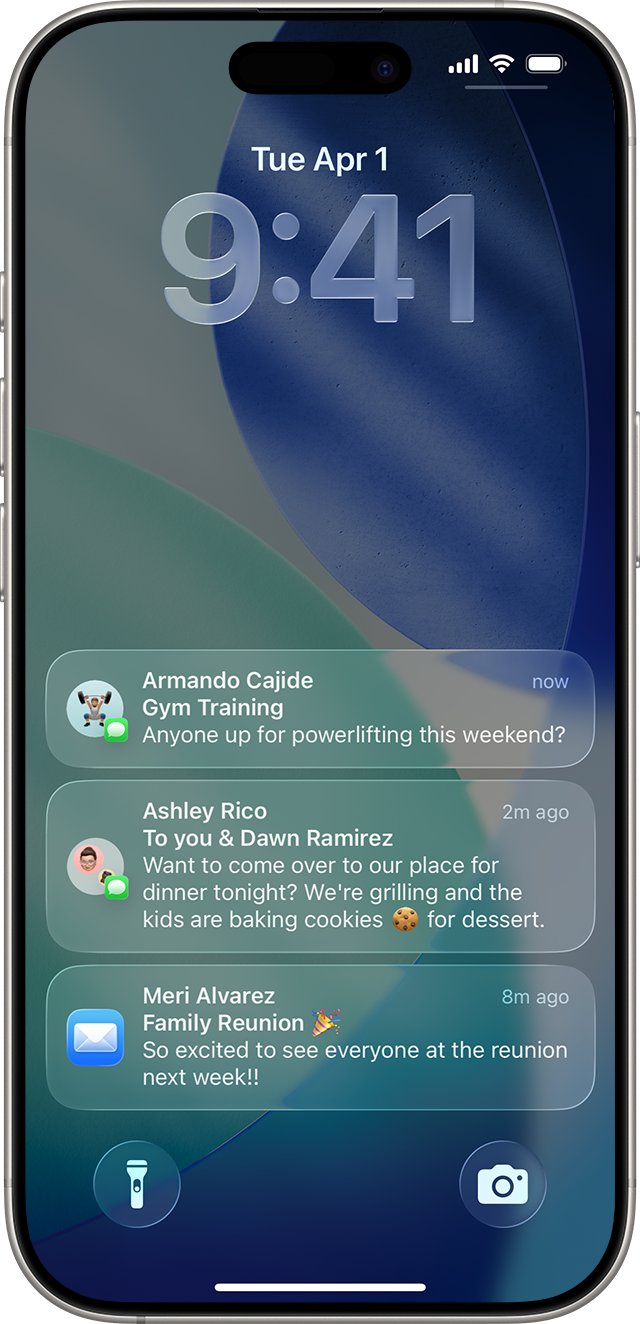
Show WhatsApp notifications in Notification Center on the Lock Screen
Notification Center can be blocked from the Lock Screen, so WhatsApp alerts look missing until you unlock the phone.
- Open Settings and tap Face ID & Passcode or Touch ID & Passcode.
- Enter your passcode.
- Scroll to Allow Access When Locked and turn on Notification Center.
- Go to Settings > Notifications > WhatsApp and tap Show Previews.
- Select Always to see message text while locked, or When Unlocked to hide it until you unlock.
When alerts vanish only while the phone is locked, fix notifications on a locked iPhone with the Lock Screen settings there.
WhatsApp push notifications vs in-app notifications
WhatsApp splits its alerts into types, and each type is controlled by different settings. Matching yours saves time.
| Type | When you see it | Controlled by |
|---|---|---|
| Push notifications | WhatsApp is closed or in the background; alerts appear on the Lock Screen, as banners and in Notification Center | iPhone notification permission, Background App Refresh, Focus, Scheduled Summary |
| In-app notifications | You are using WhatsApp; includes in-app banners, chat unread counts and the icon badge | WhatsApp Settings > Notifications > In-app notifications |
| Group notifications | Messages in group chats | Group notification switch in WhatsApp and each group's own mute |
| Notification sound | The alert arrives but is silent | WhatsApp Sound choice, iPhone sound settings, Focus |
WhatsApp says push alerts on iPhone travel through Apple's Push Notification Service, not directly from WhatsApp. If other apps have also stopped receiving push notifications after an iOS 18 update, the problem is on the iPhone rather than in WhatsApp. If every setting is right and alerts still never arrive, Apple Support is the next contact.
WhatsApp notifications not showing on iPhone
WhatsApp shows a red badge but nothing appears in Notification Centre
The Notification Center alert style is off for WhatsApp, or the chat is muted.
- Open Settings > Notifications > WhatsApp.
- Select Notification Center under Alerts.
- Check the chat with the unread count for a mute and tap Muted > Unmute.
- Send a test message while WhatsApp is in the background.
Messages only appear after you open WhatsApp
Push notifications are blocked by background settings or a force-closed app.
- Turn on WhatsApp in Settings > General > Background App Refresh.
- Check the iPhone has an internet connection by opening a website.
- Stop swiping WhatsApp closed in the app switcher.
- Restart the iPhone and install any iOS update.
Notifications show WhatsApp instead of a contact name
The chat is locked, so WhatsApp hides the name and text in every alert.
- In WhatsApp, touch and hold the locked chat.
- Tap Unlock chat.
- Wait for the next message to see the contact name in the alert.
Individual chats alert you but group chats never do
Group notifications are off or the group is muted.
- In WhatsApp, tap Settings > Notifications and turn on Show notifications under Group notifications.
- Open the group, tap its name, then tap Notifications.
- Remove the mute under Messages and set Notify for to All.
WhatsApp notifications stopped after changing settings and nothing brings them back
A setting conflict that a reset or reinstall clears.
- In WhatsApp, tap Settings > Notifications > Reset notification settings > Reset.
- Back up your chats in WhatsApp before you reinstall.
- Touch and hold the WhatsApp icon, tap Remove App, tap Delete App, then tap Delete.
- Reinstall WhatsApp from the App Store, restore the backup and allow notifications when asked.
WhatsApp Notification Centre on iPhone FAQ
Why are my WhatsApp notifications not showing in Notification Centre?
The Notification Center option under Alerts is turned off for WhatsApp in Settings > Notifications > WhatsApp. Select it, and new WhatsApp alerts stay in Notification Center until you clear them.
Why does WhatsApp show a badge but no notifications on iPhone?
Badges and alerts are separate iPhone settings. The badge can stay on while Notification Center, Lock Screen and banner alerts are off, or while the chat is muted in WhatsApp, which keeps the unread count but stops alerts.
Do iPhone settings override WhatsApp notification settings?
Yes. WhatsApp says device settings override its own. If WhatsApp notifications are off or silenced in iPhone Settings, changes inside WhatsApp have no effect until you turn Allow Notifications back on.
Does Do Not Disturb stop WhatsApp notifications on iPhone?
It can. A Focus such as Do Not Disturb silences apps that are not on its allowed list. Add WhatsApp under Settings > Focus > Do Not Disturb > Apps > Allow Notifications From.
Why do my WhatsApp notifications arrive late on iPhone?
Alerts held in Scheduled Summary arrive late, because the summary delivers them only at the times you set. Remove WhatsApp from Settings > Notifications > Scheduled Summary, or choose Immediate Delivery for WhatsApp.
Does force closing WhatsApp stop notifications?
It can. WhatsApp says that swiping the app closed may stop notifications until you open it again. Leave WhatsApp in the background and keep Background App Refresh on for it.
How do I reset WhatsApp notifications on iPhone?
Open WhatsApp, tap Settings > Notifications, then tap Reset notification settings and Reset. This resets WhatsApp's own options only, so check Settings > Notifications > WhatsApp on the iPhone afterwards.
Is WhatsApp or the iPhone to blame for missing notifications?
Start with the iPhone's Settings > Notifications > WhatsApp page, because a badge without an alert almost always means the Notification Center option is off there. iPhone settings override WhatsApp, and push alerts come through Apple's service. Fix the iPhone side first, then WhatsApp's switches, mutes and Focus, and contact Apple Support if alerts still never arrive.