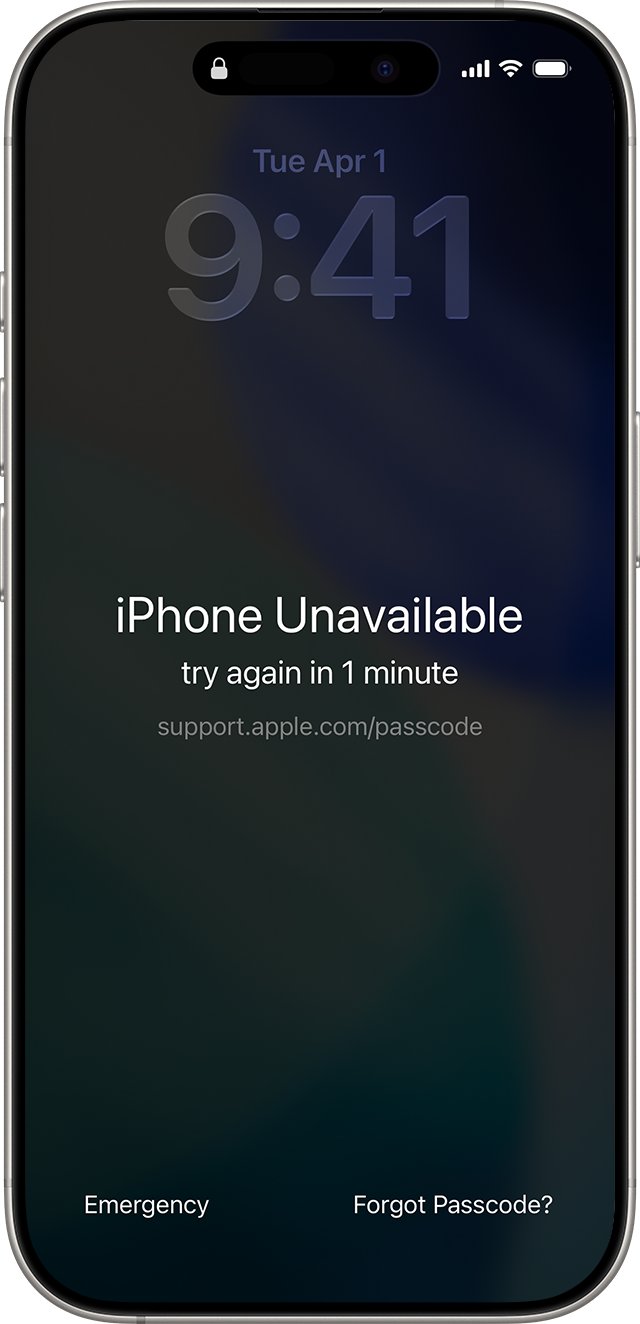
If your iPhone won't unlock or ignores the passcode keypad after an iOS update, force restart it, take off the case, screen protector and accessories, then type the passcode once before you use Face ID or Touch ID.
This guide covers a frozen Lock Screen, Face ID that keeps asking for the passcode, a rejected passcode, and how to reset the iPhone when nothing else lets you in.
How to fix an iPhone that won't unlock after an update
An update restarts the iPhone, and a restarted iPhone always needs the passcode before Face ID or Touch ID works again. When the keypad ignores your taps as well, a force restart clears most frozen Lock Screens.
- Unplug any Lightning or USB-C accessory, including the charging cable, and take the iPhone out of its case.
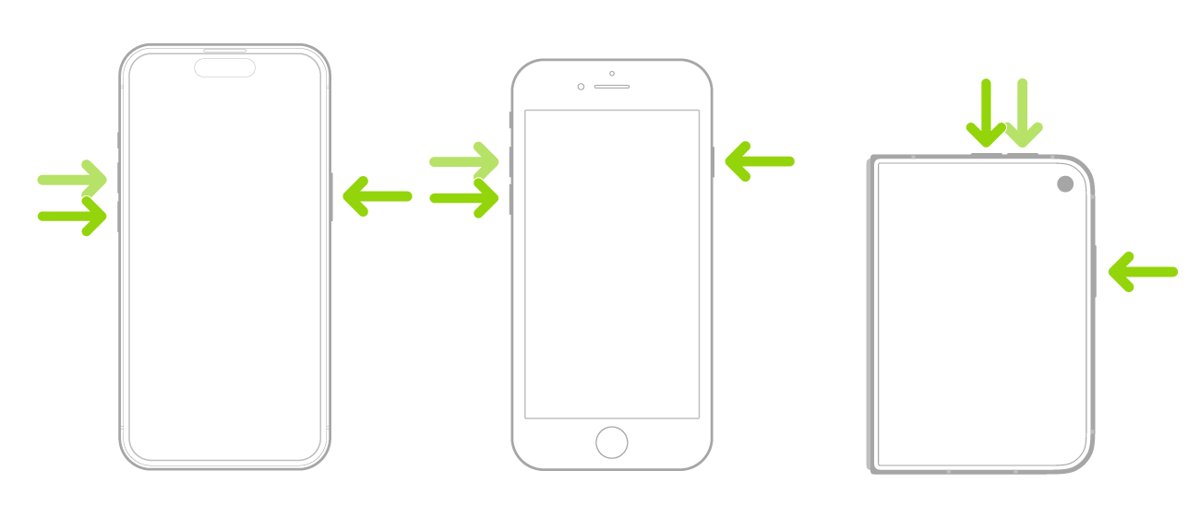
- Press and quickly release the volume up button.
- Press and quickly release the volume down button.
- Press and hold the side button until the Apple logo appears. This can take longer than 10 seconds.
- Wait for the Lock Screen, swipe up and type your passcode on the keypad.
- Once you are in, open Settings > General > Software Update and install any newer update that is waiting.
These buttons work on iPhone 8 and later, including iPhone SE (2nd generation and later). Older models use a different button combination, listed in the next table.
Why won't my iPhone unlock?
What the iPhone does when you touch it points to the cause. Match your case to a row, then use the fix in that row.
| What you see | Likely cause | Fix |
|---|---|---|
| The keypad shows, but taps do nothing or register twice | Frozen Lock Screen, or something interfering with touch | Force restart, then remove the case, screen protector and accessories |
| The screen is frozen and the iPhone won't turn off | iOS has stopped responding | Force restart; if the screen stays black, charge for one hour |
| Face ID or Touch ID fails and the iPhone asks for the passcode | A passcode is always required after a restart, which every update causes | Type the passcode once, then Face ID or Touch ID works again |
| The passcode you set in the last few days is rejected | The new passcode was forgotten or mistyped | Use Passcode Reset with your previous passcode within 72 hours |
| iPhone Unavailable or Security Lockout | Too many wrong passcode attempts | Tap Forgot Passcode? and reset the locked iPhone, or use a computer |
| The Apple logo stays on screen for several minutes with no progress bar | The update did not finish installing | Put the iPhone in recovery mode and choose Update |
| The touchscreen still does not respond after all of the above | A possible hardware fault | Set up service with Apple |
iPhone screen is frozen and won't unlock
A frozen iPhone cannot show the power-off slider, so the only way out is a force restart. The buttons depend on the model.
| iPhone model | How to force restart |
|---|---|
| iPhone with Face ID, iPhone 8 and later, iPhone SE (2nd generation and later) | Press and release volume up, press and release volume down, then hold the side button until the Apple logo appears |
| iPhone Duo | Press and release the volume button nearest the side button, press and release the other volume button, then hold the side button until the Apple logo appears |
| iPhone 7 and iPhone 7 Plus | Hold the side button and volume down together until the Apple logo appears |
| iPhone 6s and earlier, iPhone SE (1st generation) | Hold the Home button and the side or top button together until the Apple logo appears, which takes around 10 seconds |
If the screen stays black, charge the iPhone for one hour and try again. If a low-battery image appears, leave it charging for 30 minutes or until it starts.
My iPhone won't let me type my passcode
When the keypad appears but ignores taps, or enters digits you did not press, Apple treats it as a touchscreen problem. Work through these steps and test the keypad after each one.
- Force restart the iPhone with the buttons for your model.
- Clean the screen so it is free of dirt, debris and water, and dry your fingers.
- Remove the case and any screen protector, even one that looks fine.
- Disconnect every Lightning or USB-C accessory, including the charger and cable.
- Type the passcode again on the bare iPhone.
- If the keypad only works with the accessory removed, use a different outlet, cable or charger from now on.
If the screen still ignores your taps on a clean, bare iPhone, the touchscreen may need service. Book a repair through Apple rather than resetting the iPhone, because a reset does not fix hardware.
Why does my iPhone ask for a passcode instead of Face ID after an update?
Installing an update restarts the iPhone, and iOS never accepts Face ID or Touch ID as the first unlock after a restart. This is a security rule, not a fault.
| When the iPhone asks for the passcode | What it means |
|---|---|
| It has just been turned on or restarted, including after an update | Type the passcode once; Face ID or Touch ID works after that |
| It has not been unlocked for more than 48 hours | The passcode is needed before biometrics work again |
| The passcode has not been used in 6.5 days and Face ID or Touch ID has not unlocked it in the last 4 hours | A periodic passcode check, even if Face ID works normally |
| Five Face ID or Touch ID attempts have failed | Biometrics are switched off until the passcode is entered |
| It received a remote lock command | Someone locked it from Find My |
| Emergency SOS or Medical ID was started | Holding the side button and a volume button triggers this |
Face ID or Touch ID not working after iOS update
If the iPhone still asks for the passcode every time after you have typed it once, check the Face ID or Touch ID settings.
- Unlock the iPhone with your passcode.
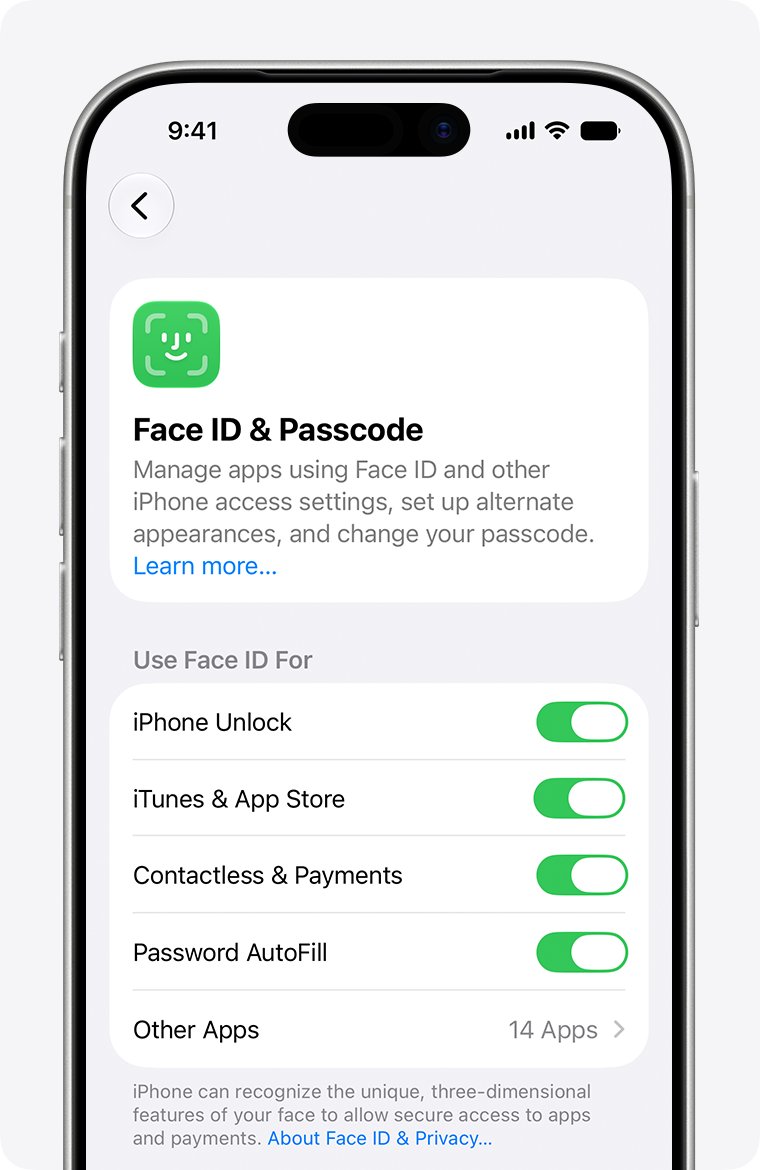
- Open Settings and tap Face ID & Passcode, or Touch ID & Passcode on iPhone SE and iPhone Duo.
- Make sure iPhone Unlock is turned on and that Face ID is set up or at least one fingerprint is enrolled.
- Remove any smudge, case or screen protector covering the TrueDepth camera or the Touch ID sensor and its ring.
- Hold the iPhone at arm's length or closer, about 10 to 20 inches from your face, with your eyes, nose and mouth visible.
- Restart the iPhone, enter the passcode, and try Face ID or Touch ID again.
- If it still fails, tap Reset Face ID, then Set up Face ID. For Touch ID, enroll a different finger.
If Face ID setup keeps asking you to position your face without moving on, or an alert says Face ID has been disabled, the TrueDepth camera may need service from a trained technician.
How to use Passcode Reset on iPhone with your old passcode
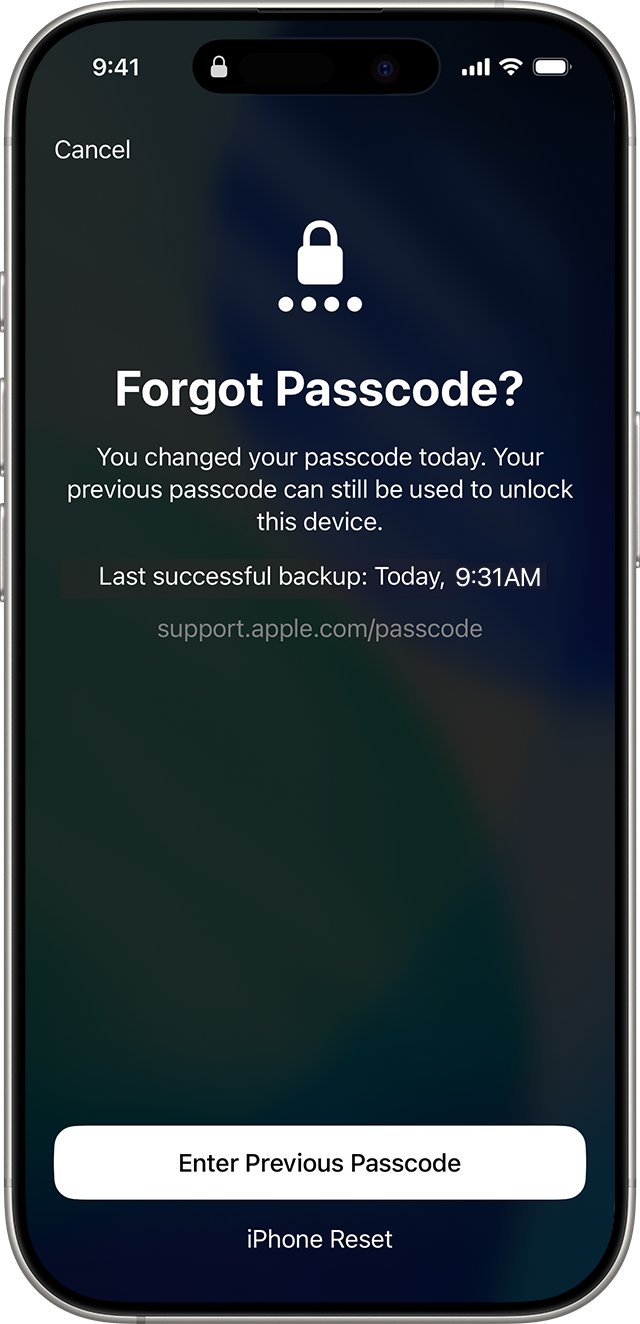
If the iPhone rejects a passcode you changed in the last three days, Passcode Reset lets you in with the old one. It works on iOS 17 and later, for 72 hours after the change.
- Enter the passcode until the iPhone Unavailable screen appears.
- Tap Forgot Passcode? in the bottom corner of the screen.
- Tap Enter Previous Passcode.
- Type your old passcode.
- Follow the onscreen steps to set a new passcode straight away.
Forgot Passcode? only appears when the iPhone is on Wi-Fi or cellular data, signed in to your Apple Account, and has Find My turned on. If you never changed the passcode, this option cannot help, and the next step is a reset.
How to reset iPhone without a computer when it won't unlock
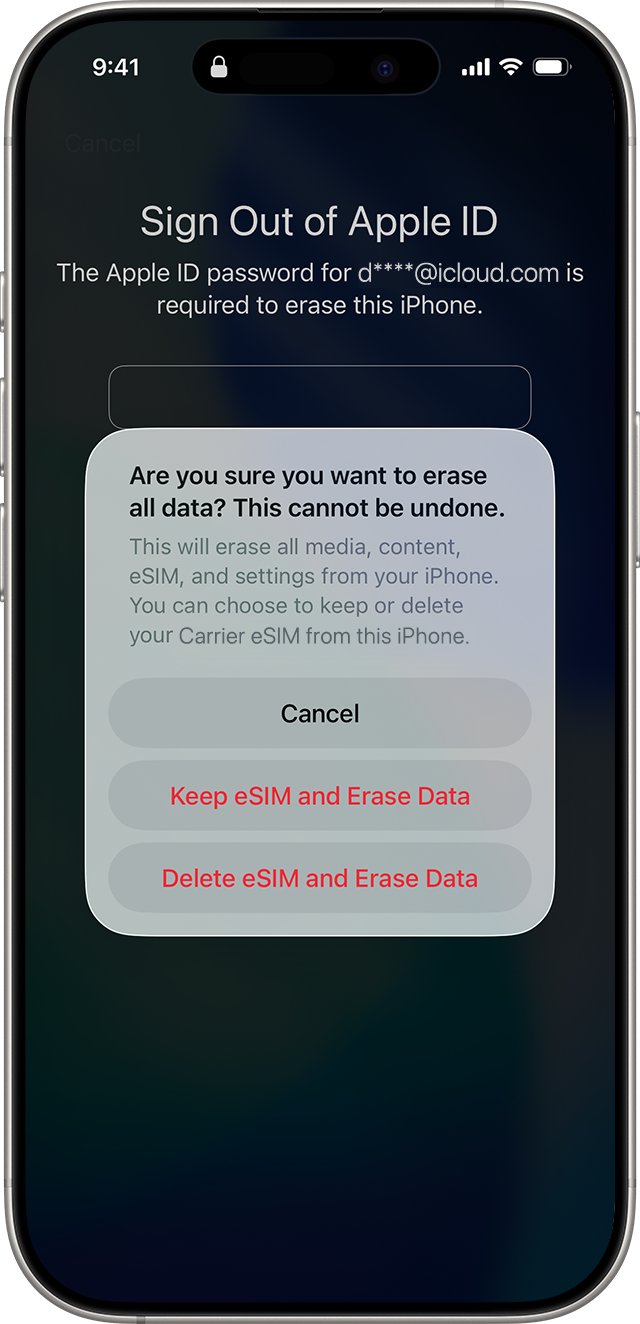
When the passcode is truly lost, the only way to reset the forgotten iPhone passcode is to erase the iPhone and restore a backup. On iOS 15.2 and later you can do it from the Lock Screen.
You need Find My turned on, a Wi-Fi or cellular connection, and your Apple Account password.
- Enter the passcode until the iPhone Unavailable screen appears.
- Tap Forgot Passcode? when it shows.
- On the Security Lockout screen, tap Start iPhone Reset.
- Enter your Apple Account password to sign out of your Apple Account on the iPhone.
- Tap Erase iPhone. On iOS 17 and later with an eSIM, choose whether to keep or delete the eSIM.
- When the iPhone restarts, set it up, restore from your iCloud or computer backup, and choose a new passcode.
On iOS 15.2 and iOS 16 the Lock Screen shows Erase iPhone instead of Forgot Passcode?. If you use an eSIM on iOS 16 or earlier, ask your carrier for a QR code to set it up again before you erase.
How to put iPhone in recovery mode when it won't unlock
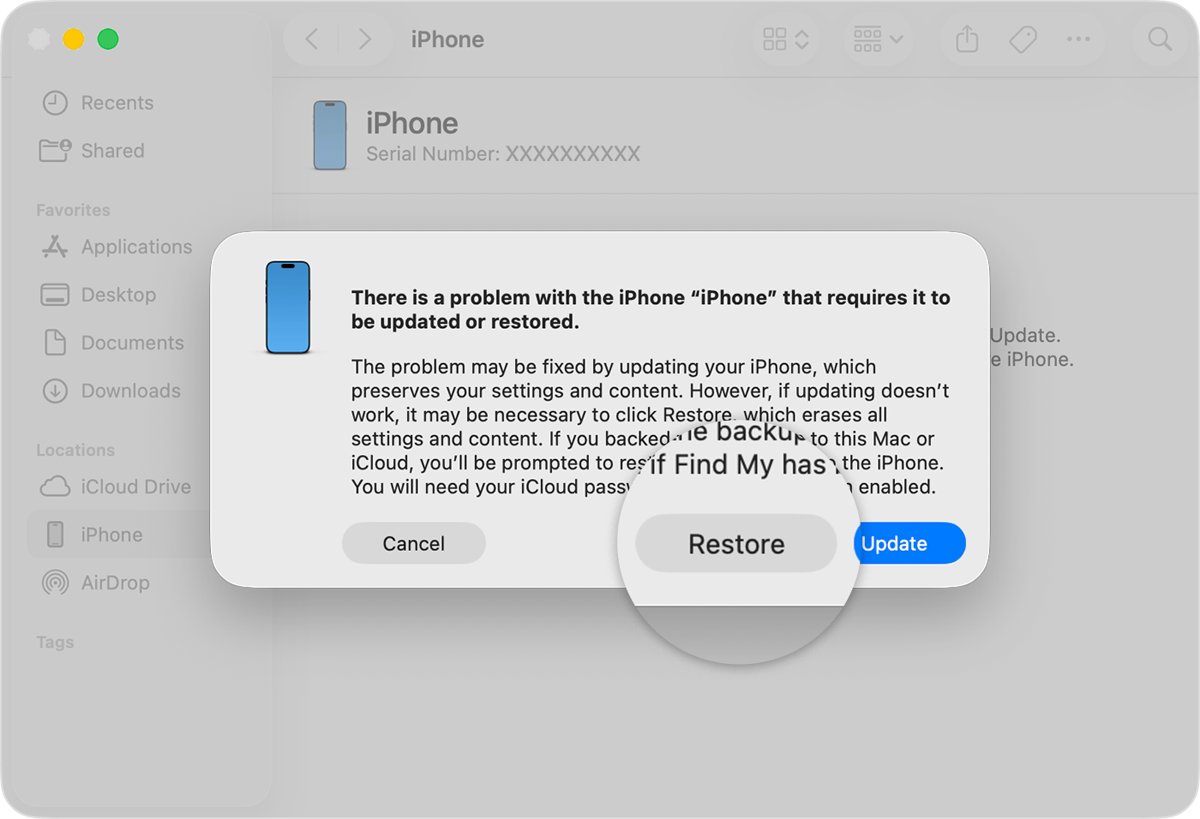
Recovery mode lets a Mac or Windows PC reinstall iOS. Use it when the iPhone is stuck on the Apple logo after an update, or when you cannot reset it from the Lock Screen.
Choose Update first. Restore reinstalls iOS and erases all your data.
- Update your Mac, or install the latest Apple Devices app from the Microsoft Store on a Windows PC.
- Connect the iPhone to the computer with a USB cable.
- Open Finder on the Mac, or the Apple Devices app on the PC.
- On iPhone 8 or later, press and release volume up, press and release volume down, then hold the side button until the Connect to computer screen appears.
- Select the iPhone in the Finder sidebar under Locations, or in the Apple Devices sidebar.
- Choose Update when the computer offers Update or Restore.
- If the download takes more than 15 minutes and the iPhone leaves the recovery screen, let the download finish, then enter recovery mode again.
- If Update fails, choose Restore, then set up the iPhone and restore your backup.
On iPhone 7, hold the side button and volume down together until the recovery screen appears. On iPhone 6s and earlier, hold the Home button and the side or top button. Without a computer, an Apple Store or Apple Authorized Service Provider can help with the restore.
Erase iPhone from iCloud.com when you can't unlock it
If the Lock Screen shows no reset option and you have no computer, erase the iPhone remotely from any browser. This works only if Find My was turned on before the iPhone locked.
- Go to icloud.com/find on another device and sign in with your Apple Account.
- Select the locked iPhone in the list of devices.
- Select Erase This Device.
- Follow the onscreen instructions to confirm.
- Keep the iPhone on Wi-Fi or cellular data. If it is offline, the erase starts the next time it connects.
- Set up the iPhone again and restore your backup.
Activation Lock stays on after the erase, so have your Apple Account password ready for setup. If setup then stops at a passcode prompt, the fixes for an iPhone asking for a passcode after a factory reset apply.
How to tell if Face ID unlock works again after the update
- Press the side button to lock the iPhone.
- Wake it and unlock it with Face ID or Touch ID, without typing the passcode.
- Open Settings > General > Software Update and check the installed iOS version and that no update is waiting.
- Open Settings > Face ID & Passcode and check that iPhone Unlock is still on.
- Lock and unlock the iPhone a few times over the next day to make sure the keypad and Face ID keep responding.
iPhone still won't unlock
iPhone won't unlock or turn off
iOS has frozen, so the side button cannot bring up the power-off slider.
- Force restart the iPhone with the buttons for your model.
- If the screen stays black, charge it for one hour and force restart again.
- If the buttons do not respond at all and you cannot reach the recovery screen, set up service with Apple.
iPhone won't swipe up to unlock
The touchscreen is not registering the swipe, often because of a screen protector, debris, water or an accessory.
- Dry and clean the screen.
- Remove the screen protector and case.
- Disconnect any Lightning or USB-C accessory.
- Force restart, then try the swipe again.
- If nothing changes, the screen needs service.
iPhone got locked after too many passcode attempts
Repeated wrong passcodes lock the iPhone and show iPhone Unavailable or Security Lockout.
- Stop guessing. If Erase Data is turned on, 10 failed attempts in a row erase the iPhone.
- Use Forgot Passcode? and Enter Previous Passcode if you changed the passcode in the last 72 hours.
- Otherwise tap Forgot Passcode? and reset the iPhone from the Lock Screen.
- If the option does not appear, use recovery mode on a computer or erase it from icloud.com/find.
If the iPhone unlocks but feels sluggish after the update, the fixes for lag after the iOS 26 update cover battery, storage and background activity.
iPhone won't unlock FAQ
Why is my iPhone not unlocking after an update?
An update restarts the iPhone, and a restarted iPhone needs the passcode before Face ID or Touch ID work. If the keypad will not respond, force restart the iPhone and remove the case, screen protector and accessories before typing the passcode again.
Why won't my iPhone unlock with password?
Either the passcode is being mistyped because the screen is not registering taps correctly, or the passcode has changed. Clean the screen and remove the screen protector first. If you changed the passcode in the last 72 hours on iOS 17 or later, use Passcode Reset with the old one.
Why can't I unlock my phone with Face ID?
Face ID is turned off after a restart, 48 hours without an unlock, or five failed matches, and the passcode is needed to switch it back on. If it keeps failing, check that iPhone Unlock is on in Settings > Face ID & Passcode and that nothing covers the TrueDepth camera.
Why is my iPhone not locking?
Auto-Lock may be set to Never or a long time. Open Settings > Display & Brightness > Auto-Lock and choose a shorter time. The iPhone locks sooner when it sits idle on the Home Screen, because Auto-Lock time is halved there.
Can Apple unlock my iPhone?
Not without erasing it. To get into an iPhone with a forgotten passcode, the iPhone has to be reset, which erases its data, and then you restore a backup. An Apple Store or Apple Authorized Service Provider can run that restore if you do not have a computer.
Will Apple unlock my iPhone if the screen won't respond?
If the touchscreen does not respond after a force restart and with the case, screen protector and accessories removed, Apple treats it as a repair. Set up service through Apple Support, and keep a recent backup so the iPhone can be restored if parts are replaced.
Can't unlock my iPhone: will I lose my data?
Not if a force restart or Passcode Reset gets you in, because neither erases anything. Resetting the iPhone from the Lock Screen, recovery mode Restore or iCloud erase all delete the data, so you get it back only from an iCloud or computer backup.
Why can't I unlock my iPhone after too many attempts?
Repeated wrong passcodes lock the iPhone and show iPhone Unavailable or Security Lockout. Tap Forgot Passcode? to use your previous passcode or reset the iPhone. That option needs Wi-Fi or cellular data, your Apple Account and Find My turned on.