To update an AMD graphics driver on Windows 11, open Settings > Windows Update > Advanced options > Optional updates and install any AMD display driver listed there, or download the newest driver from AMD's own support site.
This guide covers both routes, Device Manager, how to find your Radeon model, how to roll back or reinstall the driver, and what to do when an update will not install.

How to update AMD graphics driver on Windows 11
Windows Update is the route Microsoft recommends first. Optional drivers are not installed automatically, so you have to pick them yourself.
- Select Start, then Settings > Windows Update > Advanced options.
- Make sure Receive updates for other Microsoft products is turned On.
- Under Additional options, select Optional updates.
- If an AMD display driver is listed, select it, then select Download and install.
- When the install finishes, right-click Start and select Shut down or sign out > Restart.
Restart even if Windows does not ask for it. If no AMD driver is listed, Windows Update has nothing newer on file, and AMD's own site is the next step.
Should I update AMD drivers through Windows Update or AMD's website?
| Your situation | Use this | Why |
|---|---|---|
| Everyday PC, no display problems | Windows Update optional updates | Drivers there are certified for Windows and normally recent |
| A new game or app asks for a newer driver | AMD Drivers and Support page | Microsoft points to the manufacturer when Windows Update has nothing newer |
| Device Manager shows Microsoft Basic Display Adapter | Windows Update first, then AMD's page | The generic driver lacks the manufacturer's features |
| You have a driver package already extracted | Device Manager > Browse my computer for drivers | Points Windows at the folder you choose |
Download drivers only from AMD or your PC maker. Microsoft warns against driver files from any other website.
How to check which AMD graphics card you have
AMD's driver page asks for your product, so read the exact graphics card name first. Two Windows tools show it.
| Tool | How to open it | Where the name appears |
|---|---|---|
| Device Manager | Right-click Start > Device Manager | Expand Display adapters; each entry is one adapter |
| DirectX Diagnostic Tool | Right-click Start > Run, type dxdiag.exe, select OK |
Display tab > Device section > Name: |
Some PCs list more than one adapter, for example graphics built into the processor and a separate card. Note each name, because each adapter can use a different driver.
If the entry reads Microsoft Basic Display Adapter, Windows is running its generic driver and no AMD driver is installed yet.
How to update AMD Radeon graphics driver from AMD's website
AMD publishes its Radeon drivers and the AMD Software: Adrenalin Edition package on its Drivers and Support page at amd.com/en/support/download/drivers.html.
- Note your graphics model from Device Manager or
dxdiag.exe. - Open AMD's Drivers and Support page in your browser.
- Search for your exact Radeon model, or select it from AMD's product list.
- Pick the Windows 11 driver for your product and download it.
- Run the downloaded installer and follow the on-screen prompts.
- Restart the PC when the installer finishes.
AMD's support site also offers the AMD Auto-Detect and Install Tool for getting drivers when you are unsure of the model name.
Once AMD Software: Adrenalin Edition is installed, it can check for newer drivers itself, so later updates do not need a fresh download from the website.
How to update AMD graphics driver in Device Manager
Device Manager can search Windows for a newer driver, or install a driver package you have already extracted to a folder.
- Right-click Start and select Device Manager.
- Expand Display adapters.
- Right-click your AMD adapter and select Update driver.
- Select Search automatically for updated driver software, or select Browse my computer for drivers to use an extracted AMD package.
- For a package, select Browse…, choose the driver folder, select OK, then Next.
- Select Close when Windows finishes, then restart the PC.
If Windows finds nothing, it offers Search for updated drivers on Windows update, which opens the Windows Update route from the first section. The same tools also update drivers on Windows 11 for other devices.
How to tell if the AMD graphics driver is installed
After the restart, check that Windows is using AMD's driver and not the generic one.
- Right-click Start and select Device Manager.
- Expand Display adapters and check that the AMD adapter is listed by its AMD name.
- Confirm that Microsoft Basic Display Adapter no longer appears for that card.
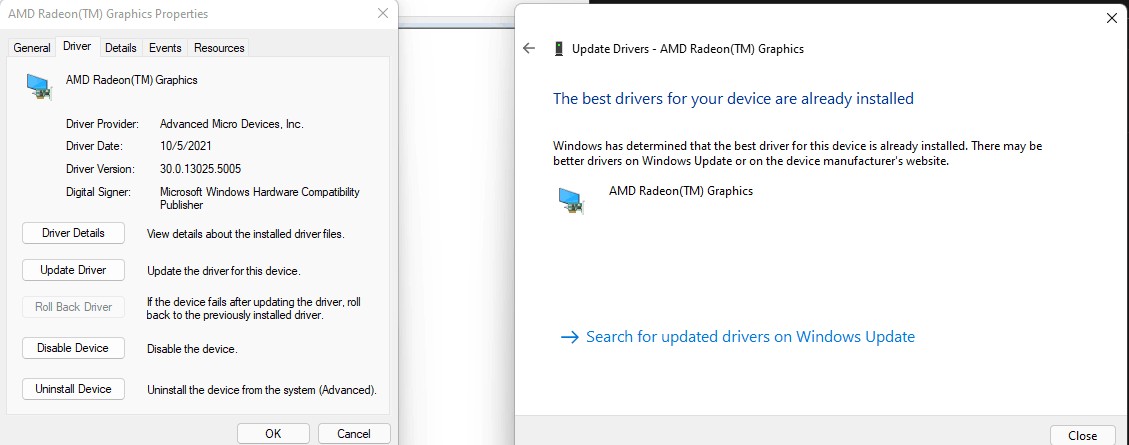
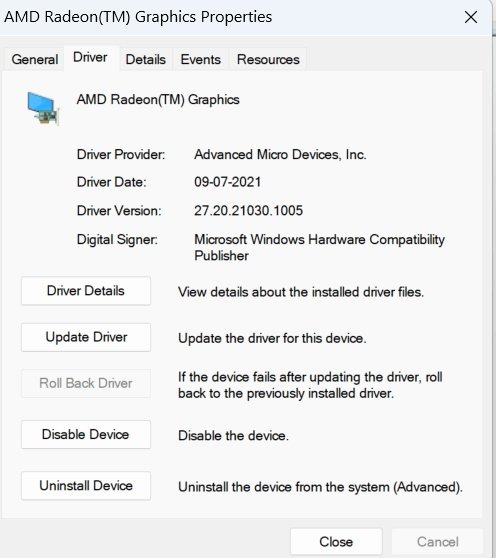
- Right-click the AMD adapter, select Properties, and open the Driver tab to read the installed driver details.
- Open
dxdiag.exeand check the Name: field on each Display tab as a second check.
Microsoft notes that driver dates can look old even on a new release, because the provider sets that date. Compare the version AMD lists, not the date.
How to roll back an AMD graphics driver in Windows 11
Roll back when the screen flickers, games crash or the display misbehaves right after an update. You need administrator rights.
- Right-click Start and select Device Manager.
- Expand Display adapters.
- Right-click your AMD adapter and select Properties.
- Open the Driver tab.
- Select Roll Back Driver, choose a reason, then select Yes.
- Restart the PC if Windows asks.
Roll Back Driver is only available when Windows still has the previous driver. If it is greyed out, reinstall the driver from the next section instead. Audio and network drivers roll back from the same Driver tab if another device misbehaves.
How to reinstall AMD graphics driver on Windows 11
A clean reinstall replaces a driver that is damaged or meant for the wrong product. Save your work and close your apps first.
- Right-click Start and select Device Manager.
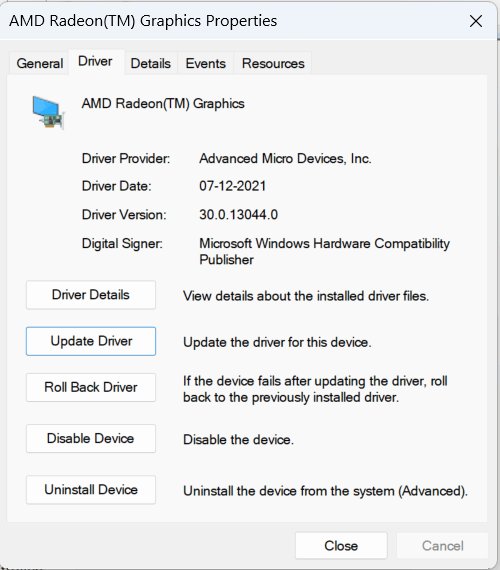
- Expand Display adapters, right-click the AMD adapter and select Uninstall device.
- To remove the driver files as well, select Delete the driver software for this device.
- Select Uninstall or OK to confirm.
- Right-click Start and select Shut down or sign out > Restart.
- If Windows does not reinstall a driver on its own, install AMD's driver from the website section above.
The Delete the driver software for this device option needs an administrator account and may not appear without one.
Tips for updating AMD graphics driver on Windows 11
These habits prevent most failed or unwanted driver installs.
| Tip | Why it helps |
|---|---|
| Read the exact model name before downloading | A driver for the wrong product may fail to install or work properly |
| Check both adapters on a PC with built-in and separate graphics | Each adapter can need its own driver |
| Create a system restore point first | You get a way back if the new driver breaks the display |
| Use AMD's site or Windows Update, never a driver download portal | Microsoft advises downloading drivers only from the manufacturer |
| Skip third-party driver updater apps | Windows Update and AMD's own software already handle it |
| Restart after every install | Microsoft recommends a restart even when no prompt appears |
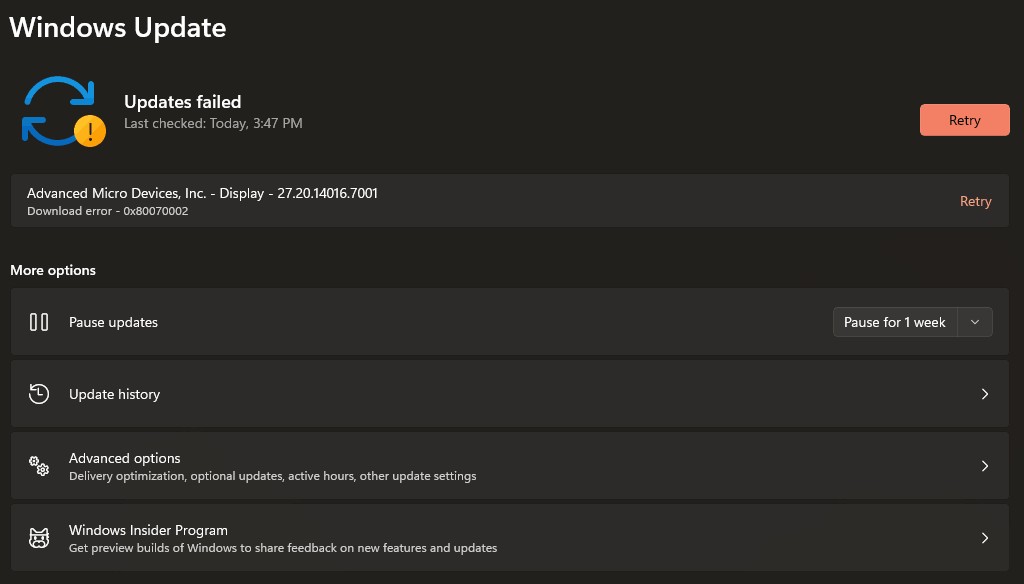
Why won't my AMD graphics driver update
Device Manager says "The best drivers for your device are already installed"
Windows has no newer driver on file, which does not mean AMD has none.
- Check Optional updates in Windows Update for an AMD display driver.
- Download the newest driver for your model from AMD's Drivers and Support page.
No AMD driver appears in Windows Update
Optional drivers are only listed when Receive updates for other Microsoft products is on and a newer driver exists.
- Turn on Receive updates for other Microsoft products in Advanced options.
- Open Optional updates again, and use AMD's site if the list is still empty.
The screen flickers or goes black after the AMD update
The new driver does not suit the hardware or a display setting.
- Press Windows + Ctrl + Shift + B to reset the graphics driver.
- Roll back the driver in Device Manager from the Driver tab.
- If the screen stays blank, hold the power button for 10 seconds two or three times to reach recovery, then select Troubleshoot > Advanced Options > Startup Settings > Restart and press F5 for Safe Mode with Networking.
- In Safe Mode, open Device Manager and roll back or update the driver.
You downloaded the wrong AMD driver
The package does not match your graphics model.
- Check the model under Display adapters or on the
dxdiag.exeDisplay tab. - Uninstall the device with Delete the driver software for this device selected, restart, and install the correct driver.
Windows keeps showing Microsoft Basic Display Adapter
No manufacturer driver is installed for that adapter.
- Install a driver from Windows Update, then from AMD's site if Windows has none.
- If neither AMD nor Windows Update offers a driver for an older card, the generic driver is the only option left.
Frequently asked questions about AMD graphics driver updates
How do I update my AMD graphics driver?
Open Settings, then Windows Update, Advanced options and Optional updates, and install any AMD display driver listed. If none is listed, download the newest driver for your Radeon model from AMD's Drivers and Support page, run the installer and restart.
How do I update AMD Radeon graphics driver on Windows 11?
Use Windows Update optional updates first, then AMD's support site. Device Manager can also install it: right-click Start, open Device Manager, expand Display adapters, right-click the Radeon adapter and select Update driver.
How often should I update my AMD graphics driver?
Update when Windows Update offers a new AMD driver, when a game or app asks for a newer one, or when you have a display problem. If everything works, there is no need to install every release on the day it appears.
What if I download the wrong driver?
A driver for the wrong model may fail to install or work properly. Open Device Manager, uninstall the AMD adapter with Delete the driver software for this device selected, restart, and install the driver that matches your exact model.
Can I roll back to an older driver version?
Yes, if Windows still holds the previous driver. In Device Manager, open the AMD adapter's Properties, go to the Driver tab and select Roll Back Driver. If the button is greyed out, install the older driver manually instead.
Why is my screen flickering after the update?
The new driver may not suit your hardware. Press Windows + Ctrl + Shift + B to reset the graphics driver, then roll it back from the Driver tab in Device Manager. Use Safe Mode with Networking if the screen stays blank.
Does updating the driver improve gaming performance?
It can. Microsoft lists faster performance, smoother video playback and better stability among the benefits of a manufacturer driver over the generic one. Gains between two AMD releases depend on the game and the fixes in that release.
Why won't my graphics driver update on AMD?
Usually because Windows has no newer driver on file. Device Manager then says the best drivers are already installed. Check Optional updates in Windows Update, then download the driver directly from AMD's support site.