To type a backwards K, copy ꓘ from this page and paste it, or in Microsoft Word type A4D8 and press Alt+X to turn the code into the letter.
This guide covers the backwards K code, Word, Character Map on Windows, the Mac Character Viewer, an iPhone shortcut, and fixes when ꓘ shows up as an empty box.
How to type a backwards K by copy and paste
Here is the character, ready to copy: ꓘ
Pasting works in any app on any device, so it is the quickest route when you need the letter once or twice.
- Select the ꓘ character above with your mouse, or touch and hold it on a phone.
- Press Ctrl+C on Windows or Command+C on a Mac, or tap Copy on a phone.
- Click or tap where you want the backwards K to appear.
- Press Ctrl+V on Windows or Command+V on a Mac, or tap Paste on a phone.
If the pasted letter turns into an empty box, the font in that app has no Lisu letters. The troubleshooting section below fixes that.
Backwards K alt code and shortcuts by device
Common symbols such as the degree symbol on a keyboard have a short Alt code on the numeric keypad. The backwards K is a Unicode-only character, so each device reaches it a different way.
| Where you are typing | Use this | What to type or click |
|---|---|---|
| Microsoft Word on Windows | Unicode code plus Alt+X | Type A4D8, then press Alt+X |
| Any Windows app (Notepad, a browser, a chat box) | Character Map | Advanced view > Go to Unicode > A4D8 > Copy |
| Any Mac app | Character Viewer | Press Fn/Globe+E and search for the character name |
| Mac, repeated use | Text replacement | System Settings > Keyboard > Text Replacements |
| iPhone or iPad | Text replacement | Settings > General > Keyboard > Text Replacement |
| Any device, one-off | Copy and paste | Copy ꓘ from this page and paste it |
How to type a backwards K in Word
Word converts a Unicode hex code into its character when you press Alt+X straight after the code. The code for the backwards K is A4D8.
- Click where you want the backwards K in your Word document.
- Type
A4D8. - Press Alt+X. The four characters turn into ꓘ.
- If the code sits right after another letter or number, select only
A4D8before you press Alt+X, or typeU+A4D8instead. - To look up the code of any other symbol, go to Insert > Symbol > More Symbols and select it.
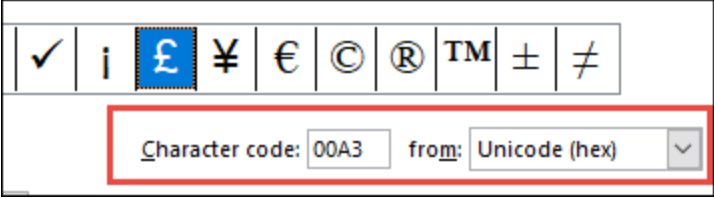
- Read the Character code box. When from: says Unicode (hex), that code works with Alt+X.
Word for Windows supports Alt+X, but PowerPoint and some other Office apps cannot convert Unicode codes. Use Character Map there instead.
How to type a backwards K on keyboard with Character Map
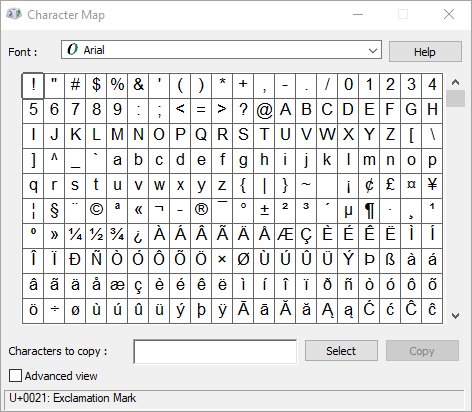
Character Map is built into Windows and copies any character a font contains, so it works in apps that ignore Alt+X and for other Windows keyboard symbols that have no Alt code.
- Press the Windows key, type
Character Map, and press Enter. - Select the Advanced view check box, or press Alt+V.
- Set Character set to Unicode.
- Type
A4D8in the Go to Unicode box and press Enter. The grid jumps to ꓘ. - Or use the Search for box, which finds characters by name, such as
Lisu. - Select the character, then select Select and Copy.
- Switch to your app and press Ctrl+V to paste the backwards K.
Choose Segoe UI in the Font list first if the grid shows empty squares. Microsoft lists Segoe UI as the Windows font for the Lisu script.
How to type a backwards K on Mac
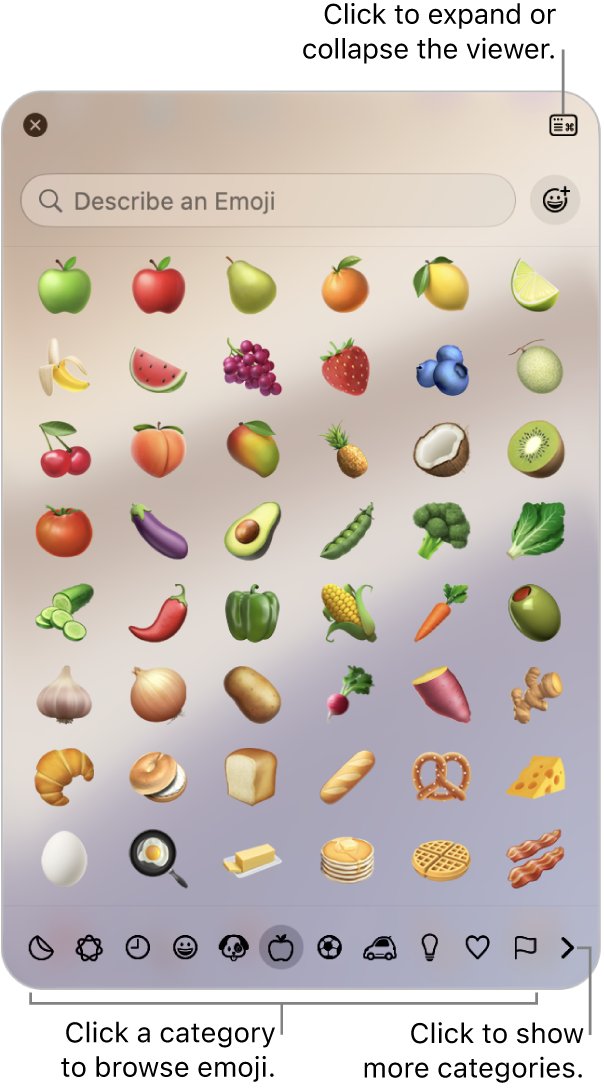
The Mac Character Viewer, the same panel you open for emojis on a Mac, finds characters by name, and the backwards K is named Lisu letter kha.
- Click in the text field where you want the letter.
- Press Fn/Globe+E, or choose Edit > Emoji & Symbols from the menu bar.
- Type
Lisu letter khain the search field. - Click ꓘ in the results to insert it. Double-click it if the viewer is expanded.
- Select the character and click Add to Favorites to keep it at the top of the viewer next time.
Backwards K shortcut on Mac with text replacement
A text replacement turns a short code you type into ꓘ, so you never open the viewer again. Pick a code you would never type by accident, such as kkb.
- Choose Apple menu > System Settings, then click Keyboard in the sidebar.
- Click Text Replacements.
- Click the Add (+) button in the dialog that appears.
- Type the text to replace, such as
kkb. - Paste ꓘ as its replacement, then click Add.
- Click Done, then type the shortcut in any app that supports text replacement.
Text replacements are not available in every app. Apple also lets you keep them up to date across your Apple devices, so one shortcut can serve your iPhone too.
How to type a backwards K on iPhone
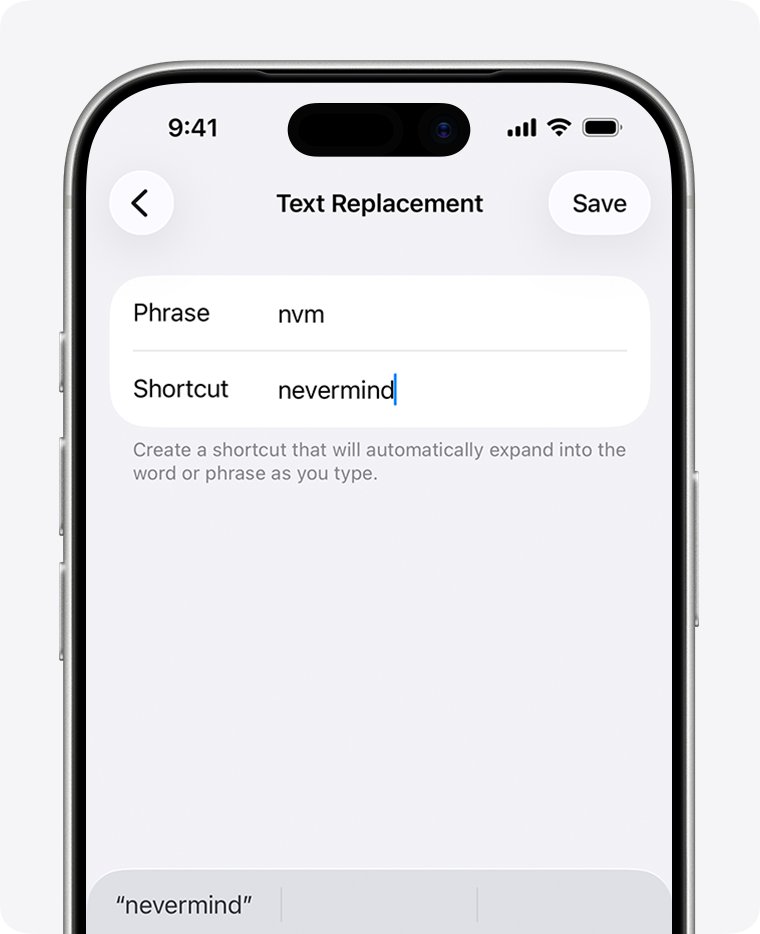
The iPhone keyboard has no key for ꓘ. A text replacement shortcut is the closest thing to a keyboard shortcut on iPhone and iPad.
- Copy ꓘ from this page: touch and hold it, then tap Copy.
- Open the Settings app and tap General.
- Tap Keyboard, then Text Replacement.
- Tap the Add button.
- Paste ꓘ as the phrase and type a shortcut such as
kkb. - Tap Save. Typing the shortcut now offers ꓘ in any text field.
What is a backwards K
The backwards K is not a mirrored Latin letter. It is a letter of the Lisu script, an alphabet used in China and Southeast Asia, and it happens to look like a reversed K.
| Property | Value |
|---|---|
| Character | ꓘ |
| Unicode name | Lisu letter kha |
| Code point | U+A4D8 |
| Decimal value | 42200 |
| Unicode block | Lisu (U+A4D0 to U+A4FF) |
| Windows font that shows it | Segoe UI |
| Word shortcut | A4D8 then Alt+X |
K vs backwards K: the regular capital K is a basic Latin letter that every font has. The backwards K is a separate character, so spell checkers, search boxes and username fields treat it as a different letter, not a styled K.
How to type a backwards R, backwards N and backwards 3
Other backwards letters are real characters from Cyrillic and Latin Extended, so the same Word Alt+X method and Character Map Go to Unicode box work for them, much as they do when you type letters with accents.
| You want | Character | Code to type, then Alt+X | Unicode name |
|---|---|---|---|
| Backwards K | ꓘ | A4D8 |
Lisu letter kha |
| Backwards R | Я | 042F |
Cyrillic capital letter ya |
| Backwards N | И | 0418 |
Cyrillic capital letter i |
| Backwards 3 | Ɛ | 0190 |
Latin capital letter open E |
Я and И are ordinary letters in Russian and other Cyrillic languages, so most fonts include them and they rarely show as boxes.
Backwards K not working or showing as a box
The backwards K shows as an empty box or a question mark
The font in use has no Lisu letters, so the app cannot draw the character.
- Select the box.
- Change the font to Segoe UI on Windows.
- If the app has no font menu, paste the character into a different app or a web page that uses a system font.
Alt+X in Word turns the code into the wrong character
Word read the letters or numbers before A4D8 as part of the code.
- Press Ctrl+Z to undo the conversion.
- Select only
A4D8and press Alt+X again. - Or type
U+A4D8and press Alt+X, which always converts just that code.
Alt+X does nothing outside Word
Alt+X is a Word feature, and PowerPoint and many non-Office apps cannot convert Unicode codes.
- Open Character Map and turn on Advanced view.
- Type
A4D8in Go to Unicode, then Select and Copy. - Paste the character with Ctrl+V.
Holding Alt and typing numbers gives a different symbol
Alt plus numeric keypad codes cover a limited character set, not the Lisu block.
- Use the hex code
A4D8with Alt+X in Word instead. - In other apps, copy the character from Character Map or from this page.
Why does my keyboard type backwards
Text that runs right to left in Office comes from the paragraph direction, not from a broken keyboard. Office follows the direction of the first strong character in a paragraph, and the Right-to-left button flips the whole paragraph.
Word or Outlook types from right to left
The paragraph is set to right-to-left, which is available once a right-to-left language is enabled.
- Click inside the affected paragraph.
- Go to the Home tab and find the Paragraph group.
- Select the Left-to-right paragraph button.
- In OneNote, open the Paragraph Alignment arrow and select Left-to-right.
The keyboard suddenly types letters from another language
Pressing Alt+Shift cycles through installed keyboard languages, and it is easy to hit by accident.
- Press Alt+Shift until your usual language returns.
- Or click the Language bar and select your usual keyboard language.
Backwards K FAQ
How do you type a backwards K?
Copy ꓘ and paste it where you need it. In Microsoft Word, type A4D8 and press Alt+X. On Windows you can also copy it from Character Map, and on a Mac from the Character Viewer by searching for Lisu letter kha.
How do you type a backwards K in Word?
Type A4D8 where you want the letter, then press Alt+X. Word replaces the code with ꓘ. If the code follows other characters, select just A4D8 first or type U+A4D8. You can also use Insert, Symbol, More Symbols and enter A4D8 as a Unicode (hex) character code.
How do you type a backwards K on a keyboard?
No standard keyboard has a backwards K key, and it has no numeric keypad Alt code. On Windows, open Character Map, turn on Advanced view, enter A4D8 in Go to Unicode, and copy it. On a Mac or iPhone, set up a text replacement shortcut.
What is the alt code for a backwards K?
The backwards K has no Alt plus numeric keypad code. Its Unicode code is A4D8, which works with Alt+X in Microsoft Word and in the Go to Unicode box in Windows Character Map. Its decimal value is 42200.
What is a backwards K?
The backwards K, ꓘ, is the Lisu letter kha, a character from the Lisu script used in China and Southeast Asia. Its code point is U+A4D8. It is a separate character from the Latin K, not a mirrored font style.
How do you type a backwards R on a keyboard?
Use the Cyrillic capital letter ya, Я, which looks like a backwards R. In Word, type 042F and press Alt+X. Elsewhere on Windows, copy it from Character Map by entering 042F in Go to Unicode with Advanced view on.
How do you type a backwards N?
Use the Cyrillic capital letter i, И, which looks like a backwards N. In Microsoft Word, type 0418 and press Alt+X. Most fonts include it, so it rarely shows as a box when you paste it.
How do you type a backwards 3?
Use Ɛ, the Latin capital letter open E, which looks like a backwards 3. In Microsoft Word, type 0190 and press Alt+X. In other Windows apps, copy it from Character Map with Go to Unicode set to 0190.
How do you type a backwards slash on a keyboard?
The backwards slash is the backslash, \. On Windows, hold Alt and type 92 on the numeric keypad with Num Lock on. If your layout hides the key, copy and paste the backslash symbol instead.
Why does my keyboard type backwards sometimes?
In Office apps, text runs backwards when the paragraph is set to right-to-left, often after the Right-to-left button is pressed or the first character typed belongs to a right-to-left language. Select the Left-to-right button in the Paragraph group on the Home tab to fix it.
How do you make your keyboard type backwards?
To type right to left in Office, enable a right-to-left keyboard language in Windows, then select the Right-to-left paragraph button in the Paragraph group on the Home tab. The button only appears once a right-to-left language is enabled.