Hold Alt and type 0165 on the numeric keypad to type the yen symbol (¥) on Windows, or press Fn + E on a Mac and pick ¥ from the Character Viewer.
This guide covers every Windows and Mac route, Word and Excel, Japanese keyboards, custom shortcuts, and the fixes when the code produces nothing.
The fastest way to type the yen symbol
The Alt code works in almost any Windows program that accepts typed text, from Notepad to Excel.
- Click where the ¥ should go.
- Turn on Num Lock if your keyboard needs it to type numbers on the numeric keypad.
- Press and hold Alt, type
0165on the numeric keypad, then release Alt. - Check that ¥ appears at the cursor.
The number row above the letters does not work for Alt codes. Microsoft states that only the numeric keypad accepts them.
Which yen symbol method should you use?
| Your situation | Use this | Why |
|---|---|---|
| Windows keyboard with a numeric keypad | Alt + 0165 |
One key combination, no menus |
| Windows laptop with no numeric keypad | Windows key + . (period), then Symbols | Alt codes cannot be typed from the top number row |
| Writing in Microsoft Word | Type 00A5, then press Alt + X |
Word converts the code in place |
| Working in PowerPoint | Copy ¥ from Character Map | PowerPoint cannot convert Unicode codes to characters |
| Pricing a column of figures in Excel | Ctrl + 1, then Currency with the yen symbol | Every number in the cells gets ¥ automatically |
| On a Mac | Fn + E or Globe + E, then search for yen | Character Viewer inserts the character at the cursor |
| Mac with a Japanese (JIS) keyboard | Press the Yen key | The keyboard has a dedicated key for ¥ |
| You type ¥ many times a day | Word AutoCorrect or Mac Text Replacements | A short abbreviation turns into ¥ as you type |
Understanding the yen symbol (¥)
The yen sign is one Unicode character, U+00A5, and it belongs to the Latin 1 set of monetary symbols that Windows fonts carry.
| Property | Value | What it means for you |
|---|---|---|
| Character | ¥ | The sign for the Japanese yen |
| Unicode code point | U+00A5 | The code you type before Alt + X in Word, as 00A5 |
| Windows Alt code | Alt + 0165 |
Needs the numeric keypad and Num Lock |
| Glyph design | A Y crossed by one or two horizontal bars | Both are the same character; the font decides the number of bars |
| Japanese code pages | ¥ occupies the position of the backslash | On Japanese-language systems a path can display ¥ where other systems show \ |
| File names | Treated as a prohibited character on NTFS and FAT | Avoid ¥ in file and folder names that may be copied to a Japanese system |
Microsoft's typography guidance notes that the two-bar design is the common one today, with the one-bar design rarer.
Different keyboard layouts and their impact
Whether ¥ has its own key depends entirely on the layout printed on your keyboard and the layout selected in the operating system.
| Layout | Dedicated ¥ key? | Route that works |
|---|---|---|
| Standard US keyboard (Windows) | No | Alt + 0165, the emoji panel, or Character Map |
| Japanese keyboard layout (JIS) | Yes, on Mac JIS keyboards the Yen key | Press the key; a Japanese input setting decides whether it gives ¥ or a backslash |
| European keyboard layouts (UK, German, French and others) | No key printed for ¥ | The same Alt code and symbol pickers as the US layout |
| Mac keyboard layout (US and others) | No printed key | Character Viewer, or the Keyboard Viewer to find the modifier combination for your layout |
Alt codes and Unicode codes do not depend on the layout. They produce ¥ on any Windows layout, which is why they are the dependable route.
Typing the yen symbol on Windows
Using the numeric keypad is covered in the fastest method above. The Windows emoji panel is the Windows 11 and Windows 10 route for laptops that have no keypad.
- Click where you want the symbol.
- Press Windows key + . (period) to open the emoji panel.
- Select Symbols in the panel.
- Scroll through the symbols until you reach ¥.
- Click ¥ to insert it at the cursor.
The emoji panel is part of Windows rather than any one app, so it behaves the same in a browser, Outlook, or Notepad.
Using the Unicode input method
Word converts a typed hexadecimal code into its character when you press Alt + X, and no numeric keypad is needed.
- Click where the ¥ should go.
- Type
00A5. - Press Alt + X; Word replaces the code with ¥.
- If the code sits right after other digits, type
U+00A5instead and press Alt + X.
Pressing Alt + X again with the cursor after ¥ turns it back into its code, which is a quick way to confirm the character.
Using Character Map on Windows
Character Map is built into Windows and works in programs that ignore both Alt codes and Unicode codes, PowerPoint included.
- Type
characterin the search box on the taskbar and choose Character Map. - Pick a font such as Arial or Segoe UI Symbol from the Font list.
- Click ¥ in the character grid.
- Click Select, then Copy.
- Paste it into your document with Ctrl + V.
Character Map and the Mac Character Viewer do the same job on their own platforms. The Mac steps are in the Character Viewer section below.
Changing input methods or keyboard layouts
Adding a Japanese keyboard layout in Windows is only worth it if you also type Japanese text. For the occasional ¥, the Alt code is quicker.
- Select Start > Settings > Time & language > Language & region on Windows 11, or Time & language > Language on Windows 10.
- Select the three dots next to your language and choose Language options (Windows 10: select the language, then Options).
- Under Keyboards, select Add a keyboard.
- Choose the layout you want from the list.
- Press Windows logo key + Spacebar to switch between installed layouts.
You can also switch layouts from the input language icon in the system tray. A full language pack is not always needed to add a keyboard layout.
Using keyboard shortcuts for Japanese keyboard layout
Mac JIS keyboards have a Yen key, and a Japanese input setting decides whether it types ¥ or a backslash (\).
- Switch to a Japanese input source.
- Click the Input menu in the menu bar and choose Open [input source] Settings.
- Click the input source name in the sidebar.
- Set the Yen key option to enter a Yen sign (¥) rather than a backslash.
- Press the Yen key in a document to type ¥.
On Japanese-language Windows systems the backslash position of the code page holds ¥, so file paths and code show ¥ where a US system shows a backslash. It is the same key doing both jobs, not a separate symbol.
Typing the yen symbol on Mac
Accessing the Character Viewer is the route that works on every Mac, whatever keyboard layout it uses.
- Click where you want the symbol.
- Press Fn + E (or Globe + E), or choose Edit > Emoji & Symbols.
- Type
yenin the search field at the top of the Character Viewer. - Click ¥ to add it to your text, or double-click it if the viewer is expanded.
Using Character Viewer on macOS also covers the other currency signs, so the same search finds £, € and ¢.
Using the Mac keyboard shortcut for the yen symbol
Mac layouts put many symbols behind the Option key. The Keyboard Viewer shows which key produces ¥ on the layout you use, so you learn the shortcut once.
- Choose Apple menu > System Settings, click Keyboard, then go to Text Input and turn on Show Input menu in menu bar.
- Click the Input menu in the menu bar and choose Show Keyboard Viewer.
- Hold Option, then Option + Shift, and watch the keys change.
- Find the key that shows ¥ while a modifier is held.
- Press that same combination in your document to type ¥.
The combination differs between layouts, which is why the Keyboard Viewer beats a memorised shortcut when you switch Macs or layouts.
Yen symbol copy and paste method
Copying works on any device, including phones, Chromebooks and web forms that block symbol pickers.
- Select this character: ¥
- Press Ctrl + C on Windows or Command + C on a Mac.
- Click where the symbol belongs.
- Press Ctrl + V on Windows or Command + V on a Mac.
Tip: paste into a plain-text field first if the target app keeps the source formatting and the ¥ arrives in the wrong font.
Creating custom keyboard shortcuts for the yen symbol
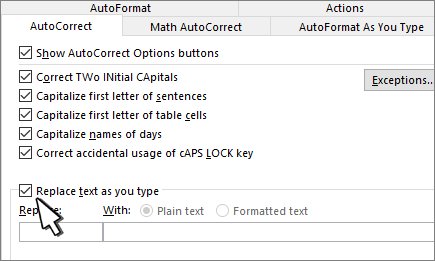
For Windows users, Word AutoCorrect turns a short abbreviation into ¥ as you type. Pick an abbreviation that is never a real word, such as (yen).
- In Word, go to File > Options > Proofing and select AutoCorrect Options.
- On the AutoCorrect tab, type
(yen)in the Replace box. - Type ¥ in the With box using Alt +
0165. - Select Add, then OK.
- Type
(yen)followed by a space in a document to check it.
On Word for Mac, the same AutoCorrect list opens from the Word menu > Preferences > AutoCorrect.
Using a custom keyboard shortcut on Mac
For Mac users, a system-wide text replacement does the same job in Pages, Mail, Notes and most other apps.
- Choose Apple menu > System Settings, then click Keyboard in the sidebar.
- Click Text Replacements.
- Click the Add button.
- Type
(yen)as the text to replace and ¥ as the replacement, then click Add. - Click Done.
Insert ¥ in the replacement field with the Character Viewer (Fn + E) if your layout has no key for it.
Type the yen symbol in Excel and Word
In Excel, a currency format adds ¥ to every number in the cells, which beats typing it into each entry.
- Select the cells that hold the amounts.
- Press Ctrl + 1 to open Format Cells.
- Select Currency or Accounting in the Category list.
- Choose the yen symbol in the Symbol box.
- Click OK.
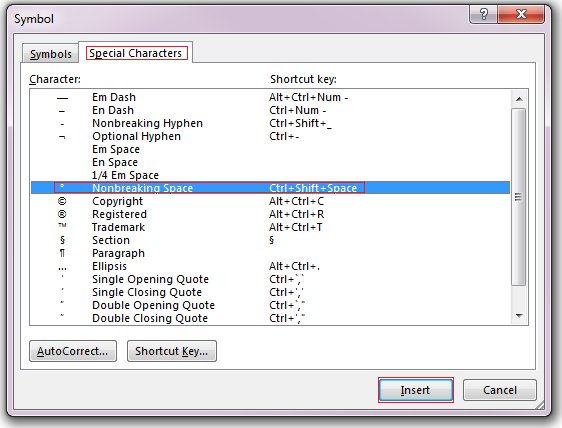
For a single ¥ inside text in Excel or Word, go to Insert > Symbol > More Symbols, double-click ¥, then select Close. The dialog's Character code box shows 00A5 for it.
If a formatted cell shows #####, the column is too narrow; double-click the column boundary to widen it.
Additional yen symbol tips
| Situation | What to do | Why |
|---|---|---|
| ¥ shows as an empty box | Change the text to a common font such as Arial or Segoe UI Symbol | Not all fonts contain the same characters |
| Naming files or folders | Spell out yen instead of using ¥ | Japanese code pages map ¥ and the backslash to the same character |
| Typing other currency signs | £ is Alt + 0163, € is Alt + 0128, ¢ is Alt + 0162 |
Same keypad method, different code |
| Other math and comparison symbols | Type the degree symbol on a keyboard or the not-equal sign with their own codes | Each has its own codes |
How to check you typed the yen sign
- In Word, place the cursor directly after the character.
- Press Alt + X.
- Confirm the character turns into
00A5, the yen sign's code. - Press Alt + X again to turn it back into ¥.
A result such as 005C means you have a backslash displayed as ¥ by a Japanese font or code page, not a real yen sign.
Troubleshooting common issues when typing the yen symbol
Check your keyboard layout: the wrong character appears
Windows is using a different layout from the one printed on your keys, so keys produce unexpected characters.
- Look at the input language icon in the system tray.
- Press Windows logo key + Spacebar until your intended layout is selected.
- Remove unused layouts under Time & language so they cannot be switched to by accident.
Use correct key combinations: Alt + 0165 does nothing
The digits were typed on the top number row, Num Lock is off, or the keyboard has no numeric keypad.
- Press Num Lock and check its indicator light.
- Hold Alt and retype
0165on the numeric keypad, keeping the leading zero. - If you pressed a wrong code, press Ctrl + Z to undo the character and try again.
Use Character Map or Emoji & Symbols menu: no numeric keypad on the laptop
Alt codes need a numeric keypad, which compact keyboards leave out.
- Press Windows key + . and pick ¥ from Symbols.
- Or open Character Map, copy ¥, and paste it.
- On a Mac, choose Edit > Emoji & Symbols instead of a shortcut.
Consider software or device limitations: Alt + X leaves 00A5 on the page
Some Office programs, including PowerPoint and InfoPath, cannot convert Unicode codes to characters.
- Delete the
00A5text. - Copy ¥ from Character Map or insert it with Insert > Symbol.
- Paste or insert it into the slide or form.
Update or reinstall keyboard drivers: keys or the keypad do not respond
A missing or outdated keyboard driver stops keys from registering at all.
- On Windows 11, go to Settings > Windows Update > Advanced options.
- Select Optional updates.
- Select any keyboard driver listed, then Download and install.
- Restart the PC, or get the driver from the keyboard maker's website if none is listed.
Yen symbol keyboard FAQ
How do I type the yen symbol on Windows?
Hold Alt and type 0165 on the numeric keypad with Num Lock on. Microsoft lists Alt + 0165 as the code for the yen sign. On a laptop with no keypad, press Windows key + period, select Symbols in the emoji panel, and click ¥.
How do I type the yen symbol on a keyboard without a numeric keypad?
Use the Windows emoji panel: press Windows key + period, select Symbols, and click ¥. Alt codes only work from the numeric keypad, not the number row. Character Map and copy and paste are the other routes that need no keypad.
How do I type the yen symbol in Word?
Type 00A5 and press Alt + X. Word converts the code into ¥ at the cursor. Alt + 0165 on the numeric keypad also works, and Insert > Symbol > More Symbols lets you pick ¥ from a grid.
How do I type the yen symbol in Excel?
Hold Alt and type 0165 on the numeric keypad while editing the cell. To put ¥ in front of every amount, press Ctrl + 1, choose Currency or Accounting, and select the yen symbol in the Symbol box instead of typing it.
How do I make the yen symbol on a Mac keyboard?
Press Fn + E or Globe + E, or choose Edit > Emoji & Symbols, then search for yen in the Character Viewer and click ¥. On a Japanese JIS keyboard, press the dedicated Yen key after setting it to enter a Yen sign.
What is the code to type the yen symbol?
The Windows Alt code is Alt + 0165, typed on the numeric keypad. The Unicode code point is U+00A5, which Word converts when you type 00A5 and press Alt + X. Both codes produce the same ¥ character.
What is the yen symbol?
The yen symbol is ¥, the sign for the Japanese yen. It is a capital Y crossed by one or two horizontal bars, and it is Unicode character U+00A5. Most modern fonts draw it with two bars.
Why does my backslash show as a yen sign?
Japanese-language code pages put ¥ in the position of the backslash. Files, paths and code viewed with a Japanese font or code page display ¥ where other systems show a backslash, even though the underlying character is the same.
Best way to type the yen symbol on a keyboard
Use Alt + 0165 on a Windows keyboard with a numeric keypad, and the Character Viewer (Fn + E) on a Mac. Both work in almost every app without setup; the emoji panel, Character Map and text replacements only matter when the keypad is missing, the app ignores codes, or you type ¥ all day.

![Find passwords stored on this computer [3 ways]](https://techdows.com/wp-content/uploads/2026/10/Find-passwords-stored-on-this-computer-3-ways.jpg)