To share your WiFi password from an unlocked iPhone or iPad, have the other person select your network on their iPhone, iPad or MacBook, then tap Share Password when the prompt appears on your screen.
For Android phones, Windows laptops and other non-Apple devices, show a network QR code from the Passwords app or reveal the password so they can type it.
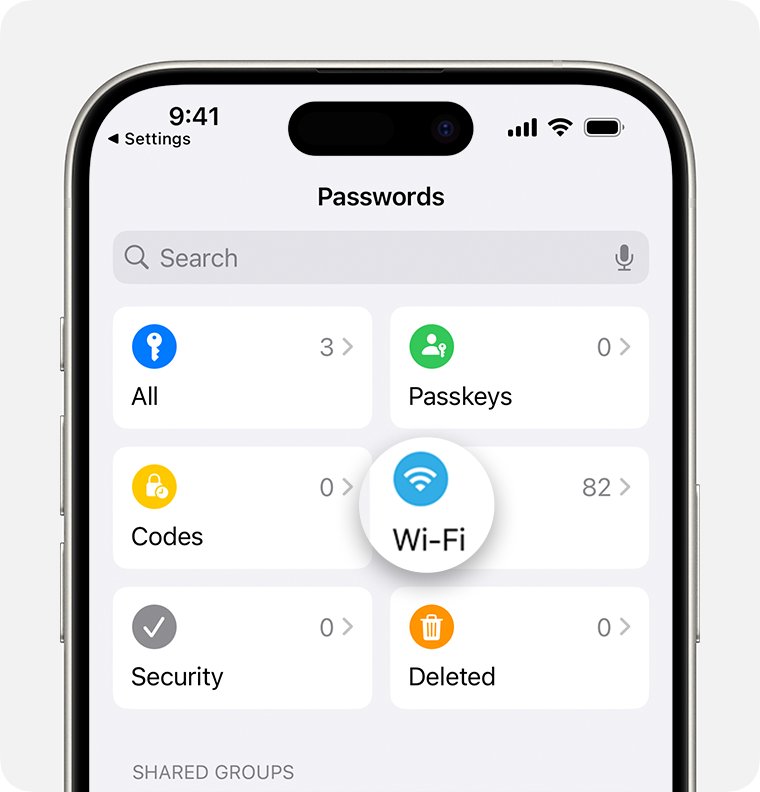
Share WiFi password from iPhone to iPhone, iPad or Mac
This is the one-tap route between Apple devices, and the password is never displayed on either screen.
- Unlock your iPhone or iPad and make sure it is connected to the WiFi network you want to share.
- Ask the other person to open WiFi settings on their iPhone, iPad or Mac and select the same network name.
- Wait for the WiFi password prompt to slide up on your unlocked device.
- Tap Share Password.
- Tap Done once the other device has joined.
If no prompt appears, the two devices are missing one of the requirements in the next sections, usually a contact card or Bluetooth.
Which WiFi sharing method works for each device
| Device that needs the WiFi | Use this method | Why |
|---|---|---|
| iPhone or iPad of a friend in your contacts | Share Password prompt | No typing, and the password is not shown on screen |
| MacBook or other Mac | Share Password prompt from your iPhone or iPad | Macs receive the same prompt when they pick the network |
| Your own second Apple device | Share Password prompt, with your own Apple Account in Contacts | Apple requires your own account in your contacts list for this |
| Android phone or tablet | Show Network QR Code in the Passwords app | The other person scans the code instead of typing |
| Windows 11 or Windows 10 laptop with a camera | Show Network QR Code, scanned with the Windows Camera app | Barcode mode in Camera opens Settings to add the network |
| Smart TV, console, printer or any device without a camera | Reveal and type the password | These devices cannot receive the prompt or scan a code |
Understanding WiFi password sharing
Apple's password sharing uses a mechanism similar to AirDrop. The device asking for the password sends a Bluetooth Low Energy signal, and nearby Apple devices that know that network answer it.
| Requirement | Why it matters |
|---|---|
| Latest iOS, iPadOS or macOS on both devices | Apple lists this first in its own checklist for password sharing |
| WiFi and Bluetooth turned on on both devices | The request travels over Bluetooth Low Energy before the password is sent |
| Both people signed in to their Apple Account | The sharing device has to confirm who is asking |
| Each person's Apple Account email or phone number saved in the other's Contacts | The device with the password needs the requester's contact information |
| Personal Hotspot turned off on both devices | Sharing does not work while either device runs a hotspot |
| Sharing device unlocked and on the network | The prompt only appears on an awake, unlocked device that knows the password |
| Devices close together | Both must be within Bluetooth and WiFi range |
Work or school devices can have password sharing turned off by their organisation through device management.
Method 1: Sharing WiFi password between Apple devices
Use this setup check before the first share. It covers iPhone, iPad and MacBooks on either side of the exchange.
- On both devices, turn on Wi-Fi and Bluetooth, and turn off Personal Hotspot if it is on.
- Open Contacts on each device and check that the other person's Apple Account email or phone number is saved.
- To share with a device you own, add your own Apple Account to your contacts list.
- On the receiving MacBook, open WiFi settings or the WiFi menu and choose the network name.
- On your iPhone or iPad, tap Share Password when the prompt appears.
- To share from a MacBook instead, keep the Mac unlocked and connected, wait for the Wi-Fi Password notification, then click Share.
A Mac can share with another nearby Mac, iPhone or iPad, so the same steps work in reverse when the MacBook is the device already online.
Method 2: Sharing WiFi password with non-Apple devices
Android phones and Windows laptops never see the Share Password prompt. A network QR code from the Passwords app gives them the network name and password in one scan.
- Open the Passwords app on your iPhone or iPad and unlock it with Face ID, Touch ID or your passcode.
- Tap Wi-Fi. On iPad, tap the sidebar button at the top if Wi-Fi is not visible.
- Tap the network you want to share.
- Tap Show Network QR Code and hold the screen up to the other device.
- On a Windows laptop, open the Camera app, select the barcode mode icon and point the camera at the code.
- Select the link that appears in Camera, then confirm in Settings that you want to add and connect to the network.
- If the device cannot scan a code, tap the Password field, tap Copy Password, and send or read it to the other person.
The Passwords app arrived with iOS 18. On iOS 16 and iOS 17, use the Settings route in the next section and type the password on the other device.
Show WiFi password on iPhone or iPad in Settings
In iOS 16, iPadOS 16.1 and later, Settings reveals the password of the current network after Face ID, Touch ID or your passcode.
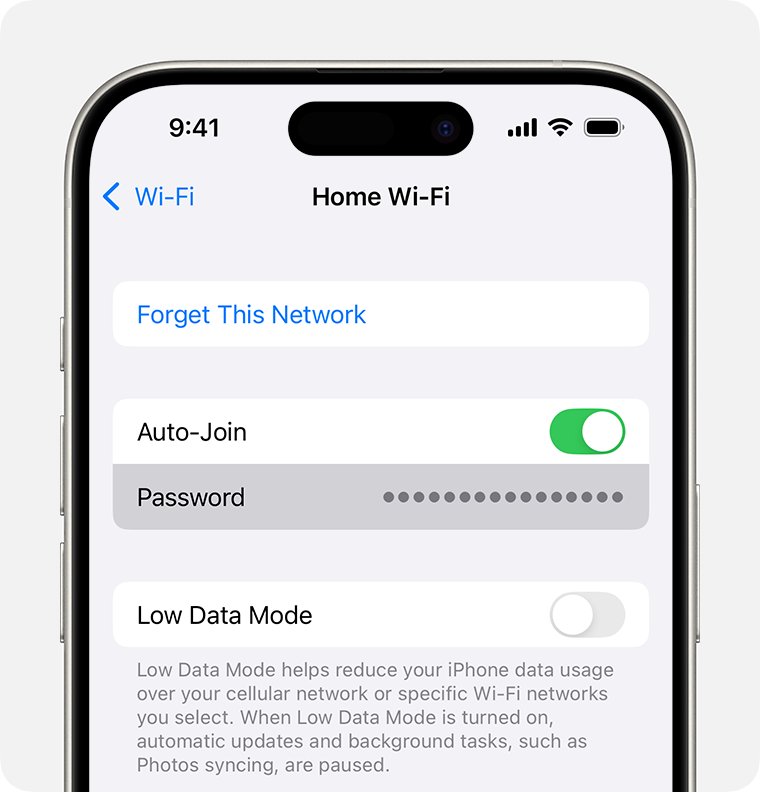
- Open Settings and tap Wi-Fi.
- Find the network you are connected to and tap the Info button next to it.
- Tap the Password field and unlock with your passcode, Face ID or Touch ID.
- For a network you joined earlier, tap Edit in the upper-right corner of the Wi-Fi screen, unlock, then tap the Info button next to the network.
- Read the password out or copy it, then type it on the smart TV, console or laptop that needs it.
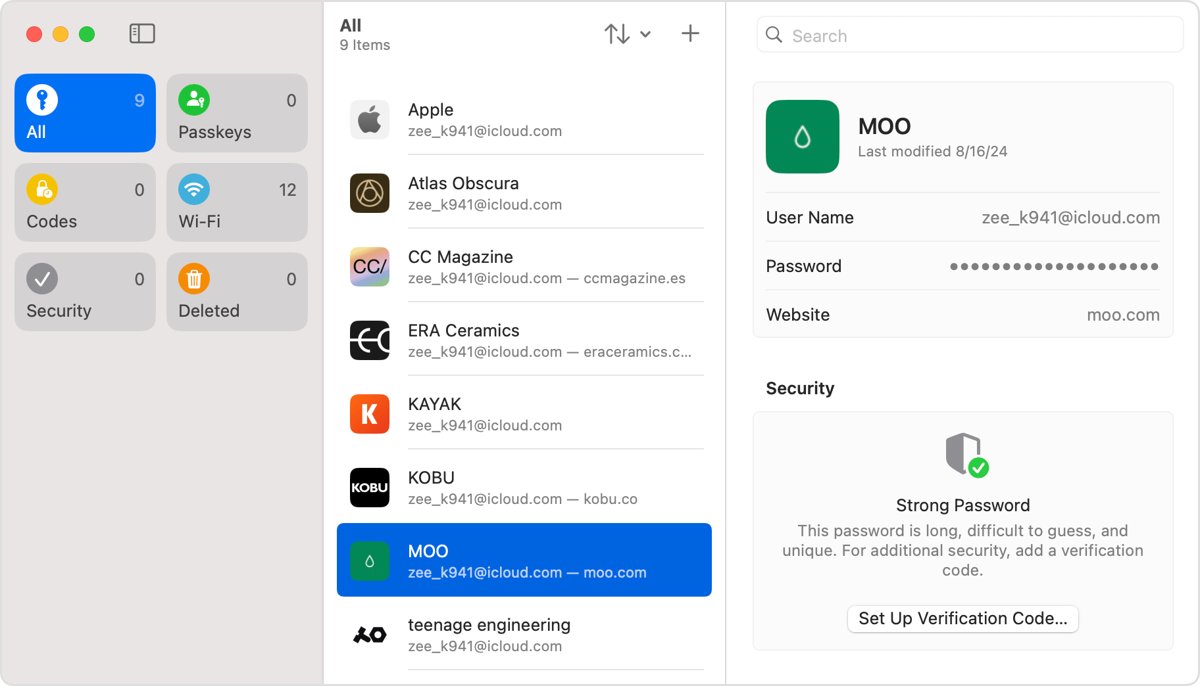
Find WiFi password on a MacBook in the Passwords app
A MacBook that has joined the network stores its password too, which helps when the iPhone is not nearby. The Passwords app needs macOS Sequoia or later.
- Open the Passwords app and sign in with Touch ID or your user account password.
- Click Wi-Fi in the sidebar. If it is hidden, click the sidebar button to show it.
- Select the network name.
- Hold the pointer over the dots next to Password to show it, or click the dots to copy it.
- To share with a phone or laptop that can scan codes, click Show Network QR Code.
On older Macs, open Keychain Access by searching for it in Spotlight; Apple now points users to the Passwords app for saved passwords.
Check the other device joined your WiFi network
- On an iPhone or iPad, open Settings > Wi-Fi and look for a checkmark next to the network name.
- On a Mac, open WiFi settings and confirm the network shows as connected.
- On Windows, open quick settings from the taskbar and check that the WiFi tile names your network.
- Load a website on the new device to confirm it has internet access, not only a WiFi connection.
Additional tips for sharing WiFi passwords safely
| Tip | What to do |
|---|---|
| Shared passwords stay saved | The other device keeps the password like any network it has joined, so share only with people you trust |
| Prefer the prompt over texting | The Share Password prompt checks the requester's identity first; a typed or messaged password can be forwarded |
| Revoke access later | Change the WiFi password on your router, and devices with the old password can no longer join |
| Sync your own devices | With iCloud Keychain on, saved passwords stay updated across your iPhone, iPad and Mac |
| Keep the hotspot off while sharing | Personal Hotspot on either device blocks the Share Password prompt |
Troubleshooting connection issues with WiFi password sharing
The Share Password prompt never appears
A requirement is missing: contact card, Bluetooth, sign-in, hotspot or distance.
- Unlock your iPhone or iPad and keep it next to the other device.
- Turn on Wi-Fi and Bluetooth on both devices and turn off Personal Hotspot.
- Save each person's Apple Account email or phone number in the other's Contacts.
- Update both devices to the latest iOS, iPadOS or macOS.
- Restart both devices, then have the other person select the network again.
Sharing still fails between Apple devices
The handshake cannot complete, for example on a managed work device.
- Open the Passwords app on your iPhone or iPad and tap Wi-Fi.
- Tap the network, then tap Show Network QR Code for the other person to scan.
- If scanning is not possible, tap Copy Password and have them enter the password manually.
Windows laptop does not join after scanning the QR code
Camera was left in photo mode, or the add-network prompt in Settings was not confirmed.
- Open the Camera app and select the barcode mode icon.
- Point the camera at the code again and select the link that appears.
- In Settings, confirm that you want to add and connect to the network.
- If it still fails, select the network from Manage Wi-Fi connections in quick settings, select Connect, type the password and select Next.
Show Network QR Code or the Wi-Fi list is missing
The device runs software older than iOS 18 or macOS Sequoia, which lack the Passwords app.
- On iPhone or iPad, open Settings > Wi-Fi and tap the Info button next to the network.
- Tap the Password field and unlock with Face ID, Touch ID or your passcode.
- Type the revealed password on the other device.
iPhone WiFi password sharing FAQ
Can I share my WiFi password from my iPhone?
Yes. Keep your iPhone unlocked and on the network, have the other person select the network on their iPhone, iPad or Mac, and tap Share Password when prompted. For non-Apple devices, use Show Network QR Code in the Passwords app.
How do I share a WiFi password between devices?
Between Apple devices, use the Share Password prompt, which needs Bluetooth, WiFi, both Apple Accounts and each other's contact details. Between an iPhone and an Android phone or Windows laptop, show a network QR code or reveal the password and type it.
Is it safe to share a WiFi password?
Sharing between Apple devices checks the requester's identity first, using contact information in a process similar to AirDrop. The other device still saves the password, so share only with people you trust and change the router password if you want to remove access later.
How do I prevent WiFi password sharing?
Change the WiFi password on your router so devices holding the old password cannot rejoin. Organisations can also turn off WiFi password sharing on iPhones, iPads and Macs they manage through a device management service.
How do I share a WiFi password from a laptop?
On a MacBook, keep it unlocked and connected, then click Share when the Wi-Fi Password notification appears for a nearby Apple device. On a Windows laptop, open Settings > Network & internet > Properties and select Show next to Wi-Fi network password, then give that password to the other person.
How do I share a WiFi password from a Windows PC?
Open Settings, select Network & internet > Properties, and select Show next to Wi-Fi network password. For other saved networks, open Manage known networks, pick the network and select Show. Then enter that password on the other device.
How do I share a WiFi password from an iPhone to an Android phone?
Open the Passwords app, tap Wi-Fi, tap your network and tap Show Network QR Code for the Android phone to scan. If it cannot scan the code, tap Copy Password and enter the password on the Android phone instead.
Can I share a WiFi password from a Mac to an iPhone?
Yes. Keep the Mac unlocked and connected, have the iPhone owner choose the network, and click Share on the Wi-Fi Password notification. Both people need to be signed in to an Apple Account and saved in each other's contacts.
Why is the Share Password option not showing on my iPhone?
The prompt needs both devices unlocked or awake, nearby, with WiFi and Bluetooth on, Personal Hotspot off, and each person saved in the other's Contacts. Restart both devices if everything is set and the prompt still does not appear.
In conclusion: best way to share WiFi password from iPhone
Use the Share Password prompt for any iPhone, iPad or MacBook, and Show Network QR Code in the Passwords app for Android phones and Windows laptops. Both routes avoid typing errors, and the prompt adds an identity check, so revealing and reading out the password is only needed for devices without a camera.