To set up USB tethering on Windows 11, connect your phone to the PC with a USB cable, then turn on USB tethering on Android or Allow Others to Join in Personal Hotspot on an iPhone, and Windows picks up the connection as a wired Ethernet network.
This guide covers Android and iPhone setup, what the PC needs, how to confirm the link works, how to save mobile data on it, and fixes for when Windows does not detect the phone.
Set up USB tethering on Windows 11
These are Google's steps for a Pixel and most Android phones. Windows 11 needs no extra software for an Android phone, because the network drivers ship with Windows.
- Connect the phone to a USB port on your Windows 11 PC with a data-capable USB cable.
- On the phone, open the Settings app.
- Tap Network & internet, then Hotspot & tethering.
- Turn on USB tethering.
- On the PC, wait a few seconds while Windows installs the adapter and connects to it as an Ethernet network.
Menu names differ between phone makers and Android versions. Microsoft notes the same switch is often labelled USB Tethering, Data Sharing or USB Modem. On an iPhone, use the Personal Hotspot method further down.
USB tethering, Wi-Fi hotspot or Bluetooth: which to use
| Your situation | Use this | Why |
|---|---|---|
| One Windows laptop, phone battery running low | USB tethering | The phone charges over the same cable while it shares data |
| Video calls, remote desktop or gaming on the laptop | USB tethering | Microsoft notes a USB tether can give lower latency than a Wi-Fi hotspot |
| Several devices need internet at once | Wi-Fi hotspot | Android shares mobile data with up to 10 devices over Wi-Fi; USB serves one PC |
| No cable with you, or the PC has no free USB port | Wi-Fi hotspot | It is cable-free and works with the widest range of devices |
| A Mac with an Android phone | Wi-Fi hotspot or Bluetooth | Google states Mac computers can't tether with Android by USB |
| An iPhone and a Windows PC | Personal Hotspot over USB | Works once Apple Devices or iTunes is installed on the PC |
What you need before you start
| Requirement | Android phone | iPhone or iPad (cellular) |
|---|---|---|
| Cable | USB data cable, not a charge-only cable | Lightning or USB-C cable that syncs data |
| Software on the PC | None; Windows 11 includes the RNDIS and USB NCM network drivers | Latest Apple Devices app or iTunes for Windows |
| Phone setting | USB tethering in Hotspot & tethering | Allow Others to Join in Personal Hotspot |
| Mobile plan | Tethering allowed by your carrier; some limit or charge extra | Personal Hotspot included in your plan |
| Permission prompts | None in most cases | Allow on the PC and Trust on the iPhone the first time |
Microsoft's USB class driver reference lists Rndismp.sys and UsbNcm.sys as in-box drivers that install automatically and update through Windows Update. You do not need to download a tethering driver from a third-party site.
Turn on USB tethering from Android Quick Settings
This route skips the Settings app. Google notes some of these steps only work on Android 14 and up.
- Connect the phone to the PC with the USB cable. A notification appears at the top of the phone screen.
- Swipe down from the top of the phone screen to open Quick Settings.
- Touch and hold the Hotspot tile.
- Turn on USB tethering.
- On the PC, open Settings > Network & internet and confirm the status reads Connected.
If the Hotspot page only offers Set up Wi-Fi hotspot, tap it first; Google says some phones show this before the other tethering options.
Share an iPhone connection over USB with Personal Hotspot
An iPhone has no switch called USB tethering. Personal Hotspot covers Wi-Fi, Bluetooth and USB at once, and Windows needs Apple's software to talk to the phone.
- On the PC, install or update the Apple Devices app or iTunes for Windows.
- On the iPhone, open Settings and tap Personal Hotspot (or Cellular > Personal Hotspot).
- Turn on Allow Others to Join.
- Connect the iPhone to the PC with the USB cable.
- If Windows asks to allow this accessory to connect, click Allow.
- If the iPhone asks whether to trust this computer, tap Trust and enter your passcode.
How to check the tethered connection works
- Open Settings and select Network & internet.
- Look at the status at the top of the page: it should say Connected and show an Ethernet connection.
- Select Properties next to the connected network to see the adapter and its IP settings.
- Turn off Wi-Fi on the PC for a moment, then open a website to confirm traffic flows through the phone, then turn Wi-Fi back on.
If Windows shows the Ethernet connection but pages will not load, go to the troubleshooting section below.
What is USB tethering?
USB tethering shares your phone's mobile data with a computer through the charging cable. The phone acts as a USB network adapter, so Windows treats it like a wired Ethernet port rather than a Wi-Fi network.
| Question | Answer |
|---|---|
| What is USB tethering in Windows? | A wired network connection that appears under Ethernet in Network & internet when a phone shares data over USB |
| Which driver does Windows use? | Rndismp.sys for RNDIS phones or UsbNcm.sys for USB NCM phones, both built into Windows 11 |
| What does the phone use for internet? | Its mobile data connection; Wi-Fi on the phone is not shared over USB by this switch |
| Does it count against my data plan? | Yes, and some carriers limit or charge extra for tethering |
| Does the phone charge? | Yes, the PC powers the phone over the same cable |
| Where is the switch on Android? | In Settings > Network & internet > Hotspot & tethering, not in the 'Use USB for' file-transfer notification |
Set the tethered connection as metered to save mobile data
Windows treats the tether as an Ethernet connection, so it may download large updates over your phone's data. Marking it metered stops that.
- Open Settings and select Network & internet.
- Select Ethernet, then select the tethered network you are connected to.
- Turn on Metered connection.
On a metered connection some apps behave differently, and some Windows updates will not install automatically until you are back on your normal network.
How to turn off USB tethering
- On Android, open Settings > Network & internet > Hotspot & tethering and turn off USB tethering, or simply unplug the cable.
- On an iPhone, unplug the cable or turn off Allow Others to Join in Personal Hotspot.
- Leave Personal Hotspot off when you only want to charge the iPhone from the PC, so it does not reconnect and use data.
Troubleshooting USB Tethering in Windows 11
Why is my PC not detecting USB tethering?
A charge-only cable, a stalled adapter install or an outdated network driver stops Windows from seeing the phone as a network adapter.
- Swap to a cable you know transfers data and try a different USB port on the PC.
- Turn USB tethering off and on again with the cable connected.
- Restart the phone and the PC.
- Open Settings > Windows Update > Advanced options > Optional updates and install any network driver updates listed, then restart.
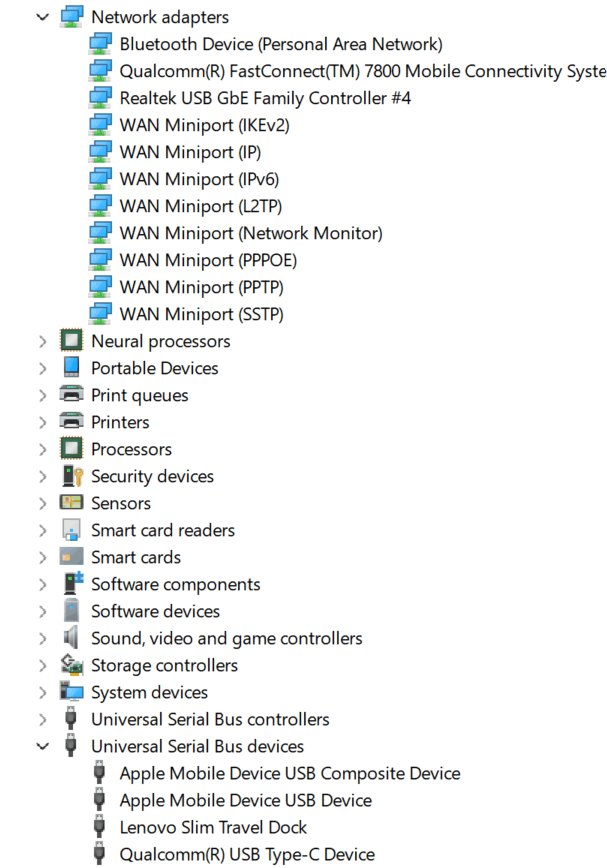
- In Device Manager, expand Network adapters, right-click the tethering adapter, select Uninstall device, then restart so Windows reinstalls it.
An iPhone connected by USB does not appear as a network
Windows lacks Apple's device software, or the iPhone has not trusted the PC.
- Install or update the Apple Devices app or iTunes for Windows.
- Check that Allow Others to Join is on in Personal Hotspot.
- Unplug and reconnect, then tap Trust on the iPhone and Allow on the PC.
- Restart both devices and update the iPhone to the latest iOS.
- As a last step on the iPhone, tap Settings > General > Transfer or Reset iPhone > Reset > Reset Network Settings. This also clears saved Wi-Fi networks and VPN settings.
Windows shows Connected but there is no internet
The phone has no mobile data, the carrier blocks tethering, or Windows has stale network settings.
- Open a web page on the phone itself to confirm mobile data works.
- Ask your carrier whether your plan allows tethering.
- In Settings > Network & internet > Ethernet, check IP assignment; if you set a manual address earlier (see how to set up a static IP address), select Edit and switch it back to automatic.
- Run Command Prompt as administrator and enter
netsh winsock reset,netsh int ip reset,ipconfig /release,ipconfig /renewandipconfig /flushdns, then restart. - If it still fails, open Settings > Network & internet > Advanced network settings > Network reset and select Reset now.
USB tethering is slow
The speed you get is the phone's mobile data speed, and background downloads on the PC compete for it.
- Check the signal on the phone and move to a spot with better mobile reception.
- Turn on Metered connection for the tethered Ethernet network so Windows holds back large downloads.
- Close apps on the PC that sync or stream in the background.
- Ask your carrier whether your plan slows tethered data after a limit.
Frequently Asked Questions
How do I set up USB tethering on Windows 10?
The steps are the same as on Windows 11. Connect the phone by USB, then turn on USB tethering in the phone's Hotspot & tethering settings. Windows 10 includes the RNDIS driver most Android phones use, and it lists the tether under Ethernet.
How do I turn on USB tethering on Android?
Connect the phone to the computer with a USB cable, open Settings > Network & internet > Hotspot & tethering, and turn on USB tethering. On Android 14 and later you can also touch and hold the Hotspot tile in Quick Settings.
How do I connect USB tethering to a laptop?
Plug the phone into the laptop's USB port with a data cable and turn on USB tethering on Android, or Personal Hotspot on an iPhone. The laptop connects on its own and shows a wired Ethernet connection. No network name or password is needed.
What is USB tethering in a USB connection?
It is a mode where the phone's USB cable carries network traffic, not just power or files. The phone presents itself to Windows as a network adapter and shares its mobile data, so the PC gets internet through the cable while the phone charges.
Do I need a driver for USB tethering on Windows 11?
Not for Android. Windows 11 includes Microsoft's RNDIS and USB NCM network drivers, and they install automatically. An iPhone needs the Apple Devices app or iTunes for Windows installed on the PC before Personal Hotspot works over USB.
How can I make USB tethering faster?
The limit is the phone's mobile data connection, so improve the signal first. Set the tethered connection as metered in Windows so updates do not compete for bandwidth, close background sync apps, and check whether your carrier slows tethered data.
Is USB tethering better than a Wi-Fi hotspot?
For one PC, often yes. The phone charges while it shares data, and Microsoft notes a USB tether can give lower latency than a hotspot. A Wi-Fi hotspot is better when several devices need internet or you have no cable.
Does USB tethering use mobile data?
Yes. USB tethering shares the phone's mobile data connection, so everything the PC downloads counts against your plan. Google warns some carriers limit or charge extra for tethering, so check your plan before long sessions.
Can I use USB tethering with a Mac and an Android phone?
No. Google states Mac computers can't tether with Android by USB. Use the phone's Wi-Fi hotspot or Bluetooth tethering instead. An iPhone can share its connection with a Mac over USB through Personal Hotspot.