To see your Spotify listening stats, tap your profile picture and open Listening stats; to see your listening history, tap your avatar on Home and open Recents.
This guide covers both, plus Wrapped, your friends' listening activity, the full history file Spotify lets you download, and fixes when songs or stats are missing.
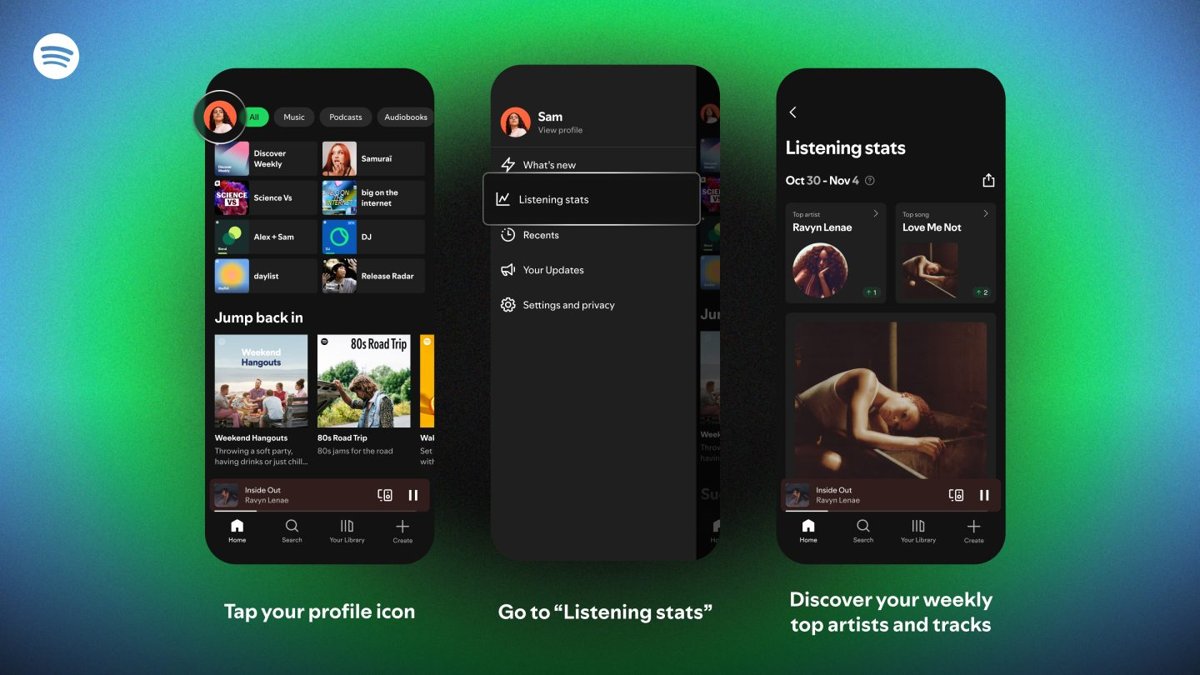
Quickest way to check Spotify listening stats and history
Both views live in the Spotify app and work on Free and Premium accounts. Listening stats arrived in November 2025 in more than 60 markets.
- Open the Spotify app on your phone.
- Tap your profile picture at the top to open the menu.
- Tap Listening stats to see your top artists and songs from the past four weeks.
- Go back, tap Home, then tap your avatar at the top.
- Tap Recents to see the music, podcasts and audiobooks you played recently.
- Use the filters at the top of Recents, such as Music, to narrow the list.
Spotify listening time, history or top artists: which feature to use
Spotify spreads your listening data across five features. Each one answers a different question and covers a different time span.
| What you want to know | Use this | Time span covered |
|---|---|---|
| Which songs did I just play? | Recents (mobile) or Play Queue > Recents (desktop) | Recent plays; the desktop list holds the last 50 songs |
| Who are my top artists and songs right now? | Listening stats in the profile menu | The past four weeks, refreshed weekly |
| How many minutes did I listen this year? | Spotify Wrapped | January 1 to mid-November of that year |
| What is my listening age or top genre? | Spotify Wrapped | The Wrapped year |
| Every song I have ever streamed, with dates | Download your data > extended streaming history | The lifetime of your account |
| What are my friends playing? | Listening activity | Their current or last played song |
Spotify listening stats vs listening history: what each one shows
Spotify treats stats and history as separate things. Stats are rankings and summaries. History is the list of what you actually played.
| Listening stats | Listening history | |
|---|---|---|
| What you see | Top artists, top songs, a weekly highlight and suggested playlists | Individual songs, podcasts and audiobooks you played |
| Where in the app | Profile menu > Listening stats | Home > avatar > Recents |
| Period | Past four weeks | Recent plays only |
| Play counts or minutes | Not shown | Not shown |
| Can you share it? | Yes, with Share | No share option |
| Full record | Wrapped for the year | The extended streaming history download |
Your public profile also shows Recently played artists to anyone who opens it, unless you switch that off.
Spotify stats and history requirements: account, app and plan
These prerequisites decide which views you get. Check what you need before you go looking for a feature your account or app cannot show.
| Requirement | Detail |
|---|---|
| Spotify account | Free or Premium; listening stats and Wrapped are offered on both plans |
| Signed in to the right account | Each feature reads only the account you are logged in to |
| Up-to-date mobile app | Wrapped appears only in the iOS and Android app, and listening stats is an in-app feature |
| Supported market | Listening stats launched in more than 60 markets; Wrapped is in nearly all markets where Spotify is live |
| Enough listening for Wrapped | At least 30 songs played for more than 30 seconds each, from at least five different artists |
| Browser access to your account page | The full history download is requested from the Account privacy page on spotify.com |
How to see your Spotify listening history (recently played) on iPhone and Android
The Recents list on mobile includes music, podcasts and audiobooks you played or saved. The steps are the same on iPhone, iPad and Android.
- Open Spotify and tap Home.
- Tap your avatar at the top of the screen.
- Tap Recents.
- Tap a filter at the top, such as Music, to show one type of item.
- Tap any song in the list to play it again or open its menu.
How to see recently played songs on Spotify desktop
The Spotify app for Windows and Mac keeps your recent plays inside the queue panel. It shows the last 50 songs you listened to. Recent plays also weigh on the default shuffle, and Premium users can make Spotify shuffle truly random with Standard shuffle.
- Open the Spotify desktop app.
- Click the Play Queue button at the bottom of the window.
- Click Recents in the queue panel.
- Scroll the list to see up to your last 50 songs.
- Double-click a song to play it again.
Spotify's help pages document Recents for the mobile and desktop apps only. If you use the Web Player, use one of the apps or the data download to check older plays.
See your Spotify listening stats: top tracks, artists and genres
Listening stats shows your top artists and top songs from the past four weeks. Each week it adds a highlight, such as a milestone, a new discovery or a fan moment, plus playlists built from what you play.
Top genres are not part of listening stats. Spotify shows genres once a year in Wrapped.
- Open the Spotify app.
- Tap your profile picture at the top to open the menu.
- Tap Listening stats.
- Scroll to see your top artists, top songs and this week's highlight.
- Tap Share to send the stats to friends on Spotify or post them to Instagram, WhatsApp and other apps.
How to see what friends are listening to on Spotify
Listening activity shows a friend's current or last played song, but only if that friend has switched their own listening activity on.
| Device | Steps |
|---|---|
| Phone or tablet | Tap your profile picture, then scroll to the carousel of friends' profile pictures. You can also open Messages and tap a chat to see the friend's song under their name. |
| Windows or Mac app | Click Listening Activity at the top, next to your profile picture. |
| Share your own activity (mobile) | Profile picture > Settings and privacy > Privacy and social > turn on Listening activity |
| Share your own activity (desktop) | Profile picture > Settings > under Listening Activity and insights, turn on Listening activity |
Your own listening activity is off by default, but you can still see friends who share theirs. On mobile you can tap a friend's track to play it, react to it, or start or join a Jam to listen along.
Spotify Wrapped stats: minutes listened, listening age and what Wrapped doesn’t show
Wrapped is Spotify's yearly summary and the only in-app place that shows total minutes listened. The 2025 edition launched on December 3 in the mobile app, in a feed at the top of Home, or you can search for "Wrapped".
The 2025 edition included the stories below. Spotify changes the set every year, and some stories are limited to certain markets.
| Wrapped story | What it shows |
|---|---|
| Minutes Listened | Total time across music, podcasts and audiobooks |
| Top Songs | Your top five songs, plus a Your Top Songs playlist that shows play counts for your top 100 tracks |
| Top Artists | Up to five artists, ranked by a weighted stream count |
| Top Genres | The genres that shaped your year |
| Top Albums | Albums where you streamed most of the tracks |
| Top Podcasts | Up to five podcasts |
| Listening Age | How your taste compares with your age group, based on the release years of the tracks you play most |
| Fan Leaderboard | Where you may rank among your top artist's listeners worldwide, by minutes listened |
| Top Artist Sprint | How your top five artists moved month by month |
Wrapped does not show your full history or every second you streamed. It covers January 1 to mid-November, counts a play only after 30 seconds, and filters out some non-music audio such as white noise. Private session listening and anything excluded from your taste profile do not shape its taste-based stories.
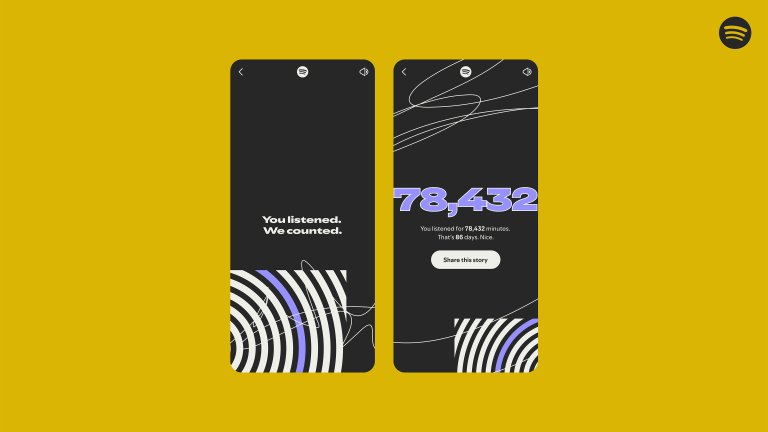
How to download your Spotify listening history (data export)
The Download your data tool on your Account privacy page is the only Spotify route to a full history with dates. Spotify delivers the data as a ZIP file of JSON files.
Request Extended streaming history for every stream since you opened the account. The account data package only holds the past year.
- Open a browser and go to spotify.com/account/privacy.
- Log in to the Spotify account whose history you want.
- Scroll to Download your data.
- Select the packages you want: account data, extended streaming history, technical log information, or all of them.
- Submit the request.
- Download the ZIP file once Spotify makes it available, then extract it on your computer.
- Open the Read Me First file in the folder to see what each file contains.
What's in the Spotify extended streaming history file
Each package arrives as JSON, a plain-text format you can open in any text editor or web browser. The extended package has its own Read Me First – Extended Streaming History file that explains every field.
| Package | Listening data it includes | Period |
|---|---|---|
| Account data: Streaming History | End time of each stream in UTC, artist or creator, track or item name, and msPlayed (milliseconds played) | Past year |
| Account data: Wrapped data | Your latest Wrapped figures, such as top artists, top tracks, total milliseconds listened and your top listening day | Latest Wrapped year |
| Extended streaming history | Track, artist, album and URI; milliseconds played; platform; country; why each track started and ended; shuffle, skip, offline and private session flags | Lifetime of the account |
| Technical log information | Commands, error messages and log strings Spotify collected about your account | Not a listening record |
Timestamps are in UTC, so plays late in the evening can appear under the next day. To work out listening hours, add up the milliseconds played and divide by 3,600,000.
How to check your Spotify listening history is complete
- Play a song for more than 30 seconds with Private session turned off.
- Open Recents and confirm the song is at the top of the list.
- Open your profile and check that the artist appears under Recently played artists, if that setting is on.
- In the downloaded extended history, search the JSON file for a song you remember playing months ago.
- Check the private session flag on any stream you expected to see elsewhere but cannot find.
How to keep Spotify stats accurate with private session and taste profile
Sleep sounds, kids' music or a partner's playlists can crowd your top artists. Spotify gives you two controls to keep that listening out of your stats.
| Situation | Use this | How |
|---|---|---|
| Someone else is using your account for an hour | Private session | Mobile: profile picture > Settings and privacy > Privacy and social > turn on Private Session. Desktop: profile picture > Private session. |
| A playlist you play nightly, such as sleep music | Exclude the playlist from your taste profile | Open the playlist, tap the more options menu near the top and choose Exclude from your taste profile |
| One track keeps topping your stats | Exclude the track from your taste profile | Open the track menu and choose Exclude track from your taste profile |
| A shared smart speaker or home system | A separate account or Private session on that device | Shared devices can add other people's listening to your results |
| You want others to stop seeing your recent artists | Turn off Recently played artists | Mobile: Settings and privacy > Privacy and social. Desktop: Settings > Social. |
Private session is account-wide, turns off after 6 hours or when you restart the app, and keeps that listening out of Wrapped. Exclusions take effect within 48 hours and still count toward total listening time in Wrapped.
Spotify listening history or stats missing: causes and fixes
Songs you played are missing from Recently played
Private session was on, or the songs are older than the desktop list's last 50 plays.
- Check whether Private session is on and switch it off.
- Remember it applies to every device on the account, including TVs and speakers.
- Check the mobile Recents list instead of the desktop queue.
- Request the extended streaming history for anything older.
Listening stats or recently played artists stopped updating
Private session stops your top artists and recently played artists from updating, and excluded playlists carry less weight.
- Turn off Private session, or restart the app to end it.
- Check that Recently played artists is on under Privacy and social.
- Open the playlists you play most and check none is excluded from your taste profile.
- Update the Spotify app, then check Listening stats again after the weekly refresh.
Friends' listening activity is not updating
Listening activity is not real time, and a friend's private session hides their plays for up to 6 hours.
- Update the Spotify app.
- Update your phone's or computer's operating system.
- Restart the app.
- Log out of Spotify, then log back in.
- Reinstall the app if it still does not update.
Spotify Wrapped does not appear
The account did not meet the listening minimum, the app is out of date, or you are on desktop.
- Open Wrapped in the iOS or Android app, not on desktop.
- Update the app and look for the Wrapped feed at the top of Home.
- Search for "Wrapped" with the year.
- Check that you played at least 30 songs for over 30 seconds each, from at least five artists, outside private session.
Wrapped top songs or artists look wrong
Wrapped stops in mid-November, ranks artists by weighted streams, and counts everything played on shared devices.
- Remember that December listening is not counted.
- Check the Your Top Songs playlist for play counts.
- Ask who else uses your smart speaker or home system with your account.
- Compare against your downloaded extended streaming history.
Third-party Spotify stats viewers: when they help and when to avoid them
Outside sites can draw charts from your Spotify data, but many ask you to log in with Spotify and grant ongoing access to your account. Spotify notes that some third-party services also count a year differently from Wrapped.
Use Spotify's own listening stats, Wrapped and the extended streaming history download, and avoid any stats site that asks you to log in with your Spotify account. The download already holds every stream since the account was created, and you can read it in a text editor or spreadsheet without handing your login to anyone. If you connected a stats app in the past, log in to your Apps page on spotify.com and click Remove Access next to it. Spotify never links a third-party app without your explicit permission.
Common questions about Spotify listening stats and history
Can you see your Spotify listening history?
Yes. Tap Home, tap your avatar and open Recents on mobile, or click Play Queue and then Recents on desktop, which shows your last 50 songs. For every stream since you created the account, request the extended streaming history from the Account privacy page.
How do I see my Spotify listening time?
Spotify shows total listening time once a year in the Minutes Listened story in Wrapped, covering January 1 to mid-November. For any other period, download your extended streaming history and add up the milliseconds played for each stream in the JSON file.
How do I see my Spotify listening hours?
There is no running hours counter in the app. Take the minutes from Wrapped and divide by 60, or add up the milliseconds played in your downloaded streaming history and divide the total by 3,600,000 to get hours.
How do I see my Spotify listening age?
Listening Age is a Wrapped story. It compares your taste with others in your age group, based on the release years of the tracks you play most. Open Wrapped in the Spotify mobile app when it launches and scroll through your stories.
How do I see my most listened to songs on Spotify?
Open your profile menu and tap Listening stats for your top songs and artists from the past four weeks. For the full year, open Wrapped and save the Your Top Songs playlist, which shows how many times you played each of your top 100 tracks.
How do I see what my friends are listening to on Spotify?
On mobile, tap your profile picture and scroll to the carousel of friends' pictures, or open a chat in Messages. On desktop, click Listening Activity at the top. A friend only appears if they have turned on their own listening activity.
How do I listen along with friends on Spotify?
On mobile, tap the track a friend is playing in their listening activity and choose to start or join a Jam. A Jam lets you listen together. The friend must have their listening activity switched on for their track to appear.
Can other people see my Spotify listening history?
Not your full history. Anyone who opens your profile can see your recently played artists, and followers can see your current song if listening activity is on. Turn either off under Settings and privacy, then Privacy and social, or use a private session.
Why is my Spotify listening history incomplete?
Plays during a private session do not appear in Recently Played, and the desktop list stops at your last 50 songs. The account data download covers only the past year, so request extended streaming history for the full record.
Best way to see your full Spotify listening stats and history
Use Listening stats and Recents for quick checks, Wrapped for yearly totals, and the extended streaming history download when you want every stream with a date. The in-app views only cover the past four weeks or your recent plays, and Wrapped stops in mid-November. The download is the one Spotify record that covers the whole life of your account and stays on your own computer.

![Unable to accept invite in Discord [Fix]](https://techdows.com/wp-content/uploads/2026/10/Unable-to-accept-invite-in-Discord-Fix-1-600x338.jpg)
Spotify shuffle is not random! Here's how to actually make it random - Techdows
[…] shuffle is deliberately not purely random: since November 2025 it uses Fewer Repeats, which weighs your recent listening, and Premium users can switch to Standard shuffle in Settings > Playback for true equal-chance […]