Spotify's default shuffle is deliberately not purely random: since November 2025 it uses Fewer Repeats, which weighs your recent listening, and Premium users can switch to Standard shuffle in Settings > Playback for true equal-chance randomness.
This guide explains how each shuffle mode picks songs, how to turn off Smart Shuffle and Autoplay so only your own tracks play, how to shuffle on PC and mobile, and what to do when shuffle keeps playing the same songs.
How to make Spotify actually shuffle
To force Spotify to shuffle your music randomly, set the shuffle style first, then remove the features that add songs. Choosing the shuffle mode needs Spotify Premium. The setting applies to every playlist, album and artist you shuffle.
- Open Spotify and tap or click your profile picture at the top.
- Open Settings and privacy on mobile, or Settings on desktop.
- Select Playback.
- Choose your shuffle mode: Standard for pure randomness, or Fewer Repeats to hear recently played songs less often.
- On mobile, also switch Include Smart Shuffle in play modes off so no recommended songs are mixed in.
- Go back to your playlist and tap the shuffle icon until it shows that shuffle is on.
Most people who say shuffle is not random actually want fewer repeats, not more randomness. Spotify itself warns that more randomness can mean hearing the same tracks more often, so try Fewer Repeats first if the complaint is repeated songs.
Is Spotify shuffle random?
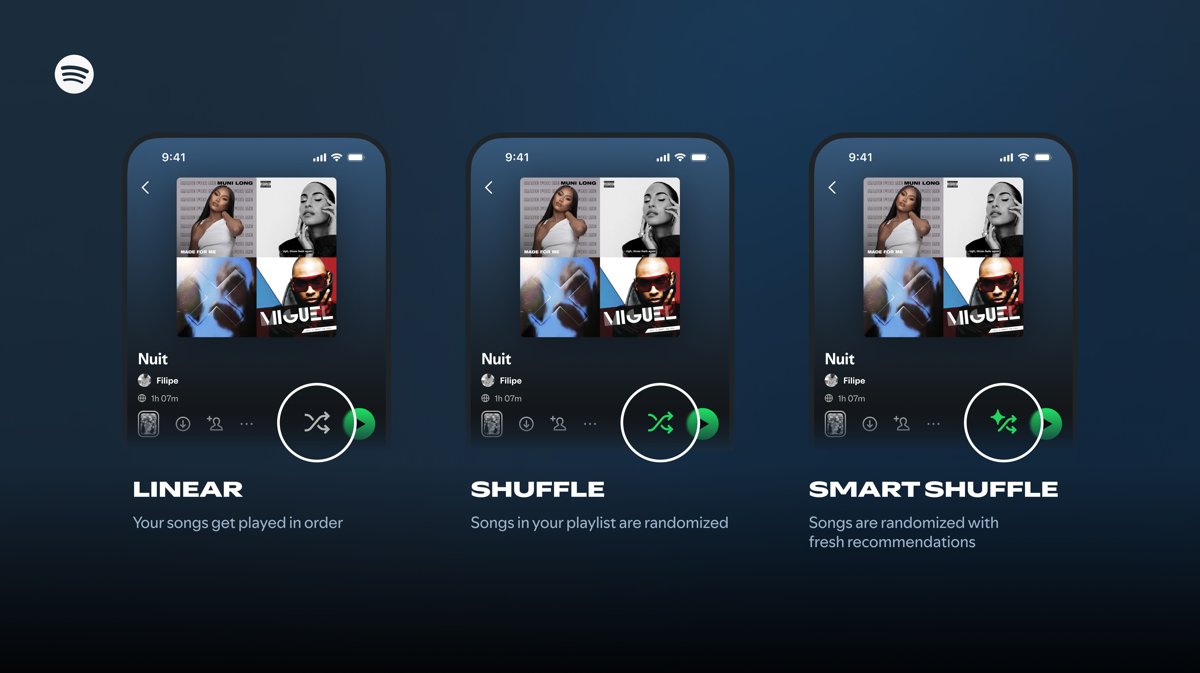
It depends on the mode. In its default mode, Spotify shuffle isn't really random by design. Spotify now offers two shuffle styles to Premium users, plus Smart Shuffle, which adds songs that are not in your playlist.
| Mode | How it picks the next song | Repeats | Who gets it |
|---|---|---|---|
| Fewer Repeats (default) | Remembers what you played recently, builds several random sequences and plays the one with the best freshness score | Reduced, not eliminated | Default for everyone; selectable on Premium |
| Standard | Every track has an equal chance; nothing about recent plays is remembered | Occasional repeats and some songs coming up more often than others | Premium, chosen in Settings > Playback |
| Smart Shuffle | Shuffles your tracks and mixes in recommendations that match the playlist's vibe | Adds songs you did not pick | Always on for Free on mobile; on or off for Premium |
| Shuffle off | Plays the tracks in their listed order | None | Everyone |
So a playlist that feels predictable on Fewer Repeats is working as designed: it is choosing among random orders, not drawing purely at random. Standard is the truly random option, and that randomness is exactly why some songs can surface twice in a short session.
How Spotify balanced statistical randomness with listener intuition
Spotify changed its default shuffle on November 13, 2025, because a purely random order does not feel random to most listeners. The redesign keeps randomness at the core and changes only how the final order is chosen.
| Part of the redesign | What it means for your playlist |
|---|---|
| Understanding the problem | Pure random picks give every track an equal chance each time, with no memory of past plays, so some songs repeat or appear more often than others purely by chance. |
| Fewer Repeats: same randomness, fewer repeats | Spotify still generates random sequences, but it creates several of them, scores each for freshness against your recent listening and plays the best one. Repeats drop but do not disappear. |
| Standard shuffle: still pure randomness | The previous equal-chance shuffle stays available to Premium users under Settings > Playback, unchanged. |
| Fine-tuning for the future | Spotify says it keeps working on shuffle for more variety, and recommends the Fewer Repeats default for most listeners. |
The trade-off is deliberate: Spotify notes that more randomness can mean hearing the same tracks more often, so the freshness score exists to match what listeners expect a shuffle to sound like.
Which Spotify shuffle mode to use
| Your complaint | Use this | Why |
|---|---|---|
| The same few songs keep coming up | Fewer Repeats | It lowers the odds of songs you heard recently |
| You want every song to have an equal chance | Standard | Pure random order, with no memory of past plays |
| Songs you never added keep playing | Turn off Smart Shuffle and Autoplay | Both add recommendations to your session |
| You want a specific order, not random | Shuffle off and sort the playlist | Tracks then play in the order you set |
How to turn off Smart Shuffle on Spotify
Smart Shuffle marks its recommended songs with an Enhance sparkle badge next to the artist name in the Now Playing bar. On a playlist with more than 15 songs, Spotify adds one recommendation for every three tracks.
- Tap your profile picture at the top of the Spotify mobile app.
- Tap Settings and privacy.
- Select Playback.
- Switch Include Smart Shuffle in play modes off.
- Return to your playlist; the shuffle icon now switches only between shuffle off and shuffle on.
This setting is for Premium. On the Free plan, Smart Shuffle is always active on mobile, so recommendations will keep appearing in shuffled playlists.
How to stop Spotify Autoplay adding songs after your playlist
Autoplay starts similar songs when an album, playlist or selection ends. Those extra songs can look like shuffle repeating or picking tracks that are not in the playlist.
| Device | Steps |
|---|---|
| Mobile and tablet | Tap your profile picture > Settings and privacy > under Playback, scroll to Autoplay and switch it off |
| Desktop | Click your profile picture > Settings > scroll to Autoplay and switch it off |
How to shuffle songs on Spotify PC
- Open the playlist, album or artist page in the Spotify desktop app or web player.
- Click the shuffle icon so it shows shuffle is on, or press Ctrl + S on Windows (Alt + S on Mac).
- Start playback.
- To check what plays next, click the queue icon next to the play bar at the bottom.
Repeat has its own shortcut: Ctrl + R on Windows and Alt + R on Mac. Turn repeat off if one song keeps playing over and over, since that is repeat rather than shuffle.
How to shuffle songs in Spotify playlist on mobile
- Open the playlist, album, artist profile or Liked Songs in the Spotify app.
- Tap the shuffle icon. Each tap moves through Shuffle off, Shuffle on and, on Premium with Smart Shuffle included, Smart Shuffle on.
- Stop on Shuffle on if you want only your own tracks.
- To pick a song while shuffling, tap it; it plays next without reshuffling the rest of the queue.
On a tablet, open the Now Playing view by tapping the album artwork in the side menu.
Fix the order with the Spotify play queue
When shuffle puts a song in the wrong place, edit the queue instead of reshuffling. Editing the queue is a Premium feature on mobile and tablet.
| Task | Mobile and tablet | Desktop and web player |
|---|---|---|
| Open the queue | Tap the Now Playing bar, then the queue icon at the bottom | Click the queue icon next to the play bar |
| Move a song | Tap and hold the handle next to it, then drag | Click and hold the track, then drag |
| Remove a song | Swipe it left | Right-click it and select Remove from queue |
| Clear songs you added | Tap the menu and select Clear | Select Clear queue, then Yes |
How to check Spotify shuffle is working
- Start a shuffled playlist and open the queue.
- Confirm the upcoming songs are all from your playlist and none carry the Enhance badge.
- Skip forward a few tracks and confirm they follow the queue rather than the playlist order.
- Play the same playlist again later; on Fewer Repeats, songs you just heard should rarely open the new session.
Why does Spotify shuffle play the same songs?
Spotify shuffle keeps playing the same songs
Standard shuffle has no memory of what played recently, so repeats happen by chance.
- Open Settings > Playback.
- Choose Fewer Repeats.
- Restart the playlist with shuffle on.
Spotify repeats songs on shuffle that are not in the playlist
Smart Shuffle or Autoplay is adding recommendations.
- Switch Include Smart Shuffle in play modes off under Settings and privacy > Playback.
- Switch Autoplay off.
- On the Free plan, expect Smart Shuffle to stay active on mobile.
One song plays over and over
Repeat is set to repeat one track.
- Tap or click the repeat icon until it is off.
- On desktop, press Ctrl + R (Windows) or Alt + R (Mac).
Why can't I shuffle or choose a shuffle mode on Spotify?
Shuffle styles and turning Smart Shuffle off are Premium features.
- Check your plan in your Spotify account.
- On Free mobile, use the shuffle icon as offered; the mode choice is not available.
- On Premium, update the app if Playback shows no shuffle mode, then check again.
Spotify shuffle FAQ
Does Spotify shuffle actually shuffle?
Yes, but the default Fewer Repeats mode is not purely random. It builds several random orders and plays the one that best avoids songs you heard recently. Premium users can switch to Standard, which gives every track an equal chance.
How does shuffle work on Spotify?
Shuffle randomizes the order of a playlist, album or artist profile. Fewer Repeats weighs your recent plays to keep sessions fresh, Standard picks with equal odds, and Smart Shuffle also mixes in recommended songs that match the playlist.
What are the Spotify shuffle options?
There are two shuffle styles, Fewer Repeats and Standard, chosen under Settings > Playback on Premium. Separately, the shuffle icon cycles through Shuffle off, Shuffle on and Smart Shuffle on.
Why does Spotify shuffle play the same songs?
On Standard shuffle, Spotify does not remember what played recently, so random chance repeats some songs. Switch to Fewer Repeats in Settings > Playback. Repeats from outside the playlist come from Smart Shuffle or Autoplay.
How do I get Spotify to actually shuffle?
Choose Standard in Settings > Playback for equal-chance shuffling, or Fewer Repeats to cut repeats. Then turn off Smart Shuffle and Autoplay so only your own songs play, and tap the shuffle icon to Shuffle on.
How do I shuffle music on Spotify PC?
Open a playlist, album or artist page and click the shuffle icon, or press Ctrl + S on Windows. On a Mac the shortcut is Alt + S. Open the queue next to the play bar to see what plays next.
Can I shuffle a Spotify playlist on the Free plan?
Yes. Free users can shuffle playlists, but on mobile Smart Shuffle is always active, so recommended songs are mixed in. Choosing Fewer Repeats or Standard and turning Smart Shuffle off need Premium.
Can you shuffle multiple playlists on Spotify?
Spotify shuffles one playlist, album or artist at a time. To shuffle songs from several playlists together, add them to one new playlist and shuffle that playlist.
What is Smart Shuffle in Spotify?
Smart Shuffle is a play mode that shuffles your playlist or Liked Songs and adds personalized recommendations that match its vibe. Recommended songs show a sparkle badge next to the artist name.
Bottom line: the best Spotify shuffle setting
Keep Fewer Repeats if your problem is hearing the same songs, and switch to Standard only if you specifically want pure equal-chance randomness. Either way, turn off Smart Shuffle and Autoplay. Pure randomness naturally produces repeats, which is what most listeners complain about, while Fewer Repeats spreads plays across the whole playlist and disabling recommendations keeps shuffle limited to songs you chose.