To check Dell warranty status, enter your 7-character Service Tag on Dell's Support Services & Warranty page and select Review Services to see the coverage type, start date and end date.
This guide covers six ways to check or find the details, including SupportAssist, BIOS, PowerShell and a Dell account, plus used devices, accessories without a Service Tag, wrong warranty dates and extending coverage.
Method 1: Check Dell Warranty on Dell's Official Support Website
This is the fastest route and works from any browser, on any device, without signing in. You only need the Service Tag, the Express Service Code or a Dell EMC product ID.
- Open dell.com/support in a browser, select the Support tab and choose Support Services & Warranty. The direct address is dell.com/support/contractservices.
- Type your Service Tag (for example
ABC1234) into the product search box. On the Dell PC you want to check, you can let Dell's automated tool detect the tag instead. - Confirm that the product name shown matches your laptop, desktop or monitor.
- Select Review Services (labelled View Warranty Details on some pages).
- Read the start date, end date, type of coverage and the description of each service listed.
If the date shown is in the past, the base warranty has expired. Jump to the section on renewing or extending below.
Which method should you use?
| Your situation | Use this | Why |
|---|---|---|
| You know the Service Tag | Method 1: Dell support website | No sign-in, full coverage details |
| You are on the Dell PC and it boots into Windows | Method 2: SupportAssist | Shows the tag and service plan details in one app |
| You have the device in hand but it will not start Windows | Method 3: sticker, or Method 4: BIOS | The label and the F2 setup screen work without Windows |
| You need the tag from a script or a remote session | Method 5: PowerShell | Reads the tag straight from the firmware |
| You own several Dell devices | Method 6: Dell account | Lists every registered product with its warranty status |
| The accessory has no Service Tag (keyboard, mouse, headset) | Dell order number or receipt | Dell identifies these by order, not by tag |
What You Need Before Checking Your Dell Warranty
| Item | What it is | When you need it |
|---|---|---|
| Service Tag (ST) | A 7-character code of letters and numbers, sometimes labelled SVC Tag or ST | Every warranty lookup for a PC, tablet, monitor, dock or server |
| Express Service Code (EX) | A numeric conversion of the Service Tag, printed next to it on the label | Accepted in the same search box if the tag is hard to read |
| Dell order number | The number on your Dell invoice or order confirmation | Accessories that have no Service Tag |
| Proof of purchase | Invoice, packing slip or retailer receipt showing the date | Correcting a start date, retail registration or ownership transfer |
| Dell account | Free sign-in at dell.com | Method 6, product registration and tracking several devices |
The Express Service Code is not a separate identifier. It is the same Service Tag written as digits, so either one finds the same product. Warranty pages ask for the tag, while parts and drivers often need the model, so note the Dell laptop model and serial number together.
Method 2: Use Dell SupportAssist to Check Warranty
SupportAssist for Home PCs comes preinstalled on Dell PCs and runs on Windows 10 version 1809 or later (64-bit) and Windows 11. It shows the Service Tag and your service plan details.
- Select Start and type
SupportAssist. - Open the SupportAssist app from the results.
- Read the Service Tag shown on the app's main screen.
- Select the Service Tag to open more details about the PC and its service plan.
- Check the plan name and expiration date, or copy the tag into Method 1 for the full breakdown.
What SupportAssist can do depends on your plan. Basic coverage runs scans and updates, while ProSupport adds automated support requests and predictive failure detection.
Method 3: Find the Dell Service Tag on the Device
Dell prints the Service Tag and Express Service Code on a label, or etches it into the case. This works even when the device will not power on.
- On a laptop, look at the bottom cover for a sticker or etched text marked Service Tag, SVC Tag or ST.
- On a desktop tower, check the back panel, then the top on models that repeat the label there.
- On an all-in-one, check the bottom edge first, then the back panel.
- Copy the 7-character code, and the Express Service Code (EX) printed beside it if the tag is hard to read.
- Enter the code on Dell's warranty page from Method 1.
Tablets, monitors, docks, servers and accessories differ; see the device-type table further down. Dell's limited hardware warranty excludes products whose Service Tag is missing or altered, so do not remove the label.
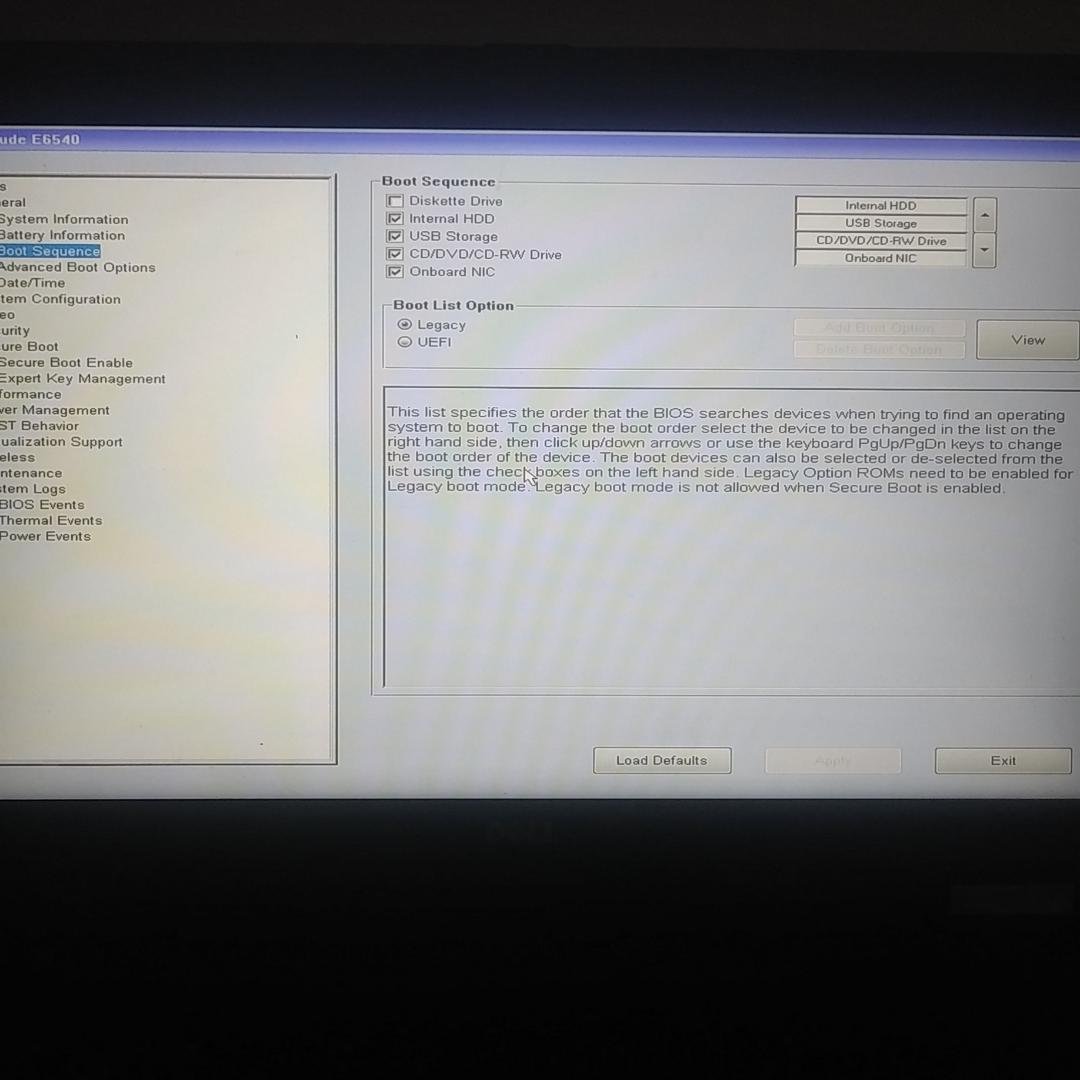
Method 4: Find the Service Tag in BIOS or UEFI
Use this route when the label is worn off or Windows will not load. The BIOS setup screen reads the tag from the system board.
- Turn the computer off completely.
- Press the power button, then press F2 repeatedly as soon as the Dell logo appears.
- In the setup screen, open Overview or System Information.
- Note the Service Tag value, then exit without saving changes.
- Enter the tag on Dell's warranty page from Method 1.
The same screen shows the installed BIOS version. If Dell support asks you to update it before a repair, update the BIOS on your Dell first.
Method 5: Find the Dell Service Tag in Windows
Dell documents a PowerShell command that reads the Service Tag from the firmware. It needs no extra software and works over a remote session.
Open it by selecting Start, typing PowerShell and choosing Windows PowerShell.
Get-WmiObject win32_bios | Select-Object SerialNumberQueries the Win32_BIOS class and prints its SerialNumber property. On a Dell PC, that serial number is the Service Tag. Dell also lists the short form GWMI -Class Win32_Bios | select SerialNumber.
You should see: A SerialNumber heading with a 7-character value under it, such as ABC1234.
The older Command Prompt command wmic bios get serialnumber still appears in some guides. Microsoft has deprecated WMIC, and Dell notes it is disabled by default in Windows 11 24H2 and newer, so use PowerShell instead.
On Ubuntu or another Linux distribution, run sudo dmidecode -s system-serial-number. On a Dell Chromebook, press Alt + V on the sign-in screen to show the serial number.
Method 6: Check Dell Warranty from Your Dell Account
Dell's My Products and Services page lists every product tied to your account. From it you can check warranty status, extend coverage and track service requests.
- Go to dell.com/support/mps.
- Select Sign In and use your Dell account, or Premier Sign In for a business account.
- Find your device in the product list. If it is missing, add it using its Service Tag.
- Open the product to see its warranty status and end date.
- Use the extend or upgrade option on the same page if coverage is ending.
A computer bought from a retail store may not appear until you register it. Dell's product registration page is dell.com/support/retail-registration, and it requires a signed-in account.
How to Check Warranty for Multiple Dell Devices
Checking tags one at a time on the website is fine for a household. For a fleet, pick the tool that matches the number of devices.
| Number of devices | Use this | What you get |
|---|---|---|
| A few personal devices | My Products and Services in your Dell account | One list with each product's warranty status |
| A business fleet | Premier Sign In, then My Products and Services | Company-owned assets and service requests in one place |
| Hundreds of devices or a help desk integration | TechDirect Warranty API | Status for up to 100 Service Tags per query |
To keep warranty information organized, record each Service Tag, purchase date and end date in one inventory list, and store the invoices with it. That list answers every question Dell asks during a claim, a transfer or a date correction.
The TechDirect API requires signing in to TechDirect and enrolling in the API service.
How to Check Warranty on a Used or Refurbished Dell Device
The warranty stays with the hardware, not the buyer, but Dell only serves the registered owner. A used purchase needs a lookup and then an ownership transfer.
- Ask the seller for the Service Tag before you pay, and check it on Dell's warranty page.
- Confirm the model on Dell's page matches the device in the listing.
- Note the end date. It is counted from the original sale date, not from your purchase.
- After buying, open Ownership Transfer on the Support Services & Warranty page.
- Enter the Service Tag, the previous owner's name or company and address, and your own details.
- Tick the box to accept the Terms and Conditions and submit the form.
- Allow 7 to 10 business days for a domestic transfer, or up to 15 for an international one.
Dell requires this transfer for products bought on Amazon Marketplace (even when fulfilled by Amazon) and eBay. Either the old or the new owner can submit it, but Dell staff cannot fill it in for you.
Dell Warranty Check for Specific Device Types
Every Dell PC, tablet, monitor, dock and server is checked the same way once you have its Service Tag. What changes is where the tag lives, and accessories have none at all.
| Device | Where the Service Tag is | How to check the warranty |
|---|---|---|
| Laptop | Bottom cover, on a sticker or etched into the case; also in BIOS and SupportAssist | Service Tag on Dell's warranty page |
| Desktop tower | Back panel; some models also on the top | Service Tag on Dell's warranty page |
| All-in-one | Bottom edge, otherwise the back panel | Service Tag on Dell's warranty page |
| Tablet | Back or bottom of the tablet; also in BIOS/UEFI and SupportAssist | Service Tag on Dell's warranty page |
| Chromebook | Press Alt + V on the sign-in screen to show the serial number | Serial number (Service Tag) on Dell's warranty page |
| Monitor | Back panel | Service Tag, or search Dell support by model number if there is no tag |
| Docking station | Bottom panel | Service Tag on Dell's warranty page |
| Keyboard, mouse, headset, external drive | No Service Tag or Express Service Code | Give Dell Technical Support the order number, or the reseller's receipt |
| PowerEdge server | Pull-out information (luggage) tag, usually on the front; label on the left side; iDRAC under System > Overview | Service Tag on Dell's warranty page, or the TechDirect Warranty API for many servers |
How to Start a Dell Warranty Claim After Checking Coverage
Once the warranty page shows active coverage, start the repair from the same product support page.
- Open your product's page on dell.com/support using the Service Tag.
- Run Scan Hardware, or the hardware scan in SupportAssist, so the failure is on record.
- Select Contact Technical Support and describe the fault.
- Have the Service Tag and, for accessories, the order number ready.
- Track the case later with Dell's Service Requests tool at dell.com/support/incidents-online/srsearch.
Mail-in repairs can be tracked with the depot status tool, which needs the Service Tag, the dispatch number and the email address used for the request.
How to confirm the warranty result belongs to your device
- Compare the Service Tag on Dell's page with the one on the sticker, in BIOS or from PowerShell. One wrong character shows a different product.
- Check that the model name matches your device exactly.
- Compare the start date with your invoice or receipt date.
- Check the country. Dell's warranty support applies only in the country where Dell originally sold the system.
- If you bought the device used, confirm your name appears once the transfer completes.
Understanding Dell Warranty Status and Coverage
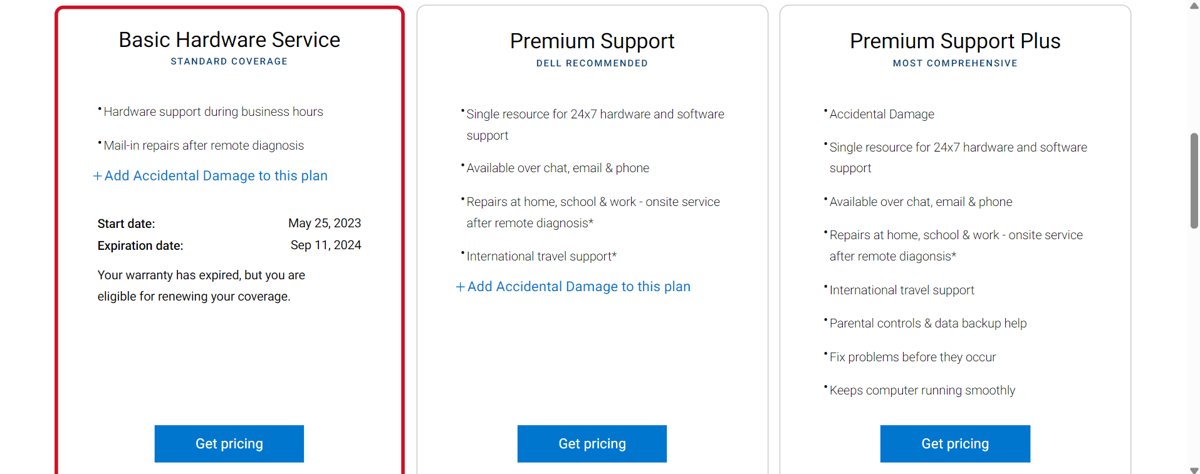
The warranty page lists each service as a separate line with its own dates. The plan name tells you what kind of help you get.
| Plan or term you may see | What it means |
|---|---|
| Basic / Limited Hardware Warranty | Repair or replacement of Dell-branded hardware with defects in materials or workmanship |
| Premium Support, Alienware Care, Dell Care Plus | Consumer support tiers above Basic; the SupportAssist features differ by tier |
| Dell Care Premium | Consumer tier that adds accidental damage coverage |
| ProSupport, ProSupport Flex | Business tiers with automated support requests and predictive failure detection |
| ProSupport Plus, Alienware Elite Care | Top tiers that add preferred contact time and the ProSupport automation |
| Accidental Damage | Optional add-on for drops, spills and cracked screens, bought while the warranty is active |
| Expired | The end date has passed; out-of-warranty repair or renewal still applies |
To understand coverage details for your own plan, read the description line under each service, not just the plan name.
What Dell Warranty Usually Covers
| Covered by the limited hardware warranty | Not covered |
|---|---|
| Defects in materials and workmanship in Dell-branded hardware | Accident, abuse and misuse, such as a cracked screen or a liquid spill |
| Dell-branded peripherals within their warranty period | Software and operating systems |
| Batteries, for a base 1 year regardless of the system warranty length | Non-Dell products and accessories |
| Repairs in the country where Dell sold the system | Normal wear and tear, and unauthorized servicing |
| Transfers to a new owner once recorded with Dell | Products with a missing or altered Service Tag |
Detached keys, dented covers, bent connectors and corrosion are all listed by Dell as accidental damage, not defects. Those need Accidental Damage coverage or a paid repair.
What to Do If Dell Does Not Recognize the Service Tag
The website returns no product for the tag
A mistyped character, or letters and digits that look alike on a worn label.
- Read the tag from BIOS (Method 4) or PowerShell (Method 5) instead of the sticker.
- Retype it with no spaces, checking 0 against O and 1 against I.
- Try the Express Service Code from the same label.
- If the tag still fails, contact Dell Technical Support with your invoice.
`wmic bios get serialnumber` is not recognized
WMIC is deprecated and disabled by default in Windows 11 24H2 and newer.
- Open Windows PowerShell from Start.
- Run
Get-WmiObject win32_bios | Select-Object SerialNumber. - Read the value under SerialNumber.
A Dell keyboard or mouse warranty cannot be looked up
Keyboards, mice, headsets and external drives have no Service Tag.
- Find the Dell order number on your invoice or order confirmation.
- If you bought it from a reseller, locate the original purchase receipt.
- Contact Dell Technical Support and give the order number or receipt.
What to Do If the Dell Warranty Date Is Wrong
The warranty started before you bought the device
Dell dates a direct sale from the packing slip or invoice, and a third-party sale from the original sales receipt.
- Find the retailer receipt showing the purchase date, your name and the product.
- Sign in and register the device at dell.com/support/retail-registration.
- If the date is still wrong, contact Dell Technical Support with the receipt and Service Tag.
Dell says the warranty is expired on a device you just bought
The device was sold before, often as used or refurbished stock, and the warranty runs from that first sale.
- Check the start date against your receipt.
- Ask the seller for the original purchase details.
- Submit an ownership transfer so the device is registered to you.
- Contact Dell with your receipt if the dates still do not match your purchase.
What to Do If Your Warranty Is Expired, Missing, or Incorrect
The warranty is expired
The end date has passed and the base coverage no longer applies.
- Look for a renewal offer on the warranty page, as some devices remain eligible.
- If renewal is not offered, open the product's support page and review the Service Options.
- Choose mail-in hardware diagnostics, software support or, in some regions, Collect and Return.
- Approve or decline the repair quote. The diagnostic fee is not refunded either way.
No warranty or service plan is listed
The device was bought from a retailer or a third party and never registered or transferred.
- Sign in to your Dell account.
- Register the device through Retail Registration, or submit an Ownership Transfer if you bought it used.
- Check the warranty page again after the request is processed.
Can You Renew or Extend a Dell Warranty?
Yes, in most countries. Dell warranties can be renewed to cover Dell-branded hardware repairs and replacement parts, but renewals are not available everywhere, and resold products may need the reseller.
- Open the Support Services & Warranty page.
- Select Extend or Upgrade your Support Services.
- Enter the Service Tag and your contact details.
- Review the renewal or upgrade options Dell shows as eligible for that device.
- Buy online, or wait for a Dell representative to contact you within two business days.
Add Accidental Damage coverage before the warranty ends. Dell sells it only for systems with an active warranty.
A retail or third-party purchase must be registered or transferred first, or the extension request cannot be matched to you.
Bottom Line
Read the Service Tag from PowerShell or BIOS, enter it on Dell's Support Services & Warranty page, and check the start date against your receipt the same day. The tag lookup is the only source Dell uses for claims, and a wrong start date or an unrecorded used purchase is far easier to fix before you need a repair.
Frequently Asked Questions
How do I check my Dell warranty status online?
Go to Dell's Support Services & Warranty page, enter your Service Tag or Express Service Code, and select Review Services. The page lists each service with its type of coverage, start date and end date. No Dell account is needed.
How do I check the warranty status of a Dell laptop?
Turn the laptop over and read the Service Tag on the bottom cover, or open SupportAssist, or press F2 at startup. Enter that 7-character tag on dell.com/support to see the laptop's coverage and expiration date.
How do I find my Dell warranty status without the sticker?
Open Windows PowerShell and run Get-WmiObject win32_bios | Select-Object SerialNumber, or press F2 at startup and look under Overview or System Information. Both show the Service Tag, which you then enter on Dell's warranty page.
How do I check the warranty status of a Dell keyboard?
Dell keyboards, mice and headsets have no Service Tag, so the website lookup does not apply. Contact Dell Technical Support with your Dell order number, or with the original receipt if you bought it from a reseller.
Can I check my Dell warranty without the Service Tag?
Yes. On the Dell PC itself, the support site can detect the Service Tag automatically. You can also use the Express Service Code, the Dell account product list, or the order number for devices that have no tag.
Why does Dell say my warranty is expired when I recently bought the device?
Dell counts the warranty from the original sale, so a used, refurbished or unregistered retail unit can show an earlier start. Register the device or submit an ownership transfer, then contact Dell with your receipt if the dates still differ.
What is the difference between Basic warranty, Premium Support and ProSupport?
Basic covers hardware defects with standard support. Premium Support and Dell Care tiers add consumer services, and ProSupport tiers add business features such as automated support requests and predictive failure detection. Accidental damage is a separate option or part of top tiers.
Can I renew or extend my Dell warranty after it expires?
Often, yes. Dell offers renewals on many devices depending on product, age, region and purchase channel. Enter the Service Tag under Extend or Upgrade your Support Services to see eligible options, or use an out-of-warranty repair if none appear.
Does a Dell warranty transfer to a new owner?
Yes. Dell's limited hardware warranty transfers when the ownership change is recorded through Dell's Ownership Transfer form. The end date stays tied to the original sale. Warranty on Dell-certified memory cannot be transferred, and some services stay tied to the original region.
Can I check a UK or Canada Dell warranty from the US site?
Yes, the Service Tag lookup finds the product, but warranty support applies only in the country where Dell originally sold the system. For service abroad, use Dell's regional support site and ask about an international transfer.
How do I check the warranty on a Dell server?
Read the Service Tag from the pull-out information tag on a PowerEdge server, from iDRAC under System > Overview, or with racadm getsvctag. Enter the tag on Dell's warranty page, or use the TechDirect Warranty API for many servers.






![Easily find your PC’s serial number [5 methods]](https://techdows.com/wp-content/uploads/2026/11/Easily-find-your-PCs-serial-number-5-methods-1-600x338.jpg)
How to check your Lenovo warranty status guide - Techdows
[…] for products in good working order, so buy before a fault appears. If you also own a Dell, the Dell warranty status check works the same way with a Service […]
Dell SupportAssist OS Recovery: how to download & use it - Techdows
[…] factory-installed on supported Dell models and needs no extra service plan. It also works after the Dell warranty […]