To find and remove unused programs in Windows 11, open Settings > System > Storage > Cleanup recommendations, expand Unused apps, tick the apps you no longer need and select Clean up.
The sections below also cover uninstalling from Settings, Control Panel, the Start menu and winget, clearing leftover temporary files, trimming startup apps, and fixing a program that refuses to uninstall.
How to find unused programs?
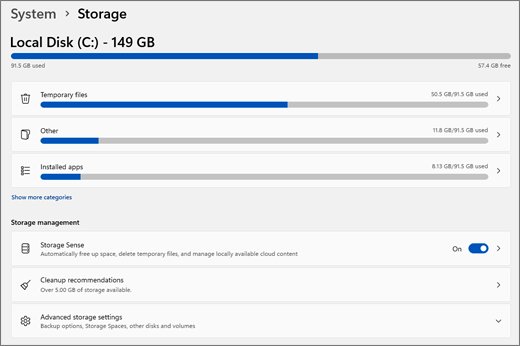
Windows 11 already tracks apps you rarely open and lists them in Cleanup recommendations, next to temporary files and large or unused files. Each item shows how much space removing it frees.
- Select Start > Settings > System > Storage.
- Select Cleanup recommendations.
- Expand Unused apps to see the apps Windows has flagged as rarely used.
- Tick each app you no longer need and check the space it will free.
- Select Clean up under Unused apps.
- Repeat for Temporary files and Large or unused files if you also want that space back.
Windows 10 has no Cleanup recommendations page, so on Windows 10 go through the installed list in Settings > Apps > Apps & features by hand, as shown in the next sections.
Best way to find and remove unused programs in Windows 11 and 10
| Your situation | Use this | Why |
|---|---|---|
| Windows 11, you want Windows to suggest candidates | Cleanup recommendations > Unused apps | Lists rarely used apps with the space each one frees |
| You already know the program's name | Settings > Apps > Installed apps | Search box plus Uninstall in two clicks |
| A desktop program will not uninstall from Settings | Control Panel > Programs and Features | Some programs can only be removed there |
| You want to review every program at once, including ones from other installers | winget list in Terminal |
Prints the full installed list in one window |
| The program is used, but slows sign-in | Task Manager > Startup apps | Disabling keeps the program but stops it starting with Windows |
| Programs are gone but the drive is still full | Temporary files or Disk Cleanup | Removes caches and update leftovers the uninstaller did not touch |
How to remove unused programs and files in Windows 11 or 10?
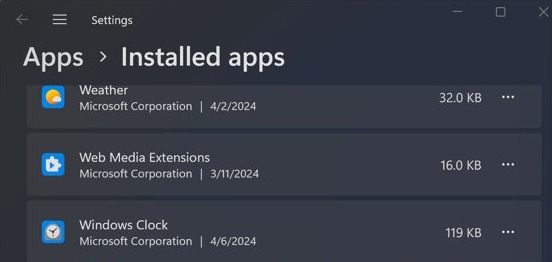
The Settings app is the standard route for both Store apps and most desktop programs. The labels differ slightly between Windows 11 and Windows 10.
- On Windows 11, select Start > Settings > Apps > Installed apps.
- Type the program's name in the search box above the list, or scroll to it.
- Select More options (…) next to the program, then select Uninstall.
- Select Uninstall again to confirm, then follow the program's own uninstaller if one opens.
- On Windows 10, select Start > Settings > Apps > Apps & features instead.
- Select the program in the list, select Uninstall, and confirm with Uninstall if prompted.
Microsoft notes that some apps cannot be uninstalled from Settings yet. For those, use Control Panel below. You can add programs back in Windows 11 later if you need them again.
Uninstall unused programs from Control Panel
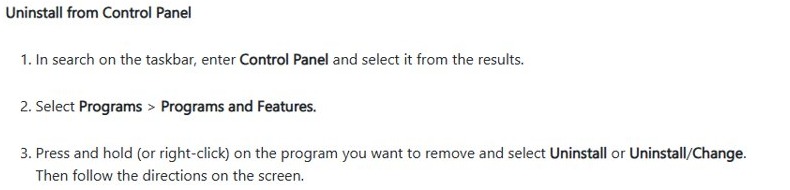
Programs and Features still lists classic desktop software, and it is the fallback when the Settings uninstall button is missing or does nothing.
- Select Start, type Control Panel, and open it from the results.
- Select Programs > Programs and Features.
- Right-click the program you no longer use.
- Select Uninstall or Uninstall/Change.
- Follow the prompts in the program's uninstaller until it reports that removal finished.
Uninstall unused apps from the Start menu
- Select Start > All apps.
- Find the app you want to remove.
- Right-click it, or press and hold it on a touch screen.
- Select Uninstall and confirm the prompt.
The Start menu also helps you spot candidates: it lists your most used apps at the top, so anything that never appears there and sits deep in the alphabetical list is worth reviewing.
List and uninstall unused programs with winget
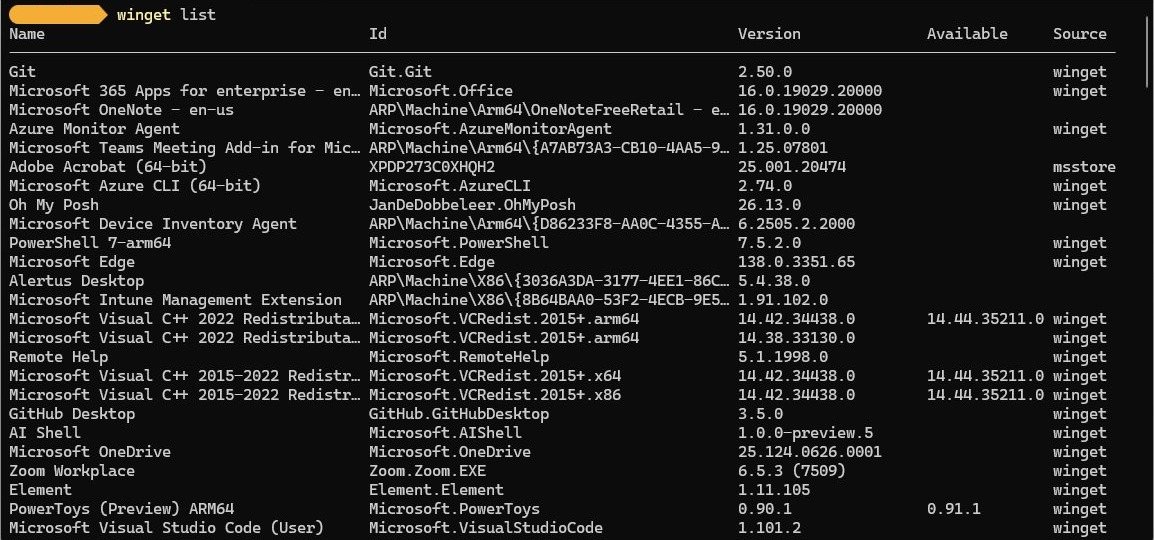
WinGet ships with App Installer on Windows 11. winget list shows programs installed through winget and through other installers, which makes it a quick audit of everything on the PC.
winget list
winget uninstall --id <PackageId> -e
The first command prints every installed program with its name, ID and version. The second removes one program by its exact ID; copy the ID from the first command's output, and add –interactive if you want to see the program's own uninstaller.
You should see: winget reports that the package was uninstalled, and running winget list again no longer shows it.
Use winget list --name <text> to filter the list when you only remember part of a program's name.
Disable unused startup programs in Task Manager
Some programs you rarely open still start with Windows every time. If you want to keep the program but stop it running in the background, disable it instead of uninstalling it.
- Press Ctrl + Shift + Esc to open Task Manager.
- Select Startup apps in the left-hand menu.
- Right-click the program you do not need at sign-in.
- Select Disable.
- Restart the PC so the change applies at the next sign-in.
Delete temporary files after uninstalling programs
Uninstallers rarely clear every cache and temporary file. Windows can remove those leftovers without touching your documents.
- Select Start > Settings > System > Storage > Temporary files.
- Tick the file types you want to remove and read each description first.
- Clear Downloads if it is ticked and you keep files there.
- Select Remove files.
- On Windows 10, or for a deeper clean, select Start, type Disk Cleanup, open it and choose the drive.
- Select Clean up system files, choose the drive again, tick the file types and select OK > Delete files.
If Previous Windows installation(s) appears, deleting it removes the Windows.old folder, and you can no longer roll back to the earlier version of Windows.
Turn on Storage Sense to remove unused files automatically
Storage Sense is off by default. Once on, it clears temporary files and old Recycle Bin items on a schedule, and it only manages the system drive.
- Select Start > Settings > System > Storage.
- Turn Storage Sense on.
- Select Storage Sense to open its options.
- Under Run Storage Sense, pick how often it runs.
- Set Delete files in my recycle bin if they have been there for over to the period you want.
- Set Delete files in my Downloads folder if they haven't been opened for more than only if you never keep files there.
- Select Run Storage Sense now to clean immediately.
How to confirm an unused program is fully removed
- Open Settings > Apps > Installed apps and search for the program's name; it should return no result.
- Open Control Panel > Programs > Programs and Features and confirm it is gone there too.
- Select Start > All apps and check that its shortcut has disappeared.
- Run
winget list --name <program>and confirm no match comes back. - Return to Settings > System > Storage and check that used space on the drive dropped.
If the program's folder remains in Program Files after a restart, a complete removal of the program clears what the uninstaller left behind.

Program not uninstalling in Windows 11 or 10
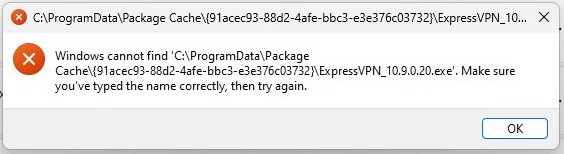
The program does not uninstall properly or shows an error
A running process, a damaged install or a broken uninstaller blocks removal.
- Close the program and restart the PC, then try Uninstall again.
- In Settings > Apps > Installed apps, select More options > Advanced options and select Repair, then retry the uninstall.
- Run the Program Install and Uninstall Troubleshooter that Microsoft recommends for uninstall errors.
- Contact the program's publisher for its own removal tool if the error persists.
There is no Uninstall option in Settings
Some desktop programs cannot be removed from the Settings app.
- Open Control Panel > Programs > Programs and Features.
- Right-click the program and select Uninstall or Uninstall/Change.
A built-in Windows app cannot be removed
Some apps are part of Windows and Microsoft does not allow them to be uninstalled.
- Leave the app in place; it does not run unless you open it.
- If it starts with Windows, disable it under Task Manager > Startup apps instead.
A program you never installed keeps coming back
Unwanted software is often bundled with other installers or reinstalled by malware.
- Open Windows Security > Virus & threat protection and run a scan.
- Remove anything it flags, then uninstall the program again from Installed apps.
Unused programs in Windows FAQs
Why should I remove unused programs from my computer?
Unused programs take drive space, may start with Windows and run in the background, and still need security updates. Removing them frees storage, can shorten sign-in time, and leaves fewer outdated programs that could be exploited.
How do I find unused programs in Windows 11?
Open Settings > System > Storage > Cleanup recommendations and expand Unused apps. Windows lists the apps you rarely use and shows how much space each one frees, and you can remove them from the same page with Clean up.
How often should I check for unused programs?
A review every few months is enough for most PCs, plus a quick check whenever the drive runs low on space. Turning on Storage Sense handles temporary files in between, but it does not uninstall programs for you.
Can removing programs improve computer speed?
Yes, when the removed programs ran at startup or in the background. Uninstalling software you never open frees memory and processor time it was using. A program that never runs only costs drive space, so removing it frees storage rather than speed.
Is it safe to delete leftover files after uninstalling programs?
Yes, through Temporary files, Disk Cleanup or Storage Sense, which only remove files Windows knows are safe to delete. Delete a folder by hand only when its name clearly matches the removed program, and never delete anything inside the Windows folder.
What should I do if a program does not uninstall properly?
Restart the PC and try again, then try Control Panel > Programs and Features instead of Settings. If it still fails, repair the app from Advanced options, run the Program Install and Uninstall Troubleshooter, or ask the publisher for its removal tool.
Does Windows 10 have Cleanup recommendations?
No. Cleanup recommendations is a Windows 11 page. On Windows 10, review the list in Settings > Apps > Apps & features yourself, and use Disk Cleanup or Storage Sense to remove temporary files.