To allow Split View on an iPad running iPadOS 26, go to Settings > Multitasking & Gestures, select Windowed Apps, then drag an app icon to the left or right on top of a full-screen app.
This guide covers the window controls that took over from the three dots, tiling with a flick, the menu bar route, Slide Over, Stage Manager and the fixes when two apps will not sit side by side.
How to allow Split View on iPad in iPadOS 26
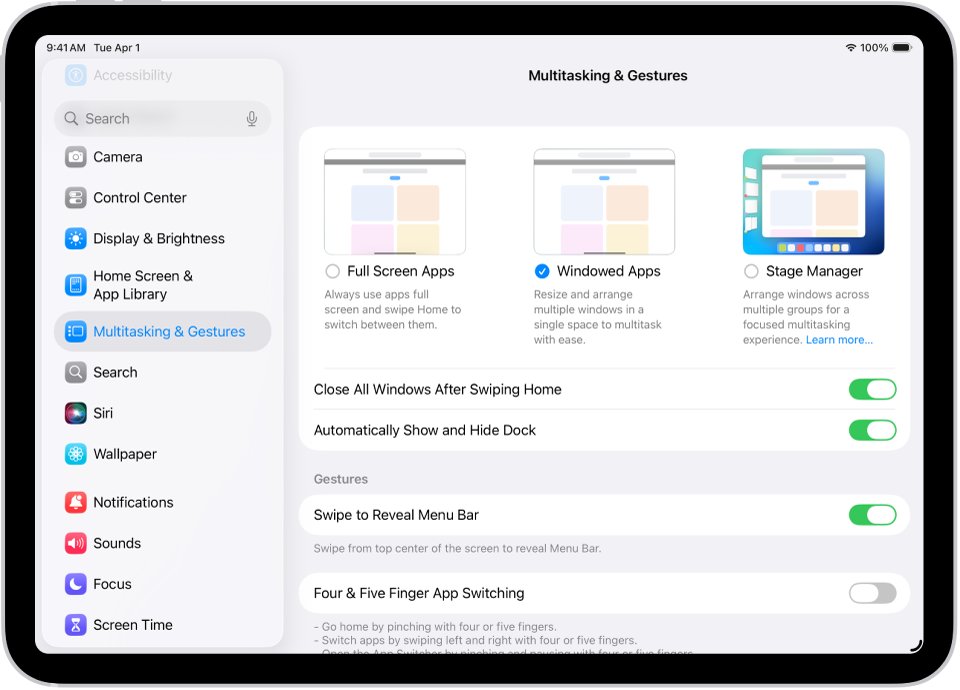
The old Split View & Slide Over switch belongs to iPadOS 18. On iPadOS 26, the Windowed Apps setting is what lets two apps share the screen.
- Open the Settings app on your iPad.
- Tap Multitasking & Gestures, then select Windowed Apps.
- Open the first app and make it full screen.
- Swipe up from the bottom edge just far enough to reveal the Dock.
- Drag the second app's icon to the right or left, on top of the full-screen app.
- Lift your finger, and the two apps tile side by side.
Full Screen Apps, Windowed Apps or Stage Manager on iPadOS 26
Multitasking & Gestures offers three ways for apps to appear. Pick the row that matches how you want to work.
| You want | Select this | What happens |
|---|---|---|
| Two apps side by side, or several resizable windows | Windowed Apps | You can resize and arrange windows, tile two apps, and use the menu bar |
| Separate groups of windows for different tasks | Stage Manager | Your current windows stay in front and other open apps form a recent apps list on the left |
| One app at a time | Full Screen Apps | Each app fills the screen, and you switch through the Home Screen or App Switcher |
iPad models compatible with iPadOS 26
Check your version in Settings > General > About. Apple notes that features can vary by iPad model, region, language and carrier.
| iPad line | Models that run iPadOS 26 |
|---|---|
| iPad | 8th generation, 9th generation, 10th generation, iPad (A16) |
| iPad mini | 5th generation, 6th generation, iPad mini (A17 Pro) |
| iPad Air | 3rd, 4th and 5th generation; 11-inch and 13-inch with M2, M3 or M4 |
| iPad Pro 11-inch | 1st to 4th generation, M4, M5 |
| iPad Pro 12.9-inch and 13-inch | 12.9-inch 3rd to 6th generation; 13-inch M4 and M5 |
How to split screen on iPad with window controls
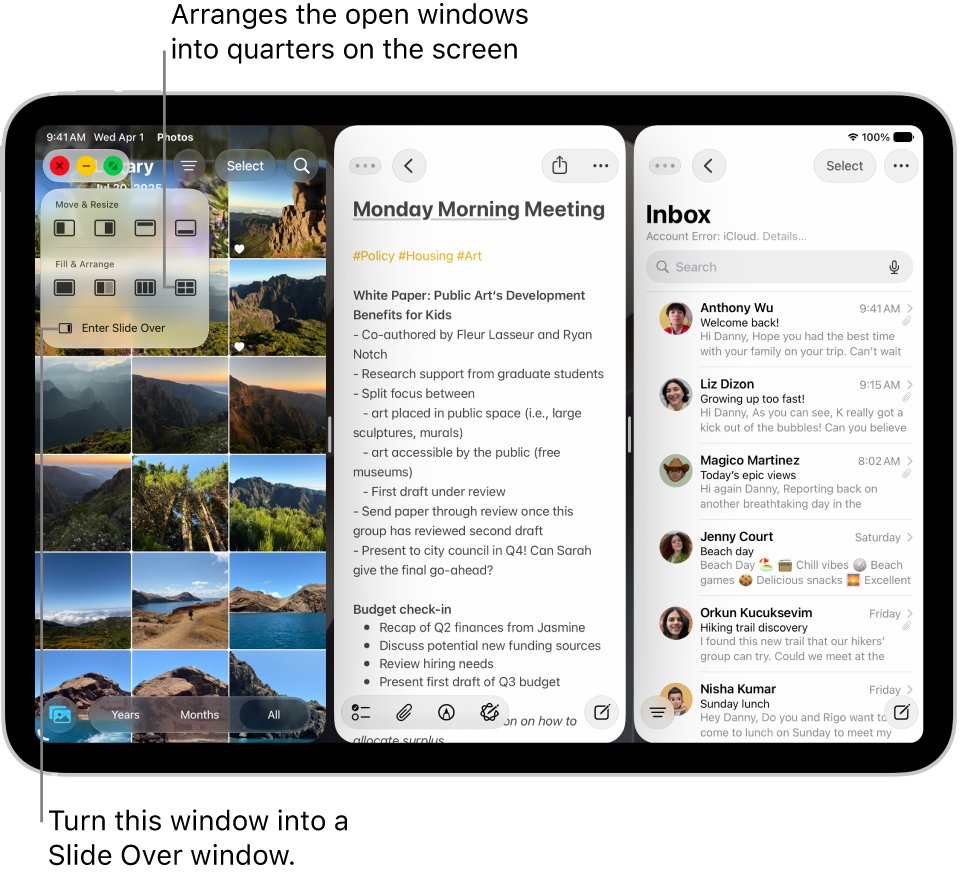
Window controls sit at the top left of a window after you resize it. Touching and holding them opens a menu of preset layouts.
- Open two apps as windows with Windowed Apps selected.
- Tap one of the windows to bring it to the front.
- Touch and hold the window controls in the top-left corner.
- Choose a preset window layout from the menu.
- Let the windows move into the layout you selected.
On iPadOS 27, tap the app's name at the top of a full-screen app to show these controls. A two-window layout then opens the Home Screen, where you tap the second app.
How to tile two iPad windows side by side
Use this gesture when both apps are already open as windows. It needs a short pause and then a quick flick.
- Drag the first window from the top and hold it briefly.
- Swipe it quickly toward the left or right side of the screen.
- Drag the second window from the top and hold it briefly.
- Swipe it quickly toward the other side of the screen.
How to find Move & Resize in the iPad menu bar
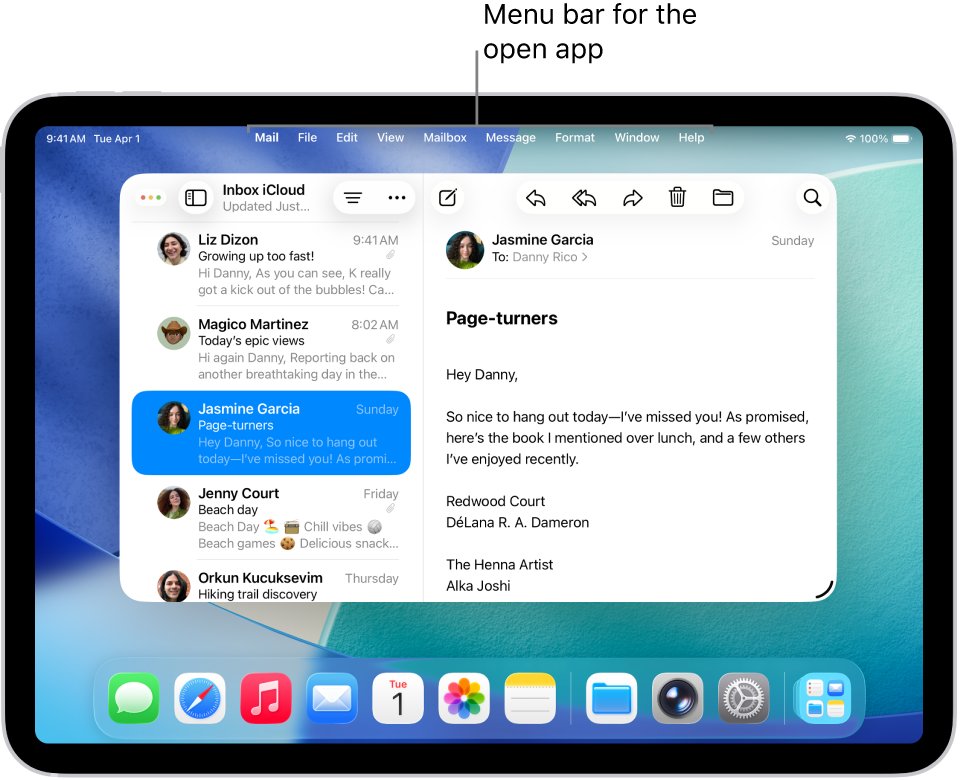
The menu bar shows more layout options for the active app. It appears only when Windowed Apps or Stage Manager is selected.
- Tap the window you want to arrange.
- Swipe down from the middle of the top edge of the screen to reveal the menu bar.
- Tap Window.
- Tap Move & Resize, then choose an option.
How to open two windows of the same app in Split View on iPad
Mail, Notes, Safari and Files are among the apps that support multiple windows. Other apps may not offer this.
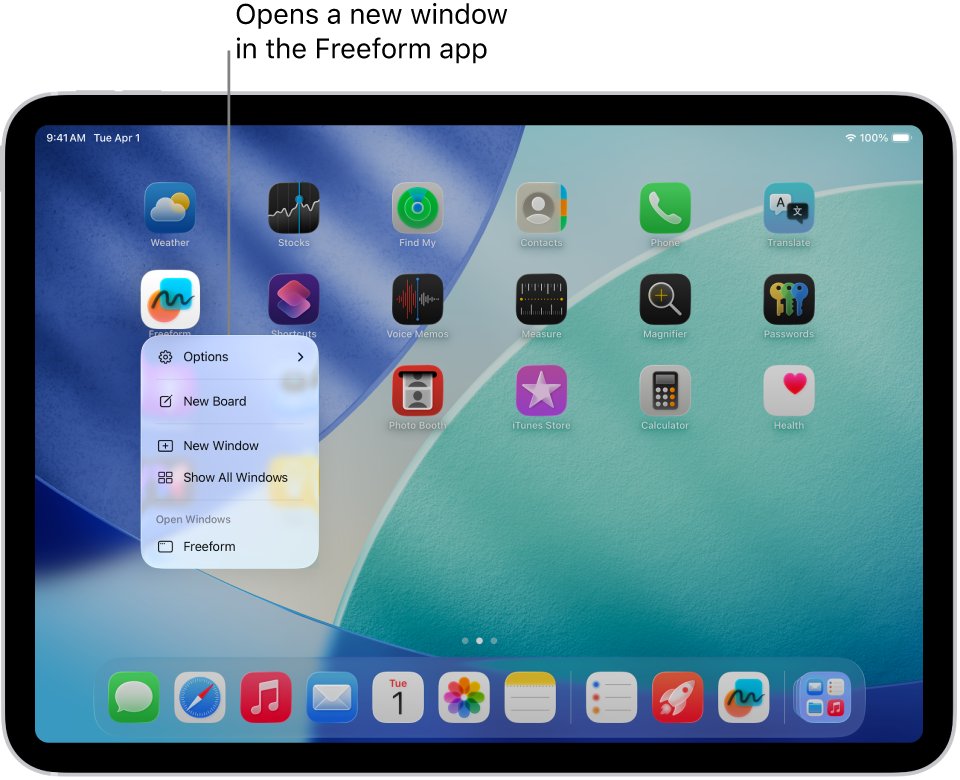
- Touch and hold the app icon until a menu appears.
- Choose New Window.
- Or drag the app icon from the Dock on top of another window from the same app.
- Tile the two windows with the flick gesture or the window controls.
- To see every open window of that app later, touch and hold its icon, then tap Show All Windows.
How to use slide over on iPadOS 26
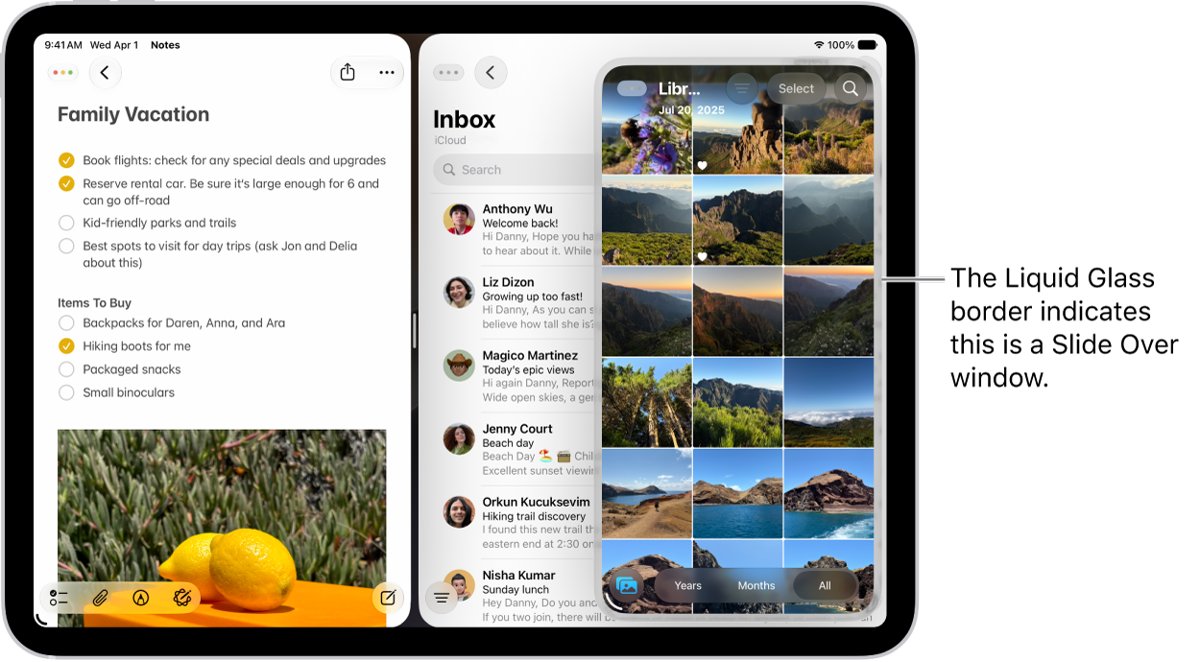
Slide Over keeps one window on top of your other windows or full-screen apps, at the left or right side of the screen. It works in Windowed Apps and Stage Manager.
- Touch and hold the window controls, then tap Enter Slide Over.
- Or drag an app icon from the Dock, Home Screen, App Library or Spotlight to the left or right edge, on top of the arrow.
- Drag the top of the window past the screen edge to hide it for a moment.
- Tap the arrow, or swipe from that edge, to bring the window back.
- Drag a bottom corner to resize the window.
- Touch and hold the window controls, then tap Exit Slide Over when you finish.
To keep a video or FaceTime call on screen while you use other apps, use Picture in Picture instead.
How to turn on Stage Manager on iPad
Stage Manager suits work where you switch between sets of apps. You can arrange, resize and overlap windows inside each group.
- Open Settings on your iPad.
- Tap Multitasking & Gestures, then select Stage Manager.
- Drag app windows from the recent apps list into the center of the screen to build a group.
- Drag app icons from the Dock into the center to add them to the group.
- Drag a window to the left to return it to the recent apps list.
How to arrange Split View windows on iPad
Once two apps are tiled, you can change their widths or swap an app without starting again.
| To do this | Do this |
|---|---|
| Change the width of both windows | Drag the divider between them |
| Replace one app with another | Drag an app icon from the Dock or Home Screen on top of the window touching the left or right edge |
| Add a third app as a floating window | Drag its icon to the center of the screen |
| Move a window | Drag it from the top |
| Resize a free-floating window | Drag the resize handle in its bottom-right corner |
| See every open window | Swipe up from the bottom, pause in the center, then lift your finger to open Exposé |
How to tell if Windowed Apps is on in iPadOS 26
- Open Settings > Multitasking & Gestures and look for the selection on Windowed Apps.
- Open an app and look for the resize handle in the bottom-right corner of its window.
- Drag that handle, then look for the window controls at the top left.
- Swipe down from the middle of the top edge to check that the app's menu bar appears.
How to turn off Split View on iPad in iPadOS 26
You can end one pair of tiled apps, or get rid of split screen on iPad altogether by leaving windowed mode.
- Drag the divider all the way to one edge to make the other window full screen.
- Or double-tap the top of a window, if Double-tap Top of Window to Zoom is on.
- Or close or minimize one app from its window controls.
- To stop windowing completely, open Settings > Multitasking & Gestures and select Full Screen Apps.
Where did the Split View three dots go in iPadOS 26?
The iPadOS 18 steps no longer match. Apple's iPadOS 26 guide uses window controls at the top left, where iPadOS 18 used three dots at the top of the app, and its terms are split, tile and layout.
| Task | iPadOS 18 | iPadOS 26 |
|---|---|---|
| Allow two apps on screen | Turn on Split View & Slide Over | Select Windowed Apps |
| Start a split | Tap the three dots, then choose a side | Drag an app icon onto a full-screen app, or hold the window controls and choose a layout |
| Swap one app | Swipe down from the three dots, then tap another app | Drag a new app icon on top of the window at the screen edge |
| Return to full screen | Drag the center divider to the edge | Drag the divider to the edge, or use the window controls |
iPad Split View not working on iPadOS 26
Can't put two windows side by side after updating to iPadOS 26
Full Screen Apps may be selected, which makes each app fill the screen.
- Open Settings > Multitasking & Gestures.
- Select Windowed Apps.
- Open an app, then drag a second app icon to the left or right on top of it.
The three-dot button at the top of apps is gone
iPadOS 26 manages windows from the window controls at the top left.
- Select Windowed Apps in Multitasking & Gestures.
- Drag the resize handle in the bottom-right corner of the window.
- Touch and hold the window controls that appear at the top left.
Dragging an app from the Dock opens a floating window
An icon dropped at the center of the screen opens as a window instead of a tile.
- Close the extra window from its window controls.
- Make the first app full screen.
- Drag the icon to the left or right on top of that app.
One app goes full screen when you close the other
This is normal for a split: closing or minimizing one app returns the other to full screen.
- Reopen the second app from the Dock.
- Drag its icon to the left or right on top of the full-screen app.
New Window is missing from the app menu
Only apps that support multiple windows offer it.
- Touch and hold the icon of Mail, Notes, Safari or Files to compare the menu.
- Pair the app with a different app if it has no New Window option.
The menu bar and Move & Resize do not appear
The menu bar shows only with Windowed Apps or Stage Manager selected.
- Select Windowed Apps in Multitasking & Gestures.
- Tap the window you want to arrange.
- Swipe down from the middle of the top edge of the screen.
iPad Split View FAQ
What is Split View on iPad?
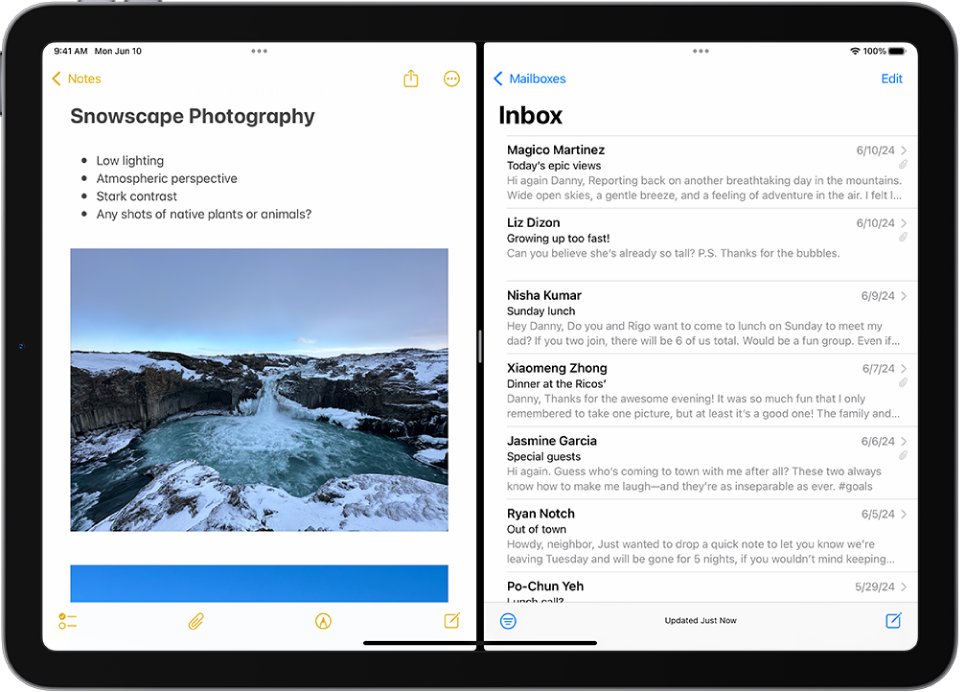
Split View is two apps, or two windows of one app, sharing the iPad screen side by side. iPadOS 18 uses that name in its guide. The iPadOS 26 guide describes the same result as splitting the screen and tiling windows.
How do I have split screen views on iPad?
Select Windowed Apps in Settings > Multitasking & Gestures, then open an app full screen. Swipe up to reveal the Dock and drag a second app icon to the left or right on top of the first app.
How do I open an app in split screen view on iPad?
Drag the app icon from the Dock, Home Screen, App Library or Spotlight to the left or right on top of a full-screen app. Dropping the icon at the center of the screen opens a floating window instead.
How do I arrange Split View on iPad?
Drag the divider between the two windows to change their widths. To swap an app, drag a new icon on top of the window at the screen edge. For more layouts, tap Window in the menu bar, then Move & Resize.
How do I stop Split View on iPad?
Drag the divider all the way to one edge, and the window you keep goes full screen. You can also close or minimize one of the apps from its window controls, which returns the other app to full screen.
How do I turn off Split View on iPad for good?
Open Settings, tap Multitasking & Gestures and select Full Screen Apps. Each app then fills the screen, and you switch between apps through the Home Screen or the App Switcher. Select Windowed Apps again at any time to bring tiling back.
How do I close Split View without closing the app?
Drag the divider to one edge of the screen, and the window you keep becomes full screen. You do not have to close either app. To return to the other app, tap it in the Dock or open Exposé with a swipe up and a pause.