To disable Exploit Protection in Windows 11, open Windows Security > App & browser control > Exploit protection settings and set each mitigation on the System settings tab to Off by default, or turn off one mitigation for a single app on the Program settings tab.
There is no single master switch, so each mitigation is turned off on its own. The steps below cover the system-wide route, the per-app route, Arbitrary Code Guard, PowerShell, and how to turn everything back on.
How to disable Exploit Protection in Windows 11
These steps turn mitigations off for every app that has no rule of its own. You need an administrator account, because each change raises a User Account Control prompt.
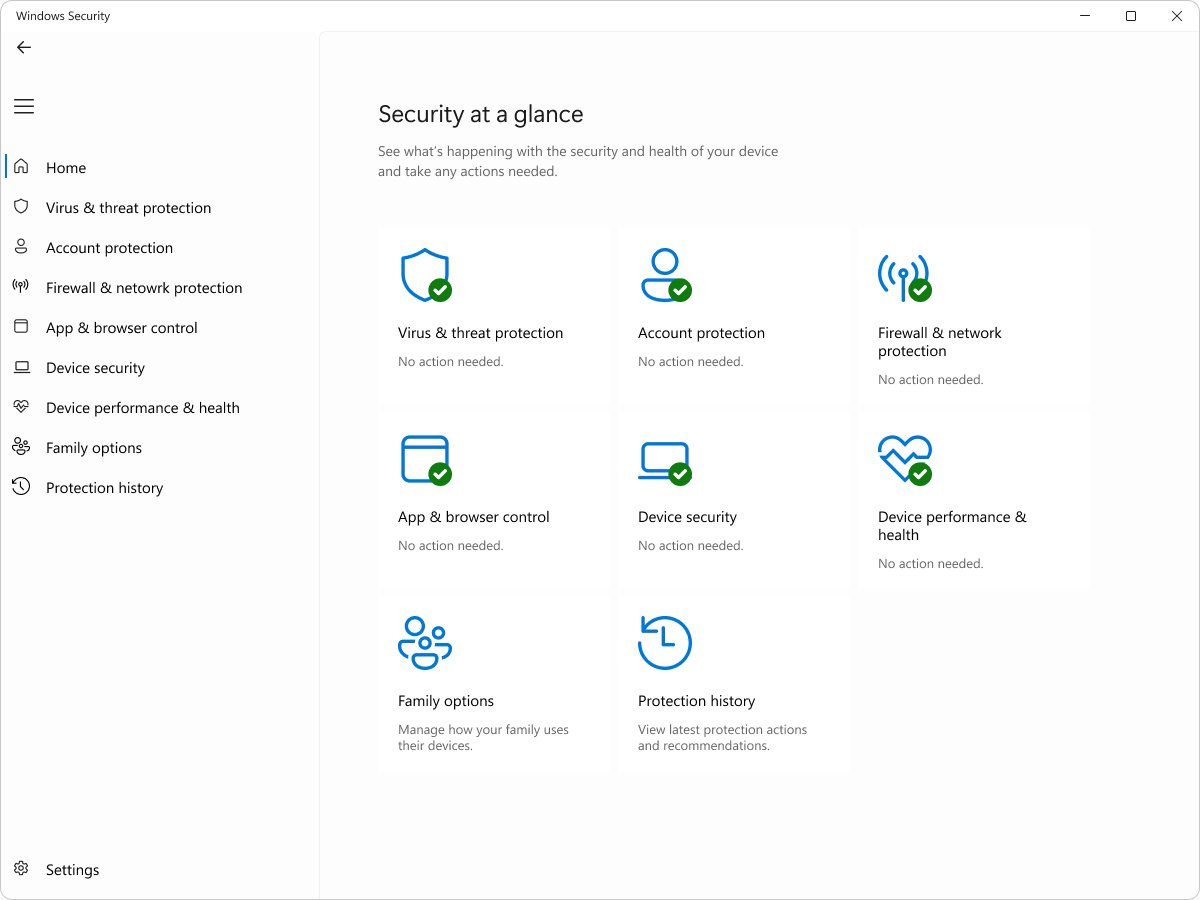
- Select Start, type Windows Security and open the app. You can also select the shield icon on the taskbar.
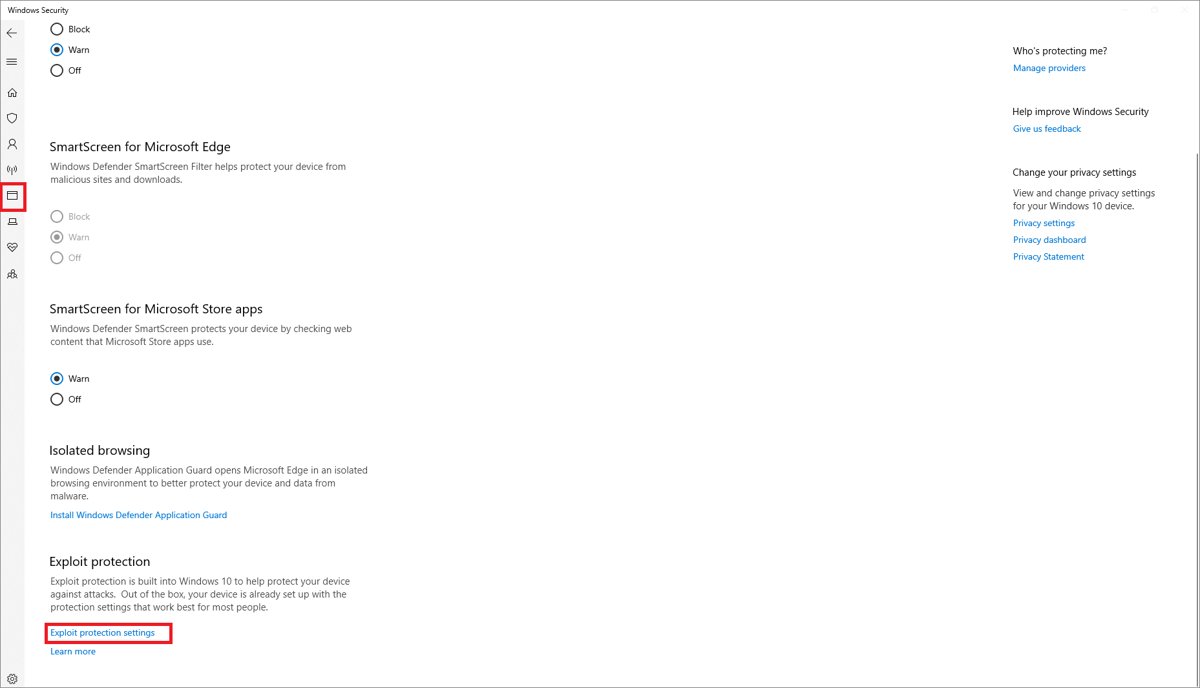
- Select App & browser control in the left pane.
- Under Exploit protection, select Exploit protection settings.
- Stay on the System settings tab and open the drop-down under the first mitigation, Control flow guard (CFG).
- Choose Off by default, then select Yes on the User Account Control prompt.
- Repeat for each mitigation you want off: Data Execution Prevention (DEP), Force randomization for images (Mandatory ASLR), Randomize memory allocations (Bottom-up ASLR), High-entropy ASLR, Validate exception chains (SEHOP) and Validate heap integrity.
- Select Apply if it appears, then restart Windows so the system-level changes take effect.
If only one program is failing, turn the mitigation off for that program instead (the next sections show how). The rest of Windows then keeps its default protection.
What is Exploit Protection in Windows 11?
Exploit Protection is the set of memory and code-execution mitigations built into the Windows Security app. It replaced the older Enhanced Mitigation Experience Toolkit (EMET), whose support ended on July 31, 2018, and it is supported from Windows 10 version 1709 and on every Windows 11 release.
| Mitigation | What it does | Where you can set it |
|---|---|---|
| Control flow guard (CFG) | Checks the integrity of indirect calls | System and app level |
| Data Execution Prevention (DEP) | Stops code running from data-only memory such as the heap and stack | System and app level (32-bit apps only) |
| Force randomization for images (Mandatory ASLR) | Relocates images not compiled with /DYNAMICBASE | System and app level |
| Randomize memory allocations (Bottom-up ASLR) | Randomizes where memory is allocated, including heaps and stacks | System and app level |
| Validate exception chains (SEHOP) | Checks the exception chain during exception dispatch | System and app level (32-bit apps only) |
| Validate heap integrity | Ends a process when heap corruption is detected | System and app level |
| Arbitrary code guard (ACG) | Blocks dynamically generated executable code | App level only |
| Don't allow child processes | Stops an app starting other processes | App level only |
| Block remote images, Block untrusted fonts, Code integrity guard | Limit which images and fonts an app may load | App level only |
Microsoft describes the Use default values as its recommended baseline for home users. Turning them off lowers protection against exploits that target memory bugs.
Where is Exploit Protection?
| Where you are | Path to Exploit Protection | What you can change |
|---|---|---|
| Windows 11 | Windows Security > App & browser control > Exploit protection settings | System settings and Program settings tabs |
| Windows 10 (version 1709 or later) | Windows Security > App & browser control > Exploit protection settings | The same two tabs as Windows 11 |
| PowerShell (Run as administrator) | Get-ProcessMitigation and Set-ProcessMitigation |
Every mitigation, plus options the app does not show |
| Local Group Policy Editor | Computer configuration > Administrative templates > Windows components > Microsoft Defender Exploit Guard > Exploit Protection | A shared XML configuration that overrides local settings |
| Registry (read-only reference) | HKEY_LOCAL_MACHINE\SOFTWARE\Microsoft\Windows NT\CurrentVersion\Image File Execution Options\<app>.exe, value MitigationOptions |
Per-app rules written by the app or PowerShell |
On Windows 10 builds older than version 2004, the Group Policy folder is named Windows Defender Exploit Guard. Use Windows Security or PowerShell rather than editing the registry value by hand.
Turn off exploit protection for one program in Windows 11
A rule on the Program settings tab wins over the System settings tab for that one app. This is the safer way to fix a single program that crashes or refuses to start.
- Open Windows Security > App & browser control > Exploit protection settings.
- Select the Program settings tab.
- If the app is listed, select it and choose Edit. If it is not, select Add program to customize and pick Add by program name (for example
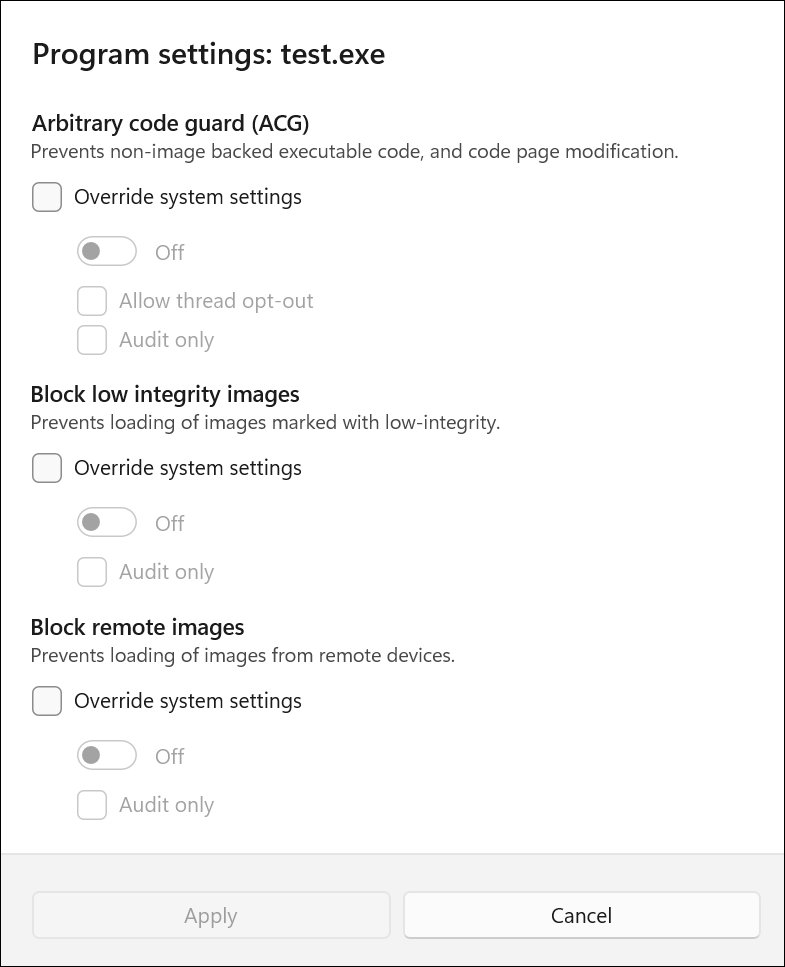
app.exe) or Choose exact file path. - In the Program settings window, find the mitigation that blocks the app.
- Tick Override system settings under it and set the switch to Off.
- Select Apply and approve the User Account Control prompt.
- Close and reopen the app. Restart Windows if the window tells you to.
Add by program name applies the rule to every process with that file name. Enter a full path, such as C:\Apps\app.exe, to limit it to one copy.
How to disable Arbitrary Code Guard (ACG) in Windows 11
ACG is an app-level mitigation only, so it never appears on the System settings tab. It blocks memory from being marked executable, which breaks apps that compile code at run time, such as JavaScript engines and other just-in-time (JIT) compilers.
- Open Exploit protection settings and select the Program settings tab.
- Select the app that has ACG turned on and choose Edit.
- Scroll to Arbitrary code guard (ACG).
- Leave Override system settings ticked and set the switch to Off, or clear Override system settings to remove the rule.
- To keep a record without blocking, set the switch to On and tick Audit only instead.
- Select Apply, approve the prompt, and restart the app.
From an elevated PowerShell window, Set-ProcessMitigation -Name app.exe -Disable DynamicCode turns ACG off for that app, and Set-ProcessMitigation -Name app.exe -Disable AuditDynamicCode stops ACG audit mode.
Disable exploit protection with PowerShell Set-ProcessMitigation
PowerShell changes the same settings as Windows Security, and the most recent change wins whichever tool made it. Open PowerShell with Run as administrator first, because the cmdlets need an elevated session.
Set-ProcessMitigation -System -Disable CFG,BottomUp,HighEntropy,SEHOPSets Control flow guard, Bottom-up ASLR, High-entropy ASLR and SEHOP to off for every app without its own rule. Other system names are DEP, ForceRelocateImages (Mandatory ASLR) and TerminateOnError (Validate heap integrity). For one app, swap -System for -Name C:\Apps\app.exe. Restart Windows after a system change.
You should see: The command returns to the prompt with no error, and Get-ProcessMitigation -System no longer lists those mitigations as NOTSET.
To hand a mitigation back to the Windows default, add -Remove: Set-ProcessMitigation -System -Remove -Disable DEP restores the default DEP setting.
Windows exploit protection system settings and their defaults
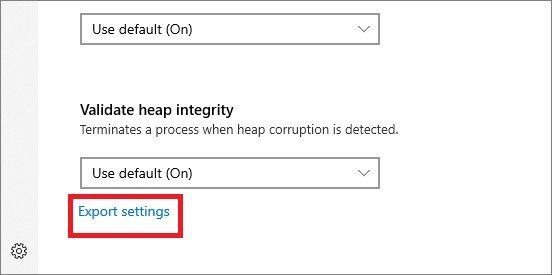
Each system mitigation has three choices. On by default and Off by default force the value for every app without its own rule; Use default follows Windows, and the label shows which way that default goes.
| System setting | Windows default | What turning it off changes |
|---|---|---|
| Control flow guard (CFG) | Use default (On) | Indirect calls in apps without a rule are no longer checked |
| Data Execution Prevention (DEP) | Use default (On) | Only 32-bit apps lose DEP; x64, ARM and Arm64 apps always run with it |
| Force randomization for images (Mandatory ASLR) | Use default (Off) | Already off unless you turned it on |
| Randomize memory allocations (Bottom-up ASLR) | Use default (On) | Memory allocations land at predictable addresses |
| High-entropy ASLR | Use default (On) | 64-bit apps lose the wider randomization range |
| Validate exception chains (SEHOP) | Use default (On) | Exception chains in 32-bit apps are no longer checked |
| Validate heap integrity | Use default (On) | A process with a corrupted heap keeps running instead of being ended |
Exploit protection program settings vs system settings
A program rule only counts when Override system settings is ticked for that mitigation. Without the tick, the app follows the System settings tab.
| Set in Program settings | Set in System settings | What the app gets |
|---|---|---|
| Yes | No | The Program settings value |
| Yes | Yes | The Program settings value |
| No | Yes | The System settings value |
| No | No | The Windows default shown next to Use default |
So a system mitigation set to Off by default stays on for any app that has its own On override. Clear those overrides too if the goal is to turn the mitigation off everywhere.
Exploit protection event IDs in Event Viewer
Before turning anything off, find which mitigation actually stopped the app. Windows logs each block or audit under the Security-Mitigations source, and the event ID names the mitigation.
| Event source and ID | Mitigation that acted | Turn off on the Program settings tab |
|---|---|---|
| Security-Mitigations 1 / 2 | Arbitrary code guard audit / enforce | Arbitrary code guard (ACG) |
| Security-Mitigations 3 / 4 | Don't allow child processes audit / block | Don't allow child processes |
| Security-Mitigations 5 / 6 | Block low integrity images audit / block | Block low integrity images |
| Security-Mitigations 7 / 8 | Block remote images audit / block | Block remote images |
| Security-Mitigations 11 / 12 | Code integrity guard audit / block | Code integrity guard |
| Security-Mitigations 13 to 18 | EAF, EAF+ and IAF audit / enforce | Export address filtering (EAF) or Import address filtering (IAF) |
| WER-Diagnostics 5 | CFG block | Control flow guard (CFG) |
| Win32K 260 | Untrusted font blocked | Block untrusted fonts |
Windows also logs crash events 1000 and 1001 and hang event 1002 that name the failing app. You can open Event Viewer from the Start menu search.
How to tell if Exploit Protection is off in Windows 11
- Open Exploit protection settings and check that each mitigation on the System settings tab now reads Off by default.
- Select the Program settings tab and open any listed app with Edit to see whether it still has an On override.
- Open PowerShell as administrator and run
Get-ProcessMitigation -System. A mitigation you changed no longer showsNOTSET. - Run
Get-ProcessMitigation -Name app.exe -RunningProcesseswhile the app is open to see the settings the live process received. - Start the app that was failing and check Event Viewer for new Security-Mitigations events.
How to turn Exploit Protection back on in Windows 11
- Open Windows Security > App & browser control > Exploit protection settings.
- On the System settings tab, set each mitigation back to Use default (On), or Use default (Off) for Mandatory ASLR.
- On the Program settings tab, edit each app you changed and clear Override system settings under every mitigation you turned off.
- Approve the User Account Control prompts and restart Windows.
- From PowerShell,
Set-ProcessMitigation -System -Remove -Disable CFG,BottomUp,HighEntropy,SEHOPreturns those settings to the Windows defaults.
To go further than the defaults with audit mode and per-app rules, you can enable and tune Exploit Protection one mitigation at a time.
Is it safe to turn off exploit protection in Windows 11?
Turn off only the one mitigation that blocks the one app, and leave the System settings at their defaults. Microsoft's defaults are its baseline for home PCs. Turning CFG, ASLR or heap checks off for every app widens the gap for exploits that use memory bugs, while a single per-app override fixes the same compatibility problem without that cost.
Microsoft lists anti-malware tools, debuggers, games with DRM, and apps that use hooking or obfuscation as software that clashes with these mitigations. Older .NET Framework 2.0 and 3.5 apps also break with EAF and IAF, which Microsoft has deprecated.
Exploit protection settings not changing in Windows 11
An app still crashes after you set a system mitigation to Off by default
The app has its own rule on the Program settings tab, and that rule beats the system value.
- Select the Program settings tab and find the app.
- Select Edit and look for a mitigation with Override system settings ticked and set to On.
- Set it to Off, or clear the tick, then select Apply.
- Close and reopen the app.
Exploit protection settings change back after a restart
A Group Policy, Intune or other MDM exploit protection policy overrides local settings on managed PCs.
- On a work or school PC, ask your IT admin whether an exploit protection policy applies to the device.
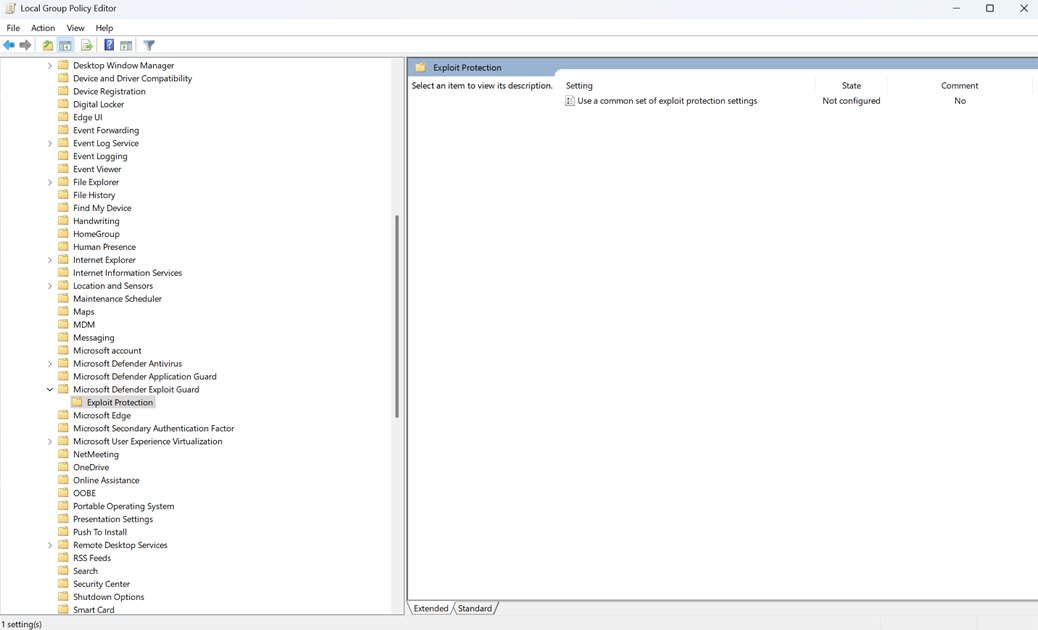
- On your own PC, open Local Group Policy Editor and go to Computer configuration > Administrative templates > Windows components > Microsoft Defender Exploit Guard > Exploit Protection.
- Check whether Use a common set of exploit protection settings is Enabled with an XML file path.
- Edit the XML file the policy points to and restart. Setting the policy to Not configured does not remove settings it already applied.
Turning off DEP makes no difference to a 64-bit app
DEP is permanently on for x64, ARM and Arm64 apps; the switch only changes 32-bit (x86) apps.
- Check Event Viewer to find which other mitigation blocked the app.
- Turn that mitigation off for the app on the Program settings tab.
- Set Data Execution Prevention (DEP) back to Use default (On).
Old mitigations remain after you import or remove an XML configuration
Importing a file does not delete every existing rule, and settings stay after a policy stops being enforced.
- Remove the unwanted entries on the Program settings tab one by one.
- Or export the configuration from a clean Windows 11 PC with
Get-ProcessMitigation -RegistryConfigFilePath C:\clean.xml. - Import it on the affected PC with
Set-ProcessMitigation -PolicyFilePath C:\clean.xmlin an elevated PowerShell window. - Restart Windows and check the System settings tab.
Disable exploit protection in Windows 11 FAQ
How do I turn off exploit protection?
Open Windows Security, select App & browser control, then Exploit protection settings. Set each mitigation on the System settings tab to Off by default and restart Windows, or turn one mitigation off for a single app on the Program settings tab.
What is exploit protection in Windows 11?
Exploit Protection is a set of built-in mitigations in Windows Security, such as Control flow guard, DEP, ASLR and Arbitrary Code Guard. They make memory bugs in apps harder to exploit, and most are on by default for every app.
How do I disable exploit protection in Windows 10?
The steps match Windows 11. Open Windows Security, go to App & browser control, select Exploit protection settings, and set mitigations to Off by default on the System settings tab. Exploit Protection exists from Windows 10 version 1709 onward.
Where are the Windows exploit protection program settings?
They are on the Program settings tab inside Windows Security > App & browser control > Exploit protection settings. Each listed app opens with Edit, and Add program to customize adds a new one by name or by exact file path.
Can I turn off exploit protection for just one program?
Yes. Add the program on the Program settings tab, tick Override system settings under the mitigation that blocks it, and set the switch to Off. Every other app keeps the system defaults, which is the safer choice.
Is exploit protection part of Windows Security?
Yes. Exploit Protection sits under App & browser control in the Windows Security app on Windows 11 and Windows 10. Organizations can also manage it with Group Policy, Intune, Configuration Manager or PowerShell.
Does turning off exploit protection need a restart?
System-level changes need a Windows restart before they apply. Per-app changes take effect the next time the app starts, and Windows Security tells you when a restart of the app or the PC is needed.
Can I disable exploit protection with PowerShell?
Yes. In an elevated PowerShell window, run Set-ProcessMitigation -System -Disable followed by the mitigation names, such as CFG or SEHOP. Use -Name app.exe instead of -System to change one app only.