To delete photos from iPhone 15, open Photos, tap the picture, tap the Trash button and tap Delete Photo, or tap Select first to remove many at once.
Below are bulk and permanent deletion, duplicates, keeping copies in iCloud, deleting from a Mac or PC, and the fix when the Trash button is gray.
Step by step tutorial: How to delete photos from iPhone 15
These steps work the same on every iPhone 15 model, and on iPhone 13, 14, 16 and 17 running a current version of iOS.
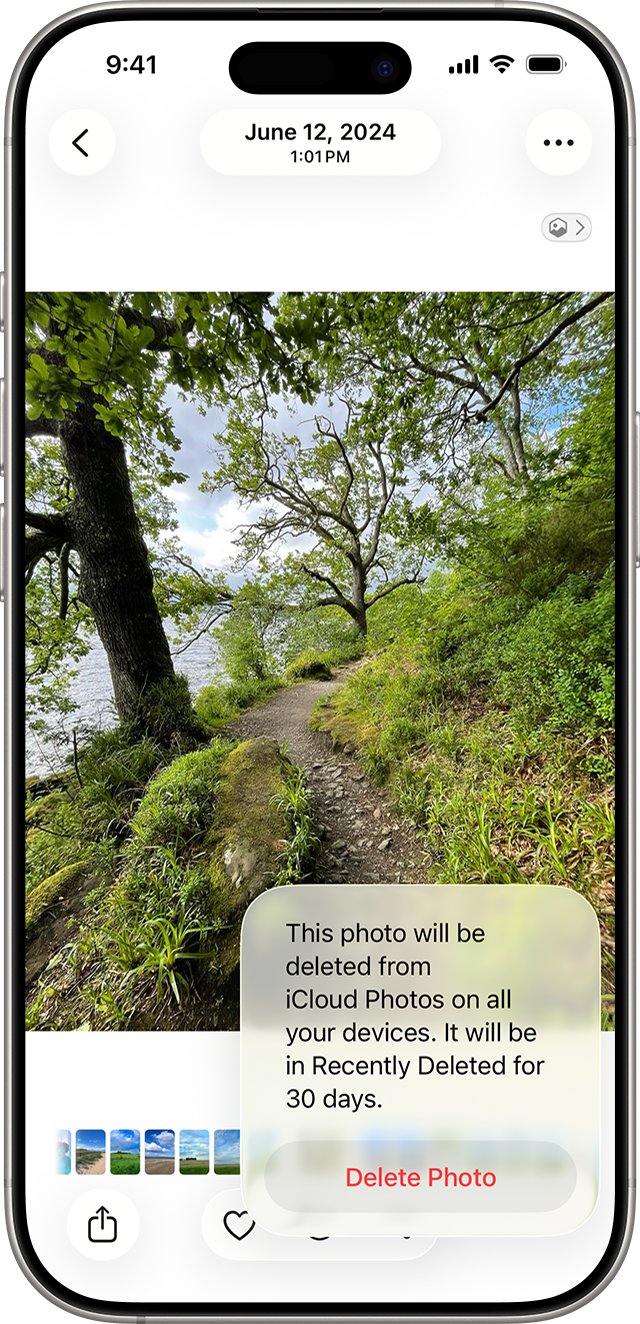
- Open the Photos app and make sure the Library tab is selected.
- Tap the photo or video you want to delete so it opens full screen.
- Tap the Trash button.
- Tap Delete Photo to confirm the action.
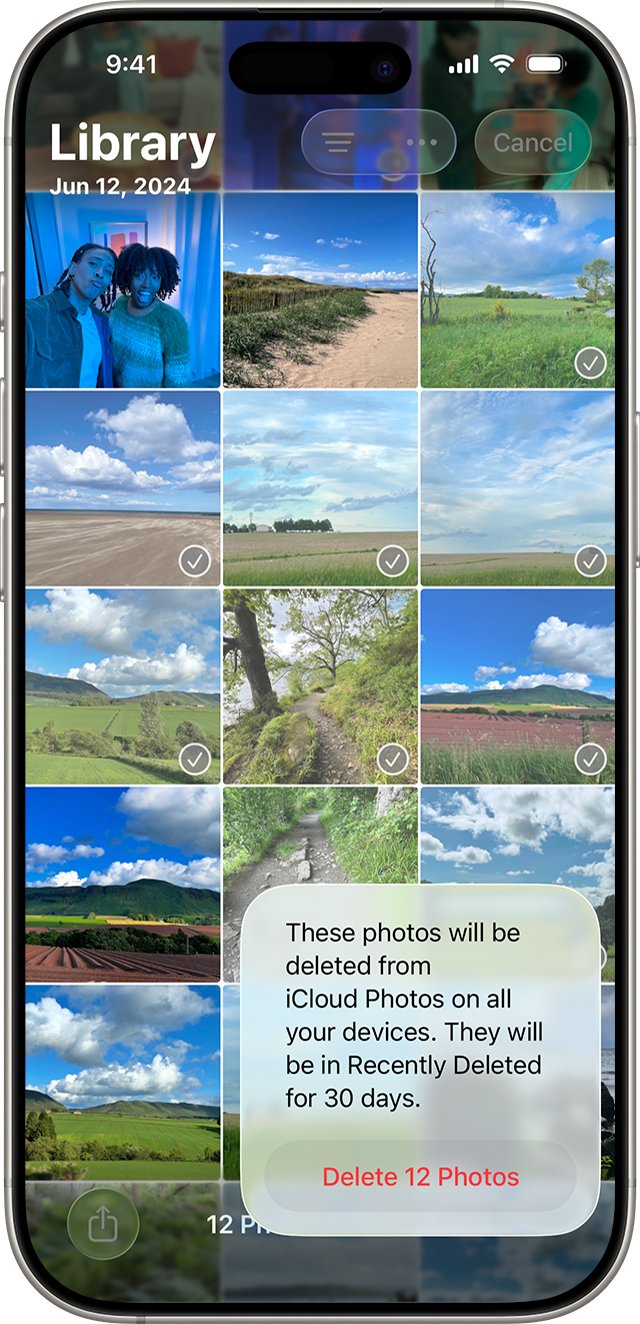
- To remove several items, go back to the grid, tap Select, tap each photo or slide your finger across a row, then tap the Trash button and confirm.
The photo leaves your library at once but moves to the Recently Deleted album for 30 days, so the space on your iPhone is not freed until that album is emptied.
Can I delete photos from iPhone if they are on iCloud?
Yes, but what happens depends on whether iCloud Photos is on. With it on, the iPhone and iCloud hold one shared library, so a deletion anywhere removes the photo everywhere.
| Your situation | What deleting on the iPhone does | Do this instead if you want to keep a copy |
|---|---|---|
| iCloud Photos is on (Sync this iPhone) | Removes the photo from iCloud and every device signed in to the same Apple Account | Turn on Optimize iPhone Storage, or turn off iCloud Photos on this iPhone and choose Remove from iPhone |
| iCloud Photos is off | Removes the only copy on the iPhone; an existing iCloud backup still holds it until it is replaced | Import the photos to a Mac or PC first |
| Photos were synced from a computer | Not possible in the Photos app; the Trash button is gray | Stop syncing that album in Finder or the Apple Devices app |
| Photo is in an iCloud Shared Photo Library | Removes it for every participant | Only the person who added it can permanently delete or recover it |
| Photo is in a shared album you subscribe to | You can delete only items you added yourself | Ask the album's creator to remove the rest |
How to delete photos from iPhone in bulk
Bulk deletion is the quickest way to mass delete photos on iPhone, including a whole year or month of pictures. Drag-selecting a run of thumbnails replaces dozens of single taps.
- Open Photos and tap the Library tab.
- Tap Years or Months to jump to the period you want to clear, such as a single year.
- To narrow the grid first, tap the sort and filter button, tap Filter, and pick a type such as Videos or Favorites.
- Tap Select, then slide your finger across the first row and down the screen to select every photo you drag over.
- Tap the Trash button, then confirm to delete the selected items.
- Tap All Items in the filter menu afterwards to return to the full library.
Videos usually take far more space than photos, so filtering to Videos first frees the most storage for each item you remove.
How to delete photos from iPhone permanently
Permanently deleting iPhone photos means emptying them from Recently Deleted before the 30 days run out. Once removed from that album, a photo cannot be recovered.
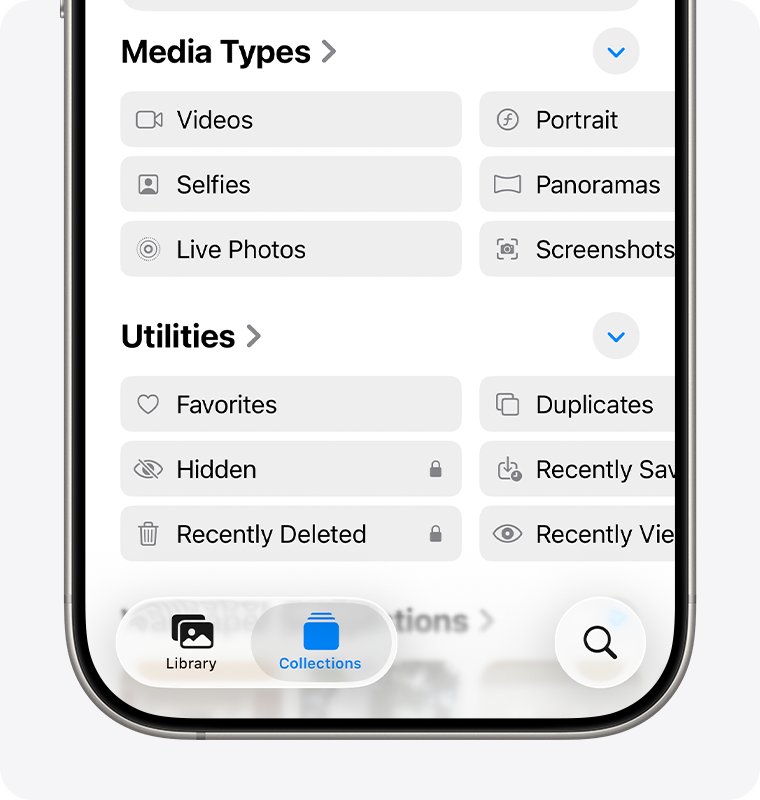
- Open Photos and tap Collections at the bottom.
- Swipe up and tap Recently Deleted under Utilities.
- Tap View Album and unlock it with Face ID or Touch ID.
- Tap Select, then tap the photos you want gone; to pick the whole album, tap Cancel, then tap Select again.
- Tap the More button, then tap Delete or Delete All.
- Tap Delete from All Devices, or Delete Photos I Added in a shared library, to confirm.
If you removed the wrong picture, you can still recover deleted photos on iPhone from the same album until the 30 days are up.
How to delete duplicate photos on iPhone
Photos finds duplicates on its own on iOS 16 and later and lists them in a Duplicates album. Merging keeps the best-quality copy with its details and sends the extras to Recently Deleted.
- Open Photos and tap Collections at the bottom.
- Swipe up and tap Duplicates under Utilities.
- Tap Merge next to a set to combine that set.
- To merge several sets, tap Select, tap Select on each set or tap Select All, then tap Merge.
- Tap Merge [Number] Items to confirm.
How to delete photos from iPhone but not iCloud
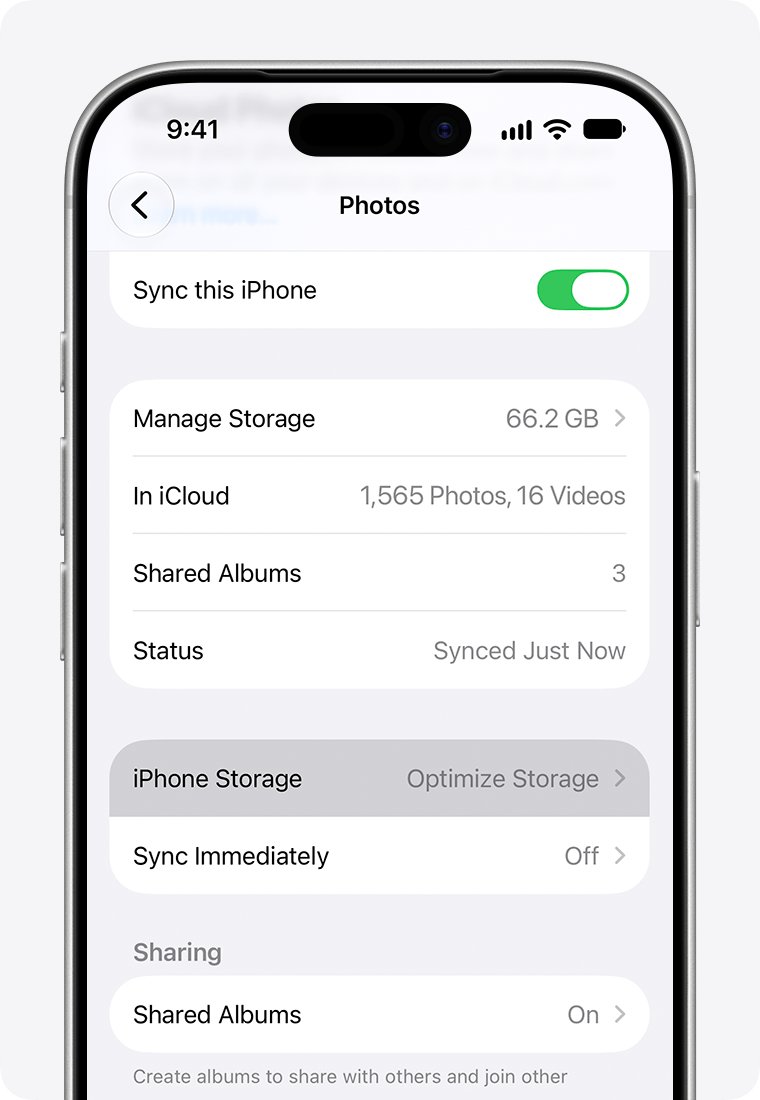
With iCloud Photos on, the only official way to clear the iPhone while keeping the iCloud library is to stop syncing this iPhone and remove its local copies. New photos, edits and deletions then stop syncing between this iPhone and iCloud.
- Open Settings and tap your name.
- Tap iCloud, then tap Photos under Saved to iCloud.
- Turn off Sync this iPhone.
- Tap Remove from iPhone to clear the local copies without touching the photos stored in iCloud.
- Open icloud.com/photos on any browser to confirm the library is still there.
If you only need space, leave iCloud Photos on and keep Optimize iPhone Storage turned on instead. Full-resolution originals stay in iCloud and the iPhone keeps smaller copies, so nothing has to be deleted.
How to delete photos from iPhone after import
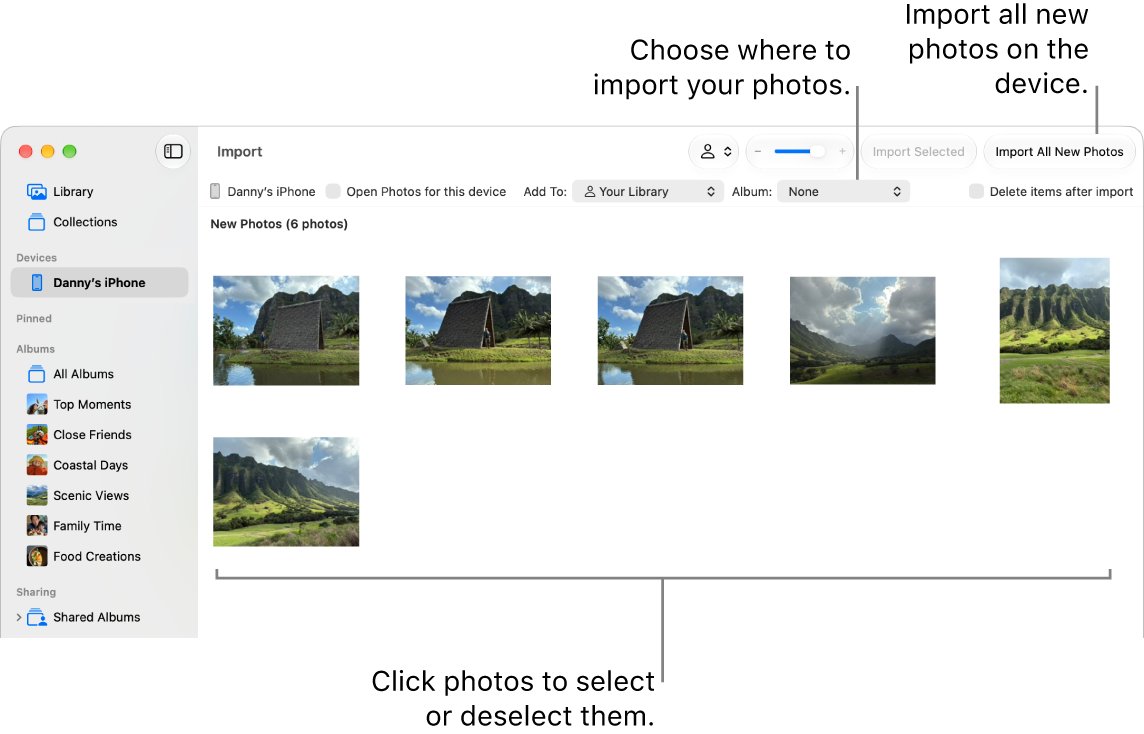
When iCloud Photos is off, the computer copy is your backup, so import first and delete second. Before you start, copy the photos to your computer with a USB cable and tap Trust on the iPhone when asked.
| Computer | Tool | How to delete from the iPhone |
|---|---|---|
| Mac | Photos app | Click the iPhone under Devices, select the Delete items checkbox, then click Import All New Items or Import Selected |
| Mac | Image Capture | Select the iPhone, click the options button in the toolbar, and select Delete after import or deselect Keep originals, then click Download All |
| Windows 11 or 10 | Microsoft Photos | Click Import, pick the iPhone and import; Photos has no delete-from-phone option, so delete the imported photos on the iPhone afterwards |
On Windows, Apple asks you to install the Apple Devices app from the Microsoft Store first. If iCloud Photos is on, download the originals to the iPhone before importing, or the PC may not see every photo.
How to delete photos from iPhone using PC or laptop
Any Windows PC, Chromebook or laptop browser can delete iPhone photos through iCloud.com, but only when iCloud Photos is on. The deletion then syncs back to the iPhone.
- Open icloud.com/photos in a browser and sign in to your Apple Account.
- Select the photos or videos you want to delete.
- Select the Delete button, then select Delete.
- Open the Recently Deleted album in the sidebar to remove them for good before the 30 days pass.
- Check the iPhone's Photos app after it syncs; the deleted items are gone there too.
Can I delete photos from iPhone after backup?
Whether a backup protects your photos depends on the type of backup, not on the fact that one exists.
| Backup type | Are your photos in it? | Safe to delete from the iPhone? |
|---|---|---|
| iCloud Photos | Photos sync to iCloud and are not part of the iCloud backup | No, deleting removes them from iCloud too |
| iCloud Backup with iCloud Photos off | Yes, it may include your Camera Roll | Only until the next backup no longer includes them; getting them back means a full restore |
| Import to a Mac or PC | Yes, as files or in the Photos library on the computer | Yes, once you have checked the files open on the computer |
| Finder or Apple Devices backup | Yes when iCloud Photos is off | Same as iCloud Backup: recovery needs a full restore |
An imported copy on a computer is the only one you can browse and open photo by photo, so it is the safest copy to have before a big clear-out.
Tips: Deleting photos on iPhone 15
| Tip | Why it helps |
|---|---|
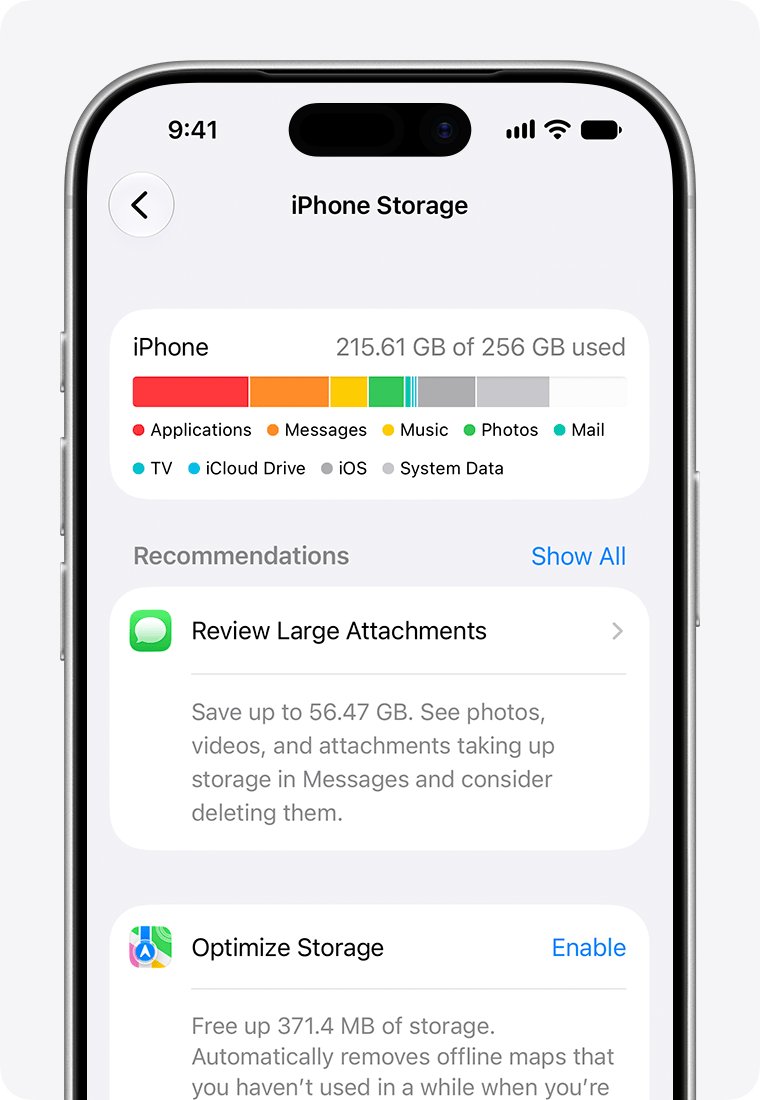
| Check Settings > General > iPhone Storage before and after | You can see how much space Photos really uses and whether the clear-out worked |
| Empty Recently Deleted when you need space now | Deleted items keep using storage for 30 days until the album is cleared |
| Hide a photo instead of deleting it | Touch and hold the photo and tap Hide; it moves to the locked Hidden album and stays out of the library |
| Unlock Recently Deleted only if you share the phone with nobody | Turning off Use Face ID in Settings > Apps > Photos also unlocks the Hidden album |
| Merge duplicates before you delete by hand | Duplicates are often the largest batch you can clear without losing a single unique photo |
| Ask before deleting from a Shared Library | A photo you delete disappears for every participant |
Why can't I delete photos from my iPhone?
The Trash button is gray
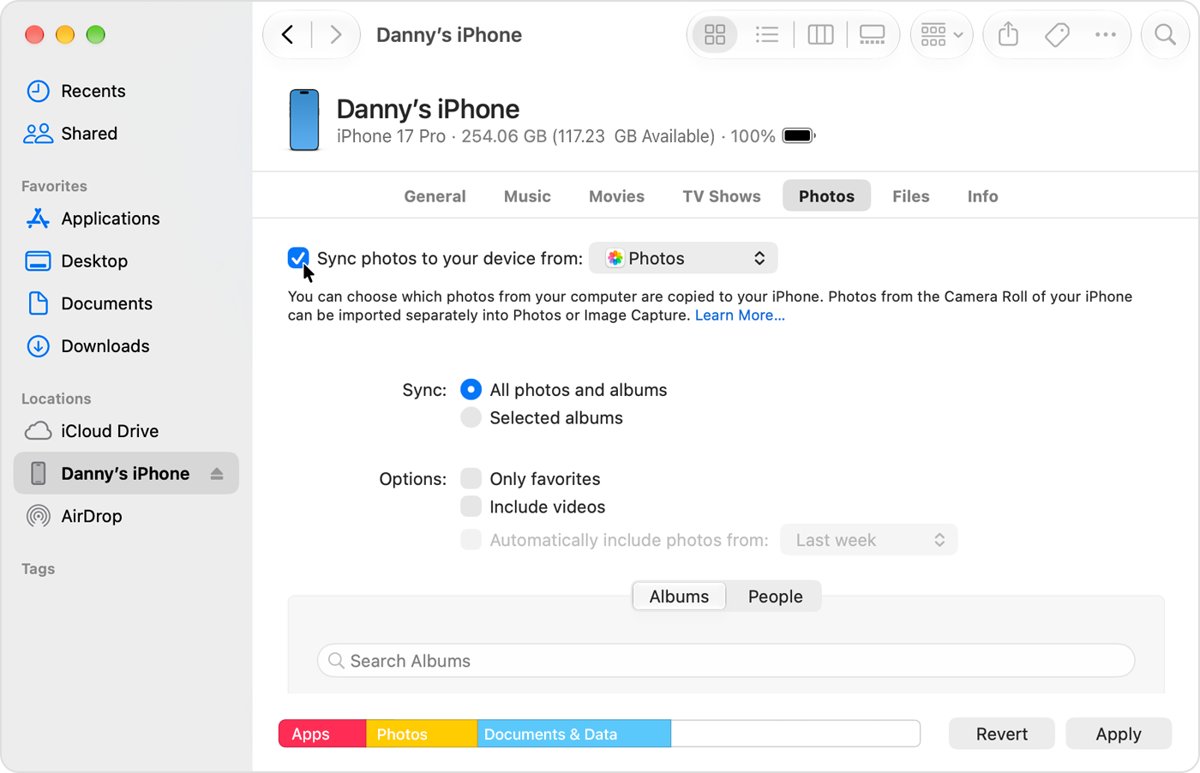
The photos were synced to the iPhone from a computer, and synced photos cannot be deleted in the Photos app.
- Connect the iPhone to the computer that synced the photos with a USB cable and unlock it.
- On a Mac, open Finder, click the iPhone in the sidebar and click the Photos tab.
- Choose Selected albums and deselect the albums you want off the phone, or deselect Sync Photos and click Remove photos.
- Click Apply.
- On Windows, open the Apple Devices app, select the iPhone, select Photos, deselect the albums or folders and sync.
You can't delete a photo in a shared album
Subscribers to a shared album can delete only the photos, videos and comments they added themselves.
- Open the shared album and check who added the photo.
- Delete it yourself only if you added it.
- Ask the album's creator to remove anything else; the creator can delete any item.
You can't permanently delete a Shared Library photo
Only the person who added a photo to an iCloud Shared Photo Library can permanently delete or recover it.
- Delete the photo from the library as normal; it disappears for everyone.
- Ask the person who added it to remove it from their Recently Deleted album.
- Otherwise it is removed automatically after 30 days.
iPhone won't free space after deleting photos
Deleted photos stay in Recently Deleted for 30 days and still count against storage.
- Open Photos > Collections > Recently Deleted and unlock the album.
- Tap Select, tap More, then tap Delete All.
- Confirm with Delete from All Devices.
- Check Settings > General > iPhone Storage again.
The Duplicates album is missing
The iPhone has not finished indexing the library, or it found no duplicates.
- Lock the iPhone and connect it to power; indexing runs only then.
- Open Photos, tap Library and scroll to the bottom to see if an indexing status message appears.
- Wait; with a large library indexing can take a few days.
- If indexing is done and there is still no album, the iPhone found no duplicates.
Delete photos from iPhone 15 FAQ
How do I delete all photos from my iPhone 15 at once?
Open Photos, tap Library, tap Select, then slide your finger from the first photo down through the whole grid and tap the Trash button. A large library takes a long drag, so work a year at a time with Years or Months. Empty Recently Deleted afterwards to free the space.
Can I recover photos after I've deleted them?
Yes, for 30 days. Open Photos, tap Collections, tap Recently Deleted under Utilities, unlock it with Face ID or Touch ID, select the photos, tap More and tap Recover. Photos removed from Recently Deleted cannot be brought back.
Will deleting photos from my iPhone 15 also delete them from iCloud?
Yes, if iCloud Photos is turned on. The iPhone and iCloud share one library, so a deletion on either removes the photo from every device signed in to the same Apple Account. If iCloud Photos is off, only the copy on the iPhone is deleted.
Is there a way to permanently delete photos instantly?
Yes. Delete the photos, then open Recently Deleted under Utilities, unlock it, tap Select, choose the photos, tap More and tap Delete. Confirm with Delete from All Devices. They are gone immediately instead of after 30 days.
Can I delete photos from my iPhone 15 using a computer?
Yes. On a Mac, select the Delete items checkbox in the Photos import screen, or use Delete after import in Image Capture. On any computer, you can delete them at icloud.com/photos when iCloud Photos is on.
How to delete photos from iPhone not iCloud?
Go to Settings, tap your name, tap iCloud, tap Photos and turn off Sync this iPhone, then choose Remove from iPhone. The photos stay in iCloud, but this iPhone stops syncing with your iCloud library.
How to delete photos from iPhone 16, 17, 14 or 13?
The steps are the same as on iPhone 15. Open Photos, tap the photo, tap the Trash button and tap Delete Photo. Tap Select first to delete several, and empty Recently Deleted to remove them for good.
Why won't my iPhone delete photos?
The most common reason is that the photos were synced from a computer through Finder, iTunes or the Apple Devices app, which grays out the Trash button. Remove them by turning off syncing for that album on the computer, then syncing the iPhone again.
How to quickly delete pictures from iPhone?
Tap Select in the library and drag your finger across rows of photos instead of tapping them one by one. Use Years or Months to jump to old photos, and merge the Duplicates album to clear repeat shots in one step.
Does merging duplicates delete photos on iPhone?
Yes. Merging keeps one copy with the highest quality and the combined details, and moves the other copies to Recently Deleted. They stay there for 30 days, so you can recover a copy if you change your mind.