To delete an app on an Amazon Fire tablet, open the Apps or Games app, select the Menu icon, tap Library, select Downloaded, open the app's options and select Delete from Device.
This guide covers the Settings route, older Fire OS versions, child profiles, pre-installed apps that cannot be removed, storage cleanup, reinstalling, and fixes for an app that refuses to go.
Quick method: Deleting apps directly from the home screen or App Library
This route works on Fire OS 7 and newer, which covers recent Fire tablets. It starts from the app you already use to browse apps on your home screen.
- From the home screen, open the Apps or Games app.
- Select the Menu icon.
- Tap Library, then select Downloaded.
- Find the app you want to remove and select its options icon.
- Select Delete from Device.
The app leaves your tablet but stays in your Amazon account, so you can download it again from Library.
Delete an app from the Fire tablet home screen
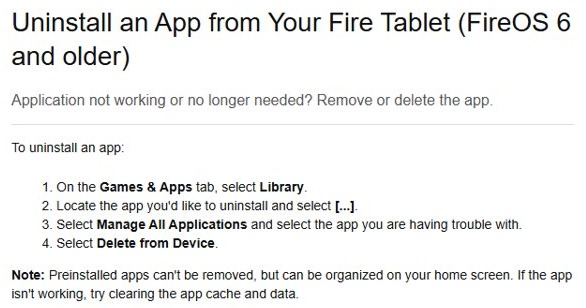
Older tablets running Fire OS 6 or earlier keep a Games & Apps tab on the home screen, and the delete command sits behind it. Use these steps if your Library has no Downloaded option.
- On the home screen, go to the Games & Apps tab and select Library.
- Find the app you want to uninstall and select its options icon.
- Select Manage All Applications, then select the app.
- Select Delete from Device.
Selecting and holding an icon on the home screen is the gesture Amazon documents for moving an app or building a folder, not for uninstalling it. Use the Library route whenever the app has to leave storage.
Removing apps through Fire tablet Settings (step-by-step)
Settings is the better route when you want to see every installed app in one list. Some models label the second menu differently, so look for either name.
- Open Settings.
- Select Apps & Notifications, or Apps & Games on tablets that use that label.
- Select Manage All Applications or See all apps.
- Select the app to open its App info page.
- Select Uninstall and confirm if the tablet asks.
Uninstall an app through Settings
An app that Auto Archive already moved off your home screen still keeps its data on the tablet. This path removes the archived app and that data together.
- Open Settings and select Storage.
- Select Auto Archive.
- Select the name of the archived app.
- Select Uninstall on the App info page.
How to delete apps for individual profiles and Kids profiles
Delete commands depend on the profile you are signed in to, so switch profiles first. Amazon's steps for a child profile only cover what is shared with that child.
| You are on | How to switch | Then do this |
|---|---|---|
| An adult profile, and the app belongs to you | No switch needed | Use Library > Downloaded > Delete from Device |
| An adult profile, and the app belongs to another adult | Swipe down for Quick Settings, tap the profile icon at the bottom left, then pick the profile | Delete the app from that profile's Library |
| A child profile, and you want the app gone from the tablet | Select the parent overlay menu at the top right, select Switch Profile, pick the adult profile and enter the PIN or password | Delete the app from the adult profile's Library |
| An adult profile, and you only want a child to lose access | Swipe down for Quick Settings if you need to change profile | Use Manage Content in the next section |
Delete apps from an Amazon Kids child profile
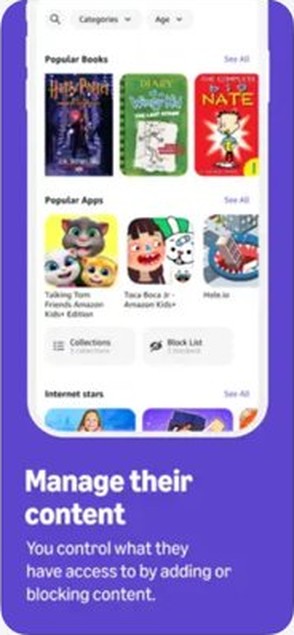
Manage Content controls what a child profile can open. Clearing an app here takes it off that child's list, and you need the adult PIN to change anything.
- On the child profile, select the Grownups menu at the top right.
- Select Manage Content.
- Select the source of the app: Library, Amazon Kids+ subscription, Device storage or Web content.
- Choose an adult profile and enter its PIN.
- Clear the selection next to the app, then select Done.
From an adult profile, you can reach the same list. Open the Amazon Kids app from the Home tab, tap the gear icon, select Manage Content, then Amazon Content. New content can take a few minutes to populate on the child profile.
Why some apps can't be deleted (and what you can do instead)
Amazon states that pre-installed apps cannot be removed from a Fire tablet. Your own downloads and archived apps behave differently, and the table shows the option each one leaves you.
| App type | Can you delete it? | What you can do instead |
|---|---|---|
| Pre-installed Amazon apps | No | Organize it into a folder, or clear its cache and data if it misbehaves |
| Apps you downloaded from the Amazon Appstore | Yes | Reinstall it later from Library if you change your mind |
| Apps archived by Auto Archive | Yes, from Settings > Storage > Auto Archive | Select Reinstall next to the app to get it back |
| Apps shared with a child profile | Yes, from the adult profile that owns the app | Remove access only, through Manage Content |
What to do when there is no Uninstall option
A missing delete command almost always means one of three things: the app came with the tablet, you are on the wrong profile, or you are using the wrong route for your Fire OS version.
| What you see | Likely reason | What to do |
|---|---|---|
| The app is an Amazon app that came with the tablet | Pre-installed apps cannot be removed | Move it into a folder on the home screen |
| You see the Grownups menu at the top right | You are on a child profile | Select Switch Profile, enter the PIN and delete from the adult profile |
| Your Library has no Downloaded option | The tablet runs Fire OS 6 or older | Use Games & Apps > Library > Manage All Applications |
| The app vanished from the home screen | Auto Archive archived it | Open Settings > Storage > Auto Archive, then select the app name |
Disabling or hiding pre-installed Amazon apps to reduce clutter
Amazon's Fire tablet help documents no switch that disables a pre-installed app. You can still push those apps out of sight and cut down what the home screen recommends.
| What you want | How to do it |
|---|---|
| Group unused apps in a folder | Select and hold an app for a few seconds, then drag it over another app |
| Move an app out of the way | Select and hold the app, then drag it where you want it |
| Remove one suggestion from the Discover row | Long-press the content and select Not Interested |
| Turn off home screen recommendations | Go to Settings > Apps and Notifications > Amazon App Settings > Home Screens, then toggle Recommendations and Continue and Discover Row |
| Block certain apps for someone 13 or older | Set up Parental Controls on an adult profile to restrict access to certain apps |
Parental Controls do not remove mature or adult-rated content from the tablet. For a child under 13, Amazon recommends a child profile instead.
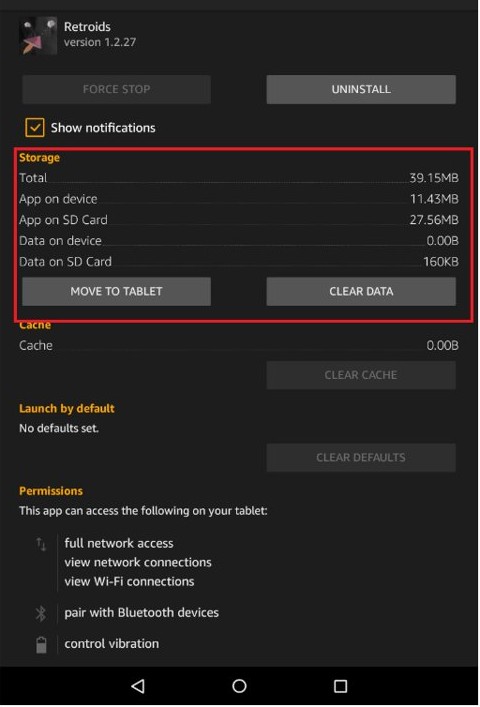
Clear an app before uninstalling it
Clearing is worth trying first when an app is misbehaving rather than unwanted, because it resets the app without removing it. These steps apply to 8th generation and newer tablets.
- Open the Settings menu.
- Select Apps & Notifications.
- Select Manage All Applications or See all apps, then choose the app.
- Select Storage.
- Tap Clear Data or Clear Storage, then Clear Cache.
Clearing data erases what the app has stored on the tablet, so save anything you need from inside the app first.
How to free up storage space after deleting apps
Deleting apps frees the most space, and the Storage screen handles what is left. Amazon saves content you bought to the Cloud, so removing it here does not delete it from your account.
- Open Settings and select Storage.
- On Fire OS 8, select Internal Storage, then Archive Now to archive all eligible content, or Free Up Space to pick items yourself.
- On Fire OS 7, select Archive Now under Free Up Space, then choose one, several or all items.
- Turn on Auto Archive to archive non-Amazon apps infrequently used in the past 60 days.
- If you use a microSD card, go to SD Card Storage, select Apps & Games, and clean up what is on the card.
A microSD card set up as internal storage holds apps but is not meant to be removed. Selecting Forget microSD card permanently erases everything on it, including app data.
Delete an app but keep its subscription
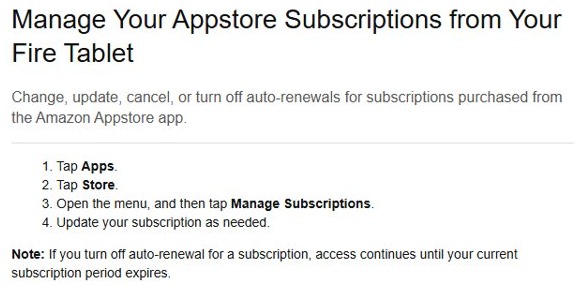
Subscriptions bought through the Amazon Appstore are managed in the store, separately from the app on your tablet. Deleting the app does not change the subscription, so renewal needs its own step.
- Tap Apps, then tap Store.
- Open the menu and tap Manage Subscriptions.
- Find the subscription and change, update or cancel it, or turn off auto-renewal.
- Leave it unchanged if you want to keep paying and reinstall the app later.
If you turn off auto-renewal, access continues until the current subscription period ends.
Reinstall an app later
An app you deleted stays tied to your Amazon account, which is why it remains available in your Library. You can also download and install apps on a Fire tablet from the store if it is new to you.
- Select Games & Apps, or open the Apps or Games app.
- Open your Library and select the app to download it again.
- For an archived app, go to Settings > Storage > Auto Archive.
- Select Reinstall next to the archived app.
Do not confuse uninstalling with removing an icon
Several actions make an app disappear from view, and only some of them free storage. Check this table before you assume the space came back.
| Action | What happens to the icon | Does the app leave the tablet? |
|---|---|---|
| Drag the app into a folder | Moves into the folder | No |
| Clear data and cache | Stays where it is | No, only its stored data and cache go |
| Auto Archive | Leaves the home screen | Partly, and it stays listed for Reinstall |
| Clear it in Manage Content | Leaves the child profile | Not by itself |
| Delete from Device or Uninstall | Goes away | Yes |
Apps that are really websites
Fire tablets support HTML5 web apps as well as Android apps, so some store listings are websites in an app wrapper. Other icons on your screen may simply be pages saved in the Silk web browser.
| What you have | Where it lives | How to remove it |
|---|---|---|
| A web app installed from the Appstore | Library > Downloaded | Select Delete from Device, the same as any other app |
| A bookmark or favorite in Silk | The Silk bookmarks page or Home tab | Edit the bookmark or unpin the page in Silk |
| A site shared with a child | Manage Content > Web content | Clear the selection, then select Done |
How to tell if the app was fully removed
A bought app still appears under your Library after deletion, so the Library alone does not prove anything. Look at the installed lists instead.
- Open Library and select Downloaded; the app should no longer be listed there.
- Open Settings > Apps & Notifications > Manage All Applications and look for the app.
- Open Settings > Storage > Auto Archive to confirm it is not sitting in the archive.
- Open Settings > Storage to see the space you got back.
Troubleshooting: What to do if an app won't delete
Delete from Device does not appear
The app is pre-installed, or you are looking at an app that is not downloaded to this tablet.
- Check Library > Downloaded; only apps on the tablet are listed there.
- If the app is pre-installed, move it into a folder, because it cannot be removed.
Uninstall is grayed out or missing in Settings
Pre-installed apps cannot be uninstalled, so check whether the app came with the tablet.
- Use Force Stop on the app's page if it is stuck open.
- Use Storage > Clear Data or Clear Storage to reset it.
The app will not delete on a child profile
A child profile only controls what is shared with that child.
- Select the parent overlay menu at the top right, then Switch Profile.
- Pick the adult profile and enter the PIN or password.
- Delete the app from the adult profile's Library.
You cannot change anything because of a password prompt
Parental Controls or a child profile PIN is protecting the setting.
- Enter the adult PIN or Parental Controls password.
- If the Parental Controls password is lost, Amazon's documented option is to factory reset the Fire tablet, which erases downloaded content.
If the app will not uninstall
A frozen or crashing app can stop the delete command from finishing. Work through these in order, because each one clears a different kind of stuck state.
- Go to Settings > Apps & Notifications > Manage All Applications, select the app, then select Force Stop.
- Restart your Fire tablet.
- Select Storage on the app's page, then clear its data and cache.
- Try Delete from Device again from Library > Downloaded.
- If the app still misbehaves, open its page in the Amazon Appstore and select Developer Info to contact the developer.
Frequently asked questions about app removal on Fire tablets
Can I delete apps on a Fire tablet?
Yes. You can delete any app you downloaded by opening the Apps or Games app, then Menu, Library, Downloaded and Delete from Device. Pre-installed Amazon apps are the exception, since Amazon does not allow them to be removed from the tablet.
Why can't I delete apps on my Fire tablet?
The app is most likely pre-installed, which Amazon does not allow you to remove. You may also be on a child profile, which only controls sharing, or on Fire OS 6 or older, where the command sits under Manage All Applications.
How do I delete apps that won't delete?
Force stop the app in Settings, restart the tablet, clear the app's data and cache, then try Delete from Device again. If the app is pre-installed it cannot be deleted at all, so put it in a folder on the home screen instead.
How do I delete apps completely from a Fire tablet?
Select Delete from Device in Library, or Uninstall on the App info page in Settings. For an archived app, go to Settings, Storage, Auto Archive, select the app name and uninstall it there, which also removes its data from the tablet.
How do I delete apps I don't use on a Fire tablet?
Delete them one at a time from Library and Downloaded, or turn on Auto Archive under Settings and Storage. Auto Archive automatically archives non-Amazon apps you have used infrequently in the past 60 days and takes them off the home screen.
Do I lose a paid app if I delete it from my Fire tablet?
No. Amazon saves content you bought to the Cloud, and removing it from the tablet does not delete it from your Amazon account. Open your Library in the Apps or Games app and select the app to download it again.
Does deleting an app cancel its subscription?
No. Appstore subscriptions are managed separately, under Apps, Store, the menu and Manage Subscriptions. Cancel or turn off auto-renewal there if you no longer want to pay, and access continues until the current subscription period ends.
Is deleting apps on a Fire tablet the same as on an Android tablet?
Not quite. Fire tablets run Fire OS with the Amazon Appstore and Library instead of Google Play, so the menus differ from the steps to delete apps on Android. The Library route above is the one to use on a Fire tablet.