"Sign out is not available due to restrictions" means a Screen Time passcode or a Screen Time restriction is locking your Apple Account, so turn the passcode off or set Accounts to Allow and the Sign Out button works again.
This guide covers the Screen Time fix for iOS 26 and iOS 27, a forgotten Screen Time passcode, child accounts in Family Sharing, work or school iPhones, the Stolen Device Protection delay, and how to sign out once the block is gone.
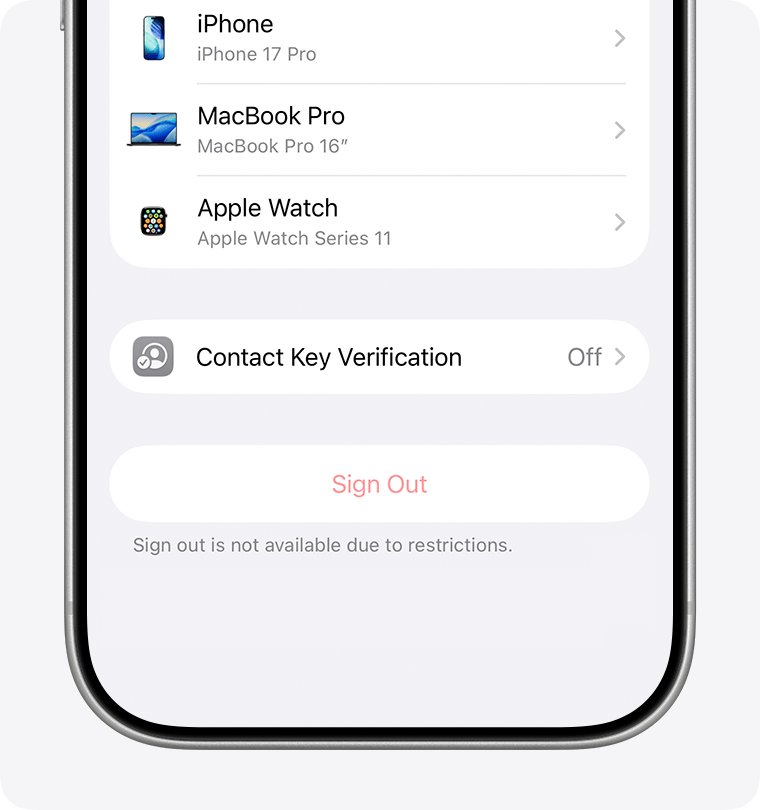
How to fix sign out is not available due to restrictions on iPhone
Apple's own fix for this message is to remove the Screen Time passcode. The same steps work on an iPad.
- Open the Settings app, then tap Screen Time.
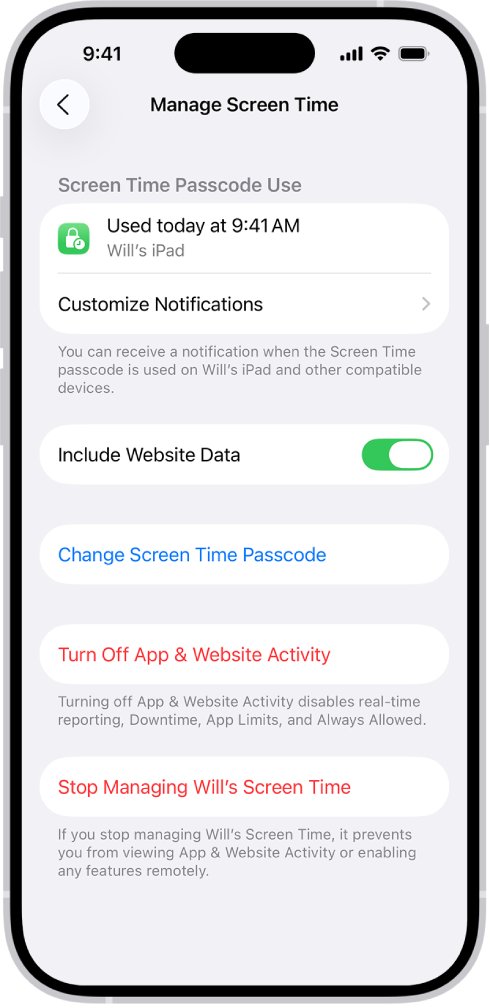
- Scroll down, then tap Manage Screen Time (on iOS 27, tap Passcode & Management).
- Tap Change Screen Time Passcode.
- Tap Turn Off Screen Time Passcode, then enter your Screen Time passcode.
- Go back to Settings, tap your name, scroll to the bottom and tap Sign Out.
If the Sign Out button is still dimmed, a restriction is set to Don't Allow. The next sections show where it is.
Why does iPhone say sign out is not available due to restrictions?
Find the row that matches your iPhone and jump to the fix it names.
| What you see or know | Likely cause | Fix |
|---|---|---|
| "Sign out is not available due to restrictions" | A Screen Time passcode is turned on | Turn off the Screen Time passcode |
| Your name at the top of Settings is grayed out | Accounts is set to Don't Allow in Content & Privacy Restrictions | Set Accounts to Allow |
| You don't know the Screen Time passcode | Someone set it earlier, or you forgot it | Reset it with the Apple Account used for Screen Time Passcode Recovery |
| The iPhone belongs to a child in Family Sharing | A parent or guardian manages Screen Time from their own device | The organizer changes the setting on their iPhone |
| Screen Time is off but the block remains | A work or school device management profile restricts account changes | Ask the organization's IT administrator |
| A Security Delay timer appears when you tap Sign Out | Stolen Device Protection away from a familiar location | Wait one hour, then use Face ID or Touch ID again |
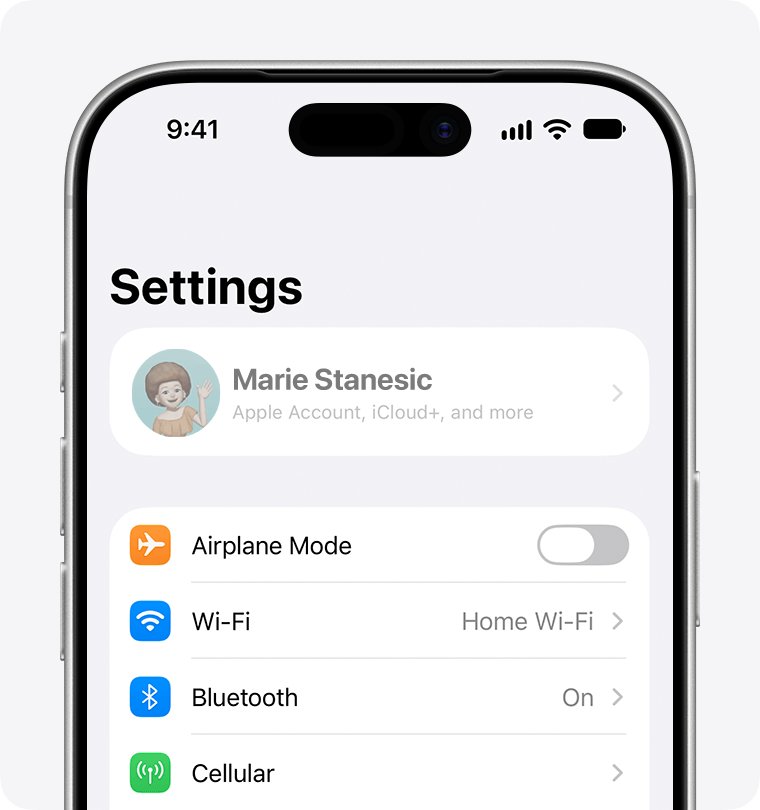
Apple ID grayed out in Settings on iPhone: how to allow account changes
When your name at the top of Settings is grayed out, a Content & Privacy restriction blocks account changes, even if the passcode is known.
- Open the Settings app, then tap Screen Time.
- Tap Content & Privacy Restrictions.
- If All Restrictions is turned on, scroll down to Privacy Restrictions.
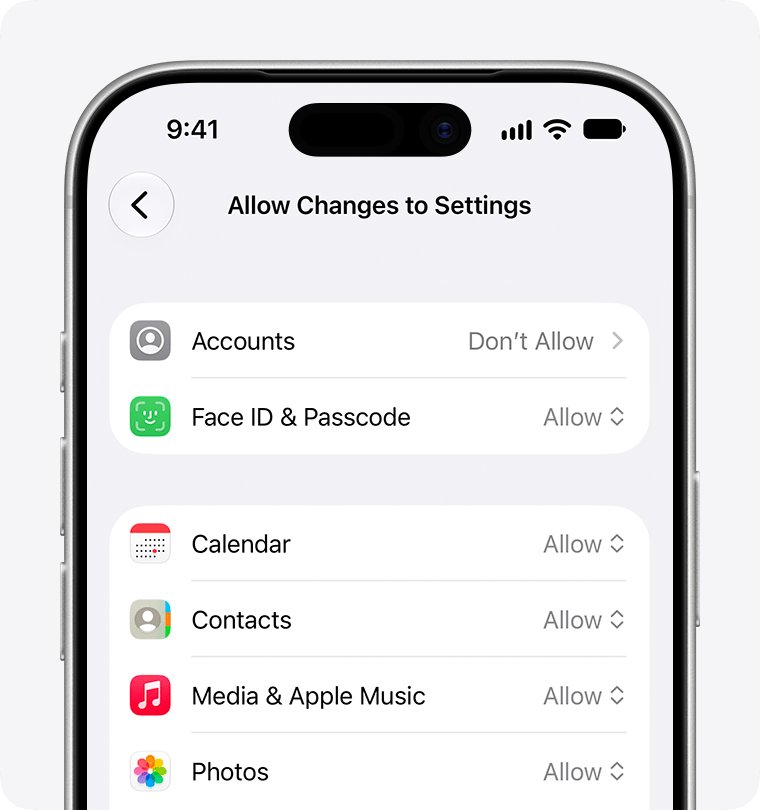
- Tap Allow Changes to Settings.
- Tap Accounts and set it to Allow. Enter your Screen Time passcode if asked.
- Go back to Allow Changes to Settings and set any other entry marked Don't Allow to Allow.
Return to Settings and tap your name. The Sign Out button at the bottom should now respond.
Where is the Screen Time passcode setting in iOS 27 and iOS 26?
Apple renamed the Screen Time passcode screen in iOS 27, so the label you see depends on which iOS version the iPhone runs.
| iOS version | Your own iPhone | A child's iPhone (on the parent's device) |
|---|---|---|
| iOS 27 and iPadOS 27 | Settings > Screen Time > Passcode & Management > Change Screen Time Passcode | Settings > Family > child's name > Passcode & Management > Change Screen Time Passcode |
| iOS 26 and earlier | Settings > Screen Time > Change Screen Time Passcode > Turn Off Screen Time Passcode | Settings > Screen Time > child's name > Manage Screen Time > Change Screen Time Passcode > Turn Off Screen Time Passcode |
The Screen Time passcode is not the passcode that unlocks the iPhone. It is a separate code, and on iOS 26 it is four digits.
Forgot Screen Time passcode on iPhone? How to reset it
You can reset a forgotten Screen Time passcode with the Apple Account entered when Screen Time Passcode Recovery was set up. These steps are for iOS 27.
- Open the Settings app, then tap Screen Time.
- Tap Passcode & Management.
- Tap Change Screen Time Passcode, then tap Change Screen Time Passcode again.
- Authenticate with Face ID or enter the passcode that unlocks the iPhone.
- If asked, enter the Apple Account email address and password used to set up the Screen Time passcode.
- Enter a new Screen Time passcode, then enter it again to confirm.
- Use the new code to turn off the Screen Time passcode, then sign out.
The recovery account can differ from the one signed in on the iPhone. In a Family Sharing group it may be a family member's or a child's Apple Account.
Can't sign out of Apple ID on a child's iPhone in Family Sharing
A child cannot remove the restriction from their own iPhone. Changes to a child's Screen Time passcode and settings must be made on the family organizer's or a parent's device.
- On the parent's iPhone, open the Settings app.
- Tap Family, then tap the child's name.
- Tap Content & Privacy Restrictions. Enter the Screen Time passcode if asked.
- Scroll down and select Privacy Restrictions.
- Choose Accounts, then choose Allow.
- To change the code instead, tap Passcode & Management under the child's name, then tap Change Screen Time Passcode.
If the child's name is missing under Family, both of you must be signed in with your own Apple Accounts and the child must be in the Family Sharing group.
In some countries and regions, certain settings for accounts under 18 are turned on automatically and can't be turned off.
Can't sign out of Apple ID on a work or school iPhone
If Screen Time is off and the block remains, check for a device management profile. Organizations that supervise an iPhone can apply a Modify account settings restriction, which stops users from changing settings tied to their account.
- Open the Settings app, then tap General.
- Tap VPN & Device Management.
- Look for a management or configuration profile from an employer, school or reseller.
- Tap the profile to see which organization installed it.
- Contact that organization's IT administrator and ask them to allow account changes or release the device.
Deleting a configuration profile also deletes every setting, app and piece of data tied to it. On a device you don't own, leave that decision to the administrator.
Security Delay when signing out of Apple Account with Stolen Device Protection
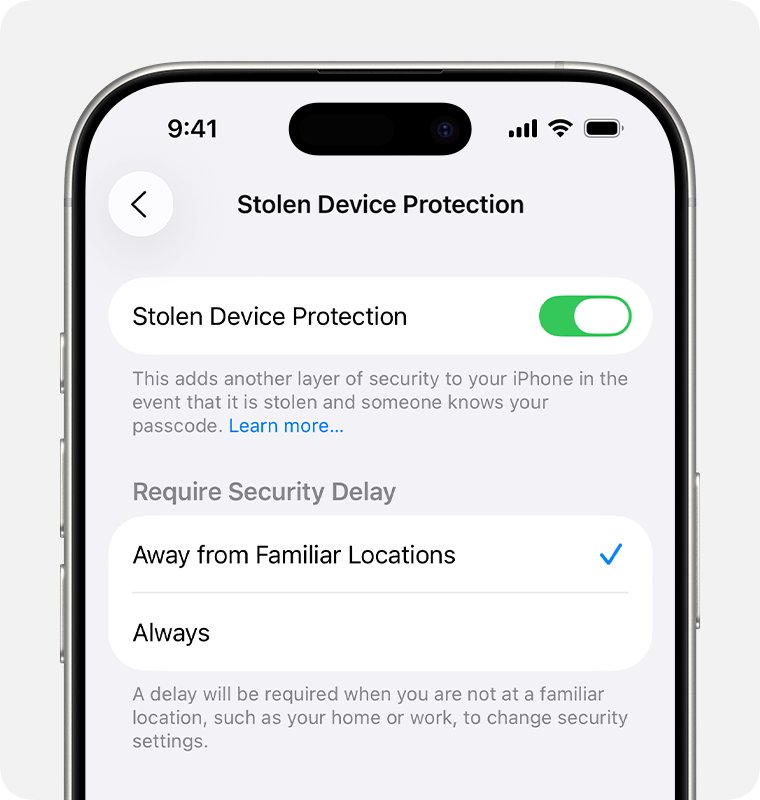
Stolen Device Protection is not a Screen Time restriction, but it can hold up a sign-out. Away from familiar places such as home or work, signing out of your Apple Account needs Face ID or Touch ID, a one-hour wait, and a second Face ID or Touch ID check.
- Tap Sign Out and authenticate with Face ID or Touch ID to start the Security Delay.
- Wait one hour. The delay can end early once the iPhone detects you have reached a familiar location.
- Return to Settings, tap your name, then tap Sign Out again.
- Authenticate with Face ID or Touch ID a second time to finish.
- To check the setting, go to Settings > Face ID & Passcode > Stolen Device Protection and see whether Require Security Delay is set to Always.
Turn off Stolen Device Protection before you sell, give away or trade in the iPhone. Turning it off away from a familiar location also starts a security delay.
How to sign out of Apple Account on iPhone after removing restrictions
Once the restriction is gone, the sign-out takes a few taps. Back up first, because iCloud data is removed from the device unless you keep a copy.
- Open the Settings app, then tap your name.
- Scroll to the bottom and tap Sign Out.
- Choose Erase this iPhone or Sign Out But Don't Erase.
- Follow the onscreen prompts to see what stays on the iPhone and what is erased.
- Enter the iPhone passcode or your Apple Account password.
- For Sign Out But Don't Erase, tap Confirm and Sign Out. For Erase this iPhone, tap Sign Out, then Sign Out again.
Signing out also signs you out of iCloud, the App Store, iMessage and FaceTime, and turns off Find My, iCloud Backup and Apple Pay on that iPhone.
On a Mac, choose the Apple menu > System Settings, click your name, then click Sign Out.
Apple ID sign out not working on iPhone
The Screen Time passcode is not accepted when you reset it
The reset needs the Apple Account used when the Screen Time passcode was first set up.
- Try the Apple Account email address and password that set up Screen Time Passcode Recovery.
- If the iPhone is in a Family Sharing group, try the organizer's or a parent's Apple Account.
- If you are the child on the account, ask the parent to reset the passcode on their own device.
Sign out asks for an Apple Account password you don't know
Signing out needs the iPhone passcode or the Apple Account password.
- Reset the Apple Account password through Apple's forgotten-password process.
- Change the password while you are still signed in on a trusted device, before you sign out.
- Tap Sign Out again and enter the new password.
Restrictions come back after a restore or on another device
Screen Time settings sync to other devices when Share Across Devices is on, and child accounts get some settings by default.
- Remove the Screen Time passcode on every device signed in to the same Apple Account.
- Update all devices in the Family Sharing group to the latest software before changing Screen Time again.
- If none of your devices has a Screen Time passcode, check Settings > General > VPN & Device Management for a profile.
You can't tap your name at the top of Settings
Accounts is set to Don't Allow under Allow Changes to Settings.
- Go to Settings > Screen Time > Content & Privacy Restrictions.
- Open Privacy Restrictions > Allow Changes to Settings > Accounts.
- Choose Allow and enter the Screen Time passcode.
Sign out not available due to restrictions FAQ
Why does sign out show not available due to restrictions when Screen Time is off?
Check Settings > General > VPN & Device Management for a work or school profile, and check whether the iPhone is a child account in Family Sharing. A supervised device can block account changes, and a parent can manage a child's Screen Time from their own iPhone.
What is sign out?
Signing out disconnects an account from a device or app. On an iPhone, signing out of your Apple Account also signs you out of iCloud, the App Store, iMessage and FaceTime, and your iCloud data is removed from the device unless you keep a copy.
Is it sign-out or sign out?
Use "sign out" as two words for the action, as in "sign out of your Apple Account". The hyphenated "sign-out" works as a noun or adjective, as in "the sign-out button". Apple labels the button Sign Out.
How do I sign out of my Apple Account on iPhone?
Open Settings, tap your name, scroll down and tap Sign Out. Choose Erase this iPhone or Sign Out But Don't Erase, enter the iPhone passcode or Apple Account password, then confirm.
Where is the sign out option on iPhone?
The Sign Out button sits at the bottom of the page that opens when you tap your name at the top of Settings. If your name is grayed out, set Accounts to Allow under Screen Time Content & Privacy Restrictions.
Does signing out of Apple Account erase my iPhone?
Not unless you choose to. Pick Sign Out But Don't Erase to keep the iPhone's content, or Erase this iPhone to wipe it. iCloud data stays in iCloud either way.
Why are my sign-in options unavailable on iPhone?
The same Screen Time setting causes both. When Accounts is set to Don't Allow, the Apple Account in Settings is grayed out and you can't change it. Setting Accounts to Allow restores the sign-in and sign-out controls.
What does sign out mean on a computer?
Signing out on a computer closes your session and apps so another person can use the machine. On Windows you can log off or sign out from the Start menu, and on a Mac, signing out of your Apple Account is in System Settings under your name.
How do I sign out of a Google account in Chrome instead?
Chrome has its own account controls, separate from your Apple Account. You can sign out of your Google Account in Chrome without affecting iCloud.