To check sent emails in Gmail, open Gmail and click Sent in the left-hand list on a computer, or tap Menu and then Sent in the Gmail app.
This guide covers the web, Android and iPhone, searching sent mail with from:me, scheduled and failed messages, Undo Send, and what to do when a message you sent is not in Sent.
How to Check Sent Emails in Gmail on a Computer
Every message you send from Gmail on the web gets the Sent label automatically, so this route shows all of them, newest first.
- Go to mail.google.com in your browser and sign in to the account you sent from.
- In the list on the left, click Sent. If the list is collapsed, click Show main menu at the top left first.
- Click any message to open it and see the recipients in the To, Cc and Bcc fields, the subject and any attachments.
- To find an older message quickly, type its details into the search bar at the top and press Enter.
If Sent is not in the list, click More under the labels on the left to expand the full list.
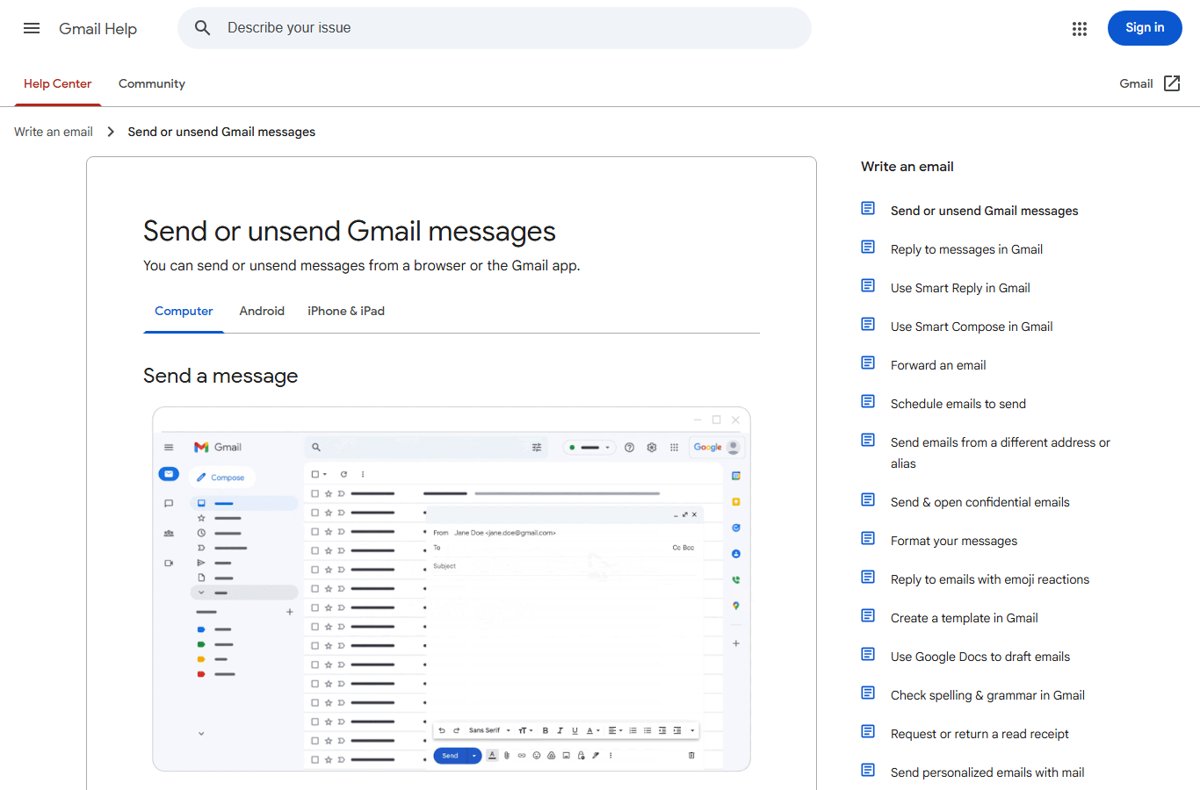
Where Gmail Stores Sent Emails
Gmail has no folders in the Outlook sense. It uses labels, and a single message can carry several labels at once. Sent is a system label that Gmail applies for you.
| Label or view | What it holds | Where you find it |
|---|---|---|
| Sent | Messages you sent from the Gmail web interface, the Gmail app or through your Gmail account | Left-hand list on the web; Menu in the app |
| Drafts | Messages you started but never sent, plus cancelled scheduled emails | Left-hand list on the web; Menu in the app |
| Scheduled | Messages set to send later that have not gone out yet | Left-hand list on the web; Menu in the app |
| Trash | Deleted messages, including deleted sent mail, for up to 30 days | Under More on the web; Menu in the app |
| All Mail | Everything except Spam and Trash, including archived sent messages | Under More on the web; Menu in the app |
There is only one copy of each email in your account. Deleting a sent message on your phone also removes it from Gmail on the web.
How to Check Sent Emails in the Gmail App on iPhone or iPad
The Gmail app for iPhone and iPad keeps the same labels as the web version, reached through the menu.
- Open the Gmail app on your iPhone or iPad.
- If you have more than one account, tap your profile picture at the top right and pick the account you sent from.
- Tap Menu at the top left.
- Tap Sent.
- Tap a message to open it and check the recipients, the text and any attachments.
If you use Apple's Mail app with a Gmail account rather than the Gmail app, see the section on other email apps below.
How to Check Sent Emails in the Gmail App on Android
- Open the Gmail app on your Android phone or tablet.
- Tap your profile picture at the top right and switch to the account you sent from, if you have several.
- At the top left, tap Menu.
- Scroll the label list and tap Sent.
- Tap a message to open it.
To reach sent mail from the search bar instead, tap the search box at the top and type from:me.
How to Search Sent Emails in Gmail
Search is faster than scrolling once Sent holds thousands of messages. The from:me operator limits results to messages you sent, and it works in the search bar on the web, Android and iPhone.
- Click or tap the search box at the top of Gmail.
- Type
from:mefollowed by what you remember, for examplefrom:me to:[email protected]. - Press Enter, or tap the search key on a phone.
- On a computer, click Most relevant above the results and switch to Most recent to sort by date.
- For a form instead of operators, click Show search options in the search box, fill in From, To, Subject or the date range, then click Search.
By default, search skips Spam and Trash. In the advanced search form, change the All Mail drop-down to Mail & Spam & Trash to include them.
How to Check Sent Replies in a Conversation Thread
With conversation view on, Gmail groups your replies with the original message, with the latest email at the bottom of the thread. A reply you sent sits inside that thread rather than as a separate line.
- Open the conversation from Sent, your inbox or a search.
- Scroll to the bottom of the thread to see the newest message.
- Click a collapsed message in the middle of the thread to expand it and check who it went to.
- To see each message as its own line instead, click Settings at the top right, then See all settings.
- Scroll to Conversation View, select Conversation view off and click Save Changes.
A conversation splits into a new one when the subject line changes or the thread passes 100 emails, so a reply with an edited subject shows up separately.
How to Check Whether an Attachment Was Sent
- In the Gmail search bar, type
from:me has:attachmentand press Enter to list every sent message with a file. - Narrow it by file type or name, for example
from:me filename:pdforfrom:me filename:report.docx. - Use
from:me has:driveinstead if you shared the file as a Google Drive link rather than attaching it. - Open the message and scroll to the bottom to see the attached files.
- Click the attachment to preview it and confirm it is the right version.
If the file is not on the sent message, it did not go out with that email. Send it again as a new message or a reply.
How to Check Scheduled Emails That Have Not Been Sent Yet
Scheduled emails stay under Scheduled, not Sent, until their send time. They can go out a few minutes late, and they follow the time zone you scheduled them in. You can have up to 100 at once.
- On a computer, click Scheduled in the left panel of Gmail. In the Android or iPhone app, tap Menu, then Scheduled.
- Open the email to check its recipients and the scheduled time.
- To change it, click or tap Cancel send, edit the message, then choose Schedule send again with a new time.
- To stop it for good, click or tap Cancel send and leave it. Gmail moves it to Drafts.
Once the scheduled time passes and the message goes out, it leaves Scheduled and appears in Sent.
How to Check Emails That Failed to Send
A message that never left your account is not in Sent. It is usually still a draft, or it is waiting for a connection on your phone.
- Open Sent and search
from:mewith the subject to confirm the message is really missing. - Open Drafts. If the message is there, it was never sent. Open it and click Send.
- On a phone, check that Wi-Fi or mobile data is on. A slow connection can hold a message for a while before it sends.
- Check your inbox for a delivery error message from Gmail. Wait a few hours before deciding none is coming.
- Check your Google storage. A full account, shared with Google Drive and Google Photos, can stop Gmail sending or receiving email.
If you sent the message from another client such as Apple Mail or Outlook, Google's own advice is to send it again from mail.google.com or the Gmail app.
How to Check Sent Emails from Another Email App
Where a sent message lands depends on which app sent it and how that app connects to your account.
| You sent it from | Where to look | Why |
|---|---|---|
| Gmail on the web, Android or iPhone | Sent in Gmail on any device | Gmail applies the Sent label to messages sent through its own interface |
| Apple Mail, Outlook or another client using your Gmail account | The client's own Sent folder first, then Sent or a from:me search in Gmail |
The copy Gmail keeps depends on the client's settings; Google recommends mail.google.com or the Gmail app if a message will not go out |
| A different email account added to that client | That account's Sent folder, not Gmail | The message never went through your Gmail account |
| Another Gmail account you are also signed in to | Switch accounts from your profile picture, then open Sent | Each Google Account has its own Sent label |
If a client deletes or archives messages it syncs with Gmail, check its IMAP or POP settings, because deleting there can remove the message from Gmail too.
How to Tell If a Sent Email Was Delivered or Read
Gmail shows no delivered or read tick. Finding the message in Sent proves it left your account, not that the other person opened it.
| What you want to know | What to check | Limits |
|---|---|---|
| Did it leave my account? | The message is in Sent and not in Drafts | Proves sending, not arrival |
| Did it bounce? | Your inbox for a delivery error message within a few hours | No error does not guarantee the recipient saw it |
| Did it land in their spam? | Ask the recipient to check Junk or Spam and add you as a contact | Only the recipient can check this |
| Did they open it? | Request a read receipt: in the compose window click More options, then Request read receipt | Work or school accounts only; not available on personal @gmail.com accounts |
Even a returned read receipt is not proof of reading. An IMAP client can send one when the recipient marks the message read without opening it, and some mobile mail systems never return receipts.
How to Use Undo Send Before an Email Reaches Sent
Gmail holds each message for a short cancellation period after you press Send. Undo it inside that window and the email returns to the compose box instead of going out.
- Right after sending on a computer, look at the bottom left for Message sent and click Undo. In the Android or iPhone app, tap Undo when the Sent notice appears.
- Edit or discard the message that reopens.
- To give yourself more time on the web, click Settings at the top right, then See all settings.
- Next to Undo Send, pick a cancellation period of 5, 10, 20 or 30 seconds.
- Scroll down and click Save changes.
Once the period passes, the message is sent and Undo disappears. There is no way to pull back a delivered email from someone else's inbox.
Why You Might Not See a Sent Email in Gmail
You are in the wrong account
Each Google Account has its own Sent label, and the app may be showing a different account.
- Click or tap your profile picture at the top right.
- Switch to the account the message was sent from.
- Open Sent again.
The reply is hidden inside a conversation
Conversation view groups your reply with the original message.
- Search
from:meplus a word from the reply. - Open the thread and scroll to the bottom.
- Turn off conversation view under Settings > See all settings if you prefer every message on its own line.
The message was scheduled, not sent
Scheduled emails stay under Scheduled until their send time.
- Open Scheduled from the left panel or the app Menu.
- Check the send time and time zone on the message.
The message is still in Drafts or never sent
The send was undone, cancelled or interrupted by a lost connection.
- Open Drafts and look for the message.
- Check your phone's Wi-Fi or mobile data connection.
- Open the draft and send it again.
The sent email was deleted
Deleted messages move to Trash and stay there for 30 days, and a deletion on any synced device applies everywhere.
- On the web, click More, then Trash. In the app, tap Menu, then Trash.
- Select the message and click Move to.
- Choose where to put it back. After 30 days, or after Delete forever, it cannot be recovered.
Sent mail is not showing on your phone
The app is signed in to another account or has not synced, and offline search only covers synced mail.
- Connect to Wi-Fi or mobile data.
- Check the account under your profile picture.
- In the search bar, type
in:anywhere from:meto search every label including Spam and Trash. - Check the same account at mail.google.com in a browser.
A filter or another app moved it
A filter set to Delete it or Skip Inbox, or a client synced over IMAP or POP, can archive or delete messages.
- On a computer, click Settings > See all settings > Filters and Blocked Addresses.
- Look for filters that say Delete it or Skip Inbox and click Edit or Delete.
- Check the forwarding and IMAP or POP settings of any other mail app you use.
Spam and Trash are left out of normal searches, which is a common reason a message looks lost. Gmail's spam-folder search change explains that behaviour.
How to Organize and Save Important Sent Emails
Sent fills up fast. Stars, labels and filters keep the few messages you need to find again one click away.
- Star a sent message: in Sent, click Star to the left of the message, or open it and click More > Add Star. Find it later under Starred or with
is:starred. - Create a label: on the left, next to Labels, click Create new label, type a name such as Invoices sent, and click Create.
- Apply the label: select a sent message, click Labels at the top, and tick the label. The recipient never sees your labels.
- Label future sent mail automatically: click Show search options in the search box and enter your own address in From plus a recipient in To.
- Click Create filter, choose the option to apply a label, pick your label and click Create filter. The filter only affects new messages.
Deleting a message removes it from every label, so labelled sent mail is only safe until someone deletes it.
Useful Gmail Search Examples for Sent Mail
Combine these operators in one search. Each works in the search bar on the web and in the Android and iPhone apps.
| To find | Type this | Notes |
|---|---|---|
| Everything you sent | from:me |
Covers archived sent mail too |
| Sent label only | in:sent |
Same query Google's Gmail API documentation uses for sent mail |
| Mail you sent to one person | from:me to:[email protected] |
Add cc: or bcc: for copied recipients |
| Sent on a date range | from:me after:2026/01/01 before:2026/02/01 |
Dates as year/month/day |
| Sent in the last week | from:me newer_than:7d |
Use d, m or y for days, months or years |
| Sent with a subject word | from:me subject:invoice |
Use quotes for an exact phrase |
| Sent with a PDF | from:me filename:pdf |
has:attachment finds any file |
| Sent anywhere, including Trash | in:anywhere from:me |
Includes Spam and Trash |
| Sent to either of two people | from:me {to:amy to:david} |
Braces work like OR |
| Sent but not to one person | from:me -to:[email protected] |
The minus sign excludes |
The category: operator only applies to incoming mail sorted into inbox tabs, so it will not narrow a sent-mail search.
Privacy and Security Tips for Sent Emails
| Risk | What to do |
|---|---|
| Recipients see each other's addresses | Put large lists in Bcc so recipients cannot see who else got the message |
| Sensitive text is forwarded or kept forever | Click Toggle confidential mode in the compose window to set an expiry date and block forwarding, copying, printing and downloading |
| You need to withdraw a confidential email | Open Sent, open the confidential email and click Remove access |
| Confidential mode feels like full protection | It is not: recipients can still take screenshots or photos of the message |
| Someone else uses your phone or computer | Sent shows everything you have written, so sign out of Gmail on shared devices |
| Search history reveals what you looked for | Click the search box and select Delete next to a recent search; clearing removes it on all devices |
How to confirm a message actually went out
- Open Sent and check the message is at or near the top of the list.
- Open Drafts and Scheduled and confirm the same message is not sitting there as well.
- Open the sent copy and read the To, Cc and Bcc lines against the people you meant to reach.
- Scroll to the bottom of the sent copy and check the attachment is there.
- Watch your inbox for a few hours for a delivery error. No error and no reply usually means ask the recipient to check Spam.
Frequently Asked Questions
How do I locate my sent emails in Gmail?
Click Sent in the left-hand list on mail.google.com, or tap Menu and then Sent in the Gmail app. You can also type from:me in the search bar to list every message you sent, including archived ones.
How do I check sent emails on iPhone?
Open the Gmail app, tap Menu at the top left and tap Sent. If you use Apple's Mail app with a Gmail account, open that account's Sent mailbox in Mail, and compare it with Sent at mail.google.com.
How can I tell if an email was sent?
An email was sent if it appears under Sent and is no longer in Drafts or Scheduled. If it is still in Drafts, it never left. A delivery error in your inbox a little later means it was sent but not delivered.
How can I check if my email was received?
Gmail cannot confirm delivery for personal accounts. Watch for a delivery error for a few hours, ask the recipient to check Junk or Spam, or, on a work or school account, request a read receipt from More options when composing.
Can I see if someone opened my Gmail message?
Only with a read receipt, which works on work or school accounts but not on personal @gmail.com accounts. The recipient may have to approve it, and a receipt still does not prove they read the message.
Can I see deleted sent emails in Gmail?
Yes, for 30 days. Deleted sent mail moves to Trash, where you can select it and click Move to to restore it. After 30 days, or after Delete forever, it is gone and cannot be recovered.
Can I recover a sent email after I send it?
Only during the Undo Send window. Click Undo in the notice that appears after sending. You can raise the window to 30 seconds in Settings > See all settings > Undo Send. After that, the message is delivered.
Why is my sent email not showing on my phone?
The app is usually on a different account or has not synced. Tap your profile picture to check the account, connect to Wi-Fi or mobile data, then open Menu > Sent or search in:anywhere from:me.
How do I see emails sent to me rather than by me?
Search to:me in Gmail. That lists messages addressed to your account, while from:me lists the ones you sent. Combine it with a sender, such as to:me from:[email protected], to narrow the list.

![HDMI port not working in Windows 11 [Easy fixing]](https://techdows.com/wp-content/uploads/2026/10/HDMI-Port-Not-Working-in-Windows-11-Easy-Fixing-600x338.jpg)
What Does Gear Icon Look Like in Gmail and Where to Find It? - Techdows
[…] Once settings are sorted, the next common Gmail job is finding what you have already sent; see how to check sent emails in Gmail. […]