To add StreamElements to OBS, copy your overlay's URL from the StreamElements dashboard, click + in the OBS Sources dock, choose Browser, paste the link into URL, and set Width and Height to the overlay's size.
This guide covers what you need first, building the overlay and widgets, adding them as Browser sources, managing them during a stream, and fixes when alerts do not show, update or play sound.
Add the Browser Source to OBS
StreamElements overlays are web pages, and OBS shows web pages through its Browser source. No plugin is needed.
- In the StreamElements dashboard, open your overlay and copy its URL.
- In OBS Studio, select the scene you stream from.
- Click the + button at the bottom of the Sources dock.
- Choose Browser from the Add Sources list, name it (for example, StreamElements alerts) and select OK.
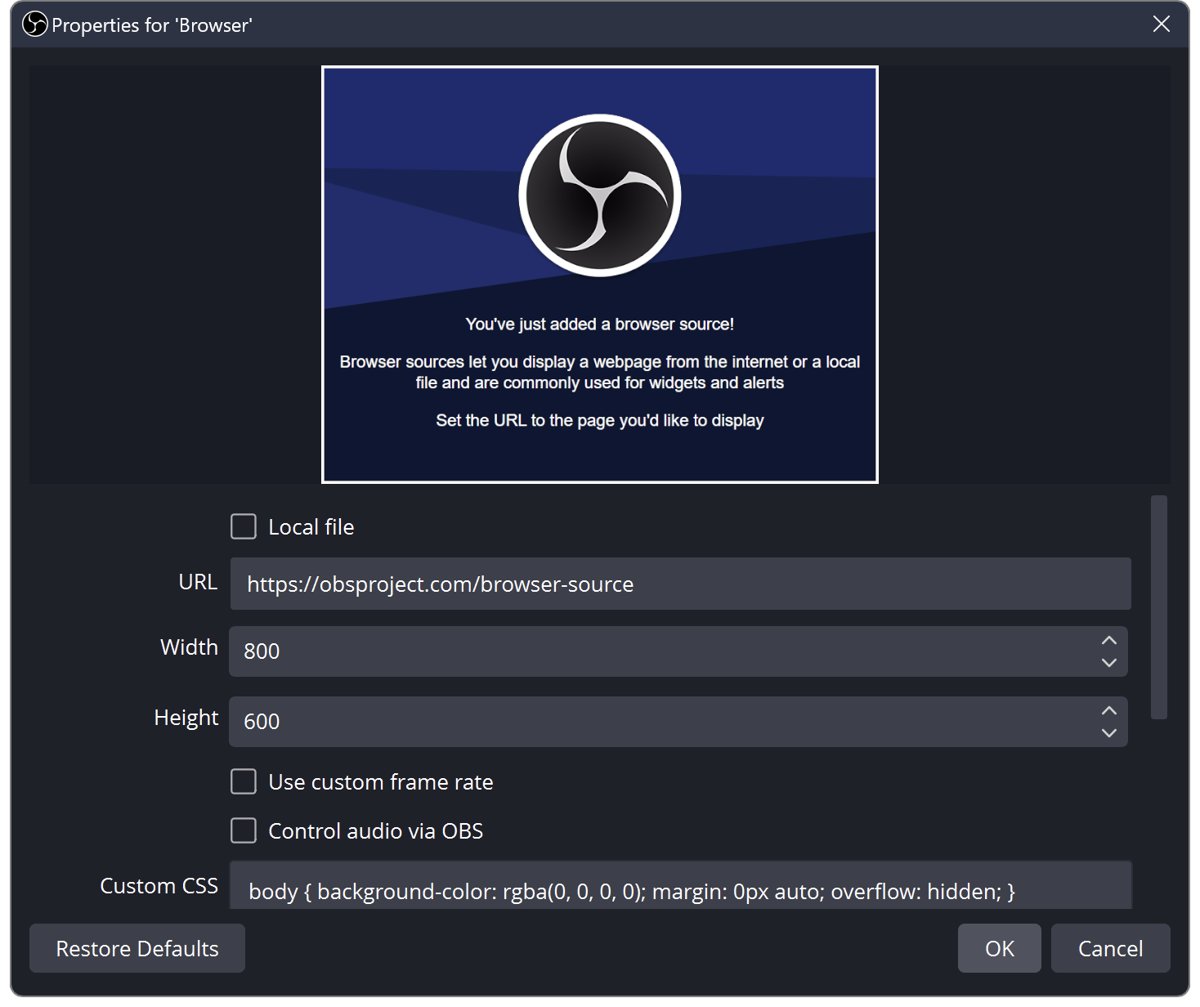
- Paste the overlay link into URL, leaving Local file off.
- Change Width and Height from the 800 x 600 default to the overlay's canvas size.
- Select OK, then drag the source to the top of the Sources list so it sits above your game or webcam.
Treat the overlay URL like a password. Anyone who has it can load your overlay.
Understanding Stream Elements and OBS
| Part | What it does | Where you work on it |
|---|---|---|
| StreamElements | Cloud service for overlays, alerts, chat bot commands and other stream widgets | Its web dashboard, signed in with your streaming account |
| Overlay | A canvas that holds one or more widgets and has its own URL | StreamElements overlay editor |
| Widget | One element, such as follower alerts, a goal bar or a chat box | Inside an overlay |
| OBS Studio | Free, open-source app that captures your game, camera and audio and sends the stream | Your PC |
| Browser source | A web browser inside OBS that renders any page, including overlays, with a transparent background by default | OBS Sources dock |
Because the overlay lives in the cloud, edits you save in StreamElements reach OBS without re-adding the source.
Prerequisites for Adding Stream Elements to OBS
| Prerequisite | What to do | Why |
|---|---|---|
| 1. Create a Stream Elements account | Sign up on the StreamElements website with the streaming account you broadcast on | Alerts read follows, subs and tips from that account |
| 2. Install OBS Studio | Download it from obsproject.com only | Browser source is built in on Windows, macOS and Linux official packages |
| 3. Check your hardware and internet connection | Run a test stream and watch OBS for dropped frames | Each Browser source is a small Chrome-based browser that uses CPU, memory and network |
| 4. Browser and extensions | Use a current desktop browser for the dashboard; turn off ad blockers on the StreamElements site if the editor misbehaves | The overlay editor runs in your normal browser |
| 5. Familiarize yourself with OBS and Stream Elements | Learn scenes, the Sources dock and the eye icon in OBS, and the overlay editor in StreamElements | Most problems come from source order, size or a hidden source |
Step 1: Setting Up Your Stream Elements Account
- Go to the StreamElements website in your desktop browser.
- Sign up with the platform account you stream on, such as Twitch or YouTube.
- Allow the permissions StreamElements requests so it can read channel events.
- Open the dashboard and confirm your channel name appears.
- Find the overlays area in the dashboard menu, where every overlay you make is listed.
Step 2: Connecting Stream Elements with OBS
The connection between the two is the overlay URL. Access your Stream Elements dashboard, create an overlay, and generate a widget URL by saving it; OBS then loads that link.
- Access your Stream Elements dashboard and open the overlays list.
- Create a new overlay and set its canvas size to match your OBS canvas, usually 1920 x 1080.
- Add at least one widget, such as an alert box, and save the overlay.
- Copy the overlay URL from the overlays list or the editor.
- Keep that link for the Browser source in the next step.
Step 3: Installing Stream Elements Browser Source
OBS lists several Browser source properties. These are the ones that matter for StreamElements.
| Property | Set it to | Why |
|---|---|---|
| URL | Your overlay link | Loads the overlay |
| Width / Height | The overlay canvas size, for example 1920 and 1080 | The 800 x 600 default crops or shrinks a full-screen overlay |
| Custom CSS | Leave the default | It makes the background transparent and hides scroll bars |
| Shutdown source when not visible | Off for alerts | On unloads the page when hidden or in another scene, so alerts in that time are missed |
| Refresh browser source when scene becomes active | On if the overlay looks stale after scene switches | Reloads the page each time the scene goes live |
| Refresh cache of current page | Click after editing the overlay | Reloads the page and its content immediately |
Step 4: Adding Stream Elements Widgets to OBS
One overlay with all widgets means one Browser source. Separate overlays per widget let you move, hide or reuse each one across scenes.
- Decide whether each widget goes in one shared overlay or in its own overlay.
- For separate overlays, copy each overlay's URL.
- Add a new Browser source in OBS for each URL and name it after the widget.
- Drag each new source above your game and webcam in the Sources list.
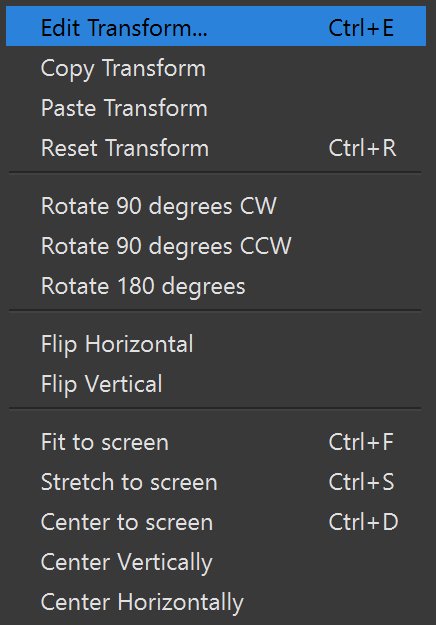
- Drag each source in the preview, or use Edit > Transform > Edit Transform (Ctrl + E) for exact placement.
Customizing Your Stream Elements Widgets
Widget changes happen in StreamElements, not OBS. Accessing widget settings, adjusting visual appearance, configuring content and data, and preview and save changes are one loop.
- Accessing widget settings: open the overlay in the StreamElements editor and select the widget on the canvas.
- Adjusting visual appearance: change fonts, colours, animations and position in the widget's settings panel.
- Configuring content and data: choose which events trigger it, set message text, sounds and minimum amounts.
- Preview: use the editor's test or emulate option to fire a sample alert.
- Save changes before you close the editor.
- In OBS, open the Browser source properties and click Refresh cache of current page.
Managing Stream Elements in OBS
After adding Stream Elements to OBS, the OBS controls handle visibility and layout, including while managing Stream Elements during a stream.
| You want to | Do this in OBS | Note |
|---|---|---|
| Hide an overlay for a moment | Click the eye icon next to the source | Click again to show it; with Shutdown source when not visible on, it reloads |
| Put alerts above the game | Drag the source higher in the Sources list | Sources higher in the list draw on top |
| Resize or reposition | Drag the red handles, or Ctrl + E for Edit Transform | Keep the aspect ratio of the canvas |
| Reload a stuck overlay live | Right-click the source > Properties > Refresh cache of current page | Takes a second; the overlay blinks |
| Remove an overlay | Select it and click the – button | Does not delete it in StreamElements |
How to check the overlay works before you go live
- Fire a test alert from the StreamElements overlay editor.
- Watch the OBS preview; the alert should appear in the right spot with a transparent background.
- Check the OBS Audio Mixer dock for movement when the alert sound plays.
- Start a short private or unlisted test stream, or a local recording, and play it back.
- Confirm the alert is visible and audible in the recording.
Troubleshooting Common Issues When Adding Stream Elements to OBS
Stream Elements not showing up in OBS
The source is hidden, below another source, sized wrong, or the URL is incomplete.
- Check the eye icon next to the source is white, not greyed out.
- Drag the source to the top of the Sources list.
- Open Properties and confirm URL holds the full overlay link and Local file is off.
- Set Width and Height to the overlay canvas size.
- Fire a test alert; most widgets are transparent until an event happens.
Stream Elements widgets not updating
OBS is showing a cached copy of the page.
- Confirm you saved the overlay in StreamElements.
- Open the Browser source Properties and click Refresh cache of current page.
- Turn on Refresh browser source when scene becomes active if it goes stale after scene switches.
Audio issues with Stream Elements alerts
The alert has no sound set, the source is muted, or the source was unloaded.
- Check the widget's sound and volume in the StreamElements editor.
- Look for the source in the OBS Audio Mixer and make sure it is not muted.
- Turn off Shutdown source when not visible so the page keeps running.
- If you hear echoes, make sure the same device is not also added in Settings > Audio and as a separate audio source.
Tips for Optimizing Your Stream Elements Integration
General tips that keep overlays light and reliable:
| Tip | Why it helps |
|---|---|
| Use one overlay per scene layout instead of many tiny sources | Each Browser source is its own browser process |
| Leave Use custom frame rate off unless an animation stutters | Fewer frames means less CPU |
| Keep Width and Height equal to the overlay canvas | Avoids blurry scaling |
| Name sources after the widget | Faster to find and refresh live |
| Keep the overlay link private | The URL alone loads your overlay |
Frequently asked questions
How do I add StreamElements to OBS Studio?
Copy the overlay URL from your StreamElements dashboard. In OBS Studio, click + in the Sources dock, choose Browser, paste the link into URL, set Width and Height to the overlay size, and select OK.
How do I add a StreamElements overlay to OBS?
Every StreamElements overlay has its own URL. Add it to OBS as a Browser source, match the width and height to the overlay canvas, and drag the source above your game or webcam in the Sources list.
How does StreamElements work with OBS?
StreamElements hosts overlays and alerts in the cloud and listens for events on your channel. OBS loads the overlay as a web page through a Browser source, so alerts appear on stream when events happen. Edits saved online reach OBS after a refresh.
Do I need a plugin to use StreamElements in OBS?
No. The Browser source built into OBS Studio is enough to show StreamElements overlays and widgets. It is available on Windows, macOS and the official Linux packages.
How do I update StreamElements in OBS?
Save your changes in the StreamElements overlay editor, then open the Browser source Properties in OBS and click Refresh cache of current page. The source keeps the same URL, so nothing needs re-adding.
How do I add StreamElements to Twitch?
Sign up for StreamElements with your Twitch account, build an overlay, and add its URL to OBS as a Browser source. When you stream to Twitch from OBS, the overlay and its alerts are part of the broadcast.
How do I add StreamElements to YouTube?
Sign in to StreamElements with your YouTube account, create the overlay, and add its URL to OBS as a Browser source. Then stream to YouTube from OBS; the overlay is drawn into the video.
Conclusion
Build and test overlays in StreamElements, then add each as an OBS Browser source sized to its canvas and kept at the top of the source list. The overlay URL is the only link between the two, so size, order and a cache refresh solve nearly every display problem.