Windows stores certificates in the registry under HKEY_CURRENT_USER\SOFTWARE\Microsoft\SystemCertificates and HKEY_LOCAL_MACHINE\SOFTWARE\Microsoft\SystemCertificates, and stores the matching private keys as separate files under Microsoft\Crypto in the user profile or the All Users profile.
This guide lists every store and key folder, explains how logical and physical stores relate, and shows how to view installed certificates, extract and export them with Certificate Manager, certutil and PowerShell on Windows 11 and Windows 10.
Where are certificates stored in Windows 11 and Windows 10
The certificate and its private key never live in the same place. Find your item in the left column.
| What you are looking for | Where Windows keeps it | Tool to open it |
|---|---|---|
| Certificates for the signed-in user (Root, CA, Trusted Publishers, Disallowed) | HKEY_CURRENT_USER\SOFTWARE\Microsoft\SystemCertificates |
certmgr.msc |
| The user's Personal (My) certificates | %APPDATA%\Microsoft\SystemCertificates\My\Certificates |
certmgr.msc > Personal |
| Certificates for the whole computer | HKEY_LOCAL_MACHINE\SOFTWARE\Microsoft\SystemCertificates |
certlm.msc |
| Certificates pushed by Group Policy | HKEY_CURRENT_USER\SOFTWARE\Policies\Microsoft\SystemCertificates and HKEY_LOCAL_MACHINE\SOFTWARE\Policies\Microsoft\SystemCertificates |
certmgr.msc or certlm.msc |
| A user's private keys (CNG) | %APPDATA%\Microsoft\Crypto\Keys |
Not opened directly; use the certificate |
| A user's private keys (legacy CryptoAPI RSA) | %APPDATA%\Microsoft\Crypto\RSA\<User SID> |
Not opened directly; use the certificate |
| Computer-wide private keys | %ALLUSERSPROFILE%\Application Data\Microsoft\Crypto\RSA\MachineKeys (legacy) and %ALLUSERSPROFILE%\Application Data\Microsoft\Crypto\Keys (CNG) |
Not opened directly; use the certificate |
Every current user store except Personal also shows the certificates from the matching local machine store. A root certificate added for the computer appears in each user's Trusted Root Certification Authorities list too.
Logical and physical certificate store locations in Windows
What Certificate Manager shows you is a logical store. Each logical system store, such as MY, Root, Trust or CA, is a collection of physical stores that Windows opens together, and every certificate in those physical stores appears in the one logical list.
New certificates are written to a physical store inside the collection. That is why one certificate can look like it sits in two places at once.
| Store location | Registry root | Physical stores behind each logical store |
|---|---|---|
| Current user | HKEY_CURRENT_USER\Software\Microsoft\SystemCertificates |
MY: .Default. Root: .Default, .LocalMachine, .SmartCard. Trust and CA: .Default, .GroupPolicy, .LocalMachine. UserDS: .UserCertificate |
| Local machine | HKEY_LOCAL_MACHINE\Software\Microsoft\SystemCertificates |
MY: .Default. Root: .Default, .AuthRoot, .GroupPolicy, .Enterprise, .SmartCard. Trust and CA: .Default, .GroupPolicy, .Enterprise |
| Current service and named services | HKEY_LOCAL_MACHINE\Software\Microsoft\Cryptography\Services\<ServiceName>\SystemCertificates |
MY: .Default. Root, Trust and CA: .Default, .LocalMachine |
| Other users | HKEY_USERS\<UserName>\Software\Microsoft\SystemCertificates |
MY, Root, Trust and CA: .Default, .LocalMachine |
| Current user Group Policy | HKEY_CURRENT_USER\Software\Policies\Microsoft\SystemCertificates |
Downloaded from the Group Policy template at user logon |
| Local machine Group Policy | HKEY_LOCAL_MACHINE\Software\Policies\Microsoft\SystemCertificates |
Downloaded from the Group Policy template at computer startup |
| Local machine enterprise | Synced from the enterprise directory | MY, Root, Trust and CA: .Default. Polled every eight hours |
The .LocalMachine physical store inside a user's Root, Trust and CA stores is what makes computer-wide certificates appear in every user's view. The .GroupPolicy and .Enterprise members are why a domain-joined PC shows roots nobody installed by hand.
Certificate store registry paths in Windows
Each named store has its own Certificates key. The common stores, and where Windows keeps them, are below.
| Store (Certificate Manager name) | Computer location | User location |
|---|---|---|
| Root (Trusted Root Certification Authorities) | HKEY_LOCAL_MACHINE\SOFTWARE\Microsoft\SystemCertificates\Root\Certificates |
HKEY_CURRENT_USER\SOFTWARE\Microsoft\SystemCertificates\Root\Certificates |
| MY (Personal) | HKEY_LOCAL_MACHINE\SOFTWARE\Microsoft\SystemCertificates\My\Certificates |
%APPDATA%\Microsoft\SystemCertificates\My\Certificates (a folder, not a registry key) |
| REQUEST (Certificate Enrollment Requests) | HKEY_LOCAL_MACHINE\SOFTWARE\Microsoft\SystemCertificates\Request\Certificates |
%APPDATA%\Microsoft\SystemCertificates\Request\Certificates |
| CA (Intermediate Certification Authorities) | HKEY_LOCAL_MACHINE\SOFTWARE\Microsoft\SystemCertificates\CA\Certificates |
HKEY_CURRENT_USER\SOFTWARE\Microsoft\SystemCertificates\CA\Certificates |
| TrustedPublisher (Trusted Publishers) | HKEY_LOCAL_MACHINE\SOFTWARE\Microsoft\SystemCertificates\TrustedPublisher\Certificates |
HKEY_CURRENT_USER\SOFTWARE\Microsoft\SystemCertificates\TrustedPublisher\Certificates |
| TrustedPeople (Trusted People) | HKEY_LOCAL_MACHINE\SOFTWARE\Microsoft\SystemCertificates\TrustedPeople\Certificates |
HKEY_CURRENT_USER\SOFTWARE\Microsoft\SystemCertificates\TrustedPeople\Certificates |
| Disallowed (Untrusted Certificates) | HKEY_LOCAL_MACHINE\SOFTWARE\Microsoft\SystemCertificates\Disallowed\Certificates |
HKEY_CURRENT_USER\SOFTWARE\Microsoft\SystemCertificates\Disallowed\Certificates |
These are the stores Windows migrates by default during an upgrade or a PC-to-PC move. Stores that an application creates for itself are not migrated, so that application has to move them.
Where are private keys stored in Windows
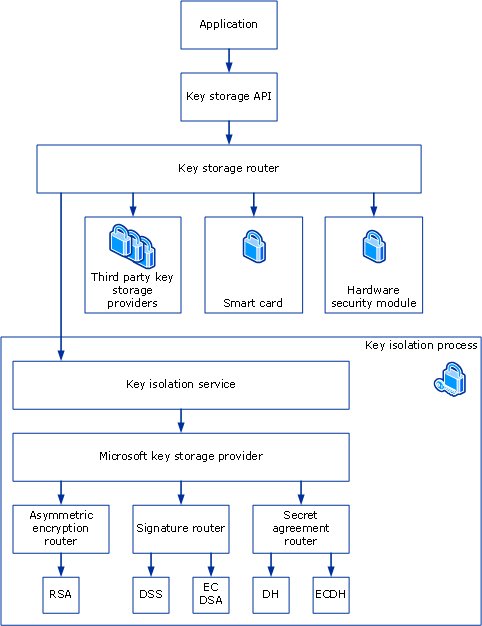
A certificate holds only the public key. The private key is a separate file, and its folder depends on which cryptographic provider created it: the newer CNG key storage provider or a legacy CryptoAPI provider.
| Key owner | CNG key folder | Legacy CryptoAPI folders (RSA and DSS) |
|---|---|---|
| User | %APPDATA%\Microsoft\Crypto\Keys |
%APPDATA%\Microsoft\Crypto\RSA\<User SID>\ and %APPDATA%\Microsoft\Crypto\DSS\<User SID>\ |
| Local System | %ALLUSERSPROFILE%\Application Data\Microsoft\Crypto\SystemKeys |
%ALLUSERSPROFILE%\Application Data\Microsoft\Crypto\RSA\S-1-5-18\ (and DSS\S-1-5-18\) |
| Local Service | %WINDIR%\ServiceProfiles\LocalService |
%ALLUSERSPROFILE%\Application Data\Microsoft\Crypto\RSA\S-1-5-19\ (and DSS\S-1-5-19\) |
| Network Service | %WINDIR%\ServiceProfiles\NetworkService |
%ALLUSERSPROFILE%\Application Data\Microsoft\Crypto\RSA\S-1-5-20\ (and DSS\S-1-5-20\) |
| Shared machine keys | %ALLUSERSPROFILE%\Application Data\Microsoft\Crypto\Keys |
%ALLUSERSPROFILE%\Application Data\Microsoft\Crypto\RSA\MachineKeys (and DSS\MachineKeys) |
File names are hashes of the key container name, not the certificate name. Legacy CryptoAPI key files carry a .key extension and CNG key files do not. Keys can also sit on a smart card or other hardware device, in which case no key file exists on disk.
Windows keeps private key operations inside the key isolation service in the LSA process, so applications never read the key file themselves.
How to open the Windows certificate store with certmgr.msc and certlm.msc
The two Certificate Manager consoles show the logical stores, which is the view most people mean by the certificate store. Without administrator rights you can manage only your own user certificates.
- Press Win + R to open Run.
- Type
certmgr.mscfor your user certificates, orcertlm.mscfor the computer's certificates, and press Enter. - In the left pane, expand Certificates – Current User or Certificates – Local Computer.
- Expand a folder such as Personal or Trusted Root Certification Authorities, then select Certificates.
- Double-click a certificate to see its details, issuer and expiry date.
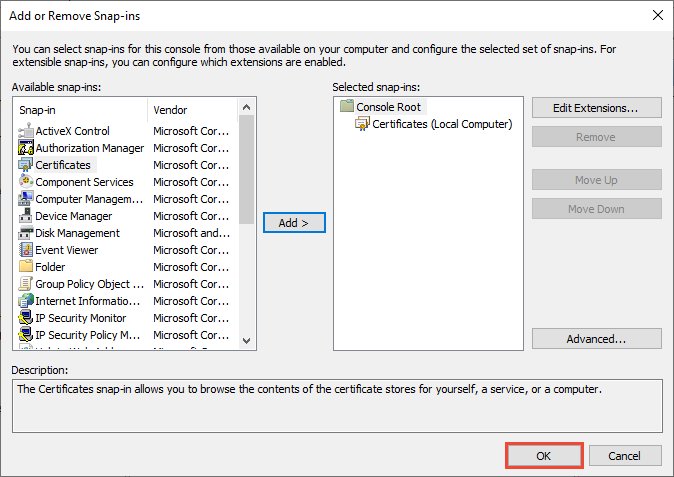
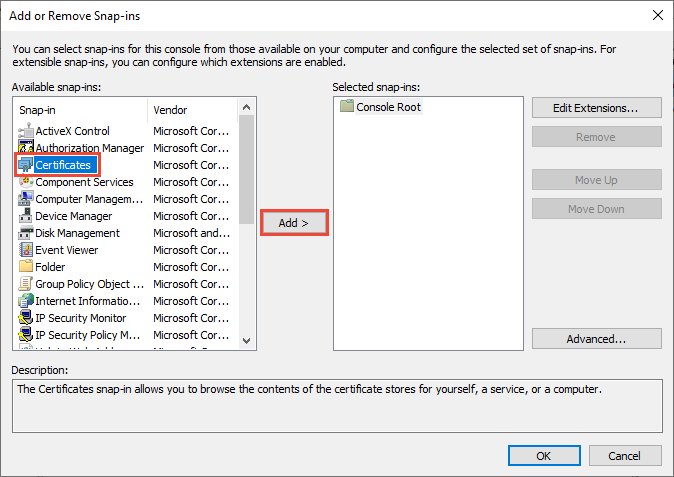
- For a service account's store, press Win + R, type
mmc, choose File > Add/Remove Snap-in, select Certificates, click Add, then pick Service account.
List certificates in the Windows certificate store with PowerShell
PowerShell exposes every store through the Cert: drive, with CurrentUser and LocalMachine as the two top-level locations. This command lists your Personal certificates and shows which ones have a private key.
Get-ChildItem -Path Cert:\CurrentUser\My | Format-List Subject, Thumbprint, NotAfter, HasPrivateKeyReads the current user's Personal (My) store. Thumbprint identifies each certificate, NotAfter is its expiry date, and HasPrivateKey reports whether a private key is linked to it. Change the path to Cert:\LocalMachine\My for computer certificates, or Cert:\LocalMachine\Root for trusted roots.
You should see: One block per certificate, each ending with HasPrivateKey : True or HasPrivateKey : False.
Run Get-ChildItem -Path Cert:\CurrentUser to list the store names themselves. Get-ChildItem -Path Cert:\LocalMachine\WebHosting -ExpiringInDays 30 finds certificates in that store that expire within 30 days.
Extracting certificates from the Windows registry
The registry keys hold certificates in a binary format meant for Windows, not for other software. Back the key up with reg export, part of the Reg.exe registry tool, if you want a copy of the store, but extract a usable certificate file with certutil or PowerShell, which read the same data and write a standard .cer file.
- Open Command Prompt or Windows Terminal as administrator.
- Back up a store key to a
.regfile, for example:reg export "HKLM\SOFTWARE\Microsoft\SystemCertificates\Root" C:\Certs\root-store.reg - List the certificates in the same store with
certutil -store Root. Add-userbefore-storefor your user store, for examplecertutil -user -store My. - Note the serial number, SHA-1 hash or index number of the certificate you want.
- Write that certificate to a file:
certutil -store Root <CertId> C:\Certs\root.cer - In PowerShell, the same job is
Export-Certificate -Cert (Get-ChildItem -Path Cert:\LocalMachine\Root\<Thumbprint>) -FilePath C:\Certs\root.cer - To dump a whole store into one file, run
Get-ChildItem -Path Cert:\CurrentUser\My | Export-Certificate -FilePath C:\Certs\allcerts.sst -Type SST
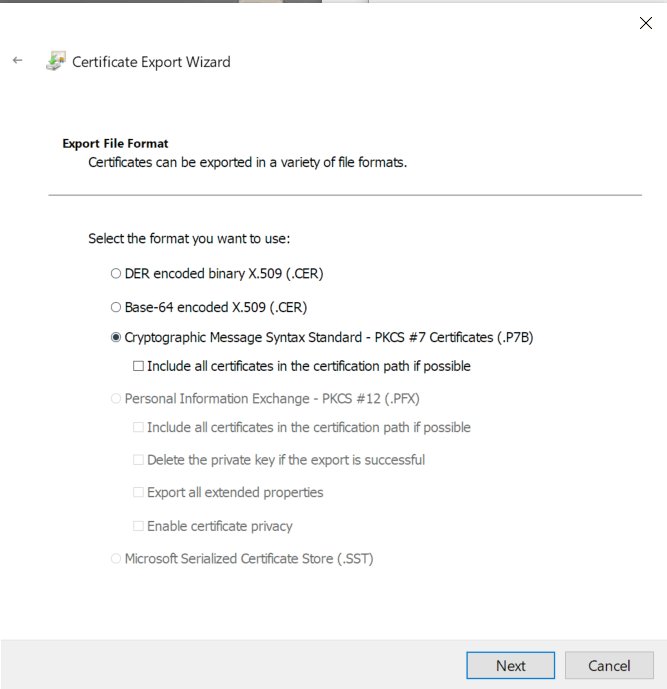
None of these exports include the private key. A .cer, .p7b or .sst file carries only the certificate and its public key.
Export a Windows certificate with its private key to a PFX file
Copying key files from Microsoft\Crypto to another PC does not give you a working certificate. The supported way to move a certificate together with its private key is a password-protected .pfx file, and it works only when the key was marked exportable.
- Open PowerShell as administrator.
- Set a password:
$mypwd = Read-Host -AsSecureString -Prompt "PFX password" - Export the certificate by thumbprint:
Get-ChildItem -Path Cert:\LocalMachine\My\<Thumbprint> | Export-PfxCertificate -FilePath C:\Certs\server.pfx -Password $mypwd - Or use certutil from Command Prompt:
certutil -exportPFX My <CertId> C:\Certs\server.pfx - Store the
.pfxfile somewhere safe, since anyone with the file and password holds the private key. - On the target PC, import it with
certutil -importPFX C:\Certs\server.pfxor the Certificate Import Wizard.
The certutil command-line tool also accepts modifiers such as NoChain and NoRoot with -exportPFX when you want to leave the issuing chain out of the file.
How to tell if a Windows certificate has a private key
- Open PowerShell and run
Get-ChildItem -Path Cert:\CurrentUser\My | Format-List Subject, Thumbprint, HasPrivateKey. - Find the certificate by its Subject or Thumbprint in the output.
- Read its
HasPrivateKeyvalue. True means Windows has a private key linked to that certificate, and False means it has the certificate only. - Repeat with
Cert:\LocalMachine\Myfor computer certificates, from an elevated PowerShell window. - To check the key containers themselves, run
certutil -keyfor machine keys orcertutil -user -keyfor user keys.
Windows certificate private key missing or not exportable
Export-PfxCertificate or the Export Wizard will not include the private key
The key was created or imported without the exportable flag.
- Check whether the issuer or your CA can reissue the certificate with an exportable private key.
- If you still have the original
.pfxfile, import that file on the new PC instead of exporting from the old one. - Run the export again with
Export-PfxCertificateonce the key is exportable.
Certificate shows HasPrivateKey : False after it was moved to another PC
Only the certificate or loose key files were copied, and CNG cannot use CryptoAPI keys moved by file copy or USMT.
- On the original PC, export the certificate and key together as a
.pfxfile. - Import the
.pfxon the new PC withcertutil -importPFXor the Certificate Import Wizard. - Run
certutil -repairstore My <CertId>if the certificate is present but its key association is broken.
IIS shows "Failed to Generate Certificate Request" or an Internal Server Error when importing a key
Permissions on the MachineKeys folder were changed from their defaults.
- Open the
MachineKeysfolder underAll Users Profile\Application Data\Microsoft\Crypto\RSAas an administrator. - Right-click it, select Properties, then the Security tab.
- Make sure Administrators have Full Control on this folder only and Everyone has the default special permissions.
A root certificate you deleted keeps coming back
It is delivered by Group Policy or the enterprise store, not stored only in your user store.
- Look for it under
HKEY_LOCAL_MACHINE\SOFTWARE\Policies\Microsoft\SystemCertificatesorHKEY_CURRENT_USER\SOFTWARE\Policies\Microsoft\SystemCertificates. - Ask the domain administrator to remove it from the Group Policy object that deploys it.
- Run
certutil -enterprise -store Rootto see the enterprise copy on domain-joined PCs.
Windows certificate store and private key FAQ
Where is the certificate store located in Windows?
The computer store is in the registry under HKEY_LOCAL_MACHINE\SOFTWARE\Microsoft\SystemCertificates, and each user's store is under HKEY_CURRENT_USER\SOFTWARE\Microsoft\SystemCertificates. A user's Personal certificates are kept as files in %APPDATA%\Microsoft\SystemCertificates\My\Certificates.
Where are private keys stored in Windows?
User private keys created by CNG are in %APPDATA%\Microsoft\Crypto\Keys, and legacy RSA keys in %APPDATA%\Microsoft\Crypto\RSA under the user's SID. Computer keys live in the MachineKeys and Keys folders under %ALLUSERSPROFILE%\Application Data\Microsoft\Crypto.
What is the MachineKeys folder?
MachineKeys, under the All Users profile's Microsoft\Crypto\RSA folder, stores legacy CryptoAPI key pairs for the computer and for users. Certificate Services and IIS use it, and changing its default permissions can break certificate requests.
Can I copy private key files to another computer?
No, not reliably. Key files depend on the provider and account that created them, and CNG cannot use CryptoAPI keys moved by file copy or USMT. Export the certificate and key together as a password-protected PFX file and import that instead.
What is the difference between certmgr.msc and certlm.msc?
certmgr.msc opens the certificate stores for the signed-in user, and certlm.msc opens the stores for the local computer. Managing the computer stores needs administrator rights, while any user can manage their own stores.
Why does a certificate appear in both the user and computer stores?
Current user stores, except Personal, include the local machine store as one of their physical stores. A certificate added to the computer's Trusted Root store therefore also appears in every user's Trusted Root list without being copied.
How do I view certificates without the MMC console?
Use PowerShell's Cert: drive, for example Get-ChildItem -Path Cert:\LocalMachine\Root, or run certutil -store Root in Command Prompt. Add -user to certutil to read your own user store instead of the computer store.