You can get the Wondershare Filmora download for Windows 11, Windows 10 and Mac free from filmora.wondershare.com, and Version 16.0 is the current release. The free version includes every basic editing tool.
Exports from the free version carry a Filmora watermark. A paid plan, signed in with your Wondershare ID, removes it.
Below are the official installers, store listings, install steps for Windows and Mac, the plans, system requirements and fixes for a stuck setup.
Which Wondershare Filmora download do you need?
Wondershare ships one installer per operating system, plus store listings on both platforms. Match your computer to a row.
| Your computer | Download | Size |
|---|---|---|
| Windows 11 or Windows 10 PC, Intel or AMD | filmora_full846.exe | 2.0 MB online installer |
| Windows 11 or Windows 10 on ARM | filmora_full846.exe | 2.0 MB online installer |
| Windows PC that installs apps only from the Store | Microsoft Store listing | Handled by the Store |
| Mac with Apple M-series or Intel chip | Filmora Installer.dmg | 3.5 MB installer |
| 32-bit Windows PC | No current build | Current versions are 64-bit only |
The small setup files download the rest of the program during installation, so keep the computer online until setup finishes.

Download Wondershare Filmora for Windows 11 and Windows 10
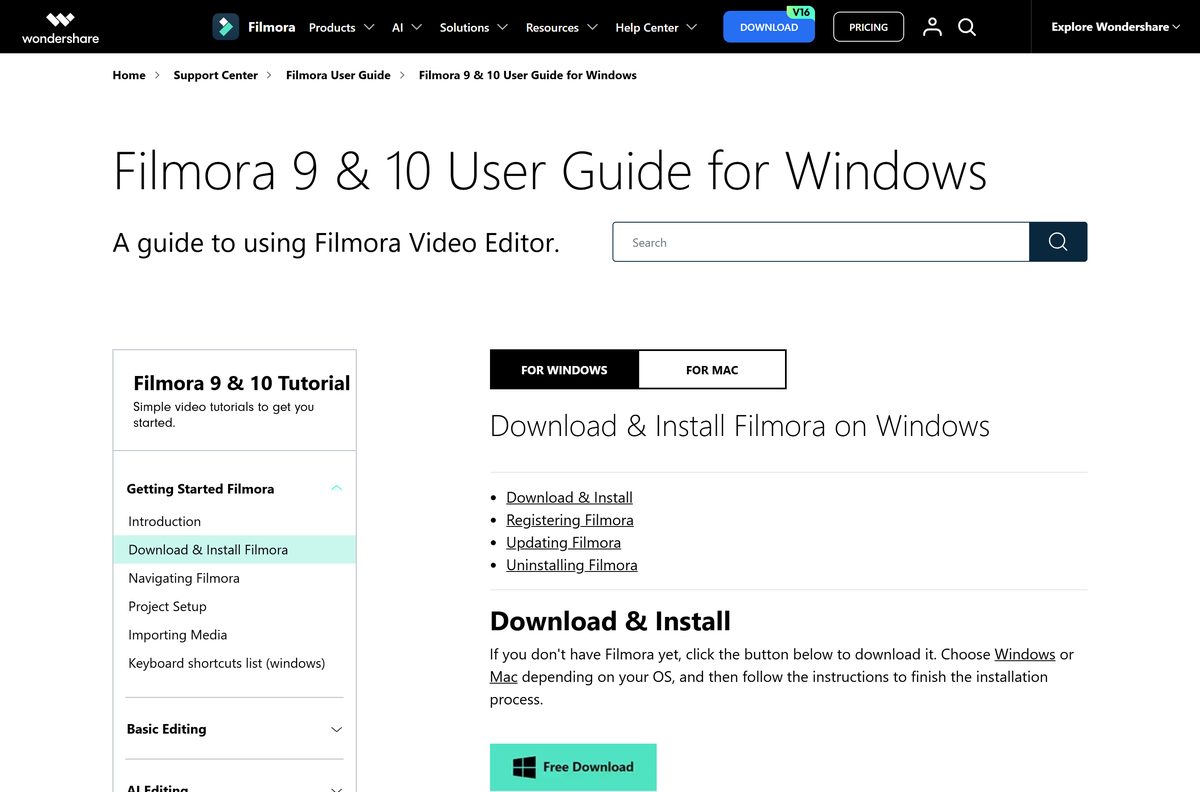
Every desktop installer comes from Wondershare’s own servers. The download page starts the file for your system and shows where to find it in the browser.
- Filmora download page — starts the installer for Windows or Mac
- Windows installer (filmora_full846.exe) — 2.0 MB · Version 16.0, Windows 11 and 10 on x64 or ARM
- Mac installer (Filmora Installer.dmg) — 3.5 MB · Version 16.0, Apple M-series and Intel Macs
- Plans and pricing — Basic, Advanced and Perpetual plans for Windows
- Version history — every release and its new features
Press Ctrl + J in your browser to open the downloads list if the file does not open on its own.
How to install Wondershare Filmora on Windows 11 and 10
Setup pulls the program files from Wondershare as it runs. Allow a few minutes on a slow connection.
- Open the Filmora download page and let the Windows installer download.
- Press Ctrl + J and select filmora_full846.exe in the downloads list.
- Select Yes when User Account Control asks to allow changes.
- Follow the setup prompts and wait while it downloads and installs the program.
- Open Filmora when setup finishes and choose New Project.
- Select Login in the upper right corner and sign in with your Wondershare ID.
- Start editing; a paid license on that ID removes the export watermark.
Buying a plan later does not need a reinstall. Sign in with the account used for the purchase and the full features unlock in place.
Install Wondershare Filmora from the Microsoft Store
The Store route suits PCs where installs from the web are restricted. Microsoft lists it as Wondershare Filmora – AI Video Editor.
- Open the Microsoft Store listing in your browser.
- Select Get or View in Store to open the Microsoft Store app.
- Select Install and wait for the download to finish.
- Select Open, then sign in with your Wondershare ID inside Filmora.
Which Wondershare Filmora download do you need for your Mac?
Two official routes exist on macOS. The direct installer tracks the newest release, while the Mac App Store build runs behind it.
| You want | Get this | What to know |
|---|---|---|
| The newest release, Version 16.0 | Filmora Installer.dmg | 3.5 MB installer for M-series and Intel Macs |
| Installs and updates through Apple | Mac App Store listing | Version 15.0.14, 1.2 GB, macOS 10.15 or later |
| 360-degree video editing | Filmora Installer.dmg | Needs an M1 Mac or later |
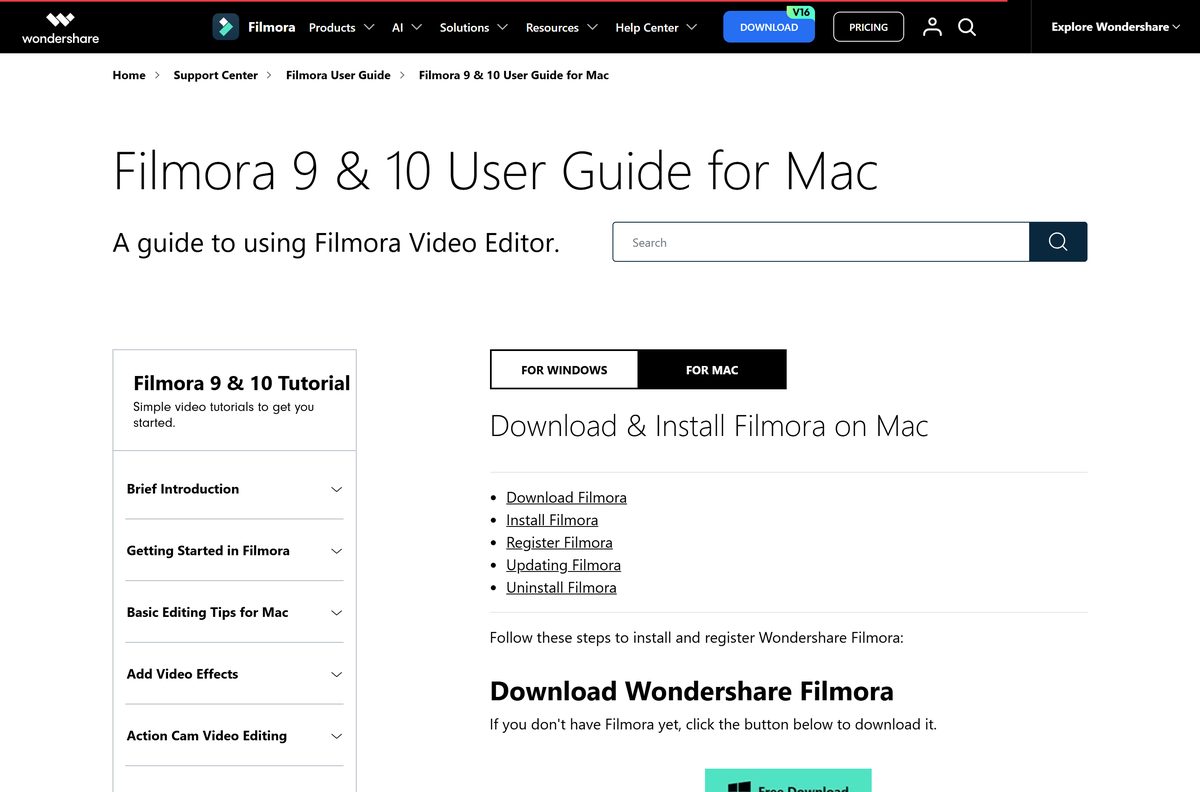
To install the direct build, open Filmora Installer.dmg, select Agree, double-click the icon, then select OK when macOS asks for permission.
Installation takes one to five minutes. Close the installer once Filmora launches.
Is Wondershare Filmora free?
The download and the basic editor cost nothing. The catch shows up at export.
Filmora is free to download and edit with, but free exports carry a watermark, so pay only when you need clean exports. Wondershare’s pricing page states that the free version includes all basic editing features and adds a watermark to exported files. Every paid plan lists Export Without Watermark. The Mac App Store build is free with in-app purchases. All Wondershare purchases carry a 30-day money-back guarantee. Any site offering an unlocked or cracked Filmora is not a Wondershare license.
Which Wondershare Filmora plan should you pick?
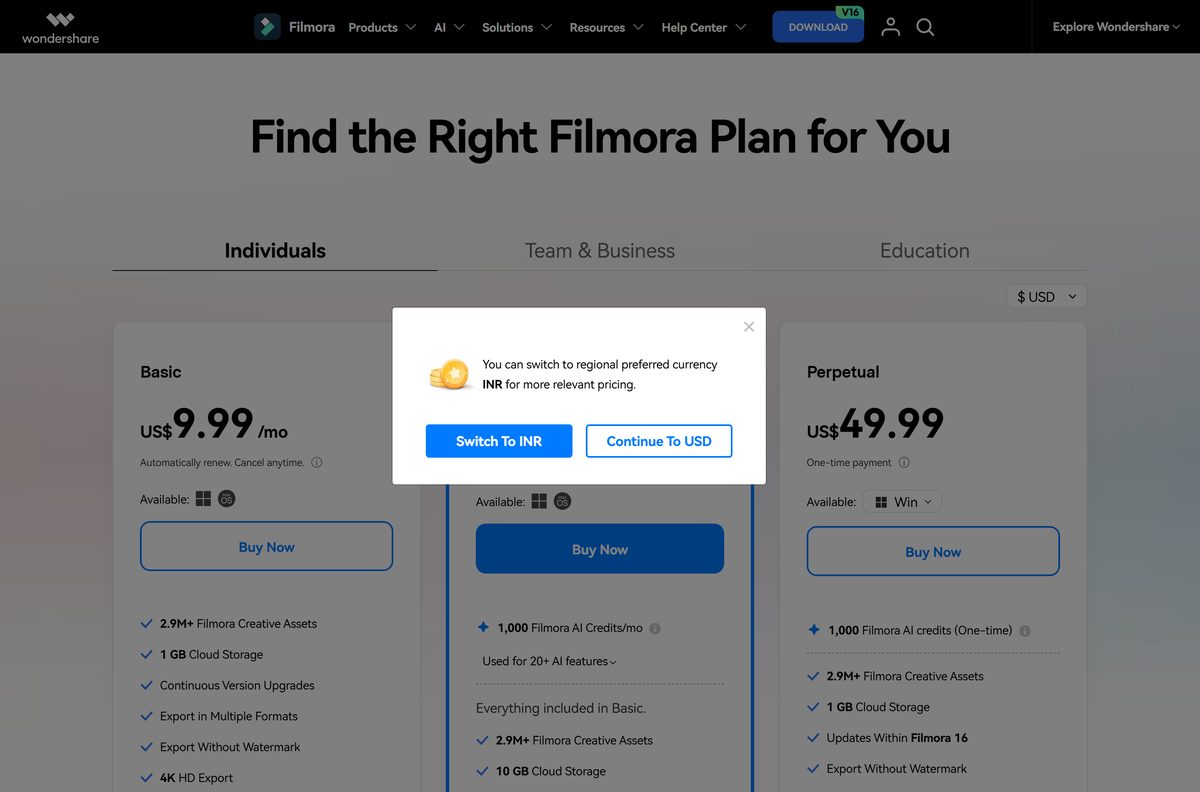
Each plan removes the watermark. They differ in AI credits, cloud storage and how upgrades work.
| Plan | Billing | Best for |
|---|---|---|
| Free version | No charge | Trying the editor; exports carry a watermark |
| Basic | Yearly subscription | Watermark-free exports, 1 GB cloud storage and creative assets |
| Advanced | Yearly subscription | Everything in Basic plus 1,000 AI credits a month and 10 GB cloud storage |
| Perpetual | One-time purchase | Updates to the current major version only, not future major versions |
| Compare current prices | Wondershare shop | Perpetual licenses cover Windows or Mac, not both |
Subscriptions include every update and upgrade while they run. Pick Perpetual only if you are happy to stay on one major version.
How to check your Filmora version and update it
Save your project manually before updating. The new version replaces the old one, so there is nothing to uninstall first.
- On Windows, open Help and select Check for Update.
- Select Update Now when a new version is offered, then YES to close Filmora and install it.
- Open File > Preferences to set how often Filmora checks for updates on its own.
- On a Mac, open the Wondershare Filmora menu and select Check for Updates.
- Compare your version against the version history page.
Check the Wondershare Filmora system requirements
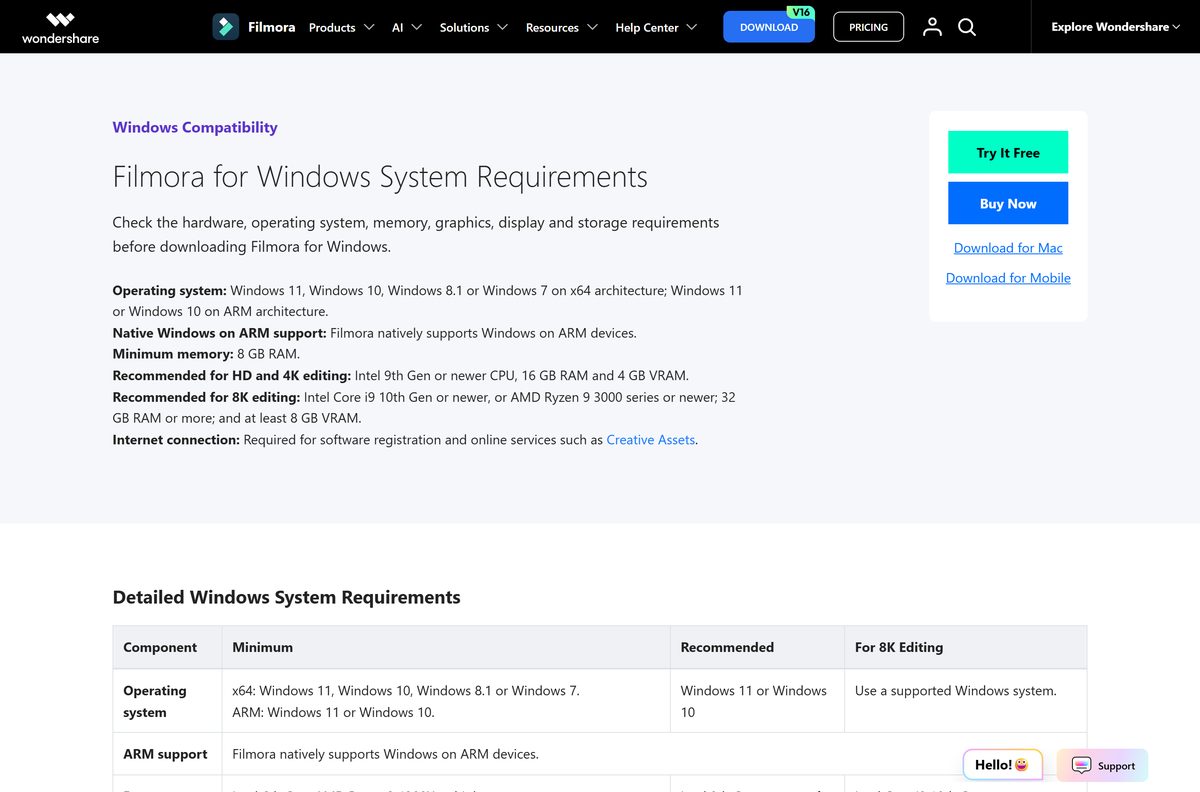
These are Wondershare’s minimum figures. HD and 4K editing need the higher values in brackets.
| Field | Value |
|---|---|
| Software | Wondershare Filmora |
| Developer | Wondershare Technology Group Co., Ltd. |
| Latest version | Version 16.0, September 2026 |
| License | Free with watermarked exports; paid plans remove the watermark |
| Windows | Windows 11, 10, 8.1 or 7 on x64; Windows 11 or 10 on ARM |
| Windows processor | Intel 6th Gen or AMD Ryzen 3 1300X or higher (Intel 9th Gen for HD and 4K) |
| Windows graphics | GeForce GTX 1050 Ti, MX550 or Radeon RX 500 or later (4 GB VRAM recommended) |
| Mac | macOS 10.15 Catalina to macOS 26 Tahoe; iMac 2017 or MacBook 2018 or later |
| Mac graphics | Iris Plus Graphics 645 or Radeon Pro 555 or later, 2 GB VRAM (4 GB for HD and 4K) |
| Memory | 8 GB RAM (16 GB for HD and 4K) |
| Disk space | At least 10 GB free; SSD recommended on Mac |
| Display | 1280×800 on Windows, 1366×768 on Mac; 1920×1080 recommended |
| Download size | 2.0 MB Windows installer, 3.5 MB Mac installer |
| Architecture | 64-bit only; x64 and ARM on Windows, Apple M-series and Intel on Mac |
| Offline installer | No, setup downloads the program files |
| Official download source | filmora.wondershare.com |
| Last verified | 2026-09-24 |
For 8K editing, Wondershare asks for an Intel Core i9 10th Gen or Ryzen 9 3000 series, 32 GB RAM and an 8 GB graphics card. Full details sit on the Windows and Mac spec pages.
Fix Wondershare Filmora not installing on Windows 11 or 10
Each symptom below has one cause and one fix.
Installation stuck at 0%
The online installer lost its connection or was blocked mid-download.
- Open Task Manager and end the Filmora setup process.
- Switch to a stable network connection.
- Turn off third-party antivirus, such as McAfee, for the length of the install.
- Restart the computer and run filmora_full846.exe again.
Setup fails when it writes to Documents
Windows Ransomware Protection blocks new apps from protected folders.
- Open Windows Security and select Virus & threat protection.
- Select Manage ransomware protection.
- Allow Filmora through Controlled folder access, or turn it off during setup.
- Run the installer again.
Exports still carry a watermark after buying
Filmora is not signed in with the Wondershare ID that owns the license.
- Select Login in the upper right corner of Filmora.
- Sign in with the email address from your purchase confirmation.
- Export the project again.
The installer will not run on an older PC
Current Filmora versions support 64-bit Windows only.
- Press Windows + Pause or open Settings > System > About.
- Check that System type reads 64-bit.
- Compare the processor and graphics card against the requirements table above.
Wondershare’s install FAQ covers silent installs and custom install folders.
How to uninstall Wondershare Filmora
Removing the app leaves your project files where you saved them. Move them elsewhere first if you plan to clear the folder.
- Open Control Panel > Programs > Uninstall a program.
- Right-click Wondershare Filmora and select Uninstall.
- Select Yes to confirm removal of the program and its components.
- On a Mac, open Finder > Applications, right-click Wondershare Filmora and select Move to Trash.
As a fallback on Windows, right-click the Filmora shortcut, select Open file location and run unins000.exe.
Frequently asked questions
Short answers to the questions that come up around installing Filmora.
Is Wondershare Filmora free?
Filmora is free to download and use with all basic editing features. Videos exported from the free version carry a Filmora watermark. The Basic, Advanced and Perpetual paid plans remove it once you sign in with the Wondershare ID that holds the license.
Where is the official Wondershare Filmora download page?
Wondershare hosts it at filmora.wondershare.com/download, which starts the installer for your system. The Windows file is filmora_full846.exe and the Mac file is Filmora Installer.dmg, both served from download.wondershare.com.
Does Wondershare Filmora work on Windows 11?
Yes. Wondershare lists Windows 11 and Windows 10 on both x64 and ARM processors. It needs at least an Intel 6th Gen or AMD Ryzen 3 1300X processor, 8 GB of RAM and 10 GB of free disk space.
How big is the Wondershare Filmora download?
The Windows installer is 2.0 MB and the Mac installer is 3.5 MB. Both are small setup files that fetch the program during installation. Wondershare asks for at least 10 GB of free disk space for the installed program.
Is there a Wondershare Filmora offline installer?
No. The official Windows setup is an online installer that downloads the program files while it runs. Keep the PC connected until installation finishes, and rerun the installer if it stalls at 0%.
Is Wondershare Filmora available for Mac?
Yes. Version 16.0 installs from a 3.5 MB Filmora Installer.dmg on Apple M-series and Intel Macs running macOS 10.15 Catalina through macOS 26 Tahoe. A Mac App Store build also exists, currently at version 15.0.14.
Is Wondershare Filmora 64-bit?
Yes. Current Filmora versions support 64-bit computers only, on x64 or ARM Windows and on Apple M-series or Intel Macs. The last release for 32-bit Windows was version 7.8.9.
Is Wondershare Filmora safe to download?
Yes, when it comes from filmora.wondershare.com, the Microsoft Store or the Mac App Store. Those are Wondershare’s own channels. Skip sites offering cracked or pre-activated copies, since they are not Wondershare licenses.
What is the latest Wondershare Filmora version?
Version 16.0, released in September 2026 for Windows and Mac. It added camera tracking and color masks. Check your copy under Help, then Check for Update on Windows, or the Wondershare Filmora menu on a Mac.
Why won’t Wondershare Filmora install on my PC?
The usual cause is a dropped connection or antivirus blocking the online installer, which leaves setup stuck at 0%. End setup in Task Manager, switch to a stable network, pause antivirus and restart before running the installer again.
Do I need to reinstall Filmora after buying a plan?
No. Open Filmora and sign in with the Wondershare ID from your purchase email. The installed free version unlocks the full features in place, and your projects and settings stay as they were.
Does the Filmora perpetual plan include new versions?
It includes every update to the current major version, but not upgrades to future major versions. Yearly subscriptions include all updates and upgrades while the subscription is active.