The TradingView download for Windows and Mac is free, and both files sit on one page: TradingView Desktop. Version 3.4.1 shipped on 8 September 2026.
Neither file is a small web bootstrapper. The Windows package is 160.3 MB and the Mac disk image is 216.5 MB, so each one installs without fetching anything else.
This guide covers the file your machine needs, the install and PowerShell routes on Windows, the Mac build, what the free plan allows, the system requirements and fixes for the install errors.
Which TradingView download do you need?
Match the machine in front of you to a row.
| Your machine | File to download | Size |
|---|---|---|
| Windows 11 or Windows 10, 64-bit Intel or AMD | TradingView.msix | 160.3 MB |
| Mac with Apple silicon or an Intel processor, macOS 12 or newer | TradingView.dmg | 216.5 MB |
| Ubuntu, Mint or another 64-bit Debian-based Linux | Debian or snap package | Listed on the page |
| Windows on ARM, such as a Snapdragon laptop | Nothing. Use the browser instead | 0 |
| A Mac still on macOS Big Sur, version 11 | Version 2.13.0, the last build for that system | No longer updated |
On Windows, press Windows + I and read System > About > System type. On a Mac, open the Apple menu and select About This Mac.
Download TradingView for Windows 11 and Windows 10
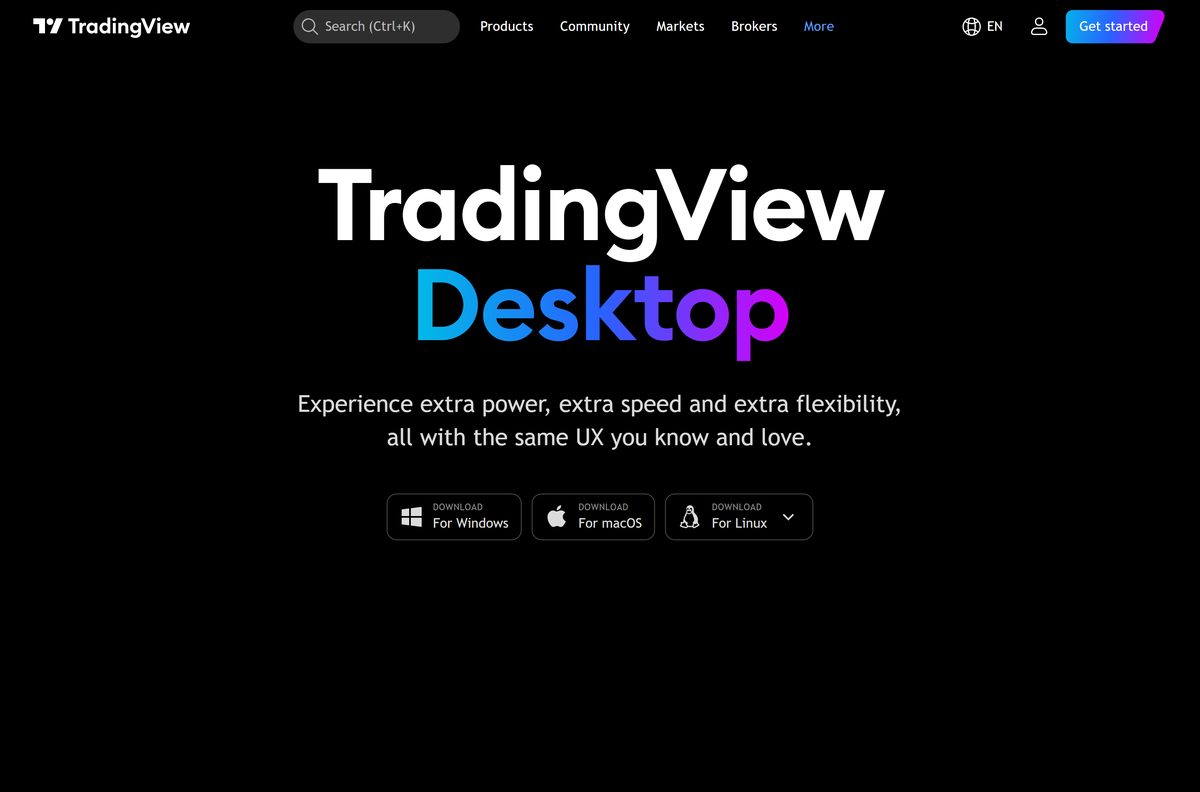
The desktop page picks a platform from your browser. These links name the file instead.
- TradingView.msix for Windows — 160.3 MB · 64-bit Intel and AMD
- TradingView.dmg for Mac — 216.5 MB · Intel and Apple silicon in one image
- TradingView Desktop page — the buttons, plus the Linux packages
- Release notes for the desktop app — what changed in 3.4.1
Windows also gets a TradingView.appinstaller file. That package is what lets the app update itself, so a copy installed straight from the MSIX needs manual updates.
Fake YouTube channels push a “cracked” or “developer” build that installs a remote access trojan through PowerShell. The company names its own site as the only source for the desktop and mobile apps.
How to install TradingView on Windows 11 and 10
Windows App Installer handles the package. It ships with Windows 10 and 11, so nothing extra is needed first.
- Open the TradingView Desktop page in your browser.
- Select DOWNLOAD For Windows to save TradingView.msix.
- Double-click the file in your Downloads folder.
- Select Install in the App Installer window that opens.
- Wait while the package unpacks; the window closes on its own when it finishes.
- Open the Start menu and select TradingView.
- Select Sign in and enter your account details, or create a free account.
- Pick a layout on the New Tab page to start charting.
No administrator rights are needed on a personal PC. The installer asks for no folder and offers no component list.
Install TradingView with PowerShell when App Installer fails
Two documented errors stop App Installer outright: 0x8000ffff and error in parsing the app package. PowerShell installs the same package without it.
- Select Start and type PowerShell.
- Right-click Windows PowerShell and choose Run as administrator.
- Select Yes at the User Account Control prompt.
- Type add-appxpackage https://tvd-packages.tradingview.com/stable/latest/win32/TradingView.msix and press Enter.
- Wait until the progress bar clears and the prompt returns with no error text.
- Open the Start menu and select TradingView.
That one command is the only script the company publishes. Any other page or video asking you to paste a PowerShell command to install the platform is a scam.
Which TradingView download do you need for your Mac?
One disk image covers both processors. There is no separate Intel build to choose.
| Your Mac | Download | Note |
|---|---|---|
| Apple silicon, M1 through M4, on macOS 12 or newer | TradingView.dmg | 216.5 MB, universal image |
| Intel Mac on macOS 12 or newer | TradingView.dmg | The same file |
| macOS Tahoe, version 26 | TradingView.dmg | Supported; a Tahoe performance bug was fixed in 2.14.0 |
| macOS Big Sur, version 11 | Version 2.13.0 only | Still runs, no longer receives updates |
Open the disk image, then drag the app icon onto the Applications folder. When macOS offers to replace an older copy, accept it.

Is TradingView free?
The desktop app costs nothing to download on Windows, Mac and Linux. What you pay for is chart capacity, not the software.
Download and run it on the free Basic plan first, with no card. Basic gives one chart per tab, one saved layout, two indicators per chart, two simultaneous chart connections and a 30-symbol watchlist, and it shows ads. Essential, Plus, Premium and Ultimate lift those ceilings and remove the ads. Essential, Plus and Premium each open with a 30-day free trial and Ultimate with 14 days. Prices appear in your own currency on the pricing page, and sales tax is added in some countries.
Only the Ultimate plan is offered to professional users. Anyone selling a “cracked” or “lifetime” licence is selling malware, not a subscription.
What the free plan gives you and what each paid tier adds
The same app reads your plan after sign-in, so these numbers are the practical difference between the tiers.
| Limit | Basic | Essential | Plus | Premium | Ultimate |
|---|---|---|---|---|---|
| Charts per tab | 1 | 2 | 4 | 8 | 16 |
| Indicators per chart | 2 | 5 | 10 | 25 | 50 |
| Simultaneous chart connections | 2 | 10 | 20 | 50 | 200 |
| Price alerts | 3 | 20 | 100 | 400 | 1,000 |
| Technical alerts | 20 | 20 | 100 | 400 | 1,000 |
| Historical bars | 5,000 | 10,000 | 10,000 | 20,000 | 40,000 |
| Ads | Shown | None | None | None | None |
| Free trial | Not needed | 30 days | 30 days | 30 days | 14 days |
Layouts, watchlists and settings follow the account, so a plan change shows up on web, mobile and desktop at once.
Should you install the desktop app or stay in the browser?
Install the desktop app if you work across more than one monitor. It sets up and restores a multi-monitor workspace, syncs the symbol, interval, date range and time across linked tabs, and moves the crosshair in step across every display. Browser windows cannot restore that arrangement. On a single screen the browser gives you the same charts with nothing to install and nothing to update.
Both routes read the same account, so layouts and watchlists carry over either way.
How to update TradingView Desktop to the current build
A copy installed from the .appinstaller package updates itself and shows a notification when a release lands. A copy installed straight from the MSIX does not.
- Open the TradingView Desktop page.
- Select DOWNLOAD For Windows, or DOWNLOAD For macOS on a Mac.
- On Windows, run the downloaded package and select Update.
- On a Mac, open the disk image and drag the app icon onto Applications.
- Choose to replace the existing version when macOS asks.
- Reopen the app and check the release notes for what changed.
On Debian-based Linux, run sudo apt update followed by sudo apt –only-upgrade install tradingview . The snap package updates with sudo snap refresh tradingview .
Check the TradingView system requirements before you install
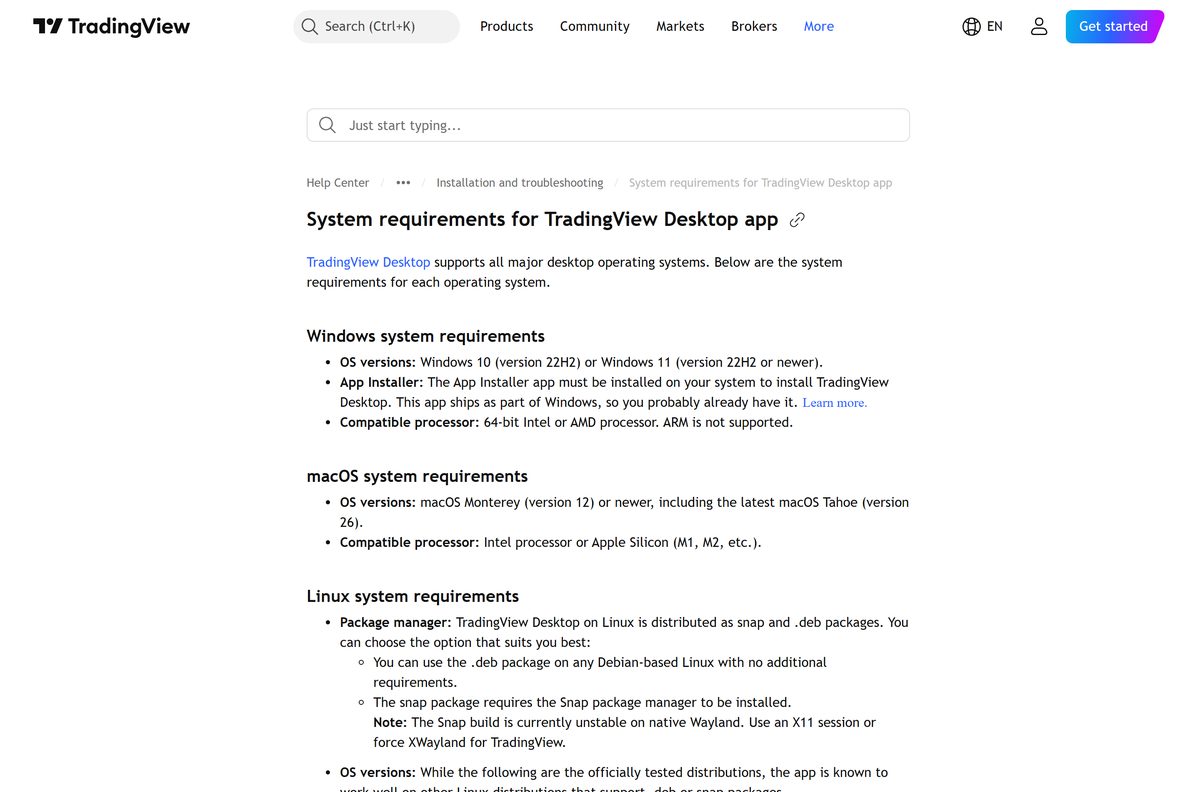
Windows on ARM is the one common machine that is ruled out.
| Item | Detail |
|---|---|
| Developer | TradingView, Inc. |
| Latest version | 3.4.1, released 8 September 2026 |
| Windows download | TradingView.msix, 160.3 MB |
| Mac download | TradingView.dmg, 216.5 MB |
| Windows | Windows 10 version 22H2, or Windows 11 version 22H2 or newer |
| macOS | Monterey (12) or newer, including Tahoe (26) |
| Linux | 64-bit Debian-based, tested on Ubuntu 20.04, 22.04 and 24.04 LTS |
| Processor | 64-bit Intel or AMD on Windows and Linux; ARM is not supported |
| Mac processor | Intel or Apple silicon |
| Also required | The Windows App Installer app, which ships with Windows |
| Network | IPv6 is not supported; IPv6-first networks see connection problems |
| Price | Free Basic plan; paid Essential, Plus, Premium and Ultimate |
| Last verified | 22 September 2026 |
Linux arrives as a Debian package or a snap, and the Debian route needs the signing key added before sudo apt install tradingview works.
Fix TradingView not installing on Windows 11 or 10
Each of these errors has one documented cause and one fix.
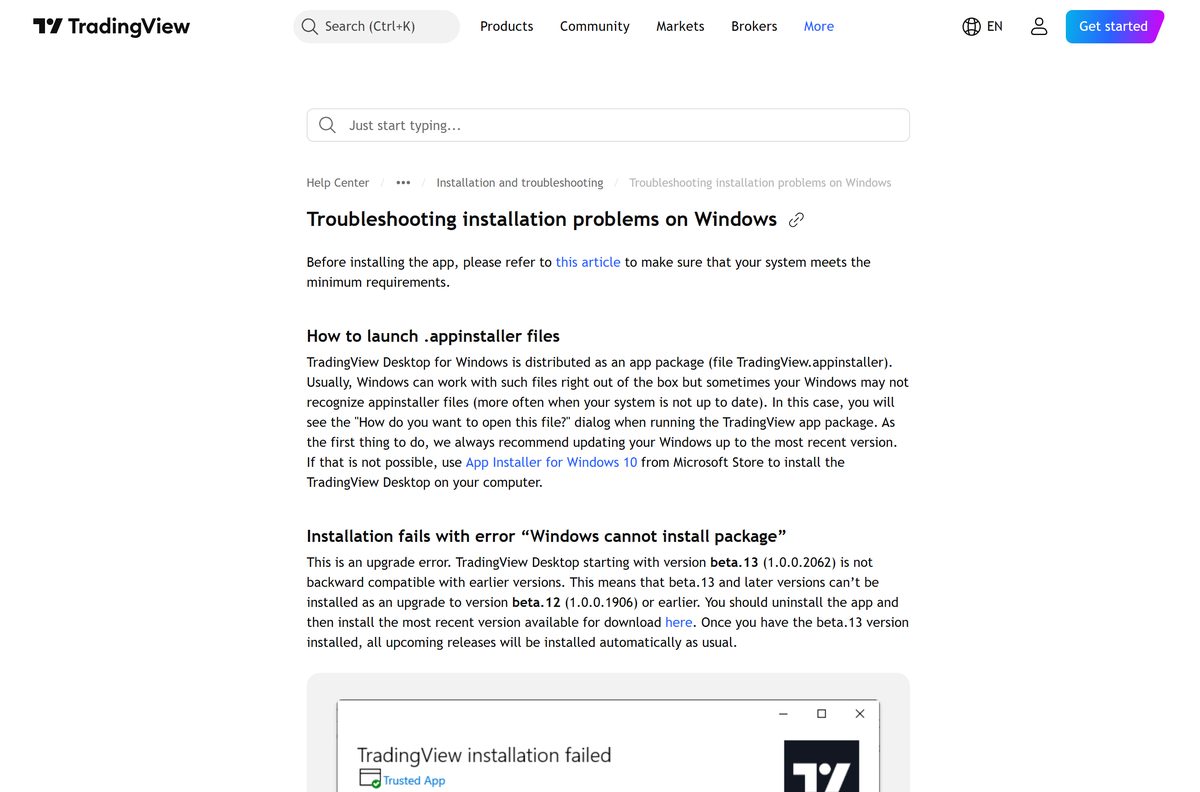
Windows asks “How do you want to open this file?”
Windows does not recognise the .appinstaller format, which happens on an out-of-date system.
- Open Settings > Windows Update and install everything offered.
- Restart the PC and run the package again.
- If updating is not an option, install App Installer from the Microsoft Store.
- Double-click the package once more.
“Windows cannot install package”
An upgrade error. Builds from beta.13 (1.0.0.2062) onward cannot install over beta.12 (1.0.0.1906) or earlier.
- Press Windows + I and open Apps > Installed apps.
- Uninstall the existing TradingView entry.
- Download the current package from the desktop page.
- Install it, after which later releases install normally again.
Error 0x80070490, “Opening the package from location TradingView.msix failed”
A missing Windows servicing update.
- Open Settings > Windows Update and select Check for updates.
- Install the update of 14 September 2021, KB5005565, or anything newer.
- Restart the PC and run the package again.
Error 0x800B010A on Windows 11, “not signed with a trusted certificate”
An out-of-date App Installer cannot read the signature chain.
- Open the Microsoft Store.
- Select Library, then find App Installer in the list.
- Select Update on it and wait for the download to finish.
- Run the package again.
Error 0x8000ffff, or “error in parsing the app package”
Other software, or an internet provider’s network setup, blocks App Installer from starting.
- Open Windows PowerShell as an administrator.
- Run add-appxpackage https://tvd-packages.tradingview.com/stable/latest/win32/TradingView.msix .
- Wait for the prompt to return with no error.
- Open the app from the Start menu.
Error 0x80092004, “Cannot find the object or property”
The .appinstaller handshake fails, so the package has to be installed directly.
- Download TradingView.msix from the desktop page.
- Double-click it and select Install.
- Note that this copy will not auto-update.
- Repeat the download whenever a new release is announced.
How to uninstall TradingView Desktop
A clean removal is also the documented fix for the upgrade error above.
- Press Windows + I to open Settings.
- Select Apps, then Installed apps.
- Find TradingView in the list.
- Select the three-dot button beside it and choose Uninstall.
- Select Uninstall again to confirm.
- On a Mac, open Applications in Finder, drag the app to the Bin and empty it.
- On Debian-based Linux, run sudo apt remove tradingview , or sudo snap remove tradingview for the snap.
Which alternatives work if the desktop app will not run?
Windows on ARM and macOS 11 are the two systems the current build rules out.
| Option | Runs on | What you give up |
|---|---|---|
| The same platform in a browser | Any PC, Mac, Linux box or Chromebook | Multi-monitor workspace restore and linked-tab crosshairs |
| The mobile apps | iPhone, iPad and Android | Screen space; watchlists and alerts still sync |
| A broker’s own desktop platform | Varies by broker | The community scripts and the shared layout library |
| Version 2.13.0 of the desktop app | macOS Big Sur, version 11 | Every feature and fix released since October 2025 |
Frequently asked questions
Is TradingView free to download?
Yes. The desktop app costs nothing on Windows, Mac and Linux, and the free Basic plan signs you in without a card. Basic allows one chart per tab and two indicators per chart, and it shows ads. Paid plans raise those limits.
What is the official TradingView download page?
The TradingView Desktop page at tradingview.com/desktop. It serves TradingView.msix for Windows, TradingView.dmg for Mac and the Debian and snap packages for Linux. No other site distributes the desktop app.
Does TradingView Desktop work on Windows 11?
Yes, on Windows 11 version 22H2 or newer, and on Windows 10 version 22H2. The machine needs a 64-bit Intel or AMD processor. Windows on ARM is not supported, so Snapdragon laptops have to use the browser.
How big is the TradingView download?
The Windows package, TradingView.msix, is 160.3 MB. The Mac disk image, TradingView.dmg, is 216.5 MB and covers both Intel and Apple silicon. Linux sizes are listed with the packages on the desktop page.
Is there an offline installer for TradingView?
Yes. TradingView.msix and TradingView.dmg are complete packages rather than web bootstrappers, so both install without downloading anything further. The app itself needs an internet connection to sign in and stream market data.
Does TradingView have a Mac app?
Yes. One universal disk image runs on Apple silicon and Intel Macs, on macOS Monterey (12) through Tahoe (26). Open the image and drag the app icon onto the Applications folder to install it.
Is TradingView available for 64-bit and ARM64?
The Windows and Linux builds are 64-bit Intel and AMD only, and ARM is not supported on either. On Mac, Apple silicon is supported natively, so M1 through M4 machines run the same universal image.
Is the TradingView download safe?
It is when it comes from tradingview.com. Fake YouTube channels advertise cracked or developer builds that install a remote access trojan through PowerShell. The company never asks you to run a script to install the platform.
What is the latest version of TradingView Desktop?
Version 3.4.1, released on 8 September 2026. It fixed a crash when opening PDF earnings reports and refreshed the zoom and fullscreen pop-ups. The release notes page lists every build before it.
Why will TradingView not install on my PC?
Usually App Installer. An out-of-date copy throws 0x800B010A, a missing servicing update throws 0x80070490, and an upgrade over a pre-beta.13 build fails outright. Installing the package from PowerShell bypasses App Installer entirely.
Does TradingView Desktop update itself?
A copy installed through the .appinstaller package updates automatically and shows a notification when a release is ready. A copy installed straight from the MSIX file does not, so download and run the new package by hand.
Do you need a paid plan to use the desktop app?
No. The desktop app runs on the free Basic plan. Essential, Plus, Premium and Ultimate add charts, indicators, alerts and history, and remove ads. Essential through Premium start with a 30-day trial, Ultimate with 14 days.