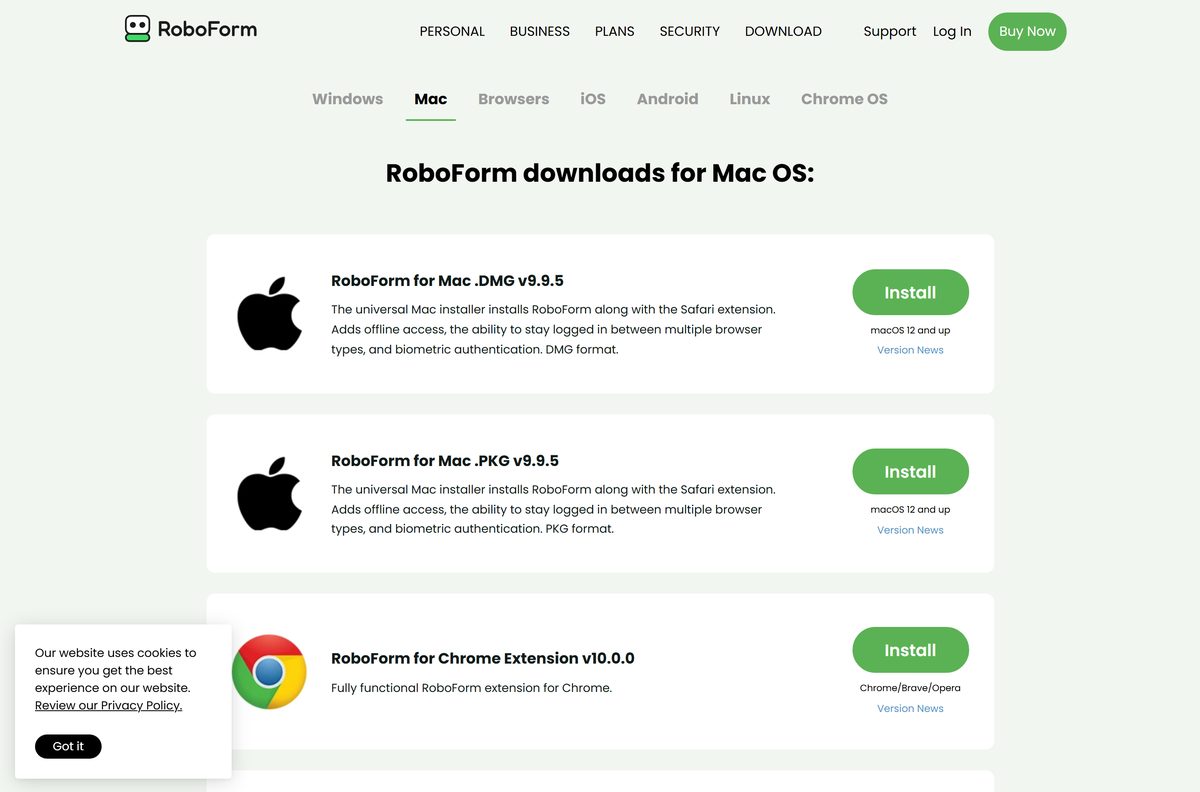
The official RoboForm download installs the password manager on Windows 11, Windows 10 and Mac, and the Free plan costs nothing. Windows gets a 49.7 MB installer from roboform.com, and Macs get a universal DMG or PKG for macOS 12 and later.
RoboForm also runs as an extension in Chrome, Edge, Firefox, Brave and Opera, and as an app on iPhone and Android.
This guide covers which file to take, installing and signing in, the MSI for IT teams, Free versus Premium, updates, fixes for a greyed-out extension, and a clean uninstall.
Which RoboForm download do you need?
Match your device to a row. Every file below comes from roboform.com or an official store, published by Siber Systems.
| Your device | Take this | Size |
|---|---|---|
| Windows 11 or 10 PC | RoboForm-v9-Setup.exe (9.9.4) | 49.7 MB |
| Many Windows PCs managed by IT | RoboForm-v9-Enterprise.msi (9.9.4) | 49.8 MB |
| Mac on macOS 12 or later | roboform-mac-v9.dmg (9.9.5) | 55.7 MB |
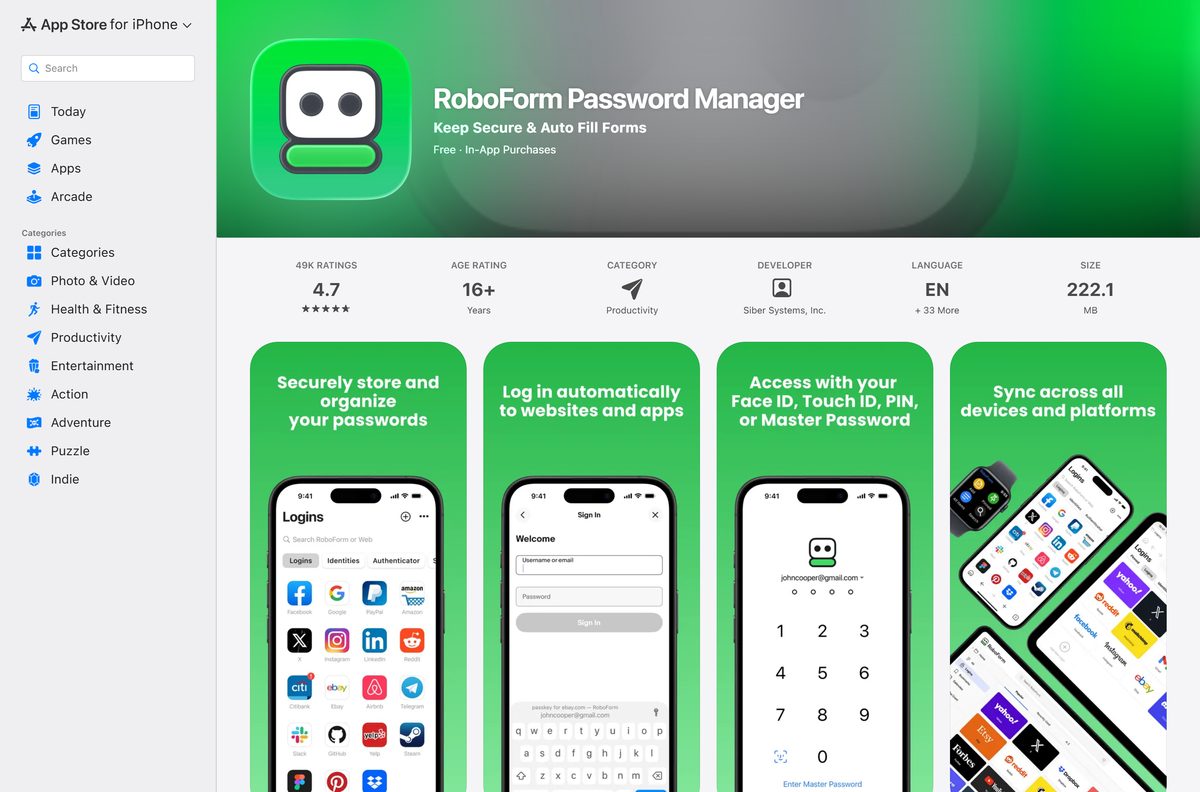
| iPhone or iPad on iOS 15.0 or later | RoboForm on the App Store | 222.1 MB |
| Android 9 or higher | RoboForm on Google Play | Listed in Google Play |
| Chromebook or browser only | RoboForm for Chrome | Chrome Web Store |
The desktop app adds offline access, Windows Hello, and logins for Windows programs. The extension alone only works inside the browser.
Download RoboForm from the official links
Siber Systems hosts the desktop installers on roboform.com. The browser extensions install from each browser’s own add-on store.
- RoboForm 9.9.4 for Windows (EXE) — 49.7 MB · Windows 10 and 11
- RoboForm 9.9.5 for Mac (DMG) — 55.7 MB · macOS 12 and later
- RoboForm 10.0.0 for Microsoft Edge — Edge Add-ons
- RoboForm 10.0.0 for Chrome, Brave and Opera — Chrome Web Store
- RoboForm 9.9.9 for Firefox — Firefox Add-ons
- All RoboForm downloads — official download page
How to install RoboForm on Windows 11 and 10
The setup file installs the desktop app, then walks you through adding the browser extension.
- Download RoboForm-v9-Setup.exe from the official link above.
- Open the file from your browser’s Downloads menu.
- Select Yes if User Account Control asks to allow changes.
- Follow the prompt to add the RoboForm extension to your browser.
- Pin the extension so its button stays next to the address bar.
- On the RoboForm Start Page, select Log In if you already have an account.
- Or select Create New Account, then enter your email and a Master Password you will remember.
- Select Get Started to finish.
RoboForm cannot show you a forgotten Master Password. Turn on Account Recovery right after you create the account.
Install RoboForm on many PCs with the MSI package
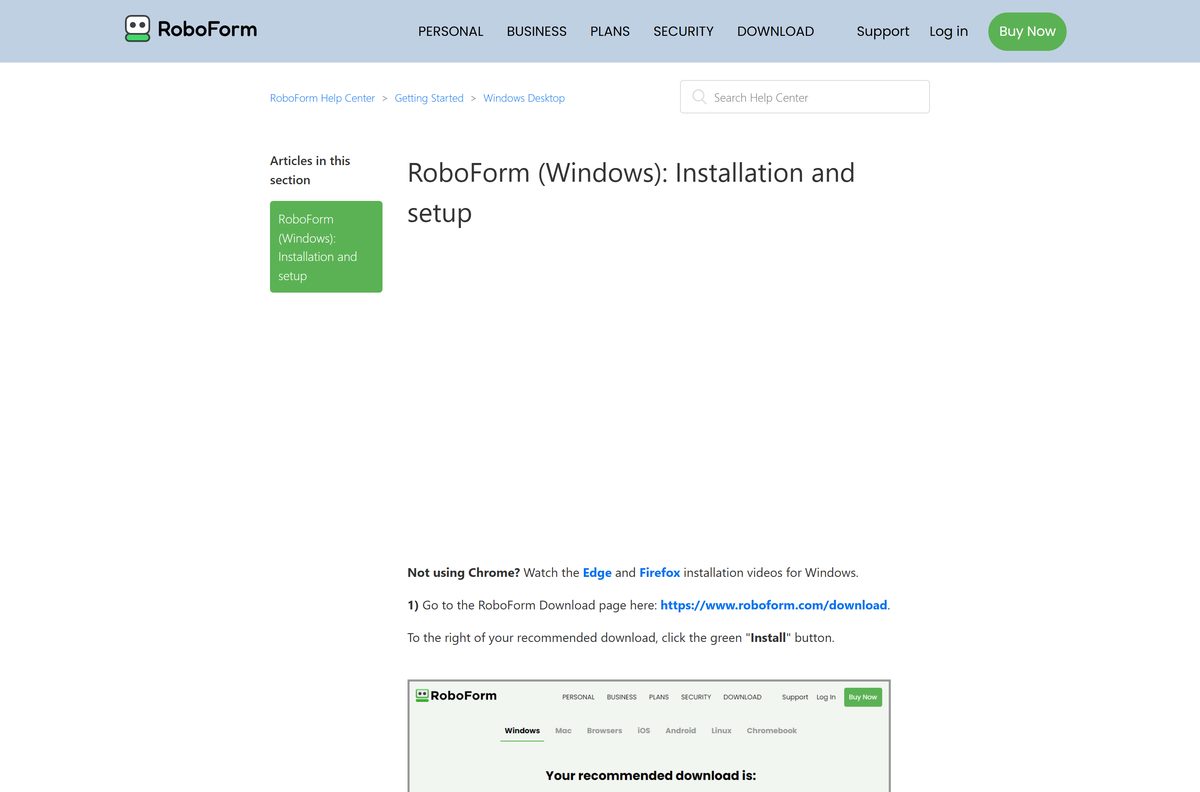
Siber Systems publishes an MSI for centralized business deployment. It always installs the latest RoboForm for Windows client.
| Package | Size | Use it for | Starting command |
|---|---|---|---|
| RoboForm-v9-Enterprise.msi | 49.8 MB | Group Policy, Intune or other software deployment | msiexec /i RoboForm-v9-Enterprise.msi /qn |
| RoboForm-v9-Setup.exe | 49.7 MB | One PC, installed by its user | Double-click to run |
Test the silent install on one machine before you push it to a whole team.
Which RoboForm download do you need for your Mac?
Both Mac files are universal installers, so they cover Apple silicon and Intel Macs. Each one installs RoboForm together with its Safari extension.
| Your situation | Take this | Size |
|---|---|---|
| Personal Mac on macOS 12 or later | roboform-mac-v9.dmg | 55.7 MB |
| Managed Macs or a scripted install | roboform-mac-v9.pkg | 50.3 MB |
| Mac older than macOS 12 | RoboForm for Chrome | Extension only |
Open the DMG and double-click the RoboForm icon. Select Open, then Enable Safari extension, and tick RoboForm on the Extensions tab in Safari.
Is RoboForm free?
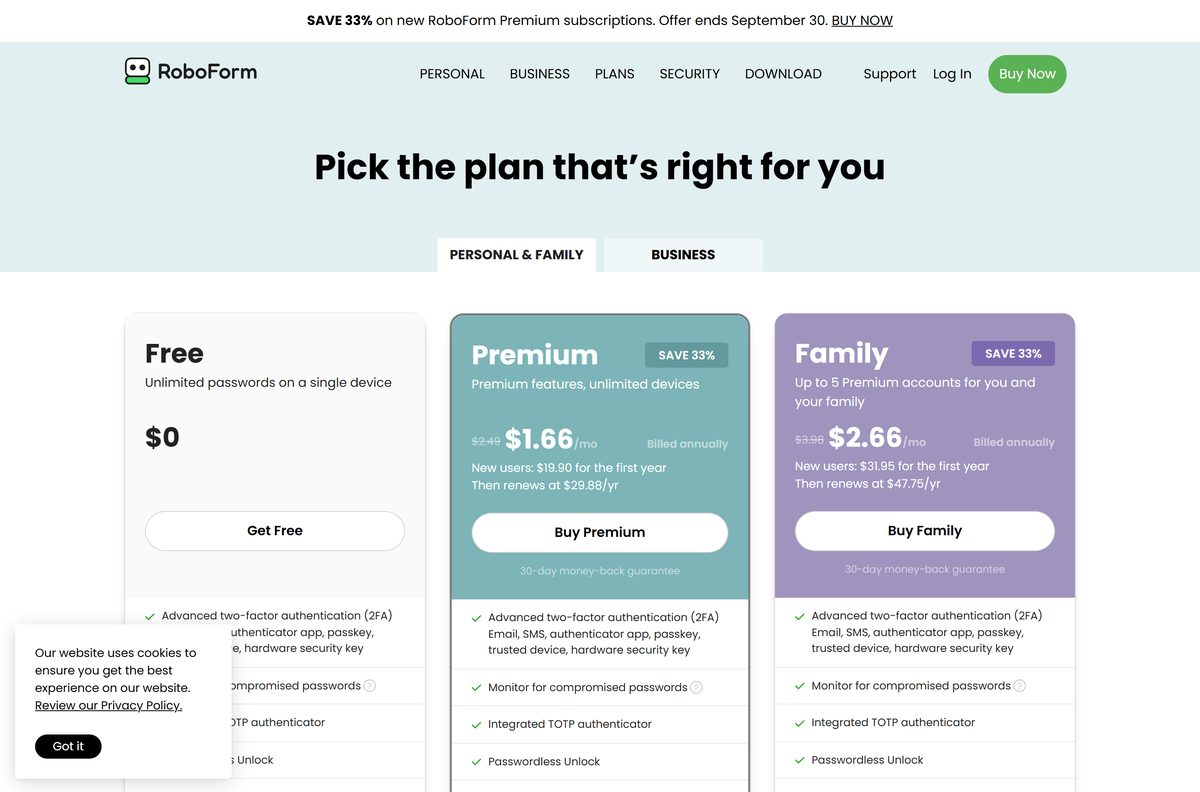
Yes, on one device. The Free plan stores unlimited passwords and includes two-factor authentication, breach alerts, a TOTP authenticator, secure sharing and Emergency Access.
Premium adds access on unlimited devices with sync, plus priority support. It renews at $29.88 per year. Family covers up to 5 Premium accounts and renews at $47.75 per year. Both paid plans carry a 30-day money-back guarantee.
New-user discounts for the first year change often, so check the price on roboform.com at checkout. A “RoboForm Premium free” key or cracked build from any other site is not genuine.
Start on the Free plan if you use one computer; buy Premium once you want the same vault on your phone and a second device. The Free plan has no password limit and no time limit; the only thing it lacks is access and sync on more than one device.
How to check your RoboForm version and update it
RoboForm updates the desktop apps and browser extensions on its own. The manual steps below matter only for desktop builds older than 9.6.7.
- Select the ^ arrow at the right end of the Windows taskbar.
- Select the RoboForm icon, then Help > About to see your version.
- Tick Enable automatic updates if it is not already on.
- To update right away, choose Help > Check for Update.
- Select Yes if a newer version is available.
- On a Mac, or if the check fails, run the latest DMG or EXE from the official links over your current install.
Check the RoboForm system requirements
RoboForm runs on current versions of every major platform. Compare your device with the table before you download.
| Specification | Detail |
|---|---|
| Software | RoboForm Password Manager |
| Developer | Siber Systems |
| Latest version | 9.9.4 (Windows), 9.9.5 (Mac), 10.0.0 (Chrome and Edge extensions) |
| License / price | Free plan on one device; Premium $29.88 per year; Family $47.75 per year |
| Windows | Windows 10 and Windows 11 |
| Architecture | Universal Windows installer; universal Mac installer for Apple silicon and Intel |
| macOS | macOS 12 and later |
| Mobile | iOS 15.0 or later; Android 9 and higher |
| Browsers | Chrome, Edge, Firefox, Brave, Opera and Safari |
| Windows download size | 49.7 MB EXE; 49.8 MB MSI |
| Mac download size | 55.7 MB DMG; 50.3 MB PKG |
| Offline installer | Yes, the EXE, MSI, DMG and PKG are full installers |
| Official download source | roboform.com/download |
| Last verified | 2026-09-25 |
Fix RoboForm not working in your browser after install
Most problems after a fresh install come from the extension, not the desktop app. Match the symptom below.
The Chrome extension is greyed out or shows “Not implemented”
The newest extension needs an updated desktop app.
- Download RoboForm-v9-Setup.exe on Windows or roboform-mac-v9.pkg on a Mac from the official links.
- Run it over your current install.
- Restart the browser and try the extension again.
The RoboForm button is missing from Chrome
The extension is turned off or not pinned.
- Open the three-dot menu and select Extensions > Manage Extensions.
- Find RoboForm Password Manager and switch its toggle on.
- Select the puzzle-piece icon next to the address bar and select the pushpin beside RoboForm.
Safari does not show RoboForm on a Mac
The Safari extension was not enabled during setup.
- Open Safari > Settings and select the Extensions tab.
- Tick the box next to RoboForm.
- Close the window and reload the page you want to fill.
The uninstall or reinstall stops because a file is locked
An open browser keeps RoboForm.dll in use.
- Close every browser window.
- Restart the computer.
- Run the installer or uninstaller again.
How to uninstall RoboForm
The uninstaller asks whether to keep your local RoboForm data. Your synced data stays in your account either way.
- Close all browser windows.
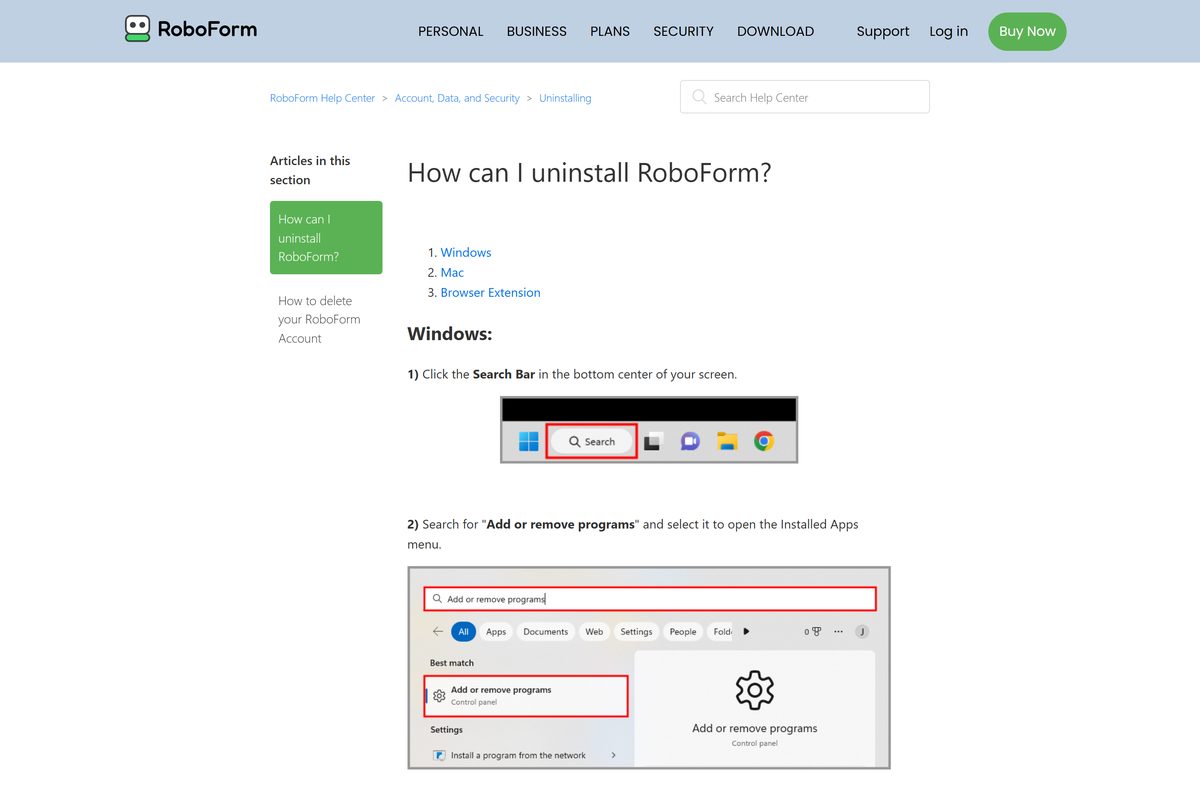
- On Windows, search for Add or remove programs and open it.
- Search for RoboForm, select the three dots next to it and choose Uninstall.
- Leave Remove all Logins, Identities, Safenotes (RoboForm User Data) from this computer clear to keep local data, or tick it to wipe it.
- Select Yes if you chose to remove data, then select Uninstall.
- On a Mac, open the RoboForm DMG, double-click Uninstall RoboForm, select Open, then Uninstall and Close.
- Remove the extension too: right-click its icon and choose Remove From Chrome, Remove From Firefox or Remove From Microsoft Edge.
If the Windows uninstaller fails, the RoboForm uninstall help article links Siber’s rfwipeout.exe removal tool.
Should you use only the RoboForm extension or the phone app instead?
The extension and the mobile apps sign in to the same RoboForm account as the desktop app. On the Free plan, though, only one device gets access.
Install the desktop app on your main Windows PC or Mac; use the extension alone on a Chromebook or a machine where you cannot install software. The desktop app adds offline access, keeps you signed in across every installed browser, and fills logins in Windows programs, which the extension cannot do by itself.
Frequently asked questions
Is RoboForm free?
Yes. The RoboForm Free plan stores unlimited passwords on a single device at no cost. Premium adds unlimited devices with sync and renews at $29.88 per year, and Family covers up to 5 Premium accounts at $47.75 per year.
What is the official RoboForm download page?
The official page is roboform.com/download, run by Siber Systems. It links the Windows EXE and MSI, the Mac DMG and PKG, the browser extensions, and the iPhone and Android apps.
Does RoboForm work on Windows 11?
Yes. RoboForm 9.9.4 for Windows supports Windows 10 and Windows 11, and the same 49.7 MB installer covers both. It also supports Windows Hello for unlocking your vault.
How big is the RoboForm download?
The Windows installer is 49.7 MB and the MSI package is 49.8 MB. The Mac DMG is 55.7 MB and the PKG is 50.3 MB. The iPhone app is listed at 222.1 MB in the App Store.
Is there a RoboForm offline installer?
Yes. The Windows EXE and MSI and the Mac DMG and PKG are full installers, so you can copy them to another computer. The desktop app also gives you offline access to your saved logins.
Is RoboForm available for Mac?
Yes. RoboForm 9.9.5 for Mac comes as a DMG or PKG from roboform.com and needs macOS 12 or later. The installer adds the Safari extension, and Chrome and Firefox extensions are also available.
Does RoboForm support 64-bit and ARM64?
The Mac installers are universal, so they run on Apple silicon and Intel Macs. For Windows, Siber Systems ships one universal installer and lists no separate ARM64 build.
Is RoboForm safe to download?
Yes, when you download it from roboform.com or the official browser and app stores. Siber Systems publishes every build. Avoid download portals and any site offering a free Premium key or cracked copy.
What is the latest version of RoboForm?
RoboForm 9.9.4 is the current Windows release and 9.9.5 is the current Mac release. The Chrome and Edge extensions are at 10.0.0, and the Firefox extension and iOS app are at 9.9.9.
Why is the RoboForm extension greyed out in Chrome?
The newest Chrome extension needs an updated RoboForm desktop app. Download the latest installer from roboform.com, run it over your current install, and restart the browser. The extension then works again.
Does RoboForm update automatically?
Yes. RoboForm updates its desktop apps and browser extensions on its own. Only desktop versions older than 9.6.7 need the manual Check for Update option in the Help menu.
Is there a RoboForm app for iPhone and Android?
Yes. RoboForm Password Manager is free in the App Store for iOS 15.0 or later and on Google Play for Android 9 and higher. Syncing between your phone and computer needs Premium.