Microsoft Journal download is free from the Microsoft Store for Windows 11 and Windows 10. Install it in a few minutes, then pick up a digital pen and write, sketch and mark up PDFs on a page-based canvas.
Microsoft Corporation publishes the app, and one Store package covers both x64 and ARM64 PCs. It works best on tablets and 2-in-1 laptops with a pen.
Below you will find the official link, install steps with and without the Store app, the winget command, and fixes for an install that stalls.
Check your PC against the Microsoft Journal requirements
Open Settings, then System, then About to read your Windows version and build before you start.
| Field | Detail |
|---|---|
| Software | Microsoft Journal (package Microsoft.MicrosoftJournal) |
| Developer | Microsoft Corporation |
| Latest version | 1.25336.1113.0 |
| License / Price | Free |
| Download size | 491.4 MB Store bundle (x64 and ARM64 combined) |
| Installed size | 342.2 MB |
| Windows | Windows 10 build 19041 (version 2004) or later, or Windows 11 |
| Architecture | x64 and ARM64; no 32-bit package |
| Memory | 4 GB minimum, 8 GB recommended |
| Input | Touch screen recommended; built for a digital pen |
| macOS | Not available |
| Store category | Productivity |
| Official download source | Microsoft Store |
| Offline installer | No |
| Last verified | 2026-09-24 |
A Windows 10 PC on a build older than 19041 cannot install it. Run Windows Update first.
Which Microsoft Journal download do you need?
Every Windows PC gets the same Store package. Match your machine to a row to see what happens.
| Your computer | What to install | Result |
|---|---|---|
| Windows 11 tablet or 2-in-1 with a pen | Journal on the Microsoft Store | Full ink experience, 491.4 MB bundle |
| Windows 11 PC with an ARM64 chip | Journal on the Microsoft Store | Same bundle, native ARM64 |
| Windows 10 version 2004 or later | Journal on the Microsoft Store | Installs and runs |
| Windows 10 older than build 19041 | Windows Update first, then the Store | Not supported until updated |
| Mac | Apple Notes User Guide for Mac | Journal has no macOS build |
Download Microsoft Journal from the official Microsoft Store
Microsoft Corporation publishes the Store listing, product ID 9N318R854RHH. A site offering a Journal .exe is not Microsoft.
- Microsoft Journal on the Microsoft Store — 491.4 MB · Windows 11 and Windows 10, free
- winget install command reference — install the same Store package from a terminal
The Store rates Journal 4.3 out of 5 from 6,022 ratings in the US catalog.

How to install Microsoft Journal on Windows 11 and 10
Sign in to the Microsoft Store with a Microsoft account if it asks. The same listing serves x64 and ARM64 PCs.
- Open the Microsoft Journal Store page in your browser.
- Select Get or Get in Store app.
- Let the browser open the Microsoft Store app when it asks.
- Select Get or Install on the Journal listing.
- Wait for the 491.4 MB package to download and install.
- Select Open, or type Journal in the taskbar search and open it.
- Sign in with your Microsoft account if you want Calendar integration.
Install Microsoft Journal with winget from a terminal
Use winget when the Store app will not open, or to script the install across several PCs. The msstore source uses the Store product ID as the package ID.
- Open Windows Terminal or PowerShell from the Start menu.
- Run winget install 9N318R854RHH -s msstore .
- Accept the Microsoft Store agreement prompt that winget shows.
- Open Journal from the Start menu once the install completes.
What to use instead of Microsoft Journal on a Mac
Microsoft publishes Journal for Windows only. The Store package holds x64 and ARM64 Windows builds and nothing for macOS.
| Your goal on the Mac | What to use | Where |
|---|---|---|
| Take and organize notes | Apple Notes User Guide for Mac | Built into macOS |
| Run Journal itself | Journal on a Windows PC | Windows 10 or Windows 11 only |
Is Microsoft Journal free?
The Microsoft Store lists Journal at $0.00, with no paid tier. Calendar integration needs a Microsoft 365 subscription, sold separately.
Install Microsoft Journal free from the Microsoft Store and pay nothing for writing, PDF markup or export. Microsoft charges nothing for the app. A site asking for money or a license key for Journal is not selling a Microsoft product.
Which Journal feature fits what you want to do?
Journal is built around pen input on the Windows Ink platform. Start with the feature that matches your task.
| You want to | Journal feature | What it does |
|---|---|---|
| Take handwritten notes | Ink-first page canvas | Scrolls page by page, tuned for tablets and 2-in-1s |
| Select or erase without switching tools | Ink Gestures | Works without mode switches |
| Sign or annotate a document | PDF and image import | Lets you mark up PDFs and pictures with ink |
| Find an old note | Search | Finds pages by keywords or filters |
| Share a page | Print and Export | Sends pages to PDF, OneNote or a printer |
| Draw music or storyboards | Page styles | Lined, dotted, graph, music staff, storyboard or blank |
You can also write in different languages and drag content between pages or into other apps.
How to update Microsoft Journal
The Microsoft Store delivers every Journal update. Pull one manually if the automatic update has not arrived.
Update from the Microsoft Store
- Select Start, then open Microsoft Store from the apps list.
- Select Library, then Get updates.
- Let the Store install the Journal update, then reopen the app.
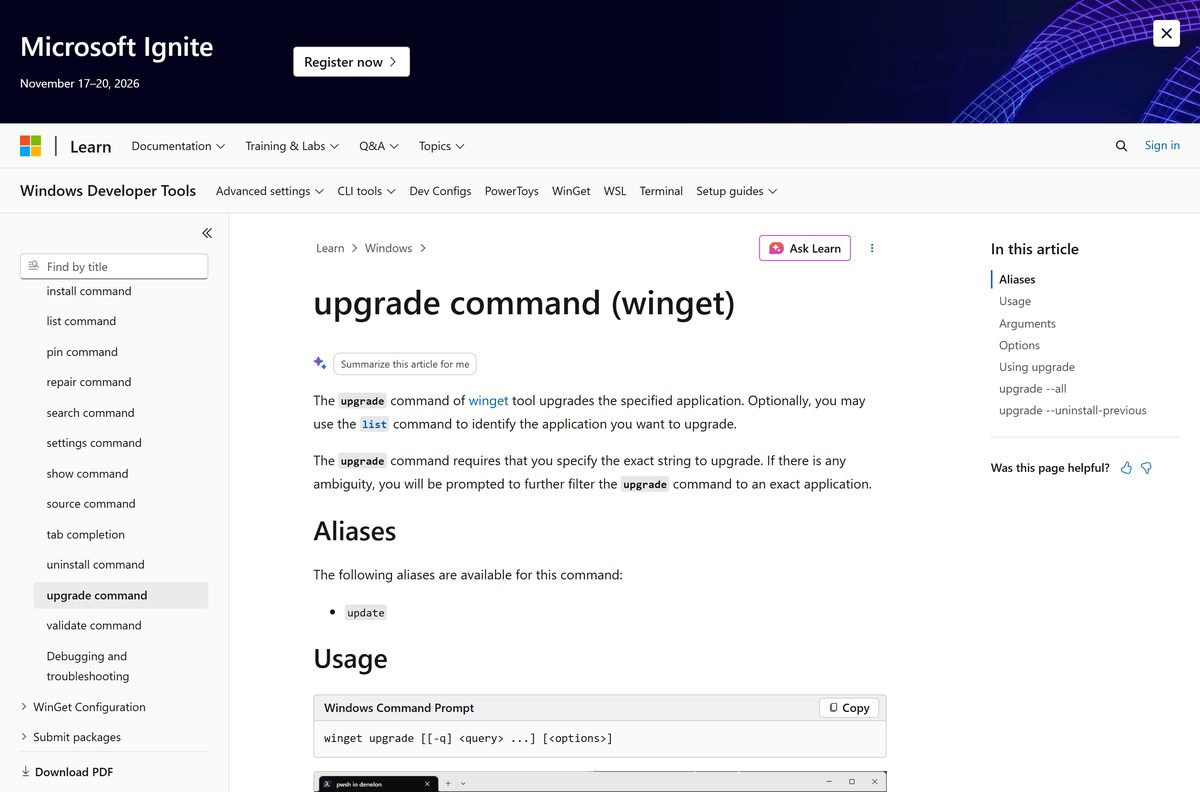
Update with winget
- Open Windows Terminal.
- Run winget upgrade 9N318R854RHH .
- Reopen Journal once the upgrade finishes.
Fix Microsoft Journal not installing on Windows 11 or 10
Match the symptom and work through its fixes in order.
The Store says the app does not work on this device
Windows 10 is older than build 19041.
- Select Start, Settings, Update & Security, Windows Update, Check for updates.
- Install every update offered and restart.
- Open the Store listing again and select Get.
The download stalls or fails in the Store
An outdated Store app or pending Windows updates.
- On Windows 11, select Start, Settings, Windows Update, Check for updates.
- Open Microsoft Store, select Library, then Get updates to update the Store itself.
- Retry the install, or use the winget command above.
Journal installed but will not open
Damaged app data.
- Close Journal with the Close (X) button and reopen it.
- Select Start, Settings, Apps, Installed apps.
- Select More next to Journal, then Advanced options.
- Select Repair. If that fails, select Reset.
Repair and Reset did not help
A broken install.
- Uninstall Journal with the steps below.
- Open Microsoft Store and select Library.
- Find Microsoft Journal and select Install.
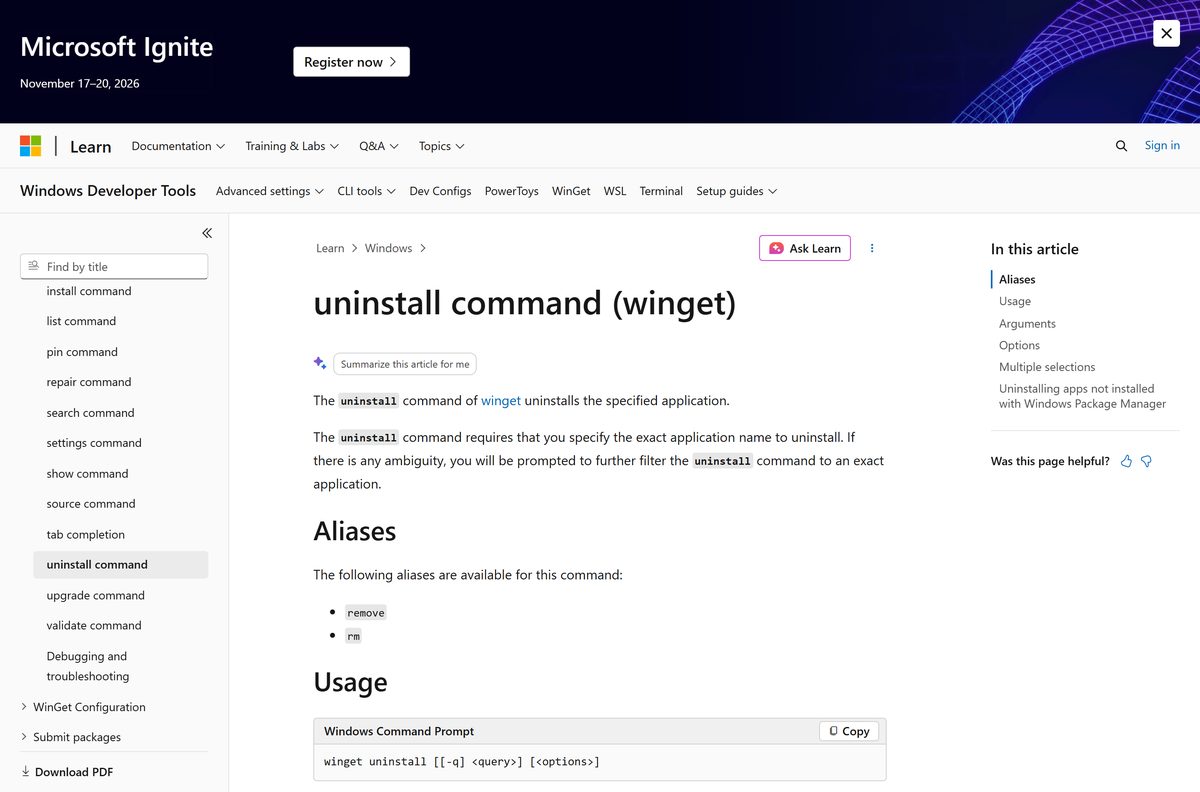
How to uninstall Microsoft Journal
Journal uninstalls like any other Store app. Export any pages you want to keep to PDF first.
- Select Start, then Settings, then Apps, then Installed apps.
- Find Microsoft Journal in the list.
- Select More, then Uninstall, and confirm.
- Or run winget uninstall 9N318R854RHH in Windows Terminal.
Frequently asked questions
Is the Microsoft Journal download free?
Yes. The Microsoft Store lists Microsoft Journal at $0.00, with no paid edition. Only the Calendar integration needs a Microsoft 365 subscription, which Microsoft sells separately.
Where is the official Microsoft Journal download?
The official source is the Microsoft Store listing, product ID 9N318R854RHH, published by Microsoft Corporation. Microsoft offers no separate installer on any other site.
Does Microsoft Journal work on Windows 11 and Windows 10?
Yes. Journal runs on Windows 11 and on Windows 10 version 2004, build 19041, or later. Older Windows 10 builds need Windows Update before the Store will install it.
How big is the Microsoft Journal download?
The Store bundle is 491.4 MB, covering the x64 and ARM64 builds together. Journal takes 342.2 MB of disk space once installed.
Is there a Microsoft Journal offline installer?
No. Microsoft distributes Journal through the Microsoft Store only. The winget command also pulls the package from the Store, so both routes need an internet connection.
Can I download Microsoft Journal on a Mac?
No. Microsoft publishes Journal for Windows only, and the Store package contains x64 and ARM64 Windows builds. On a Mac, Apple Notes handles typed and sketched notes instead.
Does Microsoft Journal run on ARM64 PCs?
Yes. The Store package ships x64 and ARM64 builds in one bundle, so ARM64 laptops run Journal natively. There is no 32-bit package.
Do I need a pen to use Microsoft Journal?
Journal is built for a digital pen, and the Store recommends a touch screen. Its ink gestures and page canvas are designed around pen input on tablets and 2-in-1 PCs.
Is Microsoft Journal safe to download?
Yes, from the Microsoft Store. Microsoft Corporation publishes the listing, and the Store installs the signed package. Avoid any site offering a Journal .exe, because Microsoft ships no such file.
What is the latest version of Microsoft Journal?
The current Store package is version 1.25336.1113.0, updated on May 9, 2026. The Microsoft Store installs new versions automatically when app updates are on.
Why won’t Microsoft Journal install?
The usual causes are Windows 10 older than build 19041, an outdated Microsoft Store app, or pending Windows updates. Update Windows and the Store, then retry or use winget.
Can Microsoft Journal export to OneNote?
Yes. Journal can print and export pages to PDF, to OneNote, or to a printer. It can also import PDF documents and images for you to mark up.