The Lorex Home download for a Windows 11, Windows 10 or Mac computer is Lorex Cloud Client, the free desktop viewer Lorex publishes for its recorders. On a phone, the same system runs in Lorex Classic, the current name of the Lorex Home app, free on the App Store and Google Play.
Lorex marks Lorex Classic systems for viewing on Android, iOS, PC and Mac. Your camera or recorder model decides which app and which desktop client you need.
Below are the official links, the PC and Mac setup, the phone install, the requirements, and fixes for connection problems.
Which Lorex Home download do you need?
Match your device to a row. The phone app and the desktop client both come from Lorex.
| Your device | What to get | Note |
|---|---|---|
| Windows 11 or Windows 10 PC | Lorex Cloud Client for PC on lorex.com | For compatible Lorex NVRs and DVRs |
| MacBook, iMac or Mac mini | Lorex Cloud Client for Mac on lorex.com | Same recorder list as the PC build |
| iPhone | Lorex Classic on the App Store, 215.1 MB | iOS 12.1 or later |
| Android phone | Lorex Classic on Google Play | Package com.mm.android.lorex |
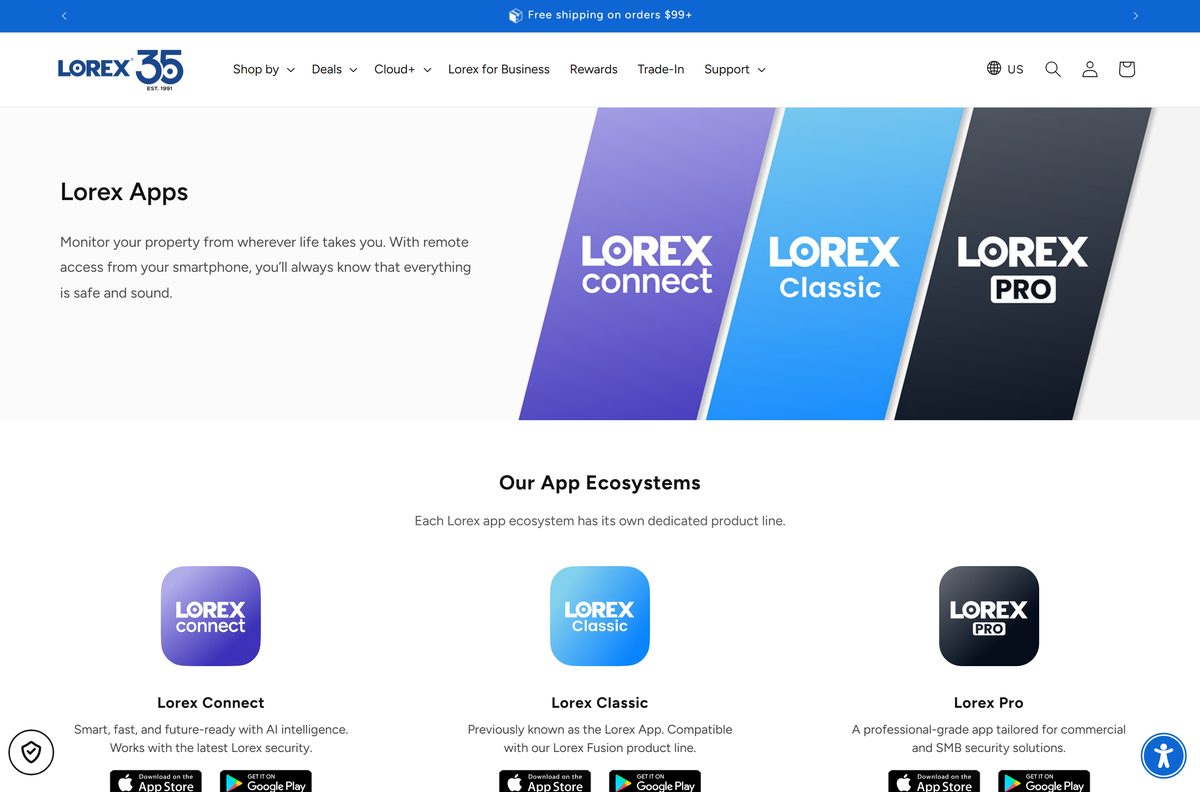
| Newest Lorex AI cameras | Lorex Connect on the App Store | Phone only; no PC or Mac viewing |
Unsure which camera line you own? The Lorex compatibility tool matches a model number to its app.
Download Lorex Home from Lorex’s official pages
Every link below belongs to Lorex or to the store that distributes its phone app.
- Lorex Apps page — store links for Lorex Classic, Lorex Connect and Lorex Pro
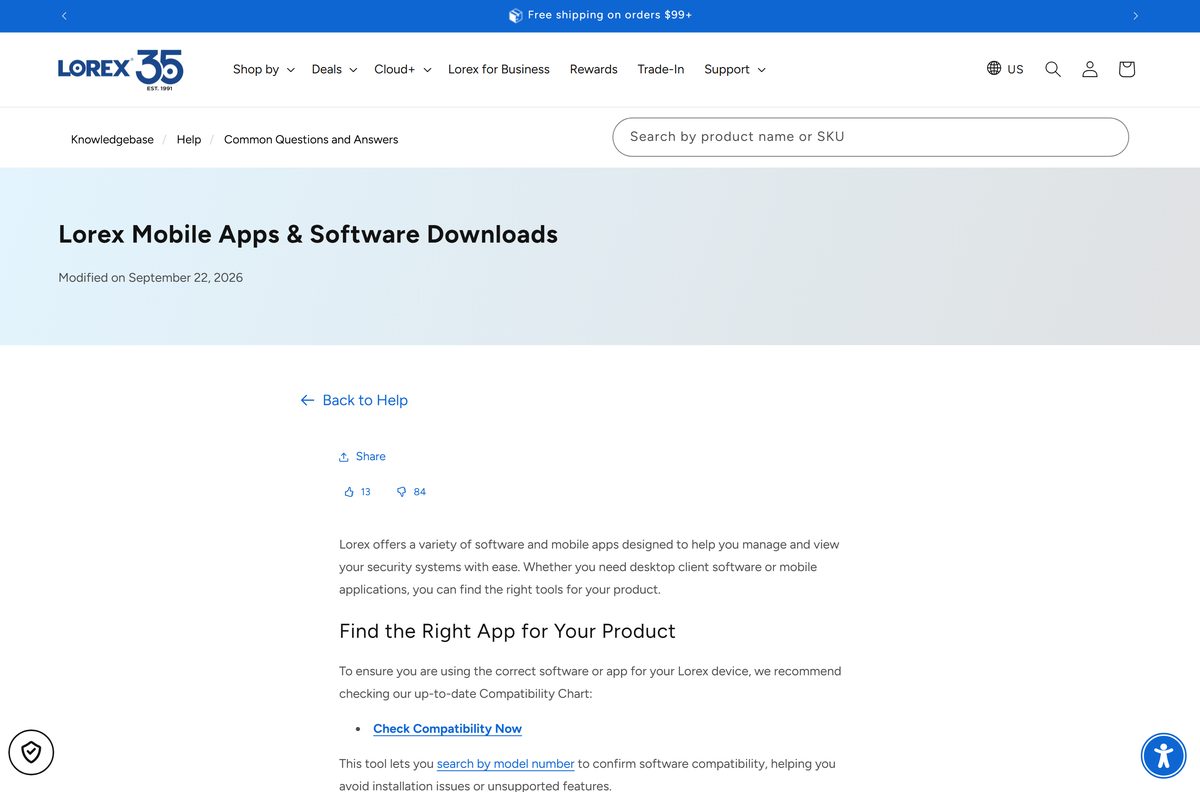
- Lorex Mobile Apps & Software Downloads — Lorex Cloud Client for PC and for Mac
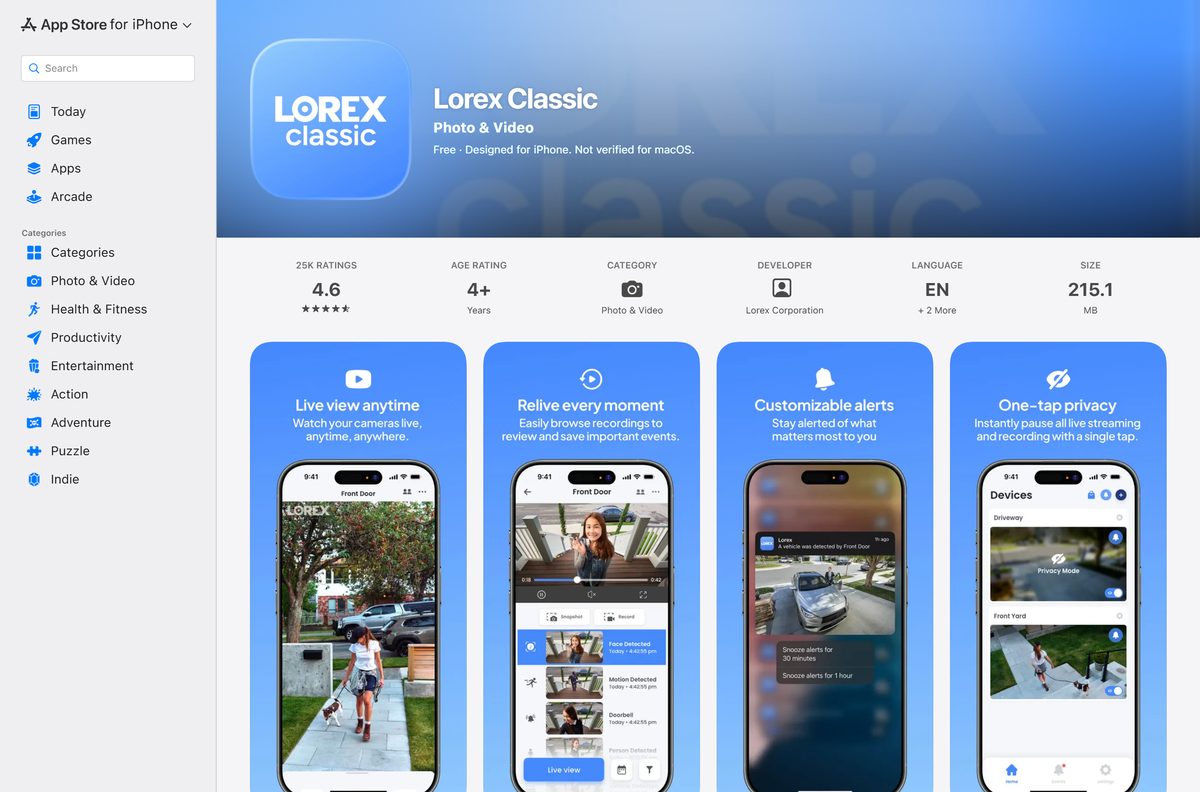
- Lorex Classic on the App Store — 215.1 MB · developer Lorex Corporation; iOS 12.1 or later
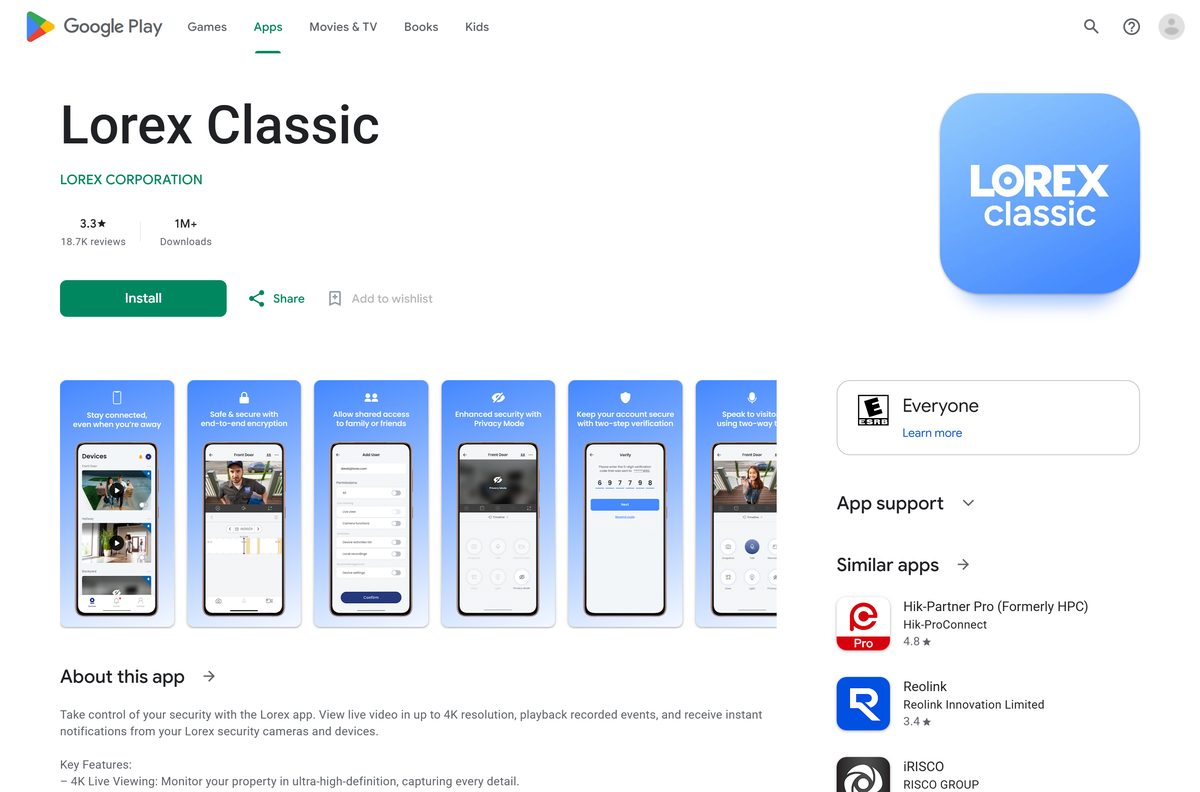
- Lorex Classic on Google Play — developer LOREX CORPORATION; 1M+ downloads
- Lorex Classic app overview — features and the Fusion collection
A site offering a Lorex Home exe, a cracked build or an unofficial Android package is not Lorex.
How to install Lorex Cloud Client on Windows 11 and 10
Lorex Cloud Client connects straight to your recorder. Have the recorder’s monitor nearby for the login details.
- Open the Lorex Mobile Apps & Software Downloads article on lorex.com.
- Under Lorex Cloud Client, select the link for PC users.
- Run the downloaded setup file and follow the installer prompts.
- On the monitor connected to your recorder, right-click the home screen and select Info.
- Note the login details the Info screen shows.
- Open Lorex Cloud Client on the PC and enter those details to log in.
- Add more recorders the same way, up to 6 in total.
For menus and settings, select the icon in the top right corner of the client, then Help Manual.
Which Lorex Home download do you need for your Mac?
Lorex ships a separate Mac build of its desktop client. The iPhone app is not the Mac route.
| Your situation | Get this | Why |
|---|---|---|
| Fusion NVR or another Lorex Cloud Client recorder | Lorex Cloud Client for Mac | Lorex lists it as working with PC and Mac |
| Apple silicon Mac with the iPhone app in mind | Lorex Classic App Store listing | Listed as designed for iPhone, not verified for macOS |
| Recorder listed for Lorex Client 12 | Lorex Client 12 for Mac | Lorex’s Mac build for Lorex Client 13 systems |
Install it like any Mac download: open the file from Downloads and follow the prompts, then log in with the recorder’s Info details.
Install the Lorex Home app on an iPhone or Android phone
Lorex Classic is the Lorex Home app under its current name. Setup pairs the phone with your recorder by QR code.
- Open the App Store on iPhone or Google Play on Android.
- Search for Lorex Classic and confirm the developer is Lorex Corporation.
- Tap Get or Install.
- Open the app and create an account.
- Tap the add (+) icon to connect your recorder or camera.
- Scan the QR code printed on the recorder next to its Device ID.
- Follow the in-app steps to finish setup.
The recorder must be powered on and wired to your router with the included Ethernet cable before you scan.
Is Lorex Home free?
The software costs nothing. The hardware is the purchase.
Lorex Home is free: Lorex Classic installs at no charge on iPhone and Android, and Lorex Cloud Client is a free download from lorex.com. The App Store lists Lorex Classic at a price of zero, and Google Play installs it free. Lorex hosts the desktop client itself, with no licence key. Lorex lists cloud or local storage for Lorex Classic systems, with cloud on select models.
Anyone selling a Lorex Home licence or activation code is not Lorex.
Should you install Lorex Classic, Lorex Connect or Lorex Pro?
Lorex runs three app lines, and a camera works in only one of them.
Install Lorex Classic for Fusion systems and the cameras and recorders Lorex lists for it, Lorex Connect for the newest Lorex AI devices, and Lorex Pro for commercial systems. Lorex describes Lorex Classic as the home of the Fusion collection and previously the Lorex App. Lorex Connect targets its latest AI security products and lists only Android and iOS for remote viewing. Lorex Pro covers commercial and small business systems, with PC and Mac viewing like Lorex Classic.
Lorex Connect is on Google Play and Lorex Pro on the App Store when your hardware needs them.
How to check your Lorex Home version and update it
Store updates arrive automatically when auto-update is on. These steps force the check.
- On iPhone, open the App Store and tap your profile picture.
- Scroll to Upcoming Automatic Updates and tap Update next to Lorex Classic.
- On Android, open Google Play, tap your profile picture and choose Manage apps & device.
- Tap Updates available and update Lorex Classic.
- On a PC or Mac, compare your client with the build on the Lorex software downloads article and reinstall if Lorex lists a newer one.
The current App Store build is 5.6.7.
Check the Lorex Home system requirements before you install
The phone app sets a version floor. The desktop client depends on the recorder you own.
| Field | Value |
|---|---|
| Software | Lorex Home, now Lorex Classic |
| Developer | Lorex Corporation |
| Latest version | 5.6.7 (App Store build) |
| License | Free |
| iPhone | iOS 12.1 or later |
| Android | Google Play, package com.mm.android.lorex |
| Phone support | Latest two major iOS and Android versions, 64-bit phones |
| iPad and tablets | Not guaranteed by Lorex |
| Windows and Mac | Lorex Cloud Client, PC and Mac builds |
| App Store size | 215.1 MB |
| Languages | English, French and Spanish |
| Desktop recorders | Up to 6 in Lorex Cloud Client |
| Last verified | 2026-09-25 |
Check which Lorex recorders work with Lorex Cloud Client on a PC or Mac
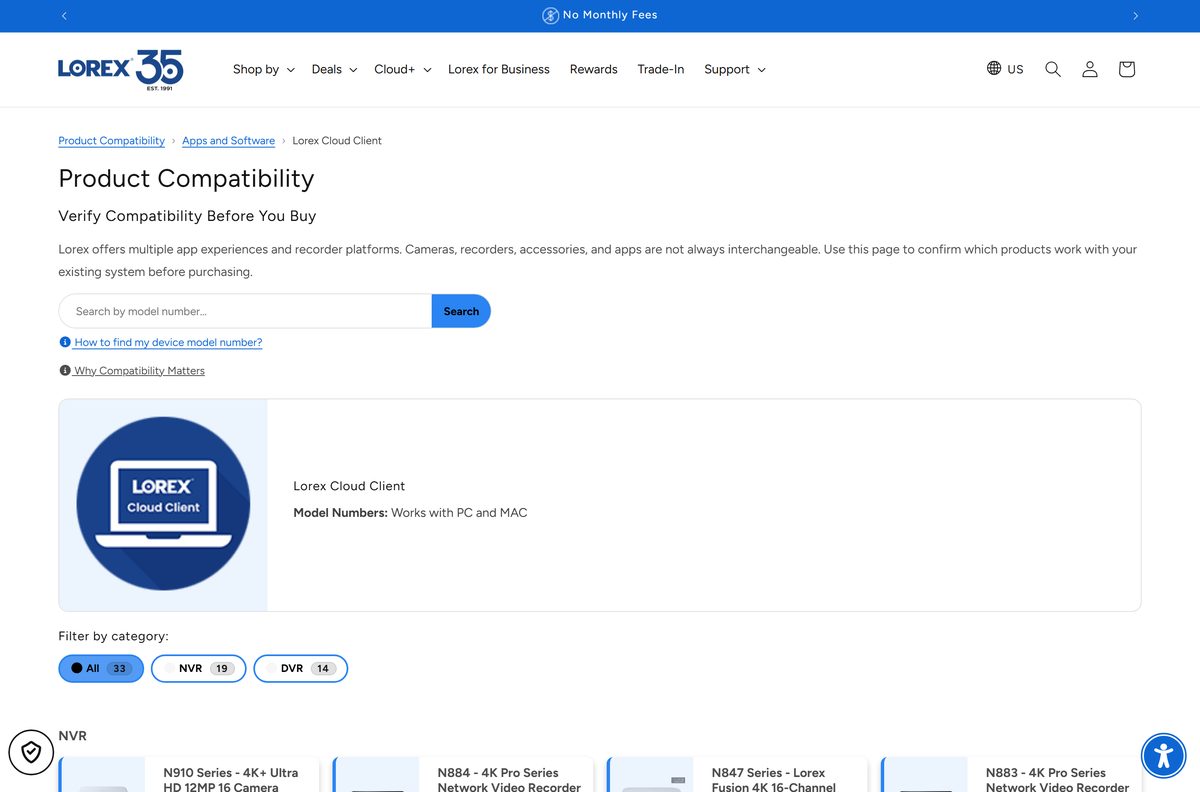
Lorex’s compatibility tool lists 33 products for Lorex Cloud Client: 19 NVRs and 14 DVRs.
| Recorder family | Examples Lorex lists | PC and Mac |
|---|---|---|
| Lorex Fusion 4K NVRs | N845, N846, N847 and N864 series | Yes |
| 4K NVRs | N841, N842, N843, N844, N861B, N862B, N863 | Yes |
| 4K Pro and 12MP NVRs | N881B-N882B, N883, N884, N910 series | Yes |
| Older NVRs | NR800, NR810 and NR900X series | Yes |
| DVRs | 14 DVR models on the compatibility tool | Yes |
Search your exact model number on the Lorex Cloud Client compatibility page before you install.
Fix Lorex Home connection problems
Most failures are Wi-Fi or storage problems, not a broken install.
The camera will not connect to the app
The camera cannot reach your Wi-Fi network.
- Reset the camera.
- Move it close to the router.
- Connect the phone to the correct Wi-Fi network.
- Check power or batteries, and switch the camera to hotspot mode where it supports it.
The app shows a “No Recordings” error
The microSD card is missing or full.
- Save any footage you want to keep.
- Tap the device settings button next to the camera, then Device Storage.
- Tap the full > arrow and select Formatting Storage.
Live view shows “Oh, Something Went Wrong”
A weak Wi-Fi signal stops the stream loading.
- Reset the Wi-Fi network.
- Keep the camera as close to the router as possible.
- Restart the camera to renew its network connection.
The app drains an Android phone battery
Background activity is set too high.
- Open Settings.
- Tap Apps, then Lorex Classic App, then Battery under Usage.
- Choose Unrestricted, Optimized or Restricted.
Lorex keeps the full list on its Lorex Classic troubleshooting page.
How to uninstall Lorex Home and delete the account
Removing the app keeps your account. Delete the account first if you want it gone.
- To delete the account, open Lorex Classic and tap the Settings tab.
- Tap Account Settings, then Security, then Delete Account.
- On iPhone, press and hold the app icon and tap Remove App, then Delete App.
- On Android, open Settings, tap Apps, choose Lorex Classic and tap Uninstall.
- On Windows 11, open Settings, then Apps, then Installed apps, and uninstall Lorex Cloud Client.
- On a Mac, drag Lorex Cloud Client from Applications to the Trash.
Account deletion is permanent, per the Lorex account deletion guide.
Frequently asked questions
Is the Lorex Home app free to download?
Yes. Lorex Classic, the current name of the Lorex Home app, is free on the App Store and Google Play. Lorex Cloud Client for Windows and Mac is also free from lorex.com. You need a compatible Lorex camera or recorder to use either one.
Where is the official Lorex Home download page?
The Lorex Apps page at lorex.com links to Lorex Classic on the App Store and Google Play. For a computer, the Lorex Mobile Apps & Software Downloads article on lorex.com carries the Lorex Cloud Client links for PC and Mac.
Does Lorex Home work on Windows 11?
Yes, through Lorex Cloud Client. Lorex lists the client as Windows and macOS software and marks Lorex Classic systems for PC viewing. Install the PC build from lorex.com and log in with the details from your recorder’s Info screen.
How big is the Lorex Home download?
The App Store build of Lorex Classic is 215.1 MB. Lorex states no file size for the Lorex Cloud Client setup on its downloads page, and Google Play shows no fixed size for the Android build.
Is there a Lorex Home offline installer for PC?
Lorex Cloud Client is a desktop setup you download from lorex.com and run on the PC, with a separate build for Mac. Live view still needs a network path to your recorder, because the client streams video from it.
Is there a Lorex Home app for Mac?
Lorex publishes Lorex Cloud Client for macOS on its software downloads page. That is the Mac route for Lorex recorders. The iPhone listing for Lorex Classic says it is designed for iPhone and not verified for macOS.
Does Lorex Home run on 64-bit and ARM phones?
Lorex says its apps are optimized for 64-bit phones running the latest two major versions of iOS and Android. It does not guarantee iPad or tablet use, and it publishes no architecture list for Lorex Cloud Client.
Is Lorex Home safe to install?
Yes, from official sources. Lorex Classic comes from Lorex Corporation on the App Store and Google Play, and Lorex Cloud Client comes from lorex.com. Skip any site that offers a Lorex Home exe or a modded Android package.
What is the latest version of Lorex Home?
Lorex Classic 5.6.7 is the current App Store build, released on 23 June 2026. The Google Play build was updated on 16 June 2026. Lorex publishes no version number for Lorex Cloud Client.
Why won’t Lorex Home connect to my camera?
Usually Wi-Fi. Lorex advises resetting the camera, moving it close to the router, putting the phone on the correct Wi-Fi network, checking power or batteries, and using hotspot mode where the camera supports it.
Is Lorex Home the same as Lorex Classic?
Yes. Lorex renamed the app. Lorex now lists it as Lorex Classic, previously known as the Lorex App, and it remains the app for the Lorex Fusion product line of cameras and recorders.
Should I install Lorex Connect or Lorex Classic?
Install the app your hardware lists. Lorex Connect runs the newest Lorex AI cameras, Lorex Classic runs Fusion systems and many recorders, and Lorex Pro covers commercial systems. The Lorex compatibility tool matches a model number to its app.
How many recorders can Lorex Cloud Client show?
Up to 6 recorders can be connected to Lorex Cloud Client at once. Each one logs in with the details shown on that recorder’s Info screen, which you open by right-clicking its home screen on the attached monitor.