Epson Event Manager is a free Epson utility for Windows 11, Windows 10 and Mac. It links the Scan button on your Epson printer or scanner to your computer, so one press sends a scan to a folder, an email or a PDF.
The Windows installer is a 20.2 MB file from Epson’s own support site, and the Mac version comes as a separate .dmg. You install it after Epson Scan 2 or EPSON Scan, which does the actual scanning.
Below you get the right file for your computer, install steps for Windows and Mac, scan button setup, fixes for network scanning, and how to remove it.
Which Epson Event Manager download do you need?
Epson publishes one Windows file and one Mac file, and both are the same across most current Epson all-in-ones. Match your computer to a row.
| Your computer | File to download | Size |
|---|---|---|
| Windows 11, or Windows 10, 8.1, 8 or 7 (32-bit or 64-bit) | EEM_3.11.77.exe | 20.2 MB |
| Mac with Mac OS X 10.11 El Capitan up to macOS 27 | EEM_2.51.90.dmg | 31.7 MB |
| No Epson scanner driver installed yet | Get Epson Scan 2 from your product’s support page first | Varies by model |
The Windows installer covers both 32-bit and 64-bit editions, so you do not pick an architecture.
Download Epson Event Manager from the official Epson site
Epson lists Event Manager in the Downloads tab of each supported product’s support page on epson.com. The files themselves sit on Epson’s own ftp.epson.com server.
- Epson Event Manager v3.11.77 for Windows — 20.2 MB · released 21 November 2023; Windows 11 back to Windows 7
- Epson Event Manager v2.51.90 for Mac — 31.7 MB · released 5 January 2024; Mac OS X 10.11 or later
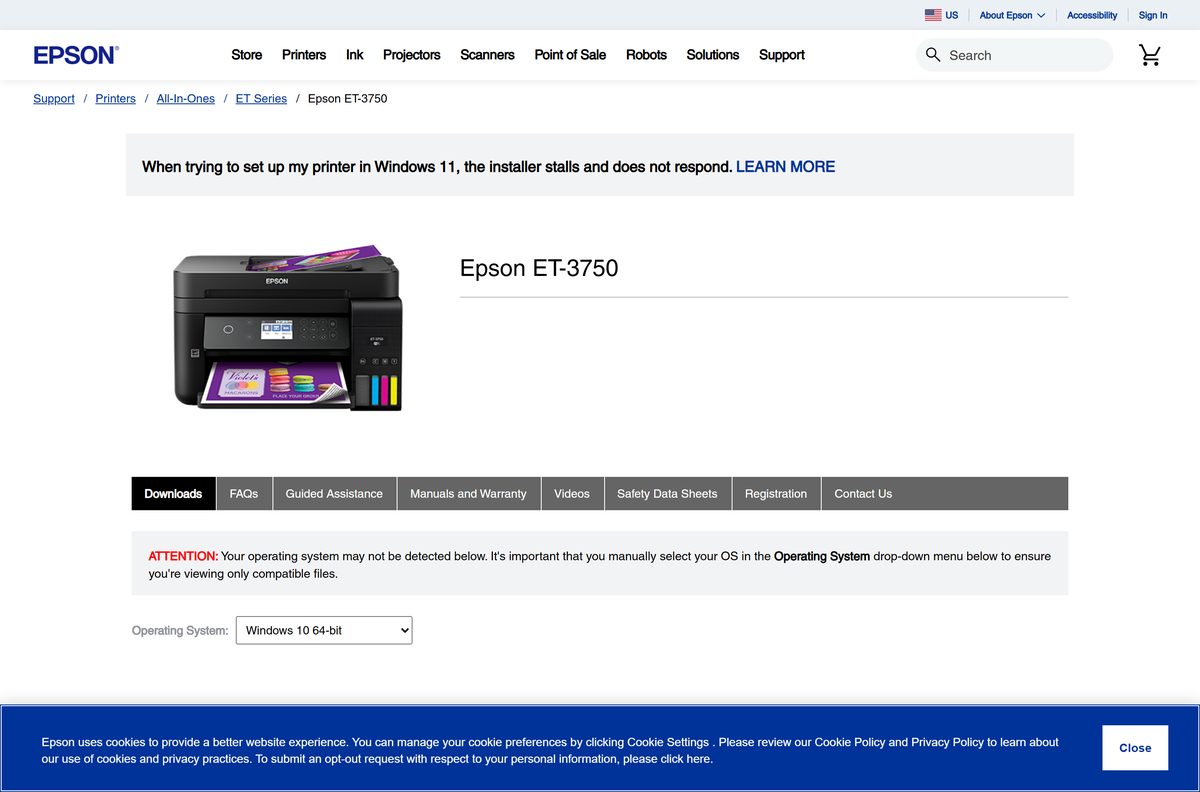
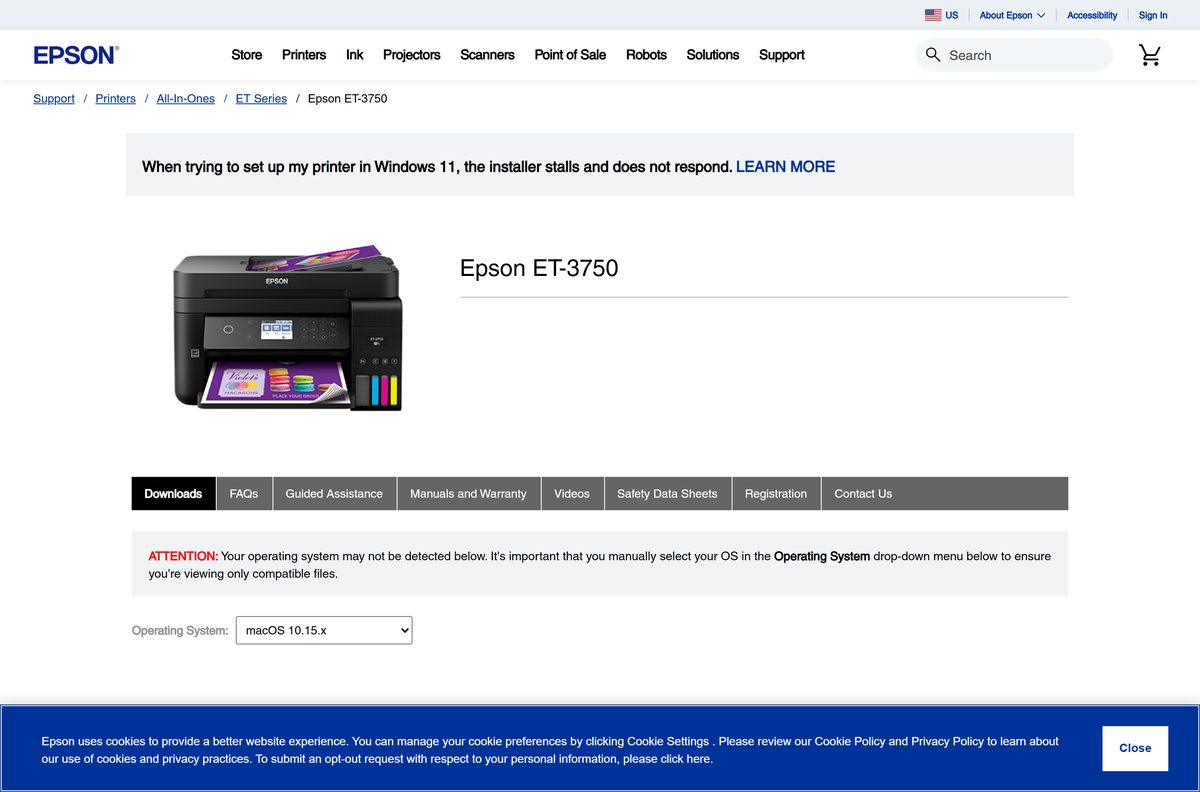
- Example product page: Epson ET-3750 support downloads — pick your operating system to see Event Manager next to the scanner driver
- Epson US support home — search your exact model to reach its own Downloads tab
The same EEM_3.11.77.exe file appears on the support pages for the ET-3750 and the WorkForce WF-2860, among others.
How to install Epson Event Manager on Windows 11 and 10
Install the scanner driver first. Epson states that EPSON Scan or Epson Scan 2 must be on the PC before Event Manager.
- Download EEM_3.11.77.exe from the link above or from your model’s Downloads tab on epson.com.
- Open your Downloads folder and double-click the file.
- Select Yes when User Account Control asks for permission.
- Accept the licence agreement and follow the prompts to finish setup.
- Restart your PC. Epson requires a restart after the first install for network scanning to work.
- Click Start, search for Event Manager and open it.
- Open the Scanner drop-down list and select your Epson product.
On Windows 10 you can also find it under Start > Epson Software > Event Manager.
Which Epson Event Manager download do you need for your Mac?
Open the Apple menu and select About This Mac to read your macOS version. Event Manager has one Mac build.
| Your Mac runs | Download | Size |
|---|---|---|
| macOS 11 Big Sur through macOS 27 | EEM_2.51.90.dmg | 31.7 MB |
| macOS 10.12 to 10.15, or Mac OS X 10.11 El Capitan | EEM_2.51.90.dmg | 31.7 MB |
| Mac OS X 10.10 Yosemite or older | Not listed; check your model’s page on epson.com | None |
Double-click the .dmg, run the installer inside it and enter your Mac password when asked.
Afterwards, open the Applications folder, click Epson Software and select Event Manager. Choose your product from the Select Scanner list.
Is Epson Event Manager free?
Yes. Epson Event Manager is a free download from epson.com, with no licence key or subscription. Epson offers it as part of the driver and utility set for its printers and scanners. It only does something useful with a supported Epson product connected to your computer. A site that asks you to pay for Event Manager, or bundles it into a download manager, is not Epson.
Should you use Event Manager or Epson ScanSmart?
Newer Epson support pages list Epson ScanSmart next to Event Manager. The ET-3750 page, for example, offers both for Mac.
Install Event Manager if you want the printer’s own Scan button to send scans to your computer. Event Manager exists to catch that button press and run a preset job, such as Scan to PC or Scan to PDF. ScanSmart is a separate scanning app you drive from the computer screen. Epson lists both as separate free downloads, so you can install both.
How to change what the Scan button does in Event Manager
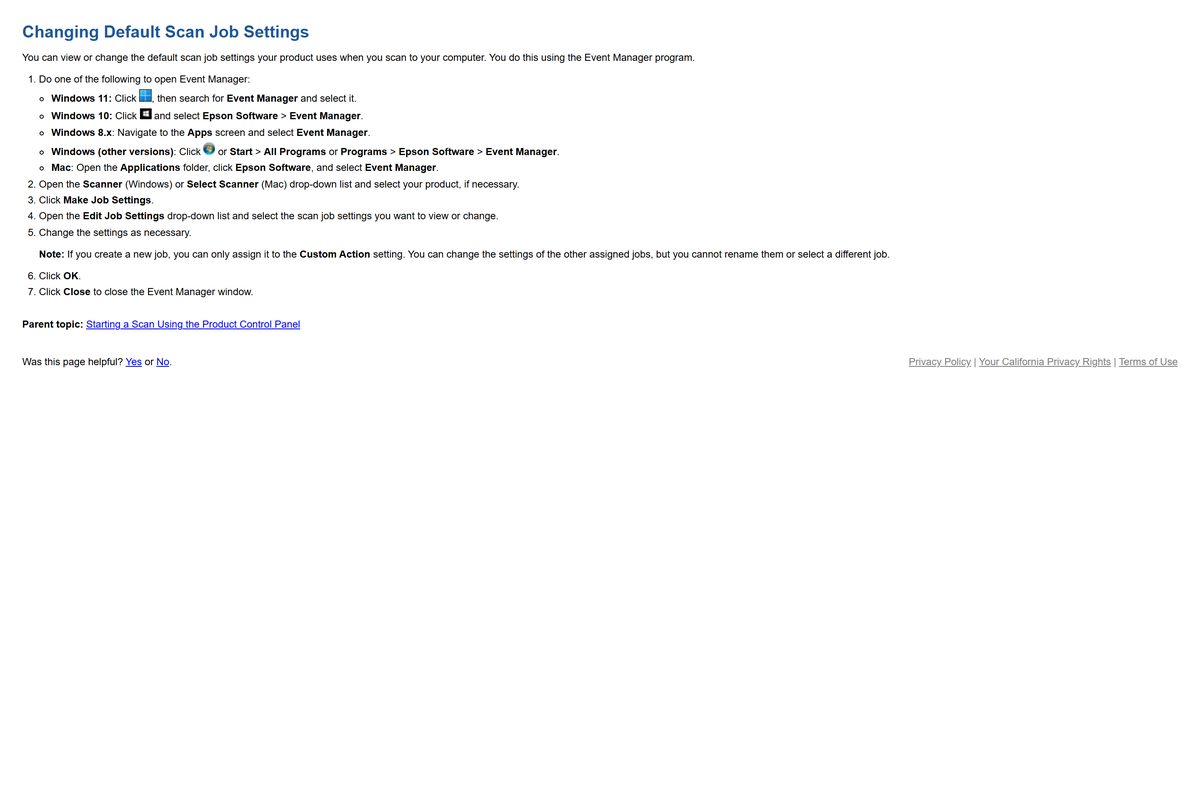
Each button job on the printer maps to a job setting in Event Manager. Edit the setting to change the file type, folder or destination.
- Open Event Manager. On Windows 11, click Start, search for Event Manager and select it.
- Open the Scanner (Windows) or Select Scanner (Mac) drop-down list and pick your product.
- Click Make Job Settings.
- Open the Edit Job Settings drop-down list and select the job you want to change.
- Change the settings as needed, then click OK.
- Click Close to close the Event Manager window.
Newly created jobs only offer Custom Actions. Edit one of the built-in jobs if you want the standard options.
How to check your Event Manager version and update it
- Open Control Panel and select Programs > Programs and Features.
- Find Epson Event Manager and read the Version column.
- Compare it with the version on your model’s Downloads tab on epson.com.
- If Epson lists a newer build, download it and run it over the top of the old one.
- Restart the computer, then press the Scan button once to confirm it still works.
Epson also lists Epson Software Updater on product support pages. Epson describes it as a tool to update Epson software for your product.
Check the Epson Event Manager system requirements
| Field | Value |
|---|---|
| Software | Epson Event Manager |
| Developer | Seiko Epson Corporation (Epson America in the US) |
| Latest version | 3.11.77 for Windows (21 November 2023); 2.51.90 for Mac (5 January 2024) |
| Licence | Free download from Epson |
| Windows | Windows 11, 10, 8.1, 8 and 7, 32-bit and 64-bit |
| macOS | Mac OS X 10.11 El Capitan through macOS 27 |
| Download size | 20.2 MB Windows .exe; 31.7 MB Mac .dmg |
| Offline installer | Yes, the .exe holds the full utility |
| Needs first | EPSON Scan or Epson Scan 2 for your model |
| Network port | 2968 (Event Manager); 1865 and 3289 (EPSON Scan) |
| Official download source | epson.com product support pages, files on ftp.epson.com |
| Last verified | 19 September 2026 |
Fix Epson Event Manager not working on Windows 11 or 10
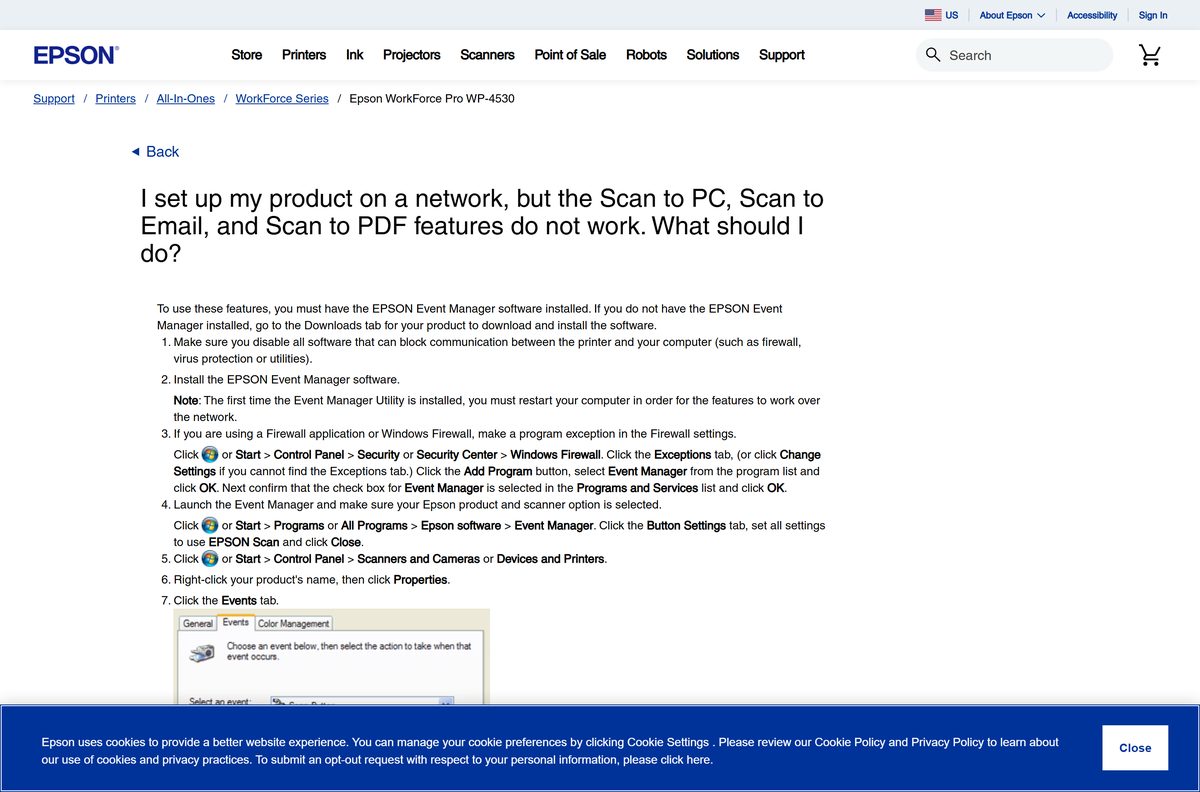
Scan to PC, Scan to Email or Scan to PDF does nothing over the network
A firewall blocks Event Manager, or the PC was not restarted after the first install.
- Restart the computer if you just installed Event Manager for the first time.
- Open Windows Security > Firewall & network protection and select Allow an app through firewall.
- Select Change settings, then Allow another app, and add Event Manager.
- Make sure its check box is ticked and select OK.
- If scans still fail, open UDP/TCP port 2968 for Event Manager and ports 1865 and 3289 for EPSON Scan on your router.
Pressing Scan on the printer opens nothing, or the wrong program
Windows is not set to hand the scan button event to Event Manager.
- Open Control Panel and select Devices and Printers.
- Right-click your Epson product and select Properties.
- Open the Events tab and select Scan Button under Select an event.
- Select Epson Event Manager under Start this program.
- Click Apply, then OK, and press Scan again.
Event Manager opens but does not list your printer
The Epson scanner driver is missing or belongs to a different model.
- Download Epson Scan 2 from your exact model’s Downloads tab on epson.com.
- Install it and restart the computer.
- Open Event Manager and select your product in the Scanner drop-down list.
How to uninstall Epson Event Manager
Removing Event Manager leaves the scanner driver in place. You can still scan from Epson Scan 2 on the computer.
- On Windows 11, press Windows + I and open Apps > Installed apps.
- Select the three dots next to Epson Event Manager and choose Uninstall.
- Confirm, then restart the PC.
- On a Mac, download Epson’s Uninstaller v1.3.2 (0.77 MB) from your model’s Downloads tab.
- Open it and follow its prompts to remove Event Manager.
On Windows 10, use Control Panel > Programs > Uninstall a program instead.
Which Epson tool should you use instead of Event Manager?
Event Manager only handles the button on the printer. These other Epson downloads cover scanning from the computer side.
| Tool | Cost | Best for |
|---|---|---|
| Epson Scan 2 | Free | Scanning from the computer with full control of resolution, colour and file type |
| Epson ScanSmart | Free | A simple scanning app with a large preview for documents and photos |
| Epson Scan 2 OCR Component | Free | Searchable PDFs and converting scans to Word, Excel or PowerPoint |
| Epson Event Manager | Free | Sending scans from the printer’s own Scan button to your PC or Mac |
Frequently asked questions
What is Epson Event Manager?
Epson Event Manager is a free Epson utility that lets you scan from the control panel of your Epson product. It catches the Scan button press and runs a preset job, such as Scan to PC, Scan to Email or Scan to PDF.
Where is the official Epson Event Manager download?
Epson lists it in the Downloads tab of each supported model’s support page on epson.com. The Windows file is EEM_3.11.77.exe and the Mac file is EEM_2.51.90.dmg, both hosted on ftp.epson.com.
Is Epson Event Manager free?
Yes. Epson offers Event Manager as a free download for owners of supported Epson printers and scanners. There is no paid version, subscription or licence key, and any site charging for it is not Epson.
Does Epson Event Manager work on Windows 11?
Yes. Epson lists version 3.11.77 as compatible with Windows 11 and with 32-bit and 64-bit editions of Windows 10, 8.1, 8 and 7. The same installer covers every one of those systems.
Is there an Epson Event Manager download for Mac?
Yes. Epson Event Manager 2.51.90 for Mac is a 31.7 MB .dmg file. Epson lists it for Mac OS X 10.11 El Capitan through macOS 27, including Sonoma, Sequoia and Tahoe.
Do I need Epson Scan 2 before Event Manager?
Yes. Epson states that EPSON Scan or Epson Scan 2 must be installed before Event Manager. Event Manager only starts the scan; the scanner driver performs it, so download Epson Scan 2 for your exact model first.
How do I open Epson Event Manager on Windows 11?
Click Start, search for Event Manager and select it. On Windows 10, go to Start, then Epson Software, then Event Manager. On a Mac, open Applications, then Epson Software, then Event Manager.
Why does Scan to PC not work over the network?
The usual causes are a firewall blocking Event Manager or a PC that was not restarted after the first install. Restart, allow Event Manager through the firewall, and open port 2968 if your router filters it.
What is the Epson Event Manager download size?
The Windows installer EEM_3.11.77.exe is 20.2 MB and installs without further downloads. The Mac installer EEM_2.51.90.dmg is 31.7 MB, according to Epson’s support listings.
How do I uninstall Epson Event Manager?
On Windows 11, open Settings, then Apps, then Installed apps, and uninstall Epson Event Manager. On a Mac, use Epson’s free Uninstaller utility from your model’s support page to remove it.