The Amazon Games download puts a free game launcher on your Windows 11 or Windows 10 PC. Install it from Amazon’s Luna site, sign in with your Amazon account, and claim, install and play the monthly games included with Prime.
This guide covers the official link, install steps, what Prime and Luna include, system requirements, fixes for failed installs and how to remove the app.
Which Amazon Games download do you need?
Amazon ships one installer, and your account decides what you can do with it. Find your situation in the table and follow the link.
| Your situation | What to do | Link |
|---|---|---|
| Windows 11 or Windows 10 PC with Prime | Download the app, sign in and claim this month’s games | Amazon Games app for Windows |
| Windows PC, games claimed earlier, no active membership | Download the app and sign in with a basic Amazon account to install those games | Amazon Games app for Windows |
| Windows PC, no Amazon account | Create an Amazon account first, then install the app | Amazon Games app page |
| Mac, iPhone or Android | No Amazon Games app build; Amazon lists it as Windows only | Not available |
The launcher itself costs nothing in every row. Only claiming new games needs a membership.
Download the official Amazon Games app for Windows
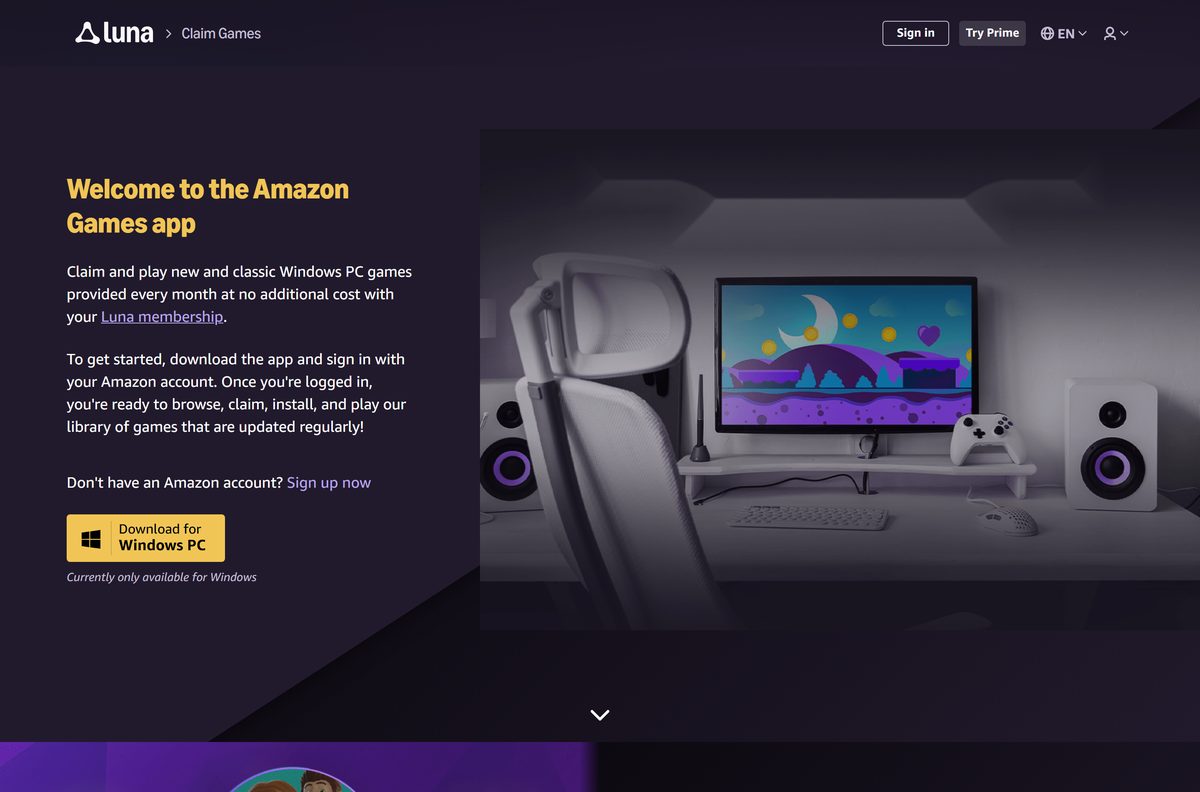
Amazon hosts the installer behind the Download for Windows PC button on its Amazon Games app page. Old gaming.amazon.com links now redirect to the Luna site, which is the same Amazon.com page.
- Amazon Games app page on luna.amazon.com — Free. Select Download for Windows PC
- Luna claims page with this month’s games — Browse games to claim
- Microsoft Support: uninstall apps in Windows — Removal steps
The app keeps itself current after the first install, so you never need to hunt for a newer setup file.
How to install the Amazon Games app on Windows 11 and 10
Use the installer from Amazon’s page only. Have your Amazon email and password ready for the sign-in step.
- Open the Amazon Games app page on luna.amazon.com.
- Select Download for Windows PC to save the installer.
- Open your Downloads folder and double-click the installer.
- Select Yes if User Account Control asks for permission.
- Follow the setup prompts and let the installation finish.
- Open the Amazon Games app from the Start menu.
- Sign in with your Amazon account credentials.
- Browse the games included with Luna, claim one and install it.
Games you claim stay in your library, so you can install them later on the same or another Windows PC.
Is the Amazon Games app free with Prime?
The launcher is free for anyone with an Amazon account. Claiming new games is the part tied to a membership.
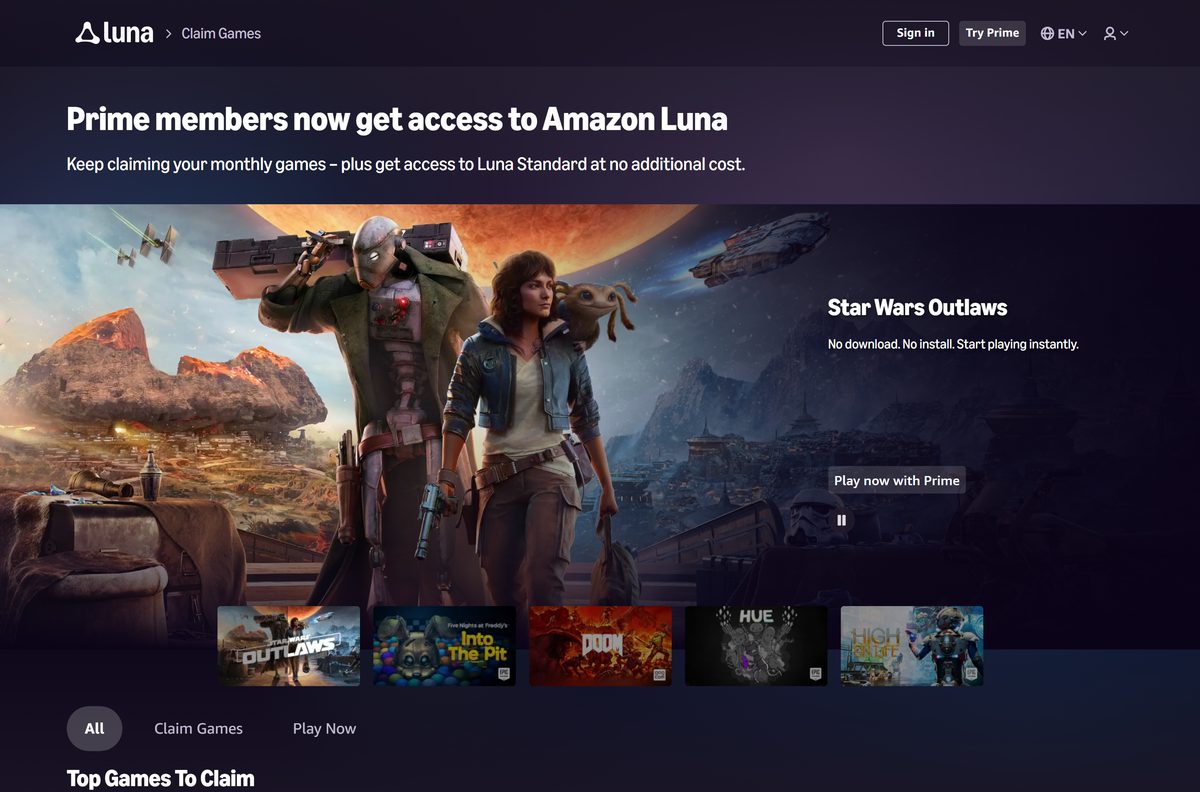
Yes. The app is free, and Prime members can claim the monthly games at no extra cost. Amazon’s Luna site states that Prime members now get access to Amazon Luna, including Luna Standard at no additional cost, and can keep claiming monthly games. The app’s FAQ adds that claiming new games needs an active Luna membership, while previously claimed games need only a basic Amazon account.
Treat any site that charges for the launcher, or asks for your Amazon password outside the app, as a scam.
Should you keep the Amazon Games app after Prime ends?
Cancelling Prime or Luna does not wipe your library. Amazon’s FAQ spells out what changes.
Keep the app installed if you still play games you claimed. Amazon states you can still download and play games you previously claimed after your Luna membership ends. Only new claims need an active membership, so removing the app gains you nothing but disk space.
Can you install Amazon Games on a Mac?
Amazon’s download page says the app is currently only available for Windows. Match your computer to a row before you download anything.
| Your computer | What to do | Link |
|---|---|---|
| Mac on any macOS version | No Mac build exists; install the app on a Windows PC instead | Not available |
| Mac plus a Windows 11 or 10 PC | Claim and install your games from the Windows PC | Amazon Games app for Windows |
| Windows 11 or 10 PC | Download the Windows app directly | Amazon Games app for Windows |
Amazon says it is working to add support for more devices in the future. Until then, skip any site that offers a Mac version of the launcher.
Check the Amazon Games system requirements before you download
Open Settings, System, About to read your Windows edition, installed RAM and System type. Compare them with Amazon’s recommended specs below.
| Field | Value |
|---|---|
| Software | Amazon Games app |
| Developer | Amazon.com, Inc. |
| Latest version | Not published; the app updates itself |
| License / Price | Free; claiming new games needs Luna, included with Prime |
| Operating system | Windows PC; Windows 11 recommended |
| Processor | Multi-core processor |
| Memory | 8 GB RAM |
| Graphics | Integrated HD graphics |
| Storage | 20 GB |
| Mac | Not available |
| Offline installer | No separate offline build |
| Official download source | luna.amazon.com |
| Last verified | 2026-09-25 |
The 20 GB storage figure is a starting point. Each game you install needs its own space on top of it.
Check which languages and controllers the Amazon Games app supports
Set the app language and plug in your controller before you start a game. Amazon lists the supported options in its FAQ.
| Feature | Support |
|---|---|
| Languages | English, German, Spanish, Italian, French, Portuguese, Dutch, Japanese, Turkish, Swedish, Polish, Arabic |
| Controllers | Any input device your Windows PC supports |
| Game limits | Individual games may restrict certain device types |
| Account | Amazon account; Luna membership to claim new games |
If a controller works in Windows but not in one game, check that game’s own settings. The restriction comes from the game, not the launcher.
Fix the Amazon Games app not installing or opening on Windows
Match the symptom on your screen and follow the fix under it. Restart first, since it clears most stuck installs.
The installer stops or fails partway
A pending update or a locked file blocks setup.
- Select Start, then Power, then Restart.
- Download a fresh copy from the official page.
- Run the installer again and accept the User Account Control prompt.
The app installed but will not open or update
The installed copy is damaged.
- Select Start > Settings > Apps > Installed apps.
- Select the Amazon Games app, then Advanced options if it appears.
- Select Repair, and select Reset if the problem continues.
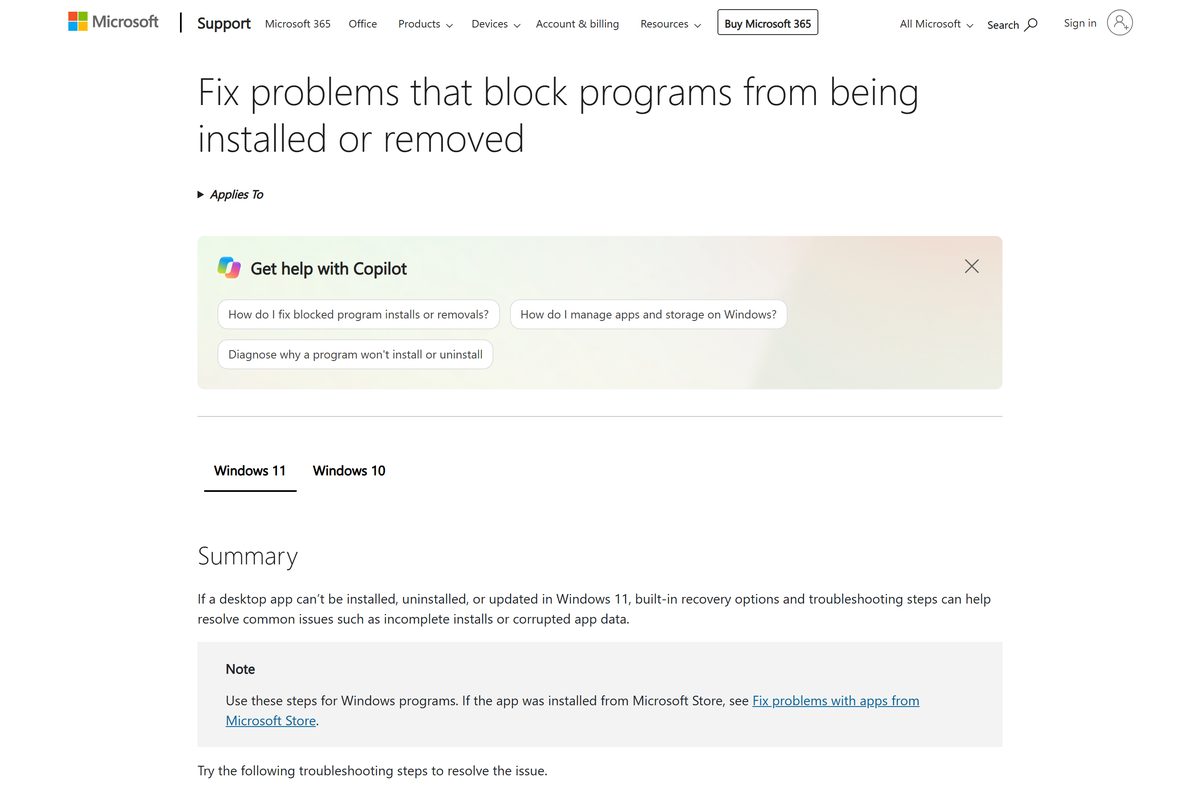
- If neither option exists, select Uninstall and reinstall from the official page.
Windows blocks the install or removal
Security software flagged the setup, or malware interferes with installs.
- Open Windows Security and run a scan.
- Remove any threats it finds.
- Run the Amazon Games installer again from the official page only.
Not every desktop app offers Repair or Reset. When they are missing, a clean reinstall does the same job.
How to uninstall the Amazon Games app on Windows 11 and 10
Removing the launcher does not delete your claimed games from your account. They return when you reinstall and sign in.
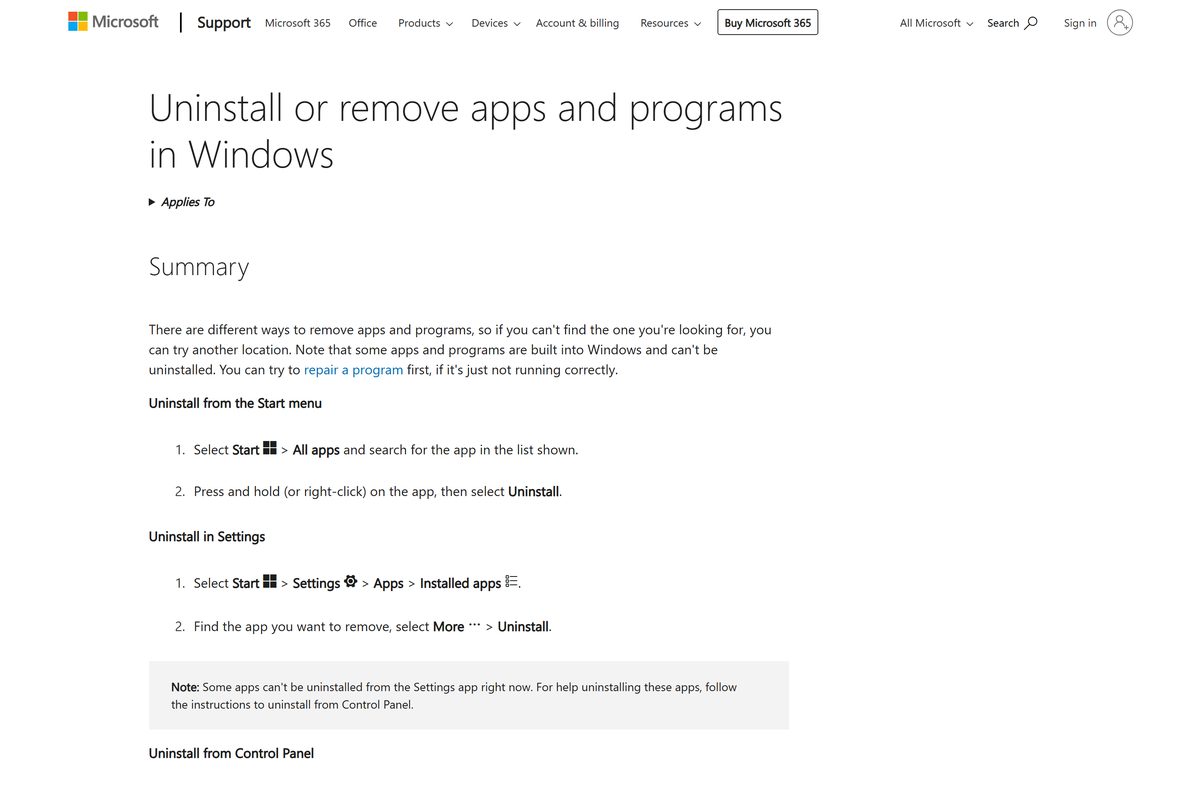
Uninstall from Settings
The quickest route on Windows 11.
- Select Start > Settings > Apps > Installed apps.
- Find the Amazon Games app in the list.
- Select More (the three dots) > Uninstall.
- Confirm and follow the prompts.
Uninstall from Control Panel
Use this when Settings cannot remove the app.
- Type Control Panel in the taskbar search box and open it.
- Select Programs > Programs and Features.
- Right-click the Amazon Games app and select Uninstall or Uninstall/Change.
- Follow the directions on the screen.
Uninstall any installed games you no longer want before you remove the launcher, so their files do not stay behind.
Choose between the Amazon Games app and Luna Play Now
Amazon offers two ways to play with a Luna membership. The app installs games on your PC, while the Luna site streams cloud games without an install.
| Option | Where it runs | Best for |
|---|---|---|
| Amazon Games app | Windows PC only | Claiming and keeping PC games in your own library |
| Luna Play Now on luna.amazon.com | Amazon’s cloud gaming service | Playing included titles such as Fortnite without installing them |
Install the app when you want to keep claimed games. Use Luna Play Now when you just want to jump into a game quickly.
Frequently asked questions
Is the Amazon Games app free to download?
Yes. The Amazon Games app is a free download for Windows PCs from Amazon’s Luna site. Claiming new games needs an active Luna membership, which Prime members now get as Luna Standard at no additional cost.
Where is the official Amazon Games download page?
The official page is luna.amazon.com/claims/amazon-games-app, where the Download for Windows PC button saves the installer. Old gaming.amazon.com links now redirect to the Luna site, so either address ends up on the same page.
Does the Amazon Games app work on Windows 11?
Yes. Amazon recommends Windows 11 for the Amazon Games app, along with a multi-core processor, 8 GB of RAM, integrated HD graphics and 20 GB of storage for the app and your games.
How big is the Amazon Games app download?
Amazon does not state an installer size on its download page. Plan for storage instead: Amazon recommends 20 GB free, and each game you claim adds its own install size on top of the launcher.
Is there an Amazon Games offline installer?
No. Amazon offers a single Windows download, and games install over the internet after you sign in with your Amazon account. A site offering a separate offline setup file for the launcher is not an official Amazon source.
Can you download Amazon Games on a Mac?
No. Amazon states the Amazon Games app is currently only available for Windows, and that it is working to add support for more devices in the future. Mac users need a Windows PC to install claimed games.
Does the Amazon Games app run on ARM64 or 32-bit Windows?
Amazon lists only a Windows PC requirement and does not name x64, ARM64 or 32-bit builds separately. Check System type under Settings, System, About, and install on a standard 64-bit Windows 11 PC for the safest result.
Is the Amazon Games app safe?
Yes, when you download it from luna.amazon.com. The page belongs to Amazon.com, Inc., and the app asks for your Amazon credentials only at sign-in. Avoid mirror sites that bundle the setup file with other software.
What is the latest version of the Amazon Games app?
Amazon does not publish a version number on its download page. The Amazon Games app updates itself, so a fresh download from the official page always gives you the current release.
Why won’t the Amazon Games app install?
Restart the PC first, then run the installer again from the official page. If that fails, repair or remove any old copy under Settings, Apps, Installed apps, and run a Windows Security scan before you reinstall.
Do you need Prime to use the Amazon Games app?
You need an active Luna membership to claim new games, and Prime now includes Luna Standard. Games you claimed earlier still install and play with a basic Amazon account, even without a membership.
What happens to claimed games if you cancel Prime?
You keep them. Amazon states you can still download and play games you previously claimed after your Luna membership ends. You only need an active membership to claim new titles from the monthly selection.