To adjust volume balance in Windows 11, open Settings > System > Sound, select your output device, and set the Left and Right levels under Output settings.
This guide covers the Windows 11 and Windows 10 routes, a shortcut to the right page, mono audio for one-ear listening, and fixes when the balance controls are missing or sound stays lopsided. Left and right levels work separately from the master volume and device settings, so moving one leaves the other untouched.
![Adjusting volume balance settings in Windows 11 and 10 [Easy steps]](https://techdows.com/wp-content/uploads/2026/10/Adjusting-Volume-Balance-Settings-in-Windows-11-and-10.jpg)
Adjusting volume balance settings in Windows 11 and 10
Balance is one of the Windows 11 sound settings stored per output device, so pick the speakers or headphones you are listening on before you move anything.
- Select Start > Settings > System > Sound.
- Under Output, select the speakers or headphones that are playing sound now.
- On the device page, go to Output settings and find Volume.
- Lower the Left or Right level to shift sound toward the other side.
- Set both Left and Right to the same number, typically 100, to centre the sound again.
The change applies to that device only. A headset and the laptop speakers each keep their own balance.
4 methods to adjust volume balance settings on Windows 11
All four methods change how loud each ear or speaker plays. Pick the row that matches your Windows version and what you want to fix.
| Your situation | Use this method | Why |
|---|---|---|
| Windows 11, one side should be louder or quieter | Settings > System > Sound > device > Output settings | Separate Left and Right levels for that device |
| Windows 10 | Settings > System > Sound > Device properties | Windows 10 keeps the per-device controls on the Device properties page |
| You want the device page in one step | Run ms-settings:sound-defaultoutputproperties | Opens the properties of the default output device directly |
| You hear only through one ear or one earbud | Mono audio | Plays both stereo channels through each side, so nothing is lost |
Per-app levels are a different control. To make one program quieter without touching left and right, change the volume for individual apps in the volume mixer instead.
Adjust left and right balance in Windows 10 Settings
Windows 10 puts the same per-device controls one level deeper, behind Device properties.
- Select Start > Settings > System > Sound.
- Under Choose your output device, pick the speakers or headphones you are using.
- Select Device properties under that device.
- Move the Left or Right control to the level you want.
- Play audio and adjust until the sound sits where you want it.
Open the default audio output properties with a Run command
Windows Settings accepts ms-settings: addresses, and one of them opens the properties of the default output device directly.
ms-settings:sound-defaultoutputpropertiesPress Win + R, type the address and press Enter. Settings opens on the properties page of the default audio output, where the Left and Right levels live. Use ms-settings:sound to open the main Sound page instead.
You should see: Settings opens on the device properties page for your current speakers or headphones.
Turn on mono audio when you hear sound in one ear only
Balance moves volume between sides, but anything recorded only on the left channel still plays only on the left. Mono audio combines both channels so each ear gets the full mix.
| Windows version | Path | Setting |
|---|---|---|
| Windows 11 | Start > Settings > Accessibility > Audio | Turn on Mono audio |
| Windows 11 (alternative) | Start > Settings > System > Sound, under Output | Turn on Mono audio |
| Windows 10 | Start > Settings > Ease of Access > Audio | Turn on Turn on mono audio |
Turn mono audio off again for music or games where left and right placement matters, such as positional sound.
How to test left and right speaker balance in Windows
- Play a track or video you know well at a moderate volume.
- Put on the headphones the right way round, or sit centred between the speakers.
- Lower Left to about half and confirm the sound moves to the right.
- Return Left to the same value as Right and confirm the sound is centred again.
- Swap the earbuds or speaker cables: if the quiet side follows the hardware, the device is at fault, not Windows.
Troubleshooting missing balance option
There are no Left and Right controls on the device page
The device is playing in a mono or single-channel format, or the wrong output is selected.
- Open Settings > System > Sound and confirm the device under Output is the one playing sound.
- Select the device, open Output settings and select Format.
- Choose 2 channels, 16 bit, 48000 Hz (DVD Quality).
- Return to the device page and check for the Left and Right levels again.
Sound comes from one side even with both levels at 100
Mono audio is off on a mono source, a loose cable, or a faulty earbud.
- Check that Left and Right are both at the same level, typically 100.
- Inspect the cable and connector for wear or damage, and reseat the plug.
- Turn on Mono audio to confirm both sides can play sound.
- Test the headset on another device: if the same side is quiet there, the headset is faulty.
Bluetooth headphones play in one ear or keep losing their balance
A pairing problem, low battery, or out-of-date earbud firmware.
- Charge the headset and check its battery level in Settings > Bluetooth & devices.
- Select the headset, then Disconnect and Remove device.
- Put both earbuds in the case, start pairing mode, and select Add device > Bluetooth.
- Connect the second earbud if Windows asks for it.
- Install any firmware update from the headset maker's support site, then restart the PC and the headset.
Balance sounds wrong after a driver or Windows update
Audio enhancements or a new driver are changing the output.
- Open Settings > System > Sound, select the device and set Audio enhancements to Off.
- On Windows 10, open the device Properties from the Sound control panel and select Disable all enhancements on the Enhancements tab.
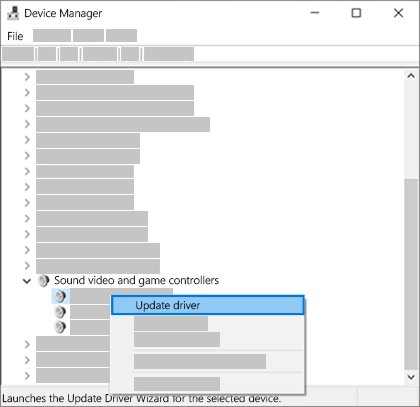
- Open Device Manager, expand Sound, video and game controllers, right-click the audio device and select Update driver.
- In Windows 11, run the audio troubleshooter in the Get Help app if sound is still uneven.
Additional tips for Windows 11 and 10 sound balance
Balance lives in Windows itself, so you can set it without any extra software. These paths and habits save time when you switch devices often, especially if you prefer the old Windows sound settings.
| Tip | Where or how | Why it helps |
|---|---|---|
| Set balance for every device you use | Settings > System > Sound > each device under Output | Each device keeps its own levels, so headphones and speakers need separate settings |
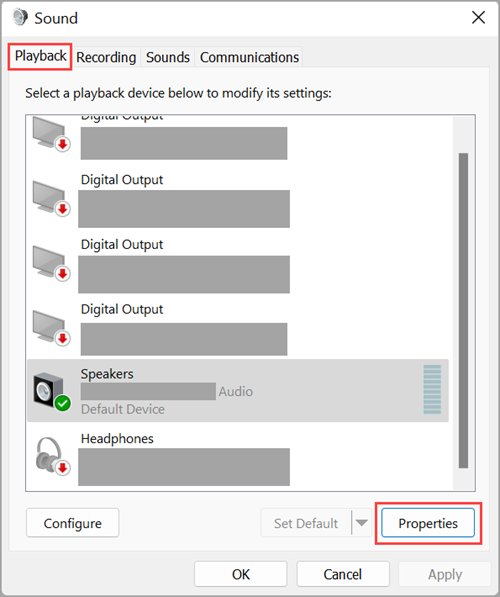
| Open the classic Sound control panel | Run control mmsys.cpl,,0 or Settings > System > Sound > More sound settings |
Gives the Playback tab, device Properties, Enhancements and Advanced format options |
| Check the format before blaming the driver | Output settings > Format | A single-channel format removes stereo, so balance has nothing to move |
| Use per-app volume for quiet programs | Settings > System > Sound > Volume mixer | Changes one app's loudness without changing the left-right mix |
| Keep firmware and drivers current | Windows Update and the device maker's support site | Firmware fixes are the best route for earbuds that drift out of balance |
| Re-pair a removed Bluetooth headset | Bluetooth & devices > Add device | A deleted and re-added headset starts with fresh pairing data |
Changing balance only affects playback levels. It never touches your audio files and cannot recover detail missing from a recording, with or without mono audio. If everything is too quiet rather than uneven, you can boost volume beyond 100% instead.
Volume balance settings in Windows FAQs
How do I adjust the left and right speaker balance in Windows 11?
Open Start > Settings > System > Sound and select your output device. Under Output settings, find Volume and change the Left or Right level. Equal values, typically 100 each, centre the sound.
Can I adjust volume balance in Windows 10?
Yes. Open Start > Settings > System > Sound, choose your output device, and select Device properties. Set the Left and Right controls to the levels you want for that device.
Why is the balance option missing?
The usual cause is a mono or single-channel output format, or the wrong device selected under Output. Open Output settings > Format and choose 2 channels, 16 bit, 48000 Hz (DVD Quality), then check again.
Does changing the balance affect all audio devices?
No. Balance is stored per output device. Setting it for your headphones leaves the laptop speakers, a monitor's speakers and other headsets at their own levels, so set each device separately.
Will adjusting the balance improve sound quality?
No. Balance only changes how loud each side plays. It helps when one ear hears less or the speakers sit off-centre, but it does not add detail. Mono audio helps when a recording puts sound in one channel.
How do I restore the default balance settings?
Open the device page under Settings > System > Sound and set both Left and Right to the same value, typically 100. On Windows 10, do this from Device properties for that device.
What is the difference between balance and mono audio?
Balance makes one side louder or quieter. Mono audio merges the left and right channels so each side plays the full mix. Use mono audio when you listen with one earbud or hear better in one ear.
Why does my Bluetooth headset play in only one ear?
Check that the Left and Right levels match and that Mono audio is set the way you want. If the problem continues, remove the headset in Bluetooth & devices, pair it again, and update its firmware.
Bottom line: balance slider or mono audio in Windows?
Use the Left and Right levels on the device page when one ear or speaker needs to be louder, and switch on Mono audio when you hear through one side only. Balance keeps stereo placement and only shifts loudness, while mono audio guarantees every sound reaches both sides. If neither helps, swap the hardware to test it before changing drivers.