Open Start > Settings > System > Sound and pick a device under Output to change where Windows plays sound; select that device to adjust its format, audio enhancements, spatial sound and left/right balance.
This guide covers the Windows 11 and Windows 10 routes, per-app output in Volume mixer, Bluetooth, HDMI and USB devices, the same settings on macOS, iOS and Android, and fixes for the most common output problems.
Adjusting audio output settings in Windows 11/10
Every output setting in Windows 11 lives on one page: the Sound page in Settings. Selecting a device there also makes it the default output device.
- Select Start > Settings > System > Sound.
- Under Output, open Choose where to play sound and select your speakers or headphones.
- Drag the Volume slider under the device to set the output level.
- Select the device itself to open its properties page.
- Under Output settings, set the Format, turn Audio enhancements on or off, pick a Spatial sound option, and set the Left and Right channel levels.
- Play a video or song to hear the change, then go back to Sound to switch devices whenever you need to.
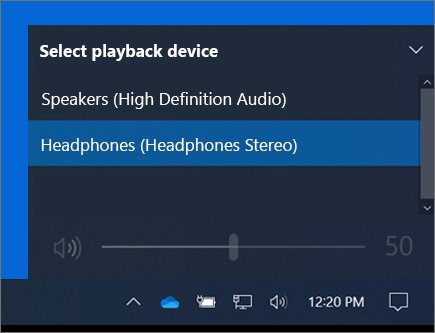
On Windows 10, the same page is Start > Settings > System > Sound; choose the device under Choose your output device, then select Device properties for its settings. If you only want to switch speakers, you can also change the default sound output device straight from the taskbar.
5 quick methods to adjust audio output settings on Windows 11
Each of these opens a different set of output controls. Pick the row that matches what you want to change.
| Method | How to open it | Best for |
|---|---|---|
| 1. Quick Settings | Select the Speakers icon on the taskbar, then the arrow next to the volume slider (Select a sound output) | Switching between speakers and headphones in two clicks |
| 2. Sound settings | Start > Settings > System > Sound | Default device, format, enhancements, spatial sound and balance |
| 3. Volume mixer | Settings > System > Sound > Volume mixer | Volume and output device for one app at a time |
| 4. Classic Sound dialog | Settings > System > Sound > More sound settings | Playback tab, communications device, device enable/disable, system sounds |
| 5. Accessibility audio | Start > Settings > Accessibility > Audio | Mono audio and flashing the screen for audio alerts |
Quick Settings is the fastest when you only need a different device. The Sound settings page is the one to use for anything that changes how the device itself sounds.
How to change audio output device in Windows 10
Windows 10 splits the controls between Settings and the classic Control Panel. Both change the same default device.
- Select the Speakers icon on the taskbar. If it is hidden, select Show hidden icons first.
- Expand the device list above the volume slider and choose the speakers or headphones you want.
- For the Settings route, select Start > Settings > System > Sound and pick the device under Choose your output device.
- For the Control Panel route, type control panel in the taskbar search box and open it.
- Select Hardware and Sound > Sound.
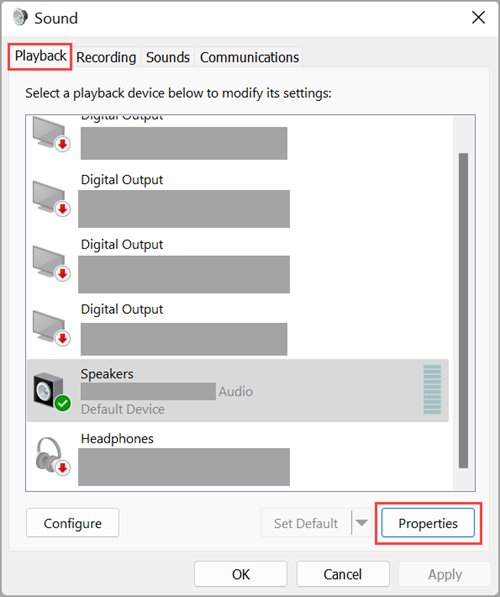
- On the Playback tab, right-click your device, select Set as Default Device, and then select OK.
Understanding audio output settings in Windows
These are the output settings Windows 11 offers and what each one changes. Most sit on the device's properties page under Settings > System > Sound.
| Setting | Where to find it | What it changes |
|---|---|---|
| Output device | Sound > Output > Choose where to play sound | Which speakers or headphones Windows uses by default |
| Volume | Taskbar Speakers icon or Sound > Output | Overall output level for the selected device |
| Format | Device properties > Output settings (or Advanced) > Format | Channels, bit depth and sample rate, such as 2 channels, 16 bit, 48000 Hz (DVD Quality) |
| Audio enhancements | Device properties > Audio enhancements | Processing added by Windows or the device maker; can lower volume or cause crackling |
| Spatial sound | Device properties > Spatial sound | Windows Sonic for Headphones, or Dolby Access and DTS Sound Unbound from the Microsoft Store |
| Left and right channel | Device properties > Output settings > Volume | Balance between the left and right channels |
| Mono audio | Sound > Output, or Accessibility > Audio | Merges stereo into one channel so one earbud plays everything |
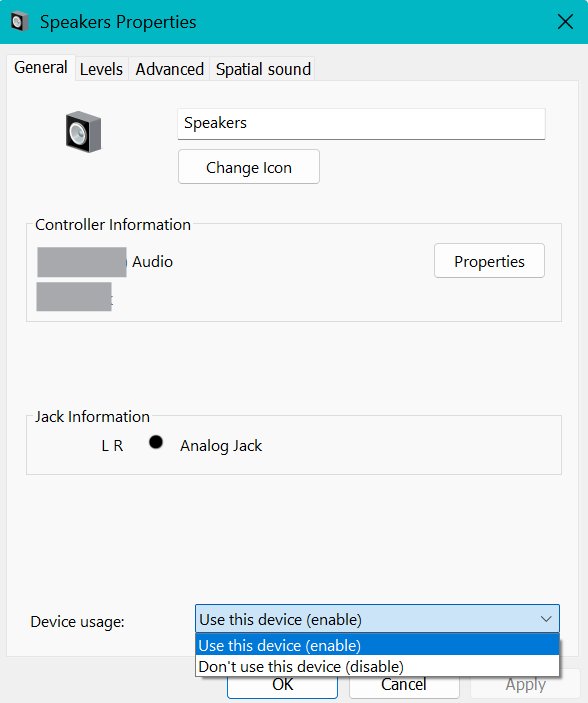
| Device usage | More sound settings > Playback > Properties | Whether the device is enabled (Use this device (enable)) |
Important precautions before you change audio settings
Output settings are easy to reverse, but a few changes cause silence that looks like a fault.
| Before you change | Why it matters |
|---|---|
| Note the current Format value | Some formats play quietly or not at all on a device; knowing the old value lets you switch back |
| Check whether your monitor has speakers | Selecting a monitor without built-in speakers as the default output gives you no sound |
| Unplug headphones when testing speakers | Speakers may not play while headphones are plugged in |
| Check app and hardware volume too | Some speakers and apps have their own volume controls that work separately from Windows |
| Save your work before driver changes | Uninstalling or rolling back an audio driver needs a restart |
| Know about the communications device | Calling apps can use a separate default communications device, so changing the default output may not move your calls |
If a round of changes leaves sound worse than before, reset the audio settings in Windows and start again from the defaults.
Understanding audio output devices and sound routing
Windows sends sound to the default output device unless an app has its own device set. Calling apps can follow a third rule: the default communications device.
| Route | Which audio uses it | Where to set it |
|---|---|---|
| Default output device | System sounds and every app without its own setting | Settings > System > Sound > Output |
| Per-app output device | One app, such as a browser or music player | Sound > Volume mixer > the app's Output device |
| Default communications device | Calling apps that use it | More sound settings > Playback > Set Default Communication Device |
| Disabled device | Nothing; it stops appearing as an output | More sound settings > Playback > Properties > Device usage |
VGA adapters and cables do not carry audio, so sound stays on the PC's speakers unless you add USB or Bluetooth speakers.
Configuring app-specific and browser audio output
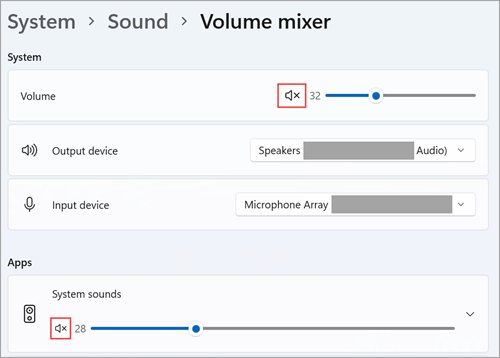
Windows 11 can send one app to headphones while everything else plays on speakers. A web browser is an app here too, so every tab follows the browser's setting.
- Open the app or browser you want to route.
- Select Start > Settings > System > Sound.
- Select Volume mixer.
- Under Apps, find the app and make sure it is not muted.
- Drag its volume slider to the level you want.
- Choose the device from the app's Output device list.
Per-app output pairs well with a separate microphone for each app, which is how you set a preferred speaker and microphone for different apps. App volume can override system volume, so check the app's slider first if one app is silent.
Optimizing sound quality, volume, balance, and spatial audio
Each of these adjustments is on the output device's properties page in Windows 11. Change one at a time and listen before moving on.
- Select Start > Settings > System > Sound and select your device under Output.
- For quality, open Format and pick another value; Bluetooth devices sound best at 2 channels, 16 bit, 48000 Hz (DVD Quality).
- For volume problems or crackling, set Audio enhancements to Off and test, then turn them back on if the sound gets worse.
- For balance, go to Output settings > Volume and set Left and Right to the same level, typically 100.
- For spatial audio, choose Windows Sonic for Headphones under Spatial sound and select Apply if it appears.
- Turn off Mono audio under Output if you want true stereo again.
For other spatial sound formats, install Dolby Access or DTS Sound Unbound from the Microsoft Store. To shift sound towards one ear on purpose, adjust the volume balance instead of setting both channels equal.
Some useful audio output settings to try
Beyond the default device, these settings solve specific listening problems.
| If you want to | Try this setting | Where |
|---|---|---|
| Hear everything through one earbud | Mono audio | Settings > Accessibility > Audio |
| See audio alerts instead of only hearing them | Flash my screen during audio notifications | Settings > Accessibility > Audio |
| Read speech in videos | Live captions (or Windows logo key + Ctrl + L) | Settings > Accessibility > Captions |
| Change or silence a system sound | Sounds tab > Program Events | Sound > More sound settings |
| Keep calls on a headset and music on speakers | Set Default Communication Device | More sound settings > Playback |
| Get surround-style sound on headphones | Windows Sonic for Headphones | Device properties > Spatial sound |
Managing Bluetooth, HDMI, USB, and external audio interfaces
Each connection type has its own settings and its own common failure.
| Connection | Set up | Watch for |
|---|---|---|
| Bluetooth | Settings > Bluetooth & devices > Add device, then pick it under Sound > Output | Use Advanced sound properties > Format 2 channels, 16 bit, 48000 Hz; the device should support A2DP for higher-quality audio |
| HDMI or DisplayPort monitor or TV | Select it under Sound > Output to make it the default | A monitor without built-in speakers gives no sound when selected |
| USB speakers or headset | Plug in, then select it under Sound > Output | Try a different USB port; turn up the PC volume first, then the speaker's own volume |
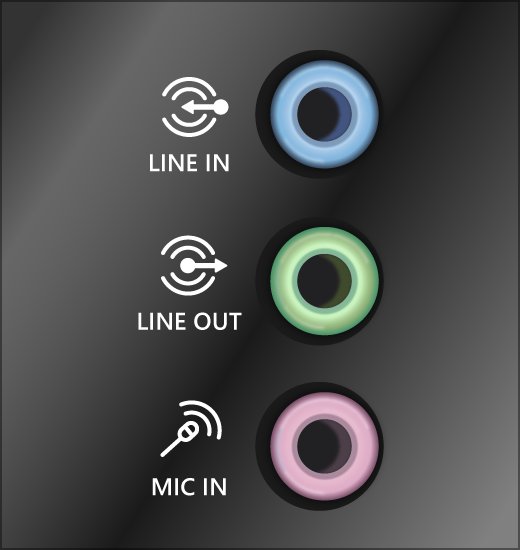
| 3.5 mm jacks | Plug into the output jack (often green, or labelled headphone) | Pink jacks are usually microphone input; surround systems need each cable in the right jack |
| External audio interface or sound card | Install the driver from the manufacturer's support site | If Windows finds no newer driver, the manufacturer's site is the source to use |
How to change audio output settings on Windows, macOS, iOS, and Android
The idea is the same on every platform: pick the output device, then adjust it. The labels differ.
| Platform | Choose the output | Other output settings |
|---|---|---|
| Windows 11 | Settings > System > Sound > Choose where to play sound | Format, enhancements, spatial sound, left/right volume, mono audio |
| Windows 10 | Settings > System > Sound > Choose your output device | Device properties; Enhancements and Advanced tabs in Control Panel Sound |
| macOS | Apple menu > System Settings > Sound > Output, then select the device | Output volume, Mute, Balance slider; more in Audio MIDI Setup |
| iOS (iPhone) | Connect supported headphones or speakers | Control Center > touch and hold volume > Spatial Audio; Settings > Apps > Music > Dolby Atmos |
| Android | Swipe down, touch and hold Bluetooth, then pick a device under Saved devices | Settings > Connected devices > Media devices > Audio device type |
On a Mac, choose Headphones for anything plugged into the sound port. App volume controls on a Mac can only be equal to or lower than the output volume set in Sound settings.
Common issues & fixes
Why is my computer playing sound through the wrong device?
Another device is set as the default, or the app has its own output device.
- Select the Speakers icon on the taskbar and the arrow next to the volume slider.
- Pick the device you want from the list.
- Open Settings > System > Sound > Volume mixer and check the app's Output device.
Why can't I see my headphones in the output list?
The device is disabled, hidden, unpaired or missing its driver.
- Check the cable or the Bluetooth connection and make sure the headphones are on.
- Open More sound settings > Playback, select the device, select Properties and set Device usage to Use this device (enable).
- Open Device Manager, expand Sound, video and game controllers, and select View > Show hidden devices and Action > Scan for hardware changes.
- For Bluetooth headphones, remove the device in Settings > Bluetooth & devices and select Add device to pair it again.
Sound in one app only, or one app is silent
App volume or the app's output device overrides the system setting.
- Open Settings > System > Sound > Volume mixer.
- Under Apps, unmute the app and raise its slider.
- Set its Output device to the device you are listening on.
Bluetooth audio plays in only one ear
Channel balance, mono audio or a half-paired earbud set.
- Charge the earbuds or speaker fully.
- In the device's Output settings > Volume, set Left and Right to the same level.
- Turn off Mono audio under Output.
- Remove the device and pair it again, connecting the second earbud when prompted.
Troubleshooting common audio output problems
No sound at all from speakers or headphones
Wrong device, mute, a disabled device or a stalled audio service.
- On Windows 11, run the audio troubleshooter in the Get Help app, or go to Settings > System > Troubleshoot > Other troubleshooters and select Run next to Audio.
- On Windows 10, go to Settings > Update & security > Troubleshoot and run Playing audio.
- Check cables, power and every volume control, including the app's.
- Type services.msc in Start, then right-click Windows Audio and Windows Audio Endpoint Builder and select Restart.
Audio sounds distorted or crackling
Audio enhancements or an unsupported format.
- Turn off Audio enhancements on the device's properties page.
- Under Advanced > Default format, choose a different format and test.
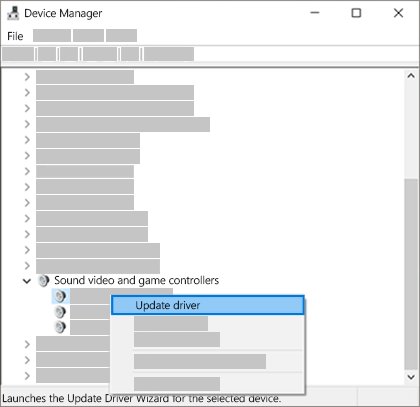
- Update the driver from Device Manager > Sound, video and game controllers, then restart.
Sound is low or quiet
A low app slider, enhancements or the format.
- Raise System and the app in Volume mixer.
- Turn off Audio enhancements and test again.
- Pick a different Default format under Advanced.
Audio stopped working after a Windows update
A new driver that does not suit the hardware.
- Open Device Manager and expand Sound, video and game controllers.
- Right-click the audio device and select Properties.
- On the Driver tab, select Roll Back Driver and follow the prompts.
- If that is not available, select Uninstall device, check Attempt to remove the driver for this device, and restart so Windows reinstalls it.
"No audio output device is installed"
The audio driver is missing, disabled or not loading.
- In Device Manager, right-click the audio device and select Enable device if it is offered.
- Select Action > Scan for hardware changes.
- Install the latest audio driver from the PC or sound card manufacturer's support site and restart.
When the error persists after these steps, work through the full set of fixes for no audio output device is installed.
Common audio output questions users often search
Why is my computer playing sound through the wrong device?
Windows plays through the default output device, and an app can override it with its own output device in Volume mixer. Pick the right device from the taskbar Speakers icon, then check the app's Output device under Settings, System, Sound, Volume mixer.
Why can't I see my headphones in the output list?
The headphones may be disabled, unpaired or missing a driver. Enable them under More sound settings, Playback, Properties, Device usage, re-pair Bluetooth headphones, and use Device Manager's Scan for hardware changes to detect wired ones.
Can I use different audio devices for different apps?
Yes. In Windows 11, open Settings, System, Sound, Volume mixer and choose an Output device for each app under Apps. Apps without their own choice keep using the default output device, so only the apps you change are affected.
Why is my audio still not working after selecting the correct device?
Check that the app is not muted in Volume mixer, turn off audio enhancements, try a different default format, and restart the Windows Audio service. If none of that helps, update or reinstall the audio driver from Device Manager.
Does changing the output device affect microphone settings?
No. Output and input are set separately: the Output section chooses speakers or headphones and the Input section chooses the microphone. A headset can appear in both lists, so pick it in each one if you want it for both.
What is the default communications device in Windows?
It is the output device that calling apps can use instead of the default device. Set it in More sound settings on the Playback tab by selecting the device and then Set Default Communication Device, so calls can go to a headset while music plays on speakers.
How do I turn on spatial sound in Windows?
Open Settings, System, Sound, select your playback device under Output, and choose Windows Sonic for Headphones under Spatial sound. Select Apply if it appears. Dolby Access and DTS Sound Unbound from the Microsoft Store add more spatial sound options.
What audio format should I use for Bluetooth headphones?
Microsoft recommends 2 channels, 16 bit, 48000 Hz (DVD Quality) for Bluetooth audio. Set it under Settings, Bluetooth and devices, your device, Advanced sound properties, Format. The device must be connected for that option to appear.