To download and install a KYOCERA printer driver, find the exact model number of your printer, open the official KYOCERA Download and Support Portal, select your model and Windows version, and download the recommended KX Driver.
Finally, Extract the downloaded ZIP file, run the installer, and select your USB or network printer when it appears.
Windows may install a basic printer driver automatically, but the official KYOCERA driver is usually required for advanced features such as duplex printing, finishing, secure print, account codes, paper-source controls, and device-specific settings.
Download drivers only from KYOCERA. Avoid third-party driver websites, download managers, and “driver updater” tools. KYOCERA packages vary by printer model and region, so there is no single driver that is correct for every KYOCERA printer.
How Do I Download and Install KYOCERA Printer Drivers?
The safest method is to download the model-specific driver from KYOCERA. Before starting, confirm the printer model, your Windows version, whether the PC is 32-bit, 64-bit, or ARM-based, and whether the printer connects through USB or your local network.
Identifying Your KYOCERA Printer Model
KYOCERA model names commonly begin with ECOSYS or TASKalfa, followed by letters and numbers. Similar-looking models can use different driver packages, so enter the complete model name rather than selecting the closest result.
You can find the model number in one of the following places:
- On the front, top, side, or rear label of the printer.
- On the printer’s control panel under device or system information.
- On a configuration or status page printed from the device.
- On the original box, invoice, manual, or setup document.
- In Windows under Settings > Bluetooth & devices > Printers & scanners.
On Windows 10, open Settings > Devices > Printers & scanners. On Windows 7 or Windows 8, open Control Panel > Devices and Printers.
If Windows displays a generic name such as “USB Printing Support” or “Unknown device,” check the physical label on the printer instead.
Check Your Windows Version and System Type
Before downloading the driver, check whether the computer uses a 64-bit, 32-bit, or ARM-based version of Windows:
- Press Windows + I to open Settings.
- Go to System > About.
- Check Windows specifications for the Windows version.
- Check System type under Device specifications.
Most Windows 11 and modern Windows 10 PCs use 64-bit processors. Some Copilot+ PCs and other newer devices use ARM processors, which can affect how the printer driver is installed.
Downloading the Correct Driver from KYOCERA’s Website
- Open the official KYOCERA Download and Support Portal.
- Select your country or regional download centre when requested.
- Enter the complete printer or multifunction-device model.
- Open the matching product page.
- Select Driver as the download category.
- Choose your version of Windows and system architecture.
- Download the recommended KX Driver or model-specific printer driver.
- Save the ZIP or executable file to your Downloads folder.
If your operating system does not appear, KYOCERA may not provide a compatible driver for that model in your region. Do not select a newer or unrelated printer model merely because the names look similar.
Some KYOCERA regional sites offer a KX Universal Printer Driver. This can be useful in organisations with several compatible KYOCERA devices, but a model-specific driver is generally the better choice for a single printer when one is available.
Which KYOCERA Driver Should You Download?
For most Windows users, the normal KX Driver is the best choice. It supports KYOCERA-specific features and provides more controls than the basic driver installed through Windows Update.
| Driver | When to use it |
|---|---|
| KX Driver | Recommended for most Windows users who need the printer’s complete feature set. |
| KX Universal Printer Driver | Useful for businesses managing several compatible KYOCERA printers with one driver package. |
| KX v4 Driver | Uses Microsoft’s version 4 printer-driver architecture and may be offered for newer Windows deployments. |
| KX XPS Driver | Use only when an application or workflow specifically requires XPS printing. |
| Classic PCL or KPDL Driver | Primarily intended for older printers, legacy systems, or specialised print environments. |
| TWAIN or scanner driver | Required for scanning from supported desktop applications; it does not replace the printer driver. |
You do not normally need to install every driver listed on the download page. Installing several drivers for the same printer can create duplicate printer entries and make it difficult to identify which queue an application is using.
Installing the KYOCERA Printer Driver
- Open the folder containing the downloaded file.
- If it is a ZIP archive, right-click it and select Extract All.
- Open the extracted folder.
- Locate the installer, which may be named Setup.exe or included in a Product Library folder.
- Right-click the installer and select Run as administrator.
- Accept the licence agreement after reviewing it.
- Select Express Install if your printer is detected and you want the recommended components.
- Select Custom Install when you need to choose a specific driver, utility, printer port, or network address.
- Select the KYOCERA printer and continue with the installation.
- Restart Windows only if the installer requests it.
KYOCERA’s Express Install option searches for connected USB and network devices and installs the recommended package. Custom Install gives you more control over the printer, driver, utilities, port, sharing options, and default-printer setting.
Install a KYOCERA Printer Connected by USB
For a USB printer, follow the instructions displayed by the KYOCERA installer. Depending on the model and package, it may ask you to connect the USB cable during installation.
- Turn on the KYOCERA printer.
- Connect it directly to the PC when prompted.
- Avoid unpowered USB hubs during the initial setup.
- Wait for Windows and the KYOCERA installer to detect the device.
- Complete the installation and print a test page.
If Windows installs a generic driver before you run the KYOCERA package, you can still install the official driver afterward. The KYOCERA installer may replace the basic queue or create a separate printer entry.
Install a KYOCERA Network Printer
The printer and computer must be connected to the same local network. A wired Ethernet connection is often easier to discover than a printer connected through an isolated guest Wi-Fi network.
- Turn on the printer and connect it to the network.
- Find the printer’s IP address from its control panel or configuration page.
- Run the KYOCERA driver installer.
- Use Express Install if the printer appears automatically.
- Use Custom Install if you need to add the printer by IP address.
- Complete the installation and print a test page.
Using the printer’s IP address is often more reliable in an office where automatic discovery is blocked by network settings. If the printer receives a different IP address later, Windows may show it as offline. Assigning a reserved or static address can prevent that problem, but this should be coordinated with the network administrator.
Install the Printer Through Windows Settings
If you only need basic printing, Windows may be able to install the KYOCERA printer without the full manufacturer package.
Windows 11
- Open Settings > Bluetooth & devices > Printers & scanners.
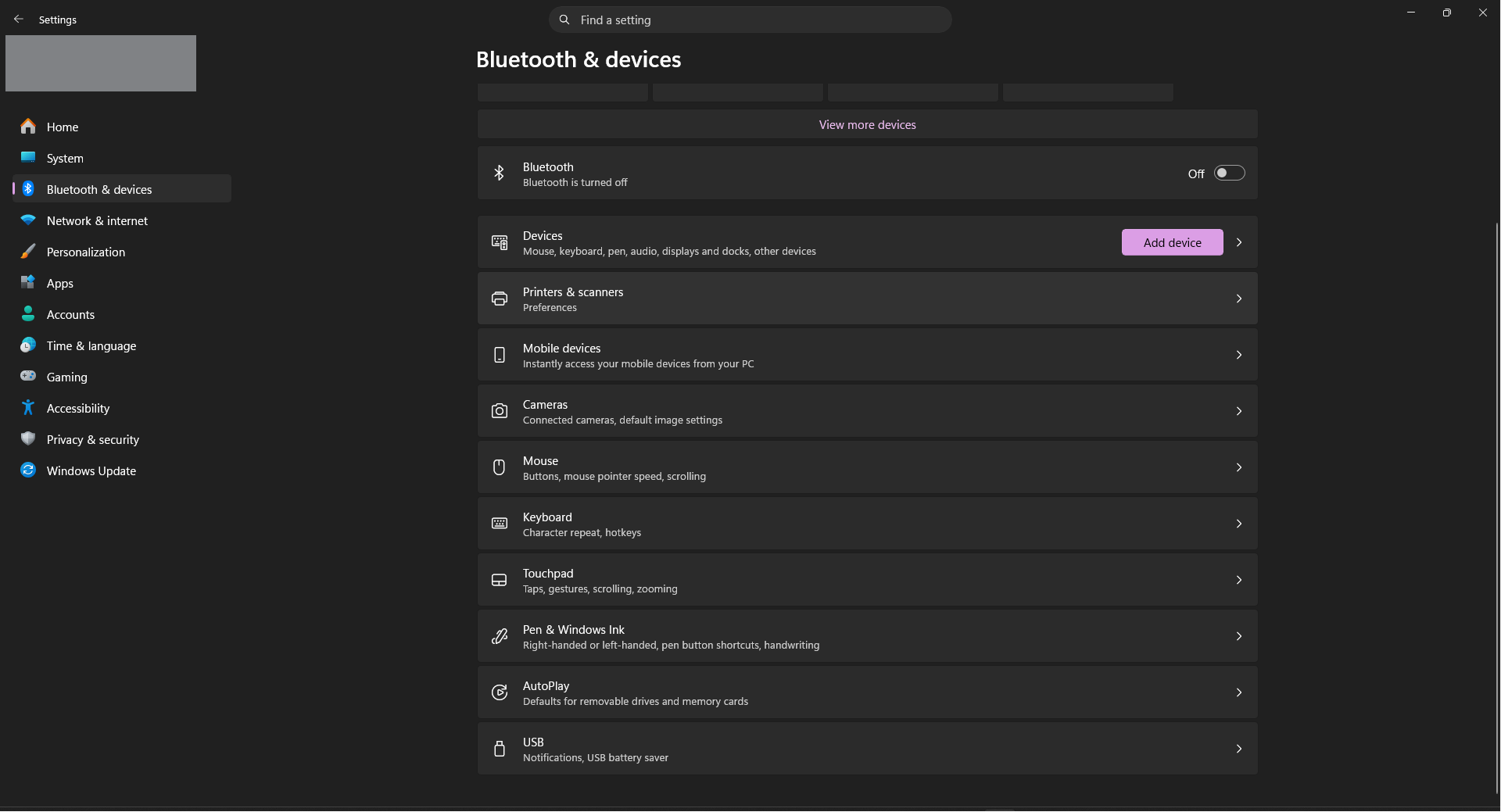
- Click Add device.
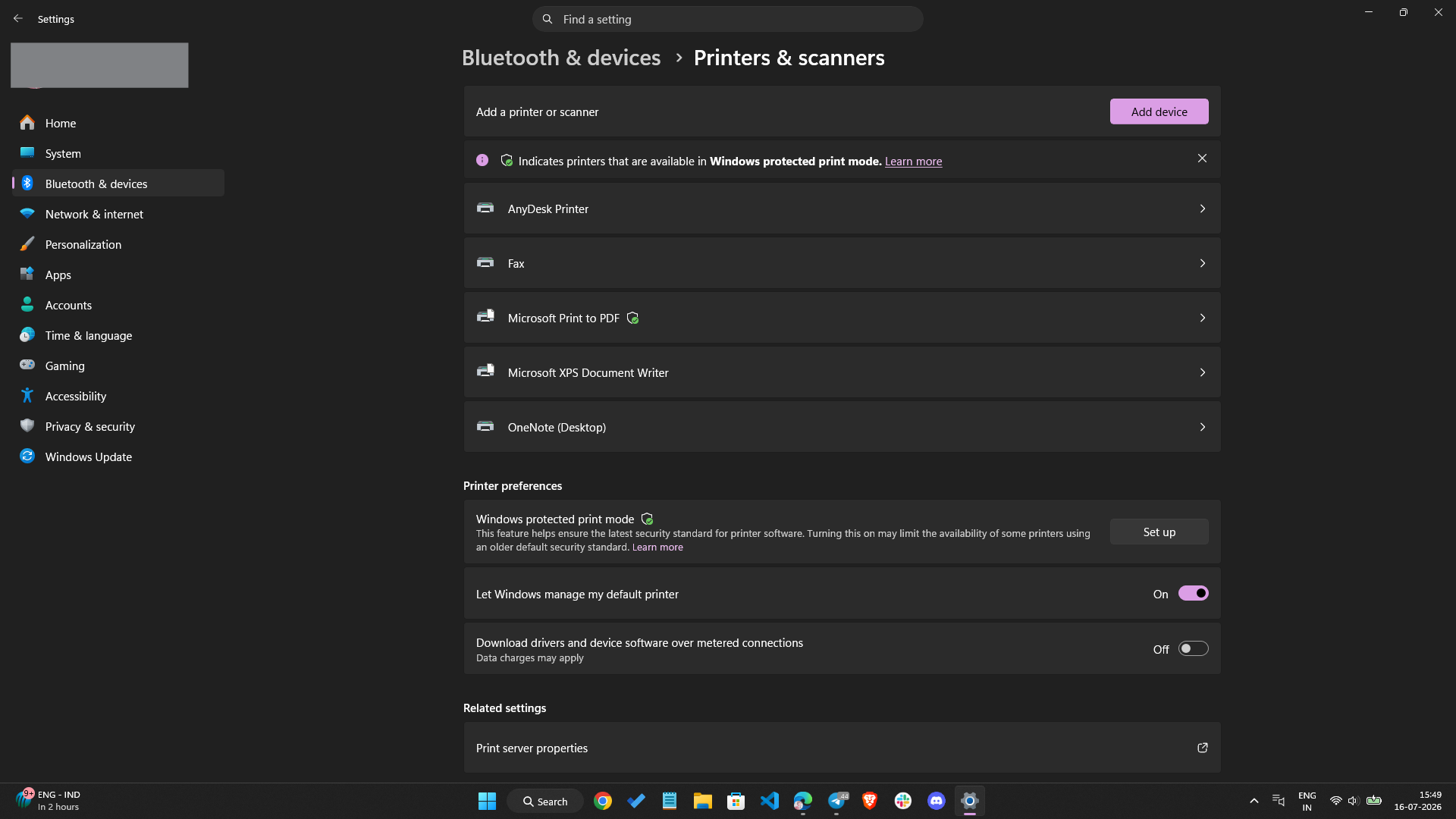
- Wait for Windows to search for printers.
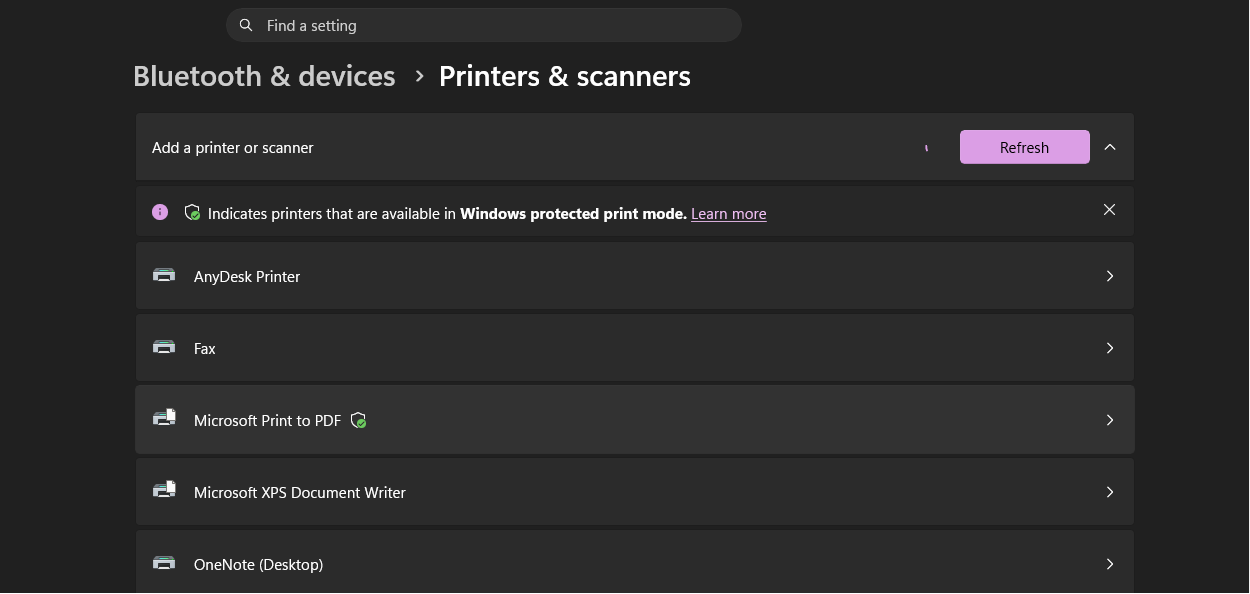
- Select Add device beside the KYOCERA printer.
Windows 10
- Open Settings > Devices > Printers & scanners.
- Select Add a printer or scanner.
- Choose the KYOCERA printer when it appears.
If Windows cannot find the printer, select The printer that I want isn’t listed or Add a new device manually. You can then add a network printer using its TCP/IP address or install a local printer with a manually selected driver.
The Windows-supplied driver may support normal printing but omit finishing, authentication, secure print, accounting, paper-tray, booklet, and other device-specific options.
Install a Driver Manually Using an INF File
Some legacy packages contain driver files without a modern setup wizard. In that case:
- Extract the downloaded ZIP file.
- Open Printers & scanners.
- Select the option to add a printer manually.
- Choose the appropriate USB, existing, or TCP/IP port.
- When asked to select a driver, click Have Disk.
- Browse to the extracted folder and select the appropriate .inf file.
- Select the exact KYOCERA model and finish the wizard.
Do not select a random INF file from another printer package. A package can contain separate files for different architectures, languages, and printer families.
Troubleshooting Common Driver Installation Issues
The KYOCERA Printer Does Not Appear During Installation
- Confirm that the printer is powered on and has no hardware error.
- Reconnect the USB cable or try another USB port.
- Make sure the printer and PC are on the same network.
- Print a status page and verify the printer’s IP address.
- Temporarily disconnect from a VPN that blocks local-device discovery.
- Use Custom Install and enter the printer’s IP address manually.
- Restart the printer and Windows before repeating the search.
A guest Wi-Fi network may prevent devices from communicating with each other even when they show the same network name.
The Installer Says the Driver Is Not Compatible
Check that you selected the correct:
- KYOCERA printer model.
- Windows version.
- 32-bit, 64-bit, or ARM architecture.
- Regional product page.
A Windows 7 driver is not automatically suitable for Windows 11, and a 32-bit driver cannot be installed on 64-bit Windows unless the package explicitly includes both architectures.
The KYOCERA Installer Fails on an ARM PC
Some Windows on ARM PCs may fail to add a printer through a manufacturer-provided installer. Open Settings > Bluetooth & devices > Printers & scanners and use Add device instead.
Windows may install a compatible driver through Windows Update. Advanced KYOCERA features may remain unavailable if the manufacturer does not provide a native or compatible ARM package for that model.
The Printer Is Installed but Does Not Print
- Open Settings > Bluetooth & devices > Printers & scanners.
- Select the KYOCERA printer.
- Open the print queue and cancel stuck jobs.
- Confirm that Pause printing and Use printer offline are not enabled.
- Check that the correct printer port is selected.
- Print a test page from Printer properties.
If several KYOCERA printer entries exist, an application may be sending jobs to an old or offline queue. Remove obsolete entries after confirming which queue works.
Advanced Printer Options Are Missing
This usually means Windows installed a generic or class driver instead of the full KX Driver. Download the model-specific KX package from KYOCERA and install it over or alongside the existing Windows driver.
After installation, open Printer properties > Device Settings and confirm that installed finishers, paper feeders, storage devices, and other optional components are configured correctly.
The Printer Shows as Offline After Its IP Address Changed
Open the printer’s port settings and compare the configured address with the IP address currently shown by the printer. If they do not match, update the port or reinstall the queue with the current address.
For a permanently installed office printer, ask the network administrator to reserve its IP address so it does not change after a router or DHCP restart.
Windows Keeps Reinstalling a Different Driver
Remove the unwanted printer queue, restart Windows, and install the official KYOCERA package again. If the old driver remains:
- Open Settings > Bluetooth & devices > Printers & scanners.
- Select Printer server properties under related settings.
- Open the Drivers tab.
- Remove the obsolete driver only when it is no longer used by another printer.
- Install the current KYOCERA driver.
Be careful on shared or business computers because removing a universal driver can affect several printer queues.
Should You Disable Antivirus Software?
No. Disabling security software should not be a normal driver-installation step. Download the package from the official KYOCERA site, check that it is digitally signed, and run it as administrator.
If security software blocks an official package, review the warning, confirm the file source, and contact the organisation’s administrator or KYOCERA support rather than turning off protection for the entire computer.
KYOCERA Driver Types
| Driver type | Main advantage | Possible limitation |
|---|---|---|
| KX Driver | Provides the broadest access to KYOCERA print features. | Larger package and model support must be checked. |
| KX Universal Driver | Can simplify deployment across several compatible KYOCERA devices. | Some model-specific options may require additional configuration. |
| KX v4 Driver | Uses Microsoft’s newer version 4 driver architecture. | May not expose every feature available in the full KX package. |
| KX XPS Driver | Supports workflows built around Microsoft’s XPS print format. | Not necessary for ordinary documents and web printing. |
| Classic PCL/KPDL Driver | Useful for legacy operating systems and specialist environments. | Older interface and fewer modern management features. |
| Windows class driver | Installs quickly through Windows Update for basic printing. | May omit advanced KYOCERA functions. |
| TWAIN scanner driver | Allows compatible desktop software to scan from an MFP. | Does not provide normal printer functionality. |
Can You Install KYOCERA Drivers on Windows 7 or Windows 8?
KYOCERA still lists legacy drivers for some older printers, but availability depends on the model and regional support centre. Microsoft no longer supports Windows 7 or Windows 8/8.1, so those systems do not receive normal security fixes or compatibility improvements.
Use the exact legacy driver offered on the official KYOCERA page. Do not force-install a Windows 10 or Windows 11 package unless KYOCERA explicitly lists the older operating system as supported.
Windows 10 also reached the end of standard support for most consumer editions in October 2025. Existing printer drivers may continue to work, but moving to a supported Windows release is safer than maintaining an internet-connected PC on an obsolete operating system.
FAQ
Where can I download KYOCERA printer drivers?
Download them from the official KYOCERA Download and Support Portal or the KYOCERA support site for your country. Search using the complete printer model.
Which KYOCERA printer driver should I install?
The standard KX Driver is the best choice for most Windows users because it supports advanced KYOCERA features. Use the universal, v4, XPS, or classic driver only when your device, operating system, or organisation requires it.
Do I need a driver for a KYOCERA printer on Windows 11?
Windows 11 may install a basic driver automatically. Install KYOCERA’s KX Driver when you need full control over duplexing, finishing, secure printing, accounting, paper trays, and other device-specific options.
How do I know whether Windows is 32-bit or 64-bit?
Open Settings > System > About and check System type. It will show whether Windows uses a 64-bit, 32-bit, or ARM-based processor.
Why can’t the KYOCERA installer find my printer?
The printer may be offline, connected to another network, blocked by guest-network isolation, using a different IP address, or connected through a faulty USB cable. Use Custom Install and enter the printer’s IP address when automatic discovery fails.
Can I use one KYOCERA driver for several printers?
The KX Universal Printer Driver can support several compatible KYOCERA models. A model-specific driver may still provide more accurate defaults and device-specific settings.
Why are duplex printing and finishing options missing?
Windows may have installed a generic driver, or the printer’s optional hardware has not been configured. Install the full KX Driver and check Printer properties > Device Settings.
Do I need a separate driver to scan from a KYOCERA multifunction printer?
Possibly. Printing and scanning use different components. Install the KYOCERA TWAIN, WIA, or model-specific scanner driver when your scanning application cannot detect the device.
Can I install a Windows 10 KYOCERA driver on Windows 11?
Only when KYOCERA lists the package as compatible with Windows 11. Do not assume that every older package will work correctly merely because the installer opens.
Should I use a third-party driver updater?
No. Use KYOCERA’s official download centre or Windows Update. Third-party driver tools may install a generic, outdated, incorrect, or unwanted package.
Why does my KYOCERA printer work without downloading a driver?
Windows includes class drivers and can download compatible drivers through Windows Update. These may be sufficient for basic printing but can omit KYOCERA-specific functions.
How do I update an existing KYOCERA driver?
Download the current package for the exact model, close applications that are printing, run the installer, and use its upgrade option when offered. In managed environments, contact the administrator before replacing a shared universal driver.
Does KYOCERA Print Center replace the printer driver?
No. KYOCERA Print Center is a Windows utility for supported devices that can provide monitoring, scanning, templates, OCR, and printing controls. The printer may still require a compatible driver or Windows print queue.