Windows devices update their UEFI Secure Boot certificates from the 2011 set to the 2023 set mainly through Windows Update, and IT admins can force the change by setting the AvailableUpdates registry value to 0x5944 and running the Secure-Boot-Update task.
This guide covers which certificates expire, what happens if a PC misses the update, how to read the status in Windows Security and the registry, the manual update steps, and how to fix an update that stalls.
How to update Secure Boot certificates on Windows
Most personal PCs get the 2023 certificates automatically. The steps below make sure the update can arrive and show you whether it did.
- Connect the PC to the internet and open Settings > Windows Update.
- Select Check for updates, install everything offered, and restart when prompted.
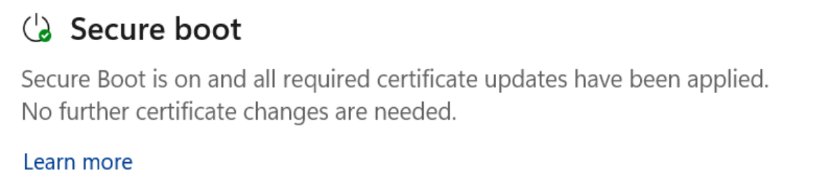
- Open Windows Security and go to Device security > Secure Boot.
- Read the status text; "all required certificate updates have been applied" means you are done.
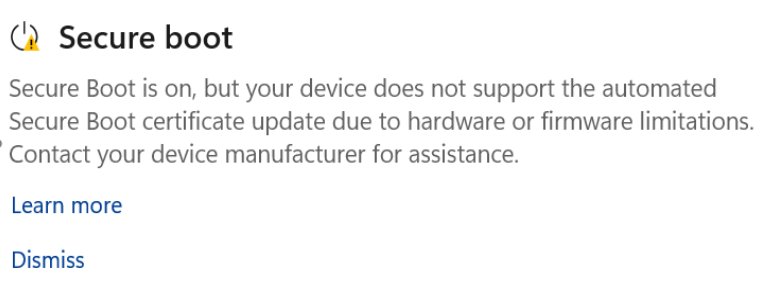
- If the text mentions hardware or firmware limitations, install the latest UEFI firmware from your PC maker, then check again.
- On IT-managed devices, have an admin deploy the update with Intune, Group Policy, WinCS or the registry method below.
Do not turn Secure Boot off to avoid the expiration. Microsoft says disabling it removes safeguards against boot-level malware and is not a workaround.
Which Secure Boot certificates expire in 2026?
Every Windows PC with Secure Boot has carried the same Microsoft certificates in its KEK and DB since Windows 8. Each 2011 certificate has a 2023 replacement.
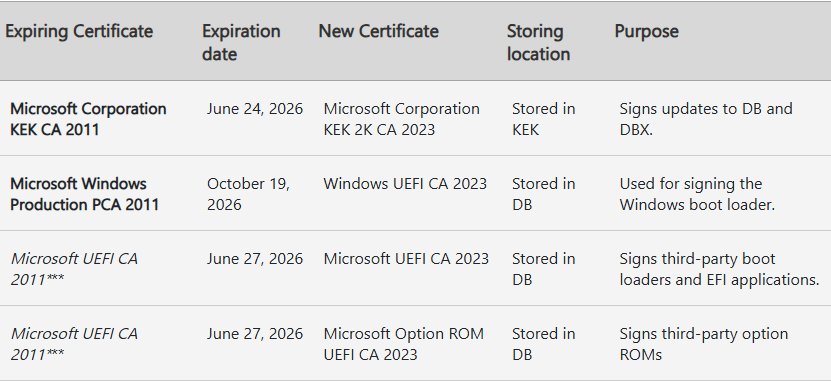
| Expiring certificate | Expiration date | New certificate | Stored in | Purpose |
|---|---|---|---|---|
| Microsoft Corporation KEK CA 2011 | June 24, 2026 | Microsoft Corporation KEK 2K CA 2023 | KEK | Signs updates to the DB and DBX |
| Microsoft UEFI CA 2011 | June 27, 2026 | Microsoft UEFI CA 2023 | DB | Signs third-party boot loaders and EFI applications |
| Microsoft UEFI CA 2011 | June 27, 2026 | Microsoft Option ROM UEFI CA 2023 | DB | Signs third-party option ROMs |
| Microsoft Windows Production PCA 2011 | October 19, 2026 | Windows UEFI CA 2023 | DB | Signs the Windows boot loader |
The KEK authorises changes to the allowed database (DB) and the revoked database (DBX). The DB decides which boot code may run before Windows starts. The TPM and Secure Boot basics explain where these keys sit in the boot chain.
What happens when Secure Boot certificates expire on Windows devices?
An expired certificate does not stop a PC from starting. It stops the PC from accepting new boot-level security fixes.
| Still works after expiration | No longer works without the 2023 certificates |
|---|---|
| The PC starts and runs Windows normally | New Windows Boot Manager and Secure Boot protections cannot be applied |
| Standard Windows updates keep installing | Fixes for early-boot vulnerabilities, such as BitLocker bypass mitigations and Secure Boot revocations |
| Apps, networking and browsing are unchanged | Some third-party boot components that need newer Microsoft trust may fail to update |
| The frozen 2011-signed boot manager keeps booting the PC | Future major Windows releases need the Windows UEFI CA 2023 in the DB to boot install media and run Setup |
Since October 19, 2026, Microsoft signs new Windows boot manager fixes only with the Windows UEFI CA 2023 chain, so a PC without it falls further behind with every boot-level fix.
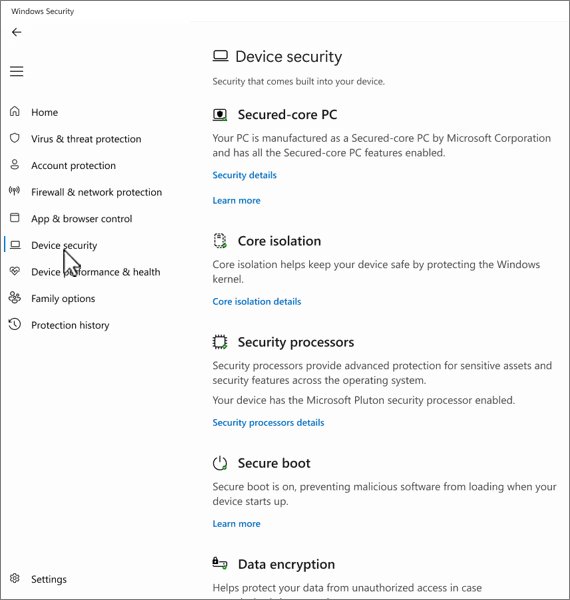
How to check Secure Boot certificate status in Windows Security
Since April 2026, Windows Security shows the certificate state as well as whether Secure Boot is on. Enterprise-managed devices have this view turned off by default.
- Open Start > Settings > Privacy & security > Windows Security.
- Select Device security.
- Under Secure Boot, read the badge colour and the status text.
- Treat a green badge as finished only when the text also says all required certificate updates have been applied.
- If the badge is yellow or red, match the text to the table below.
You can also confirm Secure Boot itself is on by running Confirm-SecureBootUEFI in an elevated PowerShell window; it returns True when Secure Boot is enabled. If it is off, enable Secure Boot in the firmware first, because the certificate update does not apply without it.
Windows Security Secure Boot status messages explained
Each message maps to a state. The action column is what Microsoft tells you to do for it.
| Status text in Windows Security | What it means | What to do |
|---|---|---|
| Secure Boot is on and all required certificate updates have been applied | Fully updated | Nothing |
| Secure Boot is on, but your device is using an older boot trust configuration that should be updated | Not yet updated | Install the latest Windows updates and restart if prompted |
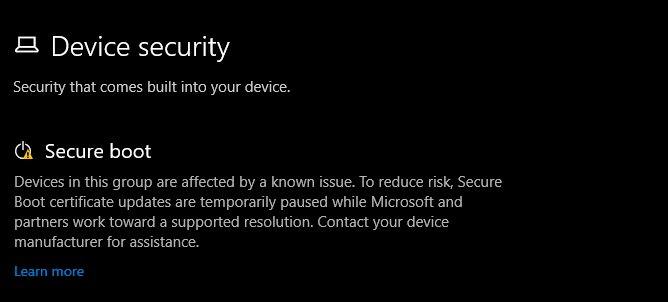
| Your device is affected by a known issue; certificate updates are temporarily paused | Microsoft paused the update for this device type | Nothing; the update resumes automatically once the issue is resolved |
| There is not yet enough data to classify your device for automatic update | The device needs more validation before automatic rollout | Wait, or visit aka.ms/getsecureboot for guidance |
| Your device does not support the automated Secure Boot certificate update due to hardware or firmware limitations | Firmware blocks the automatic update (yellow) | Contact your device manufacturer about a firmware update |
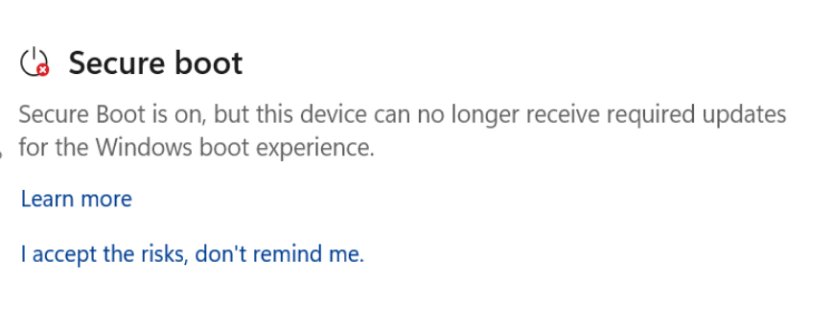
| This device can no longer receive required updates for the Windows boot experience | Still on old certificates after expiration (red) | Follow the guidance at aka.ms/getsecureboot |
A yellow warning can be dismissed with Dismiss, and a red one with I accept the risks, don't remind me, which needs admin rights. Microsoft advises against dismissing either before the certificates arrive.
Secure Boot certificates have been updated, but are not yet applied in Windows
The 2023 certificates and the 2023-signed boot manager are separate steps. A PC can trust the new certificate in firmware while still starting from the 2011-signed boot manager.
Microsoft notes that PCs built in the past one to two years may already hold the 2023 certificates without the 2023-signed boot manager. Applying that boot manager is the last, critical step.
| WindowsUEFICA2023Capable value | What it means |
|---|---|
| 0 or missing | The Windows UEFI CA 2023 certificate is not in the DB |
| 1 | The certificate is in the DB, but the PC is not yet booting from the 2023-signed boot manager |
| 2 | The certificate is in the DB and the PC boots from the 2023-signed boot manager |
Microsoft treats this value as reference only and uses UEFICA2023Status as the real progress marker. The boot manager swap also waits for a restart, so a PC can sit at 1 until its next reboot, often the one after monthly updates.
How to check UEFICA2023Status in the registry
The servicing key records how far the update has got. Run this in an elevated Command Prompt or PowerShell window.
reg query HKLM\SYSTEM\CurrentControlSet\Control\SecureBoot\ServicingLists the Secure Boot servicing values, including UEFICA2023Status, UEFICA2023Error and WindowsUEFICA2023Capable.
You should see: UEFICA2023Status reads Updated and UEFICA2023Error is 0. NotStarted means the update has not begun; InProgress with a non-zero UEFICA2023Error means a step failed and will be retried.
How to manually (force) update the Secure Boot certificate on Windows
This is Microsoft's own test procedure for IT-managed devices. Back up the BitLocker recovery key and install the latest OEM firmware before you start, and test on a few devices of each model first.
Starting the update does not restart the PC by itself. Run each command separately in an administrator PowerShell window.
- Set the update flags:
reg add HKEY_LOCAL_MACHINE\SYSTEM\CurrentControlSet\Control\Secureboot /v AvailableUpdates /t REG_DWORD /d 0x5944 /f - Run the update task now instead of waiting up to 12 hours:
Start-ScheduledTask -TaskName "\Microsoft\Windows\PI\Secure-Boot-Update" - Check AvailableUpdates under
HKLM\SYSTEM\CurrentControlSet\Control\SecureBoot; it should quickly change to 0x4100. - Restart the PC once the value reads 0x4100.
- Run
Start-ScheduledTask -TaskName "\Microsoft\Windows\PI\Secure-Boot-Update"again to install the 2023-signed boot manager. - Confirm AvailableUpdates now reads 0x4000 and UEFICA2023Status reads Updated.
Use only one deployment method per device. Microsoft warns against mixing the registry method with Intune, Group Policy or WinCS on the same PC. Allow about 48 hours and one or more restarts for a device that was targeted automatically.
AvailableUpdates registry values explained
AvailableUpdates is a bitmask. The Secure-Boot-Update task clears each bit as its step succeeds, so the value shows exactly where a device has stopped.
| Value change | Step completed | Success event | Error events |
|---|---|---|---|
| 0x5944 (start) | Update requested, nothing applied yet | – | – |
| 0x5944 to 0x5904 | Windows UEFI CA 2023 added to the DB | 1036 | 1032, 1795, 1796, 1802 |
| 0x5904 to 0x5104 | Microsoft Option ROM UEFI CA 2023 added, if the DB trusted the Microsoft UEFI CA 2011 | 1044 | 1032, 1795, 1796, 1802 |
| 0x5104 to 0x4104 | Microsoft UEFI CA 2023 added, if the DB trusted the Microsoft UEFI CA 2011 | 1045 | 1032, 1795, 1796, 1802 |
| 0x4104 to 0x4100 | Microsoft KEK 2K CA 2023, signed by the OEM platform key, applied | 1043 | 1032, 1795, 1796, 1802, 1803 |
| 0x4100 to 0x4000 | Boot manager signed by Windows UEFI CA 2023 installed | 1799 | 1797 |
The 0x4000 bit is a modifier that stays set, so a final value of 0x4000 means every applicable step finished. If the OEM-signed KEK is missing, the task still installs the new boot manager.
Secure Boot certificate update event ID 1808 and 1801
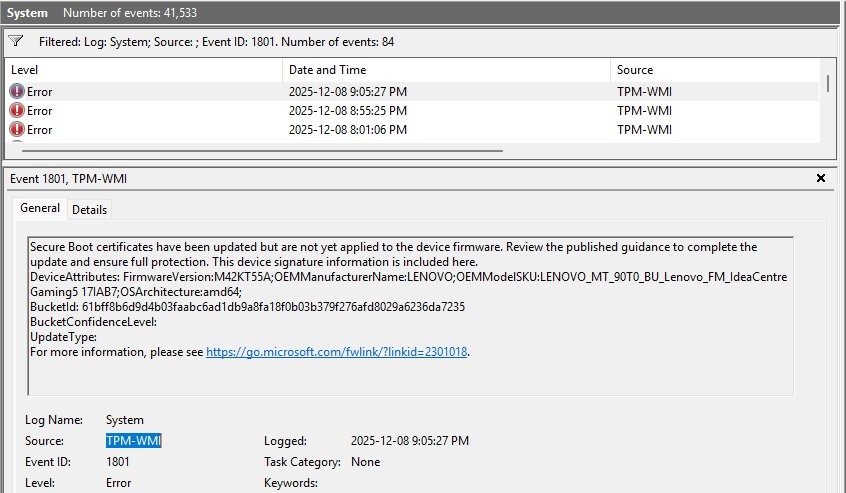
Windows writes the outcome of each step to the System log. Event 1808 means the new certificates are applied in firmware; event 1801 means they are not.
- Press Win + X and select Event Viewer.
- Expand Windows Logs and select System.
- Select Filter Current Log in the right pane.
- Type
1801,1808in the event ID box and select OK. - Open the newest entry; a recent 1808 confirms the update, while a recent 1801 means the device still needs it.
Event 1801 also lists device attributes, such as the firmware details, which help match a stuck PC to an OEM firmware fix.
Secure Boot certificate updates on virtual machines
Virtual machines carry the same Secure Boot variables in virtual firmware, so they need the same certificates.
| Platform | How the 2023 certificates arrive |
|---|---|
| Hyper-V Generation 2 VMs | Through standard cumulative Windows updates |
| Azure Trusted Launch and Confidential VMs | Through Azure platform servicing |
| VMware vSphere | Update ESXi hosts and VM hardware versions to releases that include the 2023 certificates in guest UEFI templates |
| Long-running VMs on any host | Through Windows, like a physical PC, if the virtual firmware supports Secure Boot updates |
Secure Boot certificate update not applying
AvailableUpdates never changes from 0x5944
The Secure-Boot-Update task is disabled, missing, or has not run since the last security update.
- Open Task Scheduler and go to Task Scheduler Library > Microsoft > Windows > PI.
- Confirm Secure-Boot-Update exists and is enabled.
- Install the latest Windows security updates and run the task again.
Events 1795, 1796, 1802 or 1032 in the System log
Firmware or platform limitations stop Windows writing the Secure Boot variables.
- Note the event ID and the firmware version it reports.
- Install the latest UEFI firmware update from the device manufacturer.
- Let the task retry at its next run, or start it manually.
Event 1803 and AvailableUpdates stuck at 0x4104
Windows has no KEK signed by this device's OEM platform key.
- Check the OEM's support site for a firmware or KEK update for the model.
- Keep the device on current cumulative updates, since Microsoft ships OEM-signed KEKs in them.
- Note that the boot manager step still runs without the KEK.
Windows Security says certificate updates are temporarily paused
Microsoft paused the rollout for this configuration while a compatibility issue is investigated.
- Leave the device on automatic updates.
- Check for an OEM BIOS update.
- Wait for the update to resume automatically.
PC boots into BitLocker recovery after the Secure Boot update
Boot-chain changes altered the measurements BitLocker checks.
- Enter the BitLocker recovery key on the recovery screen.
- Let Windows finish starting and complete any pending restart.
- Back up the recovery key before any further firmware or Secure Boot change.
New install media fails with a Secure Boot violation
Media that boots with the 2023 boot manager cannot start on firmware that trusts only the 2011 certificate.
- Install the OEM firmware update that adds the Windows UEFI CA 2023 to the DB.
- Otherwise, use the media reversion script Microsoft provides to boot the frozen 2011 boot manager.
Secure Boot certificate update FAQ
Do I need to do anything about the Secure Boot certificate expiration?
In most cases, no. Microsoft delivers the 2023 Secure Boot certificates through Windows Update to consumer PCs and some business devices. Keep the PC online with the latest updates installed. If Windows Security shows a green checkmark with the fully updated text, nothing else is needed.
Will my PC stop booting when the Secure Boot certificates expire?
No. A PC without the 2023 certificates still starts and runs Windows normally, and standard updates still install. It can no longer receive new boot-level protections, such as Windows Boot Manager fixes and Secure Boot revocations, so it becomes less protected over time.
Should I turn off Secure Boot to avoid the certificate expiration?
No. Microsoft says Secure Boot should not be disabled to work around certificate expiration. Turning it off removes safeguards against boot-level malware and creates security and compliance risks. The supported path is the 2023 certificates plus any firmware update the PC maker requires.
How long does the Secure Boot certificate update take?
Microsoft estimates about 48 hours and one or more restarts after a device is targeted. The Secure-Boot-Update task runs at startup and every 12 hours, and the boot manager step waits for a restart before it completes.
Does updating Secure Boot certificates trigger BitLocker recovery?
It can. Microsoft says unexpected BitLocker recovery prompts can occur depending on protector configuration, firmware behaviour and system state. Back up the BitLocker recovery key before any boot-chain, firmware or Secure Boot update, including monthly quality updates.
Why is Secure Boot showing a yellow badge in Windows Security?
A yellow badge is a safety recommendation. For certificates, it usually means the device does not support the automated update because of hardware or firmware limitations. Contact the device manufacturer about a firmware update that allows the 2023 certificates to install.
What does AvailableUpdates 0x4000 mean?
A value of 0x4000 means the Secure Boot certificate update finished. The 0x4000 bit is a modifier that stays set after every other step clears, so 0x4000 alone shows the 2023 certificates and the 2023-signed boot manager are in place.
What happens if a device never receives the 2023 certificate?
It keeps booting with the frozen 2011-signed boot manager but gets no new boot-level security fixes. Future major Windows releases will also require the Windows UEFI CA 2023 in the DB, and their install media will refuse to install on devices that lack it.