Press Windows key + X to open the WinX menu in Windows 11, or right-click the Start button, which opens the same menu.
This guide covers every way to reach the menu, including touch and keyboard-only routes, what its entries open, how to fix it when it will not appear, and the policies that remove its shut down options.
How to open Win X menu with the keyboard
Microsoft calls the WinX menu the Quick Link menu. Its Windows 11 shortcut list says Windows logo key + X opens it and that this is the same action as right-clicking Start.
- Hold down the Windows key on your keyboard.
- Press X once while the Windows key is still down, then release both keys.
- Watch the menu open just above the Start button on the taskbar.
- Use the Up arrow and Down arrow keys to highlight an entry, or move the mouse over it.
- Press Enter or click the entry to open it. Press Esc to close the menu without choosing anything.
Microsoft's Windows 10 shortcut list gives the same Windows logo key + X combination, so the habit carries across both versions.
What are the different ways to access WinX menu
Every route below opens the same menu with the same entries. Pick the one that fits the input device in your hand.
| Your situation | Use this | Why |
|---|---|---|
| Keyboard available | Press Windows key + X | Opens the menu from anywhere in one key press |
| Mouse or touchpad only | Right-click the Start button | Microsoft documents this as the same action as Windows key + X |
| Touchscreen tablet or 2-in-1 | Press and hold (long-press) the Start button | A long-press is the touch equivalent of a right-click on Start |
| Keyboard only, no pointer at all | Press Windows key + X, then the arrow keys and Enter | No pointer is needed at any point |
| You know the menu letters | Press Windows key + X, then the underlined letter of the entry | Underlined letters run a menu action straight away |
| Windows key is broken or locked | Right-click or long-press Start | The menu does not depend on the keyboard at all |
Microsoft's shortcut reference notes that command and context menus mark a keyboard shortcut by underlining a character in the action name. Where an entry shows one, pressing that letter after Windows key + X opens it without the arrow keys.
What is the WinX menu in Windows 11
The WinX menu is a short list of administration tools and system locations attached to the Start button. It saves you from searching Start or digging through Settings for tools such as Disk Management or an elevated Terminal.
These are the entries Microsoft's own support articles open through it, with what each one gives you.
| WinX menu entry | What it opens | Other way to open it |
|---|---|---|
| Settings | The Windows Settings app | Windows key + I |
| Task Manager | Running apps, processes and startup apps | Ctrl + Shift + Esc |
| Run | The Run dialog box for commands such as diskmgmt.msc |
Windows key + R |
| File Explorer | Your files, folders and drives | Windows key + E |
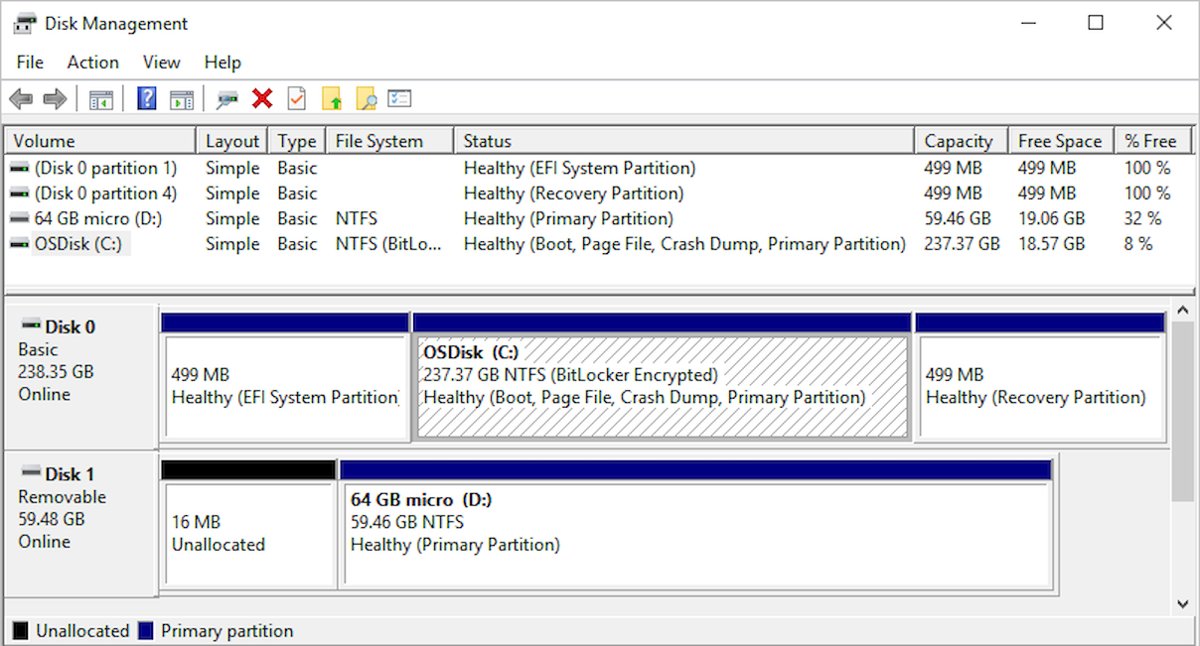
| Disk Management | Drives, partitions, drive letters and volume sizes | diskmgmt.msc in the Run box |
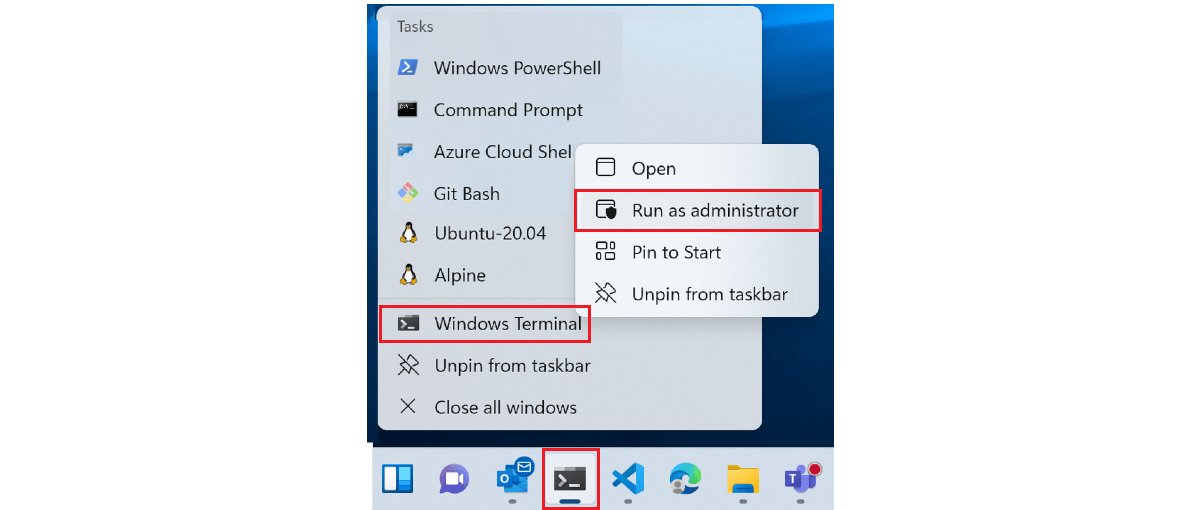
| Terminal (Admin) | Windows Terminal running with administrator rights | Right-click Windows Terminal and choose Run as administrator |
| Shut down or sign out | A submenu with the sign out and power commands | The Power button on the Start menu |
Device, network and system tools sit between these entries. For the complete set of administrative tools in one folder, open Windows Tools from Start instead.
Open Terminal admin from the Win+X menu
The most common reason to open the WinX menu is to get an elevated command line. Microsoft's Windows Terminal FAQ gives Windows key + X followed by the admin Terminal entry as the alternative to right-clicking the Terminal icon. If you only need a normal window, you can also open Terminal in Windows 11 from Start or the desktop.
- Press Windows key + X to open the menu.
- Select Terminal (Admin).
- Select Yes in the User Account Control prompt. On a standard account, enter an administrator password first.
- Check that the tab title starts with Administrator: before you run a command that needs elevation.
- Type your command and press Enter.
Windows Terminal does not support mixing elevated and non-elevated tabs in one window, so every tab in that window runs as administrator.
Change the default Win+X Terminal profile to Command Prompt
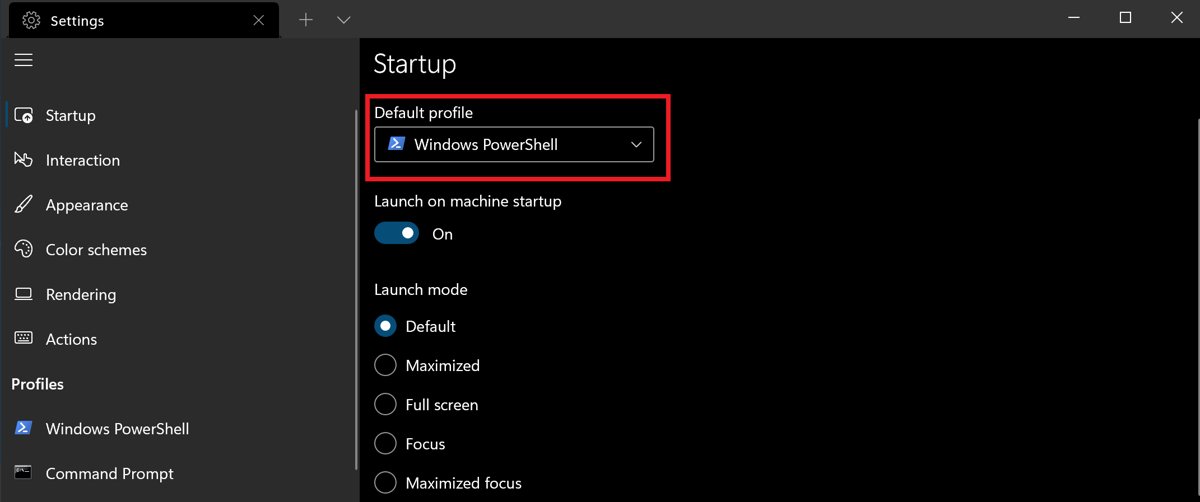
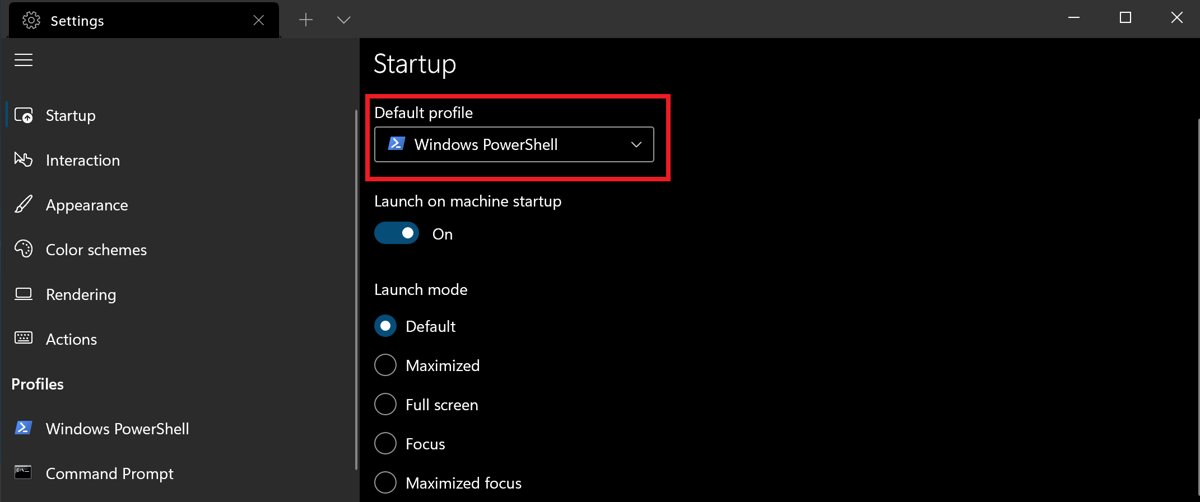
The Terminal entries on the WinX menu open your default Terminal profile, which is PowerShell out of the box. Change the default profile and the same menu entry opens Command Prompt instead.
- Press Windows key + X and select Terminal.
- Select the down arrow next to the tabs and choose Settings.
- Select Startup in the left pane.
- Open the Default profile list and choose Command Prompt.
- Select Save, close Terminal, and open it again from the WinX menu to see the new default.
WinX menu not working in Windows 11
Start by right-clicking the Start button. If the menu opens that way, the keyboard or a hotkey policy is the problem; if it does not, the problem is in Windows itself.
Windows key + X does nothing, but right-clicking Start works
The Turn off Windows Key hotkeys policy is on, or the keyboard is not sending the Windows key.
- Press Windows key + R. If Run does not open either, every Windows key shortcut is blocked, not only Win+X.
- Press Windows key + R from another keyboard, or turn on the On-Screen Keyboard in Settings > Accessibility > Keyboard and try the shortcut there.
- If the on-screen keyboard works, check your physical keyboard for a key or Fn combination that locks the Windows key. The keyboard maker's manual names it.
- If the policy is the cause, right-click Start, select Run, type
gpedit.mscand press Enter. - Go to User Configuration > Administrative Templates > Windows Components > File Explorer.
- Double-click Turn off Windows Key hotkeys, set it to Not Configured, select OK, then sign out and back in.
Neither Windows key + X nor right-clicking Start opens the menu
File Explorer, which draws the taskbar and the Start button, has stopped responding, or a protected system file is damaged.
- Press Ctrl + Shift + Esc to check that Task Manager still opens; if it does, Windows itself is running.
- Restart the PC from Ctrl + Alt + Delete > Power > Restart.
- Try Windows key + X again after you sign in.
- If it still fails, select Start, type
terminal, right-click Terminal and choose Run as administrator. - Run
sfc /scannow, wait for the scan to finish, and restart the PC again.
The menu opens, but an entry opens nothing
The program behind that entry is missing or damaged, or a policy blocks it on a managed PC.
- Open the same tool another way, for example
diskmgmt.mscfrom Run for Disk Management. - If that also fails, run
sfc /scannowfrom an elevated Terminal to replace damaged protected system files. - On a work or school PC, ask your IT department whether the tool is blocked by policy.
Shut down or sign out shows no power commands
The policy that removes the Shut Down, Restart, Sleep and Hibernate commands is applied.
- Read the next section to find the policy and set it back to Not Configured.
- On a managed PC, ask your IT department, because the setting is applied from their side.
Remove Power or Shutdown button from Login Screen, Start Menu, WinX menu in Windows 11
Two separate policies control this. One removes the power commands for a user once they are signed in; the other removes the shut down button from the sign-in screen. Both live in the Local Group Policy Editor, which comes with the Pro, Enterprise and Education editions of Windows 11.
- Press Windows key + X, select Run, type
gpedit.mscand press Enter. - Go to User Configuration > Administrative Templates > Start Menu and Taskbar.
- Double-click Remove and prevent access to the Shut Down, Restart, Sleep, and Hibernate commands, select Enabled, then select OK.
- For the sign-in screen, go to Computer Configuration > Windows Settings > Security Settings > Local Policies > Security Options.
- Double-click Shutdown: Allow system to be shut down without having to log on, select Disabled, then select OK.
- Sign out, then check the sign-in screen, the Start menu power button and the WinX menu's Shut down or sign out entry.
Microsoft states that the first policy removes the Power button and the Shut Down, Restart, Sleep and Hibernate commands from the Start menu, and the Power button from the Ctrl + Alt + Delete screen. It does not stop programs that shut the PC down, so shutdown commands still work.
With the sign-in screen policy disabled, a user must sign in and hold the Shut down the system user right before they can shut the PC down. Microsoft recommends leaving it enabled on client PCs and disabling it on servers.
Organizations that manage PCs with Intune can hide only the Start menu power button with the Start/HidePowerButton policy, which needs a reboot to take effect.
How to bring back Shut down in the Win+X menu
- Right-click Start, select Run, type
gpedit.mscand press Enter. - Go to User Configuration > Administrative Templates > Start Menu and Taskbar.
- Set Remove and prevent access to the Shut Down, Restart, Sleep, and Hibernate commands to Not Configured.
- Go to Computer Configuration > Windows Settings > Security Settings > Local Policies > Security Options.
- Set Shutdown: Allow system to be shut down without having to log on back to Enabled, the client PC default.
- Sign out and back in, then open Shut down or sign out in the WinX menu.
The sign-in screen change applies without a restart, according to Microsoft. The Start menu policy is a user setting, so signing out and back in is enough.
How to rename items in the Win+X menu of Windows 11/10
Windows 11 and Windows 10 have no setting in Settings or Control Panel that renames, reorders or adds WinX menu entries, and Microsoft documents no supported method for it.
Leave the WinX menu entries as they are and change what they open instead, such as the default Terminal profile, or pin the tools you use most to Start or the taskbar. Editing the menu means changing files Windows manages itself, outside any Microsoft-supported setting, and a feature update can reset or break those changes. The supported settings above give you the same result without that risk.
To keep a tool one click away, search for it from Start, right-click the result and choose Pin to Start or Pin to taskbar.
WinX menu Windows 11 FAQ
How to open WinX menu Windows 11?
Press Windows key + X, or right-click the Start button on the taskbar. On a touchscreen, press and hold the Start button. All three open the same Quick Link menu above Start, and you can close it again with Esc.
How to open WinX menu Windows 10?
Windows 10 uses the same shortcut as Windows 11: press Windows key + X, or right-click the Start button. Microsoft lists Windows key + X as the Quick Link menu shortcut in the keyboard shortcut reference for both versions.
What is WinX Windows?
WinX is the common name for the Quick Link menu in Windows 11 and Windows 10, named after its Windows key + X shortcut. It lists administration tools and system locations such as Settings, Task Manager, Disk Management, Run and an elevated Terminal.
How to open Windows Start menu?
Press the Windows logo key on its own, or select the Start button on the taskbar. Pressing the Windows key again closes Start. Adding X while you hold the Windows key opens the WinX menu instead of Start.
How do you open Windows options menu?
Press Windows key + I to open Settings, where most Windows options live. You can also open Settings from the WinX menu: press Windows key + X and select Settings, or right-click Start and select Settings.
How do I open the advanced menu in Windows 11?
The advanced, or power user, menu in Windows 11 is the WinX menu. Press Windows key + X or right-click Start to open it, then pick a tool such as Disk Management, Task Manager or Terminal (Admin).
Can you modify the Win + X menu?
Not through any supported setting. Windows 11 and Windows 10 offer no option to rename, reorder or add entries. You can change what an entry opens, for example by setting Command Prompt as the default Terminal profile.
Where is Control Panel in the WinX menu?
If your WinX menu shows no Control Panel entry, select Start, type control panel and choose it from the results, or use one of the other ways to open Control Panel. Most options that Control Panel once held are now in Settings, which the WinX menu does open.
How to get Windows XP start menu?
Windows 11 has no built-in Windows XP or classic Start menu, and Microsoft offers no setting to switch to one. The WinX menu gives quick access to the system tools that the old Start menu listed.