An OST file is an Offline Outlook Data File: a local copy of a Microsoft 365, Exchange, Outlook.com or IMAP mailbox that classic Outlook for Windows creates so you can read and search mail without a connection.
This guide shows where the .ost file lives, how to open its contents in Outlook, how to convert it to a .pst file, and how to rebuild, repair, shrink or relocate it.
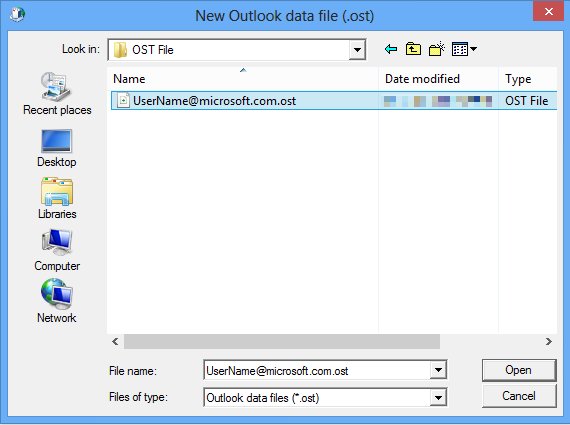
Where is the OST file located?
Classic Outlook keeps every .ost file in one hidden folder in your user profile. The file is usually named after the email address, such as [email protected].
- Press Windows + R to open the Run box.
- Type
%localappdata%\Microsoft\Outlookand press Enter. - Look for a file ending in .ost with your email address in its name. The full path is
C:\Users\<username>\AppData\Local\Microsoft\Outlook. - To see which account each file belongs to, open Outlook and select File > Account Settings > Account Settings.
- Select the Data Files tab. Every .pst and .ost file is listed with the name of its account and its location.
If the .ost file does not appear, turn on File name extensions and show hidden files in File Explorer first.
What is an OST file?
Microsoft calls the file an Offline Outlook Data File (.ost). It is a synchronized copy of mail that already lives on the mail server.
| Property | OST file |
|---|---|
| Full name | Offline Outlook Data File (.ost) |
| Created by | Classic Outlook for Windows, automatically, when you add an account that uses one |
| Account types | Microsoft 365, Exchange, Outlook.com and IMAP accounts |
| What it holds | A copy of the mailbox: mail, calendar, contacts and tasks synced from the server |
| Default folder | %localappdata%\Microsoft\Outlook |
| Default size limit | 50 GB for the Unicode format in Outlook 2010 and later, with a warning at 47.5 GB |
| Needs a backup? | No. Microsoft says the file can be re-created at any time from the server |
What is an OST file used for?
| Use | What the OST file does |
|---|---|
| Cached Exchange Mode | Classic Outlook works from the local copy and syncs changes with the Exchange or Microsoft 365 server in the background |
| Working offline | Send / Receive > Work Offline lets you read, file and draft mail from the .ost while disconnected |
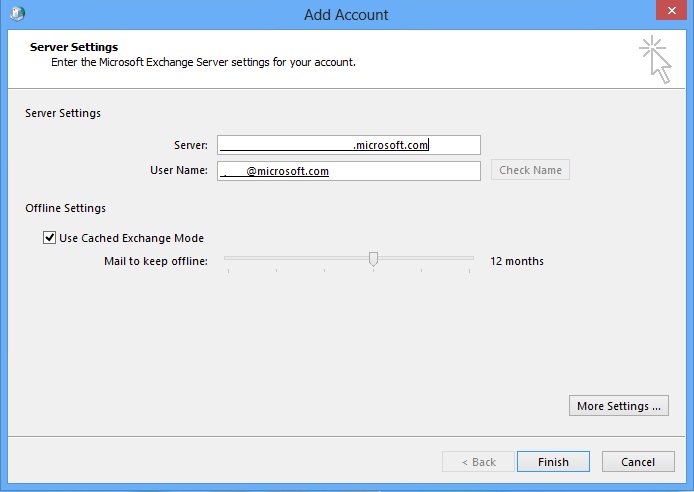
| Limited sync window | Only mail inside the Offline Settings slider is stored locally; Exchange and Microsoft 365 accounts sync 12 months by default |
| Shared mail folders | Shared folders you open are also downloaded into the .ost in Cached mode by default |
| IMAP and Outlook.com | These accounts also keep their local mailbox copy in an .ost file |
OST vs PST: What's the difference?
Both are Outlook Data Files, but only a .pst is a standalone file you own. An .ost is a cache tied to one mailbox on one PC.
| .ost (Offline Outlook Data File) | .pst (Outlook Data File) | |
|---|---|---|
| Used by | Microsoft 365, Exchange, Outlook.com, IMAP accounts | POP accounts, archives and exports |
| Where the master copy lives | On the mail server | In the file itself |
| Created | Automatically when the account is added | By you, or by a POP account setup |
| Open with File > Open & Export > Open Outlook Data File | No | Yes |
| Import with the Import/Export wizard | No | Yes |
| Move to another PC | No; Outlook re-creates it | Yes |
| Needs a backup | No | Yes |
| Default location | AppData\Local\Microsoft\Outlook |
Documents\Outlook Files |
For the .pst side, the Outlook PST file location differs by Outlook version and account type.
Can you open an OST file?
Not as a file. You open an .ost by signing in to the account that owns it in classic Outlook, which reads the file as that mailbox's local cache. Microsoft's Open Outlook Data File command and Import/Export wizard work with .pst files only, and Microsoft documents no tool that opens an .ost outside the profile that created it. To get the contents into a portable file, export the mailbox to a .pst.
How to access an OST file in Outlook
Adding the mailbox to classic Outlook creates the .ost and downloads the data. Once sync finishes, the mailbox folders in the Folder Pane are the contents of the .ost.
- Open classic Outlook and select File > Add Account.
- Enter the email address for the Microsoft 365, Exchange, Outlook.com or IMAP account and select Connect.
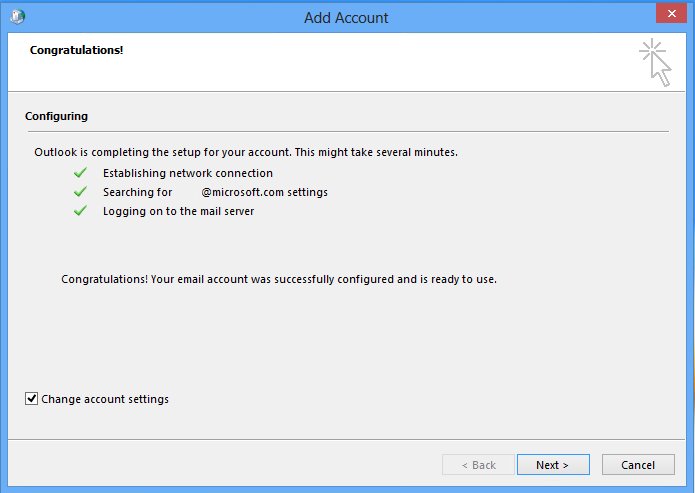
- Re-enter your password if prompted, select OK and then Finish.
- Wait for the first sync to complete. Outlook builds the .ost in
%localappdata%\Microsoft\Outlook. - Expand the account in the Folder Pane to browse its folders, calendar and contacts.
How to open an old or orphaned OST file
An orphaned .ost is one left behind after its profile was removed, the account was deleted or the PC was replaced. What you can recover depends on whether the mailbox still exists on the server.
| Your situation | What to do | Why |
|---|---|---|
| The mailbox still exists | Add the account to classic Outlook again and let it sync | Every item on the server downloads into a fresh .ost; the old file adds nothing |
| The mailbox exists but some items were local only | Open the original profile on the original PC, export to .pst, then import the .pst | Unsynced items exist only in that .ost and need the profile that owns it |
| The work account was deleted | Ask your Microsoft 365 or Exchange admin whether the mailbox can be restored | Microsoft tools cannot read an .ost without its mailbox and profile |
| You only need old mail from a former PC | Sign in to the same account on the new PC | The server copy is the master; the old .ost is a duplicate |
How to convert OST to PST
Converting means exporting the mailbox that the .ost caches into a new .pst file. Do it from the profile that owns the .ost, while the account still signs in.
- To export more than the cached 12 months, select File > Account Settings > Account Name and Sync Settings and move the slider to All, or turn off Cached Exchange Mode.
- Select File > Open & Export > Import/Export.
- Choose Export to a file and select Next.
- Choose Outlook Data File (.pst) and select Next.
- Select the account to export, keep Include subfolders checked and select Next.
- Select Browse, pick a folder that is not in OneDrive, enter a file name and select OK.
- Select Finish. Enter a password twice if you want to protect the .pst, then select OK.
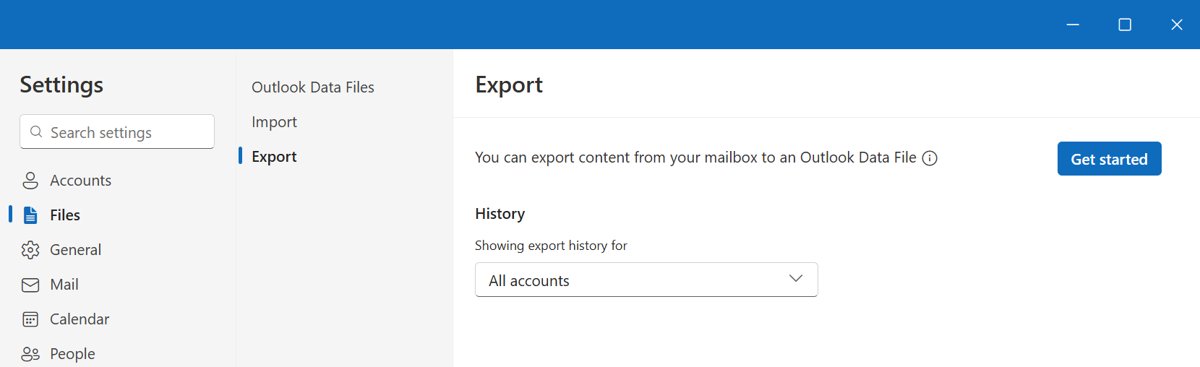
Only one account exports at a time. In new Outlook, the same job sits under Settings > Files > Export > Get started.
Can you import an OST file into Outlook?
No. The Import/Export wizard's Import from another program or file option accepts an Outlook Data File (.pst), not an .ost. Export the mailbox to .pst from the profile that owns the .ost, then import that .pst with File > Open & Export > Import/Export > Import from another program or file > Outlook Data File (.pst).
Can you delete an OST file?
Yes, with Outlook closed. Classic Outlook re-creates the .ost the next time it starts and downloads the mailbox from the server again. The .ost is a copy of server data, so deleting it loses nothing that is on the server. The exception is local-only data, such as items that never synced: export those to a .pst first, then delete the .ost and import the .pst with Do not import duplicates.
How to rebuild an OST file
Rebuilding forces Outlook to make a fresh .ost from the server. Renaming the old file instead of deleting it keeps a fallback copy.
- Close Outlook completely.
- Press Windows + R, type
%localappdata%\Microsoft\Outlookand press Enter. - Right-click the .ost for the problem account, select Rename and change the extension from
.ostto.old. - If Windows reports that the file is in use, open Task Manager and end Outlook.exe and Winword.exe, then rename again.
- Start Outlook. It shows Preparing for first use while it builds a new .ost.
- Leave Outlook open until the mailbox finishes syncing; large mailboxes take longer.
How to repair a corrupted OST file
Microsoft's repair for a damaged .ost is to resynchronize or re-create it. The old Scanost.exe tool was removed in Outlook 2010.
- If only one folder is wrong, right-click it and select Properties.
- Select Clear Offline Items, then OK.
- Select the Send / Receive tab and choose Update Folder to download that folder again.
- If the problem remains, or Outlook reports Errors have been detected in the file, close Outlook.
- Open
%localappdata%\Microsoft\Outlookand delete or rename the .ost named in the error. - Start Outlook and let it rebuild the file from the server.
The Inbox Repair tool is for .pst files; running ScanPST.exe on a PST file does not touch the data in an Exchange mailbox.
Why is my OST file so large?
| Cause | Why it grows the .ost |
|---|---|
| Sync slider set to All or a long period | Every item in that window is stored locally |
| Shared mailboxes and folders | Classic Outlook downloads shared mail folders into the .ost in Cached mode by default |
| Large Deleted Items folder | Deleted mail still counts until the folder is emptied |
| Conflicts folder | Out-of-sync copies of items pile up in Conflicts |
| Unused white space | Deleted items leave free space; Outlook only compacts in the background when more than 20% of the file is unused |
| Big attachments | Messages over a few megabytes add up fast; search messagesize:>5 mb to find them |
The default ceiling for a Unicode .ost is 50 GB. Once the warning level is reached, Outlook cannot send mail that saves to Sent Items and blocks copying or moving items inside the file.
How to reduce OST file size
- Select File > Tools > Mailbox Cleanup and use Empty Deleted Items folder and Empty Conflicts.
- Type
messagesize:>5 mbin the Search box and delete or move large messages you do not need. - Select File > Account Settings > Account Settings and open the Data Files tab.
- Select the .ost and choose Settings, then the Advanced tab and Outlook Data File Settings.
- Select Compact Now and then OK. You do not need to close Outlook.
- To keep less mail offline, select the account on the Email tab, choose Change and move the Offline Settings slider to a shorter period.
How to change the OST file location in Outlook
In Outlook 2013 and later, the Browse button for an existing .ost is greyed out. Microsoft's workaround is a new Outlook profile that points at the new folder.
- Close Outlook and copy the current .ost to the new folder, or skip this step to let Outlook download a new one.
- Open Control Panel, search for Mail and open it.
- Select Show Profiles, then Add, type a profile name and select OK.
- Let Outlook find the account, select Change account settings and select Next.
- Select More Settings, then the Advanced tab and Outlook Data File Settings.
- Select Browse, choose the copied .ost or type a new file name in the new folder, and select Open.
- Select Finish, then in Mail choose Always use this profile with the new profile and select OK.
OST files and the new Outlook for Windows
New Outlook is built on Outlook on the web and handles offline mail and data files differently from classic Outlook.
| Task | Classic Outlook | New Outlook for Windows |
|---|---|---|
| Offline mail | .ost file in Cached Exchange Mode | Settings > General > Offline, on by default |
| How much mail is kept | Offline Settings slider, 12 months by default | Days of email to save: 7, 30 (default), 90 or 180 days |
| Local file location | %localappdata%\Microsoft\Outlook |
Not published by Microsoft |
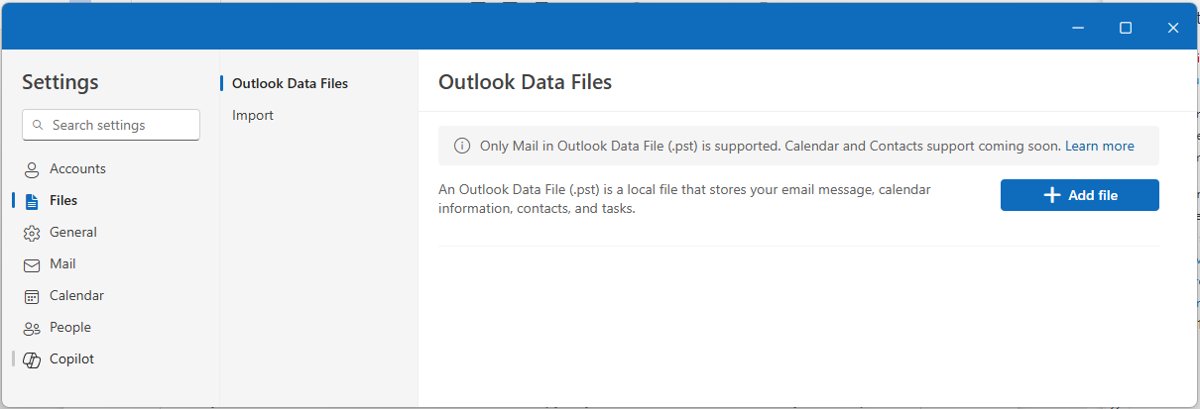
| Open a .pst | File > Open & Export > Open Outlook Data File | Settings > Files > Outlook Data Files > Add file (classic Outlook must also be installed) |
| Export to .pst | Import/Export wizard | Settings > Files > Export |
| Import a .pst into a mailbox | Supported | Not supported; use classic Outlook |
To rebuild, compact or relocate an .ost, switch from new Outlook to classic Outlook for the job.
Do IMAP accounts use OST files?
Yes. In classic Outlook, Microsoft 365, Exchange, IMAP and Outlook.com accounts all keep a copy of the mailbox in an Offline Outlook Data File (.ost). Only POP accounts store everything in a .pst file. An IMAP account's .ost is a copy of the server mailbox, so the same rebuild and compact steps apply to it.
Is an OST file a backup?
No. Microsoft says .ost files are copies of items saved on a mail server and do not need to be backed up. The .ost only works with the profile and mailbox that created it, so a copied .ost cannot be restored elsewhere. For a backup you can keep, export the mailbox to a .pst file.
Can you move an OST file to another computer?
No. Microsoft states that you cannot move an .ost file from one computer to another. Sign in to the same account in Outlook on the new PC and it builds a new .ost from the server. To carry local-only items across, export them to a .pst on the old PC and import it on the new one.
How to check OST sync status in Outlook
- Right-click a mail folder in the Folder Pane and select Properties.
- Select the Synchronization tab. If it is missing, the profile is not using offline folders.
- Under Statistics for this folder, read Last Synchronized on.
- Compare Server folder contains with Offline folder contains; matching counts mean the .ost is in sync.
- If the counts differ, select Send / Receive > Update Folder, or Send/Receive All Folders for every folder.
The offline count only covers mail inside the sync slider, so a 12-month slider shows fewer items than the server.
OST file won't open: What should you do?
"Errors have been detected in the file …\[email protected]"
The .ost is corrupted; Event Viewer logs event ID 2000 in the Application log.
- Close Outlook.
- Open
%localappdata%\Microsoft\Outlook. - Delete the .ost named in the error message.
- Start Outlook and let it download the mailbox again.
Mail shows in Outlook on the web but not in Outlook
The .ost has stopped syncing or is damaged.
- Right-click the folder, select Properties > Clear Offline Items > OK.
- Select Send / Receive > Update Folder.
- If counts still differ, rename the .ost to
.oldand restart Outlook to rebuild it.
Windows says the .ost file is in use
Outlook or Word is still running in the background.
- Press Ctrl + Alt + Delete and select Task Manager.
- End Outlook.exe and Winword.exe if they are listed.
- Rename or delete the .ost again.
Double-clicking the .ost or using Open Outlook Data File fails
An .ost cannot be opened as a standalone file.
- Add the account that owns the .ost in classic Outlook.
- Wait for sync, or export the mailbox to a .pst if you need a portable file.
Outlook will not start after the .ost was renamed or deleted
The problem is in the profile or the Office install, not the data file.
- Open Control Panel > Mail > Show Profiles and select Add to create a new profile.
- If Outlook still fails, open Apps and Features, select Microsoft Office, choose Modify and run Online Repair.
If Outlook hangs instead of showing an error, start it in safe mode and disable add-ins to fix Outlook not responding.
OST file FAQs
What does OST stand for?
Microsoft names the file an Offline Outlook Data File, and the .ost extension marks it as the offline copy. It is the local copy of a server mailbox that classic Outlook uses in Cached Exchange Mode and when you work offline.
What program opens an OST file?
Classic Outlook for Windows opens an .ost, and only as the cache for the account that created it. Add that account in Outlook and the mailbox folders appear in the Folder Pane once sync completes.
Where are OST files stored?
Classic Outlook stores .ost files in C:\Users\<username>\AppData\Local\Microsoft\Outlook. Type %localappdata%\Microsoft\Outlook in the Run box to open the folder, or check File > Account Settings > Account Settings > Data Files.
Can I open an OST file without Outlook?
Microsoft provides no tool to open an .ost without Outlook. To read the mail elsewhere, export the mailbox to a .pst from the owning profile, or sign in to the same account in Outlook on the web.
Can I convert OST to PST?
Yes. In classic Outlook, select File > Open & Export > Import/Export > Export to a file > Outlook Data File (.pst), pick the account, keep Include subfolders checked and save the file outside OneDrive.
Can I import an OST into Outlook?
No. Outlook's Import/Export wizard imports .pst files, not .ost files. Export the mailbox to a .pst first, then import that file with Import from another program or file > Outlook Data File (.pst).
Is it safe to delete an OST file?
Yes, with Outlook closed, for any account whose mail is on the server. Outlook re-creates the .ost at next start and downloads the mailbox again. Export any local-only items to a .pst before you delete it.
Is OST better than PST?
Neither is better; they do different jobs. An .ost is a synced cache of a server mailbox that needs no backup, while a .pst is a standalone file for POP accounts, archives and exports that you must back up.
Why is my OST file so large?
A long sync window, cached shared folders, a full Deleted Items or Conflicts folder and large attachments all grow the .ost. Empty those folders, run Compact Now under Outlook Data File Settings, or shorten the Offline Settings slider.
Can I copy an OST file to a new PC?
No. Microsoft says an .ost cannot be moved from one computer to another. Sign in to the account in Outlook on the new PC and it builds a fresh .ost from the server.