To let multiple users sign in to iCloud on one Windows computer, give each person their own Windows user account and have them sign in to iCloud for Windows there with their own Apple Account.
This guide covers adding the Windows accounts, where each person's iCloud files land, switching Apple Accounts inside one Windows user, using iCloud.com with a different account, and fixing sign-in issues.
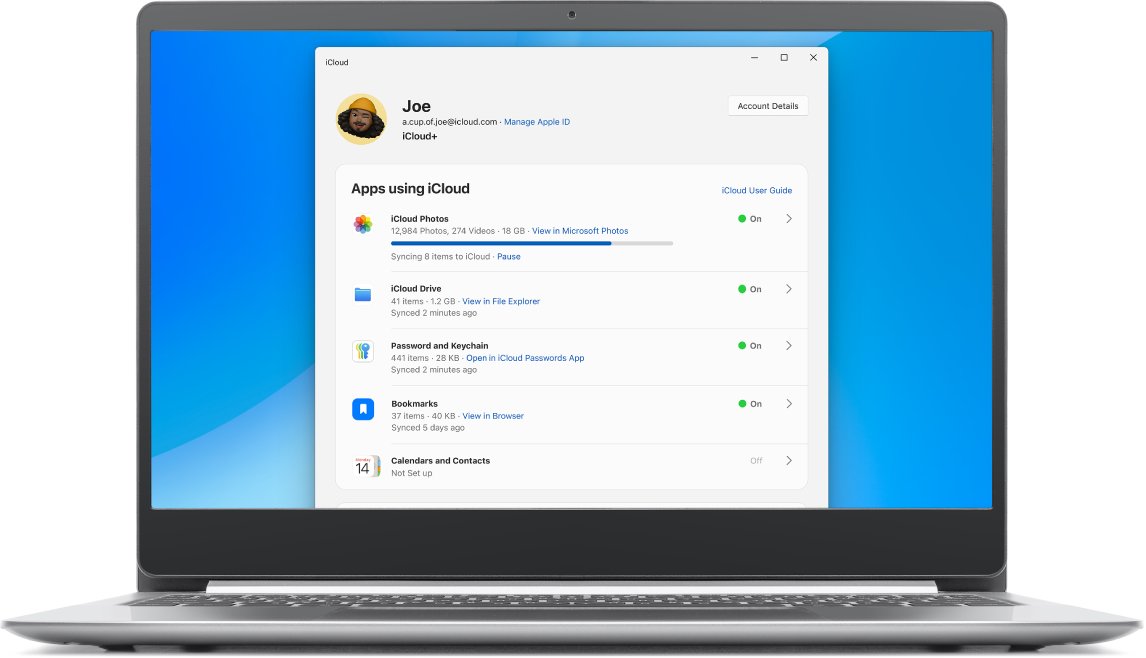
How to sign in to iCloud for Windows with multiple users
Apple says everyone should have their own Apple Account so that only they can see and change their data. On a shared PC, separate Windows accounts keep each person's iCloud files apart as well.
- Make sure each person has set up iCloud on their own iPhone, iPad, iPod touch or Mac first, because iCloud for Windows requires it.
- Add a Windows user account for each person under Settings > Accounts.
- Sign out of Windows and sign in as the person who needs iCloud.
- Open iCloud for Windows, or get it from the Microsoft Store if it is not in that user's Start menu.
- Sign in with that person's Apple Account and enter the code sent to their trusted device or phone number if asked.
- Select Sync or Not Now for each app or feature in the bottom-right corner.
- Choose whether to share iCloud analytics, then select Finish Setup.
- Repeat from step 3 for every other person on the PC.
Can you sign into 2 iCloud accounts on one Windows PC?
Yes, but not side by side inside one iCloud for Windows window. Pick the route that matches who uses the PC and what they need from iCloud.
| Your situation | Use this | Why |
|---|---|---|
| Two or more people share the PC and each wants synced photos and files | A separate Windows user account per person, each with iCloud for Windows | Each person's iCloud Drive and Photos folders sit inside their own user folder |
| One person owns two Apple Accounts and needs files from the second one now and then | Sign out of iCloud for Windows and sign in with the other account | iCloud for Windows removes the first account's iCloud data from the PC when you sign out |
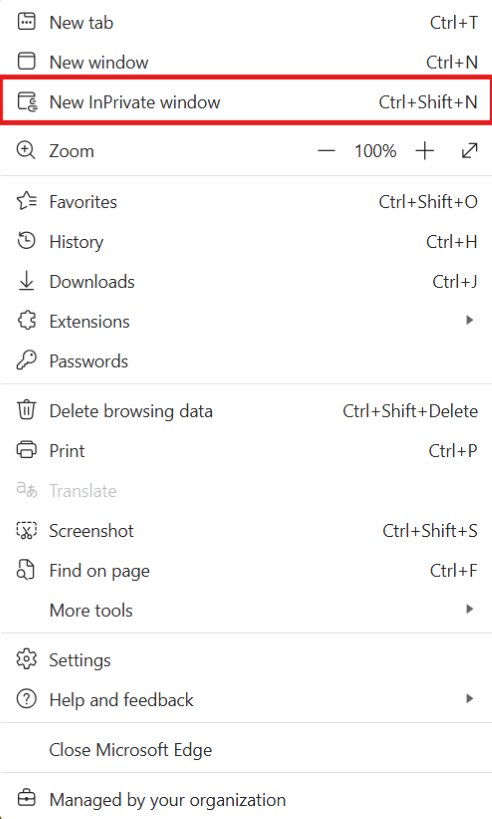
| Someone needs mail, notes or photos for a few minutes on a borrowed PC | iCloud.com in a Microsoft Edge InPrivate window | InPrivate does not save cookies, history or site data on the PC |
| Two people use iCloud.com often in the same browser | A separate Microsoft Edge profile per person | Each profile keeps its own sign-ins, bookmarks and settings |
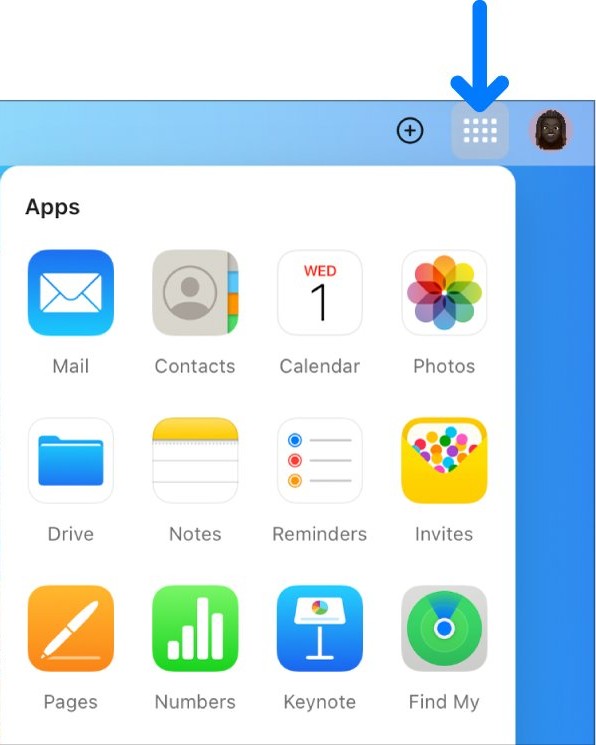
How to add another user on Windows for iCloud
Microsoft says separate accounts let each user have their own settings, documents and applications on one device. Microsoft recommends a Microsoft account for each user, but a local account also works.
- Open Settings > Accounts > Other users.
- Under Add other user, select Add account.
- Enter the email address of the person's Microsoft account and follow the prompts.
- To create a local account instead, select I don't have this person's sign-in information, then Add a user without a Microsoft account, and follow the prompts.
- Sign out and sign in as the new user to finish the first-run setup.
- Set up iCloud for Windows in that account with the person's Apple Account.
Leave the new account as a standard user unless the person needs to manage the PC. Microsoft advises keeping administrator accounts to a minimum because they have full control of the system.
Multiple iCloud accounts on PC: where each user's files are stored
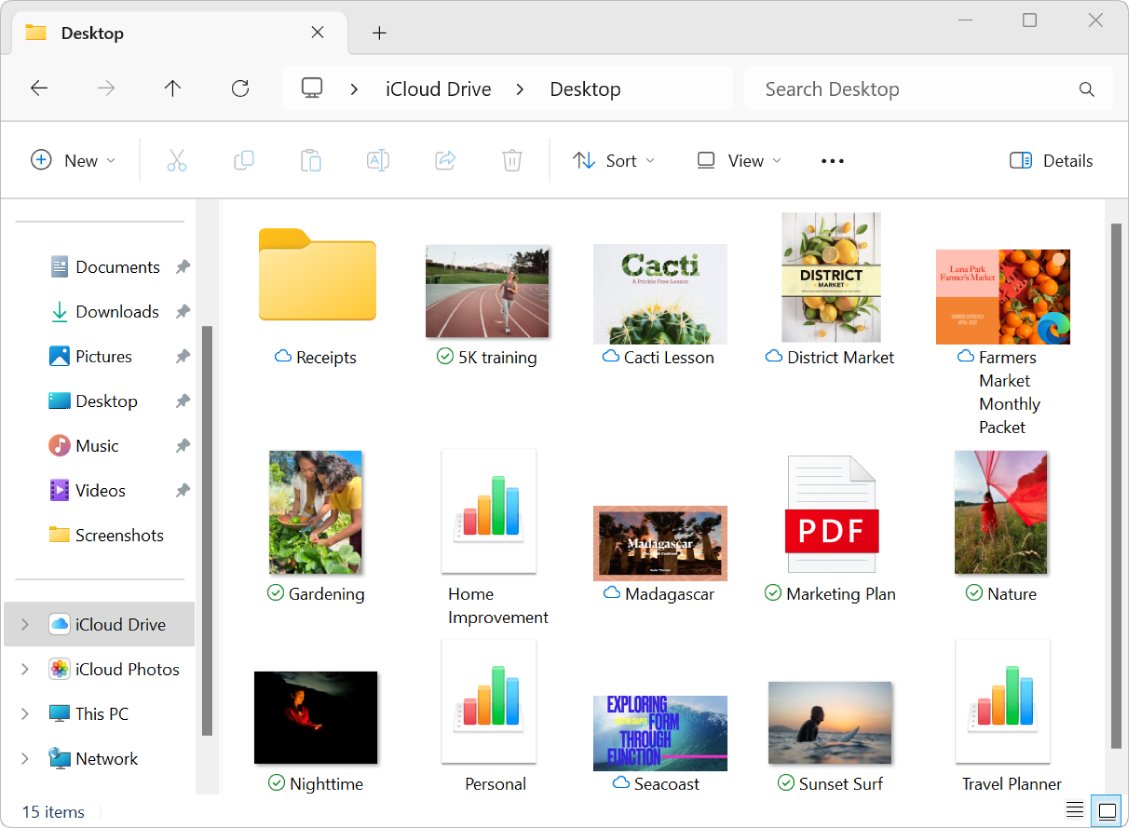
iCloud for Windows saves synced content inside the signed-in Windows user's own folder, which is what keeps two people's iCloud data apart on one PC.
| iCloud feature | Default location on the PC | Can it move? |
|---|---|---|
| iCloud Drive | C:\Users\[user name]\iCloud Drive |
Yes, with iCloud for Windows 14 or later, to another drive formatted as NTFS |
| iCloud Photos | C:\Users\[user name]\Pictures\iCloud Photos\Photos |
Apple documents no move option for this folder |
| Shared Albums | Inside the user's iCloud Photos folder by default | Yes, to another folder on the C: drive only; external drives are not supported |
| Calendars and Contacts | Microsoft Outlook in that Windows user's profile | Set up separately in each user's Outlook |
| iCloud Passwords | The iCloud Passwords app and browser extension for that user | Each user sets it up with their own Apple Account |
Files under 1 MB in iCloud Drive download automatically. Larger files download when the person opens them.
How to sign into another iCloud account in iCloud for Windows
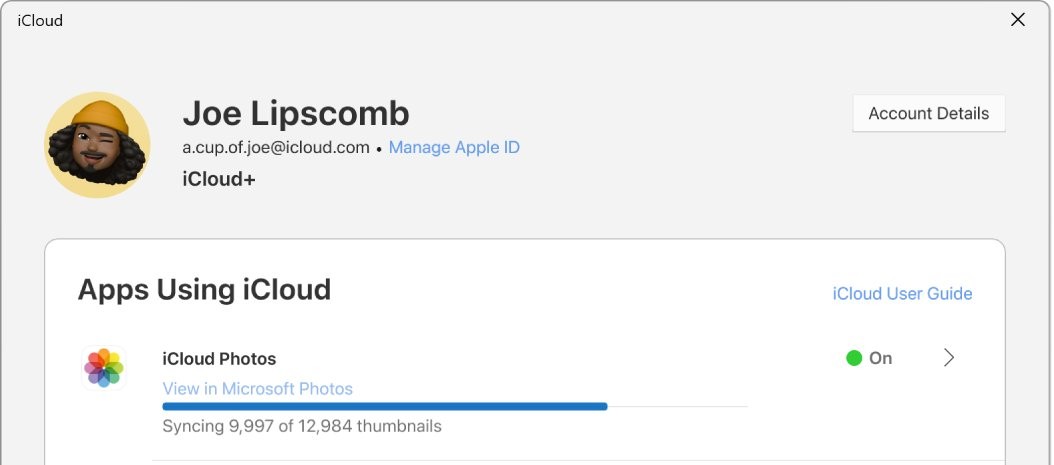
Inside one Windows user, iCloud for Windows uses one Apple Account at a time. Signing out removes that account's iCloud data from the PC, though it stays on the person's other devices and on iCloud.com.
Copy any files you want to keep on the PC before you sign out, because the PC copy stops updating.
- Open iCloud for Windows.
- Select Account Details, then select Sign Out and follow the onscreen instructions.
- Open iCloud for Windows again and sign in with the other Apple Account.
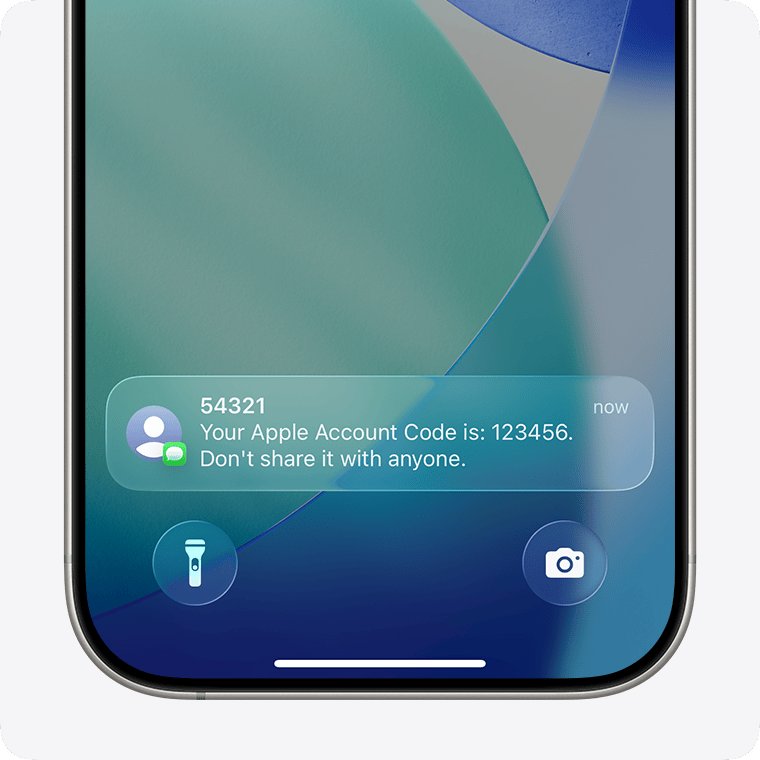
- Verify your identity with the code sent to the trusted device or phone number, or with a security key.
- Choose Sync or Not Now for each feature, then select Finish Setup.
iCloud.com sign in with different account
For quick access without changing iCloud for Windows, sign in to iCloud.com in a private window or a separate browser profile. Apple notes that if you have more than one Apple Account, you only see the data stored in the account you signed in with.
- In Microsoft Edge, select the Settings and more icon, then New InPrivate window.
- Go to iCloud.com in that window.
- Enter the other Apple Account email address or phone number and password.
- Enter the verification code sent to a trusted device or phone number, or use a security key, if prompted.
- Close the InPrivate window when you finish so the sign-in is not kept.
If two people use iCloud.com every day on the same Windows account, create separate Microsoft Edge profiles so each keeps their own sign-in. Select the Profile icon, then Set up a new profile, to add one.
iCloud sign in issues on Windows
Most second-user sign-in failures come from account settings Apple lists as requirements for iCloud for Windows, not from the shared PC itself.
The second user cannot sign in to iCloud for Windows at all
iCloud has not been set up on an Apple device for that Apple Account, or the account is a Managed Apple Account.
- Set up iCloud on the person's iPhone, iPad, iPod touch or Mac with the same Apple Account.
- Use a personal Apple Account, because iCloud for Windows does not support Managed Apple Accounts.
- Use iCloud.com in a browser if the person has no Apple device.
Sign-in fails for an account with Advanced Data Protection
Advanced Data Protection needs a newer app and a nearby trusted device.
- Update iCloud for Windows to version 14.1 or later from the Microsoft Store Library.
- With version 14.2 or later, keep the trusted Apple device within Bluetooth range of the PC or on the same Wi-Fi router.
- Turn off any VPN on the PC until sign-in completes.
Sign-in fails for an account that uses security keys
Security keys need iCloud for Windows 15 or later.
- Open Microsoft Store, select Library and select Get updates.
- Open iCloud for Windows and sign in again with the security key.
The verification code goes to a device the person does not have
Two-factor authentication sends codes to that Apple Account's trusted devices and phone numbers.
- Have the account owner sign in with their own trusted device nearby.
- If they no longer have it, sign in to iCloud another way before setting up the PC.
iCloud for Windows will not install or update for the new user
The latest iCloud for Windows needs Windows 11 or later.
- Open Settings > Windows Update and select Check for updates.
- Open Microsoft Store in that Windows user account and get iCloud from there.
If sign-in works but the app hangs afterwards, fix iCloud for Windows stuck at sign-in for that user.
Multiple iCloud accounts on PC FAQ
Can you sign into 2 iCloud accounts on a Windows PC?
Yes, if each account belongs to a different Windows user. Each person signs in to iCloud for Windows inside their own Windows account. Within one Windows user, iCloud for Windows uses one Apple Account at a time, so you sign out to switch.
How do I sign into another iCloud account on my PC?
Open iCloud for Windows, select Account Details, then Sign Out, and sign in with the other Apple Account. For short visits, sign in to iCloud.com in a Microsoft Edge InPrivate window instead, which leaves iCloud for Windows untouched.
Can I have multiple iCloud accounts?
Yes. Each Apple Account is separate, and Apple says everyone should have their own. A device signs in to one Apple Account for iCloud at a time, so on a shared PC give each person their own Windows user account.
Can I have two iCloud accounts?
Yes, but each one is a separate Apple Account with its own email address or phone number, data and storage. Sign in to iCloud.com or iCloud for Windows with the account that holds the photos and files you want to see.
Why do I have 2 iCloud accounts?
You likely created a second Apple Account with another email address, for example on a new device. Apple notes that each account holds its own data, so sign in with the account that matches your iPhone to see the same photos and files.
How do I sign in to iCloud on a Windows computer?
Get iCloud for Windows from the Microsoft Store, open it and sign in with your Apple Account. Verify with the code sent to your trusted device, choose what to sync and select Finish Setup. You can also sign in at iCloud.com in a browser.
How do I sign in to my iCloud account on iCloud.com?
Go to iCloud.com and enter your Apple Account email address or phone number and password, or use a passkey. Enter the verification code if asked. Without an Apple device set up with iCloud, you get web-only access to iCloud.com.
Can I use the same iCloud account on multiple devices?
Yes. Apple says to sign in to the same Apple Account on each device so you see the same information everywhere. On a Windows PC, that means signing in to iCloud for Windows with the account you use on your iPhone or Mac.