To open Command Prompt in a folder, browse to that folder in File Explorer, click the address bar, type cmd and press Enter.
This guide covers the address bar trick, the File Explorer menus in Windows 10 and Windows 11, Windows Terminal, a registry entry that restores Open command window here, admin prompts, and the cases where the prompt lands in the wrong folder.
Open Command Prompt using the Explorer address bar
This works in Windows 11, Windows 10 and older versions, and it needs no settings or registry changes. The prompt starts in the folder you were looking at, not in your user folder.
- Press Windows + E to open File Explorer.
- Browse to the folder you want the prompt to start in.
- Press Alt + D (or Ctrl + L, or F4) to select the address bar. Clicking an empty part of the address bar does the same.
- Type
cmdover the selected path. - Press Enter. A Command Prompt window opens with that folder as the current directory, shown in the prompt line, for example
D:\Projects\Site>.
Typing powershell in the same box opens Windows PowerShell in that folder instead. You can also add a command after cmd, such as cmd /k dir, to open the prompt and list the folder's contents straight away; /k keeps the window open after the command runs.
Command Prompt vs PowerShell
Windows 10 and Windows 11 put PowerShell, not Command Prompt, on most File Explorer menus. Both run in the folder you open them from, but they behave differently once you start typing.
| Command Prompt (cmd.exe) | Windows PowerShell | |
|---|---|---|
| What it passes between commands | Plain text | .NET objects, so output can be filtered without parsing text |
| Ships with Windows | Yes | Yes, as Windows PowerShell 5.1 |
| Typed in the Explorer address bar | cmd |
powershell |
| File Explorer menus in Windows 10 | Removed from the File menu and Shift + right-click menu | Took Command Prompt's place on those menus |
| Status | Microsoft points users who need advanced scripting to PowerShell | Windows PowerShell 5.1 no longer gets new features; PowerShell 7 is a separate product |
Pick Command Prompt when a guide, script or vendor tool gives you cmd syntax. Pick PowerShell when you want to sort, filter or export what a command returns.
Opening the Command Prompt using Windows Explorer
Beyond the address bar, the File Explorer menus also start a shell in the current folder. What each menu opens depends on your Windows version, because Windows 10 build 14971 swapped Command Prompt for PowerShell and Windows 11 22H2 made Windows Terminal the default console host.
| Where you are | Menu route | What opens |
|---|---|---|
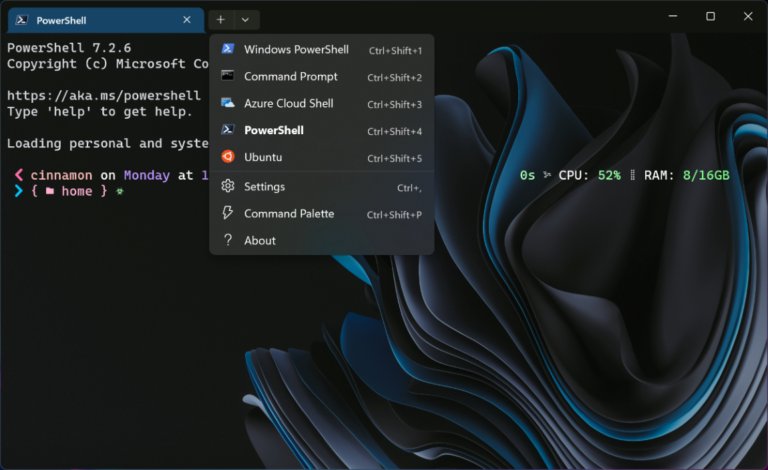
| Windows 11 | Right-click the folder (or empty space inside it) and choose the Windows Terminal entry | Windows Terminal with its default profile in that folder; set Command Prompt as the default profile to get cmd here |
| Windows 11, full menu | Right-click and select Show more options | The Windows 10-style menu, where a custom Open command window here entry appears |
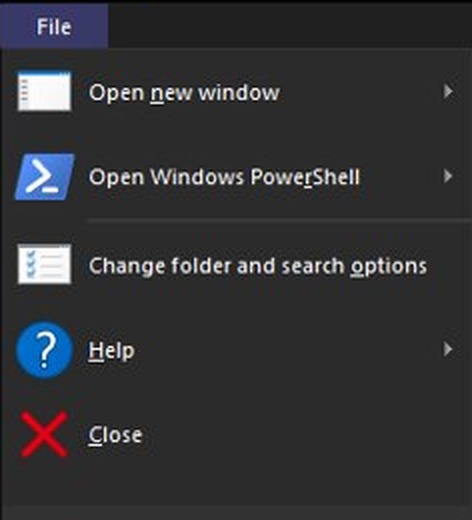
| Windows 10 | Open the File menu in File Explorer | Windows PowerShell in the current folder |
| Windows 10 | Hold Shift and right-click empty space in the folder | A PowerShell window entry for the current folder |
| Any version | Type cmd in the address bar |
Command Prompt in that folder |
If a menu only offers PowerShell, the address bar still gets you Command Prompt in the same folder in one step.
Open Command Prompt in a folder with Windows Terminal
Windows Terminal ships with a Command Prompt profile. You can launch that profile in the current folder straight from the Explorer address bar, or make it the profile every right-click opens.
- Open the folder in File Explorer and press Alt + D.
- Type
wt -p "Command Prompt" -d .and press Enter. The-pswitch picks the Command Prompt profile and-d .starts it in the folder on screen. - To open the default profile instead, drag the folder from File Explorer onto the New Tab (+) button of an open Terminal window. Hold Alt while dropping for a new pane, or Shift for a new window.
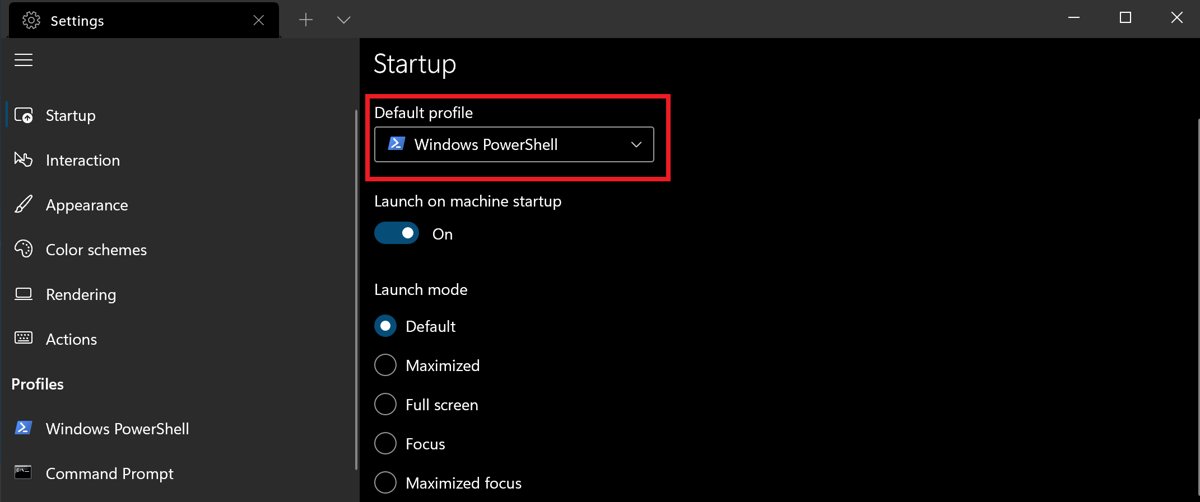
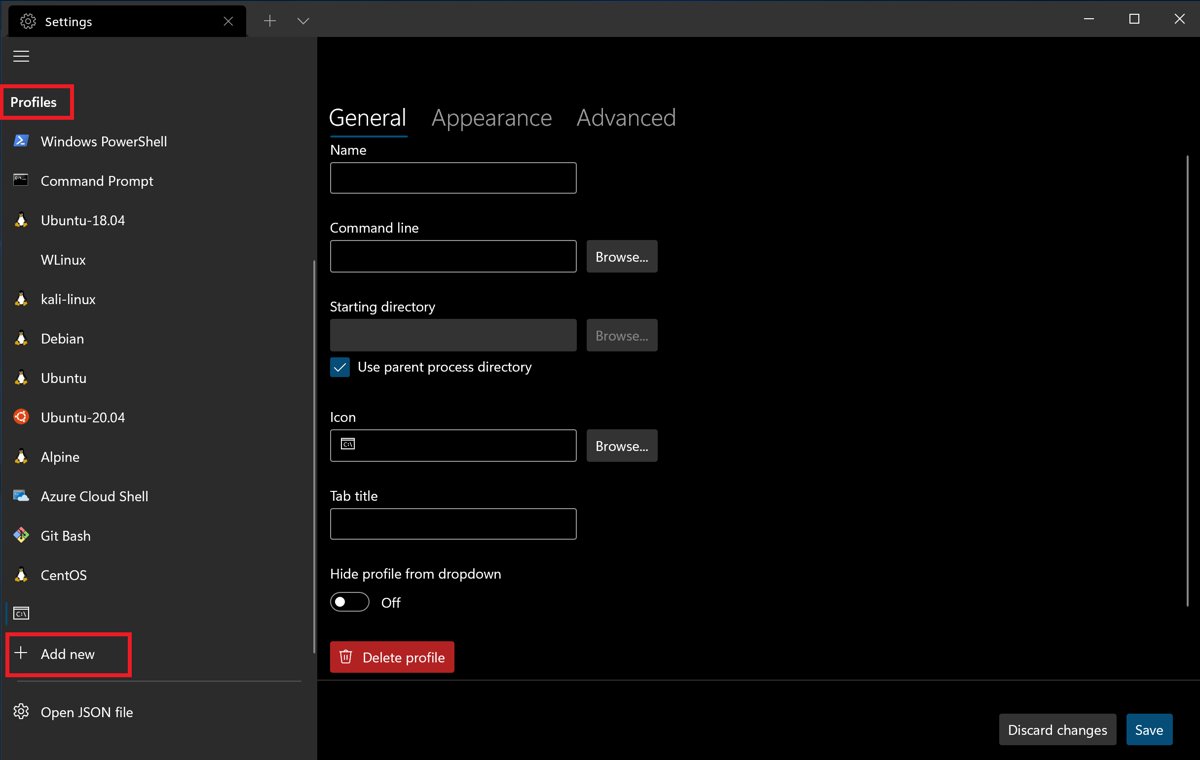
- To make Command Prompt the default, open Windows Terminal, press Ctrl + , to open Settings, select Startup, and set Default profile to Command Prompt.
- Select Save. The Windows Terminal entry on the File Explorer right-click menu now opens Command Prompt in the folder you clicked.
If wt is not recognized, open Settings, search for Manage app execution aliases, and turn the Windows Terminal alias back on.
Adding "Open command window here" to the right-click menu
Windows no longer shows Open command window here, but a per-user registry entry brings it back for folders. The key lives under HKEY_CURRENT_USER, so it needs no admin rights and affects only your account. Back up the registry before you edit it.
- Press Windows + R, type
regeditand press Enter. Approve the User Account Control prompt if one appears. - Go to
HKEY_CURRENT_USER\Software\Classes\Directory\shell. If theshellkey is missing, right-clickDirectory, select New > Key and name itshell. - Right-click
shell, select New > Key, and name itopencmdhere. - Select
opencmdhere, double-click (Default) on the right, enterOpen command window hereand select OK. This is the text the menu shows. - Optional: right-click
opencmdhere, select New > String Value, and name itExtendedwith no data. The entry then appears only when you hold Shift while right-clicking. - Right-click
opencmdhere, select New > Key, and name itcommand. - Select
command, double-click (Default), entercmd.exe /k cd /d "%1"and select OK. - Close Registry Editor, right-click any folder and select Open command window here. On Windows 11, select Show more options first.
%1 is replaced with the folder you right-clicked, cd /d moves to it even on another drive, and /k keeps the window open. The entry attaches to folders themselves; right-clicking empty space inside a folder does not show it, so right-click the folder in its parent window or in the navigation pane.
Open Command Prompt as administrator in a specific folder
Typing cmd in the address bar opens a standard, non-elevated prompt. An admin prompt always starts in C:\Windows\System32, so open it first and then move it to your folder.
Press Windows + X, select Windows Terminal (Admin), approve the prompt, and open a Command Prompt tab from the drop-down. In File Explorer, click the address bar and copy the folder path, then run the command below with your path.
cd /d "D:\Projects\My App"cd changes the current directory, and /d changes the drive at the same time, so the command works when the folder is not on C:. Keep the quotation marks for paths that contain spaces.
You should see: The prompt line changes to D:\Projects\My App> and every command now runs elevated in that folder.
For a network share, use pushd \\server\share\folder instead of cd. It maps the share to a free drive letter, starting with Z:, and moves into it; popd removes the mapping.
Make Command Prompt open in its own window instead of Windows Terminal
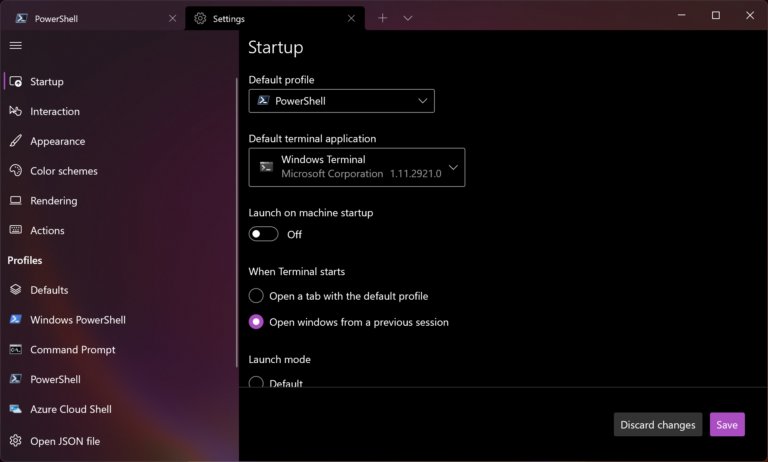
From Windows 11 22H2, typing cmd in the address bar opens Command Prompt inside Windows Terminal. The folder is the same either way; only the window around it changes. Pick one of these routes to bring back the classic console window.
| Where to change it | Path | Set to |
|---|---|---|
| Windows Settings | Start > Settings > System > Advanced > Terminal | Windows Console Host |
| Windows Terminal | Settings > Startup > Default terminal application | Windows Console Host |
| An open console window | Right-click the title bar > Properties | Windows Console Host |
| Undo any of the above | Same setting | Windows Terminal |
Remove "Open command window here" from the right-click menu
- Press Windows + R, type
regeditand press Enter. - Go to
HKEY_CURRENT_USER\Software\Classes\Directory\shell. - Right-click the
opencmdherekey and select Delete, then select Yes. - Right-click a folder to check that the entry is gone. No restart is needed.
Command Prompt not opening in the folder from File Explorer
The prompt opens, but cd will not move to a folder on another drive
Plain cd changes the directory for that drive without switching the current drive.
- Run
cd /d "E:\Folder"with your own path. - Or type the drive letter on its own, such as
E:, and press Enter before runningcd.
Command Prompt will not start in a network folder
A \\server\share path has no drive letter, and pushd is the command built to map one and move into it.
- Open Command Prompt from any local folder.
- Run
pushd \\server\share\folderwith the path from the address bar. - Work in the mapped drive, then run
popdto remove it.
Windows Terminal ignores the folder and opens in your user folder
A PowerShell profile or a startup script in the Terminal profile changes the directory after launch.
- Open Windows Terminal Settings, select the profile, and check Starting directory and Command line for a hard-coded path.
- Check your PowerShell profile for a
Set-Locationorcdline and remove it. - Launch with an explicit folder:
wt -p "Command Prompt" -d .from the address bar.
Open command window here is missing on Windows 11
Registry-added entries sit in the older menu, not the streamlined Windows 11 menu.
- Right-click the folder and select Show more options.
- If you added the
Extendedvalue, hold Shift while you right-click. - Right-click the folder itself, not empty space inside it.
Open Command Prompt in folder FAQ
How do I open Command Prompt in a specific folder?
Open the folder in File Explorer, press Alt + D to select the address bar, type cmd and press Enter. Command Prompt opens with that folder as its current directory. This works in Windows 11, Windows 10 and earlier versions.
Where did Open command window here go in Windows 10?
Windows 10 build 14971 and later replaced Command Prompt with PowerShell on the Shift + right-click menu and the File menu. Typing cmd in the address bar still opens Command Prompt in the folder, and a registry entry can restore the old menu item.
How do I open Command Prompt in a folder in Windows 11?
Type cmd in the File Explorer address bar and press Enter, or right-click the folder and use the Windows Terminal entry, then open a Command Prompt tab. Setting Command Prompt as Terminal's default profile makes the right-click entry open it directly.
Can I open an admin Command Prompt from File Explorer?
Not directly from the address bar, which always opens a standard prompt. Open Terminal (Admin) from the Windows + X menu, start a Command Prompt tab, and run cd /d with the folder path copied from File Explorer.
Why does Command Prompt open in Windows Terminal instead of its own window?
Windows 11 22H2 made Windows Terminal the default host for console apps. Go to Settings > System > Advanced > Terminal and choose Windows Console Host to get the classic window back. The folder Command Prompt starts in does not change.
Does typing powershell in the address bar work too?
Yes. Typing powershell in the File Explorer address bar opens Windows PowerShell in the current folder, the same way cmd opens Command Prompt. Typing wt opens Windows Terminal there with its default profile.
Why does cd not change to my folder on another drive?
Plain cd changes the folder for a drive without switching to that drive. Use cd /d followed by the full path, or type the drive letter and press Enter first. Opening Command Prompt from the address bar avoids the problem entirely.
Can I open Command Prompt in a network folder?
Yes, with pushd. A network path such as \\server\share has no drive letter, so run pushd followed by that path; it maps a temporary drive letter starting from Z: and moves into it, and popd removes the mapping.
You're in command now
Use the address bar: select it with Alt + D, type cmd and press Enter. It works on every Windows version, needs no registry edit, and always starts in the exact folder on screen. Add the registry entry only if you want a right-click item, and use cd /d from an admin Terminal when a command needs elevation.
Once the prompt is open in the right place, the full list of CMD commands shows what you can run there, and the Start menu and Win + X routes for launching Command Prompt in Windows 11 cover the times the folder does not matter.