To use Apple Pencil on iPad, pair it once by attaching it to the magnetic connector or plugging it into the iPad, then write or draw directly on the screen in apps such as Notes.
This guide covers which Apple Pencil fits each iPad, pairing and charging every model, handwriting, notes, drawing, PDFs, Word, Apple Pencil Pro gestures, settings and pairing fixes.
Using Apple Pencil on iPad
These five steps take a new Apple Pencil from the box to your first handwritten note.
- Check that your Apple Pencil model works with your iPad, using the compatibility table below.
- Update your iPad to the latest software, and make sure Bluetooth is on in Settings > Bluetooth.
- Pair the pencil: attach Apple Pencil Pro or Apple Pencil (2nd generation) to the magnetic connector, or plug Apple Pencil (USB-C) or Apple Pencil (1st generation) into the iPad, then tap Pair or Tap to Connect if it appears.
- Open the Notes app and create a new note.
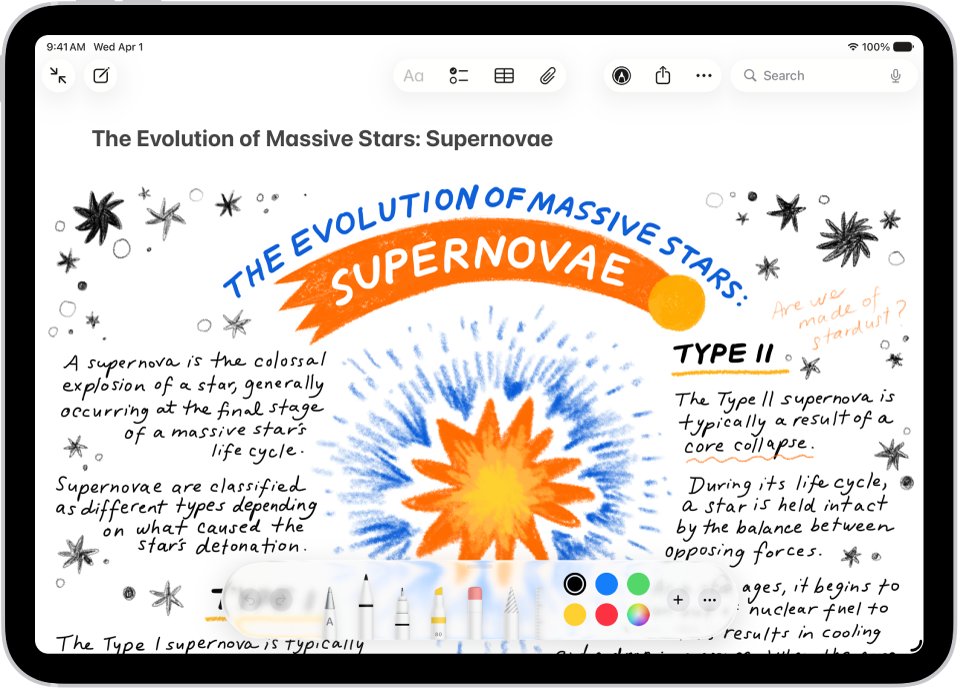
- Start writing or drawing on the note with the pencil tip; use the tool palette to switch pens, colors and the eraser.
Once paired, the pencil works in any text field and in apps with drawing or Markup tools, with no further setup.
Apple Pencil compatibility with iPad models
Each Apple Pencil only works with certain iPads, so check this before buying one. If you are unsure which iPad you have, compare it against the full list of iPad generations.
| Apple Pencil | Works with | Software needed |
|---|---|---|
| Apple Pencil Pro | iPad Pro 13-inch and 11-inch (M4 and M5), iPad Air 13-inch and 11-inch (M2, M3 and M4), iPad mini (A17 Pro and A20 Pro) | iPadOS 17.5 or later |
| Apple Pencil (USB-C) | iPad Pro (M4 and M5), iPad Pro 11-inch (1st to 4th generation), iPad Pro 12.9-inch (3rd to 6th generation), iPad Air 13-inch and 11-inch (M2 to M4), iPad Air (4th and 5th generation), iPad (A16), iPad (10th generation), iPad mini (A17 Pro and A20 Pro), iPad mini (6th generation), iPhone Duo | iPadOS 17.1.1 or later; iOS 27.2 on iPhone Duo |
| Apple Pencil (2nd generation) | iPad mini (6th generation), iPad Air (4th and 5th generation), iPad Pro 12.9-inch (3rd to 6th generation), iPad Pro 11-inch (1st to 4th generation) | Not stated by Apple |
| Apple Pencil (1st generation) | iPad mini (5th generation), iPad (6th to 9th generation), iPad (A16) and iPad (10th generation) with the USB-C to Apple Pencil Adapter, iPad Air (3rd generation), iPad Pro 12.9-inch (1st and 2nd generation), iPad Pro 10.5-inch, iPad Pro 9.7-inch | Not stated by Apple |
How to pair and charge Apple Pencil with iPad
Pairing and charging use the same connection on every model, so one action does both.
| Your Apple Pencil | How to pair | How to charge |
|---|---|---|
| Apple Pencil Pro | Attach it to the magnetic connector on the long side of the iPad | Leave it attached, with Bluetooth on |
| Apple Pencil (2nd generation) | Attach it to the magnetic connector on the right side of the iPad | Leave it attached, with Bluetooth on |
| Apple Pencil (USB-C) | Slide open the end, connect the USB-C charge cable between pencil and iPad, then tap Tap to Connect | Keep it plugged into the iPad, or use the cable and power adapter that came with the iPad |
| Apple Pencil (1st generation), iPad with Home button | Remove the cap, plug the pencil into the Lightning connector, then tap Pair | Keep it plugged into the iPad, or use the Apple Pencil Charging Adapter with a Lightning cable |
| Apple Pencil (1st generation), iPad (10th generation) or iPad (A16) | Plug it into the USB-C to Apple Pencil Adapter, connect the adapter to the iPad with the USB-C charge cable, then tap Pair | Keep it connected through the adapter |
Plug-in models stay paired until you restart the iPad, turn off Bluetooth or pair the pencil with another iPad; just pair it again when that happens.
To check the battery level, open Settings > Apple Pencil or add the Batteries widget to the Home Screen.
How to use Apple Pencil on iPad to take notes
The Notes app accepts handwriting the moment the pencil touches a note, and you can search what you have written later.
- Open Notes and tap the new note button, then start writing with Apple Pencil.
- Change pens and colors from the Markup tools, and drag the resize handle on the left to make the handwriting area larger or smaller.
- To turn handwriting into typed text as you write, tap the Scribble tool to the left of the pen.
- Select handwriting by double-tapping a word or triple-tapping a sentence, then tap Refine or Straighten to tidy it.
- To start a note from anywhere, swipe Apple Pencil up from the bottom-right corner of the screen to open a Quick Note.
- When the iPad is locked, tap Apple Pencil on the Lock Screen and start writing; the note is saved in Notes.
Handwriting refinement and transcription need a supported iPad and language. If a note has no title, Notes suggests the first handwritten line as its title.
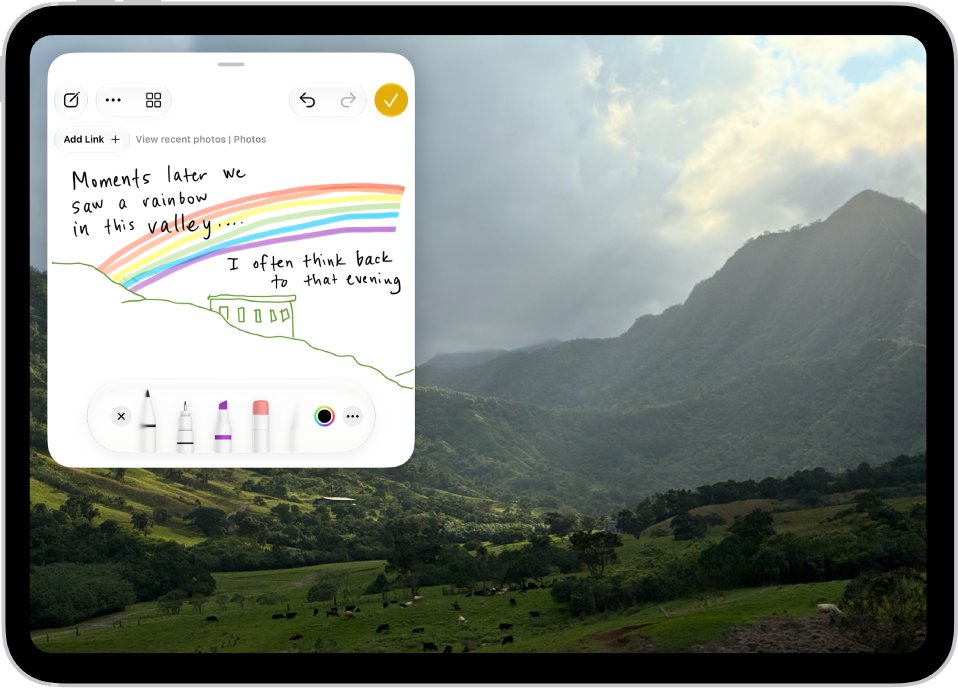
How to write with Apple Pencil using Scribble
Scribble converts handwriting to typed text in any text field, such as a message reply or a reminder, without opening the onscreen keyboard. The conversion runs on the iPad itself.
- Tap into any text field with Apple Pencil and write the words by hand; they become typed text.
- To delete a word, scratch it out.
- To insert text, touch and hold in the text, then write in the gap that opens.
- To join or separate characters, draw a vertical line between them.
- To select text, circle or underline it, then choose an editing option.
- Tap the Scribble toolbar for actions such as Undo or Show Keyboard.
To stop handwriting turning into text, go to Settings > Apple Pencil and turn off Scribble.
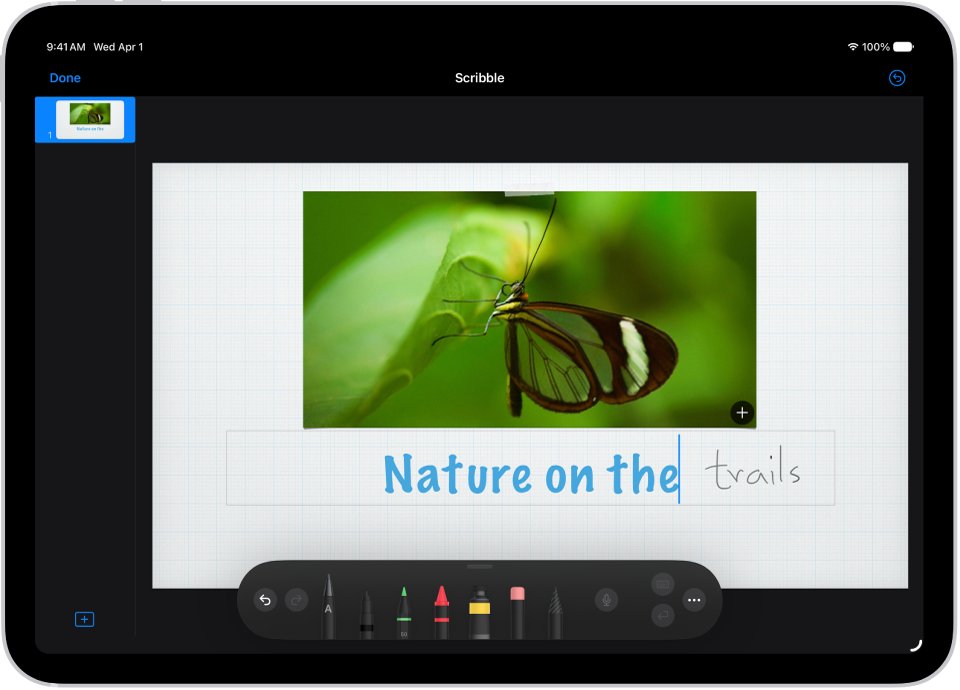
How to draw with Apple Pencil on iPad
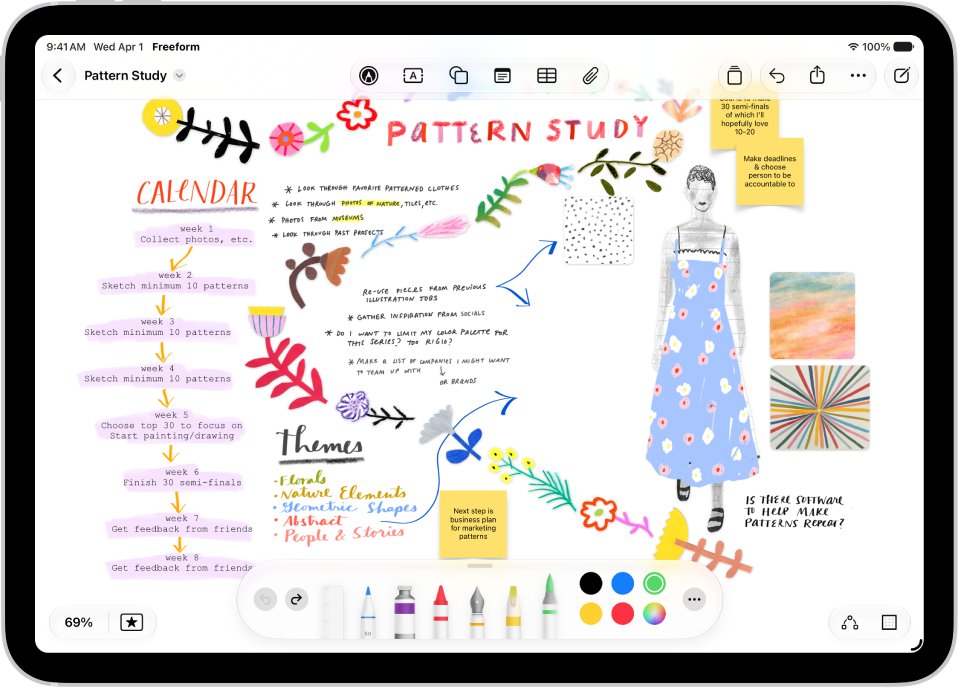
Apple Pencil works in any app with Markup tools, including Notes, Photos and the Freeform app for whiteboard-style boards.
- Open a note, a photo or a Freeform board, and tap Markup if the tools are not showing.
- Tap the pen, marker or pencil tool, then tap it again to change line weight or drag the opacity slider.
- Tilt the pencil to shade or vary line thickness; with Apple Pencil (1st and 2nd generation) and Apple Pencil Pro, press harder for darker lines.
- Tap the Ruler tool and draw along its edge for straight lines; rotate it with two fingers to change the angle.
- Use the Lasso tool to select strokes and move or recolor them.
- Tap the eraser and choose Pixel Eraser or Object Eraser to remove part or all of a drawing.
How to use Apple Pencil on PDF
Markup also works on PDFs, so you can annotate, fill in and sign documents without printing them.
- Open the PDF on your iPad; if prompted, open it in the Files app and tap Save.
- Tap the Markup button to show the Markup toolbar.
- Write or highlight directly on the page with Apple Pencil.
- To sign, tap the add button in the toolbar, tap Add Signature, sign with Apple Pencil and tap Done.
- Drag the signature into place and resize it with the blue dots.
- When finished, tap Export, Print or the share button to send the marked-up PDF.
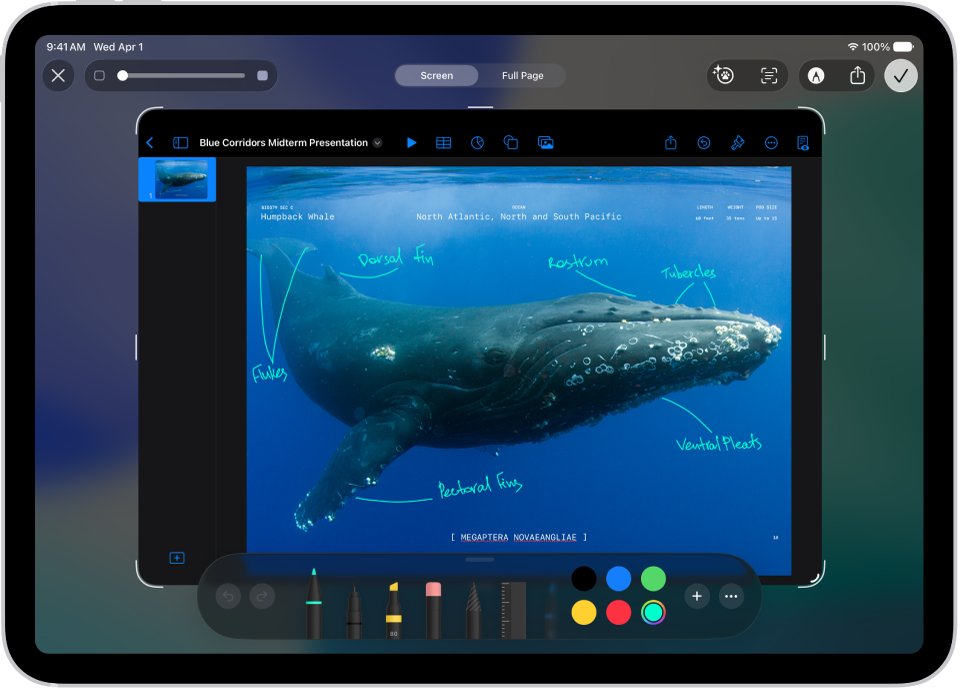
How to take a screenshot with Apple Pencil
- Swipe up with Apple Pencil from the bottom-left corner of the iPad screen; the bottom-right corner opens a Quick Note instead.
- Draw on the screenshot to mark it up, and change tools from the palette at the bottom.
- Tap the share button to send it in a message or save it to a note.
- Tap Done, then choose whether to save or delete the screenshot.
Without the pencil, you can still screenshot an iPad with its buttons, or record the iPad screen when you need video.
How to use Apple Pencil on Word on iPad
Word, Excel and PowerPoint for iPad put their pens on the Draw tab. Inking mode is on whenever a pen or highlighter is selected there.
- Open your document in Word for iPad and tap the Draw tab.
- Tap a pen, then tap it again to set its color and thickness (0.25 mm to 3.5 mm).
- Write or draw on the page; pressure changes line thickness and tilting shades.
- Use the eraser on the Draw tab to remove strokes.
- Tap the selection tool to move strokes or to leave Inking mode and edit text normally.
If the pencil keeps inking when you want to select text, open the iPad Settings app, tap Word, and under Draw and Annotate turn off Apple Pencil Always Draws Ink.
How to use Apple Pencil Pro
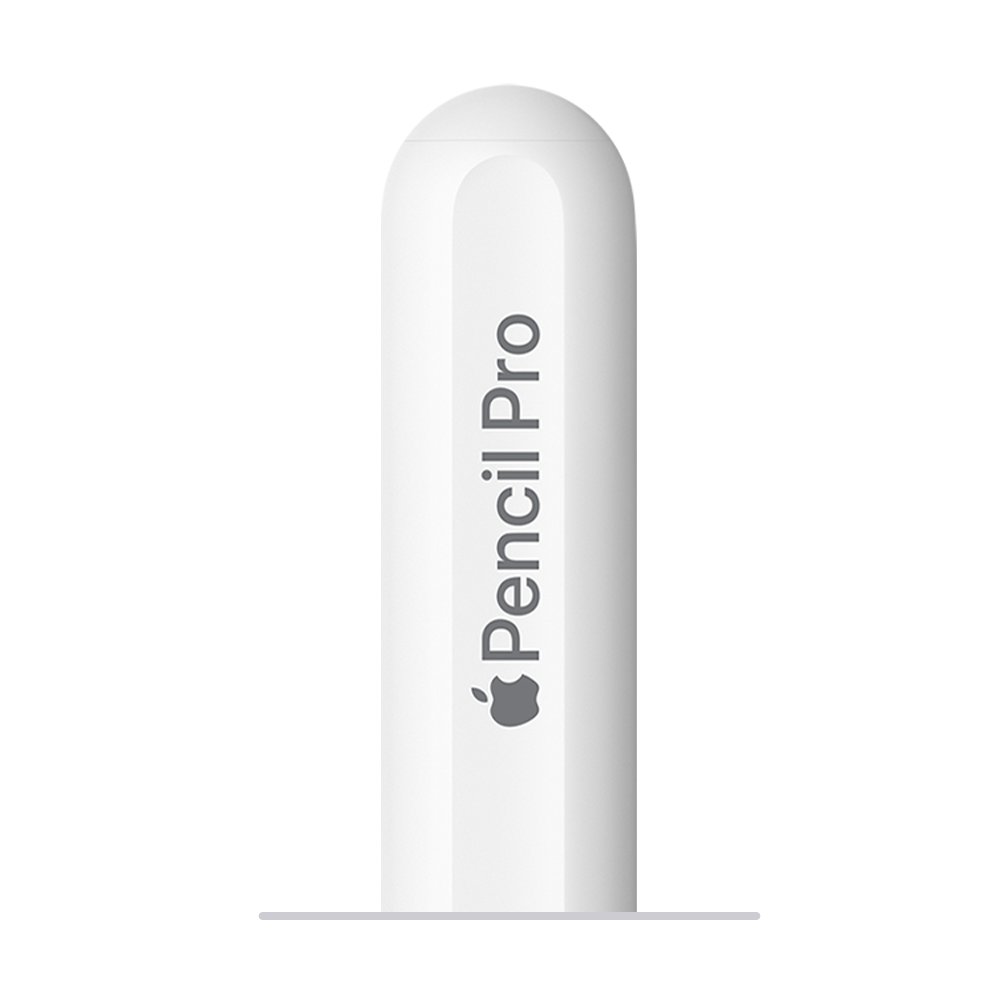
Apple Pencil Pro adds squeeze, barrel roll and haptic feedback on top of everything above, and supports hover on compatible iPads.
- Squeeze the barrel to run an action such as Undo or showing the tool palette; choose the action in Settings > Apple Pencil > Squeeze.
- Double-tap the barrel to switch back to the last tool you used, for example from marker to eraser.
- Rotate the barrel while using the highlighter or fountain pen in Notes, Freeform or Markup to change the tool's angle (barrel roll).
- Hold the tip up to 12 mm above the screen to preview a tool's mark, color and thickness before drawing (hover).
- Feel a light pulse when you squeeze or double-tap; turn Haptics on or off in Settings > Apple Pencil.
How to change Apple Pencil settings on iPad
| Setting | Where | What it does |
|---|---|---|
| Double Tap | Settings > Apple Pencil > Double Tap | Chooses the action for a double-tap on Apple Pencil (2nd generation) and Apple Pencil Pro |
| Squeeze | Settings > Apple Pencil > Squeeze | Chooses the action for a squeeze on Apple Pencil Pro |
| Scribble | Settings > Apple Pencil | Turns handwriting-to-text on or off |
| Hover | Settings > Apple Pencil | Turns tool previews off on supported models |
| Haptics | Settings > Apple Pencil | Turns the Apple Pencil Pro pulse on or off |
| Squeeze pressure and double-tap speed | Settings > Accessibility > Apple Pencil | Sets how firmly to squeeze (with Extended Range), turns double tap on or off, or slows the double-tap duration |
Tips for using Apple Pencil on iPad
| Tip | How |
|---|---|
| Jot a note without unlocking | Tap Apple Pencil on the Lock Screen |
| Capture an idea mid-task | Swipe from the bottom-right corner for a Quick Note |
| Shade like a real pencil | Tilt the pencil while drawing |
| Find old handwritten notes | Search in Notes; handwritten text is searchable in supported languages |
| Paste handwriting as text | Select handwriting in Notes and paste it into another app as typed text |
| Draw perfectly straight lines | Use the Ruler in the Markup toolbar |
| Keep the pencil charged | Store Pro and 2nd generation models on the magnetic connector |
| Check the battery | Add the Batteries widget to the Home Screen |
Apple Pencil not pairing with iPad
The Pair button never appears
The pencil battery is flat, or the iPad needs a restart or update.
- Keep the pencil connected for one minute so it charges, then connect it again and wait for Pair.
- With the pencil still connected, restart the iPad and try again.
- Update the iPad to the latest software.
- If the Pencil model matches your iPad and the Pair button still never appears, contact Apple for service.
Apple Pencil stopped connecting after working before
The old Bluetooth pairing is stale, or Bluetooth is off.
- Go to Settings > Bluetooth and make sure Bluetooth is on.
- Under My Devices, tap the info button next to your Apple Pencil, then tap Forget this Device.
- Connect the pencil to the iPad and tap Pair when it appears.
Apple Pencil Pro or 2nd generation does not attach or pair
A case or cover blocks the magnetic connector, or the pencil is off center.
- Remove any case or cover from the iPad.
- Center the pencil on the magnetic connector and try again.
Apple Pencil (1st generation) does not pair with iPad (10th generation)
This iPad has no Lightning port, so it needs an adapter.
- Plug the pencil into the USB-C to Apple Pencil Adapter.
- Connect the adapter to the iPad with a USB-C cable, such as the USB-C Charge Cable, then tap Pair.
Can I use Apple Pencil on iPhone, PC or Windows
Use Apple Pencil only with the devices on Apple's compatibility list: supported iPads, plus iPhone Duo with iOS 27.2 for Apple Pencil (USB-C). Apple's compatibility list names no other iPhone, and no Mac, Windows PC, laptop, HP touch screen or Lenovo Yoga, and Apple's pairing help starts by telling you to use the pencil model that works with your device.
Apple Pencil on iPad FAQ
How do I know if my iPad is compatible with the Apple Pencil?
Match your iPad model against Apple's compatibility list. For example, Apple Pencil Pro needs iPad Pro (M4 or M5), iPad Air (M2, M3 or M4) or iPad mini (A17 Pro or A20 Pro), while Apple Pencil (USB-C) works with the widest range of current iPads.
How to use Apple Pencil on iPad 10th gen?
iPad (10th generation) works with Apple Pencil (USB-C), or with Apple Pencil (1st generation) through the USB-C to Apple Pencil Adapter. Connect the pencil with a USB-C cable, tap Pair or Tap to Connect, then write in Notes or any text field.
How to use Apple Pencil on iPad mini?
iPad mini (A17 Pro and A20 Pro) works with Apple Pencil Pro and Apple Pencil (USB-C). iPad mini (6th generation) works with Apple Pencil (2nd generation) and USB-C. Attach a magnetic model to the side, or plug in the USB-C model, to pair.
How to use Apple Pencil on iPad Air?
iPad Air 11-inch and 13-inch with M2, M3 or M4 support Apple Pencil Pro and Apple Pencil (USB-C). iPad Air (4th and 5th generation) supports Apple Pencil (2nd generation) and USB-C, and iPad Air (3rd generation) uses Apple Pencil (1st generation).
How do I charge my Apple Pencil?
Attach Apple Pencil Pro or Apple Pencil (2nd generation) to the iPad's magnetic connector with Bluetooth on. Plug Apple Pencil (USB-C) or Apple Pencil (1st generation) into the iPad or into the iPad's charge cable and power adapter. Check the level in Settings > Apple Pencil.
Can I customize my Apple Pencil settings?
Yes. Go to Settings > Apple Pencil to choose double-tap and squeeze actions and to turn Scribble, hover and haptics on or off. Settings > Accessibility > Apple Pencil adjusts squeeze pressure and double-tap speed.
What apps support Apple Pencil?
Apple Pencil writes in any text field through Scribble, and draws in apps with Markup tools such as Notes, Photos, Freeform, Files for PDFs and screenshots. Microsoft Word, Excel and PowerPoint for iPad support it on their Draw tab.
Can I use Apple Pencil on iPhone?
Only on iPhone Duo with iOS 27.2, and only with Apple Pencil (USB-C), according to Apple's compatibility list. No other iPhone model is listed for any Apple Pencil.
What is an Apple Pencil good for?
Apple Pencil is used for handwritten notes, converting handwriting to typed text, sketching and drawing with pressure and tilt, marking up screenshots and PDFs, signing documents and brainstorming on Freeform boards, all with more precision than a finger.
How do I turn off Scribble on Apple Pencil?
Go to Settings > Apple Pencil and turn off Scribble. Your handwriting then stays as ink instead of converting to typed text in text fields, while drawing and note-taking still work normally.