Type taskkill /im notepad.exe in Command Prompt to close Notepad, or add /f to force a frozen program shut; the same command accepts a process ID with /pid.
This guide covers taskkill syntax, finding process IDs, filters, force and tree kills, remote computers, one-click shortcuts, PowerShell's Stop-Process, and common errors on Windows 11 and Windows 10.
How to kill a process with taskkill
Taskkill is built into Windows 11 and Windows 10, so there is nothing to install. These steps close a program by its file name.
- Press Windows, type cmd, and select Command Prompt. Choose Run as administrator if the program runs under another account.
- Type
tasklistand press Enter to see the image names of running programs. - Type
taskkill /im notepad.exeand press Enter, replacing notepad.exe with the image name you found. - If the program ignores the request, run
taskkill /f /im notepad.exeto force it closed. - Run
tasklistagain and check that the image name is gone from the list.
Image names include the extension, so type chrome.exe rather than chrome. When a name matches several windows, taskkill ends every instance.
Why do you need to use the taskkill command?
Task Manager handles most frozen apps, but taskkill does things a mouse cannot. Microsoft describes it as the command that ends one or more tasks or processes by process ID or image name.
| Situation | Why taskkill helps |
|---|---|
| Task Manager will not open or responds slowly | One typed line ends the process from Command Prompt |
| Several copies of one program are stuck | /im ends every instance with that image name at once |
| You only want apps that stopped responding | The STATUS filter targets NOT RESPONDING processes only |
| A program left child processes behind | /t ends the process and every child process it started |
| The stuck program is on another PC | /s, /u and /p end processes on a remote computer |
| You close the same app often | A batch file and desktop shortcut turn the command into one click |
If you prefer menus, the ways to force quit a program through Task Manager and keyboard shortcuts still apply.
The basic syntax of taskkill
The full syntax is taskkill [/s <computer> [/u [<domain>\]<username> [/p [<password>]]]] {[/fi <filter>] [...] [/pid <processID> | /im <imagename>]} [/f] [/t]. Square brackets mark optional parts, and the braces mean you must give a filter, a PID or an image name.
| Parameter | What it does |
|---|---|
| /pid <processID> | Ends the process with that process ID; repeat /pid to end several |
| /im <imagename> | Ends processes by image name, such as notepad.exe |
| /f | Forces the process to end; ignored for remote processes, which are always forced |
| /t | Ends the process and any child processes it started |
| /fi <filter> | Selects processes by status, memory, user, window title and more |
| /s <computer> | Targets a remote computer by name or IP address, without backslashes |
| /u <domain>\<username> | Runs the command as another account; works only with /s |
| /p <password> | Password for the account given in /u |
Run taskkill /? in Command Prompt to print the same help offline.
How to find the PID of a process for taskkill
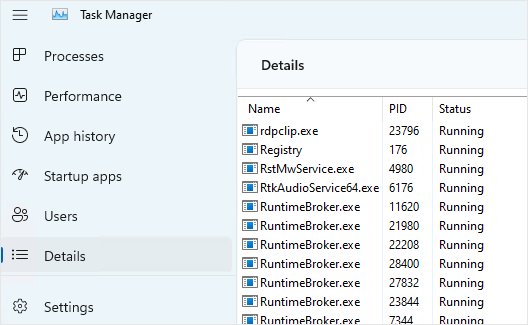
A process ID (PID) targets one exact instance, which is safer than an image name when several copies are open. Tasklist and Task Manager both show it.
- Open Command Prompt.
- Type
tasklistand press Enter. The PID column lists each process ID. - Narrow the list with a filter, for example
tasklist /fi "IMAGENAME eq notepad.exe". - Note the PID of the instance you want to close, then run
taskkill /pid 1230, using your own number. - End several at once by repeating the switch:
taskkill /pid 1230 /pid 1241 /pid 1253.
Task Manager shows the same number on its Details tab. The tasklist command also exports results as CSV with /fo csv.
Using taskkill with filtering flags
The /fi switch picks processes by a property instead of a name. Each filter is written as name, operator and value inside quotes, and you can stack several /fi switches in one command.
| Filter | Operators | Example |
|---|---|---|
| STATUS | eq, ne | taskkill /f /fi "STATUS eq NOT RESPONDING" |
| IMAGENAME | eq, ne | taskkill /fi "IMAGENAME eq note*" /im * |
| PID | eq, ne, gt, lt, ge, le | taskkill /f /fi "PID ge 1000" /im * |
| MEMUSAGE | eq, ne, gt, lt, ge, le | taskkill /fi "MEMUSAGE gt 500000" (value in KB) |
| USERNAME | eq, ne | taskkill /f /fi "USERNAME eq NT AUTHORITY\SYSTEM" /im notepad.exe |
| CPUtime | eq, ne, gt, lt, ge, le | taskkill /fi "CPUtime gt 01:00:00" (HH:MM:SS) |
| WINDOWTITLE | eq, ne | taskkill /fi "WINDOWTITLE eq Untitled – Notepad" |
| SESSION, SERVICES, MODULES | eq, ne (SESSION also gt, lt, ge, le) | Session number, service name or DLL name |
The wildcard * works with /im only when a filter is also applied. Test a filter with tasklist /fi first, because tasklist shows the matches without ending anything.
Taskkill force close a program and its child processes
Browsers and launchers often start helper processes. Combining /f and /t ends the parent and every child it started, so nothing is left running in the background.
taskkill /f /t /im chrome.exe/f forces each process to end, /t includes every child process started by it, and /im chrome.exe selects all processes with that image name. Swap in /pid 2134 to end one process tree by ID.
You should see: Running tasklist /fi "IMAGENAME eq chrome.exe" afterwards finds no matching tasks.
Taskkill on a remote computer
Taskkill can end processes on another Windows PC on your network. You need an account with rights on that computer, and the STATUS and WINDOWTITLE filters do not work remotely.
taskkill /s srvmain /u maindom\hiropln /p p@ssW23 /fi "IMAGENAME eq note*" /im */s names the remote computer, /u and /p supply the account and password, and the filter ends every process whose image name begins with note. Remote processes are always ended forcefully, so /f is not needed.
You should see: tasklist /s srvmain no longer lists the matching processes.
Leave out /p and its value if you do not want the password stored in your command history; /u still requires /s.
Creating taskkill applications with file shortcuts
Put a taskkill line in a batch file, then add a desktop shortcut to it. One double-click then closes the app without opening Command Prompt.
- Open Notepad and type the command you want, for example
taskkill /f /im notepad.exe. - Select File > Save as, set Save as type to All files, and name the file kill-notepad.bat.
- Open the folder where you saved it in File Explorer.
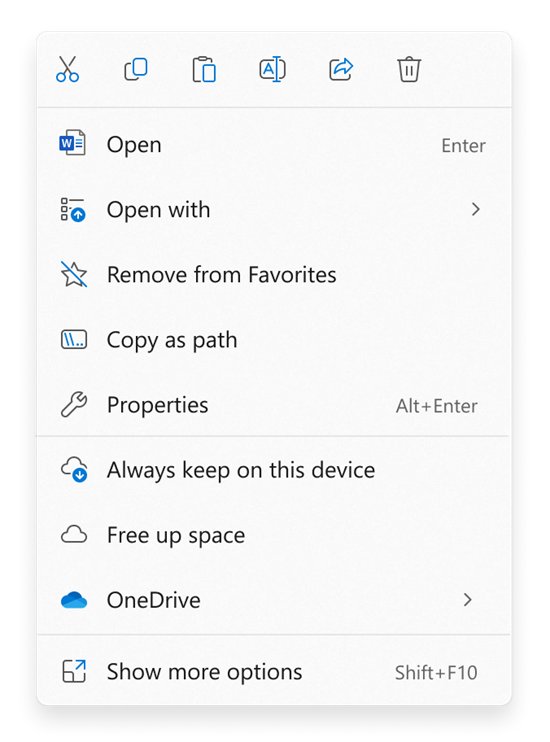
- Right-click kill-notepad.bat and select Create shortcut. In Windows 11, select Show more options first.
- Drag the new shortcut to your desktop and double-click it to run the command.
A batch file that ends processes owned by another account needs administrator rights, so right-click it and choose Run as administrator. The same trick works when you run commands as admin from the Run box.
Clean-up system memory with the taskkill command
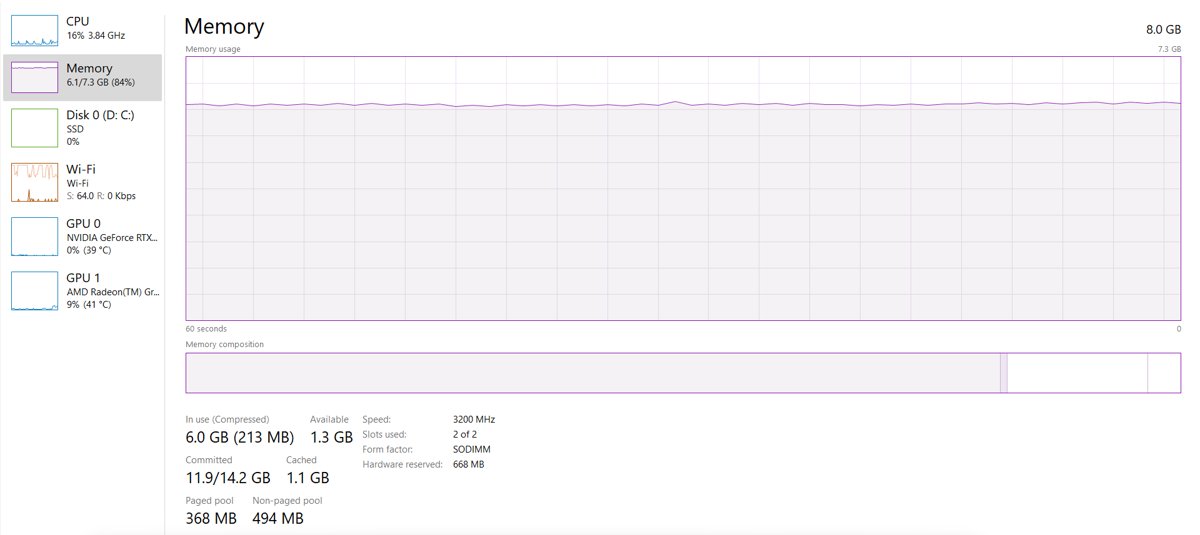
Ending a process releases the memory it was using. Filters let you target heavy or hung programs only, instead of guessing from Task Manager.
- Open Command Prompt as administrator.
- Run
tasklist /fi "MEMUSAGE gt 500000"to list processes using more than about 500 MB. MEMUSAGE is measured in KB. - Read the image names and keep anything you do not recognize; Windows system processes are not safe to end.
- End a hung app by name, for example
taskkill /f /im photoshop.exe, or end every unresponsive app withtaskkill /f /fi "STATUS eq NOT RESPONDING". - Open Task Manager > Performance > Memory to see the memory that was freed.
Closing an app this way discards unsaved work. For a deeper look at memory graphs, the Task Manager performance guide explains each counter.
Taskkill vs Stop-Process in PowerShell
| Your situation | Use this | Why |
|---|---|---|
| You work in Command Prompt or a batch file | taskkill /im name.exe | Built into cmd, with filters such as STATUS and MEMUSAGE |
| You work in PowerShell | Stop-Process -Name notepad | Takes a name without .exe and accepts piped Get-Process output |
| You need a prompt before each kill | Stop-Process -Id 3952 -Confirm | Shows the process name and ID before stopping it |
| The process is on another computer | taskkill /s computer | Stop-Process works only on the local computer |
| The process belongs to another user or SYSTEM | Either, from an elevated window | Both need Run as administrator for processes you do not own |
Stop-Process asks for confirmation before stopping a process you do not own; -Force skips that prompt.
How to see if a process is still running after taskkill
- In the same Command Prompt window, run
tasklist /fi "IMAGENAME eq notepad.exe"with your image name. - Read the result: if no matching task is listed, the process ended.
- If the PID still appears, run
taskkill /f /pidfollowed by that number. - For a process tree, run
tasklist /v /fi "STATUS eq running"and look for helper processes with the same name.
Taskkill not working
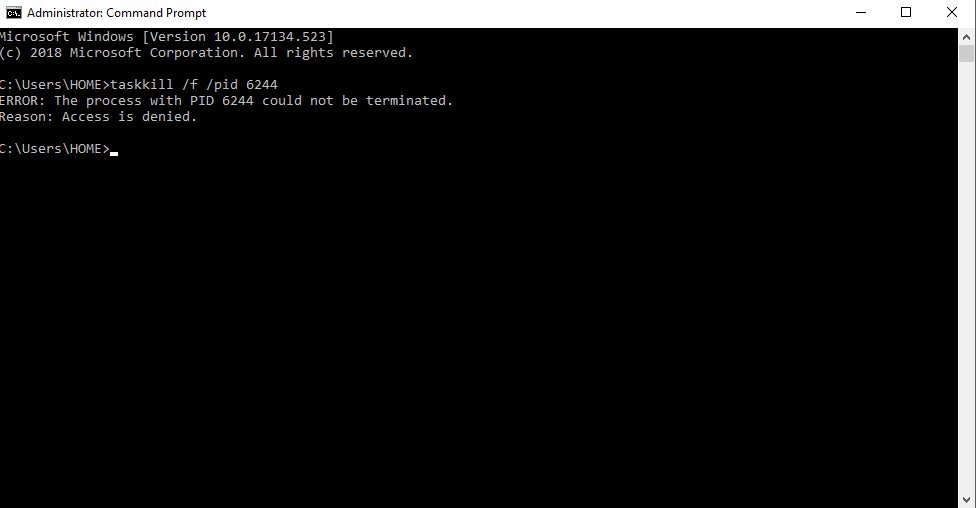
Taskkill says access is denied
The process belongs to another user, a service or SYSTEM, and your Command Prompt is not elevated.
- Close the current window.
- Press Windows, type cmd, right-click Command Prompt and select Run as administrator.
- Run the same taskkill command again, adding
/f.
Taskkill says the process was not found
The image name is misspelled, missing .exe, or the process already ended.
- Run
tasklistand copy the exact name from the Image Name column. - Run taskkill again with the full name, including .exe, or use
/pidwith the number from tasklist.
The program will not close without /f
Without /f, taskkill asks the program to close, and a hung app cannot answer.
- Add
/fto the command. - Add
/tas well if the app keeps child processes running.
Taskkill /im * is rejected
The wildcard is accepted for /im only when a filter is applied.
- Add a filter, for example
taskkill /f /fi "STATUS eq NOT RESPONDING" /im *. - Preview the matches first with
tasklistand the same/fifilter.
The STATUS or WINDOWTITLE filter fails on a remote PC
Neither filter is supported when /s names a remote system.
- Switch to IMAGENAME, PID, USERNAME or MEMUSAGE filters for remote commands.
- Or sign in to that computer and run the STATUS filter locally.
Taskkill command FAQ
What does taskkill /f do?
The /f switch forces the process to end instead of asking it to close. Use it for frozen programs. It is ignored for remote processes, because taskkill always ends remote processes forcefully.
What is the difference between taskkill /im and /pid?
/im ends processes by image name, such as notepad.exe, and closes every instance with that name. /pid ends only the process with that exact process ID, which you can read from tasklist or the Details tab in Task Manager.
How do I kill all processes with the same name?
Run taskkill /f /im followed by the image name, for example taskkill /f /im chrome.exe. Every process with that image name ends, and adding /t also ends the child processes they started.
Does taskkill need administrator rights?
Not for programs you started yourself. Processes that belong to another user, a service or the SYSTEM account need a Command Prompt opened with Run as administrator, otherwise Windows denies access.
Can taskkill end a process on another computer?
Yes. Add /s with the computer name or IP address, and /u and /p for an account with rights on that PC. Remote processes are always ended forcefully, and the STATUS and WINDOWTITLE filters do not work remotely.
Is taskkill the same as Stop-Process?
Both end running processes. Taskkill is a Command Prompt tool that also works on remote computers, while Stop-Process is a PowerShell cmdlet that works only on the local computer and takes a name without the .exe extension.
Will taskkill delete the program?
No. Taskkill only ends the running process, and the program stays installed. Any unsaved work in that program is lost, and you can start the app again normally.
How do I close all programs that are not responding?
Open Command Prompt and run taskkill /f /fi "STATUS eq NOT RESPONDING". The filter selects only processes Windows reports as not responding, leaving working apps alone.