To put a Gmail icon on your Windows 11 desktop, open mail.google.com in Microsoft Edge, install it with Install this site as an app, then select Create Desktop shortcut on edge://apps.
Google publishes no Gmail program for Windows, so every route is a shortcut to Gmail on the web. This guide covers the Edge app, Chrome's shortcut and web app, a plain Windows shortcut, taskbar pins, icons, admin deployment and fixes.
How to put Gmail icon on desktop Windows 11
Microsoft Edge comes with Windows 11, so this route needs no extra download. Gmail then opens in its own window from the desktop icon.
- Open Microsoft Edge, go to
mail.google.com, and sign in to your Google Account. - Select Settings and more (the … button at the top right).
- Select More tools > Apps > Install this site as an app, then confirm. Gmail opens in its own window.
- Type
edge://appsin the Edge address bar and press Enter. - Select Details on the Gmail card.
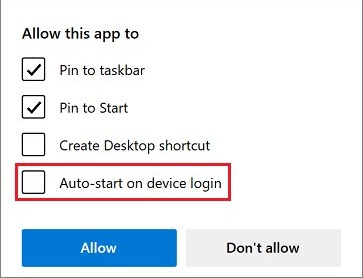
- Select Create Desktop shortcut. The Gmail icon appears on your desktop.
Why choose one method over another
The background matters here: Gmail runs in the browser on Windows, so each icon is a doorway to the web version. This overview shows how the five routes differ in what opens and what you can pin.
| Method | What the icon opens | Taskbar and Start pins | Starts with Windows |
|---|---|---|---|
| Edge: Install this site as an app | Gmail in its own app window | Yes, from Details on edge://apps | Yes, Auto-start on device login |
| Chrome: Install page as app | Gmail in its own app window | Right-click the app on the taskbar | Yes, Start apps when you sign in |
| Chrome: Create shortcut | A Gmail shortcut created from Chrome | Not from the dialog | No |
| Drag the site icon from the address bar | Gmail in your default browser | No | No |
| Desktop right-click > New > Shortcut | Gmail in your default browser | No | No |
Gmail icon comparison: quick decision guide
| Your situation | Use this | Why |
|---|---|---|
| You want Gmail to feel like a desktop app | Edge app install | Own window, desktop shortcut, taskbar and Start pins from one page |
| Chrome is your everyday browser | Chrome's Install page as app | Keeps your Chrome profile and sign-in |
| You want the fewest clicks | Drag the site information icon onto the desktop | One drag, no menus |
| Your browser has no app install option | Manual Windows shortcut | Works with whatever browser is the default |
| You manage many PCs | Edge's WebAppInstallForceList policy | Installs Gmail silently with a desktop shortcut on every PC |
Microsoft Edge — install Gmail as an app (recommended for most Windows 11 users)
Use Edge's Install this site as an app for Gmail unless you already live in Chrome. Edge is on every Windows 11 PC, its Details page gives you the desktop shortcut, taskbar pin, Start pin and auto-start in one place, and uninstalling removes everything cleanly. Gmail officially supports the newest and previous version of Microsoft Edge.
Why use Edge’s PWA install
PWA stands for progressive web app: a website Edge can install so it behaves like an app. Edge can install any site this way, and some sites trigger an install prompt of their own.
| What you get | Where to find it |
|---|---|
| Gmail in a separate window, not a browser tab | Opens straight after Install this site as an app |
| Desktop icon | Details > Create Desktop shortcut on edge://apps |
| Taskbar and Start pins | Details > Pin to taskbar and Pin to Start |
| Gmail open at sign-in | Details > Auto-start on device login toggle |
| Site permissions in one list | edge://apps shows every installed app and its permissions |
| Clean removal | Details > Uninstall, with an option to delete app history and data |
Exact steps (Edge) to pin Gmail to taskbar and Start
- Install Gmail as an app in Edge, as in the first section.
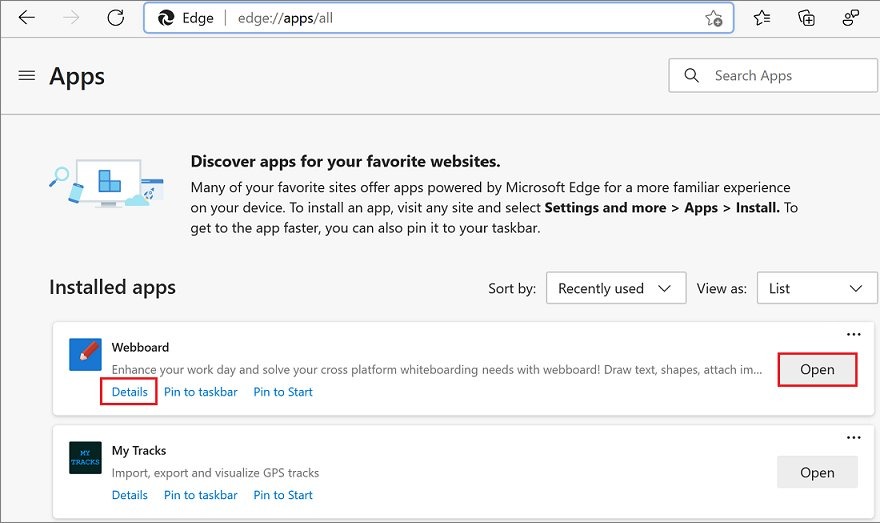
- Open Edge and go to
edge://apps. - Select Details on the Gmail card.
- Select Pin to taskbar to add Gmail next to your other taskbar apps.
- Select Pin to Start to add it to the Start menu.
- Turn on Auto-start on device login if you want Gmail to open whenever you sign in to Windows.
Gmail app notes and verification
- Go to
edge://apps. A Gmail card there means the install worked. - Double-click the desktop icon. Gmail should open in its own window, signed in to your inbox.
- Press the Windows key and select All. Installed web apps you pinned to Start also appear in the Start menu.
- If the icon opens a sign-in page instead of your inbox, sign in in that window.
Google Chrome — create a Gmail shortcut (with caveats)
Chrome offers two routes. Create shortcut makes a named shortcut to the page; Install page as app gives Gmail its own window.
- Open Google Chrome and go to
mail.google.com. - At the top right, select More (three dots) > Cast, save, and share > Create shortcut….
- Keep the default name or type Gmail in the Name field, then select Create.
- For an app window instead, select More > Cast, save, and share > Install page as app…. On some sites an Install icon also appears at the right of the address bar.
- Follow the on-screen instructions to finish the install.
- Right-click the Gmail app on the taskbar to see its shortcuts and pin it.
Chrome Gmail shortcut caveats & verification
| Caveat | What to do |
|---|---|
| The current Create shortcut dialog only asks for a Name | Use Install page as app… when you want Gmail in its own window |
| The shortcut uses the Chrome profile you made it in | Create it while signed in to the Google Account you want it to open |
| Chrome may ask to update the app's name or icon | Select App update available > Review app update, then Update, Ignore or Uninstall |
| A suspicious name or icon change | Google advises uninstalling the app if it suddenly resembles a different app |
| Checking app settings | Open the Gmail app window, select More > App info > Settings |
Manual Windows shortcut — universal fallback and icon customization
These two Windows-only routes work with any browser and follow the usual way to create a desktop shortcut. Both open Gmail in your default browser.
- Open your web browser and go to
mail.google.com. - Drag the View site information icon (the padlock or sliders icon next to the URL) onto your desktop. A Gmail shortcut appears.
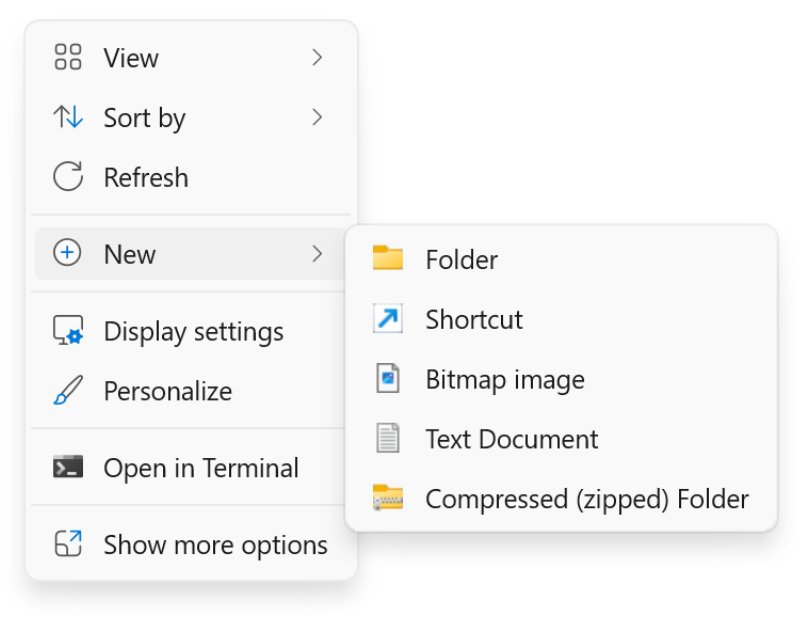
- To build one by hand instead, right-click an empty area of the desktop and select New > Shortcut.
- Follow the prompts, entering
https://mail.google.com/as the location of the web page. - Name the shortcut Gmail and finish the prompts.
- Double-click the new icon to check that Gmail opens.
Change the Gmail shortcut icon (optional)
The Edge and Chrome app installs use Gmail's own app icon automatically, which is the easiest way to get the Gmail logo on the desktop.
- If a manual shortcut shows a plain browser icon, delete it and use the Edge or Chrome app install instead.
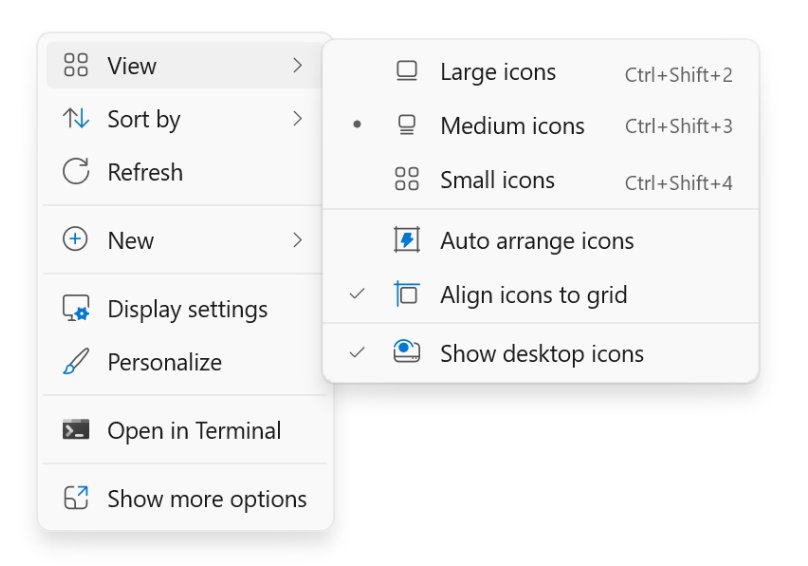
- To make the Gmail icon bigger or smaller, right-click the desktop, select View, and pick Large icons, Medium icons or Small icons.
- Or hold Ctrl on the desktop while you scroll the mouse wheel.
- If Chrome shows App update available for a new Gmail icon, select Review app update > Update to accept it.
For finer control over spacing and size, resize desktop icons in Windows 11 from the same View menu. Admins can set a custom icon for a force-installed Gmail app through Edge policy.
Notes about .url files and favicons
| Fact | What it means for a Gmail icon |
|---|---|
| A manual web shortcut is a Windows Internet shortcut (a .URL file) | It stores the Gmail address and opens it in the default web browser |
| The shortcut stores its own icon file and icon index | The icon shown comes from that stored icon file, so a manual Gmail shortcut does not automatically carry the Gmail logo |
| A browser app install is not a .URL file | Edge and Chrome register Gmail as an installed app with its own icon |
| Changing the default browser changes where a .URL opens | Set it in Settings > Apps > Default apps |
How to put Gmail icon on taskbar Windows 11
- Install Gmail as an app in Edge or Chrome and open it.
- Right-click the Gmail icon on the taskbar.
- Select Pin to taskbar.
- For the Edge app, you can also select Pin to taskbar under Details on
edge://apps. - To remove it later, right-click the pinned icon and select Unpin from taskbar.
Tips for how to put Gmail icon on desktop Windows 11
| Tip | Detail |
|---|---|
| Sign in before you install | The app window opens the account that is signed in to that browser profile |
| Use the official address | Point every shortcut at mail.google.com; Google offers no Gmail setup file for Windows |
| Keep the browser current | Gmail works best in the newest and previous version of Chrome, Firefox, Safari and Edge, with cookies and JavaScript on |
| Name it clearly | Keep the name Gmail so search and the Start list find it |
| Pin as well as shortcut | A taskbar pin stays visible when windows cover the desktop |
| Same steps for other Google apps | The Edge app route also works to put Google Calendar on the desktop |
Gmail desktop advanced tips and power-user tricks
| Trick | How |
|---|---|
| Open Gmail from the keyboard | Pin it to the taskbar, then press Windows + its position number (for example Windows + 3) |
| Reach the desktop icon fast | Press Windows + D to show the desktop |
| Rename the icon | Select it and press F2 |
| Get new-mail alerts | In Gmail, select Settings > See all settings, scroll to Desktop notifications, choose an option and select Save Changes |
| Open Gmail at sign-in | Edge Auto-start on device login, or Chrome Start apps when you sign in |
The Settings button in Gmail is the gear icon in Gmail at the top right.
Gmail desktop shortcut security and privacy considerations
| Consideration | What to do |
|---|---|
| Anyone at the PC can open your inbox | The icon opens your signed-in session; use a Windows account per person on shared PCs |
| "Gmail for Windows" downloads | Google publishes no Gmail installer for Windows; any download claiming to be one is not from Google |
| Installed apps keep site data | When you uninstall the Edge app, choose to delete app history and data |
| Look-alike app updates | Uninstall a Chrome web app whose name or icon changes to resemble another app |
| Notification previews | Desktop notifications can show message details on screen; turn them off in Gmail settings on shared screens |
Strengths, weaknesses, and risk analysis
| Method | Strengths | Weaknesses / risks |
|---|---|---|
| Edge app | Own window, all pins and auto-start in one place | Tied to the Edge profile it was installed in |
| Chrome web app | Own window, follows your Chrome sign-in | Needs Chrome installed; name and icon updates need review |
| Chrome Create shortcut | Two clicks | No app window from the current dialog |
| Drag or manual shortcut | Works with any browser | Opens a browser tab; plain icon; no pins |
Weaknesses / risks of a Gmail desktop icon
A Gmail desktop icon is only a door to Gmail on the web, so it adds no offline mailbox and no protection of its own. Every method depends on the browser's sign-in. If the browser profile is signed out, the icon opens a sign-in page; if it is signed in, anyone using that Windows account reaches your mail with one double-click.
Deployment notes for IT admins
Edge's Configure list of force-installed Web Apps policy (WebAppInstallForceList, Edge 80 and later on Windows and macOS) installs web apps silently. Users cannot turn the policy off or uninstall those apps.
| Setting | Value for Gmail |
|---|---|
| Group Policy path | Administrative Templates/Microsoft Edge > Configure list of force-installed Web Apps (MSEdge.admx) |
| Registry | SOFTWARE\Policies\Microsoft\Edge, value WebAppInstallForceList (REG_SZ) |
url (required) |
https://mail.google.com/ |
default_launch_container |
window to open Gmail in its own window (a tab is the default) |
create_desktop_shortcut |
true to put the Gmail icon on the desktop |
custom_name / custom_icon |
Override the app name or icon (Edge 112 and later); icons must be square, 1 MB or less, with a SHA256 hash |
Example value: [{"url": "https://mail.google.com/", "default_launch_container": "window", "create_desktop_shortcut": true}]. The WebAppInstallByUserEnabled policy does not affect force-installed apps.
How to remove Gmail icon from desktop
- To remove only the icon, right-click it on the desktop and select Delete.
- To remove the Edge app, open
edge://apps, select Details on the Gmail card, then Uninstall. - Choose whether to also delete app history and data, then confirm.
- To remove a taskbar pin, right-click it and select Unpin from taskbar.
Step-by-step troubleshooting and best practices
Install this site as an app is missing in Edge
On work or school PCs, an administrator can block users from installing web apps.
- Ask your IT team whether web app installs are allowed on the PC.
- Use the drag or New > Shortcut method instead; neither needs an app install.
Gmail icon opens in the wrong browser
Drag and manual shortcuts open in the default web browser.
- Open Settings > Apps > Default apps.
- Under Set defaults for applications, select the browser you want.
- Select Set default next to its make-default prompt.
- Or replace the shortcut with an Edge or Chrome app install, which always opens in that browser.
Gmail says the browser isn't supported, or shows a JavaScript or cookie error
The browser is out of date or has cookies or JavaScript turned off.
- Update the browser to its newest version.
- Turn on cookies and JavaScript for the browser.
- Open the Gmail icon again.
No Gmail notifications from the desktop app
Desktop notifications are off in Gmail or for the browser.
- In Gmail, select Settings > See all settings.
- Scroll to Desktop notifications and choose New mail notifications on or Important mail notifications on.
- Select Save Changes at the bottom of the page.
- Check that notifications are not turned off for the browser in Windows.
Gmail icon disappeared from the desktop
Desktop icons are hidden, or the shortcut was deleted.
- Right-click the desktop, select View, and make sure Show desktop icons is ticked.
- If the icon is still missing, select Create Desktop shortcut again on
edge://apps.
Gmail desktop icon FAQ
How do I put a Gmail icon on my desktop?
Open mail.google.com in Microsoft Edge, select Settings and more > More tools > Apps > Install this site as an app, then open edge://apps, select Details on Gmail and choose Create Desktop shortcut. In any browser you can also drag the padlock icon next to the address onto the desktop.
How do I put the Gmail icon on my taskbar in Windows 11?
Install Gmail as an app in Edge or Chrome, open it, right-click its taskbar icon and select Pin to taskbar. In Edge you can also select Pin to taskbar under Details on edge://apps. Unpin it later with Unpin from taskbar.
How do I put the Gmail icon on my desktop in Windows 10?
The same Edge and Chrome steps work on Windows 10, because they run inside the browser. Install Gmail as an app, then use Create Desktop shortcut in Edge, or Create shortcut in Chrome.
What if I use a different browser?
Gmail works in Chrome, Firefox, Safari and Edge. For browsers without an app install option, drag the site information icon next to the address bar onto the desktop, or right-click the desktop and select New > Shortcut. Both open Gmail in your default browser.
Can I use this method for other websites?
Yes. Edge's Install this site as an app and Chrome's Create shortcut and Install page as app work on any website, so the same steps put Google Calendar, Drive or any other site on the desktop.
Is it safe to create shortcuts for web services?
Yes, as long as the shortcut points at mail.google.com. The shortcut holds no password; it opens your browser's existing sign-in. Avoid any download sold as a Gmail desktop app, because Google publishes none for Windows.
What does the "Open as window" option do?
Chrome's current Create shortcut dialog shows only a Name field, so there is no Open as window box to tick. To get Gmail in its own window rather than a tab, use More > Cast, save, and share > Install page as app to get Gmail in a separate window.
Can I rename the shortcut later?
Yes. Click the Gmail icon on the desktop once to select it, press F2, type the new name and press Enter. Renaming the icon does not change the installed app or your Gmail account.
How do I make an icon for Gmail with the Gmail logo?
Install Gmail as an app in Edge or Chrome. The desktop shortcut it creates uses Gmail's own app icon. A manual shortcut takes its icon from the file stored in the shortcut instead.