Install Company Portal in Windows 11 from Microsoft Store: search for Company Portal, select Get, then sign in with your work or school account.
This guide covers the Store, browser and winget routes, how to enroll your PC in Intune, how to sync and remove it, and fixes for common errors.
Method 1: Install Company Portal from Microsoft Store
Microsoft lists Microsoft Store as the place to get Company Portal for Windows. The app is free, but you need a work or school account from your organization to sign in.
- Select Start, then open Microsoft Store from the apps list.
- Type
Company Portalin the search box at the top and press Enter. - Open the Company Portal result.
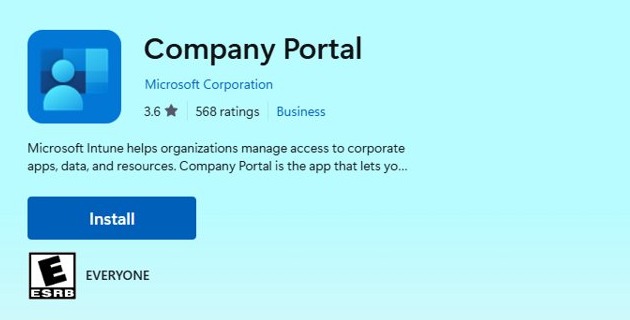
- Select Get and wait for the download and installation to finish.
- Open Company Portal from the Start menu.
- Select Sign In and enter your work or school email address.
If the Store says the app isn't available, your organization may deploy it for you instead. Admins can push Company Portal to a PC as a required app from the Microsoft Intune admin center.
What is the Company Portal app?
Company Portal is the Microsoft Intune app that lets employees and students reach their organization's apps, data and resources. It's available for Windows, macOS, Android and iOS.
| Feature | What it does on Windows 11 |
|---|---|
| Device enrollment | Connects the PC to Intune so your organization can manage it |
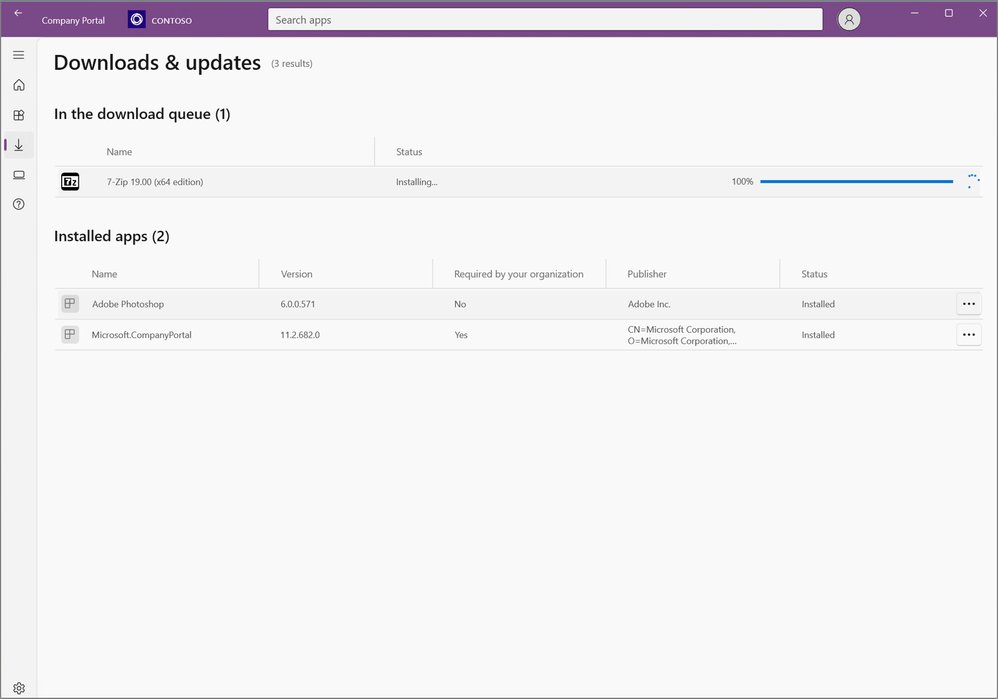
| Work apps | Lists the apps your organization makes available, including required and installed ones |
| Sync | Pulls the latest apps, settings and requirements from your organization |
| Device setting requirements | Flags settings to update, such as firewall, Secure Boot or antivirus |
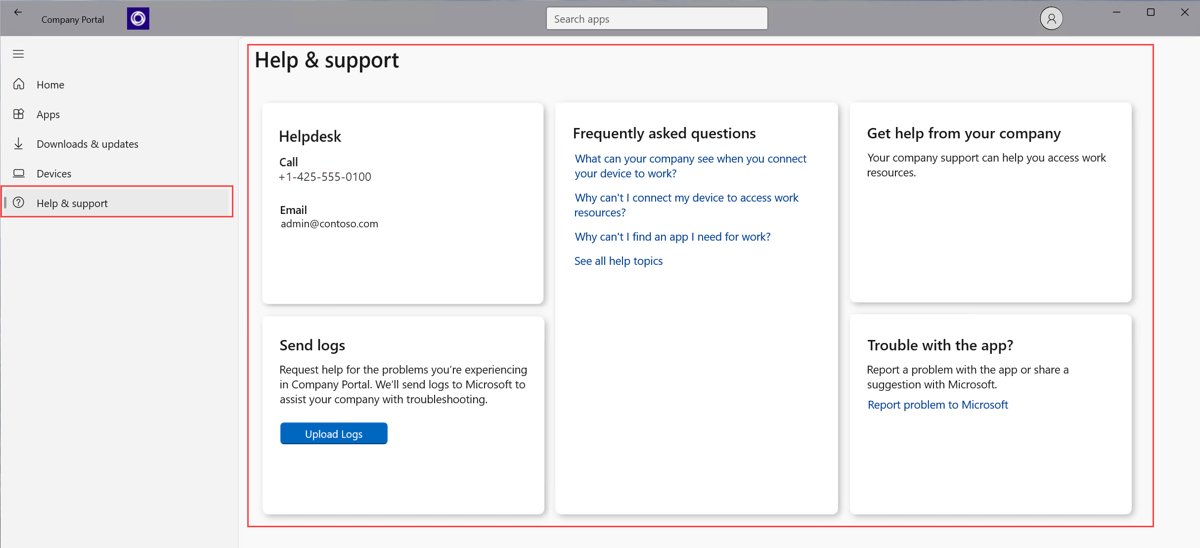
| Help and support | Shows your organization's IT contact details |
| Configuration Manager apps | Shows apps deployed by Configuration Manager on co-managed PCs |
Why install Company Portal on Windows 11
| Reason | Who it helps |
|---|---|
| Get access to work or school email, apps and Wi-Fi on the PC | Employees and students |
| Install approved work apps without asking IT for each one | Employees and students |
| Fix access problems yourself with a manual sync | Employees and students |
| See which device settings your organization requires | Employees and students |
| Enroll personal (BYOD) PCs that IT can't set up in person | IT administrators |
| Give users one place for Intune and Configuration Manager apps | IT administrators |
Company Portal system requirements
| Requirement | Details |
|---|---|
| Windows version | Windows 11, or Windows 10 version 1607 and later, for enrollment through the app |
| Windows 11 edition | Home, S, Pro, Pro Education, Education, Enterprise or IoT Enterprise |
| Account | A work or school account from your organization |
| Organization | Your organization must use Microsoft Intune |
| Network | An internet connection to add the work or school account |
| Windows 10 note | Windows 10 reached end of support on October 14, 2025, and Intune features on it aren't guaranteed |
Intune doesn't support enrolling a cloned image of a computer that is already enrolled, including virtual machines. Each PC needs its own clean enrollment.
Method 2: Install Company Portal via web browser
The Microsoft Store website opens the same listing in a browser and hands the install to the Store app on your PC.
- Open Microsoft Edge or another browser on the Windows 11 PC.
- Go to
apps.microsoft.com/detail/9wzdncrfj3pz, the Company Portal listing. - Select the button on the listing to get the app.
- Allow the browser to open Microsoft Store when it asks.
- Select Get in Microsoft Store and wait for the install to finish.
- Open Company Portal from the Start menu and sign in.
The Company Portal website at portal.manage.microsoft.com is a different tool. It works in any browser without installing anything and lets you manage enrolled devices, view work apps and get a BitLocker recovery key for a locked PC.
How to install Company Portal with winget
Windows Package Manager (winget) can install Company Portal from the Microsoft Store source in one line.
winget install --id 9WZDNCRFJ3PZ --source msstore --accept-package-agreements --accept-source-agreements--id limits the install to the Company Portal Store ID, --source msstore searches only Microsoft Store, and the two --accept switches skip the license prompts for the package and the Store source.
You should see: winget reports that the package installed successfully, and Company Portal appears in the Start menu.
IT admins who need an offline installer for the Store app can run winget download "Company Portal" --source msstore instead. It saves the app and its dependencies to the Downloads folder for upload to Intune as a line-of-business app.
How to sign in and enroll device in Company Portal
Enrolling is what gives the PC access to work email, apps and Wi-Fi. Sign-in alone doesn't enroll the device.
- Open Company Portal, select Sign In, enter your work or school email and select Next.
- Enter your password and select Sign In.
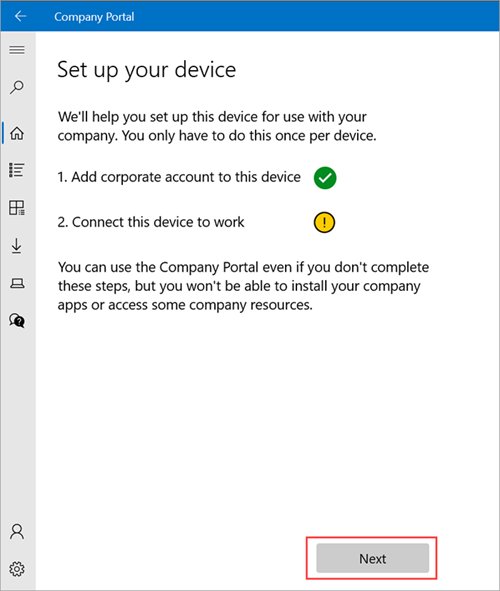
- On the Home screen, select Next to set up your device.
- Select Connect, then sign in with your work or school account again.
- On the Setting up your device screen, select Go.
- When setup completes, return to Company Portal and select Next.
- Select Done to exit setup.
If your organization uses certificates, enter your email, select Sign in with a certificate, then select Continue. Smart card users can select Sign in from another device and enter the one-time code at microsoft.com/devicelogin.
How to check if your PC is enrolled in Intune on Windows 11
- Select Start, then Settings.
- Select Accounts, then Access work or school.
- Look for your work account, marked with a briefcase icon or the Microsoft logo.
- Select the account and look for the Info button.
- Select Info to see the sync status and management details.
Company Portal also shows any device setting it wants you to change. Only update the settings it flags, because requirements differ between organizations.
How to sync Company Portal on Windows 11
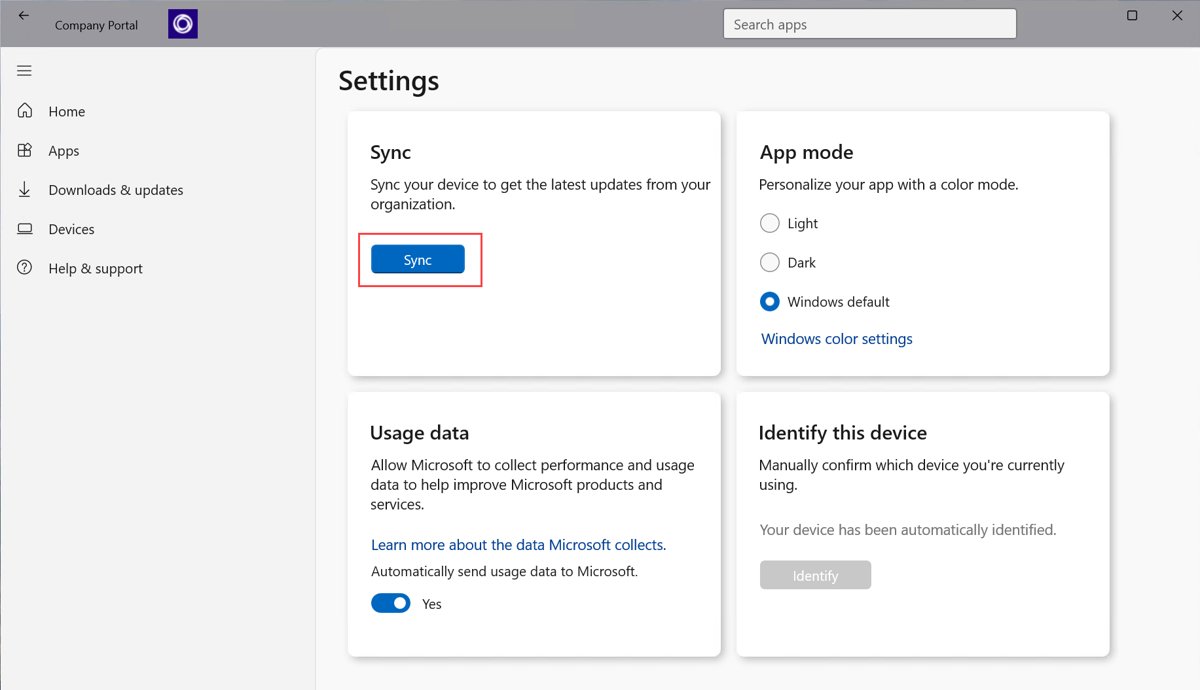
Company Portal syncs on its own while you're online. A manual sync helps after a long time offline or when a work app download stalls.
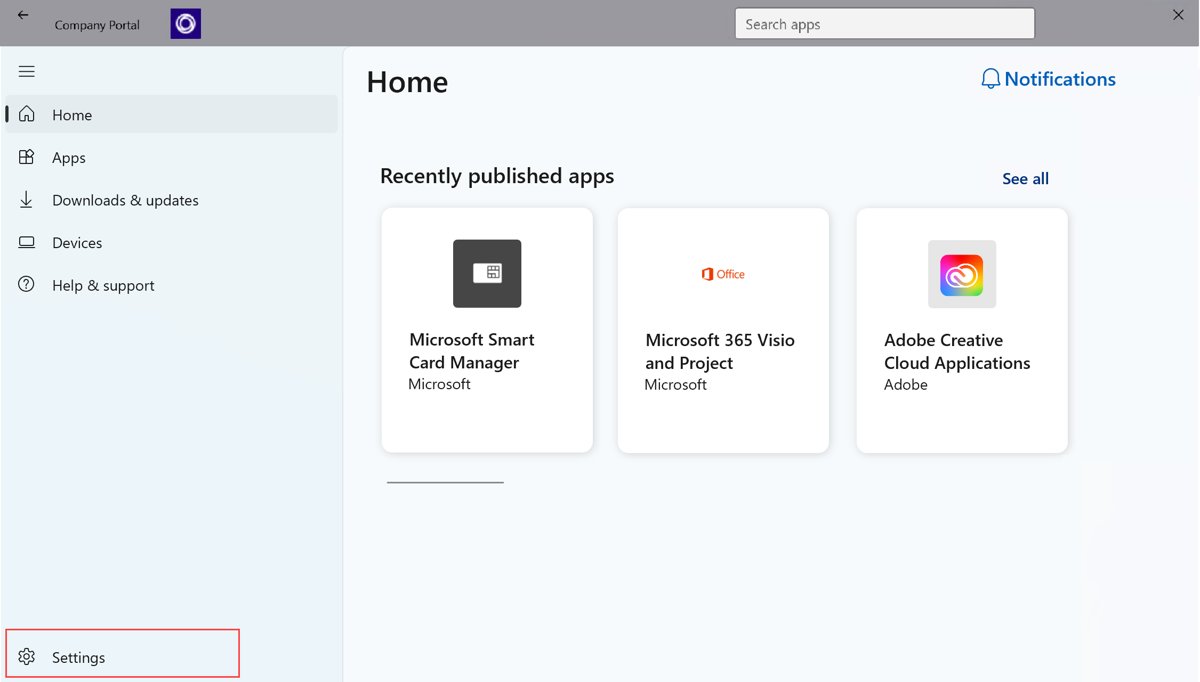
- Open Company Portal and go to Settings.
- Select Sync.
- Or right-click the Company Portal icon on the taskbar or Start menu and select Sync this device.
- Or open Settings > Accounts > Access work or school, select your work account, select Info, then select Sync.
How to uninstall or remove Company Portal
Remove the device from management first, then uninstall the app. Once you disconnect, the PC loses access to work or school resources and Intune-installed client software is removed.
- Open Settings > Accounts > Access work or school.
- Select your connected work or school account, then select Disconnect.
- Select Yes to confirm the device removal.
- Go to Settings > Apps > Installed apps.
- Next to Company Portal, select More > Uninstall.
- Select Uninstall again to confirm.
Uninstalling deletes the app's diagnostic logs and cache. To clear them but keep the app, open Settings > Apps > Installed apps > Company Portal > Advanced options > Reset.
If another antivirus program was turned off while Intune Endpoint Protection ran, turn it back on after you unenroll.
Troubleshooting common issues with Company Portal
Company Portal won't install from Microsoft Store
The Store app is out of date, its cache is damaged, or Windows needs a restart after updates.
- Restart the PC if Windows recently installed updates.
- In Microsoft Store, select Library > Get updates.
- Press Windows key + R, enter
wsreset.exeand select OK. - Wait for Microsoft Store to reopen, then search for Company Portal again.
Company Portal doesn't show up in Microsoft Store search
The app isn't offered in your region, the Store needs a reset, or family settings hide it.
- Check that you're signed in to Microsoft Store with the right account.
- Use the winget command above, or the Store listing link in Method 2.
- Ask your IT support person to deploy Company Portal from Intune.
"We couldn't auto-discover a management endpoint matching the username you entered"
Your account couldn't be verified with the management endpoint URL.
- Enter your username and password again.
- Ask your IT support person for the correct URL, such as
www.yourcompany.onmicrosoft.com. - Enter that URL when Windows asks for it.
"It looks like you're not connected" during enrollment
Adding a work or school account needs a network connection.
- Connect to Wi-Fi or a wired network.
- Add your work or school account again.
"Your device is already being managed by an organization"
The PC is already enrolled in Intune or another mobile device management (MDM) service.
- Open Settings > Accounts > Access work or school to see which account manages the PC.
- Contact your IT support person before you disconnect anything.
Can't reach work apps or email after you enroll
The PC hasn't synced, or your work account isn't connected in Settings.
- Sync the device from Company Portal Settings > Sync.
- Open Settings > Accounts > Access work or school and check your account is listed.
- If it's missing, select Connect, sign in and follow the prompts.
- If it's listed and access still fails, contact IT, because a policy may block that resource.
Company Portal says the operating system isn't supported
Your Windows version doesn't meet your organization's requirements.
- Open Settings > Windows Update and select Check for updates.
- Install available updates and restart.
- Ask IT which Windows version your organization requires.
If the Store itself keeps failing, you can reset the Microsoft Store cache and then retry the install.
Company Portal on Windows 11 FAQs
Is Company Portal free on Windows 11?
Yes. Microsoft Store lists Company Portal as a free download for Windows. You still need a work or school account from an organization that uses Microsoft Intune, because the app has nothing to show without one.
Can I sign in to Company Portal with a personal Microsoft account?
No. Microsoft says you must have a work or school account through your organization to sign in. A personal Outlook.com or Hotmail account won't work, so ask your IT department for the account they issue.
Does Company Portal work on Windows 11 Home?
Yes. Microsoft Intune supports Windows 11 Home, S, Pro, Pro Education, Education, Enterprise and IoT Enterprise editions. Your organization can still set its own requirements, so Company Portal may flag settings to change after you enroll.
Can I install Company Portal on Windows 10?
Yes. Company Portal enrolls Windows 10 version 1607 and later as well as Windows 11. Windows 10 reached end of support on October 14, 2025, so Intune features on it may not work as expected.
What is the difference between Company Portal and Intune?
Intune is the Microsoft service your organization uses to manage devices and apps. Company Portal is the app you install on your PC to enroll it in Intune, get work apps and see your organization's requirements.
Can I install Company Portal without Microsoft Store?
Yes, through your organization. An Intune admin can download Company Portal with winget and assign it to your PC as a required app. You can also use the Company Portal website at portal.manage.microsoft.com without installing anything.
Does uninstalling Company Portal unenroll my PC?
Disconnect your work or school account in Settings under Accounts and Access work or school to take the PC out of management. Then uninstall the app, which also deletes its diagnostic logs and cache from the PC.
How do I update Company Portal on Windows 11?
Open Microsoft Store, select Library, then select Get updates. Company Portal updates along with your other Store apps, so one check on that page covers it too.
Why can't I access work resources after installing Company Portal?
Installing the app doesn't enroll the PC. Sign in, run the device setup, then sync from Company Portal Settings. If your account is listed under Access work or school and access still fails, contact your IT support.