Microsoft Word has no built-in Vancouver style, so you add it either with a citation manager such as Zotero or EndNote, or by placing a Vancouver .xsl style file in Word's Bibliography Style folder.
This guide covers the fastest free route with Zotero, the custom style file method for Word's own References tab, the Vancouver rules your citations must follow, and fixes when the style does not appear.
How to add Vancouver style to Word with Zotero
Zotero is a free citation manager for Windows, Mac and Linux, and it adds its own Zotero tab to the Microsoft Word ribbon. Its Style Repository includes the NLM/Vancouver style based on Citing Medicine, 2nd edition.
The Word plugin is bundled with Zotero and installs itself the first time you start Zotero.
- Install Zotero from zotero.org and start it once, so the Word plugin installs.
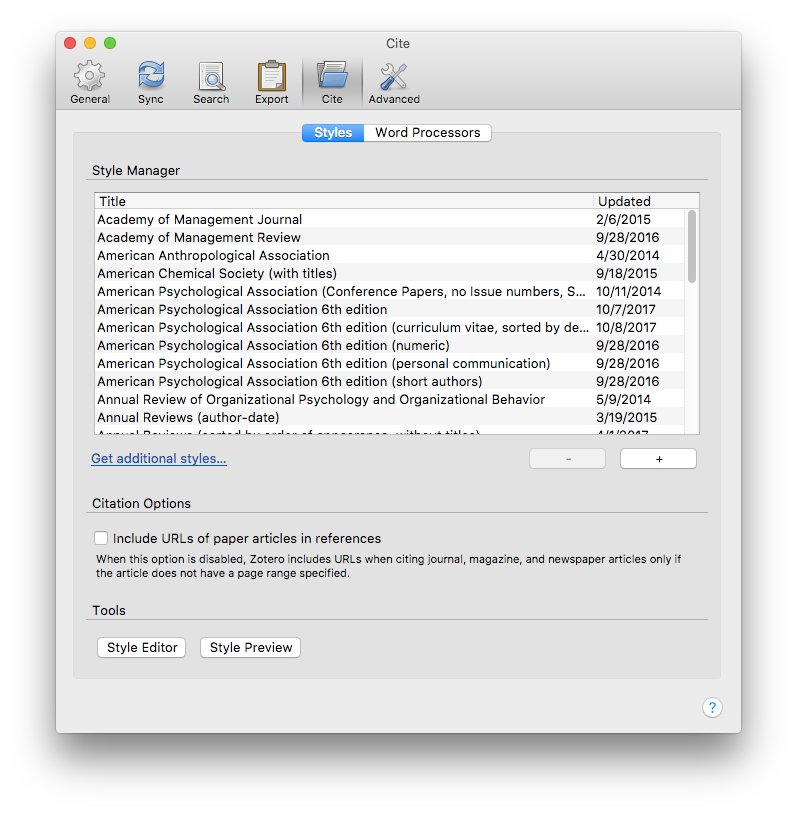
- In Zotero, open Settings and select the Cite pane.
- Select Get additional styles…, search for Vancouver and click NLM/Vancouver: Citing Medicine 2nd edition (citation-sequence) to install it.
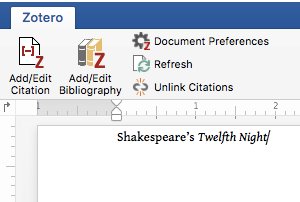
- Open your document in Microsoft Word and select the Zotero tab.
- Place the cursor where the citation belongs and select Add/Edit Citation.
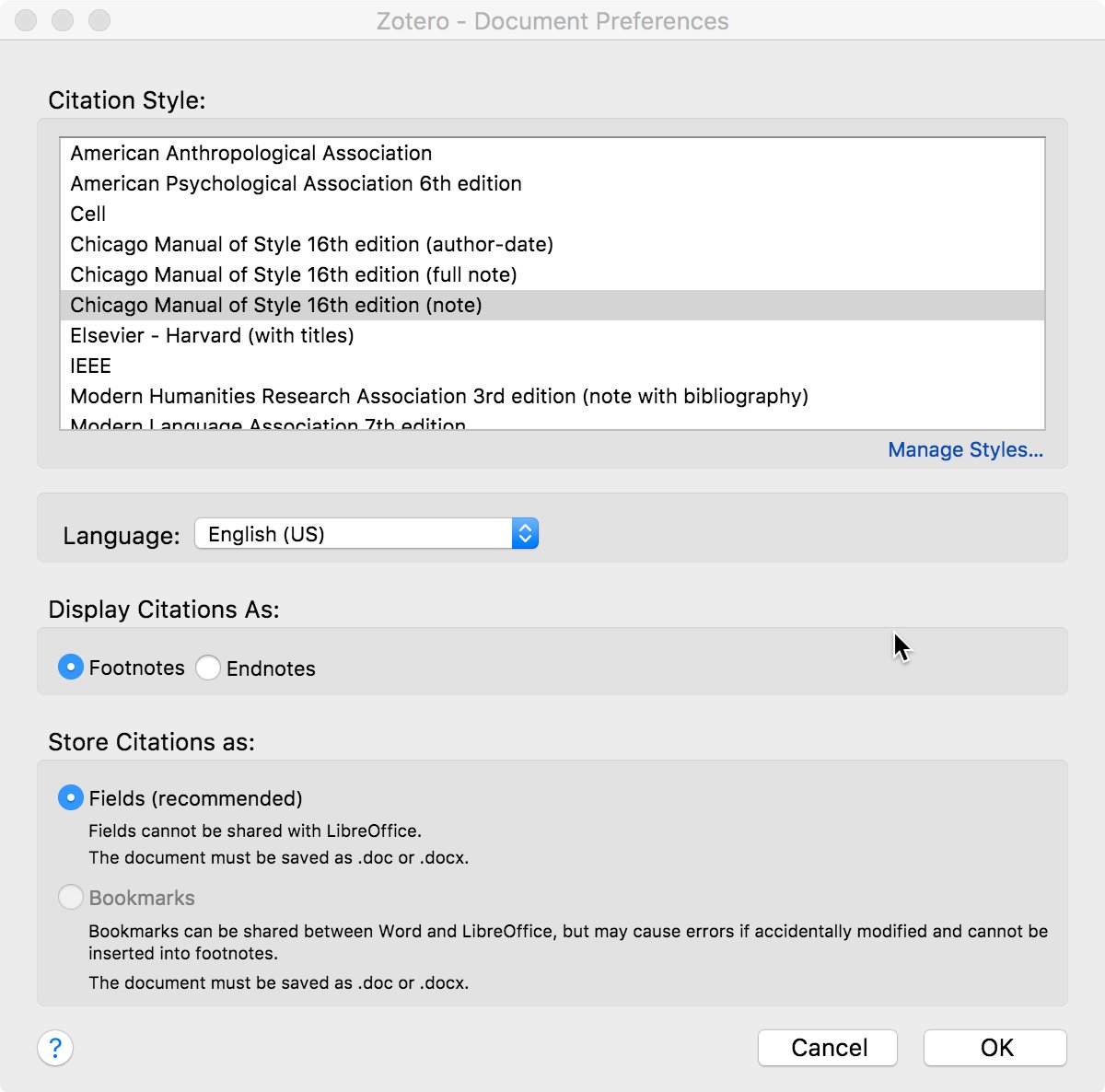
- Choose the Vancouver style in the Document Preferences window when Zotero asks for a citation style.
- Type an author, title or year, pick the source and press Enter to insert the numbered citation.
- Click where the reference list goes, usually the end of the document, and select Add/Edit Bibliography.
Zotero numbers each source in the order you first cite it and builds the reference list in that same order. Select Refresh on the Zotero tab after you edit a source in your library.
Understanding Vancouver style
Vancouver is a numbered citation-sequence system used mainly in medicine and the health sciences. Zotero's NLM/Vancouver style follows Citing Medicine: The NLM Style Guide for Authors, Editors, and Publishers, 2nd edition (2015), the ANSI/NISO Z39.29-2005 (R2010) standard and the ICMJE Recommendations.
| Element | Vancouver rule | Example |
|---|---|---|
| In-text citation | A number in parentheses for each source, in the order it is first cited | (1) |
| Several sources at once | Numbers separated by commas; consecutive numbers collapse into a range | (1,3) or (2-4) |
| Reused source | Keeps the number it was given the first time | (1) again later in the text |
| Reference list order | Numeric, in citation order, never alphabetical | 1. 2. 3. |
| Author names | Surname first, then initials with no periods or spaces, authors separated by commas | Smith JA, Doe B. |
| Seven or more authors | List the first six authors, then et al. | Smith JA, Doe B, Lee C, Patel R, Khan S, Ng T, et al. |
| Journal article | Authors. Title. Abbreviated journal. Year Month Day;Volume(Issue):Pages. doi | Journal. 2020 Jan 5;12(3):45-67. doi:… |
Many journals publish their own variant, for example superscript numbers instead of parentheses. Check the author instructions of the journal or course before you pick a style.
Setting up Vancouver style in Microsoft Word
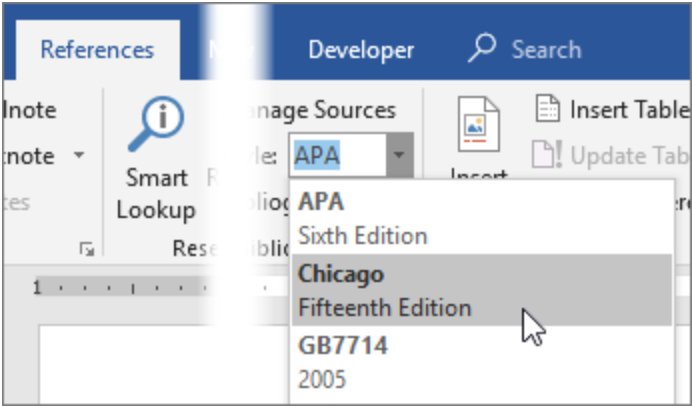
Word's own citation tools live on the References tab, in the Citations & Bibliography group. The built-in Style list includes APA, Chicago, GOST, IEEE, ISO 690, ISO 690-Numerical Reference and MLA, but not Vancouver.
Word reads every bibliography style from a folder in your user profile, %AppData%\Microsoft\Bibliography\Style. A Vancouver style saved there as an .xsl file appears in the Style list after a restart.
- Get a Vancouver .xsl bibliography style file from your university library, journal or a source you trust.
- Close Microsoft Word completely.
- Press Windows + R, type
%AppData%\Microsoft\Bibliography\Styleand press Enter to open the style folder. - Copy the Vancouver .xsl file into that folder.
- Start Word and open your document.
- Select References, then the arrow next to Style in the Citations & Bibliography group.
- Choose the Vancouver style from the list.
- Select Insert Citation > Add New Source, fill in the Create Source box and select OK.
The name shown in the Style list comes from the style file itself, so it may read Vancouver, NLM or a journal name. Only add .xsl files from a source you trust, because Word runs them every time it formats a citation.
How to create a Vancouver bibliography in Word
Once the Vancouver style is selected on the References tab, Word builds the reference list from every source you cited in the document.
- Place the cursor where the reference list belongs, usually at the end of the document.
- Select References > Bibliography.
- Choose a predesigned format with a heading, or select Insert Bibliography to add the list without one.
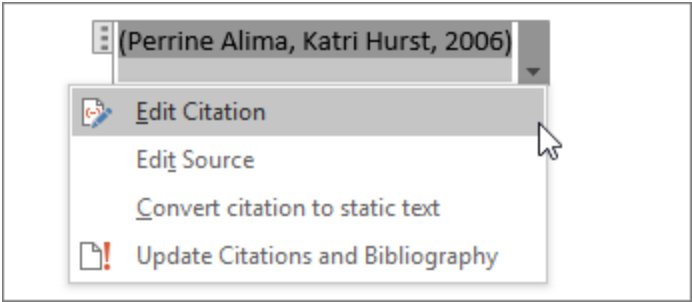
- Click inside the list and select Update Citations and Bibliography each time you cite a new source.
If your course expects the reference list double spaced, double space the reference list after you insert it.
Using citation management tools
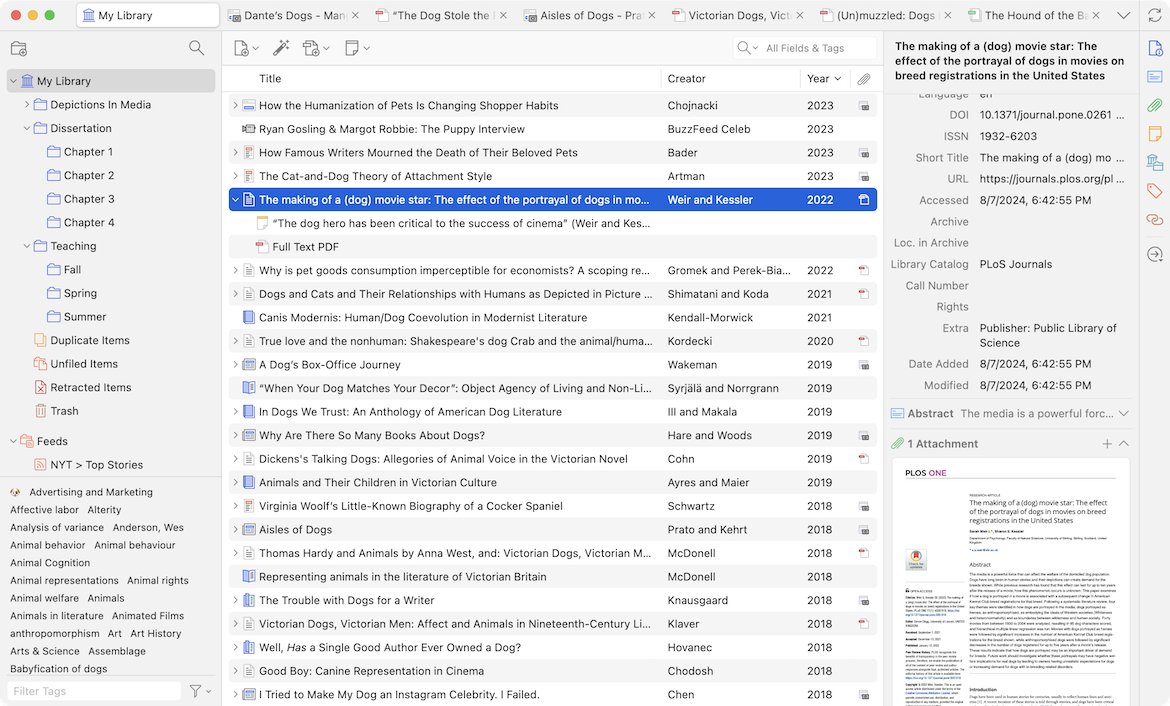
A citation manager stores your sources, numbers them in Vancouver order and rebuilds the list when you move a paragraph. Word's built-in tools need a custom style file before they can do the same.
| Your situation | Use this | Why |
|---|---|---|
| You want a free tool that works today | Zotero with the NLM/Vancouver style | Free, adds a Zotero tab to Word and installs the Vancouver style from its repository |
| Your university or lab already licenses EndNote | EndNote with Cite While You Write in Word | EndNote offers over 7,000 citation styles and works with Microsoft Word |
| Your journal publishes its own Vancouver variant | A journal-specific style in Zotero or EndNote | Matches that journal's exact punctuation and number format |
| You cannot install add-ins on this PC | A Vancouver .xsl file in Word's Bibliography Style folder | Uses Word's own References tab with no plugin |
| You only write in Word for the web | Open the file in the Word desktop app | Word for the web cannot generate citations automatically |
Students can often get Microsoft Word through their school, which gives them the desktop app that every method here needs.
How to change citation style from APA to Vancouver in Word
You do not have to retype citations to switch an existing document to Vancouver. Change the style in the tool that inserted the citations.
| Citations were inserted with | Switch to Vancouver like this | Result |
|---|---|---|
| Word's References tab (Windows) | References > arrow next to Style > choose the Vancouver style you added | Citations and the bibliography change to the new style |
| Word for Mac | References > Citations, then select the style in the Citations pane | All references in the bibliography change to the new style |
| Zotero | Zotero tab > Document Preferences > choose the Vancouver style > OK | Zotero renumbers the citations and rebuilds the list |
| Typed by hand | Re-insert each source with Zotero or Insert Citation | Typed text has no link to a source, so no tool can restyle it |
Vancouver style reference list example in Word
Compare your finished document against the Vancouver pattern below to confirm the style is really applied, not only selected.
- Check that the first source cited in the text shows (1), the second (2), and so on in reading order.
- Check that a source cited a second time keeps its original number.
- Scroll to the reference list and confirm it is numbered in the same order, not sorted by author.
- Confirm author names read surname then initials with no periods, for example Smith JA.
- Confirm a journal entry follows Authors. Title. Journal. Year;Volume(Issue):Pages.
- Add a new citation in the middle of the text and refresh the list; the numbers after it should move up by one.
How to unlink Zotero citations in Word
Zotero citations stay live field codes until you unlink them. Unlink only a final copy, because removing the field codes cannot be undone.
- Save a copy of the document under a new name.
- Open the copy in Microsoft Word.
- Select the Zotero tab and select Refresh so every citation and the bibliography are current.
- Select Unlink Citations and confirm.
- Keep the original file if you may need to edit the citations again.
Vancouver style not showing in Word style list
A new Vancouver .xsl style does not appear in the Style list
Word only reads style files from the Bibliography Style folder when it starts.
- Close every Word window.
- Press Windows + R, type
%AppData%\Microsoft\Bibliography\Styleand press Enter. - Confirm the file sits directly in that folder and ends in .xsl, not .xsl.txt.
- Start Word and open References > Style again.
The References tab cannot insert citations in Word for the web
Word for the web cannot generate citations automatically.
- Select Open in Word to open the document in the desktop app.
- Insert the citations and bibliography there.
- Save the file; it saves back to the location you opened it from.
The Zotero tab is missing from Microsoft Word
The bundled Word plugin did not install or was removed.
- Close Microsoft Word.
- In Zotero, open Settings > Cite and find Word Processor Plugins.
- Reinstall the Microsoft Word plugin from that section.
- Start Word and look for the Zotero tab on the ribbon.
Citation numbers or the reference list are out of date
Word and Zotero update the bibliography on request, not on every edit.
- With Word's tools, click inside the bibliography and select Update Citations and Bibliography.
- With Zotero, select Refresh on the Zotero tab.
- Check the first and last numbers in the list against the text.
Vancouver style in Microsoft Word FAQ
Does Microsoft Word have Vancouver referencing style?
No. Word's built-in Style list on the References tab offers APA, Chicago, GOST, IEEE, ISO 690, ISO 690-Numerical Reference and MLA. Add Vancouver with Zotero or EndNote, or copy a Vancouver .xsl file into Word's Bibliography Style folder.
Where are citation style files stored in Word?
Word stores bibliography styles in %AppData%\Microsoft\Bibliography\Style in your user profile. Your sources are listed in %AppData%\Microsoft\Bibliography\Sources.xml, which appears once you create your first source. Restart Word after adding a style file.
Is Vancouver style numbered?
Yes. Vancouver is a citation-sequence system. Each source gets a number the first time it is cited, the same number is reused later, and the reference list is ordered by those numbers rather than alphabetically by author.
Does Vancouver style use brackets or superscript numbers?
Zotero's NLM/Vancouver style uses numbers in parentheses, such as (1) or (2-4). Some journals ask for superscript or square brackets instead, so follow the journal's author instructions and use its own style if one exists.
How many authors do you list in Vancouver style?
List up to six authors. When a source has seven or more, list the first six followed by et al. Write each name as surname and initials with no periods, such as Smith JA.
Can I use Vancouver style in Word for the web?
Not automatically. Word for the web cannot generate citations, so select Open in Word and add the citations in the desktop app. The document saves back to the place you opened it from.
Is Zotero free to use with Microsoft Word?
Yes. Zotero is free, runs on Windows, Mac and Linux, and works with Word, LibreOffice and Google Docs. Its Word plugin is bundled and installs itself the first time Zotero starts.
How do I switch a Word bibliography from APA to Vancouver?
Change the style in the tool that inserted the citations. For Word's own citations, choose the Vancouver style from References > Style. For Zotero citations, open Document Preferences on the Zotero tab and choose the Vancouver style.