To use the Microsoft Photos app in Windows 11, type photos in the taskbar search box, open Photos, and pick a picture from your Pictures folder to view, edit or share it.
This guide covers opening the app, adding folders, searching, importing from a phone, organizing, editing photos and videos, OneDrive and iCloud, sharing, Photos Legacy, and fixes.
How to use Windows 11 Photos app
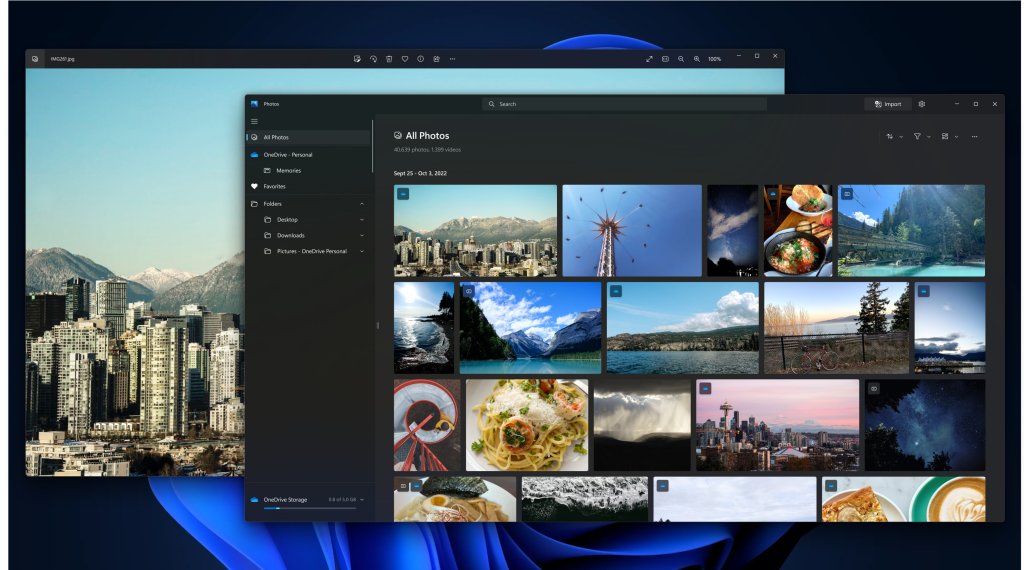
Photos is built in to Windows 11, so there is nothing to install on a normal PC. It opens on every picture in your Pictures folder.
- Type photos in the search box on the taskbar and select Photos from the results.
- Scroll the list of pictures, or use the sort option to arrange them the way you prefer.
- Select a photo to open it in the viewer.
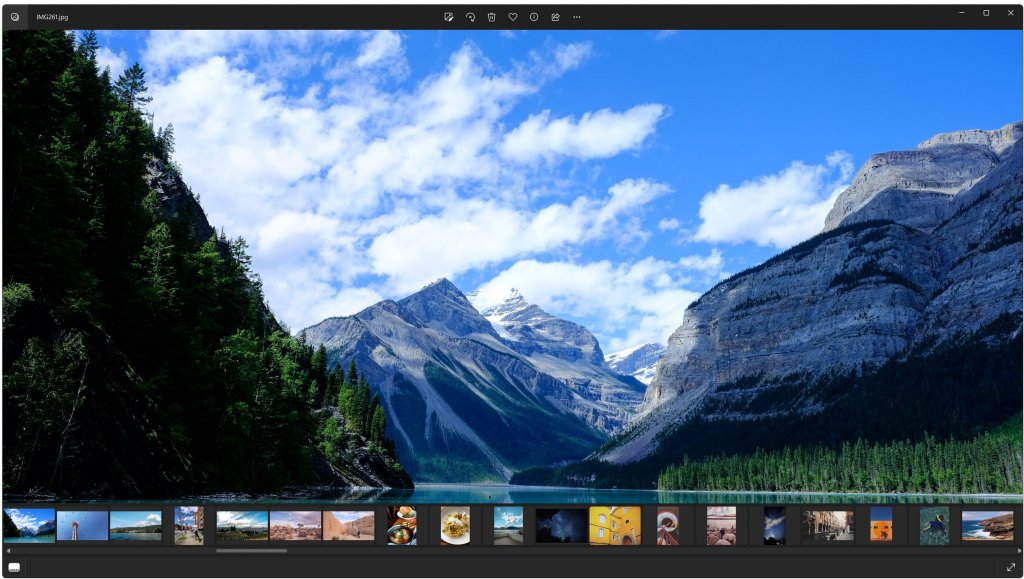
- Use the filmstrip at the bottom of the viewer to jump to the next photo without going back to the list.
- Select Edit image at the top, or press Ctrl + E, to crop, adjust or add a filter.
- Right-click a photo in the list and select Share to send it by email or another app.
Select several items from the filmstrip to turn on multi-view and compare photos and videos side by side in one window.
Where is the Microsoft Photos app located in Windows 11?
Photos sits in the Start menu app list like any other built-in app. Search is the quickest way to reach it.
- Select the Start button on the taskbar.
- Type photos straight away; the Start menu switches to search as you type.
- Select Photos in the results to open it.
If Photos does not appear at all, reinstall it from the Microsoft Store; the steps are in the troubleshooting section below, and you can also get Microsoft Photos for PC from the Store listing.
How to add folders to Microsoft Photos app
By default the app shows only the Pictures folder. Pictures stored anywhere else stay hidden until you add their folder.
- Open Photos.
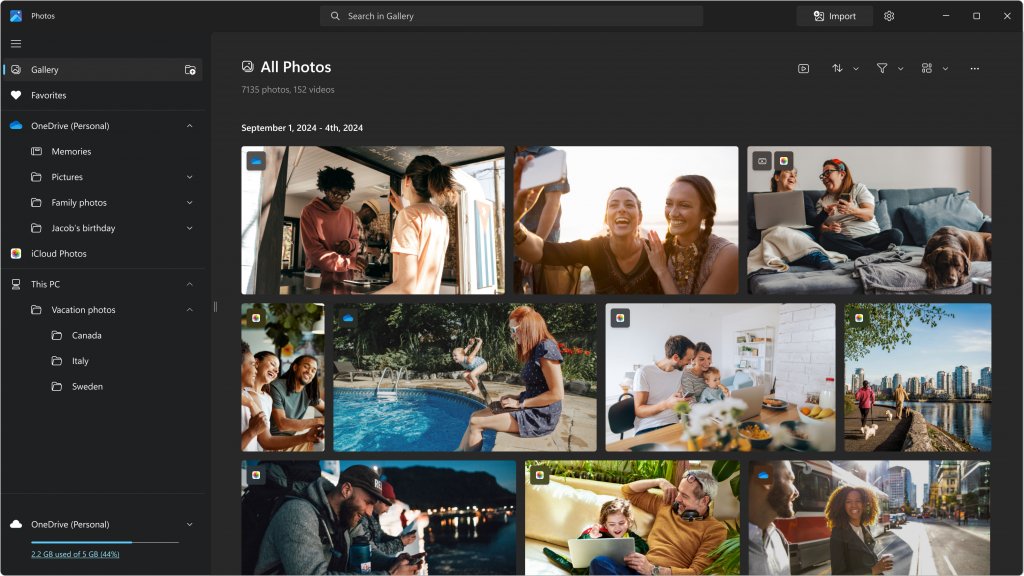
- Select Gallery in the folders tab on the left sidebar.
- Select Add folder.
- Browse to the folder that holds your pictures, such as a second drive or a camera card copy, and select it.
- Wait for the new folder to appear in the left sidebar and fill with thumbnails.
To hide a folder again, right-click (or select and hold) its name in the left navigation bar and remove it. Removing a folder from Photos does not delete the files from your PC.
Camera app shots land in Camera Roll inside Pictures, which is where Camera and Photos save pictures by default, so they show up without this step.
How to search photos by location in Microsoft Photos
The search box at the top of Photos finds pictures by file name, the date they were taken, the file type, or the place they were taken. Location search reads the latitude and longitude stored inside each photo.
- Open Photos and click the search bar at the top of the app.
- Select Allow when Photos asks to enable location based features the first time.
- Type a city, state or country and press Enter to see photos taken there.
- Type a date, a file name or a file type such as PNG or JPEG to search by those instead.
- To turn location search off later, select Settings in the top right corner and toggle Enable Location Based Features under Personalization.
On a Copilot+ PC, Photos also supports semantic search, so a phrase such as "sunset at the beach" finds matching pictures. It works only on photos stored locally that Windows has indexed.
How to import photos from phone with Microsoft Photos app
Photos copies pictures and videos from an iPhone, an Android phone, a camera SD card or a USB drive. You choose which items to import and where they are saved.
- Connect the phone to the PC with a USB cable that can transfer files.
- Turn the phone on and unlock it; Windows cannot find a locked device.
- On an iPhone, select Trust or Allow when it asks about this computer.
- Open Photos from the Start menu and select Import.
- Select your connected device and follow the on-screen instructions.
- Pick the photos and videos you want and choose the folder to save them in, then wait for the transfer to finish.
Photos that live only in iCloud cannot be imported over the cable; use iCloud for Windows for those. For recent Android shots without a cable, Phone Link syncs your photos, though it does not bring videos.
How to organize photos into folders in Microsoft Photos
The new Photos app has no albums. It groups pictures in ordinary Windows folders, so whatever you do here also happens in File Explorer.
- Open Photos and select a folder already added to the app, such as Pictures.
- Right-click the folder and select Create a folder.
- Type a name for the new folder.
- Drag photos or videos from your collection and drop them on the new folder.
- Right-click an item to copy or move it; a copy leaves the original in place, while a move takes it out of its old location on the PC.
Deleting a OneDrive photo sends it to the Windows Recycle Bin and to the OneDrive recycle bin. Deleting from the iCloud Photos synced folder also deletes the picture in iCloud.
How to edit photos in Microsoft Photos app
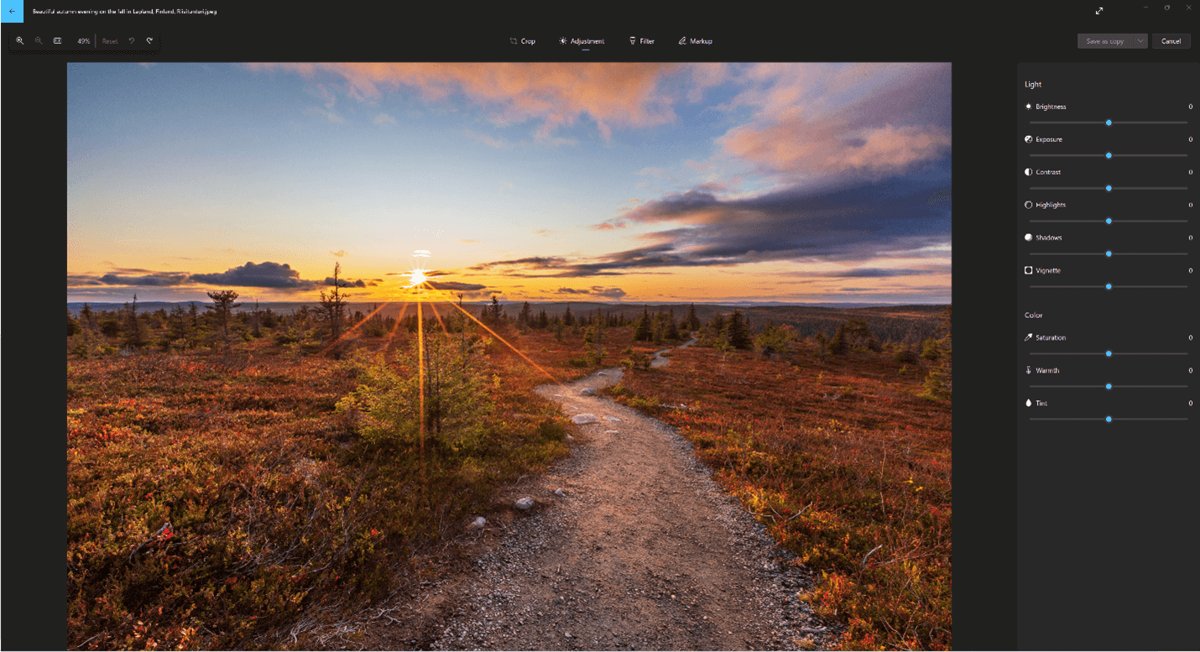
The editor opens on top of the viewer and keeps every tool in one panel. Each tool, from crop to background blur and replace in Photos, has its own panel.
- Open the photo you want to change in Photos.
- Select Edit image at the top of the screen, or press Ctrl + E.
- Use Crop to trim, rotate, flip or apply a preset aspect ratio.
- Use Adjustment for light and color sliders, or Filter for one of fifteen filters; press the spacebar to view the original.
- Use Markup to draw with two pens or a highlighter, and Erase to remove unwanted parts with Generative Erase.
- Use Background to blur, remove or replace the background, then select Apply.
- Select Reset at the top left to cancel every edit if you do not like the result.
How to use Microsoft photo app to edit videos
The new Photos app trims videos only. For cutting, merging, text, music and transitions, Photos hands the clip to Clipchamp, the Microsoft video editor.
- Open the video in Photos.
- Select Trim at the top of the screen, or press Ctrl + E.
- Drag the sliders at the bottom to the start and end points you want.
- Select Save as Copy to keep the original, or open the drop-down next to it and select Save to overwrite the original.
- For more than a trim, open the video and select Edit in Clipchamp video editor.
- If Clipchamp is not installed, select Settings in Photos and then Open Clipchamp, or install it from the Microsoft Store.
The old Video Editor still exists inside Photos Legacy, covered further down.
How to connect OneDrive and iCloud Photos to Microsoft Photos
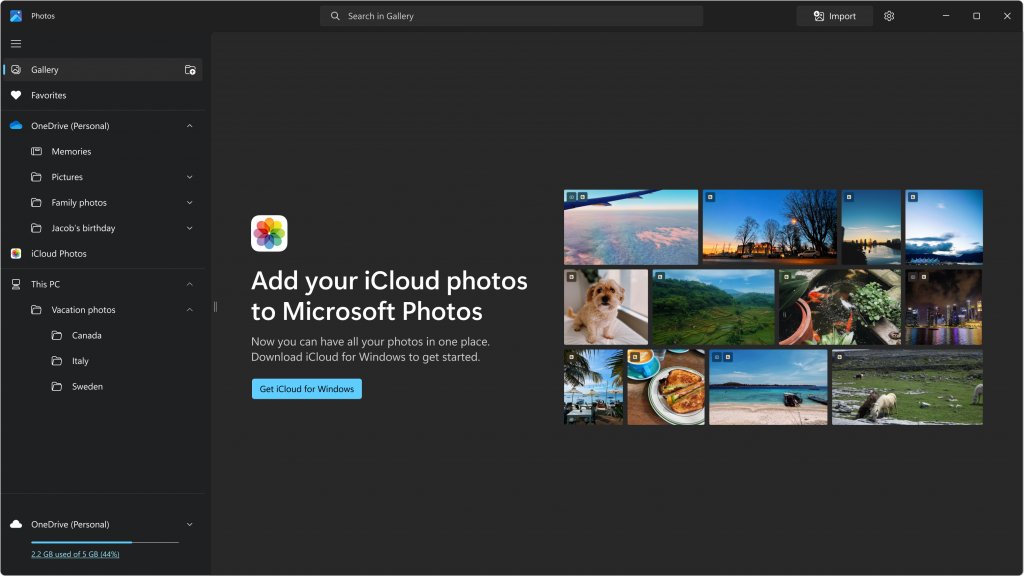
Photos can show your cloud pictures next to the ones on your PC. OneDrive is built in; iCloud needs Apple's iCloud for Windows app on Windows 11.
- Open Photos and select the OneDrive tab in the left navigation bar.
- Select Sign in, sign in with your Microsoft account, and give the app permission to access your info.
- To add phone pictures automatically, install the OneDrive app on your iPhone or Android phone and turn on Camera Upload in its settings.
- For iCloud, select iCloud Photos in the left navigation bar of Photos.
- Install iCloud for Windows from the Microsoft Store when prompted, sign in with your Apple ID, and choose Photos.
- Return to Photos and select the iCloud Photos tab to see your iCloud library.
Photos syncs only the OneDrive Pictures library. Pictures in other OneDrive folders need to be added by hand with Add folder.
How to share photos from Microsoft Photos app
- Open Photos and select the photo or photos you want to send.
- Right-click the selection and select Share.
- Choose email, a social app, or another app installed on your PC from the Windows share window.
- Finish sending in the app that opens.
To show pictures on screen instead of sending them, play a folder as a slideshow.
What is Microsoft Photos app in Windows 11?
Microsoft Photos is the default picture and video viewer built in to Windows. It gathers photos from your PC, phone, OneDrive and iCloud in one place.
| Feature | What it does in Photos |
|---|---|
| Viewer and filmstrip | Opens a photo full window and jumps to others from the filmstrip |
| Multi-view | Compares several photos and videos side by side in one window |
| Folders | Organizes pictures in Windows folders in the left-side menu |
| Search | Finds photos by name, date, file type or location |
| Editor | Crop, adjustments, fifteen filters, markup, Generative Erase and background tools |
| Video trim | Cuts the start and end of a clip; Clipchamp handles full editing |
| Memories | Resurfaces past photos through OneDrive |
| Cloud | OneDrive tab and, on Windows 11, iCloud Photos tab |
| Formats | JPEG, PNG, GIF, BMP and TIFF photos; MP4, MOV and AVI videos |
Microsoft Photos vs Photos Legacy in Windows 11
Microsoft released the new Photos app for Windows 11 in October 2022. Photos Legacy is the older app, kept for people who still need its albums and Video Editor.
| Feature | Photos (new) | Photos Legacy |
|---|---|---|
| Albums | No; uses folders | Yes, with Albums and New album |
| Video Editor | No; Trim plus Clipchamp | Yes |
| People tab and face grouping | No | Yes, when turned on |
| Search by tags | No | Yes |
| iCloud Photos tab | Yes, on Windows 11 | No |
| Slideshow | Enhanced slideshow | Slideshow creator |
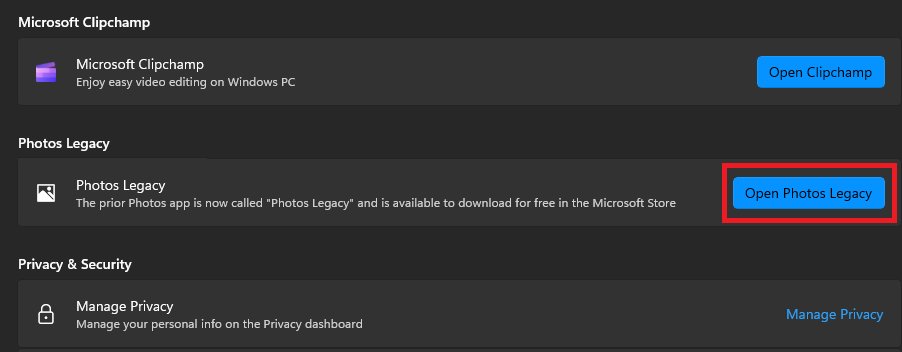
| How to open | Start menu or taskbar search | Photos > Settings > Photos Legacy > Open Photos Legacy |
Both apps can run on the PC at the same time, so you can keep the new app as the default and open Legacy only for an old album or video project.
How to make Microsoft Photos the default photo viewer
If pictures open in another app, set Photos as the default for each image type you use.
- Open Settings and select Apps > Default apps.
- Type a file extension such as .jpg in the search bar.
- Select the result under the search bar.
- Choose Photos from the list of apps.
- Repeat for .png or any other image type you open often.
Prefer the classic viewer from Windows 7? You can bring back Windows Photo Viewer and set it as the default instead.
Microsoft Photos app not working in Windows 11
Where is my Microsoft Photos app? It is missing or will not open
The app is damaged or was removed from the PC.
- Select Start > Settings > Apps > Installed apps.
- Select the More icon next to Microsoft Photos and select Advanced options.
- Select Repair and try opening Photos again.
- If it still fails, return to the same page and select Reset.
- If Photos is not listed at all, open the Microsoft Store, search for Microsoft Photos and install it.
Some photos are not showing in the Photos app
Photos shows the Pictures folder and the OneDrive Pictures library only, unless you add more folders.
- Select Gallery in the folders tab and select Add folder.
- Add each folder outside Pictures that holds photos.
- For OneDrive pictures outside the Pictures library, add their synced folder the same way.
Phone does not show up when you select Import
The phone is locked, not trusted, or connected with a charge-only cable or USB mode.
- Unlock the phone and keep it unlocked while you import.
- On an iPhone, select Trust or Allow on the prompt.
- On Android, change the USB setting from charging to transferring files or photos.
- Try a different USB cable, because not every cable can transfer files.
Location search returns no results
Location based features are turned off, or the photos have no location data stored in them.
- Select Settings in the top right corner of Photos.
- Under Personalization, turn on Enable Location Based Features.
- Search again with a city, state or country name.
Microsoft Photos app FAQ
What is Microsoft Photos app?
Microsoft Photos is the built-in Windows app for viewing, organizing, editing and sharing photos and videos. It shows your Pictures folder by default and can add other folders, OneDrive, and iCloud Photos on Windows 11.
Is the Windows 11 photo app free?
Yes. Photos comes with Windows 11 at no cost, and its Microsoft Store listing is a free download if you need to reinstall it.
Is Windows Photos app good?
For everyday viewing, folder browsing, quick edits and video trims, Photos covers what most people need without extra software. It lacks albums, face grouping and a full video editor, which live in Photos Legacy and Clipchamp.
Do I need Microsoft Photos app?
You need an image viewer, and Photos is the one Windows opens pictures with by default. If you prefer another viewer, set it under Settings > Apps > Default apps; Photos then stays installed but unused.
How to download Microsoft Photos app?
Open the Microsoft Store, search for Microsoft Photos and install it. Most Windows 11 PCs already have it, so check the Start menu search first by typing photos.
How to install Microsoft Photos app if it was removed?
Reinstall it from the Microsoft Store by searching for Microsoft Photos. If it is installed but broken, use Settings > Apps > Installed apps > Microsoft Photos > Advanced options > Repair or Reset instead.
How to use Microsoft Photos app on Windows 10?
On a Windows 10 PC running Photos Legacy, use the tabs across the top: Folders > Add a folder for more locations, Import > From a connected device for a phone, and Albums > New album to group pictures.
Where is the Microsoft Photos app located?
Photos is in the Start menu app list. The quickest route is to type photos in the taskbar search box and select Photos from the results.
Why do apps want access to photos?
Photo and video editors need to read the files you want to edit and save the new versions. In Windows 11 you choose which apps get that access under Start > Settings > Privacy & security > Pictures.
Can the Photos app edit videos?
The new Photos app trims videos with Trim or Ctrl + E and saves the result as a copy or over the original. For full editing, select Edit in Clipchamp video editor from the open video.