To start Windows Defender manually, open Windows Security, select Virus & threat protection > Manage settings and switch Real-time protection to On.
This guide covers turning Defender back on after another antivirus, the PowerShell and Group Policy routes, running each scan type by hand, and the fixes for a Defender that will not start.
Enable or start Windows Defender manually
Windows Defender is now called Microsoft Defender Antivirus, and it lives inside the Windows Security app on Windows 11 and Windows 10. Real-time protection is the switch that decides whether it scans files as you open them.
- Select Start, type Windows Security and open the app from the results.
- Select Virus & threat protection (the shield icon on the left).
- Under Virus & threat protection settings, select Manage settings.
- Slide the Real-time protection toggle to On.
- Go back to Virus & threat protection and select Quick scan to start a scan straight away.
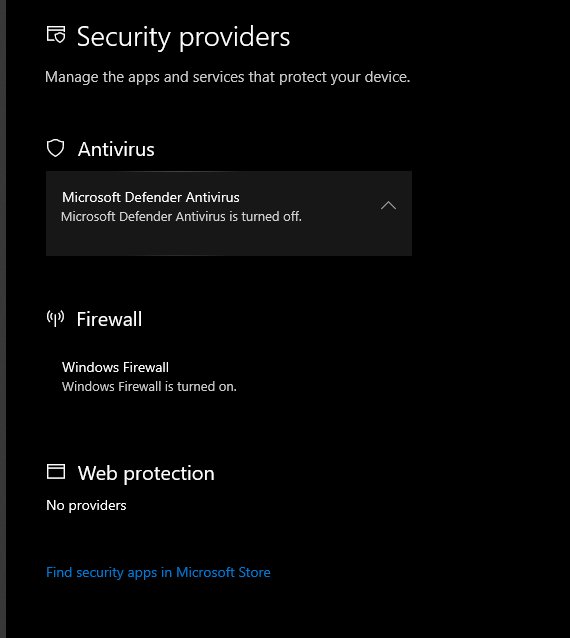
If the toggle is grayed out, your organization or a Group Policy setting manages Defender on this PC. If the page says another antivirus is protecting you, Defender switched itself off when that product was installed.
Why is Windows Defender turned off in Windows 11?
Defender rarely turns off on its own. Match what Windows Security shows to the row below, then jump to the fix it names.
| What you see | Cause | What to do |
|---|---|---|
| Another product is listed under Who's protecting me? | A non-Microsoft antivirus is installed, so Defender went into disabled mode automatically | Uninstall that antivirus, or keep it and turn on limited periodic scanning |
| Real-time protection turns itself back on | Real-time protection only switches off for a short while by design | Nothing to fix; Defender restores protection automatically |
| Settings are grayed out | Group Policy, Intune or another management tool controls them | Change the policy, or ask the person who manages the PC |
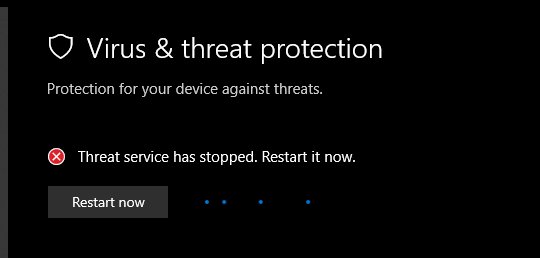
| Threat service has stopped. Restart it now. | The Microsoft Defender Antivirus service (WinDefend) is not running | Follow the service fix in the troubleshooting section below |
| Smart App Control is on and Defender shows passive mode | On Windows 11, Smart App Control can put Defender in passive mode next to another antivirus | Uninstall the other antivirus if you want Defender active |
How to turn on Windows Defender when another antivirus is installed
On Windows 11 and Windows 10, installing a non-Microsoft antivirus puts Defender into disabled mode. Defender re-enables itself automatically when that product expires, is uninstalled, or stops providing real-time protection.
- Select Start > Settings > Apps > Installed apps.
- Find the other antivirus in the list, select More (the three dots) and then Uninstall.
- Follow the antivirus vendor's uninstaller to the end, then restart the PC.
- Open Windows Security > Virus & threat protection.
- Under Who's protecting me?, select Manage providers and check that Microsoft Defender Antivirus is listed as on.
- Select Manage settings and confirm Real-time protection is On.
If the antivirus is not listed in Settings, open Control Panel > Programs > Programs and Features, right-click it and select Uninstall. To keep the other product but still get a second opinion, turn on limited periodic scanning, a setting Windows Security shows once Defender is disabled.
Turn on Windows Defender real-time protection with PowerShell
PowerShell sets the same real-time and behavior monitoring switches in one line. Open Start, type PowerShell, right-click Windows PowerShell and select Run as administrator.
Set-MpPreference -DisableRealtimeMonitoring $false -DisableBehaviorMonitoring $false -RealTimeScanDirection BothTurns on real-time monitoring and behavior monitoring, and tells Microsoft Defender Antivirus to scan both incoming and outgoing files. Check the result with Get-MpPreference | Select-Object DisableRealtimeMonitoring, DisableBehaviorMonitoring, RealTimeScanDirection.
You should see: DisableRealtimeMonitoring and DisableBehaviorMonitoring both show False, and RealTimeScanDirection shows 0.
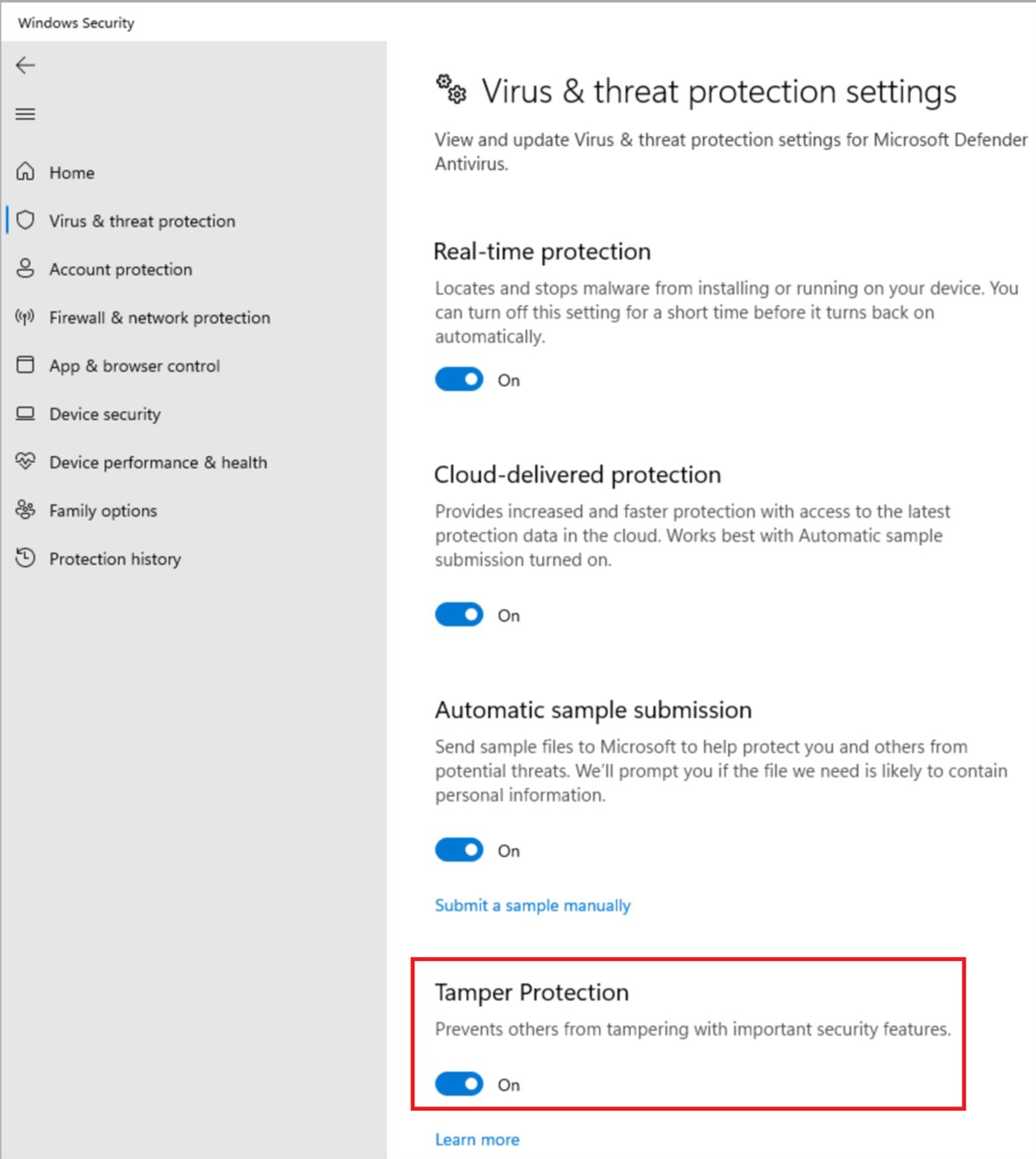
When tamper protection is on, changes from scripts and other apps are ignored. Use the Windows Security toggle instead, which still works for an administrator.
Enable Windows Defender real-time protection in Group Policy
Use this on editions of Windows that include the Local Group Policy Editor, or when a policy is what switched Defender off in the first place.
- Press Win + R, type
gpedit.mscand press Enter. - Go to Computer configuration > Administrative templates > Windows components > Microsoft Defender Antivirus > Real-time Protection.
- Double-click Turn off real-time protection, select Disabled and select OK.
- Open Turn on behavior monitoring, select Enabled and select OK.
- Open Monitor file and program activity on your computer, select Enabled and select OK.
- Go to Microsoft Defender Antivirus > Scan, open Turn on heuristics, select Enabled and select OK.
- Restart the PC so the policy applies.
On a work PC, a domain Group Policy Object or Intune overrides local settings, so the change has to be made there. With tamper protection on, Group Policy changes to protected settings can look applied but are ignored.
How to turn on Windows Defender tamper protection
Tamper protection stops malicious apps from switching off real-time protection, cloud-delivered protection and other Defender settings. An administrator can still change them in Windows Security.
- Open Windows Security and select Virus & threat protection.
- Under Virus & threat protection settings, select Manage settings.
- Scroll to Tamper protection and slide the toggle to On.
With tamper protection on, attempts to change Defender settings through the registry are blocked. It does not affect how other antivirus apps register with Windows Security.
How to manually run Windows Defender scan in Windows 11
Defender scans automatically, but you can start an extra scan at any time from the same app.
- Open Windows Security and select Virus & threat protection.
- Select Quick scan to check the places where malware usually starts with Windows.
- For a deeper check, select Scan options instead.
- Choose Full scan, Custom scan or Microsoft Defender Antivirus (offline scan).
- Select Scan now. For a custom scan, pick the files or folders to check.
- Review the results under Current threats, or open Protection history for earlier detections.
A quick scan is the right choice in most cases. A Microsoft Defender full scan is worth running after an infection or when a quick scan recommends one.
How to run Windows Defender scan from CMD
MpCmdRun.exe is the Defender command-line tool. Its folder is not in the PATH, so you change to it first. It must run in a Command Prompt opened with Run as administrator.
- Select Start, type cmd, right-click Command Prompt and select Run as administrator.
- Type
cd /d "%ProgramFiles%\Windows Defender"and press Enter. - Type
MpCmdRun.exe -Scan -ScanType 1and press Enter to run a quick scan. - Type
MpCmdRun.exe -Scan -ScanType 2and press Enter to run a full scan instead. - Leave the window open until the scan finishes and the prompt returns.
- In PowerShell, run
Start-MpScanto start a scan without changing folders.
MpCmdRun also lives in C:\ProgramData\Microsoft\Windows Defender\Platform\<version>, which always holds the newest copy. Quick scans stop automatically after one day and full scans after seven days.
Windows Defender offline scan vs full scan vs quick scan explained
| Scan type | What it checks | Restarts the PC? | When to use it |
|---|---|---|---|
| Quick scan | Locations where malware registers to start with Windows, such as registry keys and startup folders | No | Routine checks; Microsoft recommends it for most scheduled and on-demand scans |
| Full scan | Every file and program on the device | No | After a detection, or when a quick scan recommends it |
| Custom scan | Only the files and folders you pick | No | A USB drive, a download folder or one suspicious file |
| Microsoft Defender Antivirus (offline scan) | Malware that hides from Windows, such as rootkits and MBR infections, scanned from the Windows Recovery Environment | Yes, takes about 15 minutes | When you suspect malware a normal scan cannot remove |
Real-time protection already checks files when they open and close, which is why a quick scan is usually enough. The offline scan runs on x64 Windows 11 and on x64 or x86 Windows 10, but not on ARM devices or Windows Server.
How to run Microsoft Defender Offline scan
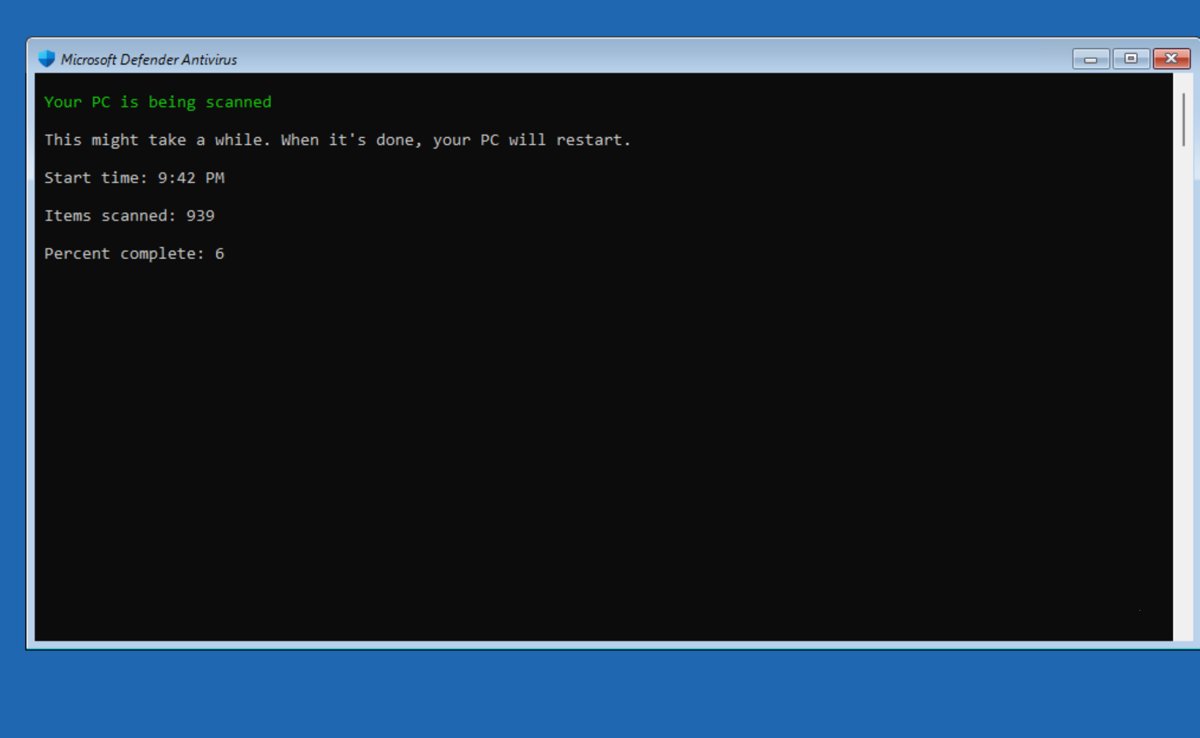
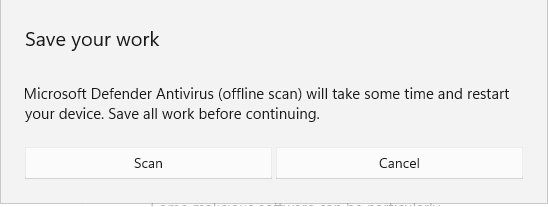
Save your work first: the Defender offline scan signs you out and restarts the PC. If BitLocker protects the system drive, suspend it first or Windows can ask for the BitLocker recovery key.
- Open Windows Security and select Virus & threat protection.
- Select Scan options.
- Select Microsoft Defender Antivirus (offline scan) and then Scan now.
- Select Scan on the prompt to save your work.
- Select Yes on the User Account Control prompt.
- Wait while the PC restarts, runs the scan and boots back into Windows.
- Open Windows Security > Protection history to see the results.
Start-MpWDOScan in an elevated PowerShell window starts the same scan and restarts the PC at once.
How to check Windows Defender is running
- Open Windows Security > Virus & threat protection and check there is no red cross on the page.
- Under Who's protecting me?, select Manage providers and confirm Microsoft Defender Antivirus is on.
- Open PowerShell, type
Get-MpComputerStatusand press Enter. - Check that AMRunningMode reads Normal, which means Defender is the active antivirus.
- Check that AntivirusEnabled and RealTimeProtectionEnabled both read True.
- Run
Get-Service WinDefendand confirm the status is Running.
Passive mode or SxS Passive Mode in the AMRunningMode row means Defender is running next to another antivirus rather than as the primary one.
How to clear Windows Defender protection history in Windows 11
Protection history keeps events for two weeks and then removes them from the list on its own. Windows Security has no single clear button, but you can remove quarantined threats one by one and shorten how long scan history is kept.
- Open Windows Security and select Protection history.
- Select a Threat quarantined card to expand it; you need administrator rights to see the details.
- Select Actions > Remove to delete that threat from the device.
- To shorten the history, open PowerShell as administrator.
- Run
Set-MpPreference -ScanPurgeItemsAfterDelay 1to keep scan history items for one day instead of the default 15. - Run
Get-MpPreference | Select-Object ScanPurgeItemsAfterDelayto confirm the new value.
A value of 0 tells Defender never to remove items, so use 1 or more. Before removing anything, review the protection history cards so you do not delete a file you meant to restore.
Windows Defender quick scan not working in Windows 11
Quick scan is missing or Defender says another app is protecting you
A non-Microsoft antivirus is installed, so Defender is in disabled mode.
- Open Windows Security > Virus & threat protection > Manage providers and note which antivirus is listed.
- Run the scan in that product, or uninstall it to bring Defender back.
- To keep both, turn on limited periodic scanning, the setting Windows Security offers while Defender is disabled.
Scan buttons and settings are grayed out
Group Policy or a management tool such as Intune controls the Virus & threat protection settings.
- Open
gpedit.mscand check Microsoft Defender Antivirus > Real-time Protection for policies set to turn protection off. - Set them back to Not configured or the values in the Group Policy section above.
- On a work or school PC, ask the IT team, because domain policy overrides local changes.
The scan never finishes
Large folders, archives or network locations slow scans, and Defender throttles CPU use during scans.
- Restart the PC and run the quick scan again with other heavy apps closed.
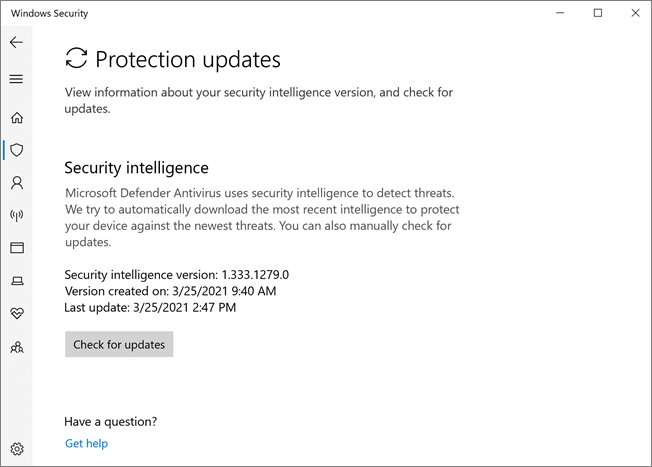
- Select Virus & threat protection > Protection updates > Check for updates to get new security intelligence.
- Run
MpCmdRun.exe -Scan -ScanType 1from an elevated Command Prompt to see whether the scan completes there.
Microsoft Defender Offline scan does not run
The Windows Recovery Environment is disabled, so nothing happens after the restart and no error appears.
- Open Command Prompt as administrator.
- Run
reagentc /infoand check whether Windows RE shows as Enabled or Disabled. - If it says Disabled, run
reagentc /enableand start the offline scan again.
Old security intelligence also causes scans to miss threats, so manually update Microsoft Defender if Check for updates fails.
Why can't I turn on Windows Security real-time protection?
"Threat service has stopped. Restart it now."
The Microsoft Defender Antivirus service or one of its filter drivers is not running.
- Open PowerShell as administrator and run
Get-Service WinDefend, WdFilter, WdNisSvc, SecurityHealthService, wscsvc. - Uninstall any non-Microsoft antivirus if you want Defender as your primary antivirus.
- Open Command Prompt as administrator and run
cd /d "%ProgramFiles%\Windows Defender". - Run
MpCmdRun.exe -RemoveDefinitions -All, thenMpCmdRun.exe -ResetPlatform. - Run
MpCmdRun.exe -WdEnableto re-enable Microsoft Defender Antivirus. - Run
MpCmdRun.exe -SignatureUpdate -MMPCto download fresh security intelligence. - Run Windows Update, restart the PC and check that tamper protection is on.
Real-time protection keeps switching off after a restart
A leftover policy under the Windows Defender policies registry key keeps turning protection off.
- Open PowerShell as administrator.
- Back up the policies:
New-Item -Path "C:\DefenderTemp" -ItemType Directory, thenreg export "HKLM\SOFTWARE\Policies\Microsoft\Windows Defender" C:\DefenderTemp\_DefenderAVBackup.reg. - Delete them:
Remove-Item -Path 'HKLM:\SOFTWARE\Policies\Microsoft\Windows Defender' -Force. - Restart the PC and turn Real-time protection on in Windows Security.
Windows Security says the Security Center service is off
The Security Center service (wscsvc) is stopped or disabled.
- Run
Get-Service wscsvcin PowerShell and check the status. - Turn on the Security Center service, then reopen Windows Security.
- Run the Microsoft Safety Scanner if the service keeps stopping, to rule out malware.
Enable Windows Defender FAQ
How do I manually enable Windows Defender?
Open Windows Security, select Virus & threat protection > Manage settings and switch Real-time protection to On. If another antivirus is installed, Defender stays disabled until you uninstall that product, after which it turns itself back on automatically.
How do I manually run Windows Defender?
Open Windows Security, select Virus & threat protection and select Quick scan. Use Scan options for a full, custom or offline scan. From an elevated Command Prompt, MpCmdRun.exe -Scan -ScanType 1 runs a quick scan and -ScanType 2 runs a full scan.
Does Windows Defender run automatically?
Yes. Microsoft Defender Antivirus is built into Windows 11 and Windows 10 and is on by default unless another antivirus is installed. Real-time protection checks files as they are opened, downloaded or run, without you starting anything.
Does Windows Defender automatically run scans?
Yes. Scheduled scans keep running in the background even while real-time protection is briefly off. You can still start a quick, full, custom or offline scan yourself from Virus & threat protection whenever you want an extra check.
Is Microsoft Defender always running?
It runs all the time as the Microsoft Defender Antivirus service, shown in Task Manager as Antimalware Service Executable or MsMpEng.exe. It stops scanning only when another antivirus takes over or a policy disables it.
Can I turn off Microsoft Defender?
You can switch real-time protection off temporarily in Windows Security, but it turns back on automatically after a short while. Tamper protection must be off before the toggle works, and files you open meanwhile are not scanned.
Should I turn on Windows Security?
Yes, unless another up-to-date antivirus is protecting the PC. Microsoft does not recommend disabling Microsoft Defender Antivirus, because a disabled Defender scans no files and removes no threats.
Where is Windows Defender on my computer?
Windows Defender is inside the Windows Security app. Select Start, type Windows Security and open it, then select Virus & threat protection. The antivirus itself appears there as Microsoft Defender Antivirus.
Is Microsoft Defender offline scan safe?
Yes. It is Microsoft's own scanner and runs from the Windows Recovery Environment, then restarts into Windows normally. Save open files first, and suspend BitLocker beforehand so the restart does not ask for the recovery key.