To use the Google Drive sign in, go to drive.google.com on your computer and enter your Google Account email or phone number and password, or sign in to the Google Drive app on your phone with the same account.
This guide covers signing in on the web, iPhone, Android and Drive for desktop, switching and signing out of accounts, using Drive without Gmail, sharing files and fixing sign-in problems.
How to sign into Google Drive
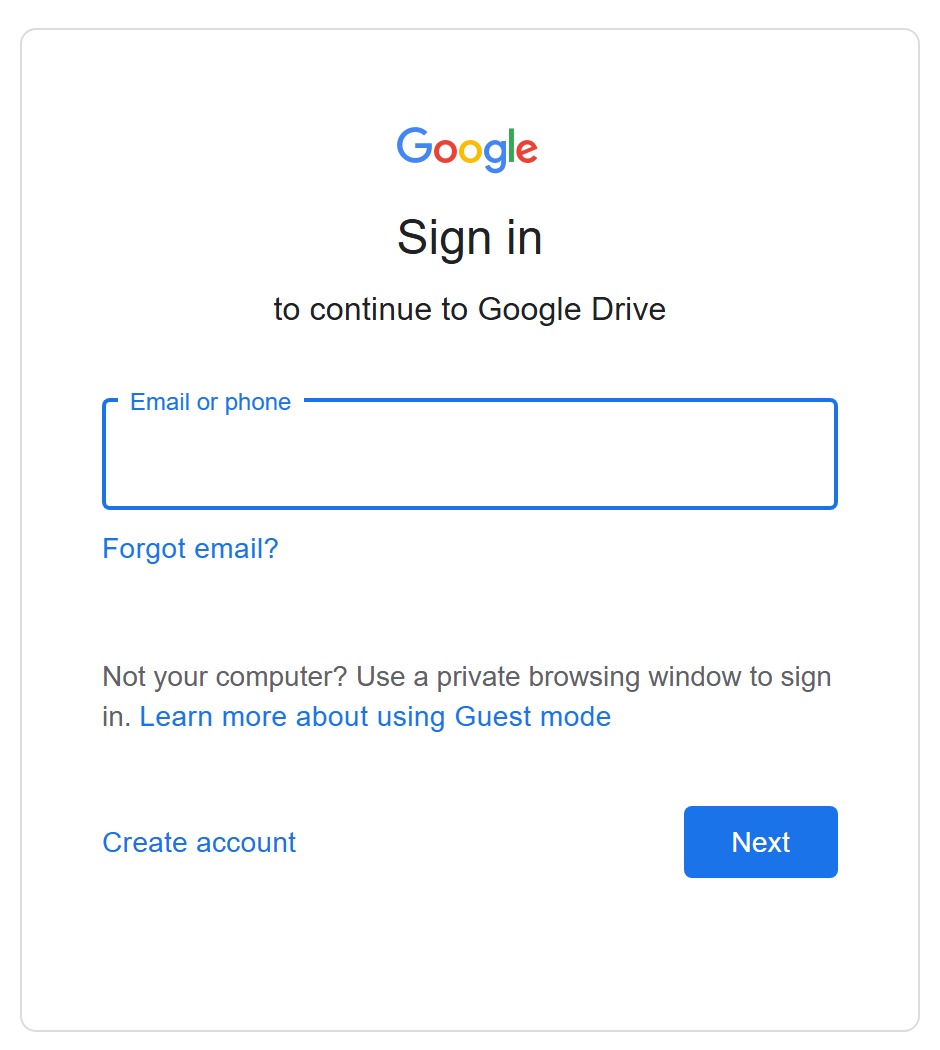
Google Drive has no separate login. It uses your Google Account, the same one you use for Gmail, YouTube or Google Play.
- Open a browser such as Chrome, Edge, Safari or Firefox on your computer.
- Go to drive.google.com.
- Enter your Google Account email address or phone number.
- Enter your password and complete any second step Google asks for, such as a prompt on your phone.
- If another account is already filled in, choose Use another account and enter yours.
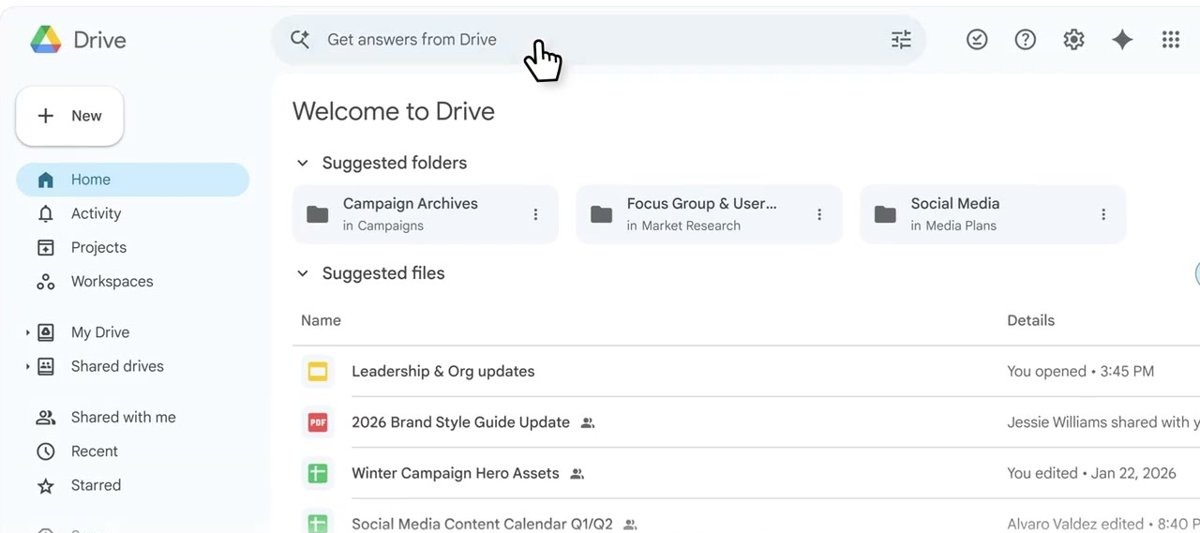
- Drive opens on Home or My Drive, showing your files.
Google recommends one of the two most recent versions of your browser, with cookies and JavaScript turned on.
Google Drive sign in on computer, iPhone and Android
The account is the same everywhere; only the place you enter it changes.
| Device | Where you sign in | Good to know |
|---|---|---|
| Any computer browser | drive.google.com | Works on Windows, Mac, Linux and Chromebook |
| Windows or Mac, files in File Explorer or Finder | Google Drive for desktop app | 64-bit Windows 10 or later, or macOS Ventura 13.0 or later; up to 4 accounts |
| iPhone or iPad | Google Drive app from the App Store | Several accounts can be added; files stay separate per account |
| Android phone or tablet | Google Drive app | Uses the Google Account already added to the device |
| Borrowed or public computer | A private or Guest window, then drive.google.com | Close the window when done so nobody else gets your account |
How do I sign in to Google Drive on my iPhone?
The Drive app for iPhone and iPad is free on the App Store and signs in with any Google Account.
- Install Google Drive from the App Store and open it.
- Sign in with your Google Account email address or phone number.
- Enter your password and approve any 2-Step Verification prompt.
- Find your files under Home, Shared and Files.
- To add a second account later, tap your profile picture at the top right and add another account.
Files in the Drive app stay separate for each account you add.
Google Drive sign in on Android
On Android, Drive signs in with the Google Account added to the phone, usually the one you set the phone up with.
- Open the Google Drive app.
- If more than one Google Account is on the phone, tap your profile picture at the top right.
- Select the account you want to use.
- Open Files and pick My Drive to see files stored in Drive, or Computer for folders synced from Drive for desktop.
How to sign in to Google Drive for desktop
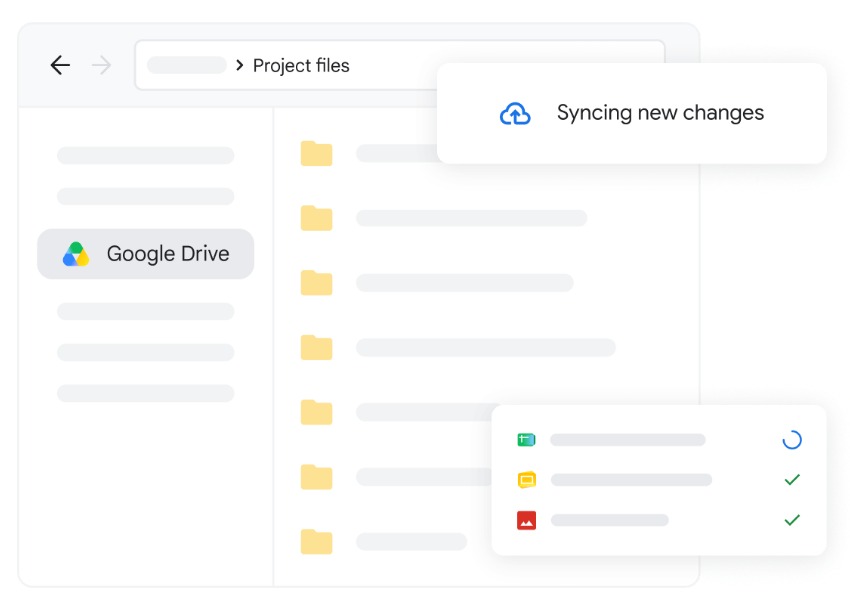
Drive for desktop puts your Drive in File Explorer on Windows or Finder on Mac. Sign-in happens the first time you open it, or after an account was disconnected.
- Install and open Google Drive for desktop on your computer.
- Click Get started, then click Sign in.
- Sign in to the Google Account you want to use in the browser window that opens.
- Return to the app; your files appear in a Google Drive folder in File Explorer or Finder.
The installer is on Google's site; the Google Drive for PC download page lists the current version and requirements.
How can I switch Google Drive accounts?
You can stay signed in to several accounts and switch without signing out.
- Web: At the top right of Drive, select your profile image, choose Add account and sign in to the second account.
- Web: To switch, select your profile image again and pick the account you want.
- iPhone or iPad app: Tap your profile picture at the top right, then select the account to use.
- Drive for desktop: Click the Drive for desktop menu, click your profile picture, click + Add account, sign in through your browser, then restart Drive for desktop.
In a browser, the account you signed in with first is usually the default Google account, and Google may apply its settings when it cannot tell which account you mean.
How do I sign out of Google Drive?
Signing out works differently on each platform, and on phones it often means removing the account from the device.
- Computer: Go to drive.google.com, click your profile picture at the top right, then click Sign out.
- iPhone or iPad: In the Drive app, tap your profile picture, tap Manage accounts on this device, then tap Remove from this device.
- iPhone or iPad, keep the account: Tap your profile picture, tap Manage accounts on this device and turn off the account to pause it.
- Android: Open Settings, tap Users & accounts, select the account and tap Remove account twice.
- Drive for desktop: Click the Drive for desktop menu, click your profile picture, click Disconnect account, then click OK.
Removing an account from a phone does not delete the account, but it removes it from every app on that device. Disconnecting a streaming account in Drive for desktop removes its offline files. To sign out everywhere in Chrome, sign out of Chrome itself.
More information on the Google Drive login process
| Question | Answer |
|---|---|
| Which account does Drive use? | Your Google Account; Gmail is one service on that account, not a requirement |
| How much free storage comes with it? | Up to 15 GB, shared across Gmail, Google Drive and Google Photos |
| Can I add more storage? | Yes, with a Google One plan where available |
| Does Drive ask for a second step? | Only if 2-Step Verification is on; a passkey can replace the password and second step |
| Work or school account? | Your administrator controls sign-in steps and external sharing |
| Signing in on a shared PC? | Use a private window or Chrome Guest profile and close it afterwards |
| Can Google support sign me in by phone? | No; Google says it does not work with any service offering account or password help |
How to use Google Drive without Gmail
You can create a Google Account with an email address you already have, such as Outlook, Hotmail or Yahoo, and that account opens Drive.
- Go to the Google Account sign-in page and click Create account.
- From the drop-down, select For my personal use.
- Enter your basic info.
- Click Use your existing email and enter your current email address.
- Click Next, then enter the verification code Google sends to that address.
- Click Next, create a password and finish the on-screen steps.
- Go to drive.google.com and sign in with that email address and password.
How to use Google Drive to share files
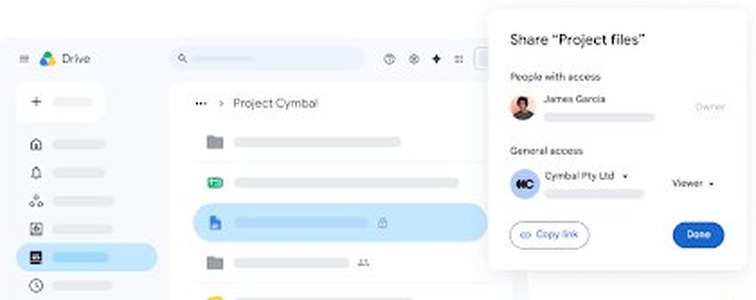
Once you are signed in, sharing gives other people Viewer, Commenter or Editor access.
- In Drive, select the file or folder. Hold Shift to select several.
- Click Share.
- Enter the person's email address or a Google Group.
- Select Viewer, Commenter or Editor.
- Check Notify people to send an email alert, or uncheck it.
- Click Send or Share.
To share with a link instead, open Share, change General access to Anyone with the link, then click Copy link. A single file can be shared with up to 600 email addresses.
How to turn on 2-Step Verification for Google Drive sign in
2-Step Verification protects Drive if your password is stolen, because a sign-in then needs a second step or a passkey.
- Open your Google Account at myaccount.google.com.
- Select Security & sign-in.
- Under How you sign in to Google, select Turn on 2-Step Verification.
- Follow the on-screen steps to add a second step, such as Google prompts on your phone.
Google prompts arrive on Android phones signed in to your account, and on iPhones with the Gmail, Google Photos, YouTube or Google app signed in. Tap Yes to allow a sign-in or No to block it.
Google Drive sign in not working
Match what you see to one of these cases.
Forgot the Google Drive password
Drive uses your Google Account password, so the reset happens through Google Account recovery.
- On the sign-in page, choose the forgotten-password option and follow Google's account recovery steps.
- Answer the questions as best you can; wrong guesses do not lock you out of recovery.
- Set a new strong password you have not used on this account before.
Forgot which email signs in to Drive
Google can list usernames that match your recovery details.
- Use the find-username option on the sign-in page.
- Enter the recovery phone number or recovery email and the full name on the account.
- Pick your account from the list of matching usernames.
Drive opens the wrong account
Several accounts are signed in and the default one loaded first.
- Click your profile picture at the top right of Drive.
- Select the account you want, or choose Add account if it is missing.
Drive will not load after signing in
Old cache and cookies, an outdated browser, or a temporary Google outage.
- Check the Google Workspace Status Dashboard for a Drive outage.
- Update your browser and make sure cookies and JavaScript are on.
- In Chrome, select More > Delete browsing data, choose Cookies and other site data, then Delete data, and sign in again.
Drive for desktop asks you to sign in again
The account was disconnected from the app.
- Open Drive for desktop and click Get started > Sign in.
- Sign in through the browser window with the same Google Account.
Work or school accounts may not use these steps; ask your administrator.
Frequently asked questions about Google Drive sign in
How do I sign in to Google Drive on my iPhone?
Install the free Google Drive app from the App Store, open it and sign in with your Google Account email or phone number and password. To use another account later, tap your profile picture at the top right.
How do I sign out of Google Drive?
On a computer, click your profile picture in Drive and click Sign out. On iPhone, tap your profile picture, then Manage accounts on this device > Remove from this device. On Android, remove the account in Settings > Users & accounts.
How can I switch Google Drive accounts?
Select your profile image at the top right of Drive and pick another signed-in account, or choose Add account. In the iPhone app, tap your profile picture and select the account. Drive for desktop runs up to 4 accounts at once.
Can I use Google Drive without Gmail?
Yes. Create a Google Account with Use your existing email and verify that address with the code Google sends. The account then signs in to Drive without any Gmail address.
Can I use Google Drive with a Hotmail account?
Yes. Use your Hotmail or Outlook address to create a Google Account through Use your existing email, verify it with the code Google sends, then sign in to drive.google.com with that address.
How do I use Google Drive on PC?
Sign in at drive.google.com in any browser, or install Google Drive for desktop on 64-bit Windows 10 or later to see Drive in File Explorer. Docs, Sheets and Slides open in your browser; other files open in their usual apps.
Can I use Google Drive with Outlook email?
Yes. Google Drive for desktop works with Microsoft Office and lets you send and save files with Microsoft Outlook. You can also share a Drive link and paste it into any Outlook message.
How do I use Google Drive to share photos?
Upload the photos with New > File upload, select them, click Share, then add email addresses or set General access to Anyone with the link and copy the link.
How does Google Drive work?
Drive stores your files in your Google Account so you can upload, create, organize and share them from any device. Files you upload or create appear in My Drive, and files others share appear in Shared with me.
What does Google Drive provide?
Each Google Account gets up to 15 GB of free storage shared with Gmail and Google Photos, plus Docs, Sheets, Slides and Forms, file sharing with view, comment or edit access, offline files and desktop sync.
Why use Google Drive?
It keeps your files in one place you can reach from a browser, phone or computer, makes sharing a matter of an email address or link, and syncs changes made on one device to the others.