To turn Focus assist on or off in Windows 11, press Windows key + N to open the notification center and select the bell icon with zZ, which is the Do not disturb switch that replaced Focus assist in the Windows 11 2022 Update.
This tutorial covers the Quick Settings and Settings routes, automatic rules, priority notifications, focus sessions, how to switch the feature off for good, and fixes when Do not disturb misbehaves.
How to turn do not disturb on or off in Windows 11
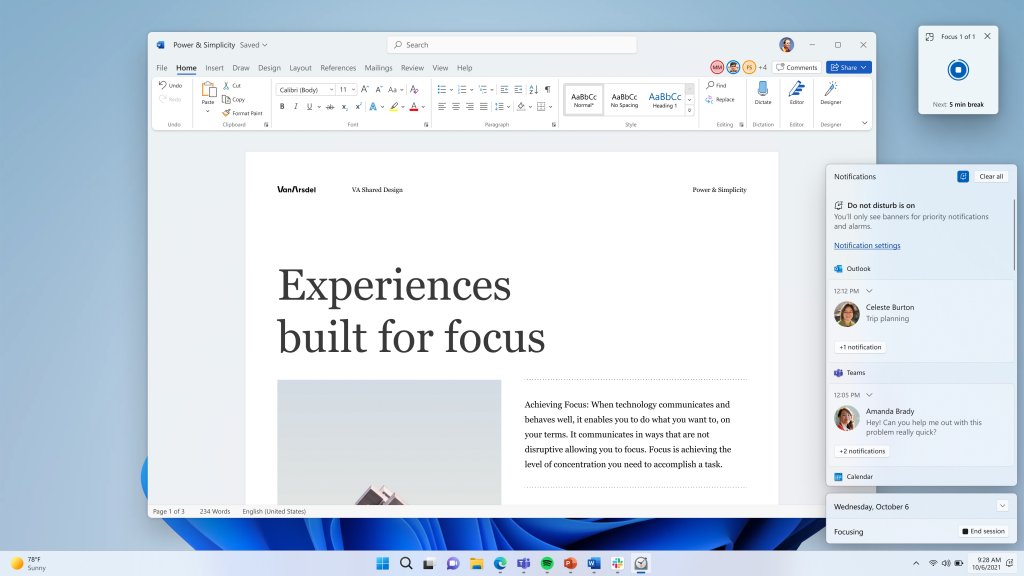
- Press Windows key + N, or select the clock or the notification bell icon on the taskbar.
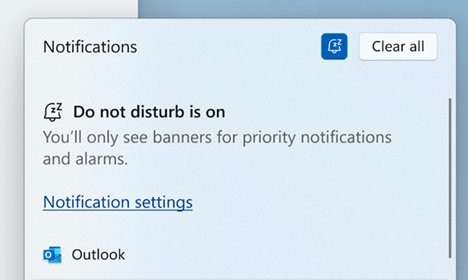
- Select the bell icon with zZ at the top of the notification center to turn Do not disturb on.
- Select the same button again when you want notification banners back.
- After you turn it off, check old notifications you missed in the notification center.
Focus assist vs. do not disturb in Windows 11
Focus assist shipped with the first release of Windows 11 and was still there in OS build 22000. The Windows 11 2022 Update (version 22H2) split it into two features: Do not disturb for silencing notifications and Focus for timed work sessions.
| Windows 11 release | Feature name | Where to find it | What it does |
|---|---|---|---|
| Original release (OS build 22000) | Focus assist | Settings > System > Focus assist | Hides notifications and sends them to the notification center, with automatic rules such as set hours |
| 2022 Update (22H2) and later | Do not disturb | Settings > System > Notifications | Silences notification banners manually or by rule, with a priority list that can break through |
| 2022 Update (22H2) and later | Focus | Settings > System > Focus | Runs a timed focus session that turns on Do not disturb and hides taskbar badges and flashing |
What happens when you turn on Focus assist or do not disturb?
| Item | With Do not disturb on | During a focus session |
|---|---|---|
| Notification banners | Shown only for alarms, reminders and apps you allow | Same as Do not disturb, which turns on automatically |
| Other notifications | Sent silently to the notification center | Sent silently to the notification center |
| Taskbar app badges and flashing | Unchanged | Turned off by default |
| Focus timer | Not shown | Appears on screen until the session ends |
| How it ends | Stays on until you turn it off or a rule ends | A notification tells you when the session finishes |
How to turn on or off Focus assist from Quick Settings
The network, volume and battery icons on the taskbar open the quick panel with the switch. Where no switch appears there, the notification center always has one.
- Select the network, volume or battery icon on the taskbar.
- Select the Focus assist or Do not disturb control if it appears, and select it again to switch it off.
- If there is no tile, press Windows key + N to open the notification center.
- Select the bell icon with zZ to turn Do not disturb on or off.
How to turn on or off Focus assist in Settings
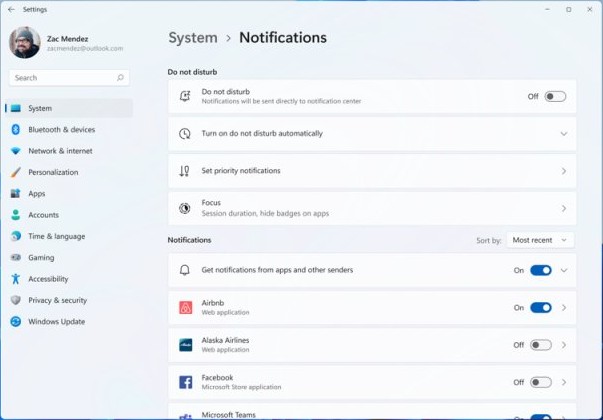
- Select Start > Settings > System > Notifications.
- Turn the Do not disturb switch on to silence banners.
- Turn the same switch off to get banners back.
- On the original Windows 11 release, open Settings > System > Focus assist instead and choose the setting there.
How to choose which notifications can break through
Priority notifications decide which calls, reminders and apps still show a banner while Do not disturb is on.
- Select Start > Settings > System > Notifications.
- Select Set priority notifications.
- Under Calls and reminders, select the checkboxes for incoming calls or reminders you want to allow.
- Under Apps, select Add apps and pick each app that may notify you during Do not disturb.
- Remove any app from the Apps list that should stay silent.
How to turn Focus assist on automatically
- Select Start > Settings > System > Notifications.
- Expand Turn on do not disturb automatically.
- Select During these times, then set the start time, end time and how often it repeats.
- Select the checkboxes for When duplicating the display, When playing a game or When using an app in full-screen mode as needed.
- Leave For the first hour after a Windows feature update selected if you want quiet after big updates.
- On the original Windows 11 release, use Settings > System > Focus assist > Automatic rules instead.
How to use focus sessions in Windows 11
| Where you start | Steps | Best for |
|---|---|---|
| Notification center | Press Windows key + N, choose the session length, then select Focus | Starting a session in two clicks |
| Settings | Open Settings > System > Focus, then select Start focus session | Changing the session options first |
| Clock app | Open Clock > Focus sessions, choose the length and breaks, then select Start focus session | Long sessions with breaks, Spotify audio or Microsoft To Do tasks |
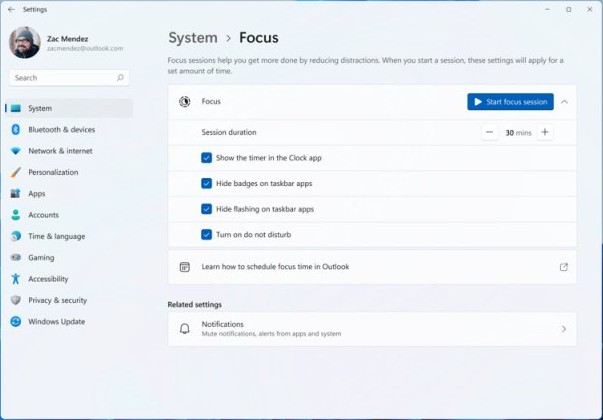
Under Settings > System > Focus, set the session duration and choose Show the timer in the Clock app, Hide badges on taskbar apps, Hide flashing on taskbar apps and Turn on do not disturb. Focus needs the Clock app; reinstall Windows Clock from the Microsoft Store if you removed it.
How to turn off Focus assist completely
- Press Windows key + N and make sure the zZ bell is off.
- Select Start > Settings > System > Notifications and turn Do not disturb off.
- Expand Turn on do not disturb automatically and clear every checkbox, including During these times.
- Open Settings > System > Focus and clear Turn on do not disturb so focus sessions stop switching it on.
- End any running focus session; if Do not disturb was on before the session, turn it off manually because it stays on afterwards.
How to control notifications for individual apps
Per-app settings work alongside Do not disturb, so you can mute Outlook email notifications or quieten any other noisy app without silencing everything. To silence everything at once, turn off notifications in Windows with the main switch.
- Select Start > Settings > System > Notifications.
- Select the app under Notifications from apps and other senders.
- Turn notifications for that app on or off.
- Turn Show notification banners or Show notifications in notification center on or off.
- Turn Play a sound off to keep notifications but mute their sound.
- Set Priority of notifications to Top, High or Normal; only one app can be Top.
Website notifications are allowed per site inside the browser, so Chrome site notifications are switched off in Chrome's own settings.
How to check missed notifications in Windows 11
- Press Windows key + N, select the clock or bell icon on the taskbar, or swipe in from the side of a touch screen.
- Select the arrow next to a notification's time to expand it and see its actions.
- Select the close button on a notification to clear it, or the one next to the app name to clear that app's notifications.
- Select Clear all to empty the notification center.
Troubleshooting: Focus assist or do not disturb is not working
Do not disturb keeps turning on by itself
An automatic rule or a focus session is switching it on.
- Open Settings > System > Notifications and expand Turn on do not disturb automatically.
- Clear the rules you do not want, such as When duplicating the display or When playing a game.
- Open Settings > System > Focus and clear Turn on do not disturb if sessions trigger it.
Notifications still appear while Do not disturb is on
Alarms, reminders, allowed calls and priority apps always break through.
- Open Settings > System > Notifications > Set priority notifications.
- Clear the Calls and reminders checkboxes you do not need.
- Remove the app from the Apps list, or turn that app's notifications off in its own settings.
Focus assist is missing from Settings
The 2022 Update replaced Focus assist with Do not disturb and Focus.
- Open Settings > System > Notifications for the Do not disturb switch and rules.
- Open Settings > System > Focus for focus sessions.
- Use the zZ bell in the notification center as the quick switch.
Focus session will not start
Focus depends on the Clock app, which may have been uninstalled.
- Open the Microsoft Store and install Windows Clock.
- Restart the PC.
- Start a session from Settings > System > Focus > Start focus session.
Best Focus assist settings for common situations
| Situation | Setting to use | Where |
|---|---|---|
| Work hours | During these times with your working hours and a weekday repeat, plus priority apps such as your mail or chat app | Settings > System > Notifications |
| Presentations and screen sharing | When duplicating the display | Turn on do not disturb automatically |
| Gaming and full-screen apps | When playing a game and When using an app in full-screen mode | Turn on do not disturb automatically |
| Studying | A focus session with breaks and taskbar badges hidden | Clock app > Focus sessions |
| Sleep | During these times overnight, with only alarms breaking through | Settings > System > Notifications |
Focus assist and do not disturb frequently asked questions
Is Focus assist gone from Windows 11?
On the Windows 11 2022 Update and later, yes. Focus assist was replaced by Do not disturb, found in Settings > System > Notifications, and Focus, found in Settings > System > Focus. The original Windows 11 release still shows Focus assist.
What is the keyboard shortcut for Do not disturb in Windows 11?
There is no single key for the switch itself. Press Windows key + N to open the notification center, then select the bell icon with zZ to turn Do not disturb on or off.
Does Do not disturb block alarms in Windows 11?
No. Alarms and reminders still show banners while Do not disturb is on, along with any apps you add to the priority list. Everything else goes silently to the notification center.
Why does Do not disturb keep turning on by itself?
An automatic rule is usually responsible, such as a schedule, duplicating the display, playing a game or using a full-screen app. Focus sessions also turn it on. Clear those rules in Settings > System > Notifications and Settings > System > Focus.
Can I see notifications I missed during Do not disturb?
Yes. Muted notifications still go to the notification center. Press Windows key + N, or select the clock or bell icon on the taskbar, to read them after the quiet period ends.
Do focus sessions need the Clock app?
Yes. Focus in Windows works with focus periods in the Clock app, so a PC without the Clock app cannot run sessions. Reinstall Windows Clock from the Microsoft Store to restore Focus.
Can calls ring through Do not disturb?
Yes, if you allow them. Open Settings > System > Notifications > Set priority notifications and select the incoming calls checkbox under Calls and reminders.
How do I schedule Do not disturb in Windows 11?
Open Settings > System > Notifications, expand Turn on do not disturb automatically, select During these times, and set the start time, end time and repeat pattern.