To flip camera on Windows 10, change it where the video is used: tick the mirror option in Zoom or Teams for a reversed preview, or use the camera maker's software or OBS Studio for an image that is upside down.
Windows 10 itself has no flip or rotation switch for webcams, so this guide covers the Camera app, manufacturer tools, PowerShell, OBS Studio, Zoom and Teams settings, and fixes for common problems.
How to flip webcam on Windows 10
Pick the row that matches what you see on screen. Each row names the fastest fix and the section that walks through it.
| What you see | Fastest fix | Who sees the change |
|---|---|---|
| Your preview looks reversed, like a mirror, in Zoom | Zoom Settings > Video & effects > Mirror my video preview | Only you |
| Your preview looks reversed in Microsoft Teams (free) | Teams Settings > Devices > Mirror my video | Only you |
| The image is upside down in every app | The camera maker's software, or OBS Studio with Flip Vertically | Everyone, in any app that uses the camera |
| The image is sideways or needs a horizontal flip for others | OBS Studio transform options sent through its virtual camera | Everyone in the call |
| A photo you already took is turned the wrong way | The Rotate button in the Windows Camera app | Anyone who opens the photo |
A mirrored self-view is normal and usually needs no fix, because the other people on the call already see you the right way round.
Understanding why your camera needs flipping
Flipping covers three different problems, and each has a different cause. Knowing which one you have saves trying fixes that cannot work.
| Problem | Usual cause | Where to fix it |
|---|---|---|
| Mirrored (left and right swapped) | Video apps show your own preview mirrored on purpose, so it feels like a mirror | The app's mirror setting; it changes only your view |
| Upside down | A camera mounted inverted, a laptop lid camera reported the wrong way, or a driver that sends the image inverted | The maker's software, a driver change, or OBS Flip Vertically |
| Sideways (90 degrees) | An external camera mounted on its side, or a document camera | OBS transform options; Windows 11 adds a Video rotation setting for external cameras |
| Text on a whiteboard reads backwards | You are looking at your mirrored self-view, not the outgoing video | Nothing; others see the text correctly unless you mirror the outgoing feed |
Preparing your system
A pending Windows update or the wrong driver can be the reason the image is flipped in the first place. Do these checks once before changing any app settings.
- Select Start > Settings > Update & Security > Windows Update, then select Check for updates and install what it offers.
- In the search box on the taskbar, type device manager and select it from the results.
- Expand Cameras, Imaging devices, or Sound, video and game controllers and find your webcam.
- Note the exact camera name shown there, because you need it to find the maker's software.
- Right-click the camera, select Properties, and open the Driver tab to see the driver provider and version.
- Close any app that is using the camera before you test a change, since some settings apply only the next time the camera starts.
If the camera does not appear at all, fix the webcam first, then come back to flipping it.
Method 1: Using Camera app in Windows 10
The Windows 10 Camera app has no mirror or flip switch for the live preview. It is still the best place to see what the camera sends before any video app changes it, and it can rotate photos you have taken.
- Select Start, type Camera, and select the Camera app in the results.
- If the PC has more than one camera, select the Change camera icon at the top right until you see the right one.
- Hold up a page with printed text and look at the preview to see whether the image is upside down or sideways.
- Select Take photo to capture a test shot, then open it from the Camera roll thumbnail at the bottom right.
- Select Rotate to turn the photo 90 degrees clockwise; press it again for 180 or 270 degrees.
- Select the Settings icon at the top left to turn on framing grids if you want a level reference while you adjust the camera.
If the Camera app shows the image upside down, the fix belongs at the driver or software level, not in each video app.
Method 2: Using camera manufacturer software or drivers
Many webcam makers ship a utility or driver panel that offers mirror, flip or rotation controls. Which controls exist depends on the model, so start from the name you noted in Device Manager.
- Go to the support site of the camera or laptop maker and search for the exact model name.
- Download the camera software or driver listed for Windows 10 on that support page.
- Install it, restart the PC, and open the camera utility from the Start menu.
- Look for an image or video section with mirror, flip or rotate options, and set the orientation you need.
- Close the utility and reopen the Camera app to see the result.
- If a driver update caused the flip, open the camera in Device Manager, select Properties > Driver > Roll Back Driver, and select Yes.
Some drivers do not offer Roll Back Driver. In that case, select Update driver > Browse my computer for drivers > Let me pick from a list of available drivers on my computer and choose USB Video Device, the generic Windows driver. That driver may drop extras such as Windows Hello face sign-in.
Method 3: Flipping camera via Windows 10 Settings (using Registry or PowerShell)
Windows 10 has no camera orientation page in Settings, and Microsoft documents no registry value or PowerShell cmdlet that flips a webcam image. Edits copied from forums can break the camera driver, so skip them.
PowerShell is still useful for one job: listing the exact camera name and hardware ID you need to find the right software or driver.
Get-PnpDevice -Class Camera,Image -PresentOnlyLists every connected device in the Camera and Imaging device classes, with its status, friendly name and instance ID. Run it in Windows PowerShell; no administrator rights are needed to read the list.
You should see: A line with Status OK and your webcam's name, such as an integrated camera or a USB camera model. An Error status points to a driver problem rather than an orientation setting.
Method 4: Using third-party software
OBS Studio, from obsproject.com, can flip the image and pass it to Zoom, Teams or any app that accepts a webcam through its virtual camera. It works with any webcam whose driver supports DirectShow, which covers all major models.
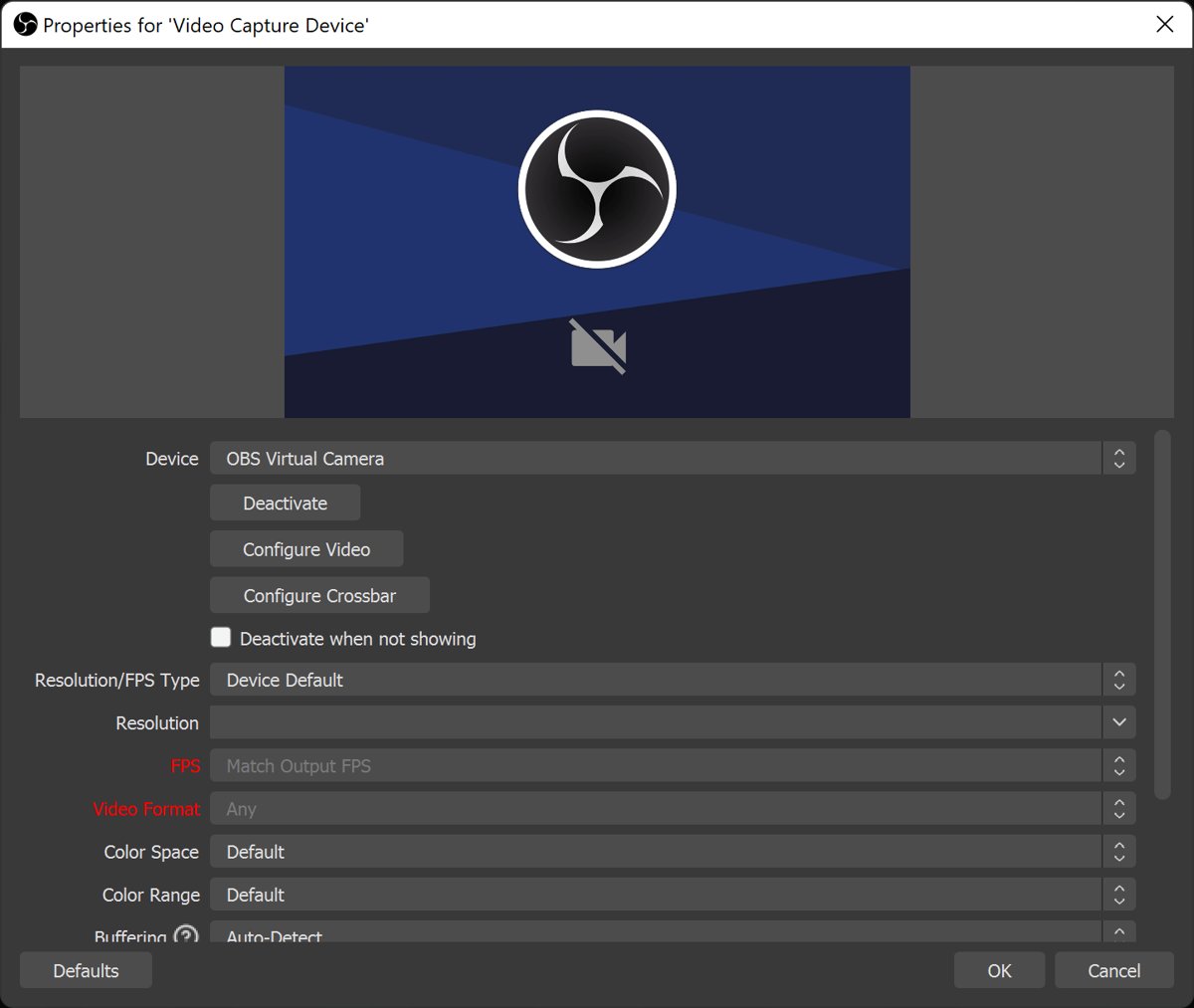
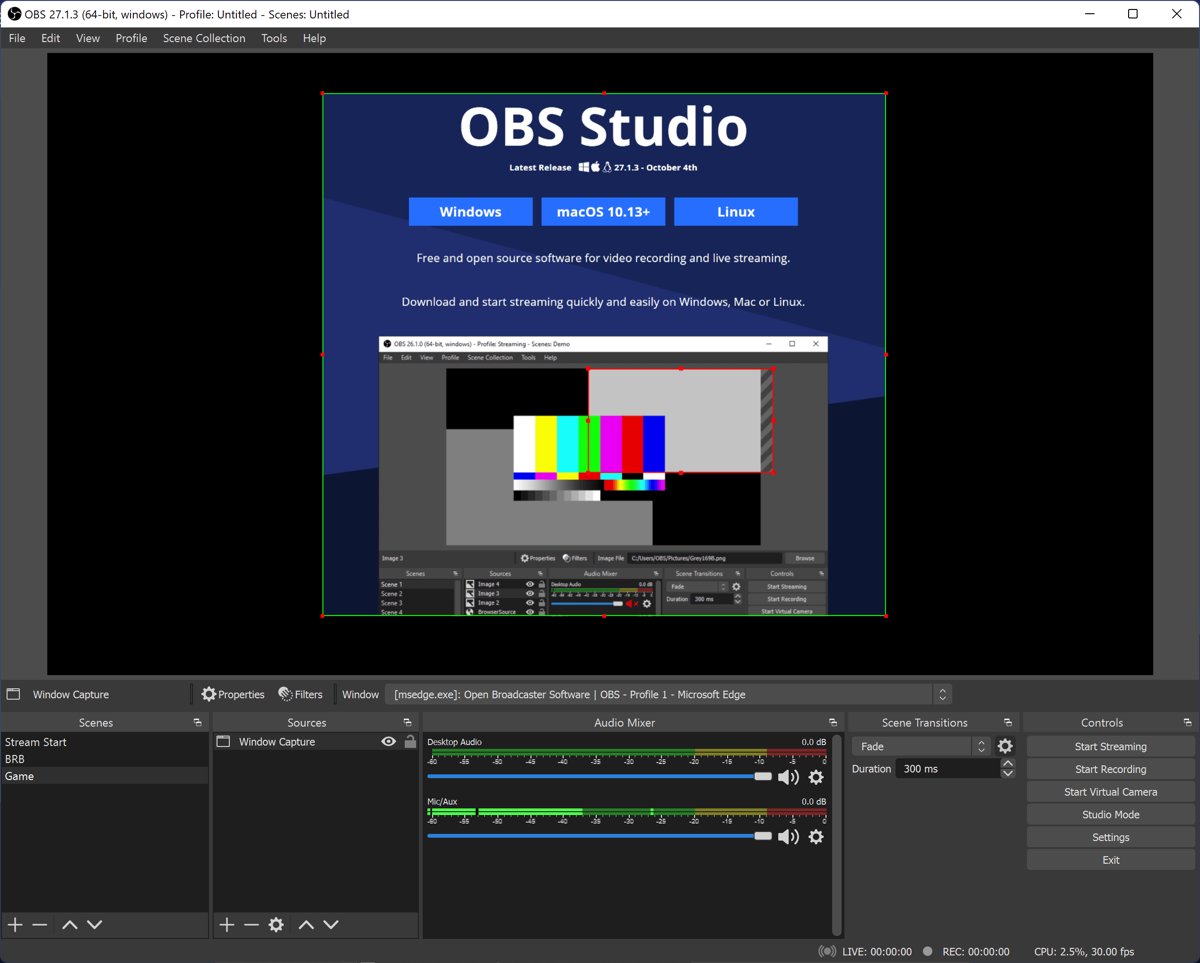
- Install OBS Studio from obsproject.com and open it.
- Click the + button at the bottom of the Sources dock and choose Video Capture Device.
- Select your webcam in the Device list; turn on Flip Vertically if the image arrives upside down, then select OK.
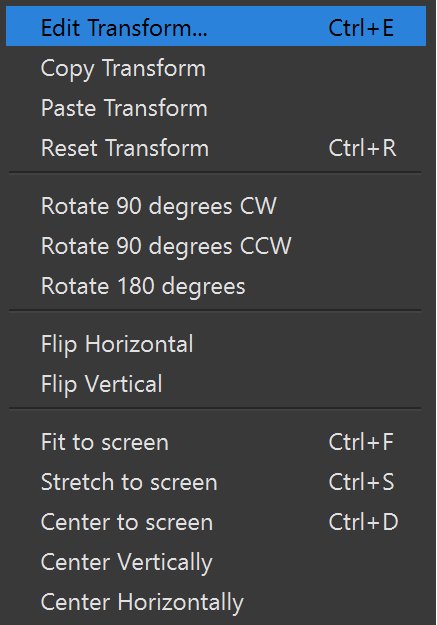
- For a horizontal mirror or a 90-degree turn, select the source, open the Edit menu > Transform, and pick the flip or rotate option you need.
- Click Start Virtual Camera in the Controls dock.
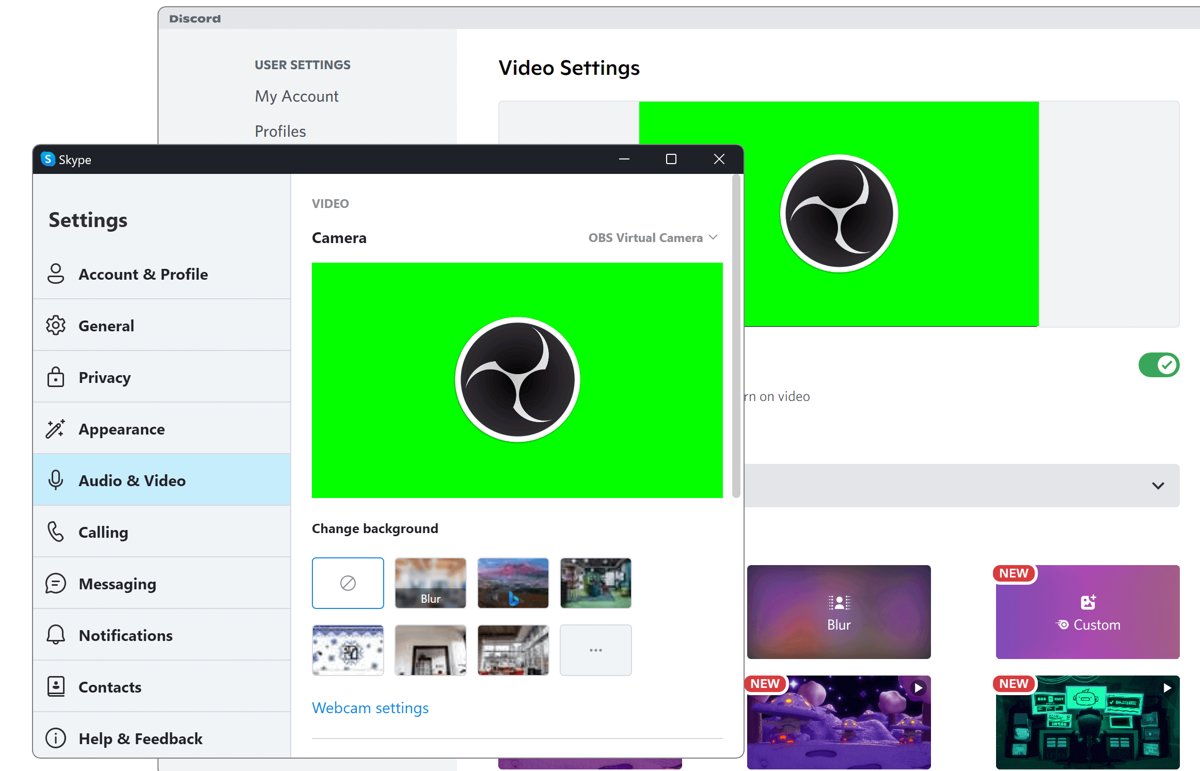
- In Zoom, Teams or another app, choose the OBS virtual camera instead of your webcam.
Press Ctrl + R with the source selected to reset the transform if the image ends up in the wrong place. OBS must stay open while the virtual camera is in use.
Method 5: Adjusting camera orientation in video conferencing apps
Zoom and Teams offer a mirror option for your own preview, not a true flip of the video others receive. Use this table to see what each app changes.
| App | Setting | Effect |
|---|---|---|
| Zoom Workplace | Settings > Video & effects > Mirror my video preview | Flips your preview horizontally; only you see the change |
| Microsoft Teams (free) | Settings > Devices > Mirror my video | Changes the view only for you |
| Any app that accepts a webcam | OBS Studio virtual camera with a flip applied | Everyone receives the flipped image |
When others say your image is upside down, the app mirror setting cannot fix it. Use the maker's software or OBS instead.
How to mirror video in Zoom on Windows 10
- Open the Zoom Workplace desktop app and sign in.
- Click your profile picture, then click Settings.
- Select the Video & effects tab.
- Check that the right webcam is chosen in the Camera drop-down.
- Select or clear the Mirror my video preview check box until the preview looks the way you want.
Zoom says this option is useful when the camera flips your video by default, and it only affects how you see yourself.
How to turn on Mirror my video in Microsoft Teams
These steps are for Microsoft Teams (free) on the desktop.
- Open Teams on your desktop and sign in.
- Select More options next to your profile picture, then select Settings.
- Select Devices.
- Under Video settings, turn Mirror my video on or off.
- During a call, select More > Video effects and settings and open the Settings tab to change it without leaving the meeting.
Webcam rotation setting in Windows 11 vs Windows 10
Microsoft added a camera settings page in Windows 11 and says it is not available on older versions. If the PC can move to Windows 11, that page gives a built-in rotation option for external cameras.
| Windows version | Where | Orientation options |
|---|---|---|
| Windows 10 | No camera settings page; Settings > Privacy > Camera controls access only | None built in; use the maker's software, OBS or app settings |
| Windows 11 | Settings > Bluetooth & devices > Cameras > your camera | Video rotation: No rotation, Right 90°, Left 90° or 180°, external cameras only |
On Windows 11, Video rotation applies the next time the camera starts and removes compressed formats such as MJPEG and H.264, so some apps may not work correctly with it set. Reset settings on the same page clears it.
How to test webcam orientation on Windows 10
Your own preview is not proof, because video apps mirror it. Test the outgoing image instead.
- Hold a page with large printed words in front of the camera.
- Open the Windows Camera app and take a photo; text that reads normally in the saved photo means the camera itself is the right way up.
- In Zoom, start a meeting by yourself and record it, or ask someone to join a short test call.
- Play back the recording or ask the other person whether the words read left to right.
- If you use OBS, look at the OBS preview, since the virtual camera sends exactly what it shows.
Troubleshooting common challenges
The camera turned upside down after a driver update
The new driver reports the image orientation differently from the old one.
- Open Device Manager and expand Cameras or Imaging devices.
- Right-click the camera and select Properties.
- On the Driver tab, select Roll Back Driver, then Yes.
- Restart the PC and test the image in the Camera app.
The mirror setting changes nothing for the other people in the call
Zoom and Teams mirror options affect only your own view.
- Leave the app's mirror setting as you like it for your own view.
- Apply the flip in OBS Studio or the maker's software.
- Select the OBS virtual camera, or the camera with the new setting, in the app's camera list.
Start Virtual Camera is missing in OBS Studio
The OBS virtual camera component is not installed.
- In File Explorer, go to
C:\Program Files\obs-studio\data\obs-plugins\win-dshow. - Right-click
virtualcam-install.batand select Run as administrator. - Restart OBS Studio and look for Start Virtual Camera in the Controls dock.
The camera shows a black screen after you change its settings
Camera access is off for the app, or another app still holds the camera.
- Close every app that might be using the camera, including OBS.
- Select Start > Settings > Privacy > Camera.
- Turn on Allow apps to access your camera and Allow desktop apps to access your camera.
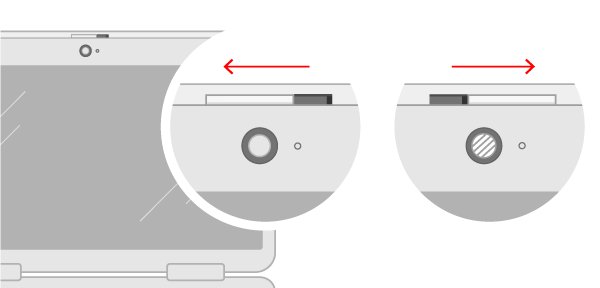
- Check for a privacy shutter or a camera key on the keyboard, then reopen the app.
For per-app access, you can also manage camera permissions for apps one by one.
Best practices for flipping camera on Windows 10
| Practice | Why it matters |
|---|---|
| Fix orientation at one level only | Flipping in the driver, OBS and the app at once can cancel out or double the change |
| Leave the self-view mirror alone unless it bothers you | It never changes what others see |
| Get camera software only from the maker's support site | Driver bundles from download portals can carry unwanted extras |
| Test with printed text before an important call | Text shows a mirror or flip at a glance |
| Note your old setting before you change it | Rolling back is quicker when you know what you changed |
Before a call, it also helps to activate the camera on your computer and test it at the same time.
Flip webcam on Windows 10 FAQ
Does Windows 10 have a setting to flip the camera?
No. Windows 10 has no built-in flip or rotation setting for webcams; its camera page in Settings only controls app access. Microsoft added a Video rotation option for external cameras in Windows 11, so on Windows 10 use the maker's software, OBS Studio or the video app.
Why is my webcam mirrored on Windows 10?
Video apps such as Zoom and Teams mirror your own preview on purpose so it feels like looking in a mirror. The people on the call see the normal, unmirrored image, so a mirrored self-view usually needs no fix at all.
Can I flip the camera in the Windows 10 Camera app?
Not the live preview. The Windows 10 Camera app has no mirror or flip control. Its Rotate button turns a photo you already took 90 degrees clockwise each time you press it, which fixes the saved picture but not the camera feed.
How do I flip my camera upside down on Windows 10?
Use the camera maker's utility if it has a flip option, or add the webcam to OBS Studio as a Video Capture Device, turn on Flip Vertically, and start the OBS virtual camera. Then pick the OBS virtual camera in Zoom, Teams or any other app.
Do other people see my video mirrored in Zoom?
No. Zoom's Mirror my video preview option flips only your own preview, and Zoom states it only affects how you see your video. To change what others see, apply the flip in OBS Studio or the camera's own software.
How do I mirror my camera in Microsoft Teams?
In Teams (free) on the desktop, select More options next to your profile picture, then Settings > Devices, and turn on Mirror my video under Video settings. During a meeting, use More > Video effects and settings > Settings. It changes the view only for you.
Is there a registry tweak to flip a webcam?
Microsoft documents no registry value or PowerShell cmdlet that flips a webcam image in Windows 10. Registry edits shared online are driver-specific and can stop the camera working, so use the maker's software or OBS Studio instead.
Why did my laptop camera turn upside down?
A driver update is the usual cause when the image was fine before. Open Device Manager, open the camera's Properties, and select Roll Back Driver on the Driver tab, or install the camera driver listed for your model on the laptop maker's support site.