To activate the camera on your computer, uncover the lens, allow camera access in the operating system's privacy settings, and then open an app that uses it; the camera switches on by itself when an allowed app asks for it.
This guide covers Windows 11, Windows 10 and macOS, plus Chrome, Edge, Safari and Microsoft Teams, with a test routine, fixes grouped by symptom and the privacy controls that turn it off again.
The fastest way to turn on your computer's camera
Neither Windows nor macOS has a camera power button. Opening the built-in camera app is both the switch and the test.
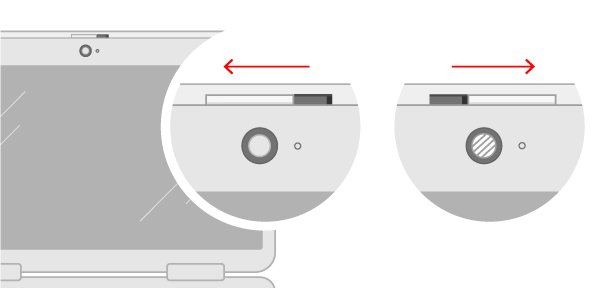
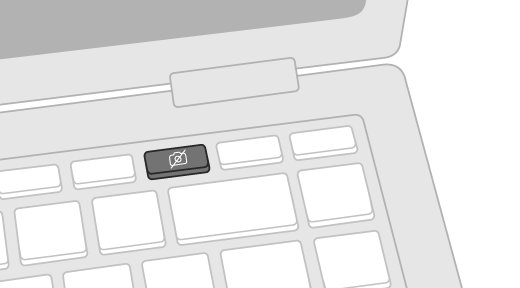
- Slide open any cover over the lens, and on a laptop press the camera key if the keyboard has one.
- On Windows, select Start, type Camera, and open the Camera app. On a Mac, open Photo Booth or FaceTime.
- Wait a few seconds for a live picture. The camera light next to the lens turns on while the camera is in use.
- If Windows shows an error instead of a picture, open Start > Settings > Privacy & security > Camera and turn Camera access on.
- Reopen the camera app. A live picture means the camera is active and other apps can now request it.
A picture in the built-in app but not in Teams, Zoom or a website means the problem is that app's permission, not the camera.
Where your camera is switched on or blocked
A camera can be blocked at four levels. Find the level that matches what you see and start there.
| What you see | Level that blocks it | Go to |
|---|---|---|
| Black picture, or a camera icon with a slash through it | Hardware: shutter, camera key or cable | Check your camera hardware and connection |
| Windows Camera app shows an error | Windows privacy settings or a disabled device | Activate the camera on Windows |
| An app on a Mac says it cannot use the camera | macOS Privacy & Security or Screen Time | Activate the camera on macOS |
| Built-in app works, one website or meeting app does not | Browser site permission or the app's camera choice | Allow camera access in browsers and apps |
| An error code such as 0xA00F4244 | Driver, policy or another app | Troubleshoot common camera problems |
Check your camera hardware and connection
Microsoft notes that a camera turned off by a hardware switch may not be recognised at all, or may show an image of a camera with a slash through it. No software setting overrides a closed shutter.
- Look at the lens above the screen. If a small slider covers it, move the slider until the glass lens is visible.
- Check the keyboard for a dedicated camera key, or a camera icon on a function key that works with Fn, and press it.
- Check the sides of a laptop for a sliding camera switch and move it to the on position.
- For an external webcam, open its lens cover and confirm the USB cable is firmly connected. Remove loose cords and reseat the plug.
- Plug the webcam into a different USB port on the computer itself if it still shows nothing.
- Test the webcam on another computer to rule out a hardware fault.
A desktop PC usually has no built-in camera, so it needs an external webcam. Most USB webcams follow the USB Video Class standard and work with the driver built into Windows.
Activate the camera on Windows
Windows controls the camera with three switches: one for the whole device, one for Microsoft Store apps and one for desktop apps. Browsers and meeting apps such as Microsoft Teams are desktop apps, so the third switch matters for most calls.
The steps below work on Windows 10 and 11; deeper fixes such as firmware settings and PnPUtil apply when you turn on the camera in Windows 11 and it still stays dark.
- Select Start > Settings > Privacy & security > Camera. On Windows 10 or 11, you can also press Win + R, type
ms-settings:privacy-webcamand press Enter. - Turn Camera access on. If the switch is off and grayed out, an administrator on the device has to turn it on.
- Turn Let apps access your camera on, then turn on the switch for each Microsoft Store app you want to allow, such as Camera.
- Turn Let desktop apps access your camera on. Windows 10 calls it Allow desktop apps to access your camera. Desktop apps cannot be allowed one by one.
- On Windows 11, open Bluetooth & devices > Cameras. If your camera is listed under Disabled cameras, select it and choose Enable.
- On Windows 10, select Start, type device manager and open it. Expand Cameras, right-click the camera, and select Enable device if it is offered.
- Open the Camera app to confirm a live picture.
Windows Hello face sign-in uses the camera even when Camera access is off, because it is controlled by its own sign-in settings.
Activate the camera on macOS
A Mac camera turns on automatically when you open an app that can use it, and a green light beside the lens glows while it is on. FaceTime, Photo Booth and other apps that come with the Mac have access without asking.
Apps you install must be allowed first. These steps use System Settings; older versions of macOS call it System Preferences.
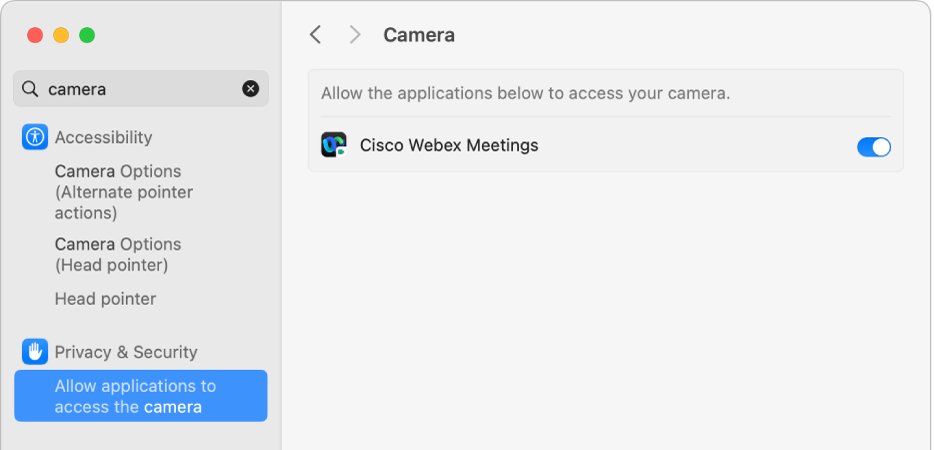
- Choose Apple menu > System Settings, then click Privacy & Security in the sidebar. You may need to scroll down.
- Click Camera.
- Turn on camera access for each app you want to use, such as Zoom, Teams or a browser.
- Quit and reopen the app if macOS prompts you to.
- If you use Screen Time, open System Settings > Screen Time > Content & Privacy, click App Restrictions (or Apps), and make sure Camera is selected.
- Open Photo Booth or FaceTime and check that the green light turns on beside the camera.
An empty app list under Camera means no installed app has asked to use the camera yet. To use an external camera or an iPhone as a webcam, connect it, then choose it in FaceTime with Video in the menu bar or in Photo Booth with Camera in the menu bar. Once the camera works, you can record video on a Mac with QuickTime.
Allow camera access in browsers and apps
Browsers ask for camera permission once per website, and a single Block or Never allow answer sticks until you change it. The operating system switch must also be on, because the browser itself needs camera access first.
On a work or school computer, an administrator can lock these settings.
| Where you use the camera | Allow it when asked | Fix a site or app you already blocked |
|---|---|---|
| Google Chrome | Choose Allow while visiting the site or Allow this time in the prompt. | Select More > Settings > Privacy and security > Site settings > Camera, select the site under Not allowed to use your camera or microphone, and change it to Allow. |
| Microsoft Edge | Select Allow in the prompt. | Select Settings and more > Settings > Privacy, search, and services > Site Permissions > All sites, select the site, and set Camera to Allow. |
| Safari on Mac | Accept the site's camera request. | Choose Safari > Settings, click Websites, select Camera, and set the site to Ask or Allow. |
| Microsoft Teams desktop app | Allow Teams in the operating system camera settings. | Select Settings and more > Settings > Devices and choose your camera from the Camera dropdown. |
| Other meeting apps on a Mac | Turn the app on under Privacy & Security > Camera. | Pick the right camera in the app's own video settings. |
Reload the web page after changing a permission, and on Windows 11 allow apps to access your microphone too if the call needs sound. Safari does not share Camera and Microphone choices across your Apple devices, so allow the site on each Mac.
Test your camera before a call or recording
Test in the built-in app first, then in the app you plan to use. A picture in one and not the other tells you which layer to fix, and a Teams test call confirms the meeting app can use it.
- Open the Camera app on Windows or Photo Booth on a Mac and confirm a live, moving picture.
- Check that the camera light beside the lens turns on. A Windows PC with no camera light shows a notification when the camera turns on or off.
- Close the app and confirm the light goes off.
- In Microsoft Teams, open Settings and more > Settings > Devices, check the video preview, and select Make a test call.
- In a browser, open the meeting site, allow the camera prompt, and confirm your preview appears before you join.
- If the image is blurry, wipe the lens with a soft, lint-free cloth and sit facing the light rather than with a window behind you.
What Windows camera error codes mean
The Windows Camera app shows a code when it fails. Match the code to its row.
| Error code | Cause | Fix |
|---|---|---|
| 0xA00F4244 | Windows cannot detect the camera | Reconnect an external camera, enable it in Device Manager, and check Camera access |
| 0xA00F4243 or 0xA00F4289 | Another app or process is using the camera | Close other apps that use the camera, or end them in Task Manager |
| 0x80070005 | Access to the camera is denied | Turn on Camera access and Let desktop apps access your camera |
| 0xA00F4292 | Camera access is restricted by policy | Ask your IT administrator |
| 0xA00F4246 | Security software has locked the camera | Allow the app in your security software's camera protection settings |
| 0xA00F4294 | Video failed to start | Update the camera driver and install Windows updates |
| 0x800705AA | Not enough system resources | Close unneeded apps and restart |
Protect your privacy when using your camera
Activating the camera for one app does not have to leave it open to every app. Review permissions regularly, close the lens cover when you finish, and keep the operating system and browser updated.
- On Windows, open Settings > Privacy & security > Camera and read the list under Let desktop apps access your camera. It shows desktop apps that have used the camera recently; select one to see the exact file that accessed it.
- Turn off the switch for any Store app that no longer needs the camera, or turn Camera access off to block every app.
- On a Mac, open System Settings > Privacy & Security > Camera and turn off apps you no longer use.
- In Chrome or Edge, open the Camera site permissions and remove or block sites you do not recognize.
- In Safari, choose Safari > Settings > Websites > Camera and set sites to Deny, or set When visiting other websites to Ask so no site gets the camera silently.
- Close the lens cover or unplug the webcam when you are not on a call.
- Install operating system and browser updates as they arrive.
When a Mac camera light flashes green or the camera will not work after every fix, Apple advises that the Mac may need service.
Troubleshoot common camera problems
Find the symptom that matches yours and work down its steps.
Camera is not detected on Windows
A loose connection, a disabled device or a missing driver.
- Reconnect an external camera or try another USB port.
- Select Start, type device manager and open it. Look under Cameras, Imaging devices or Sound, video and game controllers.
- If the camera is missing, select Action > Scan for hardware changes, then restart.
- Select Start > Settings > Windows Update > Check for updates, then check Advanced options > Optional updates for a camera driver.
- On Windows 11, open the Get Help app and run the camera troubleshooter.
Camera works in one app but not in Zoom, Teams or Chrome
The app is blocked, set to another camera, or another app is holding the camera.
- Turn on Let desktop apps access your camera on Windows, or the app's switch under Privacy & Security > Camera on a Mac.
- Select the right camera in the app's video settings.
- Allow the site in the browser's camera permissions and reload the page.
- Close every other app that might be using the camera, then reopen the one you need.
Camera stopped working after a Windows update
The new driver does not suit your camera. Roll back that driver first, then reinstall it, to fix the webcam after a Windows update.
- In Device Manager, right-click the camera and select Properties.
- On the Driver tab, select Roll Back Driver, then Yes. Some drivers do not offer this.
- If rollback is unavailable, right-click the camera, select Uninstall device, tick Attempt to remove the driver for this device, and confirm.
- Select Action > Scan for hardware changes, restart, and test the Camera app.
External USB webcam shows a black screen on Windows
The maker's driver is failing.
- In Device Manager, right-click the webcam under Cameras or Imaging devices and select Update driver.
- Select Browse my computer for drivers, then Let me pick from a list of available drivers on my computer.
- Select USB Video Device, then Next, and Close when it finishes.
- Test the webcam again. The built-in driver may not support extra features such as Windows Hello.
Built-in camera will not activate on a Mac
Out-of-date software, a Screen Time limit, a missing app permission, or a stuck camera process.
- Install the latest macOS update.
- Check that Camera is selected in Screen Time's App Restrictions, and that the app is not under App Limits.
- Turn the app on under Privacy & Security > Camera.
- Restart a Mac with Apple silicon. On an Intel-based Mac, reset the SMC.
If security software blocks the camera, add the app you trust to its allowed list instead of switching protection off. Keep Windows Security turned on while you test.
Activating a computer camera: frequently asked questions
How do I activate the camera on my laptop?
Open the lens shutter or press the camera key first, because many laptops block the camera in hardware. Then allow camera access in Windows Privacy & security > Camera or macOS Privacy & Security > Camera, and open the Camera app or Photo Booth to test it.
How do I activate my camera on Windows?
Open Start > Settings > Privacy & security > Camera and turn on Camera access, Let apps access your camera, and Let desktop apps access your camera. Then open the Camera app. A live picture confirms the camera is active.
How do I activate my camera on a PC?
A laptop PC uses its built-in camera once Windows camera access is on. A desktop PC normally needs a USB webcam: plug it in, open its lens cover, let Windows install the driver, and test it in the Camera app.
How do I activate my camera in Microsoft Teams?
Make sure Windows or macOS allows desktop apps to use the camera. Then open Teams, select Settings and more > Settings > Devices, choose your camera in the Camera dropdown, and check the preview.
How do I activate the built-in camera?
The built-in camera turns on automatically when an allowed app opens it. On Windows open the Camera app; on a Mac open FaceTime or Photo Booth. The light beside the lens shows the camera is active.
How do I activate my web camera?
Connect the webcam by USB, open its lens cover, and wait for the driver to install. Then select it as the camera in your app. On a Mac, choose it from the Video menu in FaceTime or the Camera menu in Photo Booth.
Why is my camera active?
An app or website is using it. On Windows, Settings > Privacy & security > Camera lists desktop apps that used the camera recently. On a Mac, the green light stays on until you quit every app that can use the camera.
How do I enable my camera if Windows says it is disabled?
On Windows 11, open Settings > Bluetooth & devices > Cameras, select the camera under Disabled cameras, and choose Enable. On Windows 10, enable it in Device Manager under Cameras. Both need an administrator account.
How can I stop websites from using my camera without asking?
Set the browser's default camera permission to ask. In Safari, choose Safari > Settings > Websites > Camera and set When visiting other websites to Ask. In Chrome, set the default under Site settings > Camera and delete sites you no longer trust.
Why is my external webcam not detected by my computer?
The usual causes are a loose cable, a faulty USB port, or a driver problem. Try another port, test the webcam on another computer, and in Windows Device Manager select Action > Scan for hardware changes, then update the driver.
Activating your computer camera: bottom line
Open the lens cover, turn on camera access in the operating system, and test in the built-in camera app before touching drivers or app settings. The built-in app splits the problem in two: no picture there means hardware, privacy switch or driver, while a picture there means the fix is in the browser or meeting app.