You can retrieve old iCloud emails without a backup only if they still exist somewhere in your account: deleted messages stay in Trash for 30 days, and archived or filtered messages stay until you delete them.
This guide shows where to look on iCloud.com, iPhone and Mac, how to tell when an email is gone for good, and how to keep it from happening again.
How to retrieve deleted iCloud emails from Trash
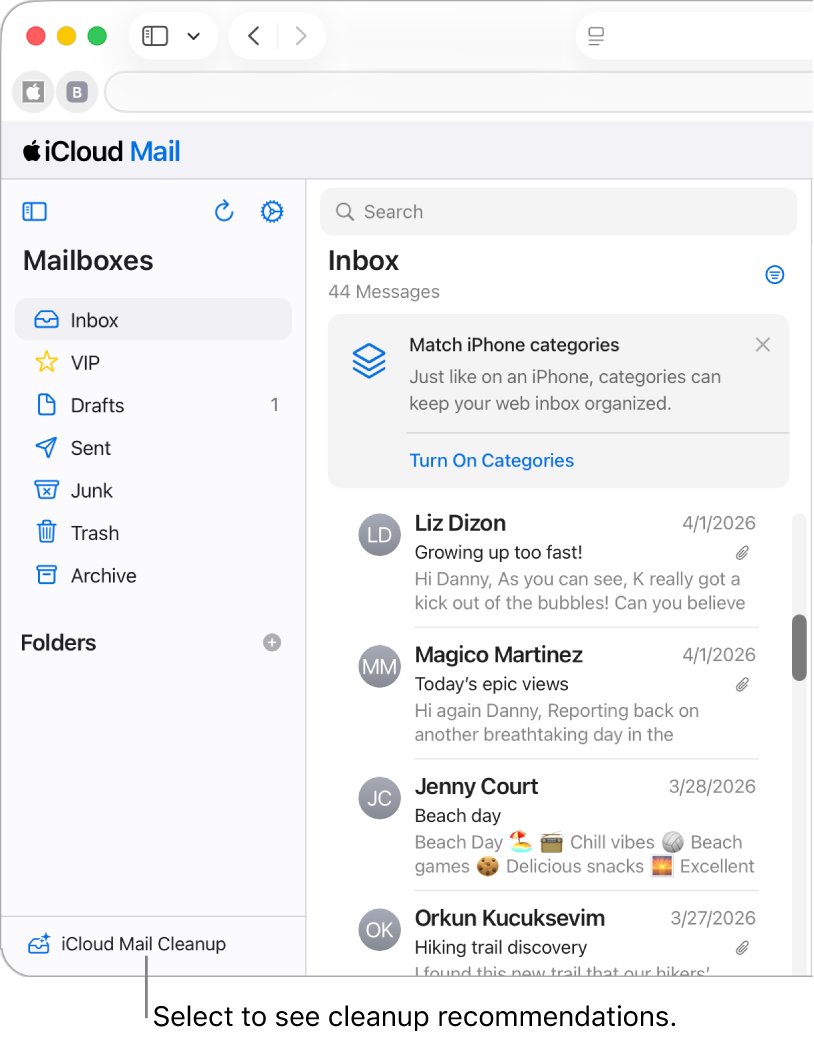
Apple keeps a deleted iCloud email in the Trash mailbox for 30 days before erasing it permanently. Moving it out of Trash restores it on every device that uses iCloud Mail.
- Go to
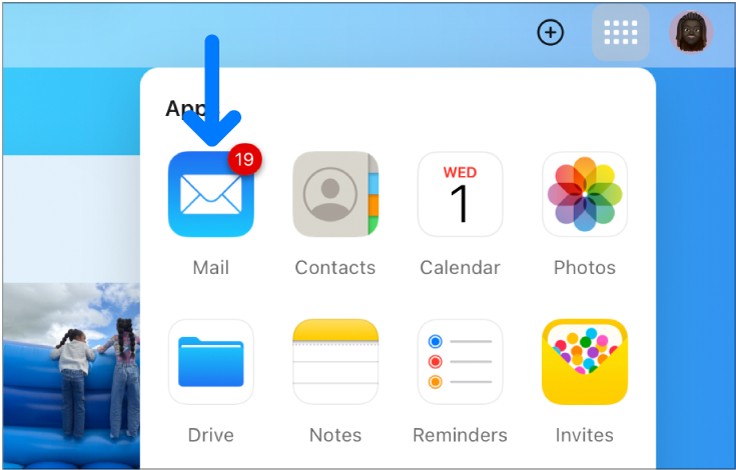
icloud.com/mailon a computer and sign in to iCloud Mail with your Apple Account. - Select Trash in the Mailboxes list.
- Type a sender name or subject in the search field if the Trash holds many messages.
- Select the email; on a Windows PC, Control-click to select several, or Command-click on a Mac.
- Select Move, choose Inbox or another folder, then select Move again.
The restored email appears in that folder on your iPhone, iPad and Mac as well, because iCloud Mail folders sync across devices.
Can you recover iCloud emails without a backup?
iCloud.com can restore earlier versions of contacts, calendars, reminders, bookmarks and iCloud Drive files. Mail is not on that list, so there is no archive to roll back to.
| What happened to the email | Can you get it back? | Where to look |
|---|---|---|
| Deleted less than 30 days ago | Yes | Trash on iCloud.com, iPhone or Mac |
| Archived | Yes, it stays until deleted | Archive folder |
| Moved by a rule or iCloud Mail Cleanup | Yes, unless the action deleted it more than 30 days ago | The rule's folder, Archive, or Trash filtered by Cleanup |
| Hidden by Mail categories | Yes, it was never deleted | Transactions, Updates or Promotions |
| Downloaded earlier by Mail on a Mac | Possibly | Local mailboxes or a Time Machine backup |
| Trash emptied, or deleted more than 30 days ago | No | Ask the sender or recipients to forward a copy |
How to recover deleted iCloud emails on iPhone
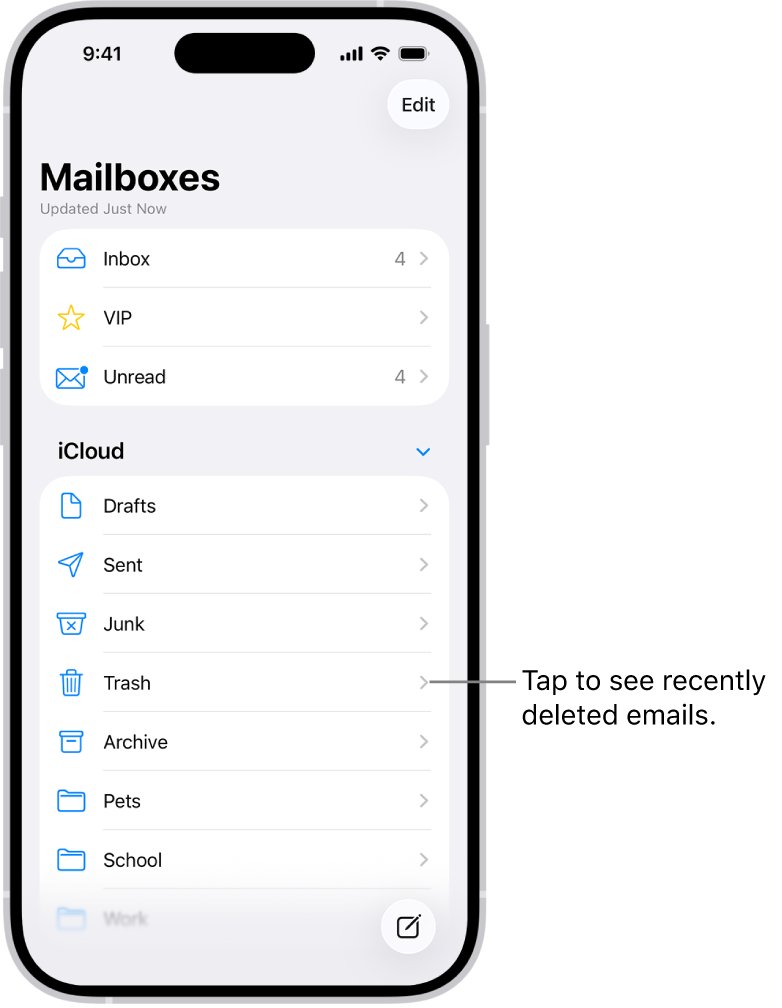
- Open the Mail app on your iPhone.
- Tap the back button until you see Mailboxes.
- Under the iCloud account, tap Trash, then tap the message you want back.
- Tap the move button and choose Inbox or another mailbox.
- To see deleted mail from every account at once, tap Edit on the Mailboxes screen and select All Trash.
The iPhone setting Remove under Mailbox Behaviors controls how long Trash keeps messages. Apple notes iCloud never keeps deleted messages longer than 30 days, even if you choose Never.
How to find old emails in iCloud
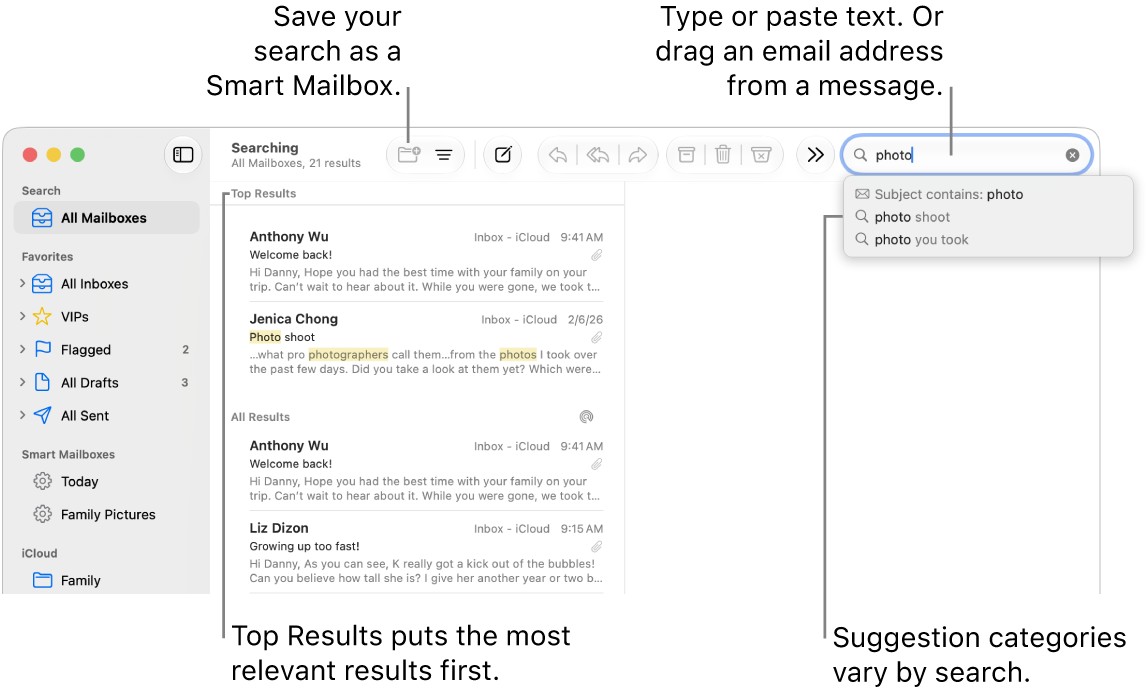
Old messages are often still in the account but buried. iCloud Mail search works one folder at a time, so repeat it in each folder you use.
- Go to
icloud.com/mailand select a folder such as Inbox, Archive or Sent. - Click in the search field above the email list.
- Type a name or word, then choose a suggestion such as Sender contains or Subject contains.
- Type a year such as
2022or a phrase such aslast week, then choose the date suggestion. - Press Enter after each term to combine several, such as a sender and a year.
- Repeat the search in Trash, Junk and any folders you created.
A reply you sent often quotes the original email, so the Sent folder can hold text you thought was lost.
Check the iCloud Mail Archive folder and categories
Archived emails do not expire like Trash does; they stay in Archive until you delete them. Mail categories can also make old messages seem to vanish from the Primary list.
- On
icloud.com/mail, select Archive in the Mailboxes list and search it. - Select Transactions, Updates and Promotions in turn and look for the email.
- Open a message from the sender, select the menu at the top of the list and choose All Messages.
- To show one combined list, open the menu at the top of the Mailboxes list and select Hide Categories.
- Move any email you find back with Move if you want it in the inbox.
If the Delete button in your toolbar was replaced by Archive in Mail settings, emails you thought you deleted may be sitting in Archive.
Check iCloud Mail Cleanup and rules for missing emails
iCloud Mail Cleanup can delete old promotions or archive old transactions on every device. Filtering rules can also move incoming and existing mail into other folders.
- On
icloud.com/mail, select iCloud Mail Cleanup at the bottom of the Mailboxes list and review each active recommendation. - Select Trash, then use the filter above the email list to show emails deleted by iCloud Mail Cleanup.
- Open the menu at the top of the Mailboxes list, choose Settings and select Rules.
- Read each rule's action and note any folder it moves messages to.
- Open those folders and search them for the missing email.
- Select Delete Rule on any cleanup recommendation you no longer want.
Turning off iCloud Mail Cleanup also clears your unsubscribe list and stops it deleting messages from those senders.
Retrieve old iCloud emails from Mail on Mac
Mail on a Mac can keep its own Trash and may have copies of messages it downloaded. Apple says Time Machine backups can restore content that Mail downloaded.
- Open Mail on the Mac and click the Trash mailbox in the sidebar.
- Drag any email you want out of Trash into another mailbox, or choose Message > Move to > a mailbox.
- Search the Mail search field with a date range, for example
date:8/01/21-9/05/21. - Check any local mailboxes in the sidebar that are not under the iCloud account.
- If the Mac has Time Machine backups, restore the Mail content from a date before the email was deleted.
- Select the recovered mailbox and choose Mailbox > Export Mailbox to save an
.mboxcopy.
A restored mailbox can be imported again with File > Import Mailboxes and Apple Mail as the source.
How to tell if an iCloud email is permanently deleted
- Search Trash on
icloud.com/mailfor the sender or subject; if nothing appears, the 30 days may have passed. - Open Settings in iCloud Mail, select Mailbox Behavior and check whether Move deleted messages to is selected.
- If that box was cleared, deleted emails were erased immediately instead of going to Trash.
- Think back to whether Trash was emptied; Apple states emptied emails cannot be recovered.
- Check the mail apps you use, because another app's settings can delete iCloud mail sooner than 30 days.
If every check points to permanent deletion, the only remaining copy is with the people who sent or received the message. Ask them to forward it.
How to keep deleted iCloud emails from being lost
| What you want | Do this | Result |
|---|---|---|
| Keep old mail out of the inbox without deleting it | On iCloud.com, Settings > Viewing > Show Archive button in the toolbar | Messages go to Archive and stay until you delete them |
| Archive instead of delete on iPhone | Settings > Apps > Mail > Mail Accounts > iCloud > Mailbox Behaviors > Archive Mailbox | Swipes and the delete button archive the message |
| Give yourself the full 30 days | On iCloud.com, keep Move deleted messages to selected in Mailbox Behavior | Deleted mail waits in Trash instead of being erased at once |
| Keep a copy outside iCloud | In Mail on Mac, Mailbox > Export Mailbox, or File > Export as PDF | An .mbox or PDF copy you control |
| Clean up without losing important mail | Archive important threads first, then clear the rest | Bulk deletion never touches the archived threads |
Archive the threads you need before you mass delete emails in iCloud Mail, so a broad search cannot sweep them into Trash.
How to get my old iCloud email account back
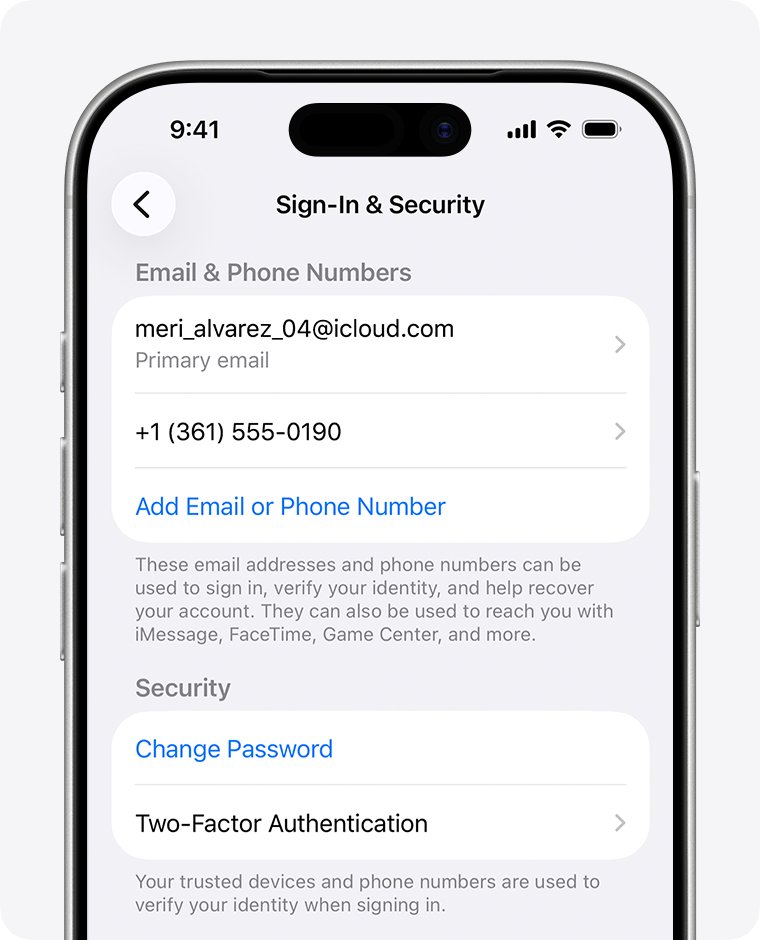
Some searches for old iCloud email are really about an old address, not old messages. Your devices can show which Apple Account email you sign in with.
| Device | Where to find the Apple Account email |
|---|---|
| iPhone or iPad | Settings > [your name] > Sign-In & Security |
| Mac | Apple menu > System Settings > [your name] > Sign-In & Security |
| Windows PC | Open iCloud for Windows and look under your name |
| Web browser | Go to account.apple.com and see whether the sign-in screen remembers the address |
If you no longer have the phone number or email tied to that account, start iCloud account recovery to regain access to its mail.
How to recover lost emails in iCloud
iCloud emails disappeared from the inbox but are not in Trash
A rule, a cleanup recommendation, Archive or a category moved them.
- Search Archive and every custom folder on
icloud.com/mail. - Check Settings > Rules for actions that move mail.
- Look in Transactions, Updates and Promotions, or select Hide Categories.
Deleted iCloud emails are not in Trash at all
Move deleted messages to was turned off, or the Trash was emptied.
- Open Settings > Mailbox Behavior on iCloud.com.
- Select Move deleted messages to so future deletions go to Trash.
- Check Mail on any Mac you use for a local copy or a Time Machine backup.
Emails vanished from Trash sooner than 30 days
Another mail app's settings deleted them early.
- On iPhone, open Settings > Apps > Mail > Mail Accounts > iCloud > Mailbox Behaviors.
- Tap Remove and choose a longer interval.
- On Mac, open Mail > Settings > Accounts > Mailbox Behaviors and change Erase deleted messages.
Deleted a whole folder of iCloud emails
Deleting a folder deletes every email and subfolder inside it.
- Search Trash for messages from that folder's senders.
- Create a new folder and move the recovered messages into it.
- Update any rule that pointed to the deleted folder.
iCloud keeps asking for an old email address
A device is still signed in with an older Apple Account.
- Check Settings > [your name] > Sign-In & Security on each device.
- Sign in with the account that holds the old mail.
- Clear the old address prompt with the iCloud old email sign-in fixes.
Recover iCloud emails FAQ
How do I recover deleted iCloud emails?
Open Trash on icloud.com/mail, the Mail app on iPhone or Mail on Mac, select the email and move it to another folder. This works for 30 days after deletion, unless the Trash was emptied first.
How do I retrieve deleted iCloud emails after 30 days?
iCloud erases Trash messages permanently after 30 days, and iCloud.com has no Mail restore. Look for copies in Archive, other folders, Mail on a Mac or a Time Machine backup, or ask the sender to forward the email.
How do I find old emails in iCloud?
Select a folder on icloud.com/mail, click the search field and type a sender, subject or year such as 2022. Search works per folder, so repeat it in Inbox, Archive, Sent, Trash, Junk and your own folders.
Can I recover emails after emptying the iCloud Trash?
No. Apple states that emails are permanently deleted when you empty the Trash and cannot be recovered. A copy can survive only outside iCloud, for example in a Mac mail export, a Time Machine backup or the other person's mailbox.
How do I retrieve emails from iCloud on iPhone?
Open Mail, tap back until you see Mailboxes, then tap Trash or Archive under iCloud. Tap the message, tap the move button and choose Inbox. Use the All Trash mailbox to search deleted mail across accounts.
How do I get my old iCloud email back?
If you mean the address, check Settings, your name, Sign-In & Security on an iPhone, or the name area in iCloud for Windows. If you can no longer sign in, use Apple Account recovery to regain access to the mailbox.
How do I recover an iCloud email account?
First find the address under Sign-In & Security on any iPhone or Mac still signed in. If you know the address but cannot sign in, reset the password or request Apple Account recovery, then open icloud.com/mail once access returns.
How do I retrieve email from iCloud on a Windows PC?
Sign in at icloud.com/mail in a browser on the PC. Open Trash or Archive, Control-click to select several messages, then select Move and choose Inbox to restore them.