To transfer all files from one iCloud account to another, download a copy of the old account's iCloud Drive files, photos, contacts and calendars, then upload them while signed in to the new Apple Account.
Apple has no merge tool for iCloud data, so this guide covers each data type on iCloud.com, Mac, iPhone and iPad, plus moving App Store purchases and fixing failed uploads.
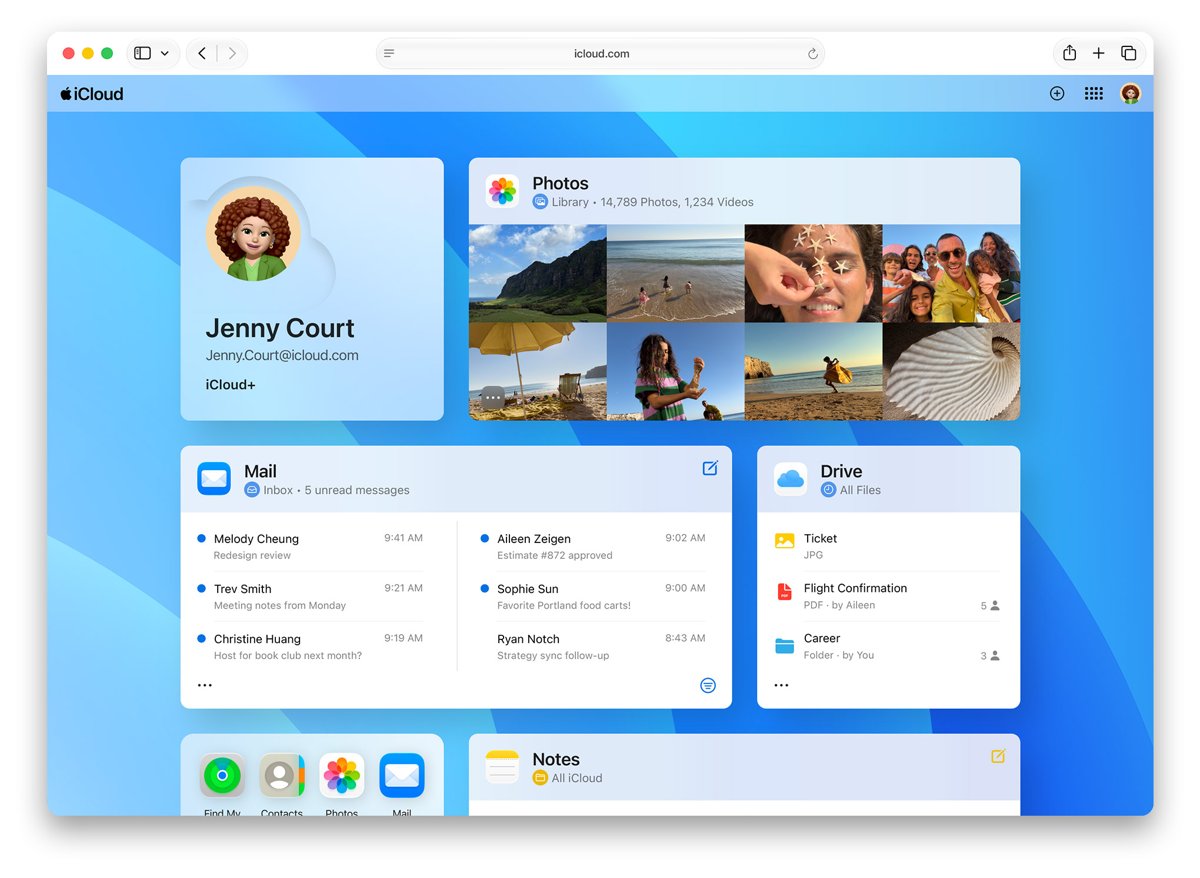
How to move iCloud Drive files to another Apple Account
This route works from any computer browser and needs no Apple device. Repeat it folder by folder for a large drive, or download iCloud Drive files straight to an external drive if the computer is short on space.
- On a computer, go to icloud.com/iclouddrive and sign in with the old Apple Account.
- Select the files you want, then select the download button in the iCloud Drive toolbar. The files save to your browser's download folder.
- Sign out of iCloud.com, then sign in at icloud.com/iclouddrive with the new Apple Account.
- Select the upload button in the iCloud Drive toolbar, choose the downloaded files and select Upload, or drag them into the iCloud Drive window.
- Open the Files app on iPhone or iPad, or the Finder on Mac, while signed in to the new account to see the uploaded files.
What can you transfer between iCloud accounts?
Apple keeps iCloud data tied to the account that stored it. Even Apple's purchase migration tool states that iCloud data doesn't migrate out of the other account, so every data type is copied out and back in.
| Data | How to copy it out | How to add it to the new account |
|---|---|---|
| iCloud Drive files | Download on iCloud.com, or copy from Finder or the Files app | Upload on iCloud.com, or paste into iCloud Drive |
| Photos and videos | Download on iCloud.com, or export from Photos on Mac | Upload at icloud.com/photos |
| Contacts | Export a vCard at icloud.com/contacts | Import the vCard at icloud.com/contacts |
| Calendars | Export an .ics file from Calendar on Mac | Import the .ics file into an iCloud calendar on Mac |
| iCloud Mail | Copy messages to an On My Mac mailbox in Mail | Move them into the new account's mailbox |
| Notes and voice memos | Export notes as PDF or Markdown on Mac; duplicate or share voice memos | Save the copies to iCloud Drive on the new account |
| Apps, music and media purchases | Use Migrate Purchases on iPhone or iPad | Purchases move to the primary account |
| Apple Cash and Apple Card | Can't be transferred | Stay linked to the original Apple Account |
Check iCloud storage on the new Apple Account
The new account needs enough free iCloud storage for everything you move. A full account stops uploads partway through.
- Go to icloud.com/storage and sign in with the new Apple Account.
- Read the storage bar to see how much space is used and how much is free.
- Sign in with the old account the same way and note how much each app and feature uses.
- If the new account is too small, select Upgrade iCloud+ Plan or Change iCloud Plan on iCloud.com.
- Finish the purchase on an Apple device signed in to the new account, because iCloud.com only starts it.
Transfer iCloud Drive files to another iCloud account on Mac
On a Mac, Finder copies whole folders at once, which is faster than downloading from iCloud.com. Optimized files download to the Mac before they are copied.
- Click iCloud Drive in the sidebar of any Finder window while signed in to the old account.
- Select the files and folders you want, choose Edit > Copy, then paste them into a folder on the Mac or an external drive.
- Choose Apple menu > System Settings, click your name, then click Sign Out.
- If you want iCloud data left on the Mac, select the checkboxes and click Keep a Copy, then click Sign Out.
- Sign in to System Settings with the new Apple Account and turn on iCloud Drive.
- Drag the copied files from the local folder into iCloud Drive in the Finder sidebar.
Before you sign out, open System Settings, click your name, then click iCloud and make sure the status icon is green. A yellow or red icon means changes are still syncing, and you can refresh iCloud Drive to push them through.
Transfer iCloud Drive files to another iCloud account on iPhone or iPad
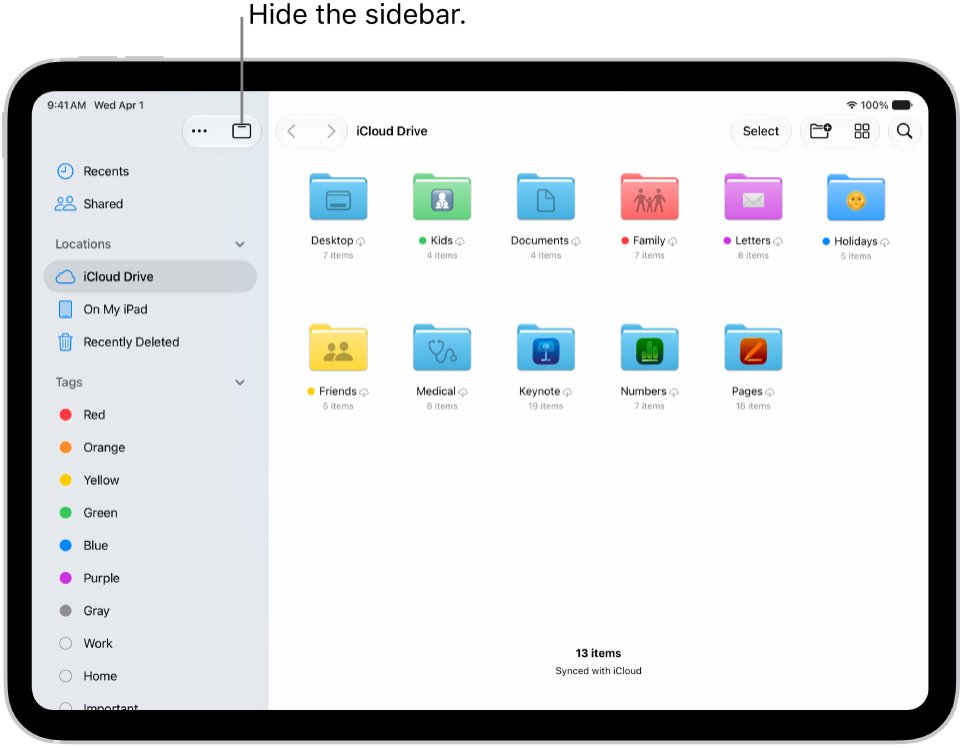
The Files app can copy iCloud Drive to the device's own storage, so the files stay on the device while you switch accounts.
- Open the Files app and tap iCloud Drive under Locations.
- Tap the More button, tap Select, then choose the files and folders you want.
- Tap More, then tap Copy Items.
- Go to On My iPhone or On My iPad under Locations, touch and hold a folder, then tap Paste.
- Open Settings, tap your name, tap Sign Out, choose Sign Out But Don't Erase, then tap Confirm and Sign Out.
- Sign in with the new Apple Account in Settings and turn on iCloud Drive.
- In Files, copy the folders from On My iPhone or On My iPad and paste them into iCloud Drive.
Copying a file out of a shared iCloud Drive folder does not copy its sharing access, so share it again from the new account.
Transfer iCloud photos to another Apple Account
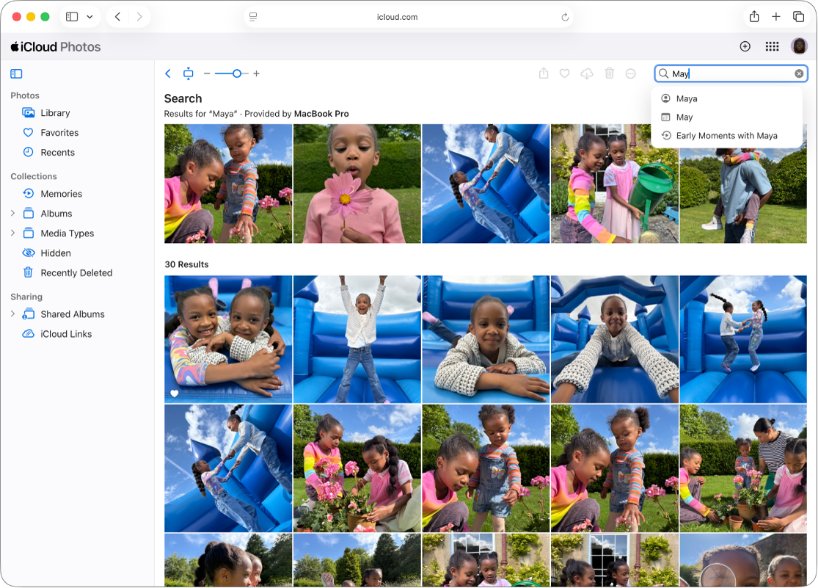
Photos uploaded at icloud.com/photos go into the new account's iCloud Photos library and appear on every device with iCloud Photos turned on, where you can check the iCloud Photos sync status.
- On a Mac, open Photos, select the photos and videos, then choose File > Export. On a computer browser instead, go to icloud.com/photos, select the items and click the download button.
- Sign out of the old account on iCloud.com and sign in at icloud.com/photos with the new Apple Account.
- Select Library in the sidebar, or an album, then select the upload button.
- Choose the exported photos and videos and click Upload.
- Wait for the upload to finish, then check that the items appear in Library.
On a computer, click the download button's options and choose More Download Options to pick the file format before you download.
To upload into an iCloud Shared Photo Library rather than your personal library, use the Photos app on iOS 16.1, iPadOS 16, macOS 13 or later.
Transfer iCloud contacts to another iCloud account
- Go to icloud.com/contacts on a computer and sign in with the old Apple Account.
- Select the options button, then choose Select All Contacts.
- Select the options button again, then choose Export vCard. All selected contacts save as one vCard file.
- Sign out, then sign in at icloud.com/contacts with the new Apple Account.
- Select the options button, choose Import vCard and select the file you exported.
- Check the All Contacts list; each person in the file becomes a separate contact.
A vCard does not carry contact lists. Drag imported contacts into new lists on iCloud.com if you used them.
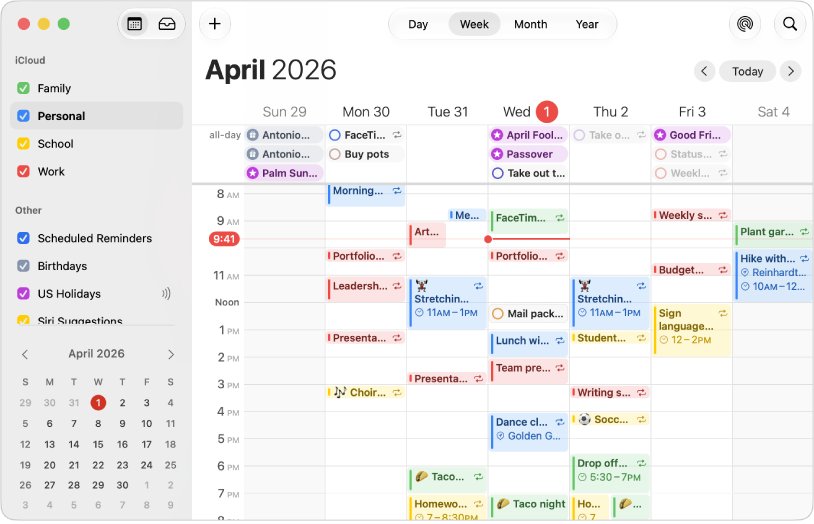
Transfer iCloud calendars to another iCloud account on Mac
- Open Calendar on the Mac while it is signed in to the old account.
- Click the calendar's name in the calendar list. Choose View > Show Calendar List if the list is hidden.
- Choose File > Export > Export, pick a location and click Export to save an .ics file.
- Repeat for each calendar, then sign in to the Mac with the new Apple Account.
- In Calendar, create a new iCloud calendar if needed, then choose File > Import.
- Select the .ics file, click Import, choose the calendar to add the events to, then click OK.
Imported events lose their custom color. iCloud Calendar keeps events from the last six months and up to three years ahead, so older events may not be in the export.
Move iCloud email to another iCloud account on Mac
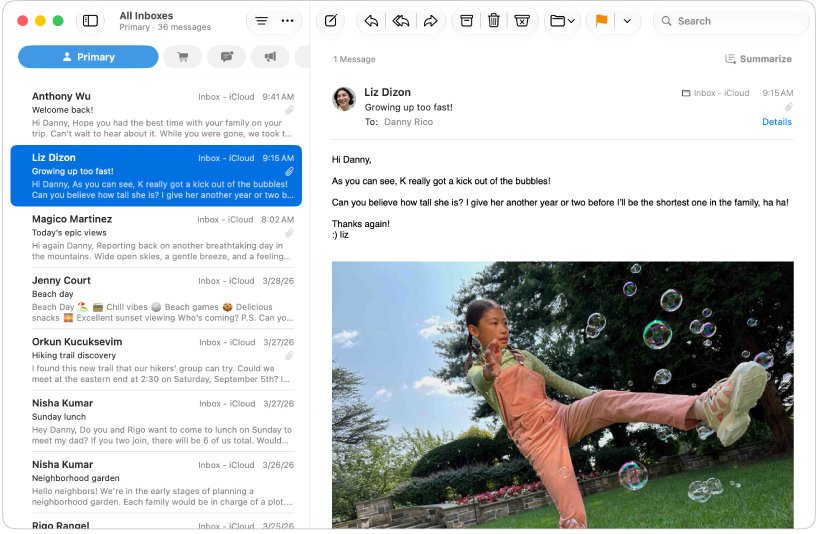
Apple Mail on Mac can copy messages out of iCloud into a local mailbox, which keeps them while you change accounts.
- In Mail, choose Mailbox > New Mailbox, set Location to On My Mac, enter a name and click OK.
- Select the old account's iCloud inbox in the sidebar and select the messages you want.
- Hold the Option key while you drag them to the new mailbox, or choose Message > Copy to and pick the mailbox.
- To keep a full backup, select the iCloud inbox and choose Mailbox > Export Mailbox to save an mbox archive.
- Add the new iCloud account to Mail, select the messages in the On My Mac mailbox, and choose Message > Move to with a mailbox in the new account.
If you want both iCloud addresses in Mail at once, you can add a second iCloud account for email only.
Copy iCloud Notes and voice memos to a new iCloud account
- On a Mac, open Notes and select a note.
- In macOS Tahoe or later, choose File > Export To or Export as, then pick PDF or Markdown. In macOS Sequoia or earlier, choose File > Export as PDF.
- Save each exported note to a local folder.
- On iPhone or iPad, open Voice Memos, tap a recording, tap Share and save it to Files on the device.
- After you sign in with the new Apple Account, copy the exported notes and recordings into iCloud Drive.
Migrate purchases from one Apple Account to another
Apps, music, movies, TV shows and books bought on a secondary Apple Account can move to your primary account. iCloud data does not move with them.
- Sign in to iCloud on the iPhone or iPad with the primary account, and to Media & Purchases with the secondary account.
- Turn on two-factor authentication for both accounts, set both to the same country or region, and spend any balance on the secondary account.
- Update the iPhone or iPad to the latest iOS or iPadOS version.
- Open Settings, tap your name, then tap Media & Purchases > View Account.
- Scroll down, tap Migrate Purchases, review both accounts and follow the tasks.
- When you see Purchases Have Been Migrated, sign out of the secondary account in Media & Purchases and sign in with the primary account.
After a migration, the secondary account can no longer be used for Media & Purchases. Its iCloud data stays reachable on iCloud.com.
iCloud files not transferring to the new account
Upload to the new iCloud account stops or fails
The new account is out of iCloud storage.
- Check free space at icloud.com/storage.
- Upgrade the new account's iCloud+ plan and finish the purchase on an Apple device.
- Upload the remaining files in smaller batches.
Upload button missing in iCloud Drive on iCloud.com
You are viewing the Recently Deleted or Shared folder.
- Open a regular folder or the top level of iCloud Drive.
- Select the upload button again.
- For Pages, Numbers or Keynote folders, upload only files that app can open.
Files missing after signing out of the old iCloud account
iCloud data is removed from the device unless you keep a copy when signing out.
- Sign in to iCloud.com with the old Apple Account; the data is still stored in iCloud.
- Download the missing files from iCloud.com.
- Upload them to the new account.
Migrate Purchases is missing
One of the accounts does not meet Apple's eligibility rules.
- Make sure neither account is a Family Sharing child account or already used for a migration.
- Remove the secondary account from Family Sharing and stop any TestFlight testing on it.
- Confirm only one of the accounts has Apple Music library data.
Transfer iCloud data to another account FAQ
Can you merge two iCloud accounts?
No. Apple has no tool that merges iCloud data between Apple Accounts. You copy files, photos, contacts and calendars out of one account and upload them to the other. Only purchases can be migrated, and only to a primary account.
Can I transfer iCloud storage to another account?
No. iCloud storage space belongs to the account's iCloud plan. Check the new account's free space at icloud.com/storage and upgrade its iCloud+ plan if the files you are moving need more room.
Does signing out of iCloud delete my files?
No. Information stored in iCloud stays in iCloud after you sign out. The device removes its local copy unless you choose to keep a copy, so sign back in at iCloud.com to download anything you need.
How do I transfer all files from iPhone to PC?
For iCloud Drive files, sign in at icloud.com/iclouddrive on the PC, select the files and select the download button. They save to the browser's download folder, ready to upload to another Apple Account.
Do purchases transfer when I move to a new Apple Account?
Purchases move only with Migrate Purchases, from a secondary Apple Account used for Media & Purchases to the primary account signed in to iCloud. Both accounts need two-factor authentication and the same country or region.
Will shared iCloud folders keep their sharing after the transfer?
No. Copying a file out of a shared iCloud Drive folder does not copy its sharing access. Share the folder again from the new account and send the new link to the same people.
How do I transfer all files from Mac to a new iCloud account?
Copy the iCloud Drive files from Finder to a local folder, sign out of the old Apple Account in System Settings, sign in with the new one, then drag the files into iCloud Drive in the Finder sidebar.